


・
UiPath vs Power Automate: Common Drawbacks Reported by Users

- Common Drawbacks of UiPath: What Real Users Say
- Common Drawbacks of Power Automate: What Real Users Say
- UiPath vs. Power Automate: A Quick Guide to Choosing the Right Tool
- Still Can't Decide? Consider Other Automation Tools
- What to Consider Before Choosing an Automation Platform
- Consider an Automation Platform That Supports Both RPA and Non-RPA Automation
Choosing an automation platform involves more than comparing features, integrations, and pricing. It is also important to understand the challenges users may encounter when building, running, and maintaining automations.
UiPath and Microsoft Power Automate are two popular automation platforms, but they take somewhat different approaches to business automation. UiPath is primarily known for its enterprise RPA capabilities, while Power Automate combines cloud-based workflow automation with robotic process automation (RPA) through Power Automate Desktop.
But what do real users say about their drawbacks?
To find out, we analyzed user feedback from Reddit and software review platforms, including G2. This article explores the common concerns reported by UiPath and Power Automate users, from technical limitations and unreliable automation to licensing complexity, development difficulties, and maintenance challenges.
By understanding these recurring issues, you can make a more informed decision when comparing UiPath vs. Power Automate and choosing an automation platform that fits your organization's needs.
Common Drawbacks of UiPath: What Real Users Say
UiPath is an enterprise RPA platform designed to automate repetitive tasks by interacting with applications, websites, and desktop environments.
It provides a visual development environment and a range of capabilities for building and managing automation processes. However, some users have reported challenges involving technical limitations, reliability, maintenance, and development complexity.
To understand why some users consider UiPath alternatives, we analyzed negative feedback from Reddit,G2 and Capterra.
What the Data Reveals
The following ranking summarizes the most common concerns identified in the collected UiPath feedback.
*A single post or review could mention multiple concerns, so the percentages may not add up to exactly 100% due to rounding.
Common Challenges with UiPath Reported by Users: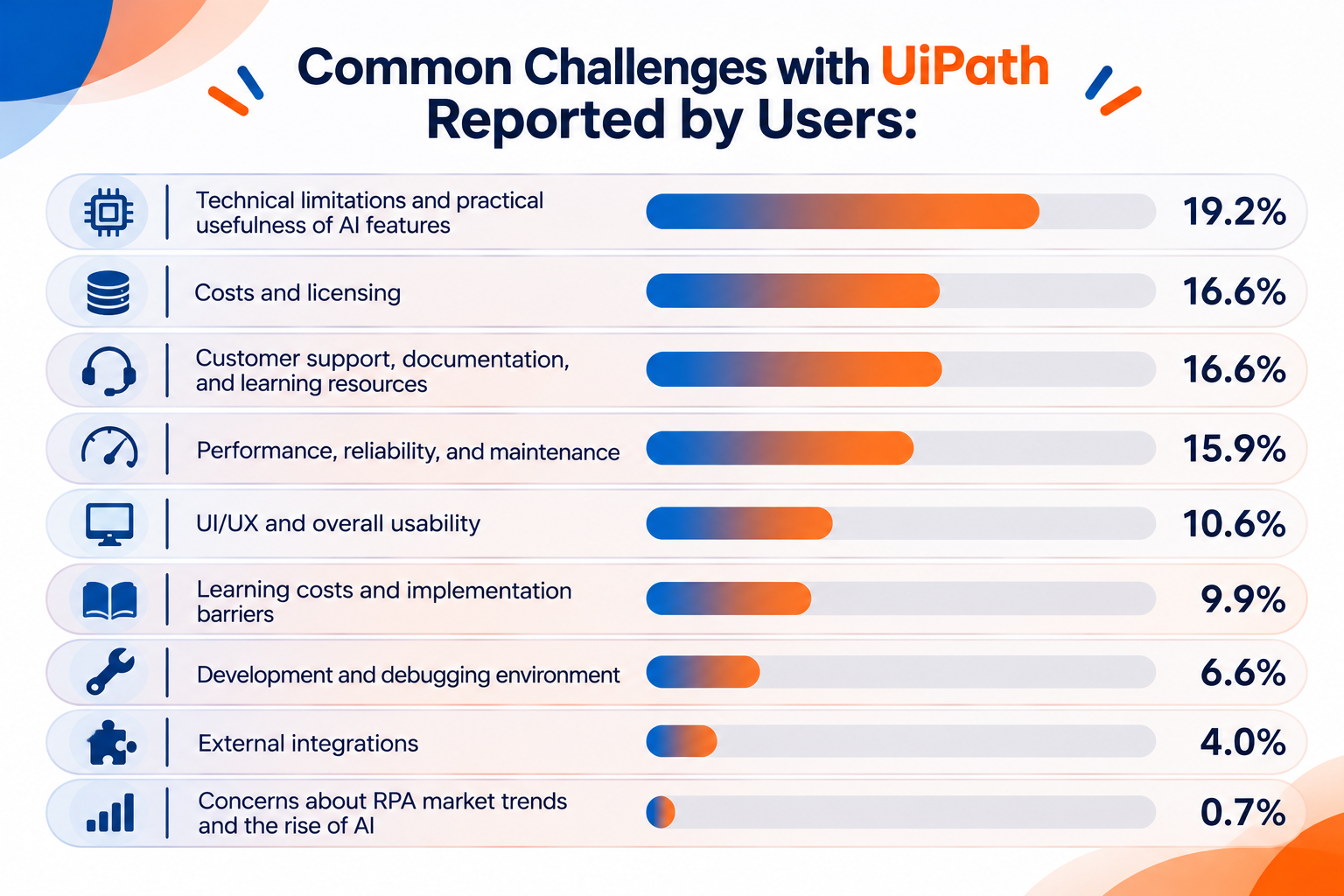
- Technical limitations and practical usefulness of AI features: 19.2%
- Costs and licensing: 16.6%
- Customer support, documentation, and learning resources: 16.6%
- Performance, reliability, and maintenance: 15.9%
- UI/UX and overall usability: 10.6%
- Learning costs and implementation barriers: 9.9%
- Development and debugging environment: 6.6%
- External integrations: 4.0%
- Concerns about RPA market trends and the rise of AI: 0.7%
1. Technical Limitations and AI Functionality
Technical limitations and concerns about AI functionality were the most frequently reported issues, accounting for 19.2% of the negative feedback.
Although UiPath offers AI-powered capabilities, some users questioned whether these features were sufficiently reliable for practical business use.
For example, users described:
- Inaccurate invoice extraction using Document Understanding (DU), causing implementation projects to struggle or fail.
- Concerns about Communications Mining requiring large volumes of emails before producing practically useful results.
- Difficulties with screen-based automation when application interfaces change.
- Problems with Remote Runtime in environments accessed through BeyondTrust.
- Technical barriers when uploading models to AI Fabric.
Another recurring concern involved UiPath's reliance on screen scraping and UI-based interactions.
As more business applications provide APIs and direct integration options, some users questioned whether relying heavily on screen-based automation is becoming less practical.
These limitations can affect organizations that need reliable data extraction, complex integrations, or automation across different environments.
When evaluating alternatives, consider whether a platform supports multiple automation approaches, including application integrations, APIs, AI-powered processing, and RPA.
2. Costs and Licensing
Costs and licensing accounted for 16.6% of the negative feedback.
Some users expressed frustration with the cost of accessing UiPath, particularly for individual users, smaller teams, and organizations planning to scale automation.
Common concerns included:
- Reduced availability of free Community Edition options for new users.
- Subscription costs that can make individual learning and experimentation expensive.
- Increasing licensing expenses as organizations expand their automation usage.
- Difficulty justifying the return on investment when deploying automation across multiple departments.
- Limited pricing transparency for enterprise cloud offerings.
For example, some users expressed frustration that the cost of accessing UiPath could reach approximately $420 per month, making it difficult to justify for personal learning or smaller projects.
Others raised concerns about the growing cost of deploying additional automation agents across an organization.
These issues can make it difficult for businesses to estimate the total cost of ownership before committing to the platform.
When comparing alternatives, consider not only the initial subscription price but also how costs change as automation usage increases.
3. Customer Support, Documentation, and Learning Resources
Customer support, documentation, and learning resources also accounted for 16.6% of the negative feedback.
Some users expressed dissatisfaction with the quality and responsiveness of UiPath's support services.
Reported concerns included:
- Receiving links to existing documentation instead of practical solutions to technical problems, even when using premium support.
- Long periods without meaningful responses to support requests.
- Incorrect version information in installation documentation.
- Authentication problems involving multiple email addresses in UiPath Academy.
- Differences between official certification exam materials and the actual exam content.
- Concerns about the delivery quality of professional implementation services.
These issues can make it difficult for users to resolve technical problems and implement automation projects efficiently.
Documentation and support are particularly important for enterprise RPA platforms, where automation processes may involve multiple systems and complex configurations.
When evaluating alternatives, consider the availability of practical documentation, learning resources, and support channels.
4. Performance, Reliability, and Maintenance
Performance, reliability, and maintenance accounted for 15.9% of the negative feedback.
Some users reported problems following software updates, unexpected errors, and instability during automation execution.
Examples included:
- UiPath Assistant's graphical interface becoming unavailable after upgrading between versions, such as from 23.10 to 25.10.
- Server errors, including HTTP 500 and 429 Too Many Requests responses.
- Web scraping processes stopping unexpectedly after processing only a few pages.
- UI Explorer crashes during development.
- Automation flows breaking whenever application interfaces changed.
These issues can create additional work for teams responsible for maintaining large numbers of automation processes.
One particular concern involved using UiPath as an automated QA testing tool. Some users found that UI changes repeatedly broke their test flows, resulting in significant maintenance work.
This highlights an important consideration: an automation platform should not only be able to execute processes successfully but also remain manageable as applications and business requirements change.
When comparing alternatives, evaluate how reliably automations run over time and how easily teams can identify and resolve failures.
5. UI/UX and Overall Usability
UI/UX and overall usability accounted for 10.6% of the negative feedback.
Although UiPath provides a visual development environment, some users found that certain modules and development features were difficult to use.
Common concerns included:
- Poor usability in additional modules such as Test Suite.
- Inconsistent drag-and-drop behavior when configuring activities.
- Difficulty navigating large automation projects.
- Development interfaces that become cumbersome as processes grow.
- Excessive GUI interactions for tasks that developers consider relatively straightforward.
These issues can affect development productivity, particularly when teams manage large and complex automation projects.
A visual interface does not necessarily guarantee a simple development experience.
When evaluating alternatives, consider how easily users can build, navigate, understand, and maintain automation processes.
6. Learning Costs and Implementation Barriers
Learning costs and implementation barriers accounted for 9.9% of the negative feedback.
Some users felt that UiPath was more difficult to learn than its low-code positioning initially suggested.
Reported challenges included:
- Difficulty understanding loops and conditional logic without programming experience.
- Taking several months to become capable of building practical automation processes.
- Difficulty learning UiPath without access to a production-like environment.
- A gap between the platform's beginner-friendly marketing and the technical knowledge required for real-world implementation.
Although UiPath offers visual tools and learning resources, building advanced automations still requires users to understand variables, conditions, data structures, and debugging.
This can create a barrier for organizations that want non-technical employees to build and maintain their own automations.
Before choosing a platform, consider who will actually develop the automations and how much training they will need.
7. Development and Debugging Environment
Development and debugging environment concerns accounted for 6.6% of the negative feedback.
Some developers reported limitations in the tools available for troubleshooting and managing complex automation projects.
Common concerns included:
- Inability to easily return to previous execution steps during debugging.
- Limited flexibility to directly modify variable values during an ongoing execution.
- Having to restart automations from the beginning after encountering errors.
- Difficulties sharing code and managing version control.
- Package dependency conflicts and collaboration problems in team development environments.
These limitations can increase the time required to develop and troubleshoot automation processes.
For teams building large numbers of automations, debugging flexibility and collaboration capabilities become particularly important.
When evaluating alternatives, consider how easily developers can test different scenarios, isolate errors, reuse components, and collaborate on automation projects.
8. External Integrations
External integration concerns accounted for 4.0% of the negative feedback.
Although UiPath supports integrations with various applications and services, some users reported difficulties connecting external tools.
One example involved Office 365 integration through Azure, where users continued to encounter authentication errors despite configuring the required permissions.
Integration issues can create additional development work, particularly when automation processes depend on multiple business applications.
Before choosing a platform, verify that the required connectors, authentication methods, and API operations are supported in your actual environment.
9. Concerns About RPA Market Trends and the Rise of AI
Concerns about RPA market trends and the rise of AI accounted for 0.7% of the negative feedback.
A small number of discussions questioned the long-term value of traditional RPA skills as generative AI and intelligent automation continue to develop.
One concern was that automation technologies heavily dependent on screen interactions and rule-based processes could become less valuable as AI-powered approaches evolve.
This also raised questions about the long-term transferability of skills developed around specific RPA platforms.
Although this concern appeared less frequently than other issues, it highlights a broader consideration for businesses: whether an automation platform can adapt as automation technologies and business needs evolve.
Common Drawbacks of Power Automate: What Real Users Say
Microsoft Power Automate is an automation platform designed to connect applications and automate business processes, particularly within the Microsoft ecosystem.
It offers cloud flows for connecting applications and services, as well as Power Automate Desktop for automating tasks through desktop applications and user interfaces.
However, users have reported several challenges involving licensing, execution reliability, debugging, and complex workflow configurations.
We analyzed negative user feedback from Reddit and G2 to identify the most frequently reported drawbacks.
What the Data Reveals
The following ranking combines the categorized negative feedback collected from Reddit and G2.
*A single post or review may mention more than one concern, so the percentages do not add up to 100%.
Common Challenges with Power Automate Reported by Users: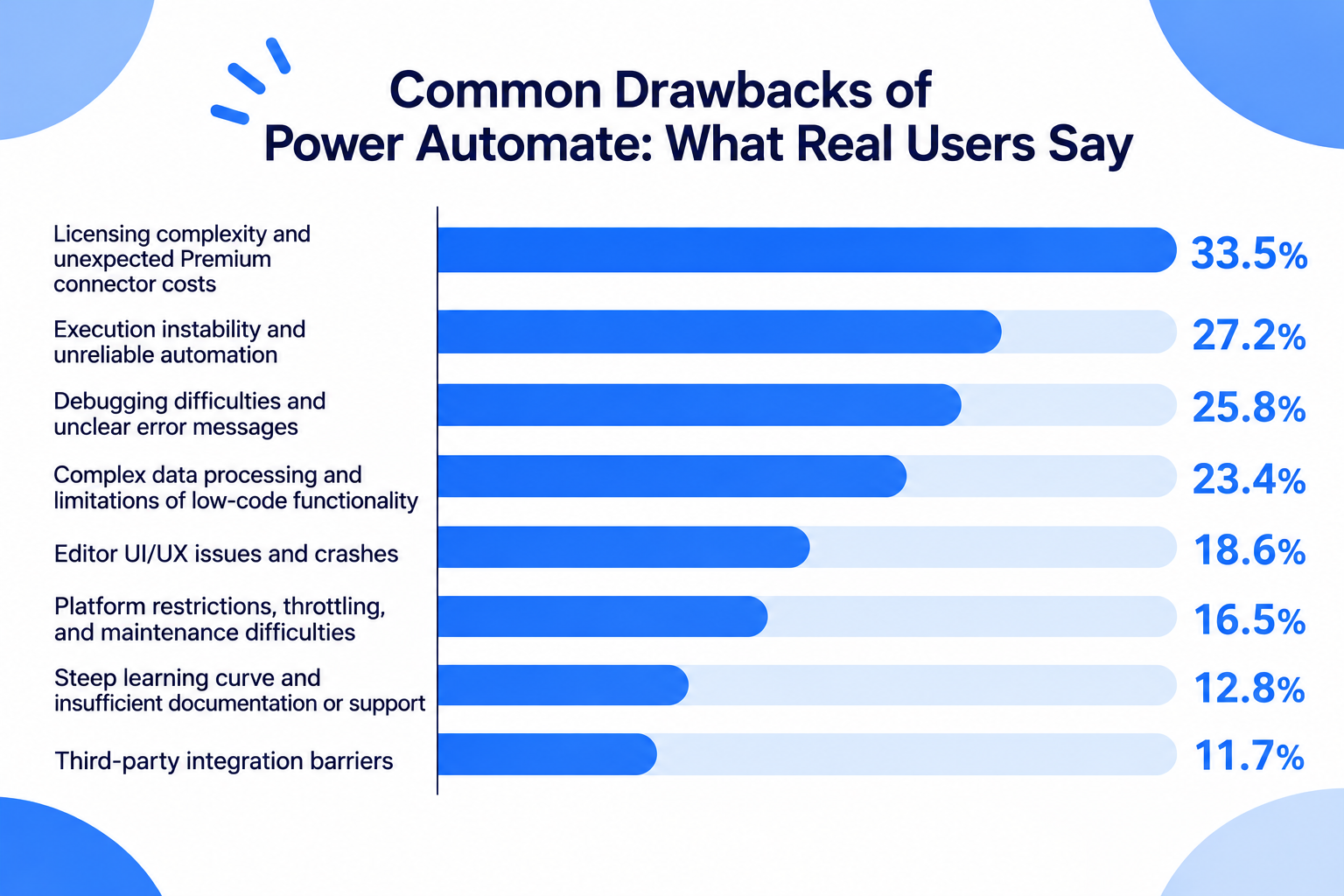
- Licensing complexity and unexpected Premium connector costs: 33.5%
- Execution instability and unreliable automation: 27.2%
- Debugging difficulties and unclear error messages: 25.8%
- Complex data processing and limitations of low-code functionality: 23.4%
- Editor UI/UX issues and crashes: 18.6%
- Platform restrictions, throttling, and maintenance difficulties: 16.5%
- Steep learning curve and insufficient documentation or support: 12.8%
- Third-party integration barriers: 11.7%
1. Licensing Complexity and Unexpected Premium Connector Costs
Licensing complexity and unexpected Premium connector costs were the most frequently reported concern, accounting for 33.5% of the negative feedback.
Although Power Automate is often associated with Microsoft 365, users may discover that certain features and connectors require additional licenses.
Common examples included:
- SQL Server connections requiring Premium licensing.
- HTTP requests and Word template generation requiring additional licenses.
- On-premises data gateway functionality involving additional licensing requirements.
- Confusion about Per User, Per Flow, and Process licensing models.
- Uncertainty about multiplexing rules and indirect access to Premium flows.
- Unexpected restrictions following licensing or product changes.
These issues can make it difficult for businesses to estimate the actual cost of their automation projects.
For example, users who initially expect to automate processes using their existing Microsoft 365 subscriptions may discover that connecting external databases or using specific actions requires a more expensive plan.
Understanding the licensing requirements before building workflows is therefore essential, particularly for organizations planning to scale automation across multiple departments.
2. Execution Instability and Unreliable Automation
Execution instability and unreliable automation accounted for 27.2% of the negative feedback.
Users reported problems with both cloud flows and Power Automate Desktop (PAD), including situations where automations stopped working despite previously successful configurations.
The specific issues mentioned included:
- Desktop flow UI elements becoming unrecognizable after browser updates or interface changes.
- Delays of approximately 30–40 seconds between cloud triggers and desktop flow execution.
- Intermittent 500 Internal Server Errors.
- File-locking problems during simultaneous executions.
- Inconsistent results when multiple users or workflows access the same resources.
These issues can make it difficult to rely on Power Automate for processes that require consistent and timely execution.
For example, desktop automation may fail when a website's layout or an application's UI elements change, even if the overall workflow remains unchanged.
Similarly, concurrent executions can create conflicts when multiple workflows attempt to access or update the same files.
For businesses relying on automation for daily operations, these problems can increase the need for monitoring and manual intervention.
3. Debugging Difficulties and Unclear Error Messages
Debugging difficulties and unclear error messages accounted for 25.8% of the negative feedback.
Users expressed frustration with error messages that did not clearly explain what went wrong or where a problem originated.
Common examples included:
- Generic error messages such as unknownError.
- ActionBranchingConditionNotSatisfied errors that are difficult to interpret.
- Errors within nested scopes that do not clearly identify the failed action.
- Misleading errors displayed in the editor.
- Slow flow saving and execution history loading.
- Silent failures that make troubleshooting difficult.
For complex workflows, identifying the actual source of an error can require considerable time.
For example, when an action inside a Scope fails, users may find it difficult to identify the specific step responsible for the failure through the available error information.
This can make debugging particularly challenging when workflows contain multiple conditions, nested actions, and dependencies.
As a result, even relatively small changes may require significant time to test and troubleshoot.
4. Complex Data Processing and Limitations of Low-Code Functionality
Complex data processing accounted for 23.4% of the negative feedback.
Although Power Automate offers a visual, low-code interface, users may encounter technical difficulties when working with more complicated data structures.
Reported issues included:
- Unexpected Apply to each loops being generated when handling arrays or JSON data.
- Difficulties working with nested arrays and multiple-choice SharePoint columns.
- String and integer type mismatches causing condition failures.
- Date and time zone conversion problems.
- Long and complicated expressions required for data transformation.
For example, when users work with data from SharePoint or Excel, values may be interpreted as strings rather than numbers.
This can cause unexpected results in conditions and calculations unless additional type-conversion expressions are configured.
Date and time handling can also require multiple expressions, such as formatDateTime and convertToUtc, to ensure that information is transferred correctly between applications.
These limitations can make advanced automation more complicated than users initially expect from a low-code platform.
5. Editor UI/UX Issues and Unexpected Crashes
Editor UI/UX issues and crashes accounted for 18.6% of the negative feedback.
Users reported problems with the flow editor, including interface changes that made existing workflows more difficult to manage.
Some of the recurring concerns included:
- AND conditions unexpectedly disappearing after saving a flow in the new editor.
- Browser crashes caused by memory limitations when editing large workflows.
- Difficulty navigating and maintaining complex flows.
- Frequently used actions, such as Compose and Initialize variable, not being easily accessible through pinned shortcuts.
These problems can interrupt the development process and make routine workflow maintenance more time-consuming.
For teams managing large automations with many steps and conditions, editor performance and usability can become important considerations.
6. Platform Restrictions, Throttling, and Maintenance Difficulties
Platform restrictions and operational limitations accounted for 16.5% of the negative feedback.
Users mentioned several technical restrictions that could affect automation reliability and scalability.
Common examples included:
- SharePoint delegation limits affecting queries involving more than 5,000 records.
- Daily action limits and throttling when usage exceeds available capacity.
- Workflow failures caused by changes to SharePoint column names.
- Connection issues following account password changes.
- Difficulties identifying dependencies between multiple workflows.
These restrictions can become particularly problematic as businesses expand their automation usage.
For example, a change to a SharePoint column name may affect multiple workflows that depend on that field.
Without clear visibility into these dependencies, identifying all affected automations can become a time-consuming task.
As the number of connected workflows increases, maintaining them can require more coordination and careful management.
7. Steep Learning Curve and Insufficient Documentation or Support
Learning difficulties and documentation or support concerns accounted for 12.8% of the negative feedback.
Although Power Automate provides templates and a visual interface, users may find that building more advanced workflows requires considerably more technical knowledge.
Reported concerns included:
- Difficulty moving beyond standard templates.
- Complicated expressions and data transformation requirements.
- Conflicting or outdated official documentation.
- Uncertainty surrounding changes such as the migration from Exchange Web Services (EWS) to Microsoft Graph.
- Slow customer support responses and difficulties resolving technical issues.
Some users described waiting several weeks or even months for meaningful responses to support requests.
For businesses that rely on automation for important processes, insufficient documentation and delayed support can make it difficult to resolve problems quickly.
This suggests that access to learning resources and effective technical support should also be considered when evaluating an automation platform.
8. Third-Party Integration Barriers
Third-party integration barriers accounted for 11.7% of the negative feedback.
Power Automate offers extensive integration capabilities, particularly for Microsoft products. However, users may encounter additional difficulties when connecting applications outside the Microsoft ecosystem.
Some of the reported issues included:
- Difficulties integrating with SAP, Salesforce, Snowflake, and other third-party services.
- Unsupported or problematic HTTP methods, such as PATCH.
- Authentication token expiration without clear notifications.
- Conflicts between authorization headers and HTTP trigger authentication.
- API connection errors requiring additional middleware or custom solutions.
These issues can create additional work for teams that need to connect multiple external applications.
In some cases, users may need to introduce additional services, such as Azure Functions, to work around authentication or API limitations.
Therefore, businesses should verify that the specific connectors, triggers, and actions they need are supported before committing to Power Automate.
UiPath vs. Power Automate: A Quick Guide to Choosing the Right Tool
UiPath and Power Automate both support RPA, but they have different strengths and considerations.
Use the following guide to help compare UiPath and Power Automate: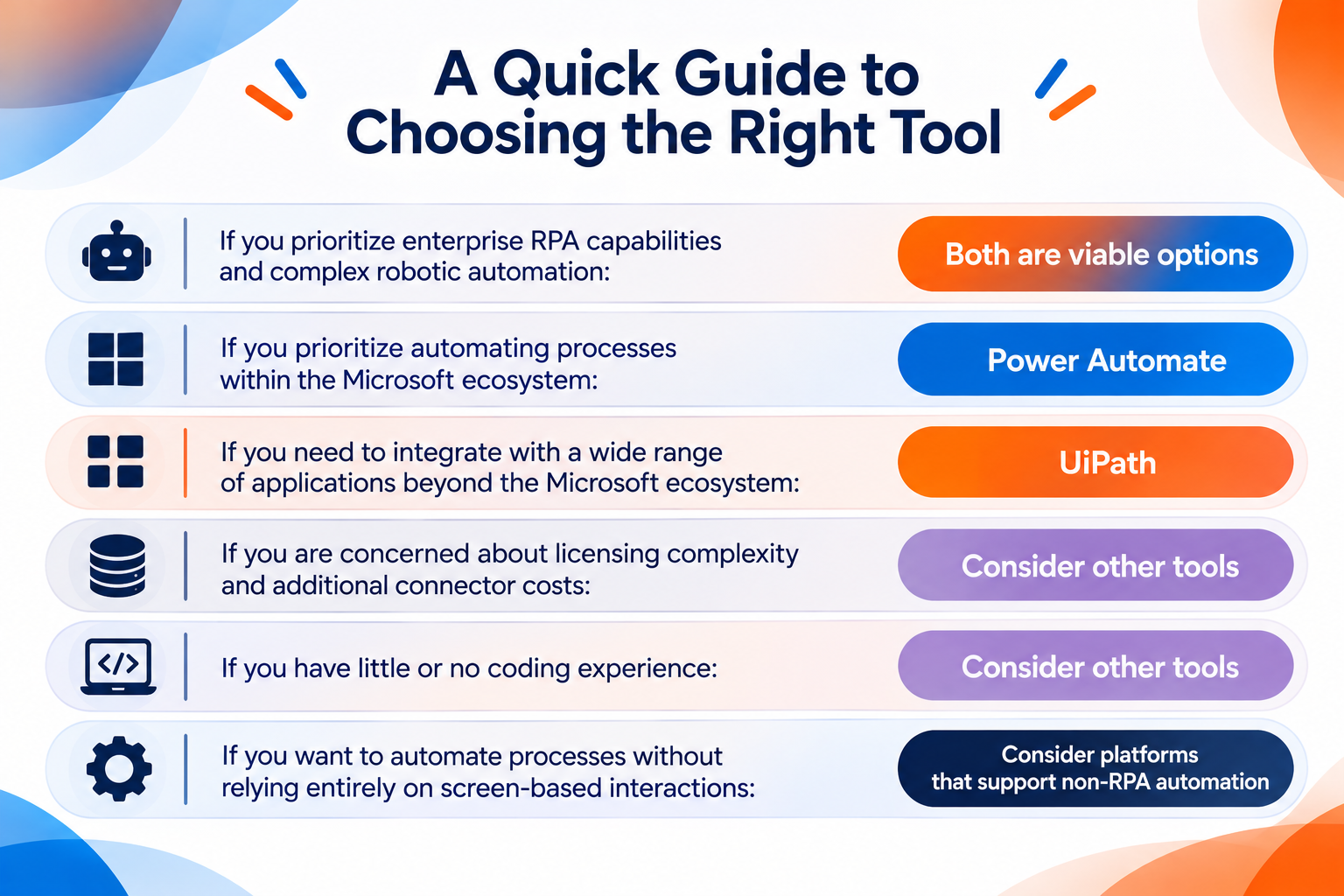
- If you prioritize enterprise RPA capabilities and complex robotic automation: Both are viable options
- If you prioritize automating processes within the Microsoft ecosystem: Power Automate
- If you need to integrate with a wide range of applications beyond the Microsoft ecosystem: UiPath
- If you are concerned about licensing complexity and additional connector costs: Consider other tools
- If you have little or no coding experience: Consider other tools
- If you want to automate processes without relying entirely on screen-based interactions: Consider platforms that support non-RPA automation
UiPath and Power Automate are two of the most well-known RPA platforms. However, one common challenge with RPA tools is the learning curve. Building and managing automations often requires considerable time and technical knowledge.
User reviews and discussions also highlight challenges with both platforms, including bugs, execution errors, and technical issues. These hurdles can arise during the initial development process and continue after deployment, making ongoing maintenance another concern.
Ultimately, choosing between the two requires considering not only their automation capabilities but also the time, technical expertise, and resources needed to build, troubleshoot, and maintain automations.
Still Can't Decide? Consider Other Automation Tools
If you are still unsure after comparing UiPath and Power Automate, it may be worth exploring other automation platforms.
You do not necessarily have to choose between these two.
Both UiPath and Power Automate offer RPA capabilities, but not every business process requires a robot to interact with a screen or desktop application.
For example, when two applications can communicate through integrations or APIs, you may be able to automate the process without relying on UI-based operations.
Other automation platforms may offer a different balance of capabilities, such as:
- Application integrations for connecting business tools.
- Visual workflow builders for configuring multi-step processes.
- AI-powered automation for handling tasks that involve unstructured information.
- Databases and forms for managing business information.
- RPA capabilities for processes that require screen-based interactions.
Rather than limiting your options to UiPath and Power Automate, consider whether another platform could help your team automate a wider range of business processes with less development and maintenance work.
What to Consider Before Choosing an Automation Platform
User reviews are useful for identifying potential problems, but they should not be the only factor in your decision.
Before choosing UiPath or Power Automate, consider the following points.
1. Evaluate Whether Your Processes Actually Require RPA
One of the most important considerations is whether your business processes actually require robotic process automation.
RPA is particularly useful when you need to interact with desktop applications, websites, or legacy systems that cannot easily connect through standard integrations.
For example, if an employee needs to copy information from one application and enter it into another system that has no available API or integration, RPA may be a practical solution.
However, if the applications already provide integrations or APIs, a conventional workflow automation platform may be able to handle the same process with less configuration.
RPA can require detailed setup, including configuring UI elements, selectors, and interaction settings. It may also require additional maintenance when application interfaces change.
Therefore, using RPA for every process may introduce unnecessary complexity.
Before selecting a platform, identify which processes genuinely require screen-based automation and which can be handled through application integrations, predefined rules, or AI-powered capabilities.
2. Consider Who Will Build and Maintain the Automations
The person who builds an automation may not be the person who maintains it.
Both UiPath and Power Automate provide visual development environments, but building advanced automations can still require technical knowledge.
For UiPath, consider whether your team has the resources to work with selectors, variables, debugging, and complex automation projects.
For Power Automate, consider whether your team can handle expressions, JSON data, nested conditions, and detailed configurations, particularly when building advanced cloud flows or desktop automations.
You should also consider how easily other team members can understand and update existing automations.
If non-technical employees will need to maintain workflows, a platform with a simpler setup process and more accessible configuration options may be a better fit.
3. Check How Errors Are Handled
No automation platform can guarantee that every workflow will run perfectly.
External applications can experience outages, APIs can change, and UI elements can become unrecognizable after software updates.
Before choosing a platform, check how it helps users identify errors, retry failed operations, and prevent problems from affecting downstream processes.
For UiPath, consider how easily developers can identify selector-related problems and troubleshoot failures during robot execution.
For Power Automate, consider whether error messages provide enough information to identify failed actions, particularly in workflows with nested scopes and complex conditions.
You should also consider how much monitoring and manual intervention your automations may require.
4. Understand the Total Cost of Usage
Do not compare platforms based only on their entry-level pricing.
Consider how costs may change as the number of automations, execution frequency, and volume of processed data increase.
For UiPath, pay attention to the licensing requirements for robots, additional modules, and enterprise capabilities.
For Power Automate, review the differences between standard and Premium connectors, as well as the licensing requirements for different automation scenarios.
You should also account for the time required to develop, test, troubleshoot, and maintain automations.
A platform with a lower subscription cost may still require considerable technical resources to operate effectively.
The total cost of automation includes both direct software expenses and the time employees spend building and maintaining processes.
Before committing, estimate the total cost of running your actual automations rather than comparing subscription prices alone.
5. Test the Integrations and Document Processing Capabilities You Actually Need
A platform may advertise extensive integration and document-processing capabilities, but the specific functionality you need may not always work as expected.
For example, UiPath users reported challenges involving OCR, PDF extraction, and complex document layouts.
Power Automate users reported difficulties with third-party integrations, authentication, and data transformations.
Before choosing a tool, confirm that it supports the exact applications, triggers, actions, and data formats required by your workflows.
If document processing is important, test the platform using actual invoices, contracts, forms, and other files your organization handles.
Similarly, if you rely on third-party applications, verify that the required connectors and API operations are available.
Testing real-world use cases is more reliable than making a decision based only on advertised features.
Consider an Automation Platform That Supports Both RPA and Non-RPA Automation
UiPath and Power Automate are both powerful automation platforms, but neither may be the ideal fit for every organization or every business process.
As the user discussions and reviews analyzed in this article suggest, users may encounter challenges involving technical limitations, automation reliability, maintenance, licensing, and development complexity.
When evaluating UiPath and Power Automate alternatives, it is worth considering not only which RPA tool to choose, but also whether every process actually needs RPA.
RPA is particularly useful when you need detailed control over interactions with desktop applications, screens, or systems that cannot be easily connected through standard integrations.
However, trying to automate every process with RPA can require a significant amount of setup and maintenance time, even when the tool itself is relatively affordable.
For processes that involve connecting business applications, transferring data, or executing predefined tasks, non-RPA automation may offer a simpler approach.
For example, one Yoom user reported that a process that took a month to build with an RPA tool was completed in just two hours using Yoom.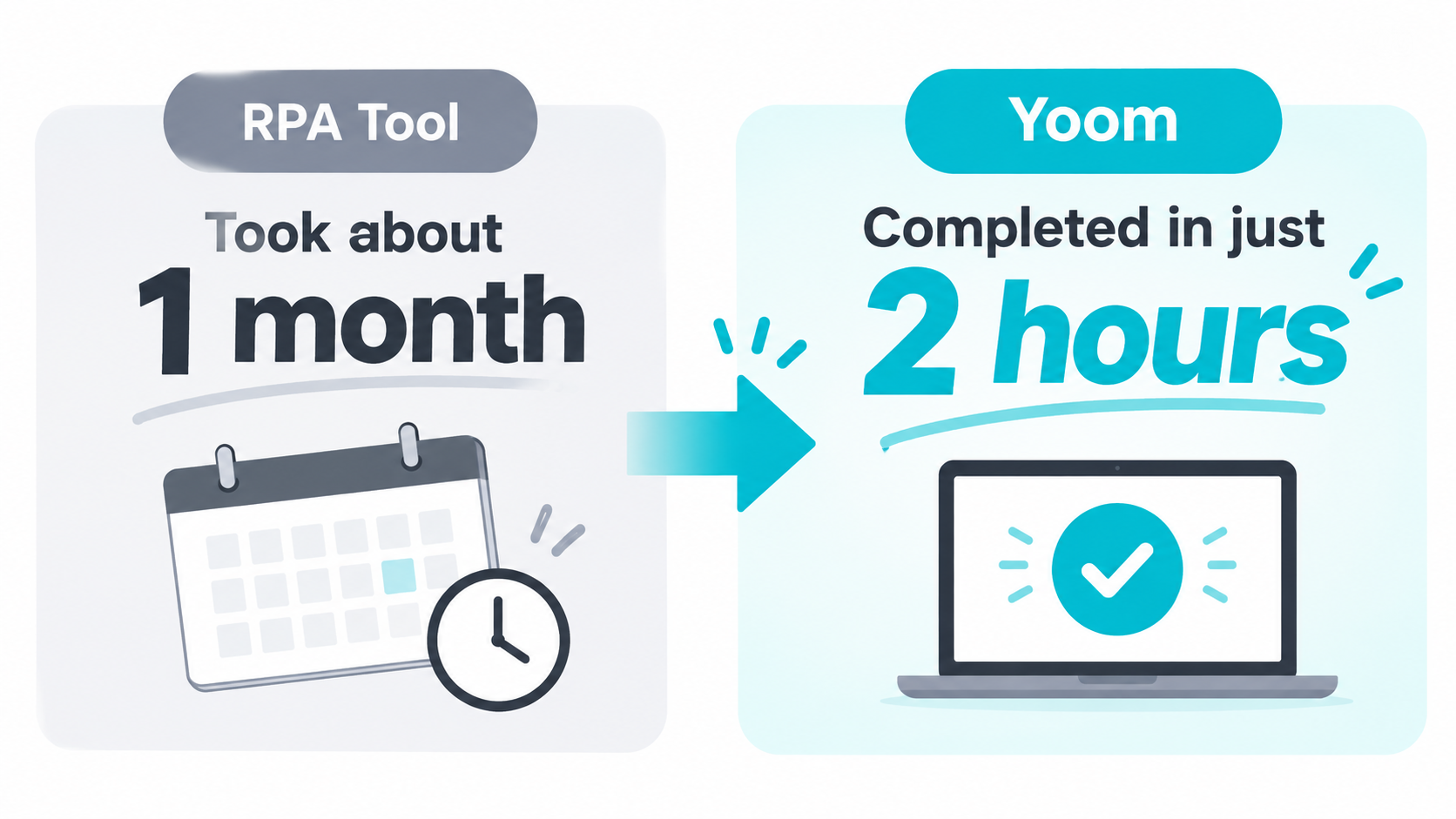
This illustrates why it can be beneficial to choose a platform that supports both RPA and non-RPA automation.
You can use RPA when a process requires detailed configuration, while relying on simpler automation methods for tasks that can be handled through app integrations, predefined rules, or AI-powered capabilities.
If you are looking for an alternative to UiPath or Power Automate, consider whether a platform that supports multiple automation methods could better match your organization's needs.
Ultimately, the goal is not simply to replace UiPath with another RPA tool, but to find an automation platform that lets you choose the right approach for each business process.
Take advantage of free plans and trials where available, test your actual use cases, and evaluate the total cost of ownership before making a final decision.