
・
Best Automation Tools for Excel: Real-World Use Cases

Microsoft Excel is widely used to manage sales records, invoices, customer information, and other business data. With AI features like Microsoft Copilot, Excel is becoming easier to use, even for people who don't know complex formulas. AI can help users analyze data, create formulas, and work with information more efficiently.
However, making Excel easier to use doesn't eliminate all the manual work around it. Before data reaches Excel, someone may still need to download customer records from a CRM, collect information from emails, or organize responses from web forms. After updating Excel, they may still need to check for missing information and notify their team on Slack or Microsoft Teams.
These repetitive tasks can take hours each week and lead to mistakes.
Automation tools for Excel help reduce this manual work by connecting Excel with other apps and automating tasks across the entire workflow. For example, they can collect information from emails or web forms, add it to Excel automatically, and notify the right people when the data is ready.
In this guide, we'll compare the best automation tools for Excel in 2027, explore how businesses use Excel automation and AI, and explain how to choose the right software for your needs.
How Businesses Use Excel Automation: Real-World Data
This analysis is based on execution logs from active Microsoft Excel workflows on Yoom. It explores how businesses automate data entry in Excel, connect other apps, and reduce repetitive work.
1. Which Departments Use Excel Automation the Most?
Excel automation is useful for any team that regularly collects, updates, or organizes data. Our data reveals the following trends in how different departments use Excel automation: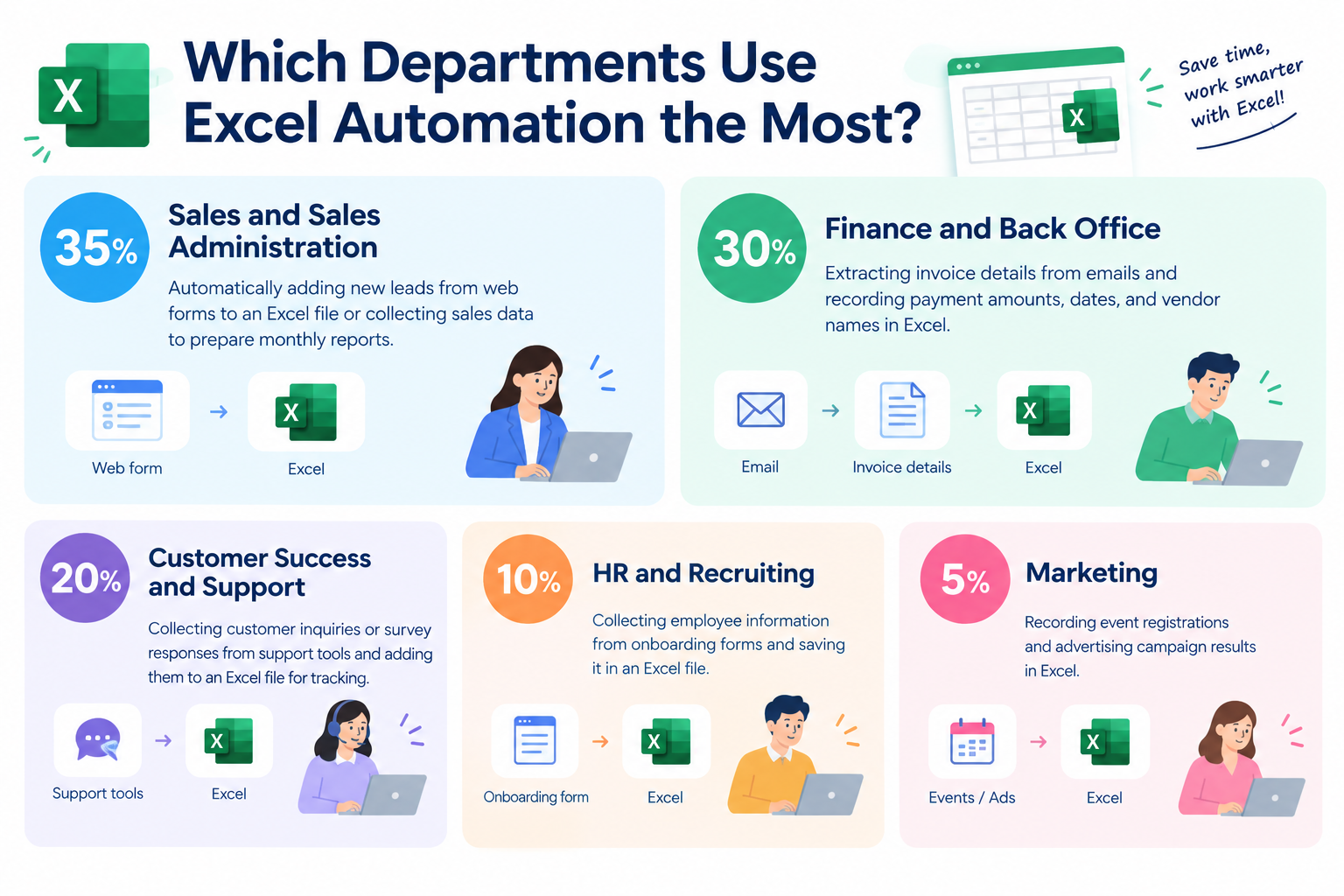
- Sales and Sales Administration (35%): Automatically adding new leads from web forms to an Excel file or collecting sales data to prepare monthly reports.
- Finance and Back Office (30%): Extracting invoice details from emails and recording payment amounts, dates, and vendor names in Excel.
- Customer Success and Support (20%): Collecting customer inquiries or survey responses from support tools and adding them to an Excel file for tracking.
- HR and Recruiting (10%): Collecting employee information from onboarding forms and saving it in an Excel file.
- Marketing (5%): Recording event registrations and advertising campaign results in Excel.
These findings suggest that Excel automation is especially useful for teams that need to keep records accurate and up to date.
For example, instead of copying each new sales lead into Excel manually, a team can automatically add the information whenever someone submits a web form.
Related Excel Automation Templates:
■Overview
After closing a deal in Salesforce, creating an invoice and manually entering its details into a Microsoft Excel management sheet can be time-consuming. This workflow automates the entire process—from automatically issuing an invoice in Google Sheets based on Salesforce deal information to recording the details in Microsoft Excel—helping streamline your invoicing operations.
■Recommended for
- Sales representatives who manually create invoices from Salesforce deal information and manage them in Excel
- Accounting teams looking to eliminate data entry errors in the invoicing process and improve accuracy
- Anyone looking to automate data integration between Salesforce and Microsoft Excel and improve operational efficiency
■Benefits of using this template
- Automate everything from closing a deal in Salesforce to issuing an invoice and recording it in Microsoft Excel, reducing the time spent on manual work.
- Eliminate manual data entry to prevent human errors such as incorrect amounts and missing customer information.
■Workflow
- First, connect Salesforce, Google Sheets, and Microsoft Excel to Yoom.
- Next, select the Chrome extension as the trigger and configure it to launch the workflow from a Salesforce deal page.
- Next, configure Salesforce's "Retrieve multiple records" action to retrieve information such as products associated with the deal.
- Then, configure Salesforce's "Retrieve a record" action to retrieve detailed information about the deal and account.
- Next, configure Google Sheets' "Issue a document" action to generate an invoice from the template using the retrieved information.
- Finally, configure Microsoft Excel's "Add a record" action to add the issued invoice details to the management sheet.
※"Trigger": An action that starts the workflow. "Operation": An action that processes data within the workflow after the trigger starts.
■Customization options
- When configuring Salesforce actions, specify your environment's My Domain URL and the API names of the target objects, such as deals and accounts.
- When configuring the Google Sheets action to issue an invoice, set the spreadsheet ID of the template used as the original invoice.
- When configuring the Microsoft Excel action to add a record, specify the destination file and sheet (database).
■Notes
- Connect Salesforce, Google Sheets, and Microsoft Excel to Yoom.
- For details on how to configure a trigger using the Chrome extension, see this guide.
- Salesforce is available only on the Team and Success plans. On the Free and Mini plans, operations and Data Connect settings in configured workflows will result in errors.
- Paid plans, such as the Team and Success plans, include a two-week free trial. During the free trial, you can use apps that are otherwise subject to plan restrictions.
・Microsoft 365 (formerly Office 365) offers plans for home users and businesses (Microsoft 365 Business). Authentication may fail if you are not subscribed to a business plan. Try itAutomatically add to Microsoft Excel when a Salesforce opportunity stage is marked as Closed Won
■Overview
Do you find it time-consuming to manually transfer information to Microsoft Excel when an opportunity moves to the closed-won stage in Salesforce? You may also be dealing with issues such as data entry errors and delays in getting started on other important tasks. With this workflow, when a Salesforce opportunity’s stage is updated to “Closed Won,” the related information is automatically added to a specified Microsoft Excel sheet, helping resolve these challenges and improve operational efficiency.
■Who is this template for?
- Sales representatives who manually transfer data between Salesforce and Microsoft Excel
- Managers who want to manage opportunity information in Microsoft Excel in real time and eliminate missing or delayed entries
- Business process improvement specialists who want to automate routine sales tasks and create an environment where teams can focus on core activities
■Benefits of using this template
- Automatically transfer data to Microsoft Excel when an opportunity is marked as closed won in Salesforce, reducing the time spent on manual work.
- Prevent human errors such as transfer mistakes and missing entries that commonly occur during manual data entry, helping maintain data accuracy.
■Workflow workflow
- First, connect Salesforce and Microsoft Excel to Yoom.
- Next, select Salesforce as the trigger and set the action to “When a record is created or updated in the Opportunity object,” with the condition that the opportunity stage is “Closed Won.”
- Next, use the branching feature to configure the workflow to proceed to the subsequent steps when the opportunity stage retrieved by the trigger is “Closed Won.”
- Next, set Salesforce’s “Retrieve a record (Account)” action as an operation to retrieve the account information related to the closed-won opportunity.
- Then, set Salesforce’s “Retrieve a record (Opportunity Product)” action as an operation to retrieve product information for the closed-won opportunity.
- Finally, set Microsoft Excel’s “Add a record” action as an operation to add the retrieved account information, opportunity product information, and other details to the specified sheet.
※ “Trigger”: An action that initiates a flow. “Operation”: An action that processes data within the flow after the trigger starts.
■Customizable points in this workflow
- In the Salesforce trigger settings, specify which opportunity object updates to monitor and the stage name that should be treated as closed won.
- In the command operation for the branching feature, you can configure conditions in addition to the opportunity stage being “Closed Won.”
- In Microsoft Excel’s “Add a record” operation, you can specify which file and sheet to add the information to, choose which Salesforce data corresponds to each Excel column, enter fixed values, and configure other settings as needed.
■Notes
- Connect both Salesforce and Microsoft Excel to Yoom.
- Branching is available on the Mini plan and above, while the Salesforce integration is available only on the Team and Success plans. On other plans, the configured Workflow operations and data connections will result in errors.
- Paid plans such as the Mini plan include a two-week free trial. During the free trial, you can use apps and features (operations) that are otherwise subject to plan restrictions.
- Microsoft 365 (formerly Office 365) offers plans for home use and plans for businesses (Microsoft 365 Business). Authentication may fail if you are not subscribed to a business plan.
- You can select a trigger interval of 5, 10, 15, 30, or 60 minutes.
- Note that the shortest available trigger interval varies by plan.
- For information on configuring operations that interact with Microsoft Excel databases, see below.
See how to configure operations that interact with Microsoft Excel databases
■Overview
The workflow "Update Microsoft Excel information based on Hubspot form content" helps reduce the hassle of information updating tasks.
Since data can be updated automatically, it helps prevent transcription errors.
■Recommended for
- Those who use Hubspot for customer management and form collection
- Those who manage collected information in Microsoft Excel but find manual updating tasks cumbersome
- Those who want to keep data up-to-date and share consistent information across the team
- Those who want to improve work efficiency by utilizing automated workflows
- Those who want to optimize daily tasks and focus on more important work
■Benefits of using this template
By utilizing the flow to update Microsoft Excel information based on Hubspot form content, you can enjoy many benefits.
First, since the input content is directly reflected in Microsoft Excel, manual data transfer is no longer necessary.
This will improve the speed of operations and shorten the work period.Additionally, since it only requires a single input, the risk of double entry and errors is reduced. Data consistency is maintained, making information management more efficient.
Furthermore, with reduced workload, the person in charge can focus on other important tasks.
2. Which Apps Do Businesses Connect to Excel?
Excel automation often involves connecting Excel to other apps. These connections allow information to move between tools without requiring someone to copy and paste it manually.
Our data shows four main categories of apps connected to Excel through automated workflows: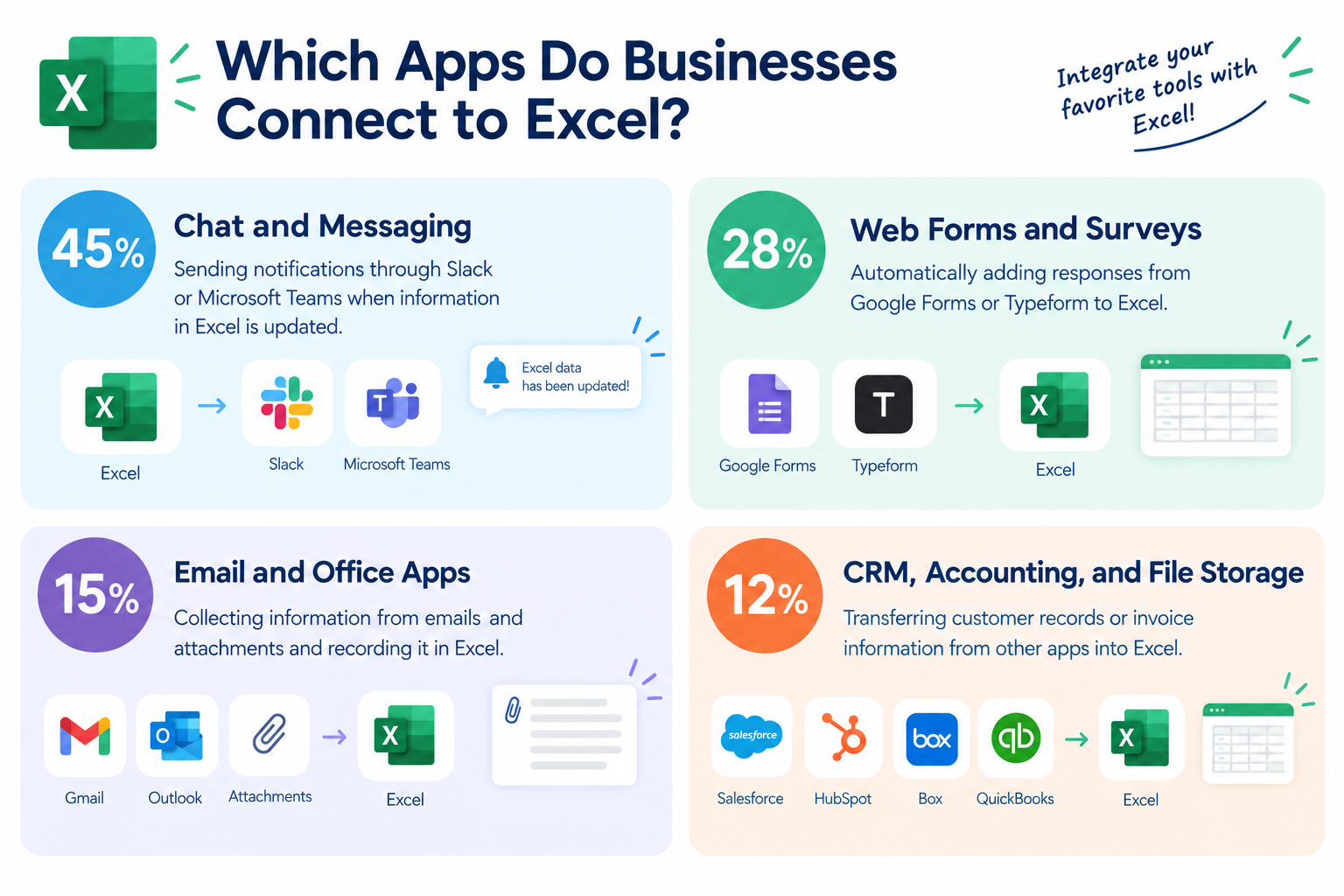
- Chat and Messaging (45%): Sending notifications through Slack or Microsoft Teams when information in Excel is updated.
- Web Forms and Surveys (28%): Automatically adding responses from Google Forms or Typeform to Excel.
- Email and Office Apps (15%): Collecting information from emails and attachments and recording it in Excel.
- CRM, Accounting, and File Storage (12%): Transferring customer records or invoice information from other apps into Excel.
Chat and messaging apps account for the largest share in this dataset. This shows that Excel automation can do more than update data. It can also help teams share information about those updates.
For example, when a new row is added to an Excel file used for sales tracking, an automated workflow can notify the sales team on Slack. Team members can then check the latest information without repeatedly opening Excel.
Related Excel Automation Templates:
■Overview
This flow retrieves the budget from Microsoft Excel at a specified date and time and notifies Slack.
With Yoom, you can easily achieve this flow without the need for programming, as it allows for seamless integration between apps.
■Recommended for
- Leaders who want to streamline issue creation and reduce work hours
- Those who manage department budgets using Microsoft Excel
- Those who want to identify signs of budget overruns in advance
■Benefits of using this template
When managing department budgets with Microsoft Excel, the regular checking process can be cumbersome and may lead to oversight.
Additionally, if there are any oversights, there is a risk of exceeding the allocated budget, making it difficult to manage the budget strategically.With this flow, you can automate the retrieval of budget information from Microsoft Excel and notifications to Slack at the specified date and time.
This eliminates the need for budget checking tasks in Microsoft Excel, thereby helping to prevent oversight and eliminating the need for regular checks.You can also customize the schedule to any date and time to suit your needs.
■Overview
This flow retrieves the budget from Microsoft Excel at a specified date and time and notifies Microsoft Teams.
With Yoom, you can easily achieve this flow without the need for programming, as it allows for seamless integration between applications.
■Recommended for
- Those who manage advertising budgets in Microsoft Excel
- Those who want to streamline the process of verifying budget information among stakeholders
- Those who want to prevent budget oversight and proactively identify signs of budget overruns
■Benefits of using this template
If you manage advertising budgets in Microsoft Excel, regularly checking them can prevent budget overruns.
However, the task of checking Microsoft Excel each time is cumbersome, and if the person in charge is absent, there is a risk of missing signs of budget overruns.With this flow, you can retrieve budget information from Microsoft Excel at a specified date and time and notify Microsoft Teams.
By regularly notifying budget information to Microsoft Teams, the verification process is streamlined, and you can proactively identify signs of budget overruns.Since Microsoft Teams allows you to set any channel or member, stakeholders can have a shared understanding of the budget.
■Overview
The workflow "Creating documents in Microsoft Excel based on Slack posts" reduces the hassle of document creation tasks.
By simply posting the necessary information in the chat, documents are issued, contributing to increased productivity.
■Recommended for
- Those who use Slack for business communication
- Those who want to efficiently export Slack post content
- Those who manage or analyze business data using Microsoft Excel
- Those who want to improve work efficiency by quickly reflecting Slack post content in Microsoft Excel
- Project managers who feel the need to quickly share information with the entire team
■Benefits of using this template
By using this flow, it is possible to automatically create documents in Microsoft Excel based on information posted on Slack.
This reduces the time spent on checking post content and manual data entry.
Since data is imported quickly, work efficiency improves, contributing to speeding up the overall business.Additionally, the risk of manual input errors is reduced, allowing for more accurate data management.
By introducing this flow, you can improve the productivity of the entire team and increase the time available to focus on other important tasks.


3. How Quickly Can Automation Tools Update Excel?
Automation can also reduce the time between receiving new information and recording it in Excel.
In our data, the median execution time for Excel workflows was 14.2 seconds. This means half of the recorded executions finished within approximately 14.2 seconds, while the other half took longer.
Consider an invoice sent to your email inbox. An automated workflow can collect the relevant information, process it if necessary, and add it to the appropriate columns in Excel.
The exact time depends on the apps involved, the amount of data, and the steps in the workflow. However, automation can eliminate the need to wait for someone to download a file and enter its contents manually.
What Can AI Do for Excel Automation?
Excel already includes Copilot, which helps users analyze data, write formulas, and create charts using natural language. However, Copilot mainly helps with tasks within Excel itself. When a business process involves other tools, such as collecting data from forms, updating a CRM, or sending notifications through Slack, automating the entire process requires more than Excel's built-in AI features.
This is where connecting Excel with other apps becomes important.
For example, an invoice might arrive as a PDF attachment in Outlook. Before the information can be added to Excel, someone needs to identify the vendor name, invoice amount, and payment due date.
This is where connecting Excel to other apps becomes useful.
A workflow automation tool can collect information from an email or PDF, use AI to identify the required details, and add them to the appropriate columns in Excel.
Our workflow data shows three common ways AI helps prepare information for Excel:
- Extracting Data from Documents and Emails (55%): AI identifies important details, such as invoice amounts, dates, and company names, from documents or email text.
- Cleaning and Formatting Data (28%): AI standardizes company names, removes unnecessary symbols, and makes information more consistent before adding it to Excel.
- Summarizing Data and Sending Notifications (17%): AI summarizes recent updates in Excel and prepares a message that explains what changed.
These percentages represent the distribution of AI-related tasks in the dataset, rather than the percentage of all Excel users who use each feature.
The main benefit is that AI can help prepare information before it reaches Excel. This reduces the amount of manual work required to turn information from different sources into organized data.
Related AI Excel Automation Templates: Try itRead the invoice from the form using OCR, convert it to the current exchange rate, and add it to Microsoft Excel.
■Overview
This is a flow that reads invoices from forms using OCR, converts them to the current exchange rate, and adds them to Microsoft Excel.
Using Yoom's OCR function, it reads invoice information received in forms, automatically converts it to the latest exchange rate, and adds the results to Microsoft Excel.
■Recommended for
- Accounting personnel who are spending too much time on invoice processing
- Business people who want to manage data in Microsoft Excel while reflecting exchange rate fluctuations
- Company representatives who want to reduce human error from manual input
- Executives and managers who want to advance the automation of business processes
- Teams that deal with multiple currencies and require accurate currency conversion
■Benefits of using this templateThis flow automatically converts the billing amount stated on invoices to the current exchange rate, improving business workflow efficiency.
By smoothly adding the converted data to Microsoft Excel, it reduces manual effort and errors, allowing for faster accounting operations.
It maintains data accuracy by avoiding human errors that occurred with manual work.
Additionally, by automatically reflecting the latest exchange rate at the time the invoice is received, accurate financial management becomes possible.
These improvements will streamline business workflows, saving time and costs.Try itWhen you receive an invoice in Outlook, use AI OCR to extract the details and add them to Microsoft Excel
■Overview
Processing invoices received in Outlook can involve time-consuming tasks such as opening attachments, checking their contents, and manually entering the data into Microsoft Excel. When invoice volumes are high, the risk of input errors and missed checks also increases. This workflow automates the entire process—from receiving invoices in Outlook and extracting their contents with AI OCR to adding the data to Microsoft Excel—helping eliminate these challenges and streamline your operations.
■Recommended for
- Accounting teams that manually transfer invoice details received in Outlook to Microsoft Excel
- Anyone looking to reduce human errors such as input mistakes and missed checks during invoice processing
- Anyone looking to streamline monthly invoice processing and free up time for core tasks
■Benefits of this template
- Automating the entire process from receiving invoices in Outlook to registering the information in Microsoft Excel reduces the time spent on manual processing.
- AI OCR reads and automatically transfers invoice details, helping prevent human errors such as manual entry mistakes and missed items.
■Workflow steps
- First, connect Outlook and Microsoft Excel to Yoom.
- Next, select Outlook as the trigger, set the “When an email is received” action, and specify conditions such as the subject or sender.
- In the next operation, set Outlook’s “Get email attachment information” action to retrieve attachment details from the received email.
- Then, set Outlook’s “Download email attachment” action to download the attachment you retrieved.
- Next, set the OCR feature’s “Read any image or PDF” action to extract the necessary information from the downloaded invoice file.
- Finally, set Microsoft Excel’s “Add a record” action to add the information read by OCR to the specified Excel file.
※“Trigger”: An action that starts the flow. “Operation”: An action that processes data within the flow after the trigger starts.
■Customization options
- In the OCR action settings, configure the items you want to extract from the invoice, such as the invoice amount, payment due date, and customer name, as well as the AI model and reading language.
- In the Microsoft Excel “Add a record” action settings, you can configure the workflow flexibly—for example, by entering fixed values in specific columns or dynamically inserting values obtained in previous operations.
■Important notes
- Connect both Outlook and Microsoft Excel to Yoom.
- You can choose a trigger interval of 5, 10, 15, 30, or 60 minutes.
Your plan determines the shortest available trigger interval.- Microsoft 365 (formerly Office 365) offers plans for home use and business plans (Microsoft 365 Business). Authentication may fail if you are not subscribed to a business plan.
- AI operations for OCR and speech-to-text are available only on the Team and Success plans. On the Free and Mini plans, the configured Workflow operation will result in an error.
- Paid plans include a two-week free trial. During the free trial, you can use apps and AI features (operations) that are subject to plan restrictions.

Types of Excel Automation Tools: Which One Do You Need?
Not all Excel automation tools work in the same way. The right choice depends on whether you want to improve work inside Excel, connect different apps, or automate tasks across your computer.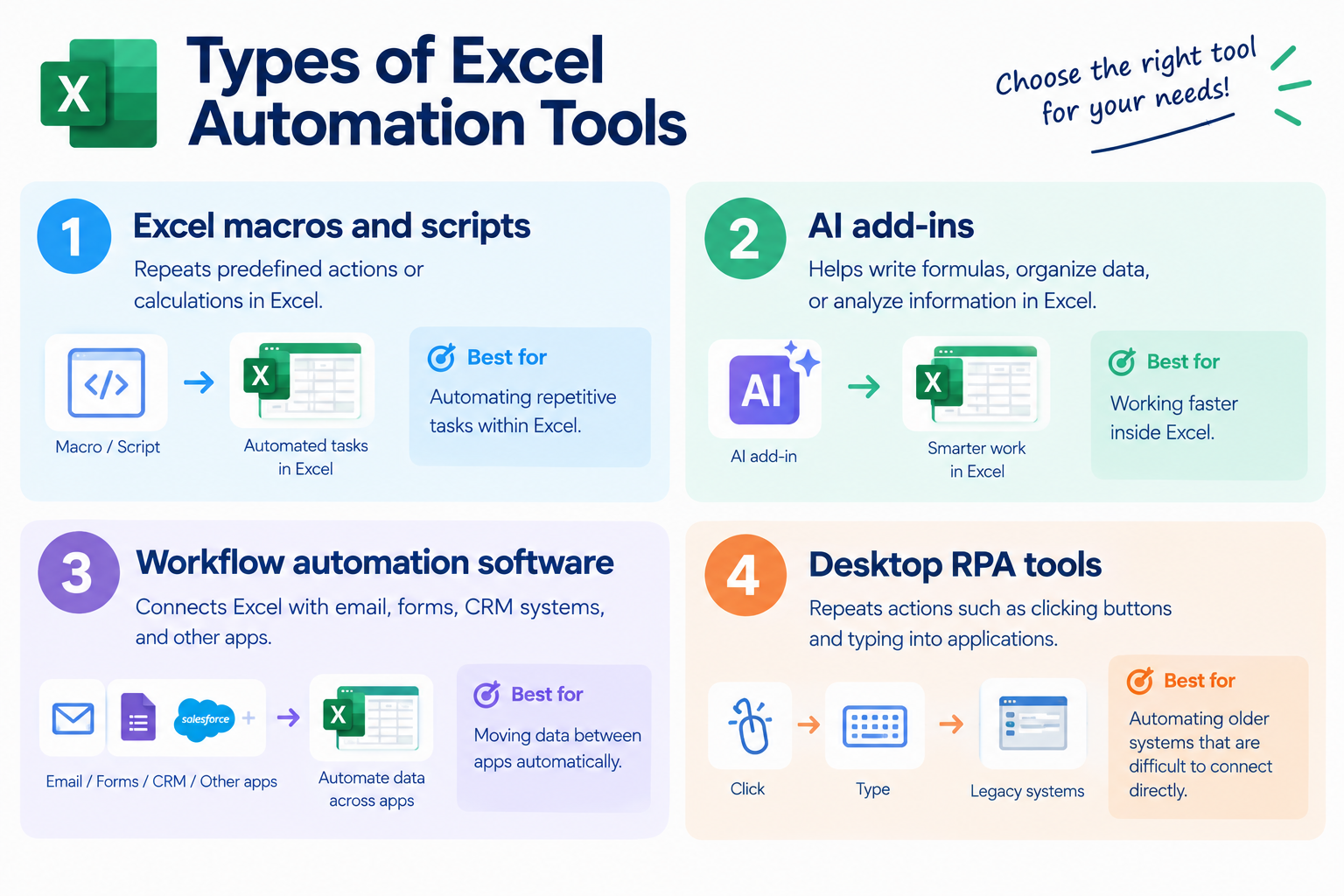
1. Excel Macros and Scripts
Excel macros and scripts can repeat tasks such as formatting cells, calculating totals, or organizing rows.
For example, if you receive a report every Monday and need to apply the same formatting each time, a macro can repeat those steps for you.
Macros are useful when the work happens mainly inside Excel. However, connecting them to other apps or handling information from different sources may require additional setup or code.
2. AI Add-ins for Excel
AI add-ins work inside Excel to help users write formulas, understand data, and complete spreadsheet-related tasks.
For example, you might ask an AI tool to create a formula that extracts a first name from a full name. The tool can help generate the formula instead of requiring you to write it yourself.
These tools are useful when you want to work faster with information already in Excel.
However, if you need to collect information from an external email, read a PDF attachment, and then update Excel, you may need a separate tool to connect those steps.
3. Workflow Automation Software
Workflow automation software connects Excel with other business apps and runs predefined tasks automatically.
For example, you can create a workflow that:
- Detects a new response from a web form.
- Collects the submitted information.
- Adds the information to a new row in Excel.
- Sends a notification to Slack.
Many no-code workflow tools let you build these processes using visual controls rather than writing code.
This type of Excel automation software is particularly useful when your work involves several apps and repeated data transfers.
4. Desktop RPA Tools
Robotic Process Automation (RPA) tools automate tasks by repeating actions a person would normally perform on a computer, such as opening an application, clicking buttons, and entering information.
For example, an RPA tool can help transfer information from an older business system into Excel, even when the system does not offer an easy way to connect to other apps.
RPA can be useful for complex enterprise processes, but some workflows require more setup, maintenance, or technical support than simpler cloud-based automation tools.
Best Automation Tools for Excel Compared
The best Excel automation tool depends on what you want to automate. Some tools focus on connecting apps, while others are designed for data analysis or large-scale enterprise automation.
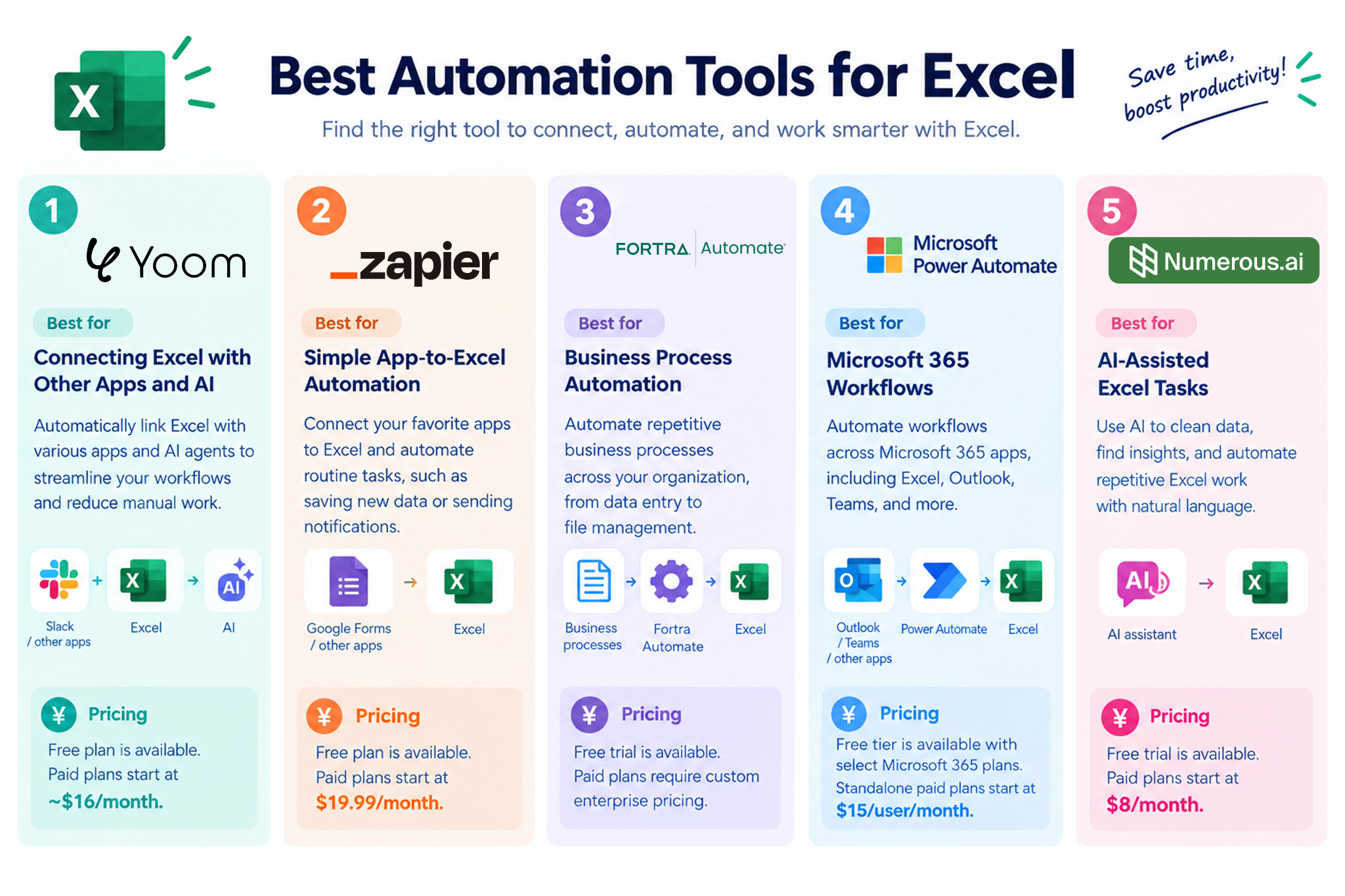
Here are five options to consider.
1.
Yoom
: Best for Connecting Excel with Other Apps and AI
Yoom is a no-code workflow automation platform that connects Microsoft Excel with business apps and helps automate tasks involving data entry, document processing, and team notifications.
How it works
You can create a workflow that starts when an event occurs in another app. For example, when a new invoice arrives by email, a workflow can collect the invoice details, use AI to extract the necessary information, add it to Excel, and notify your team on Slack.
You can build workflows using visual controls without writing code.
Key features
- Connects Excel with email, web forms, CRM systems, and other business apps.
- Uses AI to help extract and organize information from documents and text.
- Adds data to Excel and sends notifications automatically.
- Supports workflows that involve multiple apps and steps.
- Best for: Finance, sales, and operations teams that want to reduce manual data entry and keep Excel files updated using information from other apps.
- Pricing: Free plan is available. Paid plans start at ~$16/month.
2.
Zapier
: Best for Simple App-to-Excel Automation
Zapier is a workflow automation platform that connects different web apps. It lets users create automated processes, often called Zaps, based on events in connected apps.
How it works
For example, you can create a workflow that adds a new row to Excel whenever someone submits a form or when a new lead is recorded in a supported app.
You choose the event that starts the workflow and the action that should happen next.
Key features
- Connects many popular web apps.
- Supports event-based workflows.
- Helps automate straightforward data transfers between apps.
- Best for: Marketers and business teams that want to connect web forms and other apps to Excel with minimal setup.
- Pricing: Free plan is available. Paid plans start at $19.99/month.
3.
Fortra Automate
: Best for Business Process Automation
Fortra Automate provides tools for automating repetitive business processes, including tasks that involve desktop applications and business systems.
How it works
Depending on the product and workflow, you can automate recurring tasks such as moving information between systems, processing files, and updating business records.
This can be useful when a company needs to automate processes across applications that do not connect easily.
Key features
- Automates recurring business tasks.
- Supports workflows involving business applications and files.
- Offers options for organizations with more complex automation needs.
- Best for: Organizations that need to automate established business processes across multiple systems.
- Pricing: Free trial is available. Paid plans require custom enterprise pricing.
4.
Microsoft Power Automate
: Best for Microsoft 365 Workflows
Microsoft Power Automate connects Microsoft services and other supported applications to automate repetitive tasks.
How it works
For example, you can create a workflow that saves information from a Microsoft Forms response to Excel and sends a notification through Microsoft Teams.
It is a natural option for organizations that already use Microsoft 365 services.
Key features
- Integrates with Microsoft services such as Outlook, Excel, and Teams.
- Supports automated workflows and desktop automation.
- Offers options for both simple processes and more advanced business needs.
- Best for: Teams that already rely on Microsoft 365 and want to automate processes across its services.
- Pricing: Free tier is available with select Microsoft 365 plans. Standalone paid plans start at $15/user/month.
5.
Numerous.ai
: Best for AI-Assisted Excel Tasks
Numerous.ai is an AI tool designed to help users work with data in Excel and other supported spreadsheet applications.
How it works
You can use natural-language instructions to help categorize information, generate text, or process data in Excel.
For example, a marketing team could use AI to categorize customer feedback or summarize text collected in Excel.
Key features
- Helps process text and other data with AI.
- Supports tasks such as categorization and text generation.
- Reduces the need to create complex formulas for some tasks.
- Best for: Analysts and business users who want to process or organize data directly in Excel.
- Pricing: Free trial is available. Contact a sales team for paid plans.
How to Choose the Best Excel Automation Software
The Hassle of Getting Started with Excel Automation
Excel automation can save a lot of time once everything is set up. Instead of manually copying data, updating Excel files, and notifying your team, an automated workflow can handle these tasks for you.
However, building a workflow can be challenging when you're just getting started.
Think of it like putting together a puzzle. You need to connect each step in the right order, from collecting information to adding it to Excel and notifying your team. If one step is configured incorrectly, the workflow may not work as expected.
For people who are new to workflow automation, figuring out how to connect different apps and configure each step can take time and effort.
That's why choosing Excel automation software isn't just about comparing features and prices. You also need to find a tool that makes it easy to build, customize, and manage workflows.
Start with a Free Plan or Trial
Before committing to a paid plan, try the software yourself.
A free plan or trial lets you explore the features and build a simple workflow without worrying about the cost.
Start with a repetitive Excel task you want to automate, such as adding new form responses to Excel or recording invoice details from emails.
You don't necessarily have to build a workflow from scratch. Many Excel automation tools offer ready-made templates for common tasks, such as transferring data between apps, updating Excel automatically, or notifying your team when new information arrives.
With a template, much of the workflow is already built for you. In many cases, you only need to connect your app accounts and adjust a few settings to fit your needs.
As you explore different tools, try a template first. Then, see whether you can customize it or build your own workflow when your needs become more specific.
The goal isn't to find the tool with the most features. It's to find Excel automation software that makes it easy to turn your ideas into working workflows.
Three Ways to Get Started with Excel Automation Using Yoom
Yoom offers three ways to start automating Excel tasks, depending on how much customization you need.
Option 1. Start with a Template
If you want to automate a common Excel task quickly, start with a ready-made workflow template. Choose one that matches your needs, then customize it to fit your business process.
For example, you could use a template to add information from another app to Excel automatically or send a notification when new data is added.
This is a good option if you want to get started without planning every step yourself.
Explore Yoom's workflow templates
Option 2. Let AI Worker Help Build Your Workflow
If you know what you want to automate but aren't sure how to build the workflow, describe your goal in natural language. Yoom's AI Worker helps you turn your idea into a workflow.
For example, you could describe a process that reads incoming invoice information, extracts the vendor name and amount, adds the details to Excel, and notifies your finance team in Slack.
This is a useful option when you want to automate a specific task without having to configure every step manually.
Explore Yoom's AI Worker templates
Option 3. Build a Custom Workflow
If you want to reproduce your business process more precisely, you can build a custom workflow using Yoom's customization features.
Connect the apps you already use and configure the steps to match your requirements. For example, you can decide which information AI should extract from an invoice, where each detail should go in Excel, and when your team should receive a notification.
This option is ideal when ready-made templates or AI-assisted setup don't fully cover what you want to achieve.