









・
CRM Data Cleansing | How to Automate Data Cleaning and Enrichment

Customer relationship management (CRM) platforms like Salesforce, HubSpot, and Zoho help sales and marketing teams keep customer information in one place.
But over time, that information can become difficult to manage. Duplicate contacts, inconsistent company names, incorrectly formatted phone numbers, and missing details can all make a CRM less reliable.
Traditionally, CRM data cleansing has often involved manually reformatting data in spreadsheets or Excel to meet the import requirements of each CRM or business tool. This process takes time and can lead to human errors, such as incorrect formatting or missing information.
Automation tools help reduce this manual workload by applying predefined rules to clean and format data before it is imported into a CRM.
More recently, many automation tools have also started incorporating AI capabilities, making it possible to handle tasks that were difficult to automate with predefined rules alone.
For example, AI can help correct inconsistent company names and automatically fill in missing company information through data enrichment.
By combining workflow automation with AI where needed, businesses can reduce manual work and keep their CRM data clean and consistent.
Based on an analysis of active workflows on Yoom, this article looks at how businesses handle CRM data cleansing, where they use AI, and what they do with customer data after it has been cleaned.
What the Data Reveals | How Businesses Clean CRM Data
1. 45.2% of Incoming Customer Records Need Cleaning
An analysis of information received from web forms, business card scanning tools, and other software found that 45.2% of incoming customer records need some formatting or correction before they are ready to be saved in a CRM.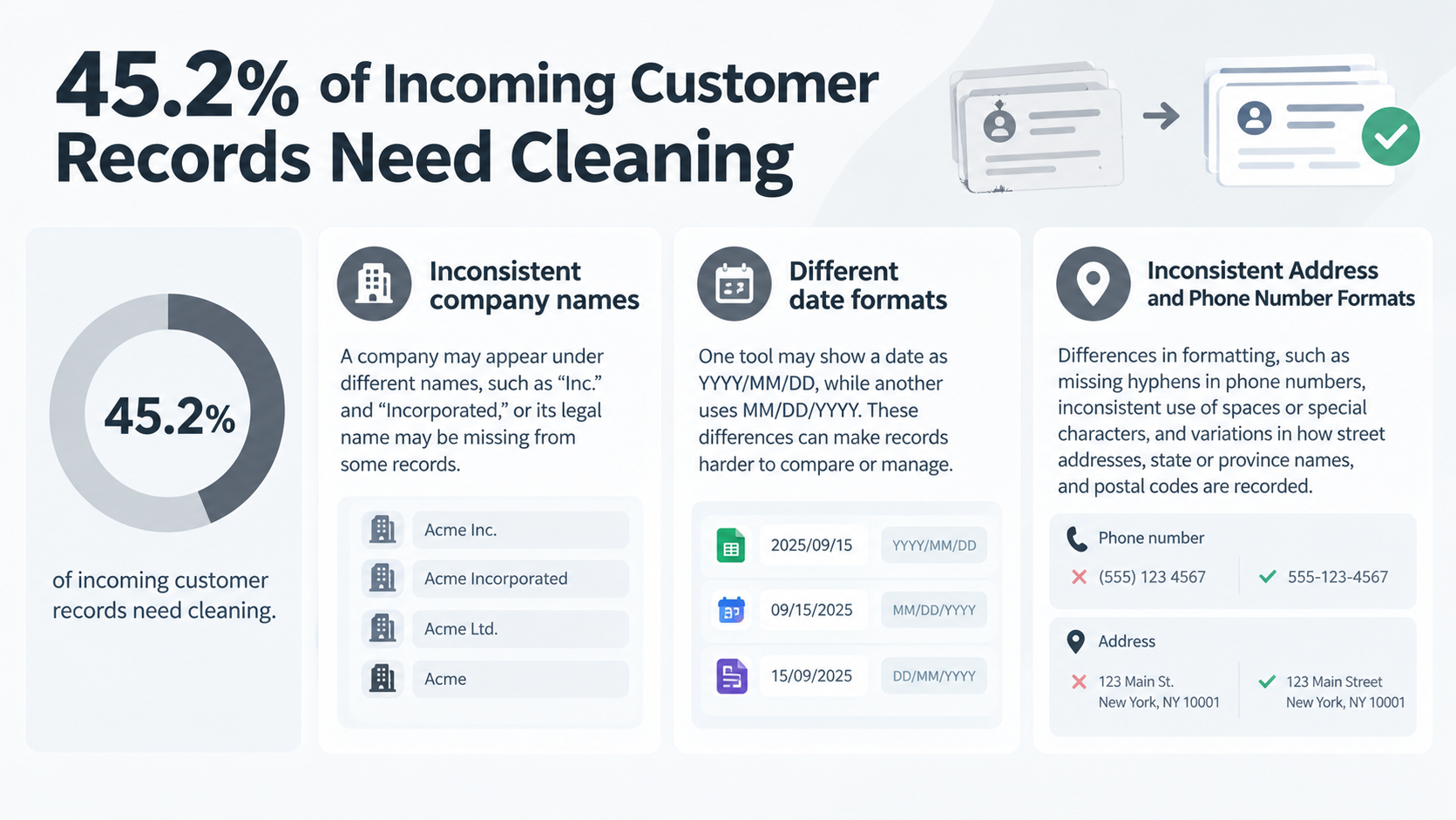
Common data quality problems include:
- Inconsistent company names: A company may appear under different names, such as “Inc.” and “Incorporated,” or its legal name may be missing from some records.
- Different date formats: One tool may show a date as YYYY/MM/DD, while another uses MM/DD/YYYY. These differences can make records harder to compare or manage.
- Inconsistent Address and Phone Number Formats: Differences in formatting, such as missing hyphens in phone numbers, inconsistent use of spaces or special characters, and variations in how street addresses, state or province names, and postal codes are recorded.
These differences may seem minor, but they can make it harder to find the right contact, compare records, and keep customer information consistent across teams.
2. When Does CRM Data Cleansing Happen? Before or After Data Is Imported into the CRM?
The analysis identified two common ways businesses clean CRM data:
- Cleaning data BEFORE it enters the CRM (68%): When someone submits a web form or their business card is scanned, a workflow checks and formats the information before saving it to the CRM. This helps prevent duplicate or incorrectly formatted records from entering the sales team's database.
- Cleaning data AFTER it is stored in the CRM (32%): A workflow updates existing records in Salesforce or HubSpot. For example, it may correct older contact details or update information when a customer's status changes.
Cleaning information before it enters the CRM can help prevent new problems. Updating existing records is also useful when a company needs to improve the quality of customer data it already has.
3. How AI Supports CRM Data Cleansing
Traditional automation tools could handle basic data cleaning tasks using predefined rules and conditions, such as standardizing date formats or formatting phone numbers.
However, handling more complex cases, such as correcting inconsistent company names or filling in missing information, was more challenging.
With AI capabilities now built into automation tools, these tasks can also be automated through data cleansing and enrichment.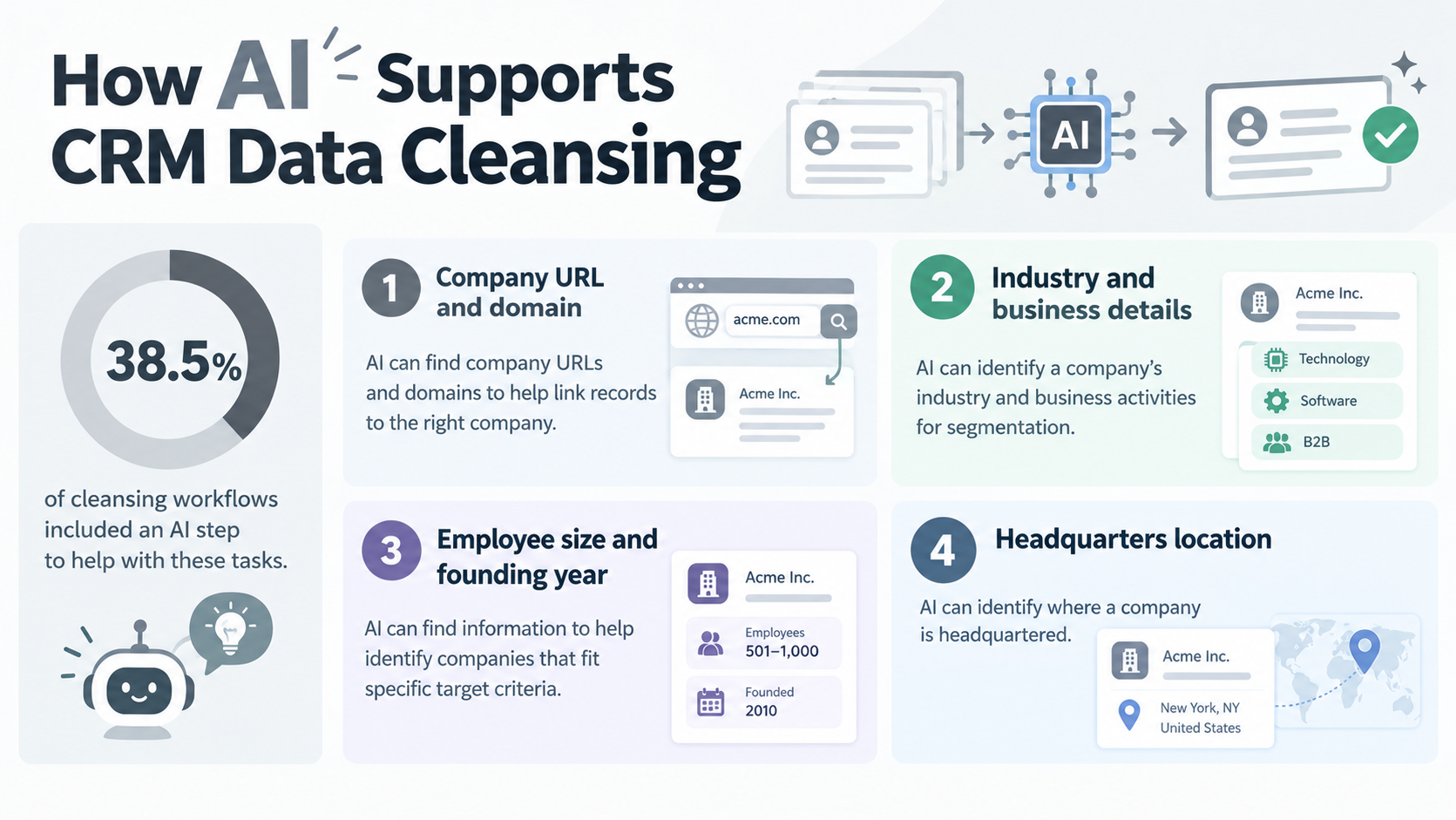
In our data, 38.5% of cleansing workflows included an AI step to help with these tasks.
AI was used in areas such as:
- Company URL and domain: AI can find company URLs and domains to help link records to the right company.
- Industry and business details: AI can identify a company’s industry and business activities for segmentation.
- Employee size and founding year: AI can find information to help identify companies that fit specific target criteria.
- Headquarters location: AI can identify where a company is headquartered.
In our analysis, AI-powered enrichment added an average of 5.2 additional fields.Related AI Templates:

An AI worker that analyzes CSV, JSON, and other data files, automatically transforms them into formats ready for use in other systems, and checks the results. Eliminate time-consuming field mapping and calculation errors while keeping your data accurate. Ideal for anyone who wants to import data into external systems quickly and error-free.
- Anyone looking to streamline the process of converting company-specific data into a format that works with another system
- Anyone who wants to eliminate common data conversion issues, such as calculation errors and missing fields, through strict checks based on company rules
- Teams that want to fully automate field mapping and adjustments required to match the destination system's format
Simply provide instructions in the chat, and it will be automatically configured and updated to match your operations. First, customize the "Skills" and "Tools Used" so the AI worker can execute tasks correctly.
- What are "Skills"?:
- They are instructions that enable the AI worker to perform tasks. For detailed setup instructions, see "[AI Worker] How to Create Skills (formerly Manuals)."
- What are "Tools Used"?:
- These are the tools the AI worker uses to perform tasks. Simply tell the AI which tools your company uses regularly to freely customize where data is retrieved from and where it is sent.
- The number of AI workers that can run concurrently, the number of AI workers you can create, and the available AI models vary depending on your plan.
- The apps and operations available within AI workers are subject to the same usage limits as Flowbots.
- Please note that test runs consume tasks in the same way as production runs. For details, see "[AI Worker] How Task Executions Are Calculated."

An AI worker that extracts required fields from data in various formats, validates numerical consistency, and converts it into structured data. Automate data entry while improving accuracy—ideal for administrative teams spending time digitizing receipts, business cards, and more, or anyone seeking more reliable data management.
- Administrative teams who spend time extracting and entering information from paper documents and text data, such as receipts and business cards
- Data management teams who want to prevent calculation errors caused by OCR misrecognition and ensure the accuracy of extracted data
- Engineers who want to streamline formatting and mapping data from different formats to match their company’s database specifications
Simply provide instructions in chat, and it will be automatically configured and updated to fit your operations. First, customize the Skills and Tools so the AI worker can perform tasks correctly.
- Skills:
- Instructions that enable the AI worker to perform tasks. For detailed setup instructions, see "[AI Worker] How to Create Skills (Formerly Manuals)."
- Tools:
- Tools the AI worker uses to perform tasks. Simply tell the AI which tools your company uses regularly, and you can freely configure where data is retrieved from and sent to.
- The number of AI workers that can run simultaneously, the number of AI workers you can create, and the AI models available depend on your current plan.
- The apps and operations available in AI workers are subject to the same usage limits as Flowbots.
- Please note that AI workers consume tasks during test runs just as they do during production runs. For details, see "[AI Worker] How Task Executions Are Calculated."
4. How Long Does Automated Data Cleaning Take?
With automated data cleaning, records can be checked and updated as soon as they arrive, rather than waiting for a person to review a spreadsheet or Excel later.
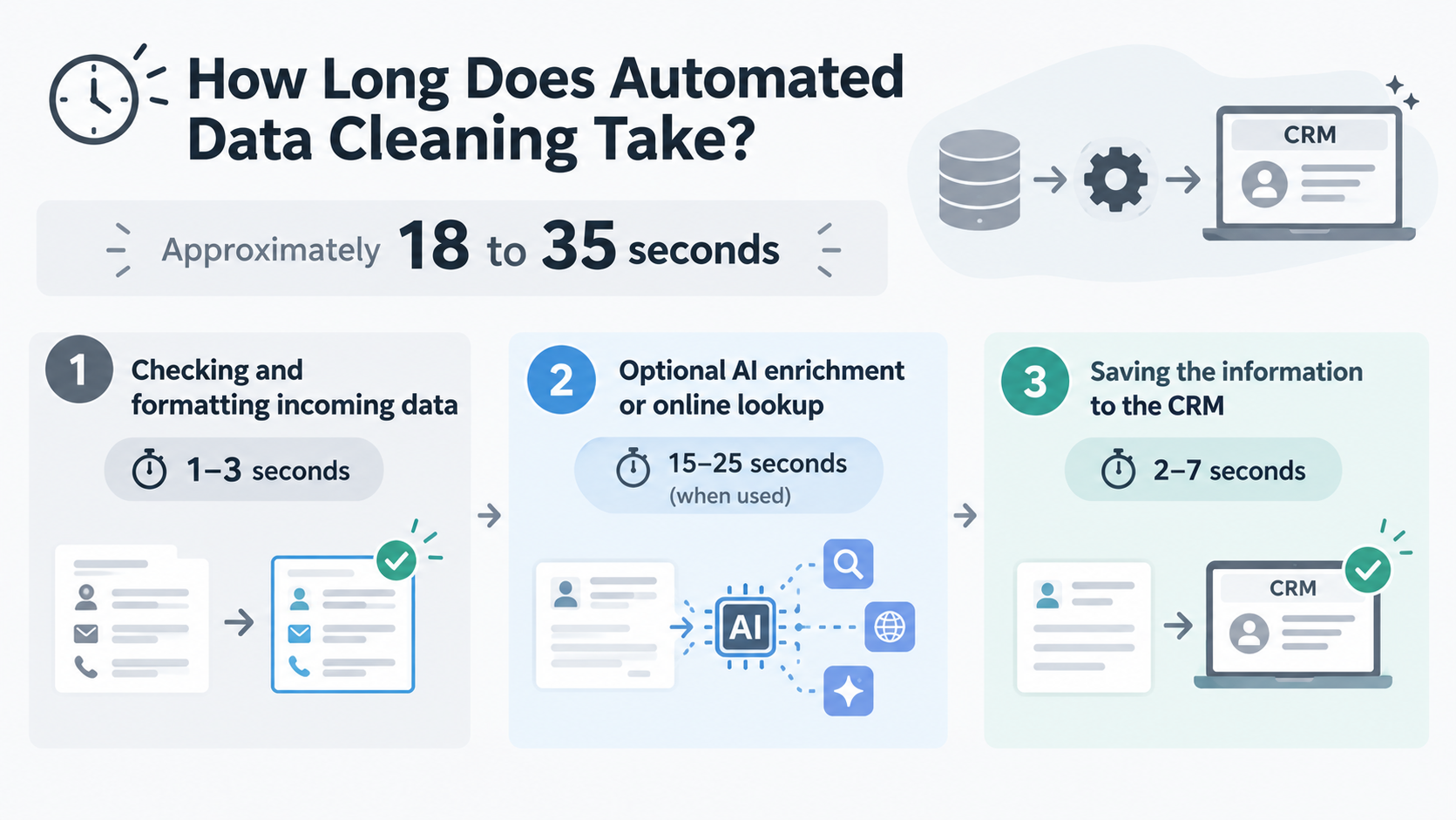
In our analysis, the full process took approximately 18 to 35 seconds:
- Checking and formatting incoming data: 1–3 seconds
- Optional AI enrichment or online lookup: 15–25 seconds, when used
- Saving the information to the CRM: 2–7 seconds
The time required depends on which steps are included. Workflows that use AI to find additional information may take longer than workflows that only apply basic formatting rules.
5. Clean CRM Data Can Trigger the Next Business Task
CRM data cleansing is often just the first step in a larger process. In our analysis,only 11.1% ended after the cleaned information was saved to the CRM.
For the other 88.9%, the process after data cleaning can look like this: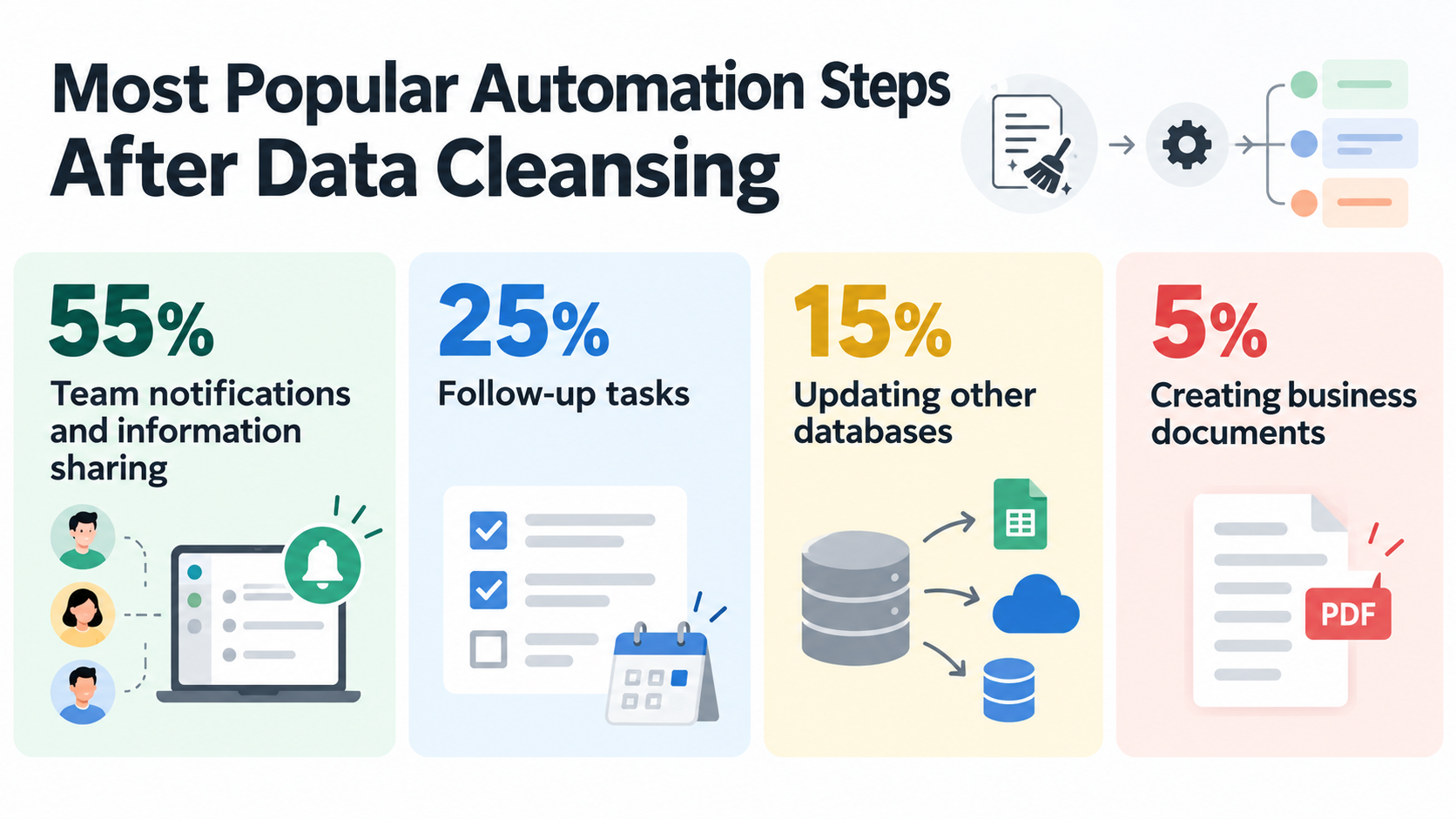
- Team notifications and information sharing (55%): Send a Slack or Microsoft Teams notification to the sales representative, including useful details about the new lead.
- Follow-up tasks (25%): Send a welcome email through Gmail or Outlook, arrange a meeting in Google Calendar, or create a Zoom meeting link.
- Updating other databases (15%): Share the cleaned information with tools such as Google Sheets, or an ERP system so that different teams can work with consistent records.
- Creating business documents (5%): Use the customer information to prepare a contract, quotation, or invoice with an electronic signature service such as DocuSign.
By connecting CRM data cleansing with these next steps, teams can reduce manual work and help sales processes move forward sooner.
Which CRM Tools Are More Likely to Require Data Cleansing?
In our analysis, among workflows that start or end with a CRM tool, the percentage that includes data formatting or cleansing is as follows: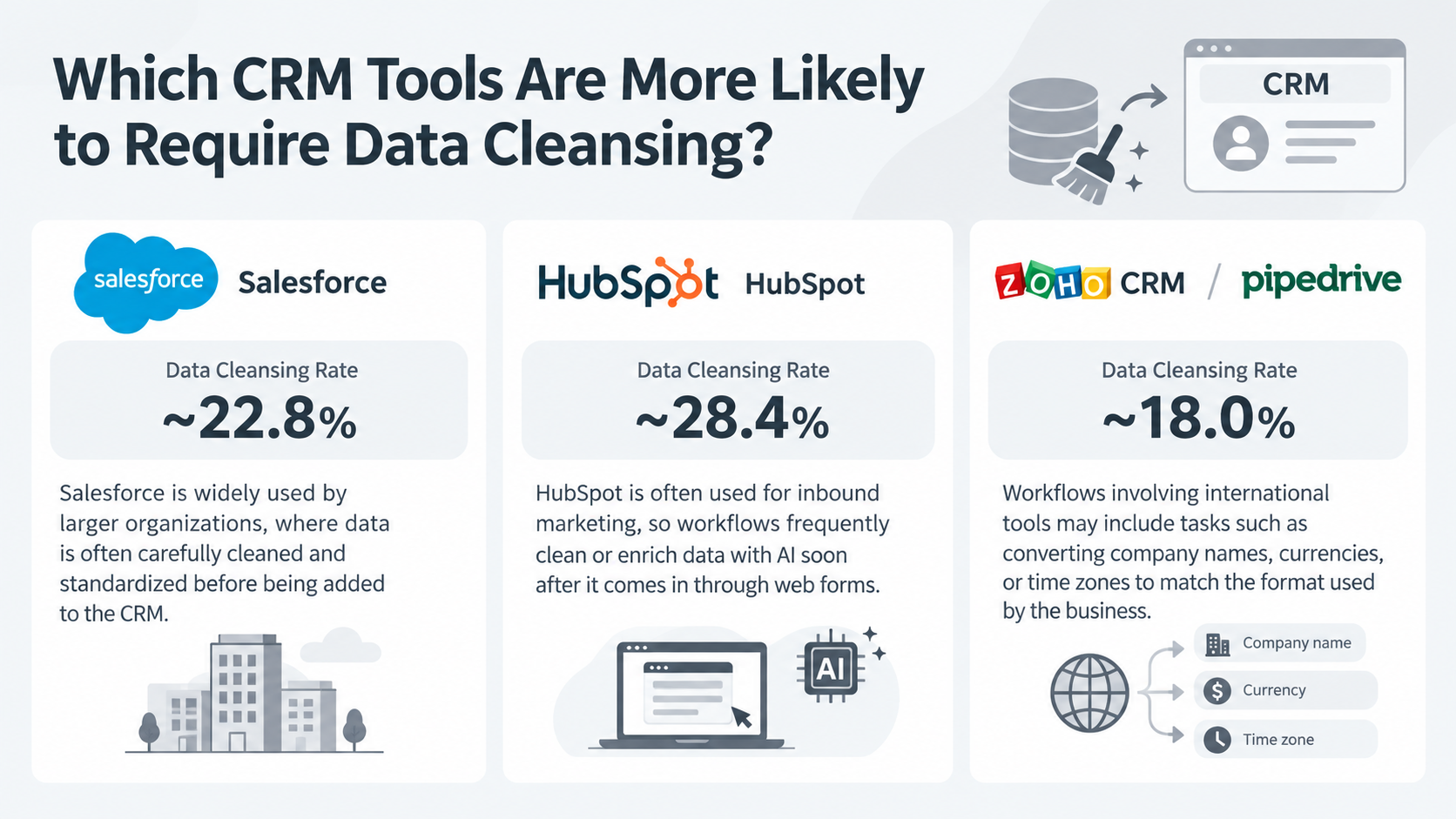
- Common Pattern: Inbound lead enrichment & form cleanup.
- Frequently used for inbound marketing, so workflows often clean or enrich data with AI shortly after it comes in through web forms.
Salesforce (~22.8% Data Cleansing Rate)
- Common Pattern: Enterprise data governance & strict standardization.
- Widely used by larger organizations, where data is carefully cleaned and standardized before being added to the CRM.
Zoho CRM & Pipedrive (~18.0% Data Cleansing Rate)
- Common Pattern: Global data normalization (currencies & time zones).
- Workflows often include tasks such as converting international company names, currencies, or time zones to match the business format.
Traditional CRM tools play an important role as databases for managing customer information.
However, many sales activities that happen before data reaches the CRM cannot be done directly in the CRM, and each CRM also has different requirements for importing data.
As a result, teams often need to clean and format their data before adding it to the CRM.
Related CRM Automation Templates:


■Overview
Are you spending too much time manually entering Amazon Seller Central order information into Salesforce? Besides being time-consuming, manual data entry can also lead to human errors such as input mistakes. With this workflow, customer information is automatically added to Salesforce whenever a specific order is placed in Amazon Seller Central, helping streamline data management and freeing you to focus on more important tasks.
■Who This Template Is For
- E-commerce professionals who manually transfer Amazon Seller Central order information to Salesforce
- Sales teams looking to automate data integration between Salesforce and Amazon Seller Central and streamline lead management
- Anyone looking to automate the entire workflow from order processing to customer management and improve productivity across the business
■Benefits of This Template
- Reduce the time spent on manual data entry by automatically creating a Salesforce record whenever an order is placed in Amazon Seller Central
- Prevent human errors such as data transfer mistakes and missing customer information by automatically syncing data between systems
■Flowbot Steps
- First, connect Amazon Seller Central and Salesforce with Yoom
- Next, select Amazon Seller Central as the trigger and set the action to “When an order is created”
- Use the retrieved order information to configure conditions that determine how subsequent processes are divided using the branching feature
- Then, set the Amazon Seller Central actions “Get order buyer information” and “Get order shipping address”
- Use the AI feature action “Extract data from text” to extract the information you want to register in Salesforce, such as the customer’s name and phone number
- Finally, set the Salesforce action “Create a record in the Lead object” and map the extracted data to the desired fields
※“Trigger”: An action that starts the flow. “Operation”: An action that processes data within the flow after the trigger starts.
■Customizing This Workflow
- In the Amazon Seller Central trigger settings, specify the marketplace ID and sales region you want to target
- With the branching feature, you can freely configure conditions for dividing subsequent processes based on the retrieved order information, such as order status and total amount
- In the actions for retrieving buyer information and shipping addresses, you can use fixed values or the order ID retrieved by the preceding trigger as variables
- In the AI feature action, you can flexibly configure what to extract from which text, such as separating a full name into a first name and last name
- When creating a Salesforce record, specify which data should be mapped to each field using fixed values or information retrieved in preceding steps as variables
■Notes
- You must connect both Amazon Seller Central and Salesforce with Yoom.
- You can select a trigger interval of 5, 10, 15, 30, or 60 minutes.
- Note that the shortest available trigger interval varies by plan.
- Branching is an operation available on the Mini plan and higher. On the Free plan, operations configured in the Flowbot will result in an error.
- Paid plans such as the Mini plan include a two-week free trial. During the free trial, you can use apps and features (operations) that are otherwise restricted.
- Salesforce is available only on the Team plan and Success plan. On the Free and Mini plans, operations and Data Connect configured in the Flowbot will result in an error.
- Paid plans such as the Team plan and Success plan include a two-week free trial. During the free trial, you can use apps that are otherwise restricted.
- Flowbots with more than five operations can be configured on the Mini plan and higher. On the Free plan, the Flowbot will not run.

■Overview
The flow of "Registering Shopify Customer Data as Salesforce Lead Information" is a business workflow that streamlines data management in e-commerce site operations.
By automatically importing customer information collected on Shopify into Salesforce, sales and marketing teams can utilize leads more effectively.
Utilizing Yoom's API integration feature, it enables smooth data transfer between multiple SaaS applications.
■Recommended for
- E-commerce operators considering integration between Shopify and Salesforce
- Sales and marketing personnel who want to efficiently manage customer data and utilize it in sales activities
- Companies using multiple SaaS applications and aiming to improve operational efficiency through automated data integration
- Business owners who want to focus on more creative tasks without spending time on manual data entry
■Benefits of using this template
Manually registering Shopify customer information into Salesforce is time-consuming and carries the risk of human error.
By utilizing this flow for automation, you can significantly reduce the time spent on manual entry through automatic data transfer from Shopify to Salesforce.
Moreover, by eliminating manual work, you can eliminate human errors and maintain data accuracy.
Automation allows for smooth information sharing, which may enable effective strategy planning.


■Overview
This is a flow where after responding with a recording of a business meeting on Google Forms, transcription and summarization are performed, and the data is registered as a note in HubSpot.
By using Yoom, you can easily connect apps without the need for programming.
■Recommended for
1. Companies that frequently use Google Forms
・Those who keep records of business meetings but find transcription and summarization cumbersome
2. Those who use HubSpot for sales activities
・Those who want to eliminate the hassle of manually entering data when registering notes in HubSpot
■Benefits of using this template
By using Google Forms to respond with recording data of business meetings, performing transcription and summarization, and automatically registering them as notes in HubSpot, you can enjoy the following benefits.
First, manual data entry is no longer necessary, which saves time and improves efficiency.
Additionally, by automating transcription and summarization, consistency and accuracy of information are maintained, reducing the risk of human error.
Furthermore, by quickly sharing conversation content, communication within the team becomes smoother, enabling more effective follow-ups and sales strategy planning.
■Notes
・Please connect both Google Forms and HubSpot with Yoom.
・You can select the trigger interval from 5 minutes, 10 minutes, 15 minutes, 30 minutes, or 60 minutes.
・Please note that the shortest trigger interval varies depending on the plan.
・For how to obtain response content when using Google Forms as a trigger, please refer to here.
・AI operations are only available with the Team Plan and Success Plan. If you are on the Free Plan or Mini Plan, the operation of the flow bot you set will result in an error, so please be careful.
・Paid plans such as the Team Plan and Success Plan offer a 2-week free trial. During the free trial, you can use restricted apps and AI features (operations).
■Overview
The flow "When a customer is registered on Shopify, add the customer information to HubSpot" is a business workflow that automates the integration between an online store and CRM.
By implementing this workflow, you can eliminate the need to manually enter information into HubSpot every time a new customer registers on Shopify.
■Recommended for
- Business owners running an online store using Shopify
- Marketing professionals managing customer data in HubSpot who want to reduce data entry workload
- IT professionals looking to efficiently integrate customer information across multiple apps
- Business owners who want to maintain consistency in customer data while advancing business automation
■Benefits of using this template
- Reduction in data entry workload: Customer registration on Shopify is automatically reflected in HubSpot, eliminating the need for manual entry.
- Improved data consistency: Reduces discrepancies in data between different platforms.
- Increased operational efficiency: Streamlines customer information management, allowing focus on other important tasks.
- Error prevention: Reduces human errors from manual entry, maintaining accurate customer data.
4 Best Tools for CRM Data Cleansing
There are several tools available for CRM data cleansing.
The best option depends on what you’re looking for—for example, whether you only need data cleansing or want to automate the entire process, including the tasks that follow.
It’s a good idea to compare the available options based on both their features and pricing.
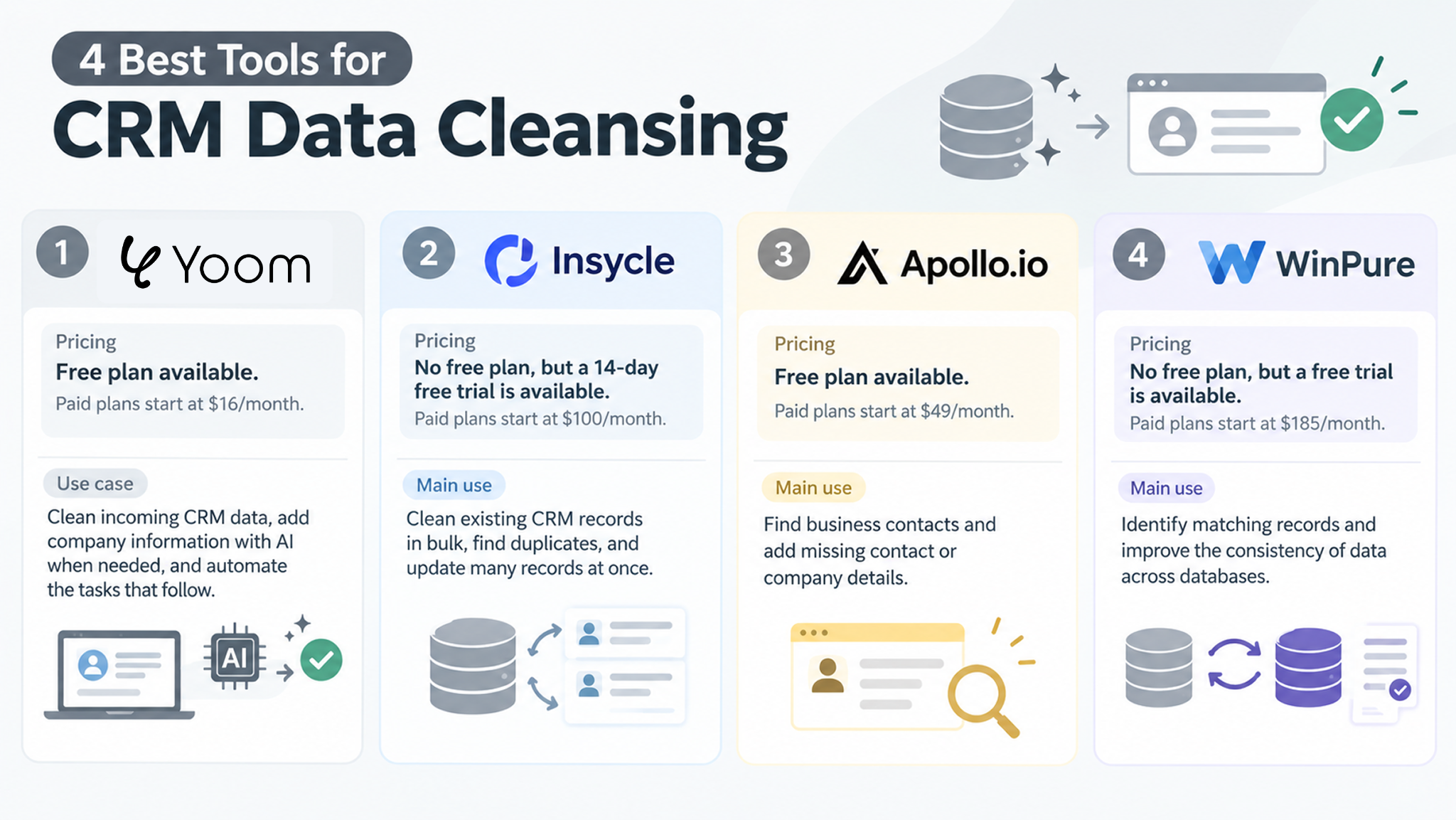
1. Yoom
Yoom is an all-in-one automation platform that connects business apps, manages information in databases, and lets teams use AI as part of their workflows.
- Use case: Clean incoming CRM data, add company information with AI when needed, and automate the tasks that follow.
- Key features: Yoom can connect web forms, business card scanning tools, CRMs, chat apps, and other services. Teams can set rules to format information, use AI for more complex cases, and trigger actions such as sales notifications, follow-up emails, and document creation.
- Who it may suit: Sales operations, RevOps, and marketing teams that want to reduce manual data entry and connect data cleaning with their everyday processes.
- Pricing: Free plan available. Paid plans start at $16/month.
2. Insycle
Isycle is a data management tool for CRMs such as HubSpot and Salesforce.
- Main use: Clean existing CRM records in bulk, find duplicates, and update many records at once.
- Key features: It provides tools for merging duplicate records, applying changes in bulk, and reviewing data quality.
- Who it may suit: Teams that need to organize large amounts of existing CRM data or maintain data quality across a large database.
- Pricing: No free plan, but a 14-day free trial is available. Paid plans start at $100/month.
3. Apollo.io
Apollo.io is a B2B sales platform that helps teams find contacts and add information to prospect records.
- Main use: Find business contacts and add missing contact or company details.
- Key features: It offers a business contact database and tools for prospecting and sales outreach.
- Who it may suit: Outbound sales teams that want to find new prospects and add information to contact lists.
- Pricing: Free plan available. Paid plans start at $49/month.
4. WinPure
WinPure provides data quality tools for finding duplicate records and checking information such as addresses.
- Main use: Identify matching records and improve the consistency of data across databases.
- Key features: Its tools can help identify records that may refer to the same person or company, even when some details differ.
- Who it may suit: IT and data teams that need to clean large databases or prepare data for a system migration.
- Pricing: No free plan, but a free trial is available. Paid plans start at $185/month.
When comparing tools, consider whether you mainly need to clean existing records, add missing contact details, or prevent new data problems while automating the work that follows.
How to Set Up Automated Data Cleaning with Yoom
If you want to automate not only data cleaning itself but also the tasks that come before and after it, Yoom is a good option to consider.
Yoom is more than just a data cleaning tool. It connects the tools you already use—including your CRM, spreadsheets, mails, and other business apps—and automates the work that happens across them.
Because Yoom works with your existing tools, you can build automated workflows without having to replace your current systems. This can also make it a more cost-effective approach than introducing a separate tool just for data cleaning.
You can use your existing CRM as the central system for cleaning and managing your data.
Yoom also has its own database feature, so if you already have data spread across multiple databases and are struggling to bring it together, you can use Yoom to consolidate that information in one place.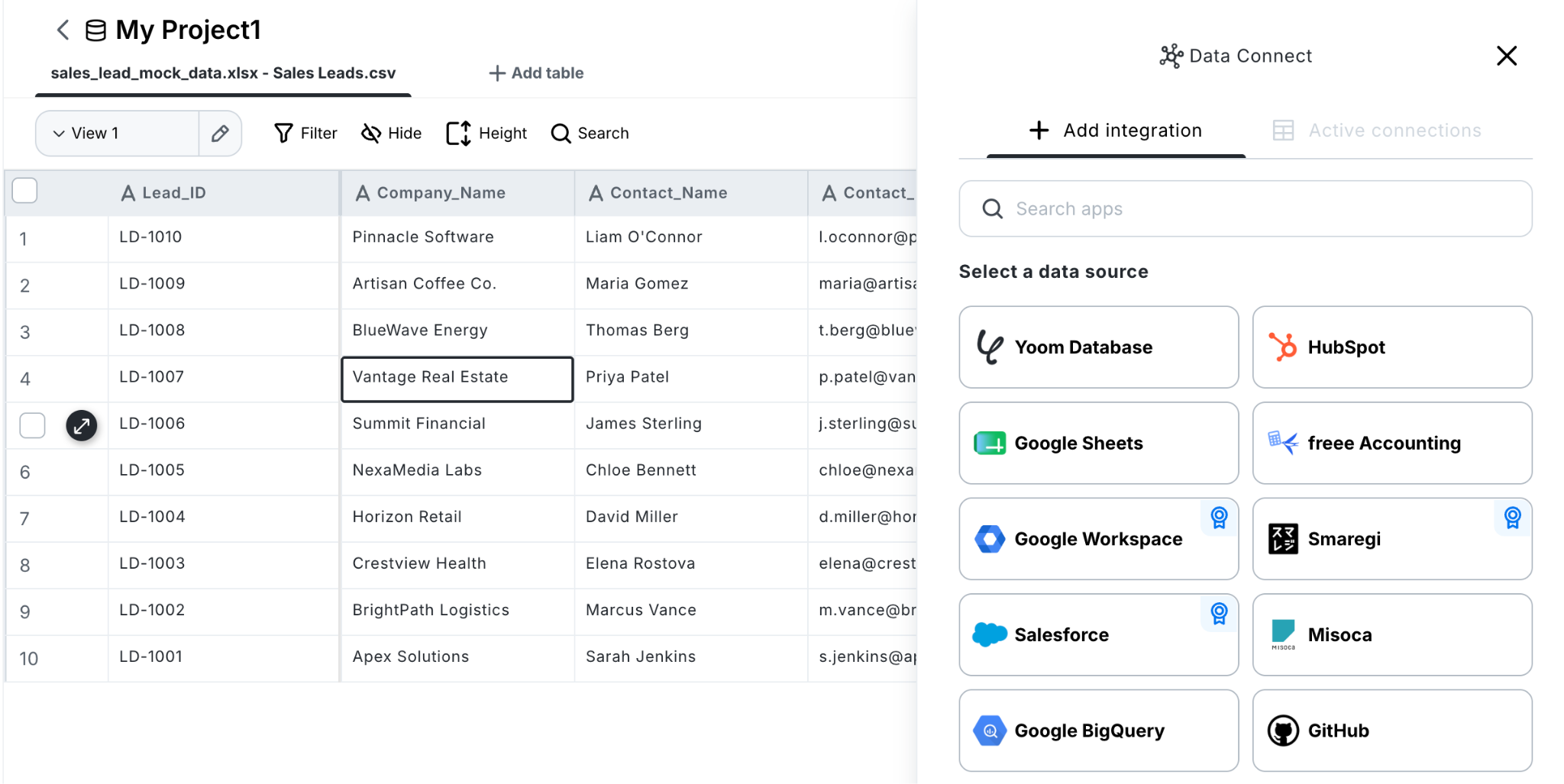
There are many ways to use Yoom depending on your needs.
Start small with the tasks that are easiest to automate, then gradually connect more processes and expand your workflows. Over time, you can work toward automating the entire process from start to finish.