・
Best Salesforce Automation Software: Real-World Use Cases

- What Our Data Reveals About Salesforce Automation
- 1. Where Salesforce Automation Starts and Ends: IN vs. OUT
- 2. Which Apps Do Businesses Connect With Salesforce Automation?
- 3. How Fast Can Salesforce Automation Run?
- How AI Improves Salesforce Automation
- 4 Common Salesforce Automation Use Cases
- Salesforce Flow vs. Other Salesforce Automation Tools | Which Is Best for You?
- How to Get Started with Salesforce Automation
Salesforce helps sales teams manage leads, customer information, and deals. But keeping everything up to date can take a lot of time.
For example, sales reps may need to:
- Copy information from website forms into Salesforce.
- Add meeting notes and update deal information by hand.
- Create quotes, send contracts for signatures, and notify teammates on Slack.
These tasks may seem small, but they add up. Sales teams can spend hours on manual work instead of talking to customers and closing deals.
Salesforce has built-in automation features, such as Salesforce Flow. However, setting up more complex workflows can be difficult for teams without technical knowledge. Connecting Salesforce to other business apps can also require extra tools or help from developers.
Salesforce automation software can help solve these problems. It connects Salesforce with other apps and handles repetitive tasks automatically, often without writing code.
But which tools are best, and how do businesses actually use them?
We analyzed data from active Salesforce Automation on Yoom to find out. This article explores how companies automate Salesforce, where AI fits in, and which Salesforce automation tools may work best for different teams.
What Our Data Reveals About Salesforce Automation
Our analysis of active Salesforce Automation on Yoom reveals four key findings:
- IN (Salesforce as the Destination): 57.4% — Data from web forms, incoming emails, and other apps flows into Salesforce, where new leads or activity records are automatically created.
- OUT (Salesforce as the Starting Point): 42.6% — Changes in Salesforce, such as a new record or an updated deal, trigger actions in other apps, such as Slack notifications, document creation, or data syncing.
- 3.4 apps and steps are connected in Salesforce Automation, including Salesforce and other business tools.
- 18.2 seconds is the median execution time for Salesforce Automation.
These findings show how businesses use Salesforce automation to connect their tools, reduce manual data entry, and keep sales processes moving.
1. Where Salesforce Automation Starts and Ends: IN vs. OUT
Salesforce automation can move information in two directions. Some automations send data from other apps into Salesforce. Others start with a change in Salesforce and trigger actions in other apps.
Our data shows the following split:
- IN — Salesforce as the destination: 57.4%
- OUT — Salesforce as the starting point: 42.6%
IN: Data Flows Into Salesforce (57.4%)
These automations collect information from other apps and send it to Salesforce.
For example:
Website form submission → Organize the information with AI → Create a lead in Salesforce
Other examples include:
- Sending inquiries from Google Forms or Typeform to Salesforce as new leads.
- Reading incoming emails and recording the details in Salesforce.
- Creating activity records in Salesforce based on information from other apps, such as HubSpot.
These automations reduce the need to copy information between apps by hand.
OUT: Salesforce Triggers Actions in Other Apps (42.6%)
These automations start when something happens in Salesforce, such as a new record being created or a deal being updated.
For example:
Deal marked as won in Salesforce → Create a contract → Notify the team on Slack
Other examples include:
- Sending a notification when a deal moves to a new stage.
- Creating documents when a deal closes.
- Saving signed contracts to Google Drive or another storage app.
- Sending Salesforce data to other business apps automatically.
These automations help teams complete the next steps without relying on someone to remember each task.
2. Which Apps Do Businesses Connect With Salesforce Automation?
Sales teams often use several tools alongside Salesforce. They may manage conversations in Slack, collect inquiries through forms, and store documents in Google Drive.
Our data shows that an active Salesforce automation connects an average of 3.4 apps and steps, including Salesforce and other connected tools.
Here are the most common categories of connected apps: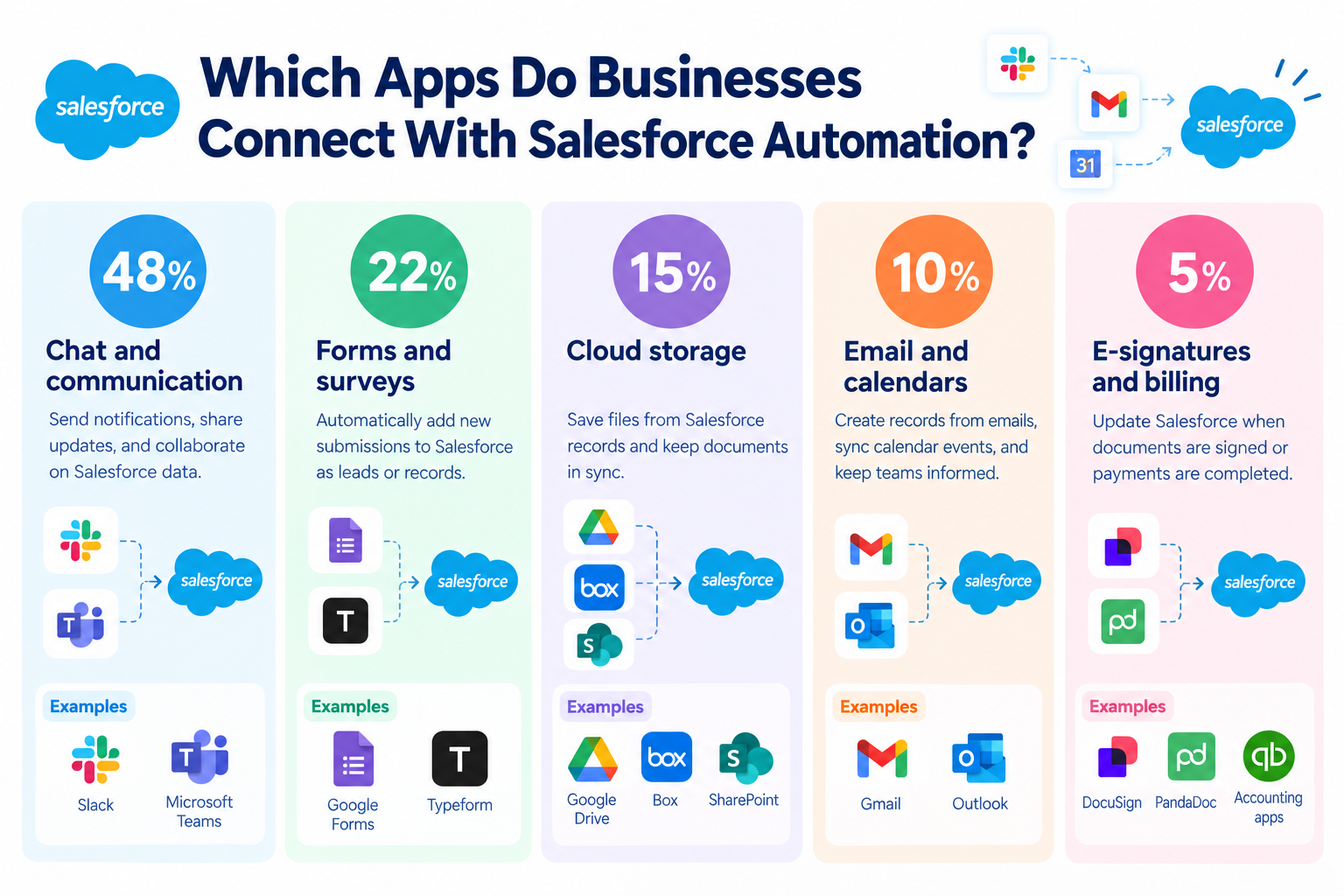
- Chat and communication (48%): Slack, Microsoft Teams
- Forms and surveys (22%): Google Forms, Typeform
- Cloud storage (15%): Google Drive, Box, SharePoint
- Email and calendars (10%): Gmail, Outlook
- E-signatures and billing (5%): DocuSign, PandaDoc, accounting apps
Chat and communication tools are the most common category in this dataset.
For example, when a new lead enters Salesforce, an automation can notify the assigned sales rep on Slack. When a deal closes, it can send an update to the team and save the related documents to cloud storage.
The key benefit of Salesforce automation is that Salesforce does not have to work alone. By connecting it with the tools a team already uses, businesses can reduce manual work across the entire sales process.
Related Salesforce Automation Templates

■Overview
Do you find it time-consuming to manually enter customer information shared in Slack into Salesforce, or worry about transcription errors? This workflow uses posts in a specific Slack channel as a trigger, allowing AI to automatically extract customer information from each post and register it as a new customer record in Salesforce. Save time on data entry and manage customer information quickly and accurately.
■Who This Template Is For
- Sales representatives who manually enter customer information shared in Slack into Salesforce
- Managers who want to streamline their sales team's data entry processes and prevent missing information
- DX leaders considering integrating Slack with Salesforce to automate routine tasks
■Benefits of Using This Template
- Customer information is automatically registered in Salesforce when a post is shared in Slack, reducing the time spent on manual data transfer.
- Automated processing helps prevent human errors such as copy-and-paste mistakes and missed registrations.
■Workflow Overview
- First, connect Slack and Salesforce to Yoom.
- Next, select Slack as the trigger, set the action to “When a new message is posted to a channel,” and specify the target channel.
- Then, set the AI feature action “Extract data from text” as an operation to extract customer information such as the company name and contact person from the Slack post.
- Finally, set Salesforce’s “Add a record” action as an operation to create a new customer record based on the information extracted by AI.
※ “Trigger”: An action that starts the flow. “Operation”: An action that processes data within the flow after the trigger starts.
■Customization Options
- Salesforce integration with Yoom is available only on the Team or Success Plan. Please note that this workflow will result in an error on the Free or Mini Plan.
- Features available on the Team and Success Plans can be tried during the 2-week free trial.
■Overview
Do you spend too much time manually transferring sales meeting reports from Slack to Salesforce? Entering the same information twice not only takes time but can also lead to input errors and missed updates. With this workflow, AI analyzes messages posted to a specific Slack channel and automatically updates the relevant Salesforce opportunity. Streamline reporting and improve data accuracy with ease.
■Who Should Use This Template
- Sales representatives who manually transfer Slack reports to Salesforce
- Managers who want to streamline sales team reporting and prevent errors such as missing information
- Anyone looking to improve the timeliness and accuracy of information recorded in Salesforce
■Benefits of Using This Template
- Simply post a report in Slack to automatically update Salesforce opportunity information, freeing up time previously spent on manual data entry for other core tasks.
- Eliminate manual data transfers to prevent human errors such as input mistakes and missed updates, keeping your Salesforce data accurate.
■Flow Bot Steps
- First, connect Slack and Salesforce to Yoom.
- Next, select Slack as the trigger, set the action to “When a new message is posted to a channel,” and specify the target channel.
- Then, set up the AI feature operation “Extract data from text” to extract the required information, such as the opportunity name and amount, from the Slack post.
- Finally, set up the Salesforce operation “Update a record in the Opportunity object” to update the relevant opportunity based on the information extracted by the AI feature.
※“Trigger”: The action that starts the flow. “Operation”: The action that processes data within the flow after the trigger starts.
■Customization Options
- In the operation that uses the AI feature to extract text, you can freely configure which information to extract from Slack posts. For example, customize the extraction fields to match your team’s reporting format, such as “Opportunity Name,” “Amount,” or “Stage,” and adapt the workflow to a wide range of use cases.
■Notes
・Connect both Slack and Salesforce to Yoom.
・You can choose a trigger interval of 5, 10, 15, 30, or 60 minutes.
・The shortest available trigger interval varies by plan.
・Salesforce is available only on the Team and Success plans.
On the Free and Mini plans, operations and data connections configured in your Flow Bots will result in errors. Please note this limitation.
・Paid plans, including the Team and Success plans, offer a two-week free trial. During the free trial, you can use apps that are otherwise restricted.
■Overview
The business workflow of "Issuing contracts from Salesforce account information and notifying Microsoft Teams" streamlines the sales process and facilitates smooth communication.
Contracts are automatically created based on account information registered in Salesforce, and notifications are sent to Microsoft Teams upon completion.
This significantly reduces the manual effort required for contract creation and information sharing.
By leveraging Yoom's API integration, AI, OCR, and RPA features, the entire workflow is automated, enabling error prevention and rapid response.
■Recommended for
- Sales representatives who want to streamline contract creation using Salesforce
- Business operators who wish to automate manual tasks in contract creation and reduce working time
- Administrators who use Microsoft Teams regularly and want to facilitate smooth information sharing within the team
- IT personnel who want to automate the entire business process by integrating multiple SaaS applications
■Benefits of using this template
By utilizing this flow, you can launch the flow directly from the Salesforce account information page and automatically create contracts, reducing the time spent on manual input.
Automation also reduces human error, ensuring accurate contract creation.
Notifications are sent to Microsoft Teams immediately after contract creation, facilitating smooth information sharing within the team.
By leveraging API integration and RPA features, multiple business processes can be centrally managed, improving overall business efficiency.


■Overview
Do you use Typeform to manage surveys or inquiry forms, but manually enter the lead information collected afterward into Salesforce? This process is time-consuming and can lead to errors when entering important information. With this workflow, a record can be automatically added to Salesforce whenever a response matching specific conditions is submitted through Typeform. This streamlines data synchronization between Typeform and Salesforce and eliminates manual work.
■Recommended for
- Those who manage leads collected through Typeform in Salesforce and find manual data entry time-consuming
- Those who want to automate data synchronization between Typeform and Salesforce for real-time customer management
- Teams looking to prevent errors when transferring form responses and improve data accuracy
■Benefits of using this template
- Automatically sends Typeform responses to Salesforce based on specified conditions, reducing the time previously spent transferring data manually.
- Eliminates the need for manual data entry, helping prevent human errors such as incorrect entries and missed registrations of important lead information.
■Workflow steps
- First, connect Typeform and Salesforce to Yoom.
- Next, select Typeform as the trigger and set the action to “When a form is submitted.”
- Then, set up branching in the operation and route the process based on the Typeform response.
- Finally, configure the Salesforce “Add a record” action in the operation so that it runs only when specific conditions are met.
※ “Trigger”: An action that starts the flow. “Operation”: An action that processes data within the flow after the trigger starts.
■Customization options
- Set any conditions for the branching feature, such as the response to a specific Typeform question. For example, you can configure the workflow to send data to Salesforce only when someone responds that they want to request materials.
- When adding a record to Salesforce, map Typeform response fields to Salesforce object fields and specify the information you want to add.
■Notes
- Connect both Typeform and Salesforce to Yoom.
- The branching feature is available on the Mini plan and above, while Salesforce is available only on the Team and Success plans. On the Free and Mini plans, operations and Data Connects configured in your workflows will result in errors, so please take note.
- Paid plans such as the Team and Success plans include a two-week free trial. During the free trial, you can use apps that are otherwise restricted.
- For instructions on retrieving responses in Typeform, see this article.
3. How Fast Can Salesforce Automation Run?
Speed matters when a potential customer submits an inquiry or a deal is ready to close.
Our data shows a median execution time of 18.2 seconds for Salesforce automations.
This means that half of the measured executions finished in 18.2 seconds or less.
An automation may need to collect information, organize it with AI, update Salesforce, and send a notification to the sales team.
Automations that use AI to extract information typically take around 15–25 seconds in the observed data.
By automating these steps, sales reps can get the information they need sooner, without waiting for someone to update each system manually.
Actual execution times vary depending on the apps and steps involved.
How AI Improves Salesforce Automation
Salesforce has its own AI features, such as Agentforce, that help users work with customer data and automate tasks within Salesforce. However, businesses often receive information from outside Salesforce, such as website forms, emails, and other business apps. This information may not be organized or ready to use when it first arrives.
By using AI as part of Salesforce automation, teams can process information before it enters Salesforce. For example, AI can summarize incoming emails, extract key details from customer inquiries, and organize information into the right fields.
Our data shows that businesses use AI in Salesforce automation in three main ways to keep customer data organized, accurate, and ready for their sales teams to use.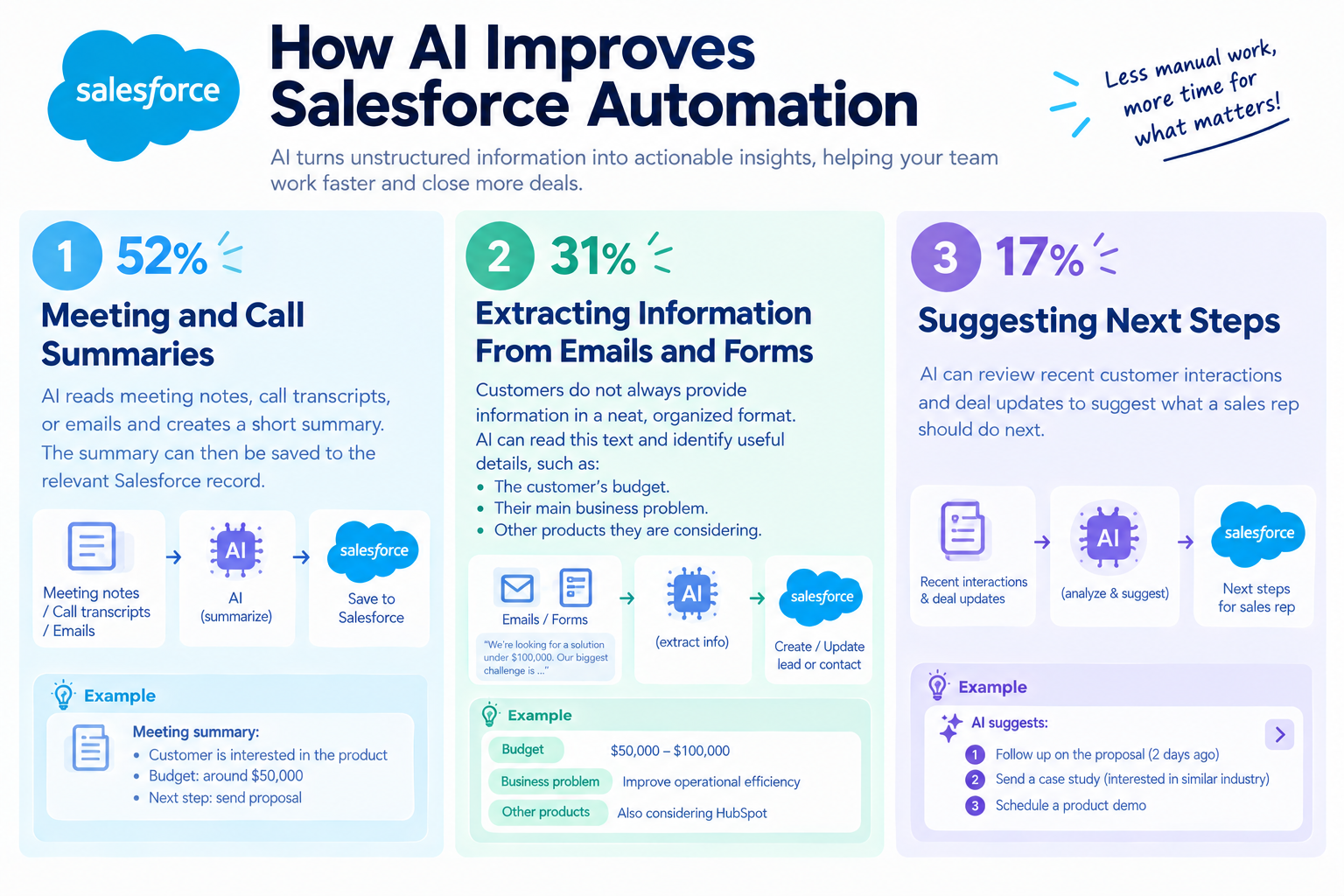
1. Meeting and Call Summaries (52%)
AI reads meeting notes, call transcripts, or emails and creates a short summary.
The summary can then be saved to the relevant Salesforce record.
For example, instead of asking a sales rep to write a full meeting report, AI can summarize the conversation and highlight the main points.
This helps teams keep customer records up to date with less manual work.
2. Extracting Information From Emails and Forms (31%)
Customers do not always provide information in a neat, organized format. They may explain their needs in a few sentences rather than filling in every field.
AI can read this text and identify useful details, such as:
- The customer's budget.
- Their main business problem.
- Other products they are considering.
The automation can then place this information in the appropriate Salesforce fields.
This makes customer information easier to review and helps sales reps prepare for follow-up conversations.
3. Suggesting Next Steps (17%)
AI can review recent customer interactions and deal updates to suggest what a sales rep should do next.
For example, it might suggest sending a follow-up email after a meeting or checking in with a prospect whose deal has not moved forward.
AI can also draft an email for the sales rep to review.
The goal is not to remove human judgment. It is to reduce the time spent reviewing information and preparing routine follow-ups.
Related Salesforce Automation Templates

■Who should use this template
- Sales reps who want to speed up proposal preparation for new leads registered in Salesforce and reach out before competitors do
- Sales managers who want to reduce the time spent developing tailored proposal structures for each customer and focus on the sales conversation itself
- Team leaders who want to streamline operations by automating draft creation while maintaining consistent proposal quality
■Benefits of using this template
- Automate the process from registering a lead in Salesforce to creating a proposal draft, reducing preparation time so you can start outreach immediately.
- Because AI analyzes customer information and develops the proposal structure, you can reduce differences in individual skill levels and prepare consistent, high-quality proposals.
■Workflow process
- First, connect Salesforce, Google Docs, Google Drive, and Slack to Yoom.
- Next, select Salesforce as the trigger and set the action to “When a new record is added to the Lead object.”
- Next, use the AI Worker to analyze customer information and internal knowledge, create a manual for developing a proposal outline and drafting the initial version in Google Docs, and configure Salesforce, Google Docs, Google Drive, and Slack as the tools to use.
- Finally, configure Slack’s “Send a message to a channel” action in the operation step to notify the person in charge when the draft is complete.
■Customization options
- Customize the AI Worker’s instructions to create proposal structures tailored to your company’s unique strengths or specific products and services.
- Specify any Google Drive folder as the destination for Google Docs and configure the workflow to automatically save files in a location that is easy for your team to access.
- Customize the Slack notification to include the URL of the generated document directly, allowing recipients to review its contents immediately.
■Notes
- Connect Salesforce, Google Docs, Google Drive, and Slack to Yoom. You must also connect the apps used within the AI Worker to My Apps.
- Salesforce is available on the Mini plan and above. On the Free or Personal plan, operations and Data Connects configured in the Workflow will result in errors.
- Paid plans such as the Mini, Team, and Success plans offer a two-week free trial. During the free trial, you can use apps that are otherwise subject to plan restrictions.
- For basic AI Worker configuration, see “【AI Worker】Basic configuration guide.”
- The number of AI Workers that can run simultaneously, the number of AI Workers you can create, and the AI models available to you vary by plan.
- The apps and operations available within an AI Worker are subject to the same usage limitations as Workflows.
- AI Workers consume tasks during test runs in the same way as during production runs. For details, see “【AI Worker】How task executions are calculated.”
- AI Workers are more likely to process tasks appropriately when their manuals are configured in detail. For details, see “【AI Worker】How to create a manual.”

- Sales reps who manage leads in Salesforce and want to respond to new inquiries faster
- Inside sales professionals who spend significant time researching companies and writing personalized emails after acquiring leads
- Team leaders who want to streamline sales activities with AI while improving both the quality and speed of lead outreach
- AI automatically analyzes the company when a lead is added to Salesforce, reducing the time required for research and speeding up your initial response to the lead.
- AI saves an optimized email based on the research results as a draft in Gmail and notifies Slack, helping prevent missing information or follow-ups while enabling more accurate outreach.
- First, connect Salesforce, Gmail, and Slack to Yoom.
- Next, select Salesforce as the trigger and set the action to “When a new record is added to the Lead object.”
- Next, create a skill in AI Worker to analyze the company, draft an email, and create a research summary based on the lead information. Set the following as tools: Salesforce’s “Get a record from the Lead object” action, Gmail’s “Create an email draft” action, Salesforce’s “Register activity history for a Lead object” action, and Slack’s “Send a message to a channel” action.
■Customization Options
- Adjust the skills (instructions) in AI Worker to customize the analysis criteria and the tone and manner of the emails to match your company’s sales style.
- Configure the recipient and subject line format for Gmail drafts to match your internal processes.
- Specify the Slack notification channel used by the sales team in charge or a specific project team.
- Connect Gmail, Salesforce, and Slack to Yoom individually.
- You can select a trigger interval of 5, 10, 15, 30, or 60 minutes.
- Please note that the shortest available trigger interval varies by plan.
- Salesforce is available only on the Team and Success plans. On the Free and Mini plans, operations and Data Connects in configured Workflows will result in errors.
- Paid plans, including the Team and Success plans, offer a two-week free trial. During the free trial, you can use apps that are otherwise restricted.
- The tools (apps) used within AI Worker must also be connected through My Apps.
- For basic AI Worker setup, see “[AI Worker] How to Configure the Basics.”
- The number of concurrent AI Worker executions, the number of AI Workers you can create, and the AI models available to you vary depending on your plan.
- The apps and operations available within AI Worker are subject to the same usage limits as Workflows.
- Please note that AI Worker consumes tasks during test runs just as it does during production runs. For details, see “[AI Worker] How Task Executions Are Counted.”
- AI Worker is more likely to perform the appropriate processing when skills are configured in detail. For details, see “[AI Worker] How to Create a Manual.”
- Sales managers who use Salesforce and want to streamline the assignment of new leads
- B2B marketing professionals who want to assign leads objectively and fairly based on past closing performance and industry experience
- Sales operations professionals who want to shorten the time from lead generation to initial outreach and improve conversion to opportunities
- Because AI recommends the best team member based on historical data, you spend less time deciding who to assign leads to and can reach out more smoothly.
- Salesforce record updates are automated, helping prevent manual data entry errors and reduce the burden of administrative work.
- First, connect Salesforce and Slack to Yoom.
- Next, set the Salesforce action “When a new record is added to the Lead object” as the trigger.
- Then, use an AI worker to create a skill that selects the best team member, updates the Salesforce Lead object, and sends a Slack message mentioning the assigned team member. Set Salesforce and Slack actions as the tools to use.
- By adjusting the instructions (prompt) given to the AI worker, you can add custom assignment criteria, such as the current number of opportunities owned or the assigned region, in addition to closing performance.
- Customize the Slack notification content to include the lead’s industry and inquiry details from the web form, making it easier for the assigned team member to understand the situation.
- Connect Salesforce and Slack to Yoom. You must also connect the tools (apps) used within the AI worker through My Apps.
- Salesforce is available on the Mini plan and above. Please note that workflow operations and Data Connect settings will result in errors on the Free and Personal plans.
- Paid plans, including the Personal, Mini, Team, and Success plans, offer a two-week free trial. During the free trial, you can use apps and features (operations) that are subject to plan restrictions. For details, see the Pricing Plans page.
- You can choose a trigger interval of 5, 10, 15, 30, or 60 minutes.
- Please note that the shortest available trigger interval varies by plan.
- For basic AI worker setup, see [AI Worker] Basic Setup Guide.
- The number of concurrent AI worker executions, the number of AI workers you can create, and the AI models available to you vary by plan.
- The apps and operations available within AI workers are subject to the same usage limits as workflows.
- Please note that AI workers consume tasks during test runs just as they do during production runs. For details, see [AI Worker] How Task Execution Counts Are Calculated.
- AI workers are more likely to process tasks appropriately when skills are configured in detail. For details, see [AI Worker] How to Create Skills (Formerly Manuals).
- Sales and legal professionals responsible for managing opportunities in Salesforce and creating contracts
- Those looking to improve operational efficiency by automating contract creation with AI
- Managers who want to reduce reliance on individual employees and build a more standardized contract workflow
- AI automatically creates contracts based on opportunity information in Salesforce, reducing the time previously spent on manual work.
- It helps prevent human errors such as incorrect data entry from manually transferring information or missing details in contracts.
- First, connect Salesforce and Google Docs to Yoom.
- Next, select Salesforce as the trigger and set the action to “When a new record is added to the Opportunity object.”
- Finally, set up an AI worker as the operation and create instructions for generating a contract based on the opportunity information retrieved from Salesforce, using a specified Google Docs file as the template.
■Customization options
- You can customize the instructions (prompt) for the AI worker based on the type of contract you want it to create. You can also change the Salesforce and Google Docs accounts connected to the workflow.
- You can specify any Google Docs file as the contract template. Select a document that uses your company’s preferred format.
- Connect Salesforce and Google Docs to Yoom. You must also connect the tools (apps) used within the AI worker to My Apps.
- You can choose a trigger interval of 5, 10, 15, 30, or 60 minutes.
- Note that the shortest available trigger interval varies by plan.
- Salesforce is available only on the Team and Success plans. On the Free and Mini plans, operations and Data Connect configured in flow bots using Salesforce will result in errors.
- Paid plans, such as the Team and Success plans, include a two-week free trial. During the free trial, you can use apps that are otherwise restricted.
- For basic AI worker setup, see “[AI Worker] How to configure the basics.”
- The number of AI workers that can run simultaneously, the number of AI workers you can create, and the AI models available to you vary by plan.
- The apps and operations available within AI workers are subject to the same usage limits as flow bots.
- AI workers consume tasks during test runs in the same way as they do during production runs. For details, see “[AI Worker] How task executions are calculated.”
- AI workers are more likely to process tasks correctly when their instructions are configured in detail. For details, see “[AI Worker] How to create instructions.”
4 Common Salesforce Automation Use Cases
Our data shows four common ways businesses use Salesforce automation to improve their sales processes.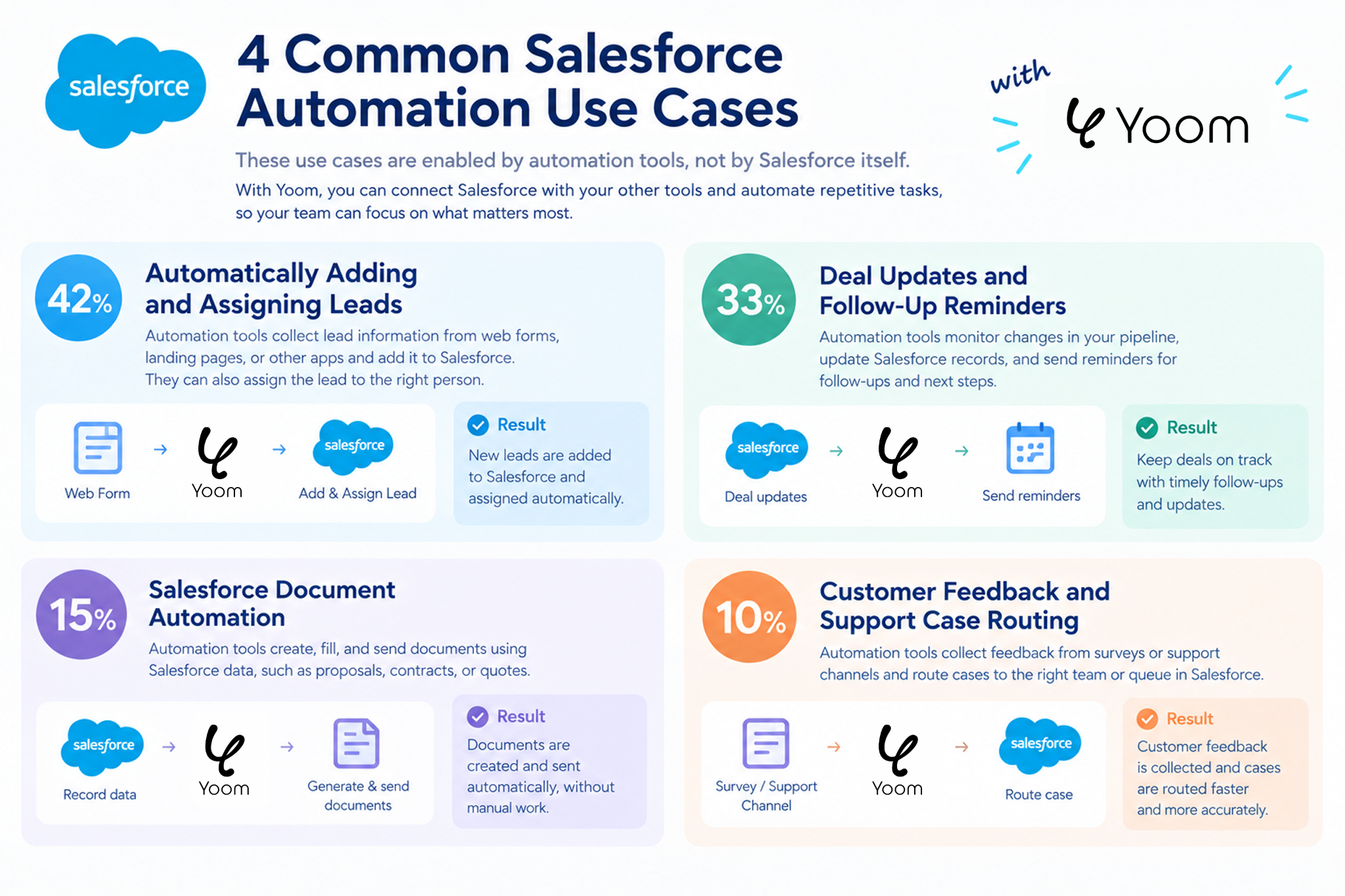
1. Automatically Adding and Assigning Leads (42%)
When someone submits a website form, an automation can create a Salesforce lead and notify the right sales rep.
AI can also organize the inquiry and summarize the customer's needs before the rep reviews it.
This helps teams respond to new leads without manually transferring information between tools.
2. Deal Updates and Follow-Up Reminders (33%)
Sales teams need to know when a deal moves forward—or when it stops moving.
An automation can notify the team when a deal is won or alert a manager when an opportunity has not been updated for a while.
This helps teams keep track of important changes without checking Salesforce repeatedly.
3. Salesforce Document Automation (15%)
Preparing quotes, proposals, and contracts often involves copying customer details into documents.
Salesforce automation software can use information already stored in Salesforce to create documents automatically.
For example, when a deal is marked as won, an automation can prepare a contract, send it for an electronic signature, and save the completed document to cloud storage.
4. Customer Feedback and Support Case Routing (10%)
AI can help teams review customer messages and support requests.
For example, it can identify whether a message expresses frustration, determine how urgent the issue may be, and send the case to the appropriate team.
This helps support teams organize incoming requests and respond to customers more efficiently.
Salesforce Flow vs. Other Salesforce Automation Tools | Which Is Best for You?
Not every business needs the same type of Salesforce automation software.
Some teams only need to automate tasks inside Salesforce. Others need to connect Salesforce with several external apps or use AI to process information.
Here is how the main options compare.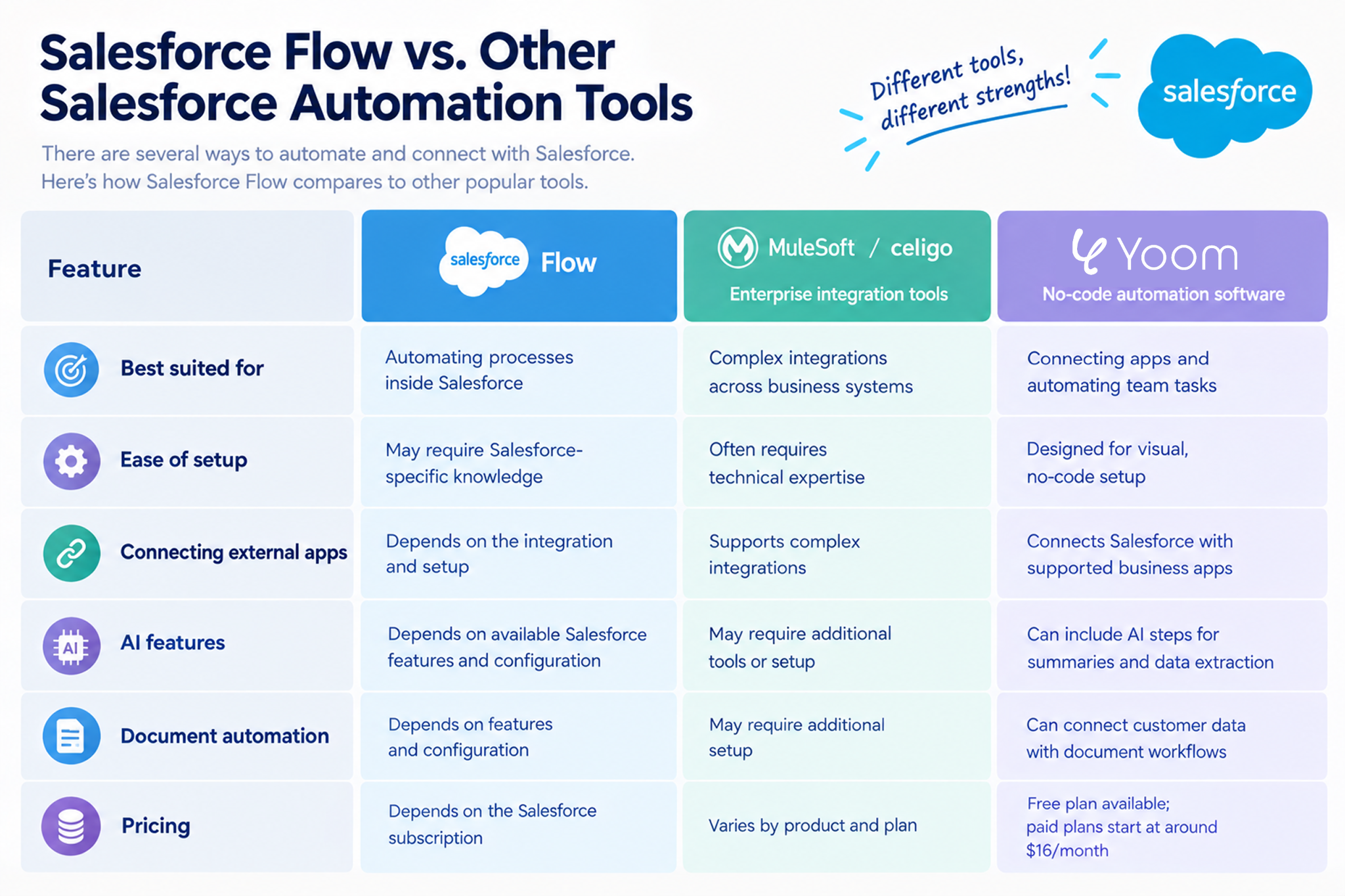
- Best for: Automating processes inside Salesforce.
- Ease of setup: May require Salesforce-specific knowledge.
- Connecting external apps: Depends on the integration and setup.
- AI features: Depends on available Salesforce features and configuration.
- Document automation: Depends on available features and configuration.
Enterprise Integration Tools (MuleSoft / Celigo)
- Best for: Connecting complex business systems.
- Ease of setup: Often requires technical expertise.
- Connecting external apps: Supports complex integrations.
- AI features: May require additional tools or setup.
- Document automation: May require additional setup.
No-Code Automation Software (Yoom)
- Best for: Connecting apps and automating team tasks.
- Ease of setup: Uses a visual interface, without requiring code.
- Connecting external apps: Connects Salesforce with supported business apps.
- AI features: Can use AI to summarize information and extract data.
- Document automation: Connects customer data with document workflows.
How to Get Started with Salesforce Automation
The Challenge of Setting Up Salesforce Automation
Salesforce automation software can save time by reducing manual data entry, updating customer records, and notifying your team about important changes.
However, setting up automation can be challenging when you need to connect multiple apps or handle complex business processes.
For example, you may want to collect information from website forms, use AI to extract key details, add the information to Salesforce, and notify your sales team in Slack. Setting up each step and making sure the data flows correctly can take time.
The right Salesforce automation software should make it easy to get started with simple tasks while giving you the flexibility to build more advanced automations as your needs grow.
Start with a Free Plan
Before committing to a paid plan, try the software yourself.
Start with a repetitive task, such as adding new leads to Salesforce or sending a Slack notification when a deal is updated. Testing simple automation helps you understand how the tool works and where it can save your team time.
You don't have to build everything from scratch. Templates and AI-assisted setup can help you get started faster. When your requirements become more specific, you can customize the automation to fit your business process.
Three Ways to Get Started with Salesforce Automation Using Yoom
Yoom offers three ways to automate Salesforce tasks, depending on how quickly you want to get started and how much customization you need.
Option 1. Start with a Template
If you want to automate a common task quickly, start with a ready-made template. Choose one that matches your needs, connect your app accounts, and adjust the settings to fit your process.
For example, you could use a template to add information from another app to Salesforce or send a notification when a new lead arrives.
This is a good option if you want to reduce manual work without designing every step yourself.
Explore Yoom's workflow templates
Option 2. Let AI Worker Help Build Your Automation
If you know what you want to automate but aren't sure how to build it, describe your goal in natural language. Yoom's AI Worker helps you turn your instructions into an automation.
For example, you could describe a process that reads an incoming sales inquiry, extracts the company name and contact details, adds the information to Salesforce, and notifies your sales team in Slack.
This is a useful option when you want to automate a specific task without configuring every step manually.
Explore Yoom's AI Worker templates
Option 3. Build a Custom Automation
If you need more control over how your business process works, you can build a custom automation using Yoom's customization features.
Connect the apps you already use and configure each step to match your requirements. For example, you can define which information to extract with AI, how to organize it in Salesforce, what conditions should trigger an action, and when your team should receive a notification.
This option is ideal when templates or AI-assisted setup don't fully cover your needs, or when you want to automate a more complex process across multiple apps.