・
Best Accounting Automation Software: 35% of Businesses Don’t Use Dedicated Accounting Software

- What Real-World Data Reveals About Accounting Automation
- How Businesses Build Accounting Workflows Without Dedicated Accounting Software
- Which Accounting Tasks Are Most Commonly Automated?
- How AI Makes Accounting Automation Easier
- How Fast Does Accounting Automation Software Process Financial Tasks?
- Best Accounting Automation Software and Tools in 2027
- Do You Need Dedicated Accounting Automation Software?
- How to Choose the Best Accounting Automation Software
When a business wants to improve its accounting processes, buying dedicated accounting software may seem like the obvious first step.
Tools like Xero help businesses manage invoices, expenses, and financial records. However, even with accounting software in place, teams may still spend hours collecting receipts, entering invoice details, requesting approvals, and updating other business tools.
Accounting software helps businesses manage invoices, expenses, and financial records. However, buying dedicated accounting software does not always eliminate manual work. Employees may still need to transfer data between apps, check documents, and notify the right people.
If you want to automate these tasks, you have another option: Entire workflow automation software. Instead of investing in a separate accounting system, you can connect the business apps your team already uses and automate tasks across them. For example, you can transfer invoice details from your CRM to a spreadsheet, request expense approvals through Slack, or use AI to extract information from PDF invoices.
Unlike dedicated accounting software, entire workflow automation software can also help automate processes across sales, HR, and other departments. This makes it an option for businesses that want to reduce manual work across the company, whether or not they already use accounting software.
In this guide, we'll explore what accounting automation software can do, how businesses use it to automate financial tasks, and how to choose the right solution for your needs.
What Real-World Data Reveals About Accounting Automation
Many businesses assume they need dedicated accounting software to automate their financial processes. However, automation data from Yoom shows that businesses can take different approaches.
In an analysis of accounting-related workflows on Yoom 35% of automation in the observed group did not use a dedicated accounting app. Instead, they used other business tools, such as databases, Excel, spreadsheets, and CRM systems, to manage parts of their financial processes.
The remaining 65% connected a dedicated accounting app to their workflows.
Two Ways to Automate Accounting Workflows
Businesses can take two main approaches, depending on their existing tools and needs.
1. Connect your existing accounting software
If your team already uses Xero, or another accounting app, you can connect it to your other business tools.
For example, when a customer pays an invoice, an automated workflow can update the payment status in your CRM and notify your accounting team.
This helps reduce repetitive work without replacing your current accounting system.
2. Automate financial tasks with the tools you already use
If you do not need a dedicated accounting system yet, you may be able to automate some financial tasks using spreadsheets, databases, forms, and other business apps.
For example, you could collect expense information through a form, store it in Excel or Google Sheets, and send an approval request to the right manager.
This approach can be useful for businesses that want to reduce manual work before investing in a larger accounting system.
How Businesses Build Accounting Workflows Without Dedicated Accounting Software
Our data also shows different ways businesses can manage financial tasks using their existing tools.
Among the workflows in the group that did not use a dedicated accounting app, the observed patterns included: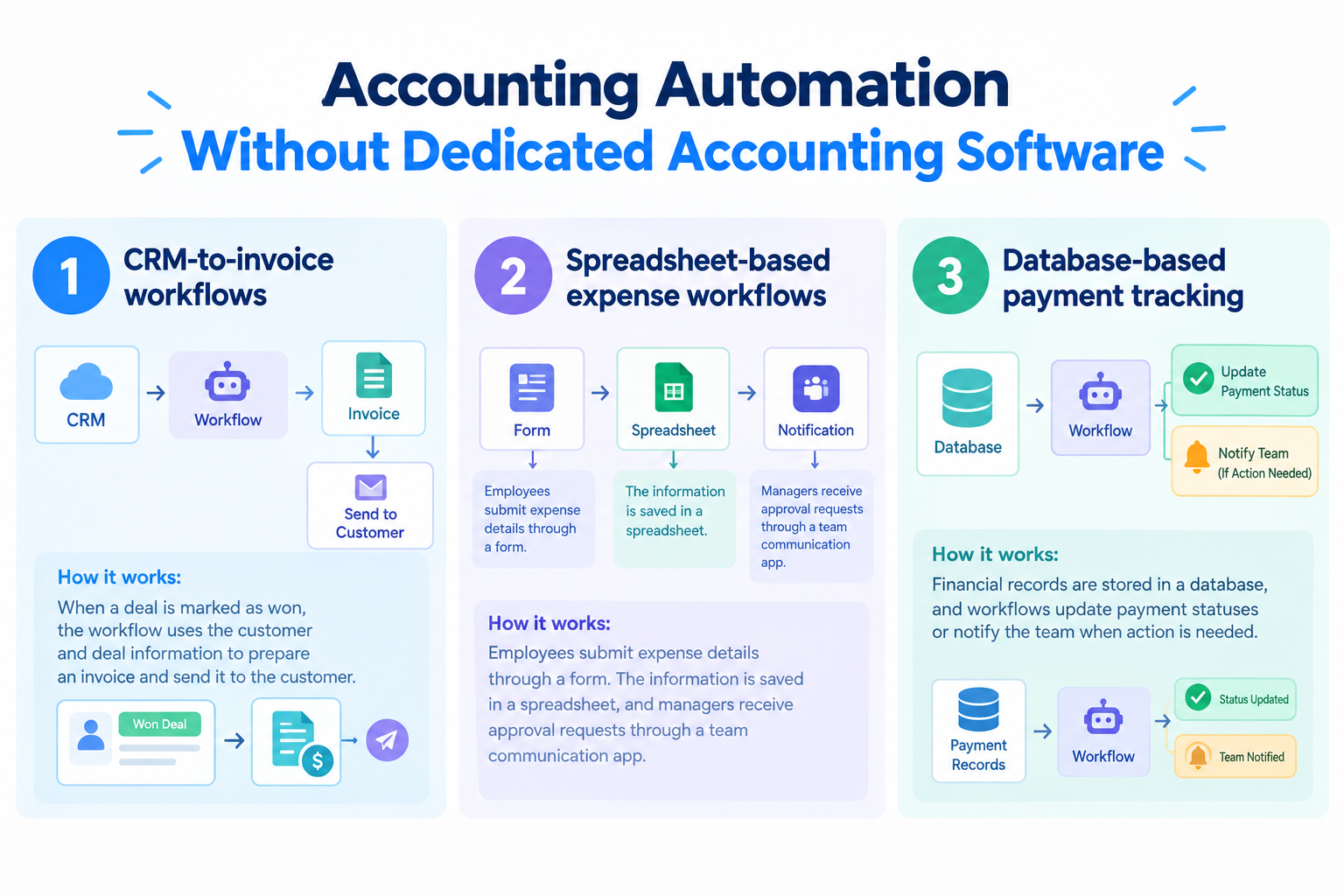
- CRM-to-invoice workflows (60%): When a deal is marked as won, the workflow uses the customer and deal information to prepare an invoice and send it to the customer.
- Spreadsheet-based expense workflows (25%): Employees submit expense details through a form. The information is saved in a spreadsheet, and managers receive approval requests through a team communication app.
- Database-based payment tracking (15%): Financial records are stored in a database, and workflows update payment statuses or notify the team when action is needed.
These examples illustrate how existing tools can support financial workflows.
Related Accounting Automation Templates:


■Overview
Manually entering payment information into Microsoft Excel every time a payment is completed in Stripe is time-consuming and can lead to input errors.
With this workflow, payment information is automatically added to the Microsoft Excel payment sheet whenever a Stripe payment is completed, reducing manual effort and errors for smoother payment management.
■Who This Template Is For
- Accounting professionals who use Stripe and Microsoft Excel and manually transfer payment information
- Operators of online stores and other businesses using Stripe payments who want to streamline sales management
- Anyone who wants to reduce manual data entry errors and maintain accurate payment records
■Benefits of This Template
- Automatically record completed Stripe payment information in Microsoft Excel to reduce the time spent transferring data.
- Prevent manual input errors and missed entries, helping improve the accuracy of payment data.
■Flowbot Steps
- First, connect Stripe and Microsoft Excel to Yoom.
- Next, select Stripe as the trigger and set the action to “When a payment is successfully completed.”
- Finally, select Microsoft Excel’s “Add a record” action in the operation and configure it to add the payment information retrieved from Stripe to the specified sheet.
※“Trigger”: An action that starts the flow. “Operation”: An action that processes data within the flow after the trigger starts.
■Customization Options
- In Microsoft Excel’s “Add a record” action, you can reference payment information retrieved from Stripe as variables.
■Notes
- Connect both Stripe and Microsoft Excel to Yoom.
- You can select a trigger interval of 5, 10, 15, 30, or 60 minutes.
- Note that the shortest available trigger interval varies by plan.
- Microsoft 365 (formerly Office 365) offers plans for home users and businesses (Microsoft 365 Business). Authentication may fail if you are not subscribed to a business plan.
- Stripe is available only on the Team and Success plans. On the Free and Mini plans, operations and Data Connects configured in Flowbots using Stripe will result in errors.
- Paid plans such as the Team and Success plans include a two-week free trial. During the free trial, you can use apps that are subject to plan restrictions.


■Who Should Use This Template
- Accounting professionals who spend significant time processing monthly invoices and creating journal entries and want to improve operational efficiency
- Administrative staff who manually transfer information from invoices stored in Google Drive to Google Sheets
- Team leaders who want to review accurate accounting reports at regular intervals while preventing human error
■Benefits of Using This Template
- AI automatically analyzes invoice details, classifies accounts, and records the information in Google Sheets, reducing the time spent on manual data entry.
- Minimize the risk of manual input errors and journal entry mistakes while consistently accumulating accurate data based on standardized criteria.
■Flow Bot Steps
- First, connect Google Drive, Google Sheets, and Slack to Yoom.
- Next, select a schedule in the trigger and set the date and time when you want to start the flow.
- Then, create a manual for the AI Worker to organize invoice information. Set the actions for retrieving a list of files from a specific Google Drive folder and downloading files, entering values into Google Sheets cells, and sending messages to a Slack channel as the tools to use.
■Customization Options
- In the AI Worker manual settings, specify in detail which invoice fields to extract, such as the amount, date, and vendor, as well as the criteria for classifying accounts.
- In the Google Sheets settings, adjust the sheet name and cell range for writing the extracted data to match your current ledger.
- In the Slack settings, you can change the report recipients to any channel or specific team member.
■Notes
- Connect each of Google Drive, Google Sheets, and Slack to Yoom. The tools (apps) used within the AI Worker also need to be connected through My Apps.
- For basic AI Worker setup instructions, see [AI Worker] Basic Setup Guide.
- The number of simultaneous AI Worker executions, the number of AI Workers you can create, and the AI models available to you vary depending on your plan.
- The apps and operations available within the AI Worker are subject to the same usage limits as flow bots.
- Please note that the AI Worker consumes tasks during test runs just as it does during production runs. For details, see [AI Worker] How Task Execution Counts Are Calculated.
- Setting up the AI Worker manual in detail makes it easier to execute the appropriate processes. For details, see [AI Worker] How to Create a Manual.
- The maximum downloadable file size is 300 MB. Depending on the app specifications, the limit may be less than 300 MB, so please take note.
- For details on the file size limits applicable to triggers and individual operations, see File Size Limits.

- Accounting professionals who spend significant time on monthly closing tasks and want to improve efficiency
- Those who want to use AI in their operations to improve productivity across back-office functions
- Those who face challenges with manually transferring or updating data managed in Box or Google Sheets
- AI automatically creates monthly closing statements and reports based on invoices in Box, reducing the time required for data entry and document preparation.
- By reducing manual tasks such as transferring and compiling invoice data, this workflow helps prevent human errors such as data entry and calculation mistakes.
- First, connect Box, Google Sheets, and Slack to Yoom.
- Next, select a schedule trigger and set the date and time when you want the workflow to start.
- Finally, select AI Worker in the operations and create instructions for retrieving invoices from Box, updating the monthly closing statement in Google Sheets, preparing a report based on the results, and sending a notification to Slack.
■Customization options
- With the schedule trigger, set the start time to match your operations, such as a specific day or time each month.
- You can customize the instructions for the AI Worker and the Box, Google Sheets, and Slack accounts you connect to match your actual operations.
- Set the financial statement to be updated and the Google Sheets file used as the report template to any files you choose.
- Set the Slack channel for sending analysis reports to any channel where the intended recipients, such as the accounting team or management, are present.
- Connect Box, Google Sheets, and Slack to Yoom. The tools (apps) used within the AI Worker also require My Apps connections.
- The maximum downloadable file size is 300 MB. Depending on the app specifications, the limit may be lower than 300 MB.
- For details on the file size limits for triggers and each operation, see File Size Limits.
- For basic AI Worker setup, see [AI Worker] Basic Setup Guide.
- The number of AI Workers that can run simultaneously, the number of AI Workers you can create, and the AI models available to you vary by plan.
- The apps and operations available within AI Workers are subject to the same usage limits as Flowbots.
- AI Workers consume tasks during test runs just as they do during production runs. For details, see [AI Worker] How Task Execution Counts Are Calculated.
- AI Workers are more likely to perform the appropriate actions when their instructions are configured in detail. For details, see [AI Worker] How to Create Instructions.
- Sales and accounting teams that manually create invoices based on HubSpot deal information
- Those who want to automate the invoice creation process with an AI Worker
- Those whose invoice formats vary depending on the deal details, making the creation process complicated
- Because the AI automatically creates an invoice when a deal is closed in HubSpot, you can reduce the time spent on manual work.
- Prevent human errors such as incorrect data transfers and billing details, improving the accuracy of your invoicing process.
- First, connect HubSpot and Google Sheets to Yoom.
- Next, select HubSpot as the trigger and set the action to “When a deal is updated to a specified stage.”
- Finally, set up an AI Worker as an operation and create instructions for analyzing HubSpot deal information and creating an invoice.
■Customization options
- In the HubSpot trigger settings, select the deal stage that should trigger invoice creation.
- Customize the instructions for the AI Worker to match your workflow, including which deal information fields to extract and how to reflect them in the invoice.
- Set up the Google Sheet used as the invoice template to match your existing format.
- Connect HubSpot and Google Sheets to Yoom separately. You must also connect the tools (apps) used in the AI Worker to My Apps.
- You can select a trigger interval of 5, 10, 15, 30, or 60 minutes.
- Note that the shortest available trigger interval varies by plan.
- For basic AI Worker setup, see [AI Worker] How to set up the basics.
- The number of AI Workers that can run simultaneously, the number of AI Workers you can create, and the AI models available to you depend on your plan.
- The apps and operations available within an AI Worker are subject to the same usage limits as Flowbot.
- AI Workers consume tasks during test runs just as they do during production runs. For details, see [AI Worker] How task executions are calculated.
- You must also connect the tools (apps) used within the AI Worker to My Apps.
- AI Workers are more likely to process tasks correctly when detailed instructions are provided. For details, see [AI Worker] How to create instructions.

■Overview
After an opportunity moves to the closed-won stage in Salesforce, are you still manually issuing invoices and notifying the relevant team members? These routine tasks are prone to missed steps and data entry errors, and can add to the workload of sales representatives. This workflow eliminates these challenges by automating everything from invoice generation to Slack notifications, triggered by an update to the Salesforce opportunity status.
■Who should use this template
- Sales representatives who find it time-consuming to issue invoices after closing deals in Salesforce
- Anyone who wants to automate invoice generation and internal sharing processes to eliminate human error
- Anyone who wants to streamline collaboration between sales and back-office teams and focus on core tasks
■Benefits of using this template
- Automatically issue an invoice when an opportunity is closed-won in Salesforce, reducing the time spent on manual invoicing and enabling faster responses.
- Prevent human errors such as incorrect invoice information entered manually or missed notifications to relevant team members, improving operational accuracy.
■Workflow
- First, connect Salesforce, Google Sheets, and Slack to Yoom.
- Next, select Salesforce as the trigger and set the action to “When a record is created or updated in the Opportunity object” to detect updates to the closed-won stage.
- Next, configure Salesforce actions such as “Get multiple records” or “Get a record” in the operations to retrieve the customer and product information required to issue the invoice.
- Next, select Google Sheets in the operations and use the “Issue a document” action to populate a pre-prepared template with the retrieved information and generate an invoice PDF.
- Finally, configure Slack’s “Send a file” action in the operations to send the generated invoice file to the specified channel.
※“Trigger”: An action that starts the workflow. “Operation”: An action that performs a process within the workflow after the trigger starts.
■Customizing this workflow
- When connecting to Salesforce, configure the My Domain URL and the API names of related objects, such as the Opportunity object, correctly.
- In Google Sheets, create a sheet to use as the invoice template with any desired content, and specify its sheet ID in the settings.
- For the Slack action, specify the ID of the channel where you want to send the invoice file.
■Notes
- Connect Salesforce, Google Sheets, and Slack to Yoom.・You can select a trigger interval of 5, 10, 15, 30, or 60 minutes.
- Note that the shortest available trigger interval varies by plan.
- Branching is available on the Mini Plan and above, while Salesforce is available only on the Team Plan and Success Plan. On the Free Plan and Mini Plan, the workflow operations and data connections configured for these features will result in errors.
- Paid plans, including the Team Plan and Success Plan, offer a two-week free trial. During the free trial, you can use apps that are otherwise subject to plan restrictions.
Which Accounting Tasks Are Most Commonly Automated?
Whether you use dedicated accounting software or a collection of spreadsheets and business apps, accounting automation software can help reduce repetitive tasks.
The following use cases were identified in the accounting-related workflow data analyzed on Yoom.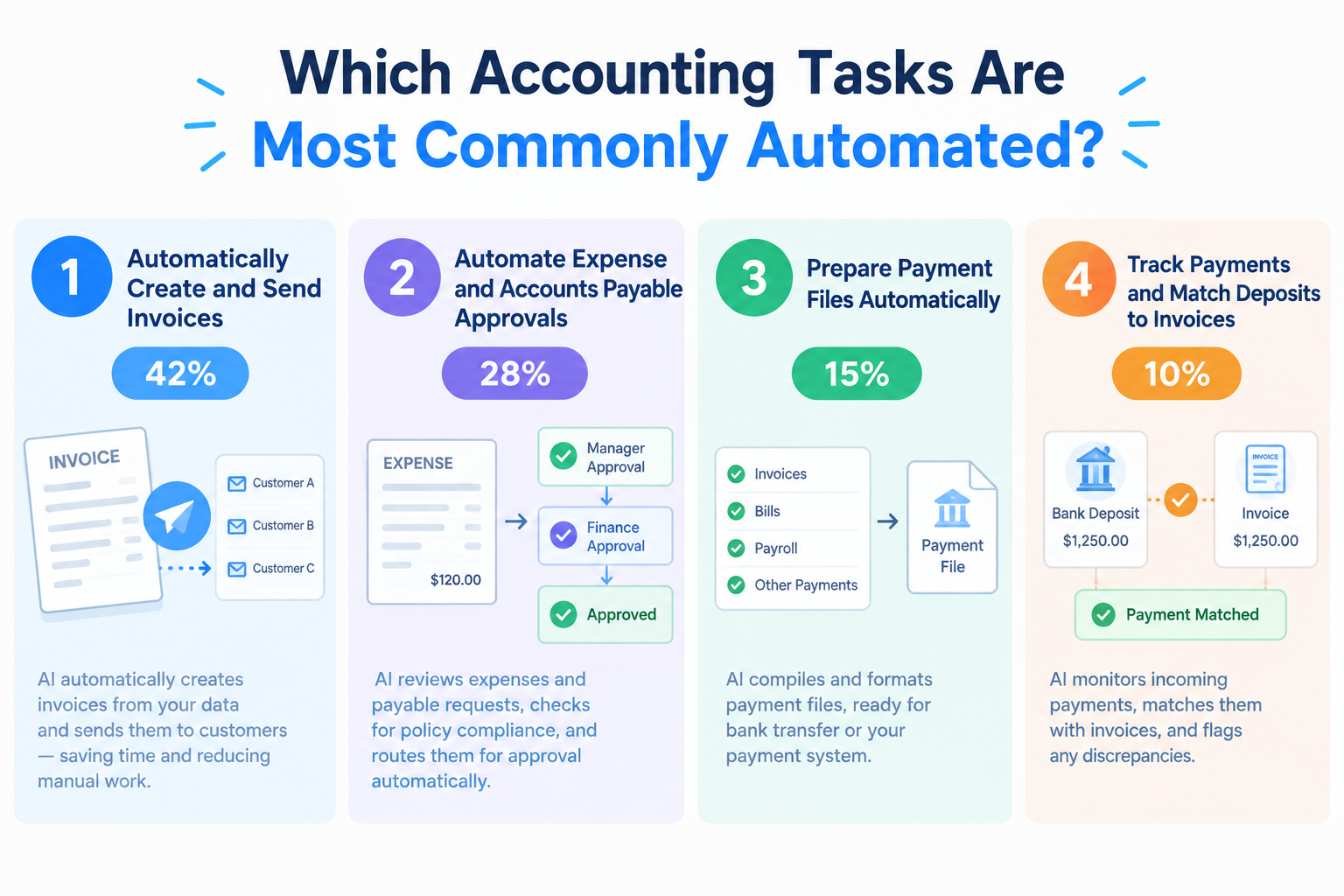
1. Automatically Create and Send Invoices (42%)
Creating invoices manually can be time-consuming, especially when employees need to copy customer details, prices, and project information from different tools.
With accounting workflow software, you can automatically:
- Retrieve customers and deal information from a CRM.
- Add the information to an invoice template.
- Create a PDF invoice.
- Send the invoice to the customer by email.
- Save a copy and notify your team.
This reduces manual data entry and helps your team prepare invoices more consistently.
2. Automate Expense and Accounts Payable Approvals (28%)
Accounts payable (AP) refers to money a business owes to suppliers and other vendors.
Processing these payments often involves collecting invoices, checking amounts, requesting approvals, and preparing payments.
AP automation software can help by automatically collecting invoice information, sending approval requests to the right people, and updating records when a request is approved.
For example, when a vendor invoice arrives by email, a workflow can extract its details and send them to the responsible manager through Slack or Microsoft Teams.
Your team can then review the information and approve the expense before payment.
Automation can handle the routine steps, while employees retain control over important financial decisions.
3. Prepare Payment Files Automatically (15%)
Some businesses need to prepare files containing payment details before uploading them to their bank's payment system.
This can involve copying information such as vendor names, bank details, and payment amounts into a specific format.
An automated workflow can collect approved payment information and prepare a file based on the bank's required format.
The accounting team can then review the file before uploading it.
This reduces repetitive data entry, although the workflow must follow the bank's file requirements and any necessary approval procedures.
4. Track Payments and Match Deposits to Invoices (10%)
When a customer makes a payment, someone may need to check the bank transaction, find the corresponding invoice, and update its status.
Accounting workflow software can help connect these steps.
For example, a workflow can compare payment information with outstanding invoices, update the relevant record when a match is found, and notify the accounting team when something needs attention.
More complex cases, such as partial payments or bank fees, may still require human review.
Related Accounting Automation Templates:

■Overview
Do you find it time-consuming to manually create invoices in Xero after a Salesforce opportunity moves to the Closed Won stage? This process can lead to data entry errors and missed follow-ups, adding extra work for both sales and accounting teams. With this workflow, you can trigger automation when a Salesforce opportunity stage is updated and automatically create an invoice in Xero, making your invoicing process faster and more accurate.
■Who is this template for?
- Sales and accounting teams that use Salesforce and Xero and find invoice creation time-consuming
- Anyone looking to eliminate manual data entry errors and improve invoicing accuracy
- Anyone looking to streamline their entire workflow by seamlessly connecting the sales process with invoicing
■Benefits of using this template
- When a Salesforce opportunity is marked as Closed Won, an invoice is automatically created in Xero, reducing the time spent on manual work.
- By connecting data across systems, you can reduce the risk of human errors such as incorrect amounts or customer information.
■How the Flowbot works
- First, connect Salesforce and Xero to Yoom.
- Next, select Salesforce as the trigger and set it to “When a record is created or updated in the Opportunity object.”
- Then, use the “Branch” operation to set a condition so that the workflow proceeds only when the opportunity reaches a specific stage, such as Closed Won.
- Next, configure Salesforce’s “Get a record” action in the operation to retrieve the customer information and other details required to create the invoice.
- Finally, configure Xero’s “Create Invoice” action in the operation to automatically create an invoice using the retrieved information.
※ “Trigger”: An action that starts the flow. “Operation”: An action that processes data within the flow after the trigger starts.
■Customizing this workflow
- In the Branch operation, use the opportunity stage information retrieved from Salesforce to set the conditions for triggering subsequent operations. For example, you can specify a condition such as “When the stage becomes Closed Won” to ensure that invoices are created only in specific situations.
■Notes
- Connect both Salesforce and Xero to Yoom.
- The trigger interval can be set to 5, 10, 15, 30, or 60 minutes. Please note that the shortest available trigger interval depends on your plan. We generally recommend using the shortest interval available for your plan.
- Salesforce is available only on the Team and Success plans. On the Free and Mini plans, operations and Data Connects configured in your Flowbot will result in errors.
- Paid plans, including the Team and Success plans, come with a two-week free trial. During the trial, you can use apps subject to plan restrictions.
- Branching is an operation available on the Mini plan and above. On the Free plan, operations configured in your Flowbot will result in errors.
- Paid plans, including the Mini plan, come with a two-week free trial. During the trial, you can use apps and features (operations) subject to plan restrictions.

■Overview
Do you spend too much time manually creating invoices and sharing them internally after receiving applications or inquiries through a form? This process is prone to data entry errors and missed notifications, often adding to your team’s workload. With this workflow, an invoice PDF is automatically generated and sent to Slack after a form is submitted. Streamline your invoice creation process with ease.
■Who This Template Is For
- Sales and marketing professionals who are overwhelmed with handling applications submitted through forms
- Accounting professionals who create and share invoices manually and want to reduce errors
- Anyone looking to automate back-office tasks and focus on more strategic work
■Benefits of Using This Template
- Automate everything from processing form responses to generating invoices and sharing them in Slack, freeing up time for more important work.
- Eliminate manual data entry and file creation to prevent human errors such as incorrect amounts and recipient details.
■Flowbot Process
- First, connect Google Sheets, Google Drive, and Slack to Yoom.
- Set up the Form Trigger so the workflow starts when a form is submitted.
- Next, use an operation to automatically generate a PDF file from the invoice template in Google Drive based on the form responses.
- In the next operation, write the form responses to Google Sheets to automatically store the application details.
- Finally, set up a Slack action to send the generated invoice PDF to the designated channel.
※ “Trigger”: An action that starts the workflow. “Operation”: An action that processes data within the workflow after the trigger starts.
■Customization Options
- For the Form Trigger, you can freely configure the data fields you want to collect, such as the company name, contact name, and amount to include on the invoice.
- When generating the invoice PDF, you can use a template in Google Docs or Google Drive and specify which information from the form should be inserted.
- For Slack notifications, you can flexibly customize the destination channel, members to mention, message content, and more to match your actual workflow.
■Notes
- Connect each of Google Sheets, Google Drive, and Slack to Yoom.

- Accounting professionals who manually create and send invoices using Google Sheets
- Those who want to streamline the process from invoice creation to delivery and focus on core tasks
- Team leaders who want to eliminate manual invoice-related errors and improve operational accuracy
- Automate everything from form submission to invoice creation, approval, and delivery, reducing the time spent on manual tasks and freeing you up for other work.
- Eliminate manual data transfers and recipient setup to prevent human errors such as incorrect amounts and delivery to the wrong recipient.
- First, connect Google Sheets, Gmail, and Google Chat to Yoom.
- Next, select Yoom Forms as the trigger and set the action to “When a form is submitted.”
- Then, set the “Issue a document” action as an operation to issue a document from an invoice template prepared in Google Sheets.
- Next, set the “Request approval” action as an operation to ask the person in charge to approve the issued invoice.
- Once approved, set Gmail’s “Send an email” action as an operation to send the invoice to the customer.
- Finally, set Google Chat’s “Send a message” action as an operation to notify the person in charge that the process is complete.
■Customization options
- For the document issuance feature, you can freely configure the Google Sheets file to use as the invoice template and the cells where you want to reflect information such as the customer name and amount.
- For the “Issue a document” action, you can specify any Google Drive folder to store the issued invoice PDF.
- With the approval request feature, you can specify the person to request approval from and include information such as the invoice amount and customer name as variables in the request message.
- In the Gmail settings, you can configure the recipient’s email address, subject, body, and other details, and send the issued invoice as an attachment.
- Connect Google Sheets, Gmail, and Google Chat to Yoom.
- Google Chat can only be connected when using Google Workspace. For details, see “How to send a message to a space in Google Chat.”
How AI Makes Accounting Automation Easier
Traditional automation follows rules you set in advance. For example, when an invoice arrives, a workflow can save the attachment to Google Drive and notify your accounting team.
However, invoices and receipts often contain information that is difficult to transfer automatically without first reading the document.
This is where AI can help.
AI-powered accounting automation software can read documents, identify important details, and prepare information for the next step in an automation process.
Yoom's accounting-related automation data highlights several ways AI is used in these processes.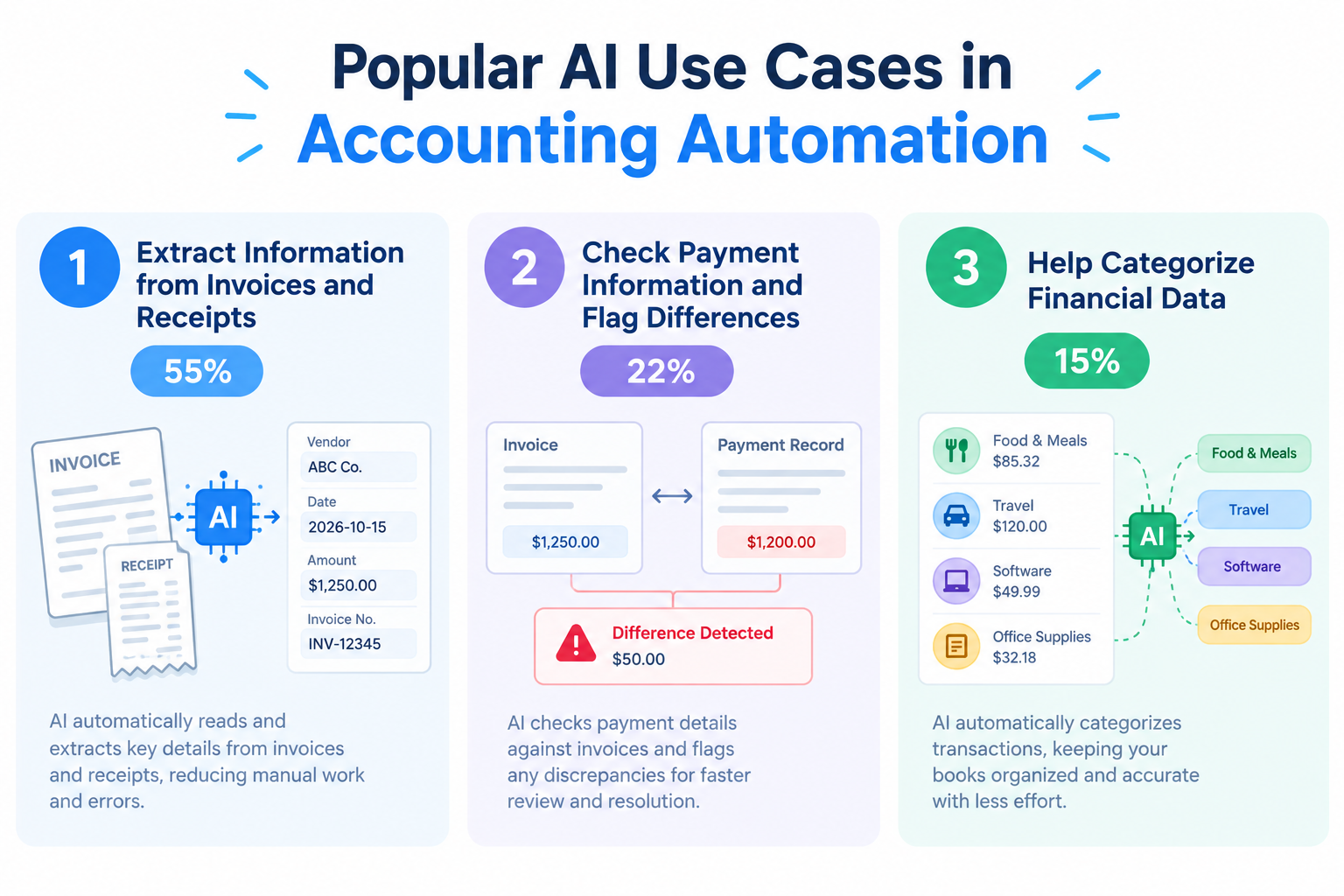
1. Extract Information from Invoices and Receipts (55%)
AI-powered optical character recognition (OCR) can read text from documents, including scanned invoices and receipt images.
For example, when a vendor sends an invoice as a PDF, AI can identify information such as:
- Vendor name
- Invoice date
- Total amount
- Tax amount
- Invoice number
The automation workflow can then transfer the extracted information to a spreadsheet, database, or accounting app.
Instead of typing every detail manually, employees can focus on checking the results and handling exceptions.
2. Check Payment Information and Flag Differences (22%)
AI can also help compare information from different sources.
For example, an automation may compare an invoice with a payment record and identify differences in the amount, vendor name, or payment status.
If the payment amount does not match the invoice, the automation workflow can flag the issue and notify the accounting team.
This does not mean AI can always determine the reason for a difference. Human review may still be necessary to confirm whether it is caused by a bank fee, partial payment, or data entry error.
3. Help Categorize Financial Data (15%)
Businesses often need to assign expenses to the correct category, such as advertising, software subscriptions, or office supplies.
AI can use information from an invoice or receipt to suggest an appropriate category.
For example, it may recognize that a charge from an advertising platform is likely related to marketing expenses.
The workflow can then prepare the category for review or transfer the information to another app.
Because incorrect classifications can affect financial records, businesses should define appropriate review and approval rules before using AI for accounting tasks.
Related AI Templates:

Calculate payment due dates based on each client’s payment terms using billing data, then log them in management sheets such as Google Sheets and create notification messages for Slack, Chatwork, and more. Ideal for accounting and finance teams looking to prevent late payments before they happen.
- What are “skills”?
- They are the instructions the AI worker follows to process tasks. For detailed configuration instructions, see [AI worker] How to Create Skills (Formerly Manuals).
- What are “tools”?
- These are the tools the AI worker uses to process tasks. Simply tell the AI which tools your organization normally uses, and you can freely configure where data is retrieved from and where it is output.
- The number of AI workers that can run simultaneously, the number of AI workers you can create, and the AI models available to you vary by plan.
- The apps and operations available within AI workers are subject to the same usage limits as Flowbot.
- AI workers consume tasks during test runs just as they do during production runs. For details, see [AI worker] How to Calculate the Number of Tasks Executed.

This AI worker uses OCR to extract information from receipt images and verify expense categories, spending limits, and receipt validity against your company’s expense policies while matching them with submitted expense data. It also automatically drafts return messages when issues are found, helping accounting and finance teams reduce missed checks and the effort of handling resubmissions.
- What are skills?
- They are instructions that tell the AI worker how to process tasks. For detailed configuration instructions, see [AI worker] How to Create Skills (Formerly Manuals).
- What are tools used?
- These are the tools the AI worker uses to process tasks. Simply tell the AI which tools your company normally uses, and you can freely change where data is retrieved from and where it is sent.
- The number of AI workers that can run simultaneously, the number of AI workers you can create, and the AI models available to you vary by plan.
- Apps and operations available within AI workers are subject to the same usage limits as Flowbot.
- AI workers consume tasks during test runs just as they do during production runs. For details, see [AI worker] How Task Execution Counts Are Calculated.
An AI worker that analyzes transaction data to detect unusual patterns based on your rules and statistical analysis. Each flagged transaction includes a risk score and explanation, making it easy to prioritize which transactions to review. Ideal for accounting and finance teams, as well as internal audit and compliance teams, looking to streamline fraud checks across large volumes of transaction data.
- What are “skills”?
- They are step-by-step instructions that the AI worker follows to process tasks. For detailed configuration instructions, see [AI worker] How to Create Skills (Formerly Manuals).
- What are “tools used”?
- These are the tools the AI worker uses when processing tasks. Simply tell the AI which tools your company normally uses, and you can freely change where data is retrieved from and where it is sent.
- The number of AI workers that can run simultaneously, the number of AI workers you can create, and the AI models available to you vary by your plan.
- The apps and operations available within AI workers are subject to the same usage limits as Flowbot.
- AI workers consume tasks during test runs just as they do during production runs. For details, see [AI worker] How Task Usage Is Calculated.

This AI worker cross-checks tax document data against applicable tax rules, detects calculation errors and documentation issues, and generates a diagnostic report with recommended corrections and supporting rationale. Ideal for accounting and finance teams looking to streamline tax reviews and ensure compliance with the latest tax regulations.
This AI worker compares document data against your company’s rules to identify calculation errors and missing or incomplete information. It clearly summarizes what needs to be corrected and why. You can also send notifications and share the results directly in the tools you already use, such as Slack, Google Sheets, and Notion, making daily review tasks much easier.
- Those who handle a high volume of tax document reviews and want to reduce the burden on reviewers while ensuring consistent review standards
- Those who want to prevent calculation errors and missing entries and standardize documents so they are accurate no matter who prepares them
- Those who want to smoothly review documents according to updated internal rules without overlooking anything
- What are “Skills”?
- They are the instructions the AI worker follows to process tasks. For detailed configuration steps, see “[AI worker] How to Create Skills (formerly Manuals).”
- What are “Tools used”?
- These are the tools the AI worker uses when processing tasks. Simply tell the AI which tools your company normally uses, and you can freely customize where data is retrieved from and where results are output.
- The number of AI workers that can run simultaneously, the number of AI workers you can create, and the AI models available to you vary depending on your plan.
- The apps and operations available within AI workers are subject to the same usage limits as Flowbot.
- Please note that AI workers consume tasks during test runs just as they do during production runs. For details, see “[AI worker] How Task Execution Counts Are Calculated.”

An AI worker that matches issued invoices with payment details to automatically classify unpaid, partially paid, and overpaid invoices. It also drafts payment reminders for customers with outstanding balances, helping accounting and finance teams prevent missed follow-ups and delays as transaction volumes grow.
- What are “Skills”?
- They are the procedures the AI worker follows to process tasks. For detailed instructions, see “【AI worker】How to Create Skills (formerly Manuals).”
- What are “Tools”?
- They are the tools the AI worker uses to process tasks. Simply tell the AI which tools your organization normally uses, and you can freely change where data is retrieved from and where it is output.
- The number of AI workers that can run simultaneously, the number of AI workers you can create, and the AI models available to you vary by plan.
- Apps and operations available within the AI worker are subject to the same usage limits as Flowbot.
- The AI worker consumes tasks during test runs just as it does during production runs. For details, see “【AI worker】How Task Execution Counts Are Calculated.”
How Fast Does Accounting Automation Software Process Financial Tasks?
Accounting automation software can handle different tasks at different speeds. Simple data transfers may take only a few seconds, while tasks that involve reading documents or checking information with AI can take longer.
Based on Yoom's measured execution times for accounting-related workflows, the average processing times vary by operation type.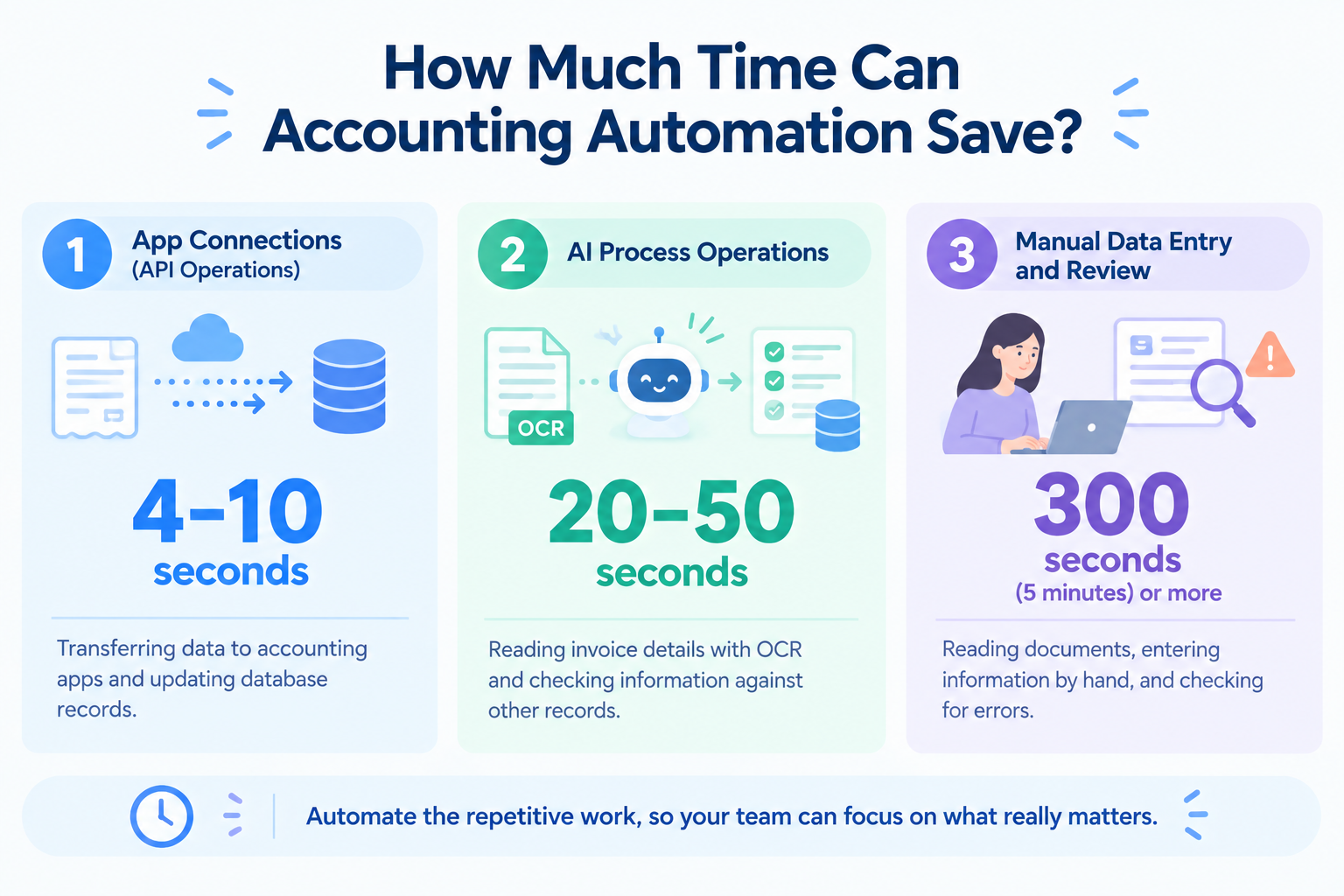
- App Connections: 4–10 Seconds
Transfers data between apps, such as sending invoice details to accounting software or updating database records. - AI Process Operations: 20–50 Seconds
Handles tasks that require AI, such as reading invoice details with OCR and checking information against other records. - Manual Data Entry and Review: 5 Minutes or More
Requires employees to read documents, enter information by hand, and check for errors.
These figures show that automated operations can process information in seconds, although the time varies depending on the task.
Simple app connections can transfer data in seconds, while AI can handle tasks such as reading invoices and checking information. Once these steps are automated, employees don't have to wait for each task to finish or handle every step themselves. They can focus on other important work while the automation runs in the background.
Automation also helps reduce reliance on specific employees. Instead of depending on one person's knowledge or manual processes, teams can follow consistent workflows that handle routine tasks the same way every time.
The real benefit of accounting automation is not just faster processing. It's giving employees more time for other work and making financial processes less dependent on individual team members.
Best Accounting Automation Software and Tools in 2027
The best accounting automation software depends on what you want to automate.
Some tools help you connect existing apps, while others focus on accounting records, expense management, or month-end closing.
Here are four options to consider.
1. Yoom: Best for Connecting Business Apps and Automating Financial Tasks
Yoom is a no-code workflow automation platform that connects business apps and automates tasks across them.
You can use it with tools such as Google Sheets, Slack, and CRM systems, as well as supported accounting apps, to reduce manual work.
What you can automate
- Create invoices using information from a CRM or database.
- Extract information from invoices and receipts with AI-powered OCR.
- Send expense approval requests through team communication apps.
- Update financial records and notify the right people.
- Transfer information between apps without manually copying and pasting it.
Why consider Yoom?
Yoom is useful if your accounting work involves several different tools and you want to connect them without building an integration from scratch.
You can start with a workflow template, use AI Worker to help build a workflow from a natural-language description, or create a more customized process.
You can also connect existing accounting software rather than replacing it.
Pricing: Free plan is available. Paid plans start at ~$16/month.
2. Zapier: Best for Connecting Accounting Apps to Other Tools
Zapier is a workflow automation platform that connects web apps and automates tasks based on triggers and actions.
For example, you can create a workflow that starts when a new payment is recorded and then updates another app or sends a notification.
What you can automate
- Send payment notifications to your team.
- Transfer customer information between apps.
- Create records when a form is submitted.
- Connect supported accounting apps with other business tools.
Why consider Zapier?
Zapier can be a good option if you want to connect existing accounting software with other apps using straightforward workflows.
Before choosing a plan, check whether the apps you use are supported and how the pricing works for your expected workflow volume.
Pricing: Free plan is available. Paid plans start at $19.99/month.
3. Numeric and FloQast: Best for Month-End Close Processes
Month-end close is the process of reviewing financial records and preparing them for the end of an accounting period.
This can involve checking account balances, matching transactions, reviewing journal entries, and preparing reports.
Numeric and FloQast offer tools designed to help accounting teams manage parts of this process.
What you can automate or manage
- Track month-end close tasks.
- Coordinate work across accounting team members.
- Manage account reconciliation processes.
- Organize supporting information for reviews and audits.
Why consider these tools?
They are worth considering if you already have an established accounting function and need better control over recurring close processes.
They serve a different purpose from general workflow automation platforms: their focus is on accounting operations rather than connecting a wide range of everyday business tasks.
Pricing: Pricing depends on the product and business requirements. Contact its sales team for details.
4. Brex and Ramp: Best for Expense and AP Workflows
Brex and Ramp provide financial management tools that include corporate card management and expense-related workflows.
Depending on the product and plan available to your business, these tools can help collect receipts, organize spending information, and connect expense records with accounting systems.
What you can automate
- Collect receipts for card transactions.
- Organize and categorize expenses.
- Set up spending policies and approval processes.
- Transfer expense information to supported accounting apps.
Why consider these tools?
They may be a good fit if your main challenge is managing employee spending, company cards, and expense approvals.
If your biggest problem is connecting information across a wider range of business apps, a general workflow automation platform may be a better complement.
Pricing: Free plan is available. Paid plans start at $12/month.
Do You Need Dedicated Accounting Automation Software?
The right solution depends on the tools your business already uses and what you want to automate. You may not need to buy a new accounting system. In many cases, you can improve efficiency by connecting your existing apps or using a workflow automation platform across your business.
Here are two approaches to consider.
Scenario 1. If You Want to Get More Out of Your Existing Accounting Software
If your team already uses Xero, or another accounting system, you don't necessarily need to replace it. Instead, look for workflow automation software that integrates with your existing accounting app.
For example, you can automate tasks such as transferring invoice details, requesting expense approvals, and notifying your team about payment updates.
One advantage of general workflow automation software is that you can use it across your entire business, not just for accounting. The same tool can help your sales, HR, and operations teams reduce manual work, making it easier to get more value from your investment.
This approach lets you improve your accounting workflows while keeping your existing system and creating opportunities to automate other business processes.
Scenario 2. If You Want to Automate Accounting Without Buying Dedicated Accounting Software
Dedicated accounting software can be expensive, especially if you also want to automate tasks across other departments.
If your goal is to reduce manual work throughout your business, consider using workflow automation software instead of investing in a separate tool just for accounting. By connecting the apps your team already uses, you can automate accounting tasks alongside workflows in sales, HR, and operations.
AI features can make these workflows even more useful. For example, AI can read invoices and receipts, sort incoming information based on your company's internal knowledge, and create documents from the information it finds. You can also automate approval requests and notifications so that the right people can review information and take action.
This approach lets you automate more than accounting with a single platform, helping your business get more value from its existing tools while reducing repetitive work.
Keep in mind that workflow automation software may not replace all the functions of dedicated accounting software. Make sure your setup meets your needs for financial reporting, record keeping, and compliance.
How to Choose the Best Accounting Automation Software
The Challenge of Getting Started with Accounting Automation
Accounting automation software can help reduce repetitive tasks, such as entering invoice details, collecting receipts, and requesting expense approvals.
However, setting up accounting automation can take time, regardless of which type of software you choose.
Even with dedicated accounting automation software, you may need to connect your existing apps, configure approval rules, and decide how financial information should move between systems.
The same is true for general workflow automation software. To automate a process, you need to connect the right apps and define what should happen at each step. For example, an invoice workflow may need to collect information from a CRM, create a document, send it for approval, and update a database.
For teams that are new to workflow automation, figuring out how to connect apps and configure each step can feel overwhelming.
That's why choosing accounting automation software isn't just about comparing features and prices. It's also important to find a tool that makes it easy to build workflows and can support automation across your business as your needs grow.
If you want to automate more than accounting, a general workflow automation platform can be a practical choice. You can use the same platform to connect financial tasks with workflows in sales, HR, and other departments, rather than introducing a separate tool for every task.
Start with a Free Plan
Before committing to a paid plan, try the software yourself.
A free plan lets you explore the available features and build a simple workflow before deciding whether the tool fits your needs.
Start with one repetitive accounting task, such as transferring invoice details from a CRM to a spreadsheet, collecting expense information from a form, or notifying your team when an approval is needed.
You don't necessarily have to build a workflow from scratch. Many workflow automation tools offer ready-made templates that help you get started without planning every step yourself.
With a template, much of the workflow is already built for you. You may only need to connect your apps and adjust a few settings to match your process.
As you explore different tools, start with a template and see how easily you can customize it. If your needs become more specific, look for software that lets you build more advanced workflows.
The goal isn't to find the tool with the most features. It's to find accounting automation software that makes it easy to turn your ideas into working workflows—and gives you room to automate other business processes when you're ready.
Three Ways to Get Started with Accounting Automation Using Yoom
Yoom is a workflow automation platform that connects business apps and helps teams automate repetitive tasks. Instead of using it only for accounting, you can also use it to automate workflows across sales, HR, and other departments.
Yoom offers three ways to get started, depending on how quickly you want to build a workflow and how much customization you need.
Option 1. Start with a Template
If you want to automate a common accounting task quickly, start with a ready-made workflow template. Choose one that matches your needs, then adjust it to fit your company's processes.
For example, you could use a template to transfer information between apps, send a notification when new information is submitted, or update a database automatically.
This is a good option if you want to start automating routine accounting tasks without planning every step yourself.
Explore Yoom's workflow templates
Option 2. Let AI Worker Help Build Your Workflow
If you know what you want to automate but aren't sure how to build the workflow, describe your goal in natural language. Yoom's AI Worker helps you turn your idea into an automated process.
For example, you could describe a workflow that reads an incoming invoice, extracts important details, organizes the information, and notifies the accounting team through Slack if something needs to be reviewed.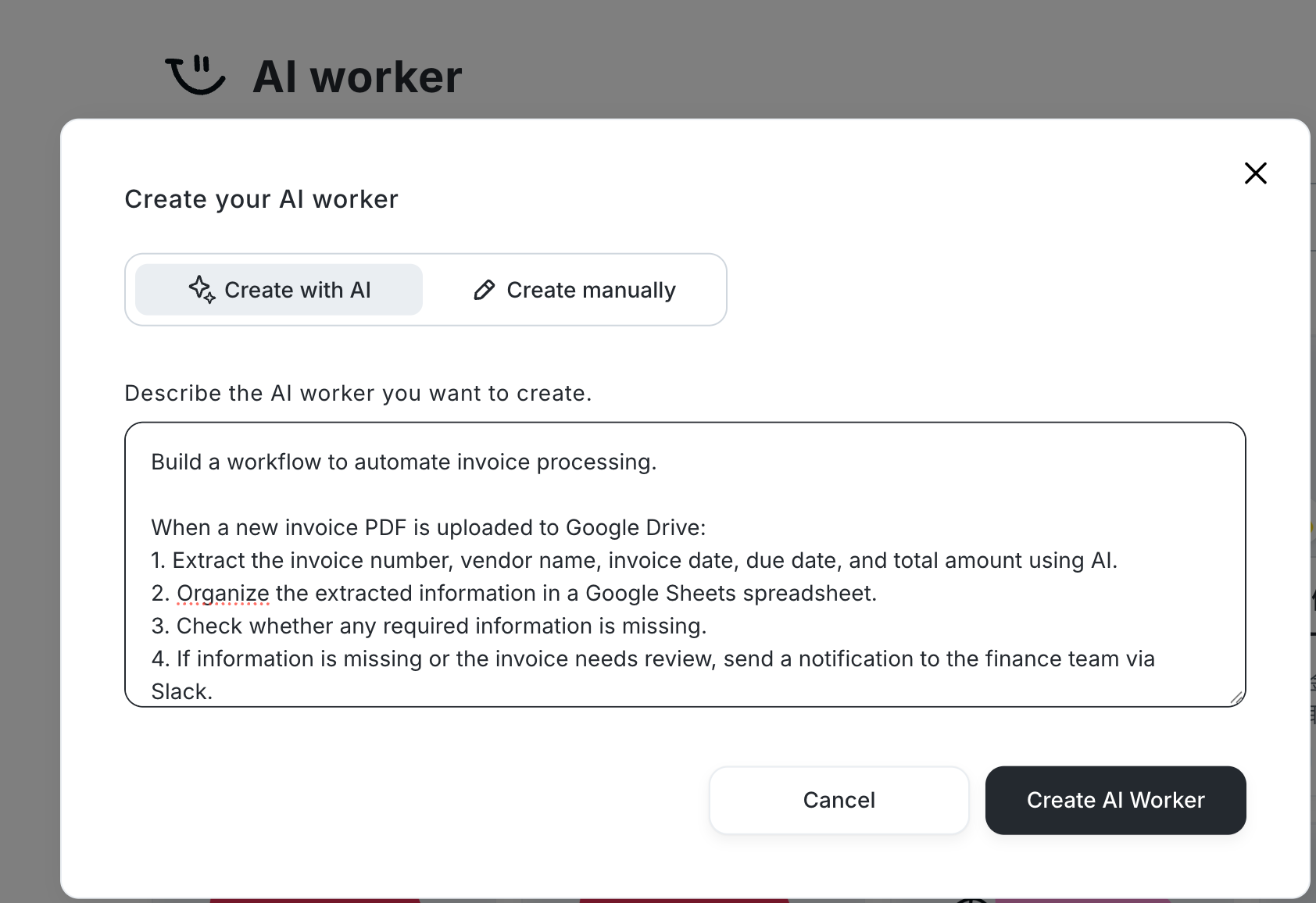
AI Worker can help you get started without having to configure every step manually.
This is a useful option when you have a specific accounting task in mind but want help turning your idea into a working workflow.
Explore Yoom's AI Worker templates
Option 3. Build a Custom Workflow
If you want to automate a more specific accounting process, you can build a custom workflow using Yoom's customization features.
Connect the apps you already use and configure each step to match your requirements. For example, you can decide what information to collect from invoices, how AI should process the details, which team should receive approval requests, and when records should be updated.
You can also combine app integrations with AI, OCR, and RPA features to handle different types of work within a workflow.
This option is ideal when a ready-made template or AI-assisted setup doesn't fully cover your requirements.
Learn how to set up custom app and API connections
Whether you want to automate a single accounting task or connect processes across multiple departments, Yoom gives you different ways to get started. Begin with a template, use AI Worker to help build your workflow, or create a custom workflow that fits your needs.