・
Approval Workflow Software: Real-World Use Cases and Trends

Automation and AI are changing how businesses work. But even as AI takes on more tasks, human approval remains an important part of many business processes.
Approval workflow software helps businesses manage the processes in a structured way, from collecting requests and checking information to routing them to the right approvers and carrying out the next steps. Some tools also use AI to check requests, identify missing information, and handle routine tasks before a request reaches a person for a final decision.
So, when do businesses rely on human judgment, and when can AI handle the work instead? How are companies combining AI and human review in their approval workflows? And what do real-world workflows reveal about the latest trends in approval automation?
In this article, we'll explore real-world approval workflow data from Yoom, examine how businesses use AI and human review together, and compare approval workflow software for different business needs.
Best Approval Workflow Software: 4 Tools to Consider
The best approval workflow software depends on how your business handles requests, which apps your team uses, and how much control you need over the approval process.
Some tools focus on simple approvals within Slack or Microsoft Teams. Others are designed for complex business processes or companies that rely heavily on Microsoft 365.
Here are four options to consider.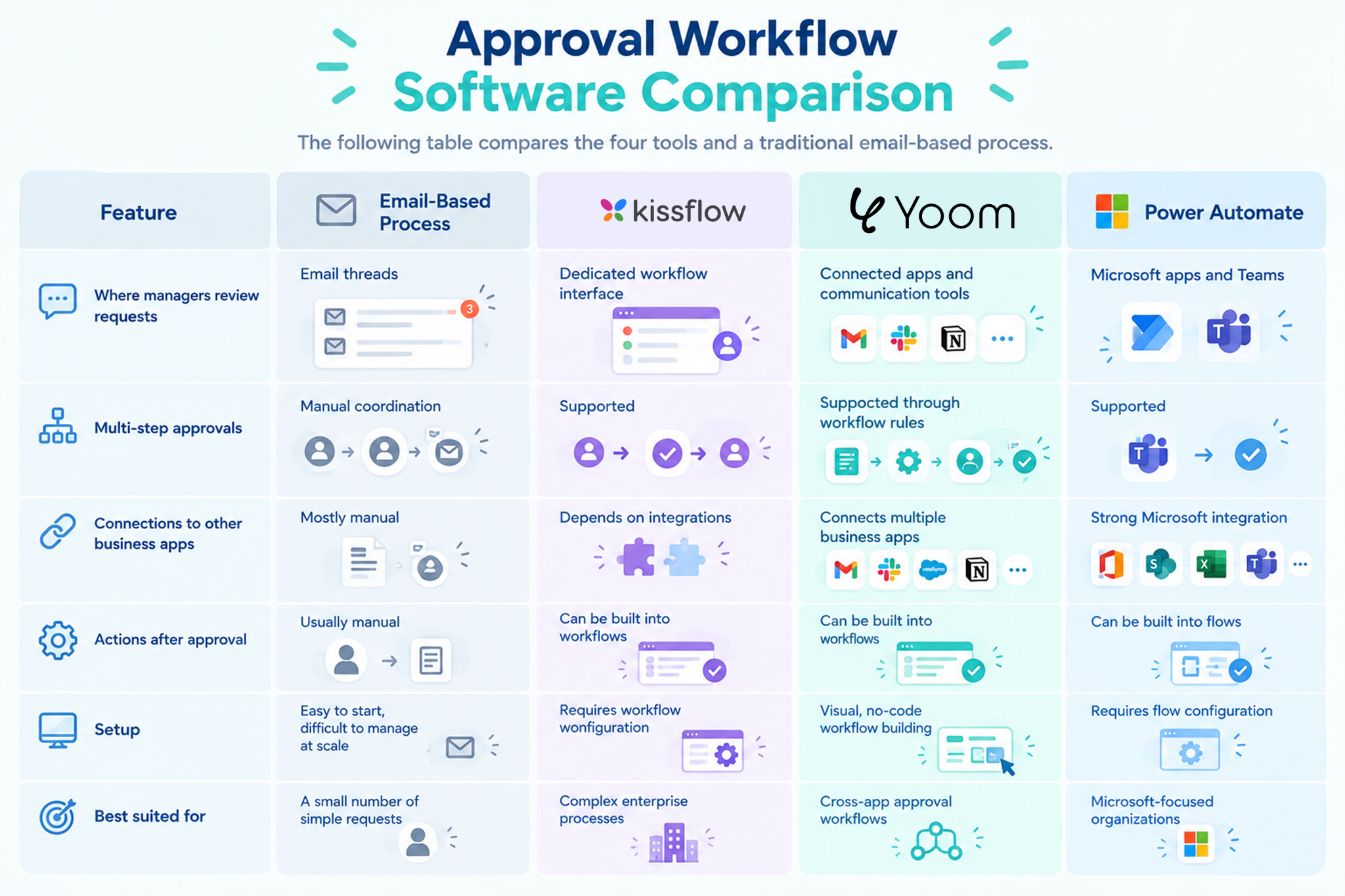
1.
Yoom
: Best for Approvals Across Multiple Business Apps
Yoom is a no-code workflow platform that connects business apps and helps teams manage work across different tools. Users can build workflows visually without writing code.
How it handles approvals
Yoom can start an approval workflow when someone submits a form or updates a record in a connected app.
For example, a workflow can extract the total amount from an invoice PDF, check the relevant information, and send an approval request to a manager through Slack, Microsoft Teams, or email.
Once the manager approves the request, Yoom can continue the workflow by updating Salesforce, sending a document for electronic signature, or recording the details in a spreadsheet.
Key features
- Visual workflow builder that does not require coding
- Connections between multiple business apps
- Approval steps and rules for routing requests to different people
- AI Workers that can help read documents and extract information
- Automated actions after an approval or rejection
Best for: Operations, Finance, and IT teams that want to connect approval processes with the other apps they use across the business.
Pricing: A free plan is available. Paid plans start at approximately $16 per month.
2.
Approveit
: Best for Simple Approvals in Slack and Microsoft Teams
Approveit is an approval management tool focused on helping teams handle requests through communication apps.
How it handles approvals
Teams can send internal requests to Slack, Microsoft Teams, or email and track their status. This makes it easier for managers to review requests without relying entirely on long email conversations.
Key features
- Approval requests through communication tools
- Request status tracking
- Records of approval decisions
- Integrations with Slack and Microsoft Teams
Best for: Teams that want a dedicated tool for managing internal approvals without building a more complex workflow across multiple business systems.
Pricing: A free plan is available. Paid plans start at $400 per month.
3.
Kissflow
: Best for Complex Enterprise Approval Processes
Kissflow is a low-code platform for managing business processes. It helps organizations design workflows that involve multiple people, departments, and approval stages.
How it handles approvals
Businesses can create approval processes with several review steps, assign responsibilities based on roles, and manage complex requests such as purchasing and procurement.
Key features
- Multi-step approval processes
- Role-based access and responsibilities
- Process management and tracking
- Tools for managing company-wide business workflows
Best for: Large organizations that need structured approval processes, detailed permissions, and centralized management.
Pricing: No free plan is available. Contact the sales team for pricing on paid plans.
4.
Microsoft Power Automate
: Best for Businesses Using Microsoft 365
Microsoft Power Automate helps businesses connect apps and automate repetitive tasks. It works closely with Microsoft products, including SharePoint, Microsoft Teams, and Dynamics 365.
How it handles approvals
A business can create a workflow that sends a document stored in SharePoint or OneDrive to a manager for review. Managers can use Microsoft Teams to review and respond to supported approval requests.
After the decision, the workflow can update a record, notify the requester, or start another task.
Key features
- Integrations with Microsoft 365 apps
- Approval workflows through Microsoft Teams
- Connections to SharePoint, OneDrive, and other business systems
- Automated actions based on approval decisions
Best for: Organizations that already use Microsoft 365 and want to manage approvals within their existing software environment.
Pricing: A 30-day trial is available. Power Automate Premiumplans start at $15 per user per month.
What the Data Reveals: How Businesses Use Approval Workflows
We analyzed active approval workflows on Yoom to understand how businesses handle approval requests.
The data shows where requests begin, which departments use approval workflows most often, and how businesses notify managers when a decision is needed.
A typical automated approval workflow follows these steps:
- Receive a request: An employee submits a form or updates a record in a business app.
- Prepare the information: The system collects relevant details, such as invoice amounts or customer information.
- Ask for approval: The manager receives a notification in Slack, Microsoft Teams, or email.
- Record the decision: The manager approves or rejects the request.
- Complete the next step: The system updates a spreadsheet, notifies the requester, or starts another process.
This approach keeps people involved in important decisions while reducing the manual work needed to manage each request.
1. Where Do Approval Requests Start?
Approval requests don't always begin in large enterprise systems. Our analysis of more than 88,000 workflows shows that many start with everyday business tools, such as online forms, databases, and scheduled tasks.
Here are the most common starting points in the dataset.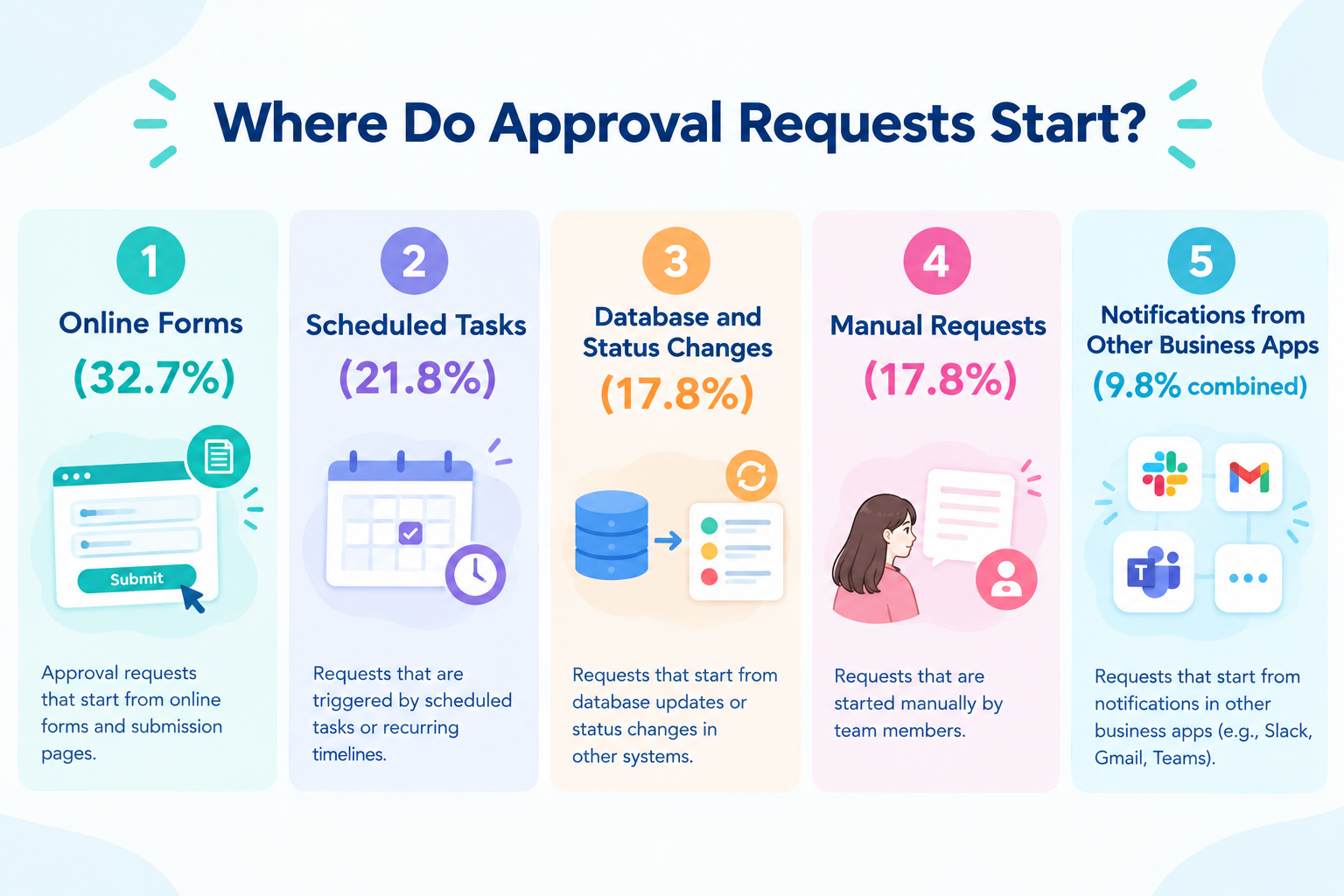
- Online Forms (32.7%)
Employees submit requests through tools such as Google Forms, Typeform, or internal forms. These requests might include expense claims, time-off requests, and purchase orders. Once a form is submitted, the workflow can send the request to the appropriate manager automatically. - Scheduled Tasks (21.8%)
Some approval workflows run at set times, such as every day or every week. For example, a workflow can collect unpaid invoices every Friday and send them to a manager for review. - Database and Status Changes (17.8%)
A workflow can start when information changes in a database or CRM system. For example, when a sales opportunity reaches the contract negotiation stage, the system can notify the legal team that approval is needed. - Manual Requests (17.8%)
Employees can also start a workflow themselves when they need approval for a specific situation. - Notifications from Other Business Apps (9.8% combined)
Some workflows start when another app sends a notification that an event has occurred. For example, a change in one system can trigger an approval request in another.
These examples show that approval workflow software can work with the tools a business already uses, rather than requiring every request to start in a separate approval portal.
2. Which Departments Use Approval Workflows Most?
Some business decisions need more careful review than others. Financial transactions, employee information, and contracts often require approval before a business can take the next step.
Our analysis shows that Finance and HR account for 70% of the approval workflows in the dataset.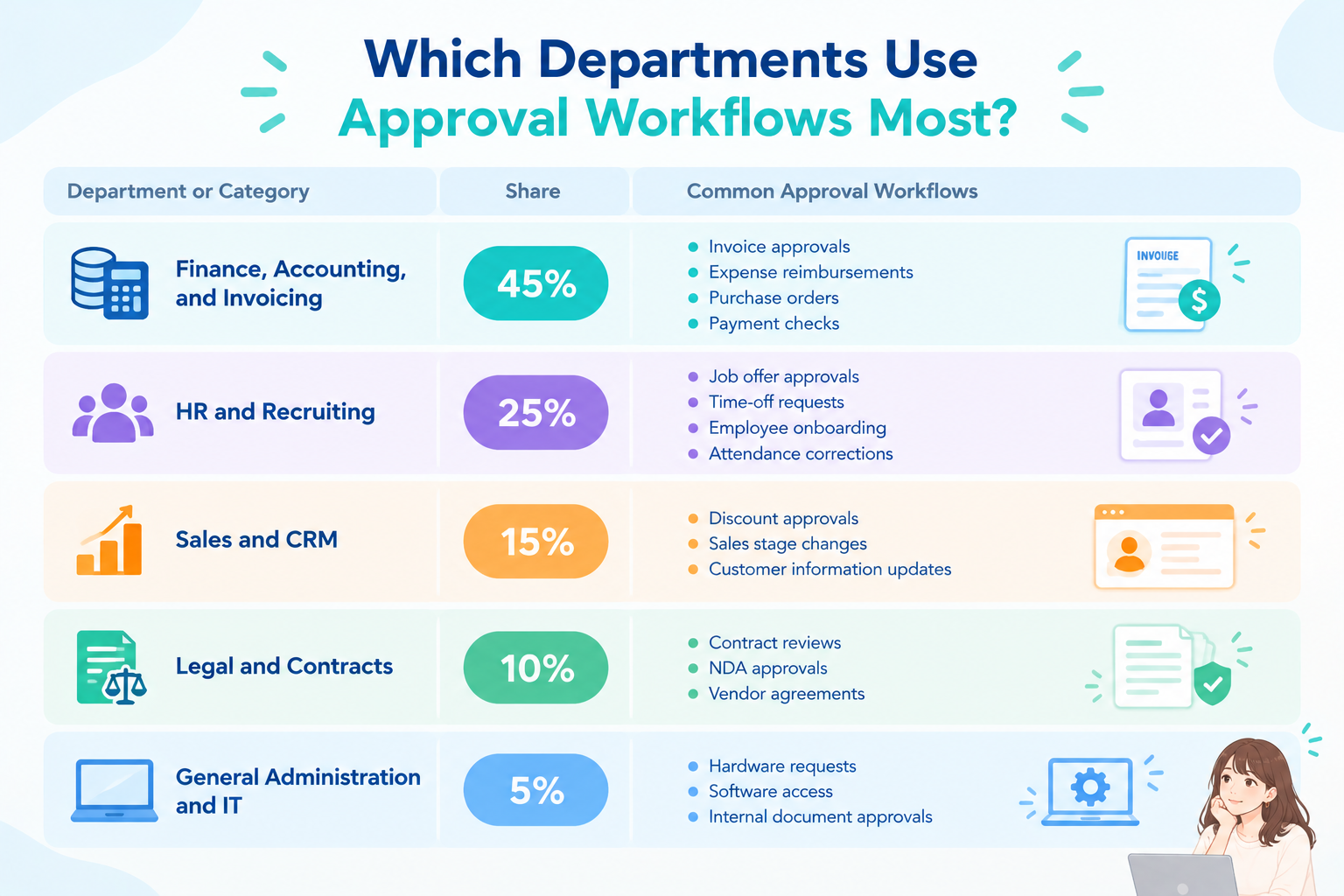
- Finance, Accounting, and Invoicing (45%)
Common examples include invoice approvals, expense reimbursements, purchase orders, and payment checks. - HR and Recruiting (25%)
Common examples include job offer approvals, time-off requests, employee onboarding, and attendance corrections. - Sales and CRM (15%)
Common examples include discount approvals, sales stage changes, and customer information updates. - Legal and Contracts (10%)
Common examples include contract reviews, NDA approvals, and vendor agreement approvals. - General Administration and IT (5%)
Common examples include hardware requests, software access requests, and internal document approvals.
Why Do Finance and HR Approval Workflows Matter?
Finance and HR teams often handle sensitive information and important business decisions. For example, Finance teams may need to check whether expenses follow company rules, while HR teams need to make sure employee requests meet internal policies.
These checks don't always have to be done by people. AI can also review requests by using a company's internal knowledge, such as expense policies, HR guidelines, and other internal rules.
The best approach depends on what needs to be checked and how much risk is involved.
- Use AI for routine checks: AI can answer common questions about company policies, check requests against internal guidelines, and identify missing information.
- Keep human review for decisions that require stricter control: For example, a company may want a manager to make the final decision on large expenses, sensitive HR requests, or cases where an incorrect decision could have serious consequences.
Both approaches can be useful, and they can also work together. An automated approval workflow can use AI to check a request first, then send it to a manager only when human review is required.
Even when a manager needs to approve a request manually, the rest of the process can still be automated. The workflow can collect the necessary information, identify the right approver, send a notification, and carry out the next steps once a decision is made.
This helps solve two common problems:
employees no longer have to wonder who they should contact for approval, and managers can review requests through familiar tools at a time that works for them, without having to search across different systems or respond immediately.
Related Approval Workflows Templates:


■Overview
Do you manage tasks in Trello and accounting in Xero separately, and find it time-consuming to transfer information manually? Manually entering Xero contact information based on task progress not only takes time but can also lead to data entry errors. This workflow automates the integration between Trello and Xero. When a card is moved to a specific list in Trello, a contact is automatically created in Xero after an approval request, helping you eliminate these challenges.
■Who This Template Is For
- Those who manually register information in Xero based on task progress in Trello
- Those who want to automate the connection between project management and accounting processes to improve efficiency
- Those who want to prevent data entry errors and missed information transfers between Trello and Xero
■Benefits of This Template
- Automatically create information in Xero when a card is moved in Trello, reducing the time spent on manual work and helping you focus on more important tasks
- Eliminate manual data transfers to help prevent human errors such as incorrect contact registrations and missed information transfers
■Workflow Steps
- First, connect Trello and Xero with Yoom
- Next, select Trello as the trigger and set the action to “When a card is moved to a specified list”
- Next, set Trello’s “Get card information” action as an operation to retrieve the details of the moved card
- Use AI features such as “Extract text” to extract the information required to register the contact in Xero from the card information
- Set the “Request approval” action to request approval from the person in charge
- Finally, set Xero’s “Create or Update Contacts” action to create contact information based on the retrieved and extracted data
■Customization Options
- With the “Request approval” operation, you can freely configure the approval request details and approvers
- When creating Contacts in Xero, you can customize the registration details flexibly by embedding information retrieved from Trello as variables or entering fixed values in specific fields
※“Trigger”: An action that starts the flow, “Operation”: An action that processes data within the flow after the trigger starts
■Notes
- Connect both Trello and Xero with Yoom.

■Overview
This flow adds employees to a Google Workspace group once their employment application is approved via the Yoom form.
With Yoom, you can easily achieve this flow without any programming, as it allows for seamless integration between apps.
■Recommended for
- Companies with a large number of employees that find it time-consuming to add members to Google Workspace groups
- Those who want to prevent missing new employee registrations and ensure smooth onboarding and operations
- Those who wish to conduct seamless non-face-to-face onboarding processes due to the introduction of remote work
- Companies that want to standardize onboarding procedures and prevent the personalization of business processes
■Benefits of using this template
When using Google Workspace for business, manually adding each new employee to a group is inefficient.
As the number of employees increases, so does the workload, leading to increased operational burden and risk of human error for companies with many employees.
With this flow, once an employment application submitted via the form is approved, the respective user is automatically added to the Google Workspace group.
This ensures smooth system usage from the first day of employment.

With this workflow, invoice information is automatically added to Microsoft Excel when approval is completed in DocuSign, helping streamline your operations.
■Recommended for
- Anyone who finds it time-consuming to enter data into Microsoft Excel after approving invoices in DocuSign
- Anyone looking to reduce input errors and omissions when transferring invoice information
- Anyone looking to automate invoice management using DocuSign and Microsoft Excel
■Benefits of using this template
- Approved invoice information from DocuSign is automatically added to Microsoft Excel, reducing the time spent on manual data transfer.
- Eliminating manual data entry helps prevent human errors such as transfer mistakes and missing information.
■Workflow steps
- First, connect DocuSign and Microsoft Excel to Yoom.
- Set the DocuSign trigger to “When an envelope is completed.” This starts the workflow when the document approval process is completed in DocuSign.
- Next, configure the DocuSign action “Retrieve document information from a specific envelope” to retrieve invoice information from the completed envelope.
- Finally, configure the Microsoft Excel action “Add a record” to add the retrieved invoice information to the specified Excel file.
■Customization options
- With “Add a record,” you can use variables to assign values retrieved in the previous step to any columns.
■Notes
- Connect both DocuSign and Microsoft Excel to Yoom.
- Microsoft 365 (formerly Office 365) offers plans for home use and business use (Microsoft 365 Business). Authentication may fail if you are not subscribed to a business plan.
- For details on configuring operations that work with Microsoft Excel databases, see [Excel] Configuring operations for working with databases.

■Who This Template Is For
- Anyone who finds contract and application processes using Google Forms and DocuSign time-consuming
- Anyone who wants to standardize workflows by eliminating mistakes in manual approval requests and document delivery
- Anyone who wants to move beyond routine document delivery tasks and focus on core responsibilities
■Benefits of Using This Template
- Automate the process from form response to approval and document delivery, reduce the time spent on manual work, and focus on more productive tasks.
- Eliminate manual data entry and email creation to prevent human errors such as incorrect recipients and missing attachments, improving operational accuracy.
■Flow Bot Workflow
- First, connect Google Forms and DocuSign to Yoom.
- Next, select Google Forms as the trigger and set the action to “When a response is submitted to the form.”
- Then, select “Request action from an assignee” as the operation and request action based on the Google Forms response.
- Finally, select DocuSign as the operation and set the “Create and send an envelope from a template” action to run after approval.
■Customization Options
- In the Google Forms trigger settings, specify the form ID you want to use as the starting point for the automation.
- With the “Request action from an assignee” feature, you can freely set the assignee and request details. You can also include information collected through Google Forms in the request message as variables.
- In the DocuSign action, you can specify the template to send and recipient details. You can also dynamically set recipients and other fields using form responses as variables.
■Notes
- Connect both Google Forms and DocuSign to Yoom.
- You can select a trigger interval of 5, 10, 15, 30, or 60 minutes.
- Please note that the shortest available trigger interval varies by plan.
- For details on how to retrieve response content when using Google Forms as a trigger, see “How to Retrieve Response Content with the Google Forms Trigger.”

- Those responsible for managing a YouTube channel who want to streamline the process of publishing Shorts
- Those who create video content with multiple team members and want to automate the approval process
- Those looking to improve the efficiency of their content operations and easily automate YouTube Shorts publishing
- Since the process runs from approval requests through publishing simply by storing a video in Google Drive, you can reduce the time previously spent on manual tasks.
- Prevent human errors such as missed approval requests, video upload mistakes, and incorrect settings for titles and other details.
- First, connect Google Drive and YouTube Data API to Yoom.
- Next, select Google Drive as the trigger and set the action to “When a new file or folder is created in a specific folder.”
- Next, set the Google Drive “Download a file” action as an operation and use the video file detected by the trigger as the processing target.
- Next, set the Assignee Request feature’s “Request action from an assignee” action as an operation to request approval of the video content.
- Finally, set the YouTube Data API “Upload a video” action as an operation to publish the approved video on YouTube.
■Customization options
- For the Google Drive “When a new file or folder is created in a specific folder” action, set the ID of the folder where you want to store video files.
- For the Assignee Request feature, customize the “Details of the request” sent with the approval request and the “Form” fields completed by the approver.
- For the YouTube Data API “Upload a video” action, customize metadata such as the title, description, and visibility settings of the video to be published.
- Connect both Google Drive and YouTube Data API to Yoom.
- You can choose a trigger interval of 5, 10, 15, 30, or 60 minutes.
- Please note that the shortest available trigger interval varies by plan.
- The maximum downloadable file size is 300 MB. Depending on the app specifications, the limit may be less than 300 MB.
- For details on the file size limits for triggers and individual operations, see File Size Limits.
- Please note that the maximum file size supported by the YouTube Data API “Upload a video” action is 256 MB.
3. How Long Do Approval Workflows Take?
Based on Yoom's workflow data:
- Average approval time: 1 hour and 1 minute
- Median approval time: Approximately 1 second
These results suggest two common patterns: some managers approve requests as soon as they receive a notification, while others review requests between meetings or at a time that works for them.
Approval workflow software helps reduce the time spent finding the right approver, sharing information, and following up manually. Even when a manager needs more time to make a decision, the workflow can handle the steps before and after approval automatically.
4. Where Do Managers Receive Approval Requests?
A workflow needs to reach the person who can make the decision. If managers overlook notifications or have to open another system to review each request, the approval process can still be slow.
Our workflow data shows that more than 90% of active approval workflows send requests to real-time business chat tools, such as Slack and Microsoft Teams.
In addition, 37.8% of workflows include an email notification. Email can provide a record of the request or reach people who do not regularly use chat tools.
Whether managers approve requests through email or chat tools, they can review and approve them with a single click in tools they already use. This reduces the need to switch between systems and helps them focus on reviewing each request, potentially reducing the chance of overlooking important details.
Related Approval Workflows Templates:


- Website operators who spend significant time responding to inquiries from sites built with Wix
- Anyone looking to automate initial replies to inquiries and improve both the quality and speed of customer support
- Team members who want to prevent human errors such as mistakes in manually drafted replies or missed responses
- AI automatically generates reply drafts based on Wix form submissions, reducing the time required to write replies and enabling faster customer support.
- With an approval step in place, you can review AI-generated content before sending it, ensuring reply quality while preventing sending errors and missed responses.
- First, connect Wix and Gmail to Yoom.
- Next, select Wix as the trigger and set the action to “When a form is submitted” to retrieve the inquiry details.
- Then, set up the AI feature “Generate text” as an operation to create a reply draft based on the inquiry details.
- Next, set up the assignee request feature “Request action from an assignee” as an operation to request approval for the generated draft.
- Finally, set up Gmail’s “Send an email” action as an operation to automatically send a reply using the approved content.
- For AI text generation, you can freely customize the prompt used to create the reply. In addition to standard text, you can also use information collected in previous steps, such as the inquiry details, as variables.
- For the assignee request feature, you can set fixed text for the request details or use information collected in previous steps as variables.
- In Gmail’s email-sending settings, you can specify any recipients, subject, and message content. You can also use information collected in previous steps as variables or set fixed values.
- Connect both Wix and Gmail to Yoom.

■Recommended for
- Accounting teams who spend too much time manually handling invoices from approval through storage
- Teams looking to prevent missed uploads of approved invoices to OneDrive and file-naming errors
- Back-office leaders considering ways to improve efficiency and standardize invoice management operations
■Benefits of this template
- Once an invoice is approved through the form, the file is automatically stored in OneDrive, reducing the time spent on manual uploads.
- By eliminating manual file handling, this workflow helps prevent human errors such as selecting the wrong destination folder or entering an incorrect file name.
■Workflow
- First, connect OneDrive to Yoom.
- Next, select Form as the trigger and set the action to “When a response is submitted.” This assumes that an invoice file will be attached to the form and submitted for approval.
- Then, set up “Request action from assignee” as the operation to ask the approver to review and approve the details.
- Finally, once approval is complete, use OneDrive’s “Upload file” action to store the invoice file in the specified folder.
■Customization options
- In the trigger form, add any fields needed for management, such as the business partner name, invoice amount, and notes.
- For the operation that requests action from an assignee, you can specify the person responsible for approval and customize the request message to match your actual workflow.
- When uploading files to OneDrive, you can specify the destination folder and file name. For example, you can include the business partner name or billing month entered in the form in the file name.
■Notes
- Connect OneDrive to Yoom.
- Microsoft 365 (formerly Office 365) offers plans for home users and businesses (Microsoft 365 Business). Authentication may fail if you are not subscribed to a business plan.
- The maximum downloadable file size is 300 MB. Depending on the app specifications, the limit may be lower than 300 MB.
- For details on the file size limits supported by triggers and individual operations, see File size limits.
- The Form feature is available on the Mini plan and above. On the Free and Personal plans, operations and Data Connects configured in the workflow may result in errors.
- Paid plans, including the Personal, Mini, Team, and Success plans, offer a two-week free trial. During the free trial, you can use apps that are otherwise subject to plan restrictions.
■Overview
Manually creating documents based on requests submitted through Google Forms is not only time-consuming but also prone to mistakes, such as missed checks.
With this workflow, a review request is automatically sent to the person in charge when a response is submitted through Google Forms. Once approved, a PDF document can be automatically issued from Google Docs. Automate the entire approval process and streamline everything from request submission to document issuance.
■Who This Template Is For
- Anyone who manually handles approvals and creates documents based on submissions received through Google Forms
- Anyone who wants to prevent missed reviews and response delays by automating the approval process
- Anyone who wants to streamline routine document issuance and focus on more important core tasks
■Benefits of Using This Template
- Automate everything from receiving form responses to requesting approval and creating documents, reducing the time spent on manual tasks
- Automating the approval process helps prevent missed reviews and data entry errors when creating documents, while reducing reliance on individual employees
■Workflow Steps
- First, connect Google Forms and Google Docs to Yoom
- Next, select Google Forms as the trigger and set it to “When a response is submitted to the form”
- Next, set up the “Request action from the person in charge” operation to request a review of the form response
- Finally, after approval from the person in charge, set up the “Issue a document” operation in Google Docs to create a PDF document
※“Trigger”: An action that starts the flow. “Operation”: An action that processes data within the flow after the trigger starts.
■Customizing This Workflow
- For the Google Forms trigger, enter the ID of the form you want to include in the automation
- For the Google Docs “Issue a document” operation, specify the document template under “Document file ID,” and set any values for “Google Drive folder ID for storage” and “Output file name”
■Notes
- Connect both Google Forms and Google Docs to Yoom.
- You can select a trigger interval of 5, 10, 15, 30, or 60 minutes.
- Note that the shortest available trigger interval varies by plan.
- For information on how to retrieve response data when using Google Forms as a trigger, see below.
Learn how to retrieve response data
When Should AI Handle a Task, and When Is Human Approval Needed?
AI can help process information in an approval workflow, but not every task should be handled by AI alone.
To understand how businesses divide work between AI and people, we analyzed the actual actions recorded in Yoom workflows.
The data reveals a clear pattern: AI is commonly used to extract, organize, and transform information, while people handle approval decisions, final checks, and situations that require individual judgment.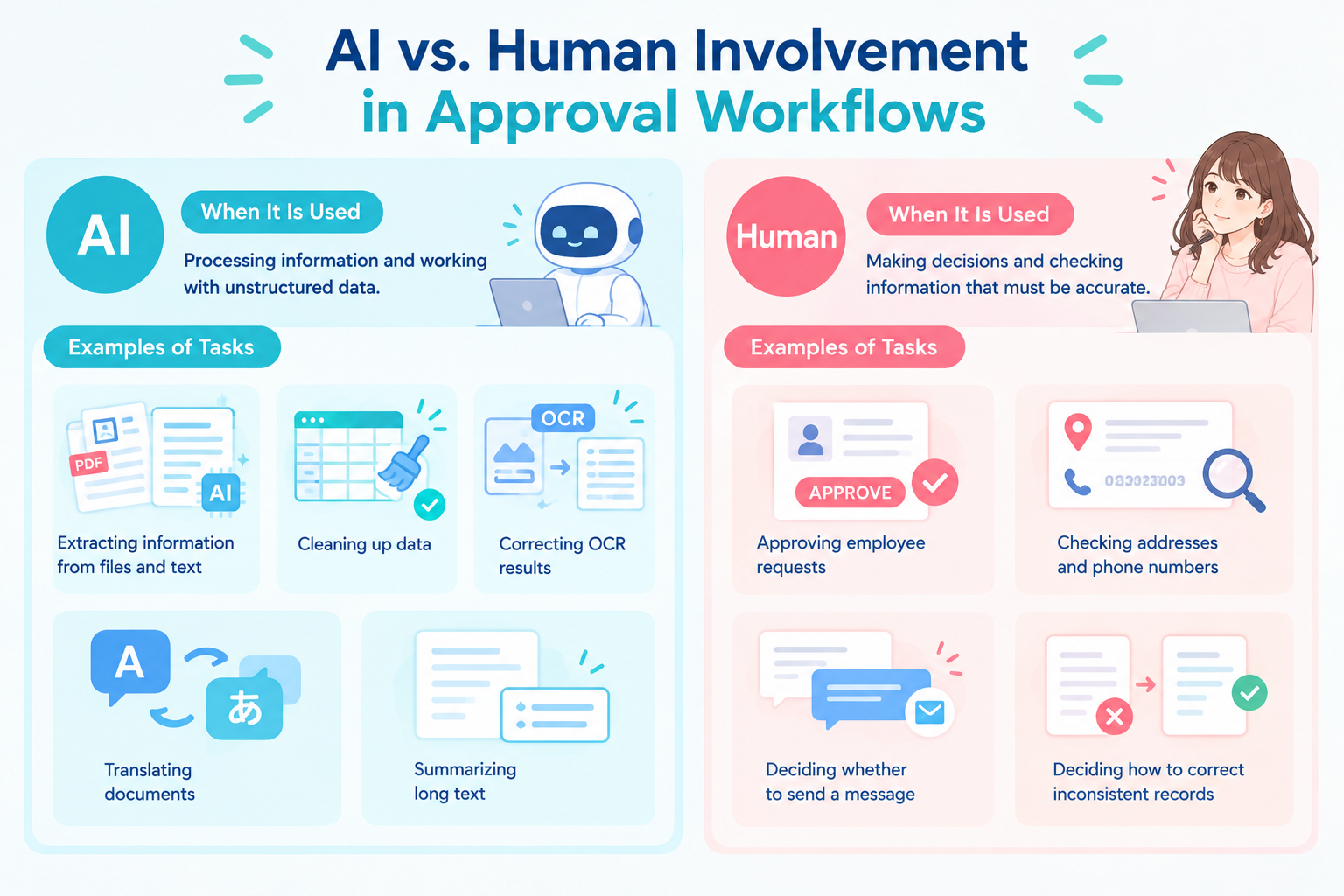
AI: Processing and Organizing Information
AI is used for tasks such as:
- Extracting information from files and text
- Cleaning up and transforming data
- Correcting text extracted through OCR
- Translating documents and summarizing long text
Human: Making Decisions and Checking Important Details
Human review is used for tasks such as:
- Approving employee requests
- Checking important details, such as addresses and phone numbers
- Deciding whether a message should be sent
- Reviewing inconsistent records and deciding how to correct them
AI is useful when a task involves processing large amounts of information or converting it into a consistent format. People are still important when a decision requires context, when an error could have serious consequences, or when someone needs to take responsibility for the outcome.
The Growing Trend of Combining AI and Human Review
The data also shows that workflows using AI often include additional steps, such as conditional routing and repeated actions. This allows businesses to combine AI processing with human approval in a single workflow.
For example, an automated approval workflow can use AI to check a request before sending it to a manager for final approval. If information is missing or something needs to be corrected, the workflow can send the request back to the applicant. If everything looks correct, it moves to the manager for a final decision.
Consider an expense approval workflow: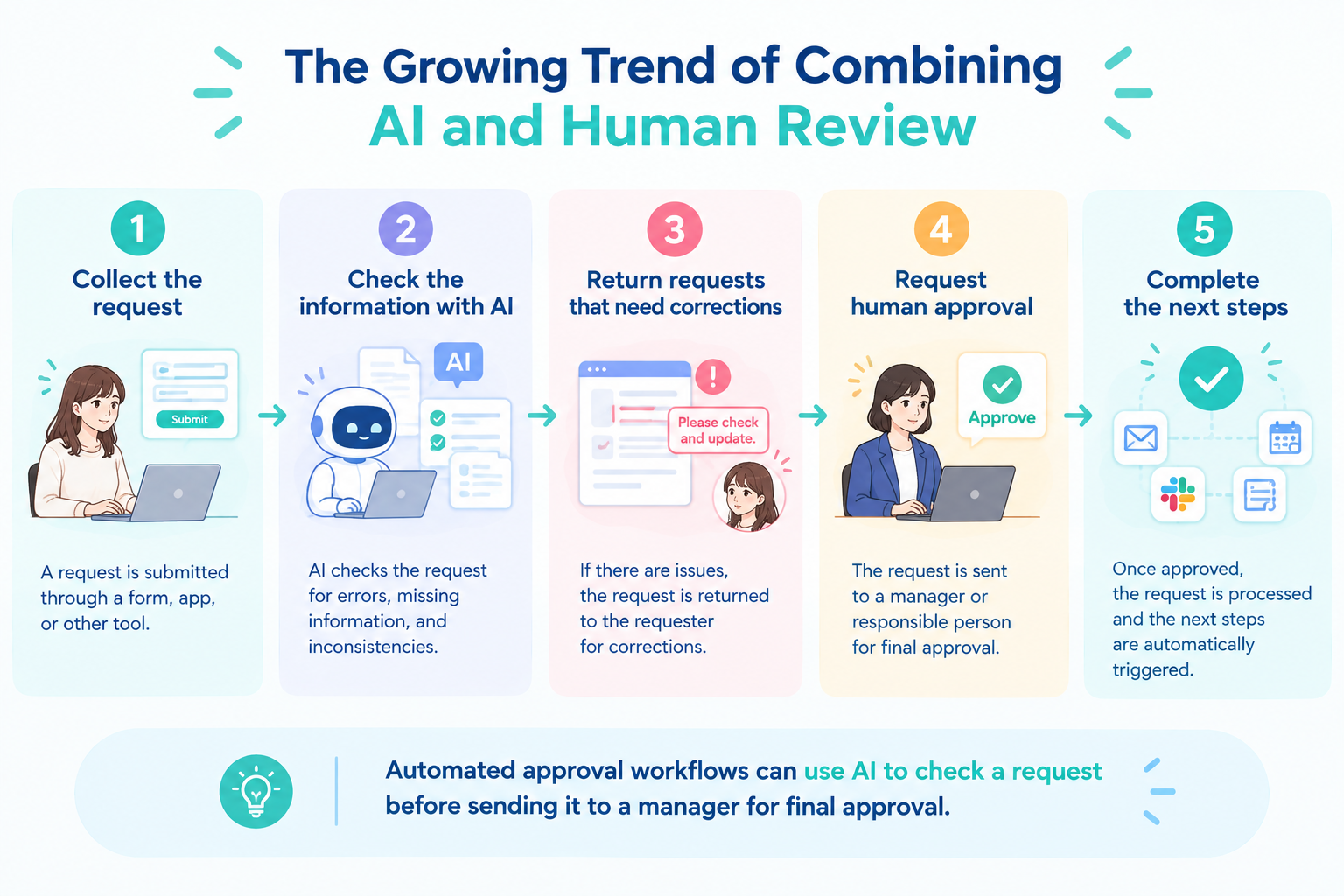
- Collect the request: An employee submits an expense claim and attaches a receipt.
- Check the information with AI: AI extracts the amount, date, and vendor from the receipt, then checks the details against the submitted form and company guidelines.
- Return requests that need corrections: If information is missing or the details do not match, the workflow sends the request back to the employee for correction.
- Request human approval: If the information passes the checks, the workflow sends the request to a manager, who decides whether to approve or reject it.
- Complete the next steps: Once approved, the workflow records the expense and notifies the employee.
In this approach, AI handles routine checks and identifies requests that need attention, while the manager focuses on the final approval decision. This can reduce manual checking and back-and-forth communication without removing human oversight.
The goal of approval workflow software is not to replace every human task with AI. It's to make the entire approval process more efficient by using AI for routine checks, involving people when their judgment is needed, and automating the steps in between.
Related AI Templates:

Automatically determine approval routes based on request details and manage the entire process—from notifying approvers and routing requests to the next approver to sending rejection notices, reporting completion, and recording approval history. Ideal for administrative and accounting teams managing expense reimbursements or purchase requests manually, as well as managers looking to streamline progress tracking for approval workflows with multiple steps.
In addition, set the people responsible for approvals as “Teammates” in advance so the AI worker can automatically send approval requests to the approvers it identifies.
- What are “Skills”?
They are the instructions the AI worker follows to perform tasks. For detailed setup instructions, see “[AI worker] How to Create Skills (formerly Manuals).” - What are “Tools”?
These are the tools the AI worker uses to perform tasks. Simply tell the AI which tools your company uses regularly, and you can freely configure where data is retrieved from and where it is sent.
- The number of AI workers that can run simultaneously, the number of AI workers you can create, and the AI models available to you vary depending on your plan.
- The apps and operations available within an AI worker are subject to the same usage limits as Workflow.
- Please note that AI workers consume tasks during test runs just as they do during production runs. For details, see “[AI worker] How Task Execution Counts Are Calculated.”

This AI worker matches names, departments, and other information entered in chat against your internal permission matrix, then provisions and configures multiple SaaS accounts at once. Reduce manual effort while preventing missed settings and permission errors—ideal for IT and administrative teams managing account setup across multiple tools.
- What are “Skills”?:
- Instructions that guide the AI worker through task execution. For detailed configuration steps, see “【AI worker】How to Create Skills (Formerly Manuals)”.
- What are “Tools”?:
- Tools used by the AI worker to execute tasks. Simply tell the AI which tools your organization uses regularly, and you can freely customize where data is retrieved from and where it is sent.
- The number of AI workers that can run simultaneously, the number of AI workers you can create, and the AI models available to you vary depending on your current plan.
- The apps and operations available within AI workers are subject to the same usage limits as Workflow.
- AI workers consume tasks during test runs just as they do during production runs. For details, see “【AI worker】How Task Usage Is Calculated”.

An AI worker that analyzes legal updates and your company’s labor policies to identify required revisions, assess urgency, and recommend changes—all in one workflow. Reduce the risk of missed checks and overlooked updates, and streamline compliance work for labor, HR, and general affairs teams.
This AI worker automatically compares legal changes with your company’s regulations and tells you exactly what to change, by when, and how. It eliminates the hassle of complex review processes and creates an environment where you can update your regulations smoothly.
- HR and labor management professionals who spend significant time comparing their company’s work rules and wage regulations against legal amendments
- HR and General Affairs teams who want to carefully manage risks by preventing missed updates or overlooked changes and assessing the impact of each change
- Professionals who want to organize the sections requiring updates and compile proposed revisions before consulting an expert
- What are “Skills”?
- They are the instructions the AI worker follows to process tasks. For detailed configuration instructions, see “[AI worker] How to Create Skills (formerly Manuals).”
- What are “Tools”?
- These are the tools the AI worker uses to process tasks. Simply tell the AI which tools your company uses regularly, and you can freely customize where data is retrieved from and where it is sent.
- The number of AI workers that can run simultaneously, the number of AI workers you can create, and the AI models available to you vary depending on your plan.
- The apps and operations available within the AI worker are subject to the same usage restrictions as Workflow.
- Please note that the AI worker consumes tasks during test runs just as it does during production runs. For details, see “[AI worker] How Task Executions Are Calculated.”
This AI worker compares and analyzes attendance data across departments and locations, reporting sudden increases in overtime, imbalances in paid leave usage, and overwork risks with risk scores. Even without established review criteria, it can analyze data based on general trends—ideal for HR and labor teams looking to improve workforce management and prevent missed actions.
- What are “Skills”?
- They are step-by-step instructions that enable an AI worker to perform tasks. For detailed setup instructions, see “[AI Worker] How to Create Skills (Formerly Manuals).”
- What are “Tools”?
- These are the tools an AI worker uses to perform tasks. Simply tell the AI which tools your organization uses regularly, and you can freely customize where data is retrieved from and where it is sent.
- The number of AI workers that can run simultaneously, the number of AI workers you can create, and the available AI models vary depending on your subscription plan.
- The apps and operations available within AI workers are subject to the same usage limits as Workflows.
- Please note that AI workers consume tasks during test runs as well as production runs. For details, see “[AI Worker] How Task Executions Are Calculated.”
Three Ways to Build an Approval Workflow Using Yoom
Building an approval workflow takes some initial effort. You need to decide what information to collect, who should review each request, what happens when a request is rejected, and which steps can be handled automatically. The more complex your process, the more planning and setup it may require.
However, you don't have to build everything from scratch. Yoom is an all-in-one business automation platform that connects the apps your team already uses and helps automate repetitive tasks across departments.
Yoom offers three ways to build workflows, depending on your needs and how much customization you want.
Option 1. Start with a Template
If you want to automate a common approval process quickly, start with a ready-made template. Choose one that matches your needs, then adjust it to fit your team's approval rules.
For example, you could use a template to collect expense requests, notify the right manager when a request is submitted, or update a business app once a request is approved.
Templates give you a starting point, so you don't have to plan and configure every step yourself. You may still need to adjust the workflow to match your approval rules and existing processes.
Explore Yoom's automation templates
Option 2. Let AI Worker Help Build Your Workflow
If you know what you want to automate but aren't sure how to build it, describe your goal in natural language. Yoom's AI Worker can help you turn your idea into an automated workflow.
For example, you could describe a process that checks submitted expense information, returns requests with missing details to the applicant, and sends complete requests to a manager for final approval.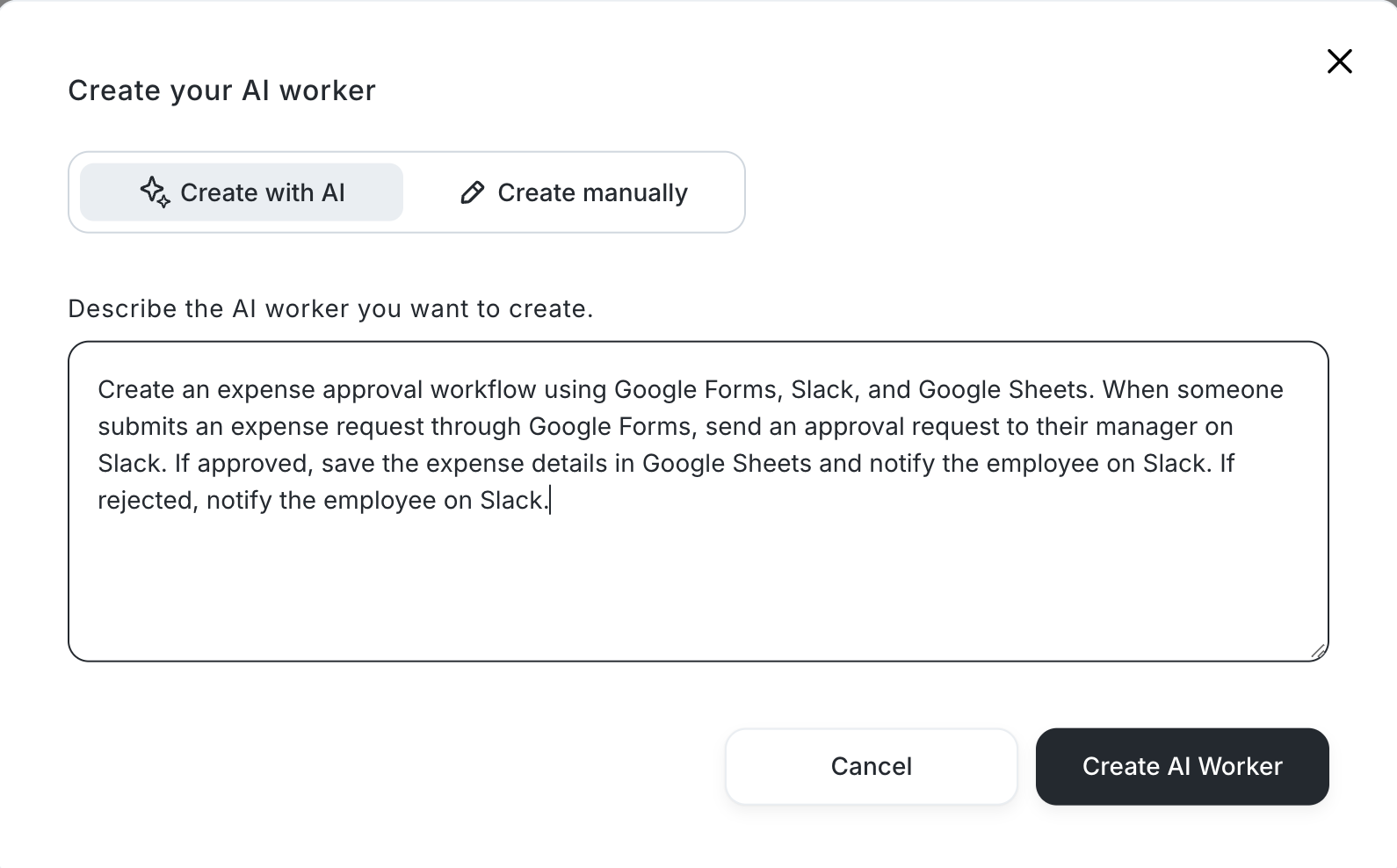
This approach can help you get started without having to figure out every technical detail on your own. You may still need to review the workflow and adjust it to match your company's approval rules.
Explore Yoom's AI Worker templates
Option 3. Build a Custom Workflow
If a template or AI-assisted setup doesn't fully meet your needs, you can build a custom workflow using Yoom's customization features.
Connect the apps you already use and configure each step to match your process. For example, you could collect a request through a form, check the submitted information, route it to different approvers based on the request type or amount, and notify the applicant once a decision has been made.
You can also combine app integrations with AI, OCR, and RPA to handle different types of work within the same workflow.
This option gives you more control over complex approval rules and processes that are specific to your business. However, it may require more time to design, configure, and test than starting with a template.
Learn how to set up custom app and API connections
Start Small and Improve Your Workflow Over Time
Approval workflow automation isn't just about connecting apps. It also involves deciding how requests should move through your organization, which checks can be automated, and where human judgment is needed. Setting this up takes some initial effort, but a well-designed workflow can reduce repetitive work and make the approval process easier to manage over time.
You don't need to automate every step at once. Start with one recurring approval task, learn what works for your team, and expand from there.
With Yoom, you can start with a template, use AI Worker to help build a workflow, or create a custom process that fits your needs.