・
AI Document Processing | How AI Automates Document Processing

- What Is Intelligent Document Processing (IDP)?
- Why Traditional OCR Is Not Enough
- How AI Document Processing Works
- How Do Businesses Actually Process Documents? What the Data Reveals
- Advanced AI Document Processing: Why AI Alone Is Not Enough
- How AI Uses Company Information During Document Processing
- Top Intelligent Document Processing (IDP) Platforms
- If You Feel Uneasy About Letting AI Handle Everything, That's Normal
- Use Human Review Only When It Matters
Every day, businesses receive large numbers of documents, including invoices, purchase orders, contracts, and receipts.These documents may arrive as email attachments, PDFs, or scanned images.
For many years, companies have used manual data entry or basic Optical Character Recognition (OCR) to turn these documents into digital data.
OCR can read the words in a document, but simply reading the text is often not enough.
For example, an invoice may contain a product name, price, and quantity.
A basic OCR tool can read these values, but it may not know whether the price is correct for that particular supplier.
It also cannot automatically decide what your company should do with the information after reading it.
This is where Intelligent Document Processing (IDP) and AI Document Processing come in.
What Is Intelligent Document Processing (IDP)?
Intelligent Document Processing (IDP) uses AI to read documents, understand the information inside them, and help businesses process that information.
Unlike traditional OCR, IDP can do more than simply recognize text. It can identify important information in a document and use business information to understand what that information means.
For example, when an AI system reads a vendor invoice, it may:
- Read the invoice.
- Find the vendor name, products, prices, and quantities.
- Check the information against the company's internal data.
- Identify possible differences or problems.
- Send the information to the appropriate business system.
- Notify the relevant team.
In other words, AI Document Processing can connect document reading with the work that needs to happen next.
This is an important difference between simply extracting information from a document and using Document Processing Automation to complete a business process.
Why Traditional OCR Is Not Enough
Traditional OCR is useful for turning an image or PDF into text. However, it has two major limitations.
1. OCR Does Not Understand Your Business Rules
Standard OCR mainly reads the text that appears in a document.
It does not automatically know about your company's:
- Product prices
- Customer discounts
- Vendor agreements
- Accounting rules
- Internal policies
- Employee information
For example, imagine that a vendor sends an invoice for a product.
The invoice says the product costs $100.
OCR can read "$100."
However, your company's internal price list may say that the agreed price is $90.
OCR alone cannot easily make this comparison. A person still needs to check the information.
With AI Document Extraction, AI can extract the price and then use other company information to help determine whether the price is correct.
2. Extracting Data Is Only the First Step
Another problem is that extracting information does not complete the business process.
Imagine that an invoice is received by email.
After extracting the information, someone may still need to:
- Enter the data into Excel or database
- Upload the original file to cloud storage
- Add the information to a CRM
- Send the invoice to the finance team
- Notify someone in Slack or Microsoft Teams
This means that document extraction alone only solves part of the problem.
Automated Document Processing goes one step further by connecting document extraction to the actions that follow.
How AI Document Processing Works
A simple way to understand IDP is to think about it as a three-step process:
Read → Understand → Take Action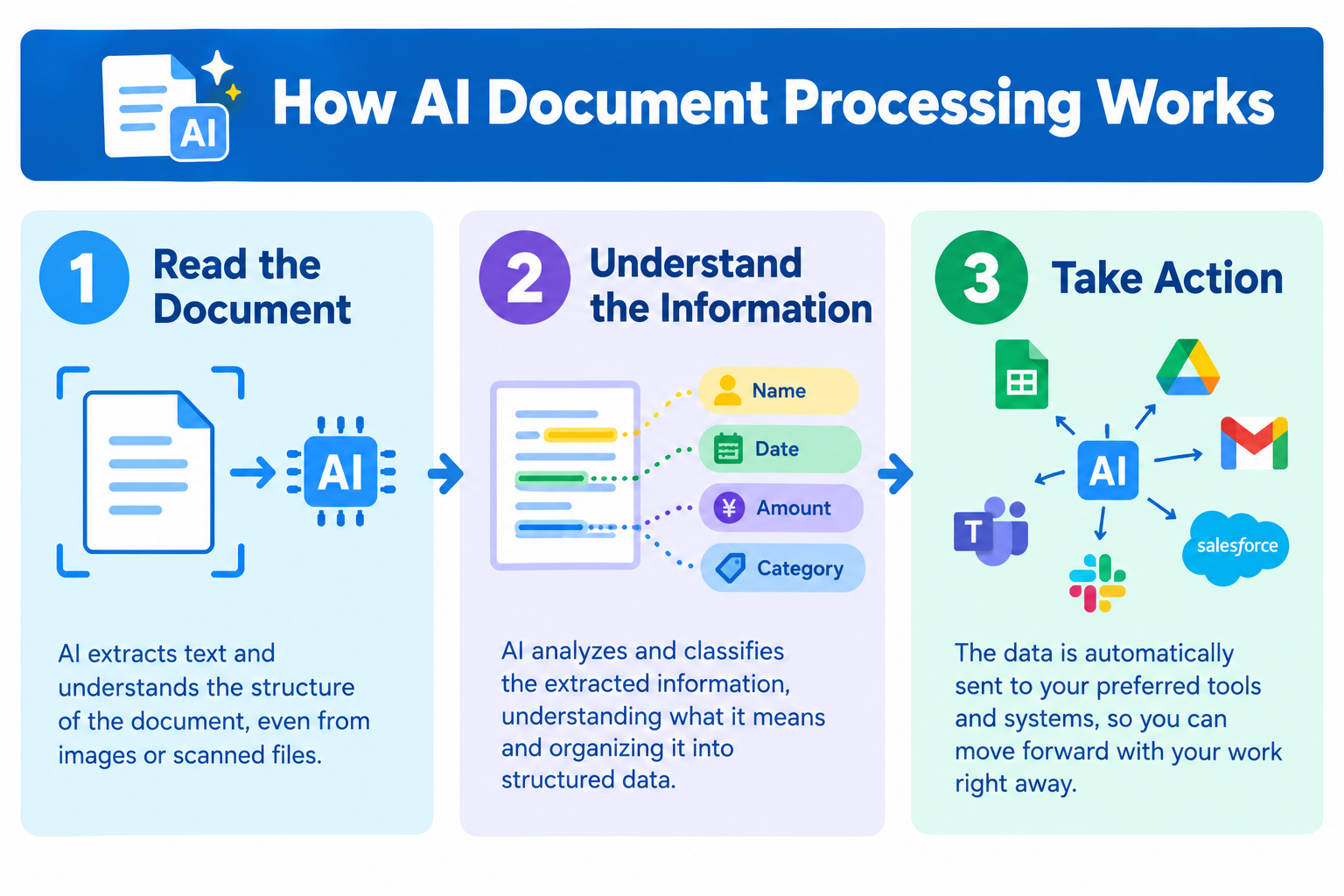
Step 1: Read the Document
AI reads the incoming document, such as:
- An invoice
- A purchase order
- A contract
- A receipt
- A quotation
- An employee document
The document can be a PDF, scanned image, or another file format.
Step 2: Understand the Information
AI identifies the information that the business needs.
For example, from an invoice, it may extract:
- Company name
- Invoice number
- Product names
- Quantities
- Prices
- Total amount
- Due date
AI can then compare this information with data stored elsewhere in the company.
Step 3: Take Action
Once the information has been processed, the system can automatically perform the next steps.
For example, it can:
- Add the data to a spreadsheet or database
- Update a CRM
- Save the original document to cloud storage
- Send an email
- Send a Slack notification
- Start an approval process
This is the main idea behind Document Processing Automation: the system does not stop after reading the document. It continues with the work that normally follows.
How Do Businesses Actually Process Documents? What the Data Reveals
To understand how companies use IDP in real business operations, we analyzed our own data from active enterprise workflows on Yoom.
1. Document Types
The documents processed in these workflows include structured, semi-structured, and custom business documents.
The breakdown was: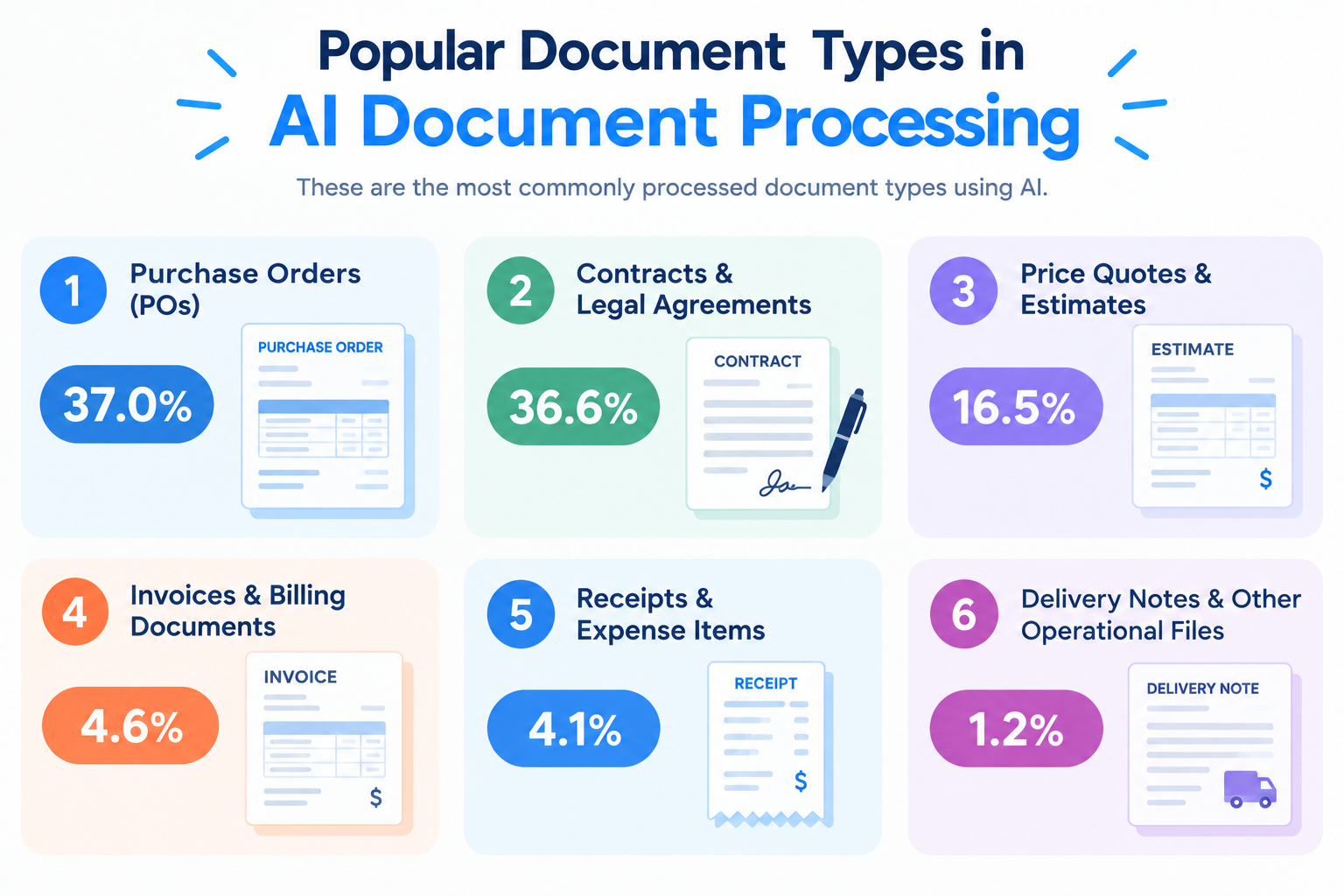
- Purchase Orders (POs): 37.0%
- Contracts & Legal Agreements: 36.6%
- Price Quotes & Estimates: 16.5%
- Invoices & Billing Documents: 4.6%
- Receipts & Expense Items: 4.1%
- Delivery Notes & Other Operational Files: 1.2%
This shows that businesses need AI Document Processing that can handle many types of documents, including documents with company-specific formats.
A system that only works with fixed invoice templates may not be enough for many real-world business processes.
2. 99.8% of Document Processing Steps Lead to Another Action
One of the most important findings is that document extraction is rarely the final step.
In the workflows we analyzed: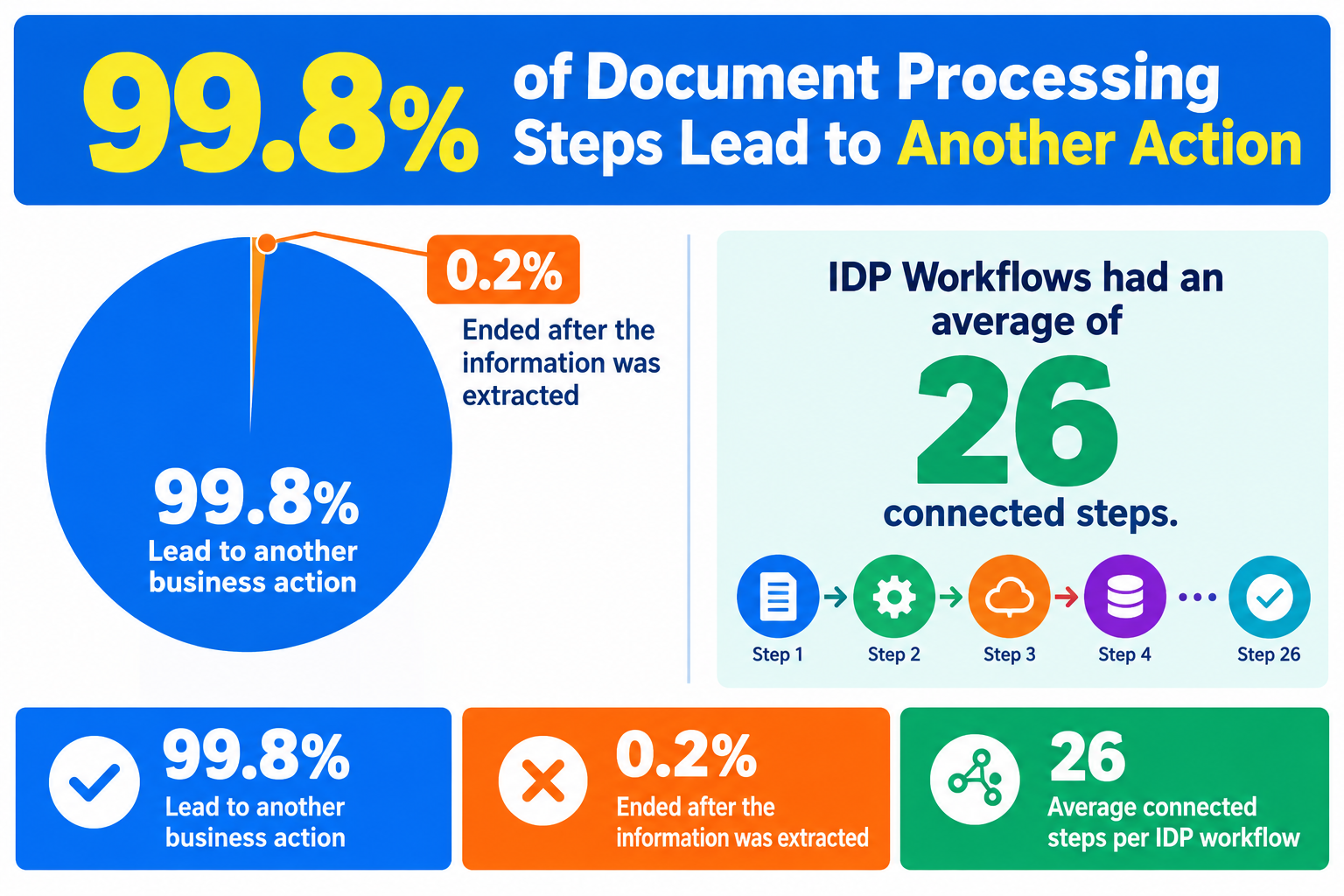
- 99.8% of document processing steps were followed by another business action.
- Only 0.2% ended after the information was extracted.
- IDP Workflows had an average of 26 connected steps.
This means that companies often use document processing as part of a larger workflow.
For example:
Receive invoice → Read invoice → Check information → Save data → Update CRM → Notify team
This is why Document Processing Automation is becoming more important. Businesses do not just want to read documents. They want to reduce the manual work that comes after document processing as well.
3. Most Workflows Run Without Manual Work
The same data also shows a high level of automation.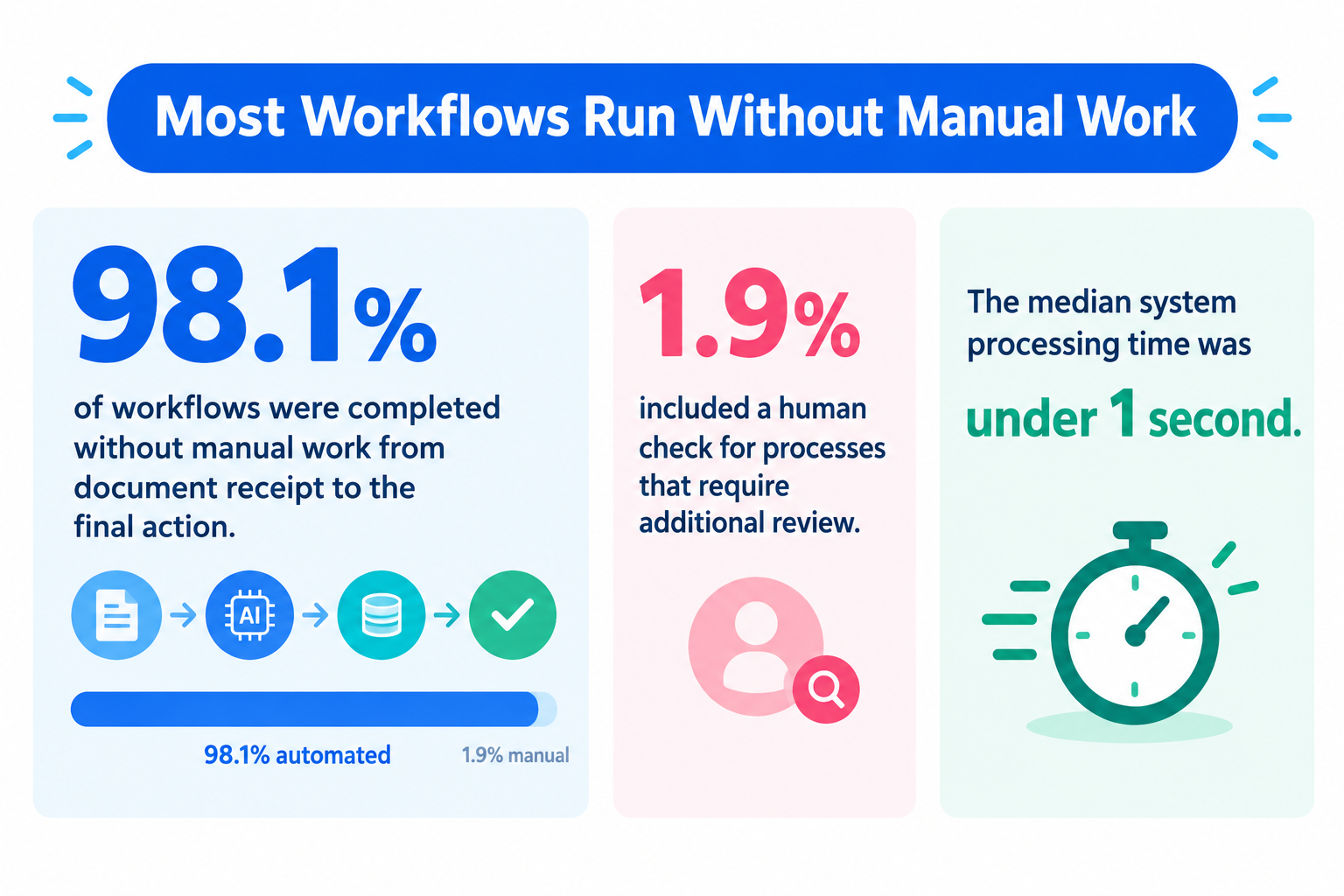
- 98.1% of workflows were completed without manual work from document receipt to the final action.
- 1.9% included a human check for processes that require additional review.
- The median system processing time was under 1 second.
Human review can still be useful when a document contains sensitive or high-risk information.
For example, a company may want an employee to check an important contract before it is approved.
This means AI does not necessarily have to replace people. Instead, it can handle routine document work and allow people to focus on decisions that require human judgment.
4. Where Does the Extracted Information Go?
After information is extracted and checked, it is often sent to another business tool.
The most common destinations include: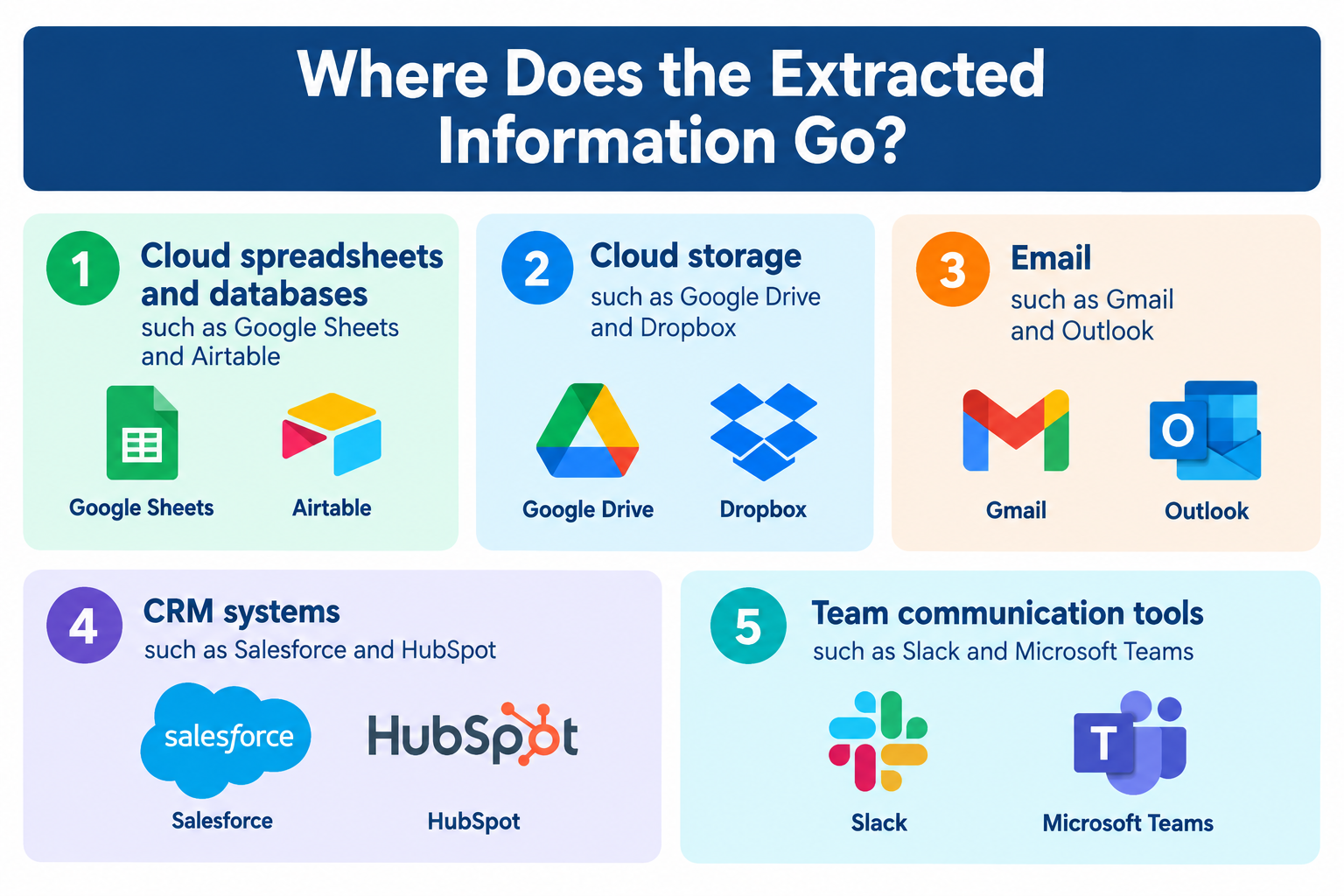
- Cloud spreadsheets and databases such as Google Sheets and Airtable
- Cloud storage such as Google Drive and Dropbox
- Email such as Gmail and Outlook
- CRM systems such as Salesforce and HubSpot
- Team communication tools such as Slack and Microsoft Teams
This is another reason why connecting AI document extraction with workflow automation is important.
The value of document processing does not end when the AI finishes reading the file. The extracted information needs to reach the right place and trigger the right action.
Advanced AI Document Processing: Why AI Alone Is Not Enough
AI is good at reading and understanding text.
However, AI does not automatically know every company's products, prices, contracts, or internal rules.
This creates an important difference between two approaches to AI Document Extraction.
Standard AI Document Extraction
The AI reads the document and extracts important information from it.
For example:
"Find the invoice number, vendor name, total amount, and payment date."
This works well when the information can be understood directly from the document.
AI Document Extraction with Company Knowledge
For example, AI may read an invoice and compare its prices with a company price list before deciding whether the information is correct.
This approach gives AI more context.
The process becomes:
Document → AI reads it → AI checks company information → Information is extracted and checked → Next action starts
This can be useful when the correct answer depends on information that is not written directly in the document.
How AI Uses Company Information During Document Processing
So, how does advanced AI Document Processing work in practice?
The key is to connect AI with the business apps that already contain your company's information.
When AI processes a document, it can refer to information from these apps and use it as context. This allows AI to make more informed decisions instead of looking at the document on its own.
For example, an invoice can be compared with a product list before the extracted price is recorded. A customer document can be checked against customer records. An employee document can be compared with employee information stored in an HR system.
What Apps Are Used in Advanced AI Document Processing?
The type of information AI can reference depends on the business and the document being processed.
- Spreadsheets and databases (58%): e.g., Google Sheets — used for product lists, price lists, customer records, and other master data
- CRM systems (16%): e.g., Salesforce — used to check customer and deal information
- HR systems (15%): e.g., BambooHR — used to check employee and department information
- Accounting systems (6%): e.g., Xero — used to check accounting categories and previous transaction data
- Knowledge management tools (5%): e.g., Notion — used to reference internal manuals, FAQs, and company rules
This is one of the key differences between a standalone AI document tool and a more advanced AI Document Processing workflow.
The AI is not only reading the document. It is also using the company's own information to understand the document and decide what to do next.
Related Advanced AI Document Templates:


■Overview
Do you manually enter the contents of invoices and application forms uploaded to Box into Salesforce every time? This process is not only time-consuming and tedious but can also lead to human errors such as transcription mistakes. This workflow automates the integration between Box and Salesforce. When a specific file is uploaded, the OCR feature reads its contents and automatically creates a record in Salesforce. Streamline routine data entry tasks and create an environment where you can focus on more important work.
■Who Is This Template For?
- Anyone who uses Box and Salesforce together and finds manually entering file contents time-consuming
- Anyone who wants to prevent input errors and missing information when transferring data from Box to Salesforce
- Anyone who wants to automate the entire workflow, from file management to registering customer information
■Benefits of This Template
- Automatically complete the process from uploading a file to Box to creating a record in Salesforce, reducing the time required for data entry.
- Eliminate the need for manual data entry to reduce the risk of human errors such as input mistakes and missing fields, while maintaining data accuracy.
■Flowbot Steps
- First, connect Box and Salesforce to Yoom.
- Next, select Box as the trigger and set the action to “When a file is uploaded to a folder.”
- Next, set the Box “Download a file” action as an operation and specify the file detected by the trigger.
- Next, set the “Branching” feature as an operation so that subsequent steps run only when specific conditions are met.
- Next, select the “OCR” feature as an operation to extract text from the downloaded file.
- Finally, set the Salesforce “Create a record in a custom object” action as an operation and map the information extracted by OCR to the relevant fields.
*“Trigger”: An action that starts the flow. “Operation”: An action that performs a process within the flow after the trigger starts.
■Workflow Customization Options
- With the Branching feature, you can set conditions such as the file name and file format. For example, you can configure the workflow to “run only when the file name contains ‘invoice.’”
- When creating a record in Salesforce, enter the My Domain URL for your environment and the API name of the custom object you want to connect.
■Notes
- Connect both Box and Salesforce to Yoom.
- 【Salesforce】is available only on the Team and Success Plans. Please note that on the Free and Mini Plans, the configured Flowbot operations and Data Connect will result in errors.
- Paid plans, such as the Team and Success Plans, offer a two-week free trial. During the free trial, you can use apps that are otherwise subject to restrictions.
- AI operations for OCR and audio transcription are available only on the Team and Success Plans. Please note that on the Free and Mini Plans, the configured Flowbot operations will result in errors.
- Paid plans, such as the Team and Success Plans, offer a two-week free trial. During the free trial, you can use restricted apps and AI features (operations).
- Please note that OCR may not be able to read data containing more than 6,500 characters or text that is too small.


■Overview
By using the workflow "Receive an invoice PDF in Gmail, perform OCR, and add the detailed (table) information to Microsoft Excel," you can automatically aggregate the file contents after receiving an email.
This eliminates the need for manual transcription of table data, making input into Microsoft Excel smoother.
■Recommended for
- Those who use Gmail for business and manage table data from attachments (PDFs or images) from clients or customers
- Those who frequently compile paper documents or PDF form data into Excel and wish to streamline data entry tasks
- Those who feel challenged by data transcription errors due to manual entry and increased work time
- Those who use Microsoft Excel for sales aggregation and business management and want to always keep the latest data
- Business or back-office personnel who want to accurately and quickly extract table data and reflect it in Microsoft Excel
■Benefits of using this template
By utilizing this flow, which extracts table data via OCR from files received in Gmail and automatically adds it to Microsoft Excel, you can expedite daily data entry tasks.
This reduces the burden of manually downloading files, visually checking their contents, and entering them into Microsoft Excel.
This also allows you to allocate more time to other tasks, which is a significant advantage.
Furthermore, it can reduce human errors such as omissions and input mistakes that often occur during manual entry.
■Overview
Do you spend too much time manually transferring the contents of invoices and application forms uploaded to Box into Salesforce? These repetitive data-entry tasks are not only time-consuming but can also lead to input errors. With this workflow, you can seamlessly connect Box and Salesforce, automatically read file contents using OCR when a file is uploaded, and create a record in Salesforce. This streamlines data entry and gives you more time to focus on higher-priority work.
■Recommended for
- Sales and sales support teams that use Box and Salesforce and feel burdened by daily data-entry tasks
- Anyone who wants to eliminate input errors when transferring the contents of contracts and other documents stored in Box to Salesforce
- Anyone who wants to automate the entire process—from document management to customer information registration—by connecting Salesforce and Box
■Benefits of using this template
- Automatically create Salesforce records when files are uploaded to Box, reducing the time spent manually transferring data
- Use OCR to automatically read and register data, preventing human errors such as manual input mistakes and missed registrations while maintaining data accuracy
■Flowbot steps
- First, connect Box and Salesforce to Yoom
- Next, select Box as the trigger and set the action to “When a file is uploaded to a folder”
- Next, set the Box “Download a file” action as an operation to retrieve the file specified in the trigger
- Next, select the OCR feature as an operation and use the “Read text from an image or PDF” action to extract text data from the file
- Finally, set the Salesforce “Create a record in a custom object” action as an operation to create a record based on the extracted information
*“Trigger”: An action that initiates a flow. “Operation”: An action that processes data within a flow after the trigger starts.
■Customization options
- For the Salesforce record creation action, set the API name of the target custom object as needed
- When connecting to Salesforce, you must set the My Domain URL for your environment
■Notes
- Connect both Box and Salesforce to Yoom.
- 【Salesforce】is available only on the Team and Success plans. On the Free and Mini plans, the configured Flowbot operations and Data Connect will result in errors.
- Paid plans, such as the Team and Success plans, include a two-week free trial. During the free trial, you can use apps subject to plan restrictions.
- AI operations for OCR and speech-to-text are available only on the Team and Success plans. On the Free and Mini plans, the configured Flowbot operations will result in errors.
- Paid plans, such as the Team and Success plans, include a two-week free trial. During the free trial, you can use apps and AI features (operations) subject to plan restrictions.
- Please note that OCR may not be able to read data containing more than 6,500 characters or text that is too small.
Top Intelligent Document Processing (IDP) Platforms
When choosing an IDP platform, consider what you need to process, how much control and customization you need, and whether you want room to scale in the future.
1. Yoom
Yoom is an all-in-one workflow automation platform that combines advanced AI Document Processing, database management, and business workflow automation.
Yoom can connect document processing with other business tools, allowing teams to process information and automatically continue with the next steps.
Key features
- AI-based document extraction
- Connections to internal company data
- Workflow automation across multiple business apps
- Database management
- No-code workflow building
Yoom can connect document processing with tools such as cloud spreadsheets, HR systems, accounting software, Notion, Slack, Salesforce, and cloud storage.
Best for
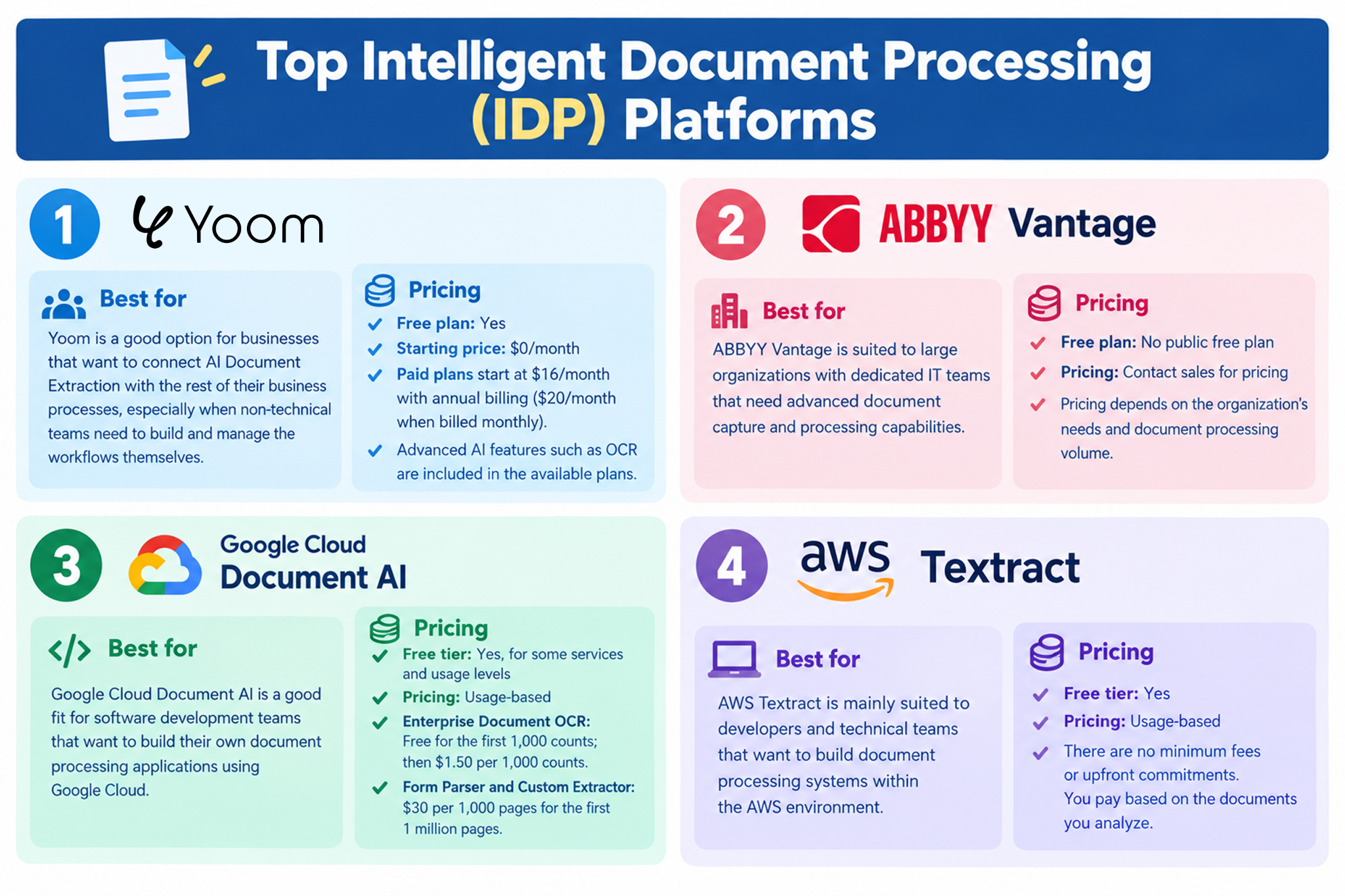
Yoom is a good option for businesses that want to connect AI Document Extraction with the rest of their business processes, especially when non-technical teams need to build and manage the workflows themselves.
Pricing
- Free plan: Yes
- Starting price: $0/month
- Paid plans start at $16/month with annual billing ($20/month when billed monthly).
- Advanced AI features such as OCR are included in the available plans.
2. ABBYY Vantage
ABBYY Vantage is an enterprise document intelligence platform designed for complex document processing.
Key features
- Document classification
- Enterprise OCR
- Form processing
- Pre-trained skills for financial and legal documents
- Support for large-scale document processing
Best for
ABBYY Vantage is suited to large organizations with dedicated IT teams that need advanced document capture and processing capabilities.
Pricing
- Free plan: No public free plan
- Pricing: Contact sales for pricing
- Pricing depends on the organization's needs and document processing volume.
3. Google Cloud Document AI
Google Cloud Document AI provides AI and machine learning tools for processing documents.
Key features
- Document classification
- Information extraction
- Specialized document models
- APIs for developers
Best for
Google Cloud Document AI is a good fit for software development teams that want to build their own document processing applications using Google Cloud.
Pricing
- Free tier: Yes, for some services and usage levels
- Pricing: Usage-based
- Enterprise Document OCR: Free for the first 1,000 counts; then $1.50 per 1,000 counts.
- Form Parser and Custom Extractor: $30 per 1,000 pages for the first 1 million pages.
4. AWS Textract
AWS Textract is a cloud service that extracts text, handwriting, tables, and other information from documents.
Key features
- Text extraction
- Table extraction
- Form field extraction
- Integration with AWS services such as Amazon S3 and AWS Lambda
Best for
AWS Textract is mainly suited to developers and technical teams that want to build document processing systems within the AWS environment.
Pricing
- Free tier: Yes
- Pricing: Usage-based
- There are no minimum fees or upfront commitments. You pay based on the documents you analyze.
If You Feel Uneasy About Letting AI Handle Everything, That's Normal
AI Document Processing can automate the entire process, from reading a document to taking action.
However, it is also natural to feel uneasy about letting AI handle everything on its own.
This is especially true when a document involves money, contracts, or other important decisions. In these cases, businesses may want a person to review the result before the process continues.
In the age of AI, the best approach does not have to be choosing between AI or people.
Instead, AI can handle routine document processing, while people step in only when their judgment is needed.
Use Human Review Only When It Matters
With Yoom, you can set conditions in advance to decide when human review is necessary.
For example, you could create a rule such as:
"If the amount is over a certain threshold, ask a person to review it."
The AI can automatically process documents that meet the normal conditions.
Only documents that meet the predefined conditions are sent to a person for approval.
The person does not need to repeat the entire process. They simply review the result and choose whether to approve or reject it.
If they reject it, Yoom can automatically send the task back to the person in charge for correction.
This means that people are involved only where they are needed, while AI handles the repetitive work.
AI handles what can be automated. People handle what requires human judgment.
↓Yoom's Manual Action Feature
The right level of AI automation is different for every business. The best tool is not necessarily the one that automates the most. It is the one that can most faithfully reflect how your business actually works, including your rules, company information, and human judgment.
When choosing an AI Document Processing tool, look beyond document extraction alone. Choose a solution that can adapt to your business and automate the right parts of the process while keeping people involved where their judgment matters.
Templates with Human Actions:

■ Overview
The flow "Request approval and send via Outlook when the Salesforce opportunity object is updated to a specified status" is a business workflow that streamlines opportunity progress management and the approval process.
Every time the sales team updates the status of an opportunity in Salesforce, manually requesting approval and sending an email via Outlook is a cumbersome task. Especially as the number of opportunities increases, the workload also increases, making it more prone to errors.
By utilizing this flow, you can automate the entire process of automatically sending approval requests and emails to Outlook when a specified status is reached.
This allows you to create an environment where you can focus on sales activities.
■ Recommended for
- Sales representatives who use Salesforce for opportunity management and are considering automating the approval process
- Sales managers who manually handle approval requests and email sending tasks associated with changes in opportunity status
- IT personnel of companies aiming for efficient opportunity management and standardization of the approval flow
- Executives who want to improve the productivity of the sales team by automating business processes
■ Benefits of using this template
By utilizing this flow, you can automatically send approval requests at the same time as updating the opportunity status, reducing the hassle of manual work and streamlining the approval process.
Automation prevents human errors during approval requests and email sending.
Additionally, it reduces cumbersome administrative tasks, allowing the sales team to focus on core activities.
■Who should use this template
- People who want to automate the initial response and routing of inquiries received in Gmail
- People who struggle with missed communications and delayed responses caused by manually forwarding emails
- Managers who want to standardize Gmail handling across their team and eliminate reliance on individual employees
■Benefits of using this template
- Automatically determines where to forward emails based on their content, reducing the time spent manually reviewing and routing messages.
- Prevents human errors caused by manual processing, such as missed reviews or incorrect forwarding destinations, for more reliable operations.
■Flowbot process
- First, connect Gmail with Yoom.
- Next, select Gmail as the trigger and configure the “When an email matching specific keywords is received” action.
- Next, configure the AI feature in an operation and have it determine the inquiry details from the body of the received email.
- Next, configure the destination-switching feature to route the email to the appropriate person based on the AI’s decision.
- Finally, configure Gmail’s “Send an email” action in an operation to forward the email to the assigned person.
■Customization options
- In the Gmail trigger settings, specify the keywords included in emails that should start the flow.
- With the AI feature, you can freely customize the prompt used to summarize or classify email content. You can also include information such as the body of the received email as variables.
- With the destination-switching feature, set the conditions for switching the forwarding destination based on the content determined by AI.
- In the Gmail settings for forwarding, you can freely configure the recipient, subject, and body. You can also use information from the email received by the trigger and AI-generated results as variables.
■Notes
- Connect Gmail with Yoom.
- You can choose a trigger interval of 5, 10, 15, 30, or 60 minutes. Please note that the shortest available interval varies by plan.
- “Switch destinations” is a feature (operation) available on the Personal plan and above. On the Free plan, configured Flowbot operations using this feature will result in an error.
- Paid plans, such as the Personal plan, include a two-week free trial. During the free trial, you can use apps and features (operations) that are otherwise subject to restrictions. For details, see the Pricing Plans page.