





・
10 Best AI Inventory Management Software: Pros, Cons & Use Cases

- What Is AI Inventory Management Software?
- Common Drawbacks of AI Inventory Management Software
- 10 Best AI Inventory Management Software in 2027
- How to Choose the Right AI Inventory Management Software
- Popular AI Inventory Management Use Cases
- How Much Time Can AI Inventory Automation Save?
- Build Your Own AI Inventory Management Workflow with Yoom
- Start Automating Your Inventory Operations
- Choose the Right Approach to AI Inventory Management
Managing inventory is becoming increasingly complex as businesses sell across multiple channels, manage larger product catalogs, and handle growing volumes of orders. Keeping stock levels accurate, processing purchase orders, and preventing stockouts can quickly become time-consuming when these tasks rely on manual work.
This is where AI inventory management software can help.
AI-powered inventory management tools use artificial intelligence to analyze inventory data, forecast demand, automate repetitive tasks, and help businesses make better stocking decisions. Some platforms also connect inventory operations with e-commerce stores, accounting software, and shipping systems.
However, choosing a dedicated inventory management system is not always the best solution for every business. Some tools come with limitations in customization, integrations, usability, and customer support. In addition, replacing existing systems can create unnecessary costs and implementation work.
In this guide, we'll explore 10 AI inventory management software options, compare their features, and examine common drawbacks reported by users. We'll also look at real-world inventory automation use cases and how businesses can use AI automation to streamline inventory operations without replacing their existing tools.
What Is AI Inventory Management Software?
AI inventory management software uses artificial intelligence and machine learning to help businesses monitor stock levels, forecast demand, optimize replenishment, and automate inventory-related tasks.
Traditional inventory management systems primarily record stock movements and update inventory quantities. AI-powered systems go further by analyzing historical data, identifying patterns, and recommending actions based on changing business conditions.
Depending on the platform, AI inventory management features may include:
- Demand forecasting: Analyzing historical sales data, seasonality, and trends to predict future demand.
- Automated replenishment: Recommending when and how much stock to reorder.
- Inventory anomaly detection: Identifying unusual stock movements, discrepancies, and potential stockouts.
- Document processing: Extracting product information and quantities from invoices, purchase orders, and delivery notes.
- Product data management: Generating product descriptions, categorizing items, and standardizing product information.
- Workflow automation: Connecting inventory systems with ecommerce platforms, accounting software, spreadsheets, and other business applications.
Not every inventory management platform offers all these capabilities. Some specialize in demand forecasting, while others focus on stock tracking, warehouse operations, or order management. It's important to understand which AI capabilities are actually included in each product.
Common Drawbacks of AI Inventory Management Software
AI inventory management software can improve operational efficiency, but choosing the wrong platform can create new challenges.
To understand what businesses should pay attention to, we analyzed negative user reviews of three well-known inventory management platforms: Cin7, Zoho Inventory, and Fishbowl.
The analysis covered reviews collected from G2 and Capterra. We categorized recurring complaints to identify the issues users most frequently reported.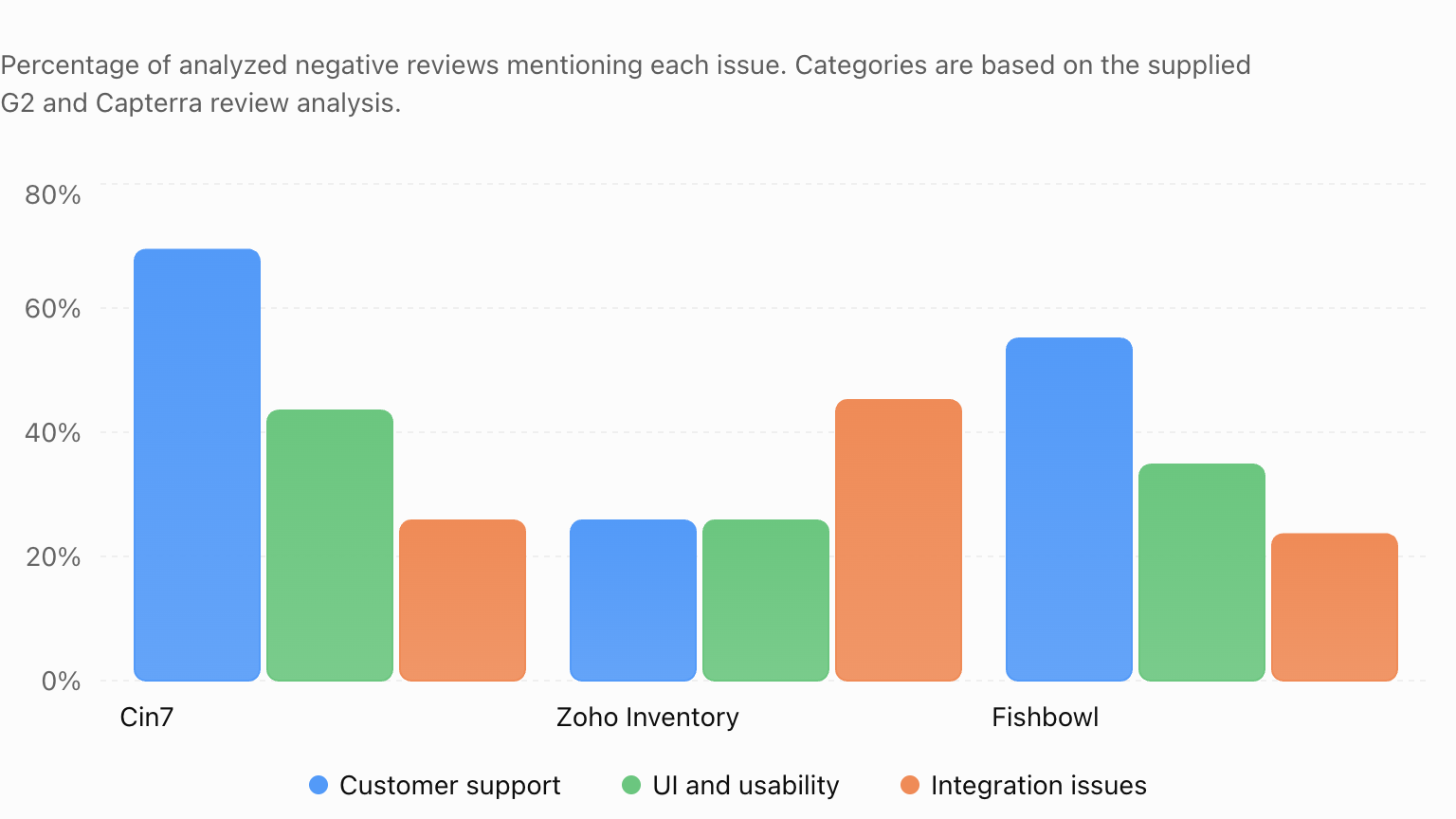
1. Customer Support and Implementation Quality
Customer support was one of the most frequently reported concerns across the platforms.
For Cin7, 69.4% of the negative reviews analyzed mentioned customer support issues. Fishbowl showed a similar pattern, with 55.1% of complaints involving support or implementation.
Common issues included:
- Long response times and unresolved support tickets
- Difficulty reaching knowledgeable support representatives
- Insufficient onboarding assistance
- Problems being attributed to users or third-party services rather than investigated
When inventory operations depend on a dedicated platform, unresolved technical issues can directly affect purchasing, fulfillment, and stock accuracy.
2. Usability and Customization Limitations
Another recurring concern was the difficulty of adapting inventory software to existing business processes.
The data highlights several differences between the platforms:
- Cin7: 43.5% of analyzed negative reviews mentioned UI, usability, or flexibility issues. Users frequently reported complicated workflows and difficulties adapting the system.
- Zoho Inventory: 54.8% mentioned missing core or specialized functionality. Some users reported limitations in warehouse operations, reporting, and multi-location management.
- Fishbowl: 34.8% mentioned usability or flexibility issues, including outdated interfaces and complicated workflows.
These complaints suggest that a system's feature list alone is not enough to determine whether it will work well for a business.
A platform may offer extensive inventory functionality but still require employees to adapt their processes to its predefined structure.
3. Integration Reliability
Inventory management rarely happens in isolation. Businesses often rely on multiple applications for sales, accounting, shipping, purchasing, and customer management.
However, integrations can become a source of operational problems.
In our review analysis, integration-related complaints appeared in:
- 25.8% of negative Cin7 reviews
- 45.2% of negative Zoho Inventory reviews
- 23.6% of negative Fishbowl reviews
Users reported issues such as synchronization errors, missing order data, inconsistent inventory quantities, and limitations when connecting third-party applications.
Before choosing a platform, check whether it supports the applications your business already uses and whether its integrations cover the specific workflows you need.
4. Pricing and Long-Term Costs
The initial subscription price does not always reflect the total cost of using inventory management software.
Additional costs may include:
- Higher-tier plans required for advanced functionality
- Additional user licenses
- Integration fees
- Onboarding and implementation services
- Custom reports and development
- Data migration and maintenance
For example, 46.8% of the negative Cin7 reviews analyzed mentioned pricing, billing, cancellation, or refund-related issues.
This does not mean that every user will experience these problems. However, it highlights the importance of evaluating long-term costs rather than comparing subscription prices alone.
Do You Always Need a Dedicated Inventory Management System?
Dedicated inventory management software is valuable for businesses that need specialized warehouse functionality, complex stock tracking, lot and serial number management, or advanced demand planning.
However, not every business requires such an extensive system.
If your inventory operations mainly involve updating product information, processing delivery documents, synchronizing stock data, and notifying team members, you may already have most of the applications needed to manage these tasks.
Instead of replacing your existing tools, you can connect them using an automation platform.
This approach allows you to:
- Keep using your existing ecommerce, accounting, and inventory applications
- Automate repetitive tasks between different systems
- Use AI to extract, classify, and organize inventory information
- Customize workflows around your actual business processes
- Add new automation steps as your operations change
The key is to choose the right combination of tools rather than assuming that one dedicated system must handle every inventory-related task.
10 Best AI Inventory Management Software in 2027
The best AI inventory management software depends on your business size, sales channels, inventory complexity, and existing technology stack.
Some platforms provide comprehensive inventory management with AI-powered forecasting, while others specialize in demand planning or manufacturing operations.
Here are nine options worth considering.
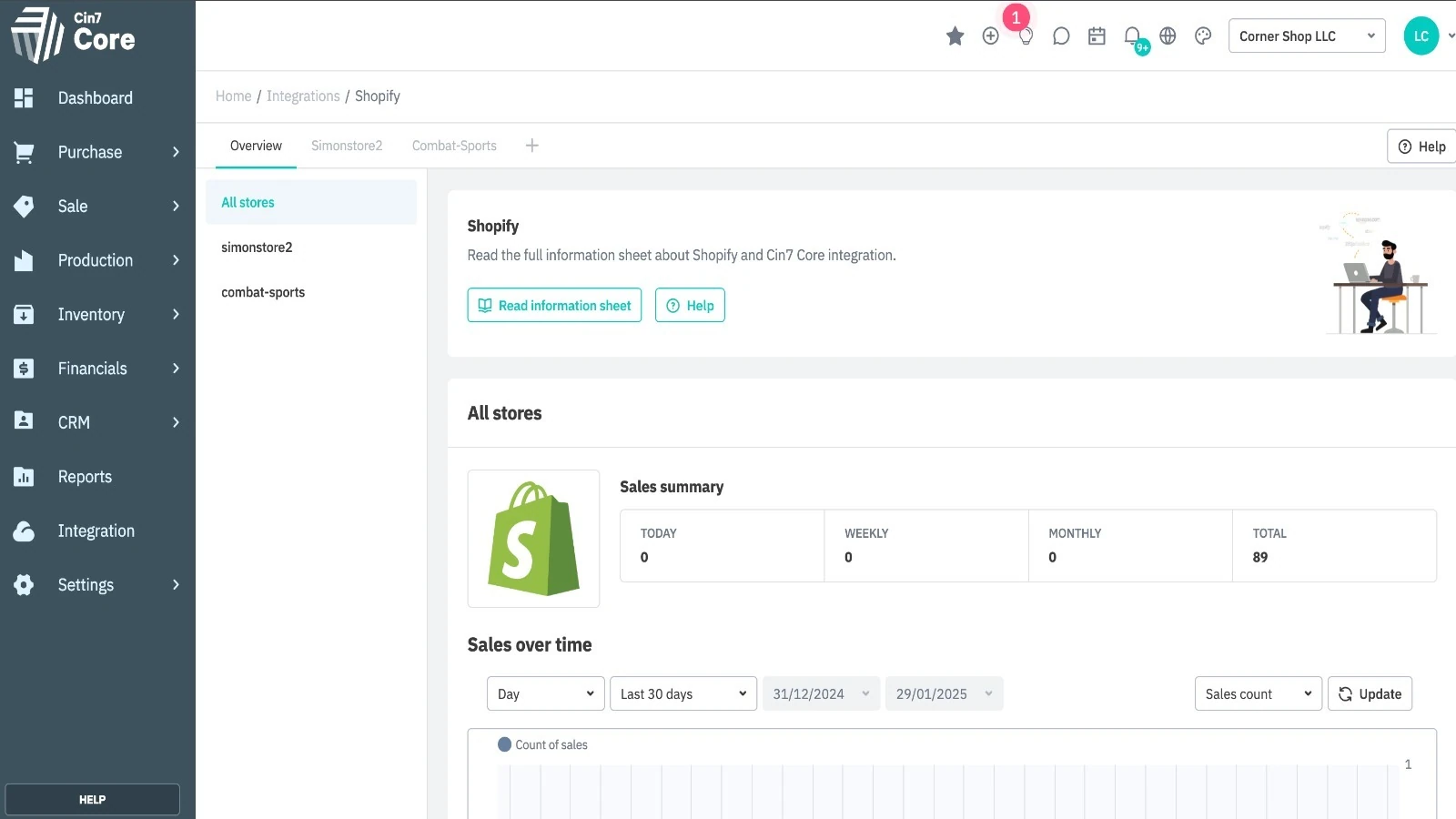
1. Cin7
– Best for Multichannel Inventory Management
Best for: Ecommerce businesses, wholesalers, and growing retailers.
Cin7 is an inventory management platform designed to connect inventory, sales orders, purchasing, and fulfillment across multiple sales channels.
Its main capabilities include:
- Centralized inventory tracking across multiple locations
- Integration with ecommerce platforms such as Shopify and Amazon
- Automated order and purchase order management
- Manufacturing and assembly management
- Demand forecasting through its ForesightAI capabilities
Cin7 is particularly useful for businesses managing inventory across multiple sales channels. Its forecasting capabilities can help businesses anticipate future demand and make replenishment decisions.
Potential drawback: Some users report difficulties with customer support, system reliability, pricing changes, and adapting workflows to their requirements.
Pricing: Paid plans start from $349/month. Check the Cin7 pricing page.
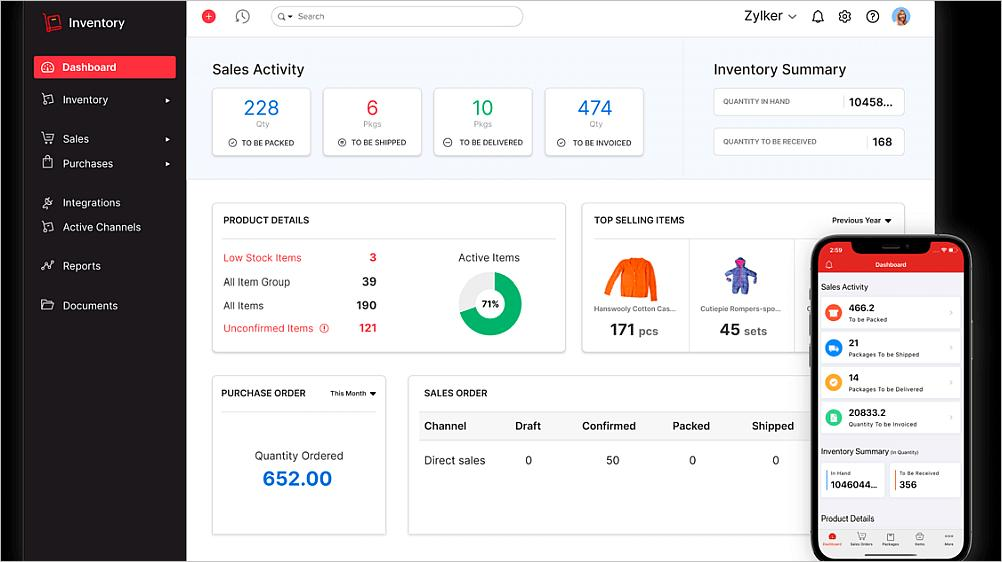
2. Zoho Inventory
– Best for Small Businesses on a Budget
Best for: Small and growing businesses already using Zoho applications.
Zoho Inventory provides inventory tracking, order management, purchasing, and warehouse management features.
Its main capabilities include:
- Real-time stock tracking
- Purchase and sales order management
- Barcode scanning
- Multichannel sales management
- Reorder point notifications
- Integration with other Zoho applications
Zoho Inventory is an accessible starting point for businesses that need basic inventory management without investing in a large enterprise system.
Potential drawback: Some users report limitations in specialized warehouse functionality, reporting, customization, and third-party integrations. Businesses with complex inventory operations may eventually need additional applications.
Pricing: Paid plans start from $43/month. Check the Zoho Inventory pricing page.
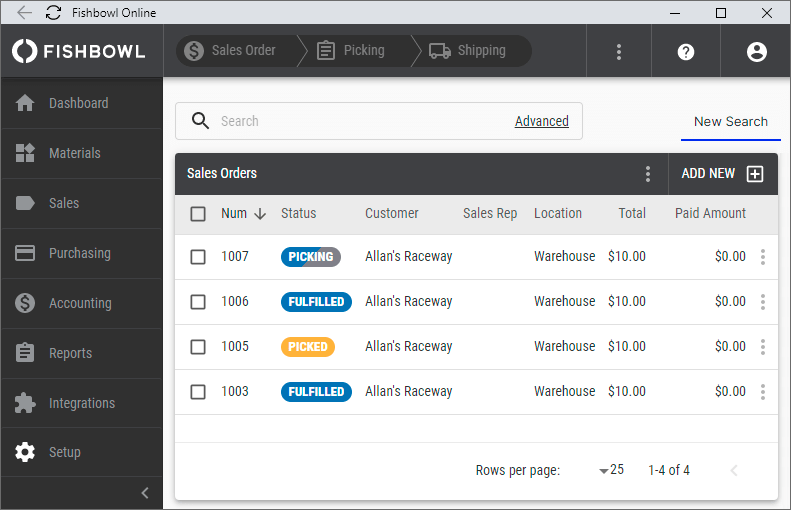
3. Fishbowl
– Best for Manufacturing and Warehouse Operations
Best for: Manufacturers, distributors, and businesses using QuickBooks.
Fishbowl provides inventory and warehouse management functionality for businesses that need more control over stock movements and manufacturing processes.
Its main capabilities include:
- Inventory tracking across multiple locations
- Barcode scanning and warehouse operations
- Purchase order and sales order management
- Manufacturing and work order management
- QuickBooks integration
- Inventory reporting and traceability
Fishbowl is particularly useful for businesses that need to track raw materials, components, and finished products.
Potential drawback: Users have reported concerns about the interface, implementation complexity, customer support, and system reliability. Some advanced reporting and customization requirements may also involve additional work or costs.
Pricing:Paid plans start from $229/month. Check the Fishbowl website.
4. Oracle NetSuite
– Best for Enterprise Inventory Management
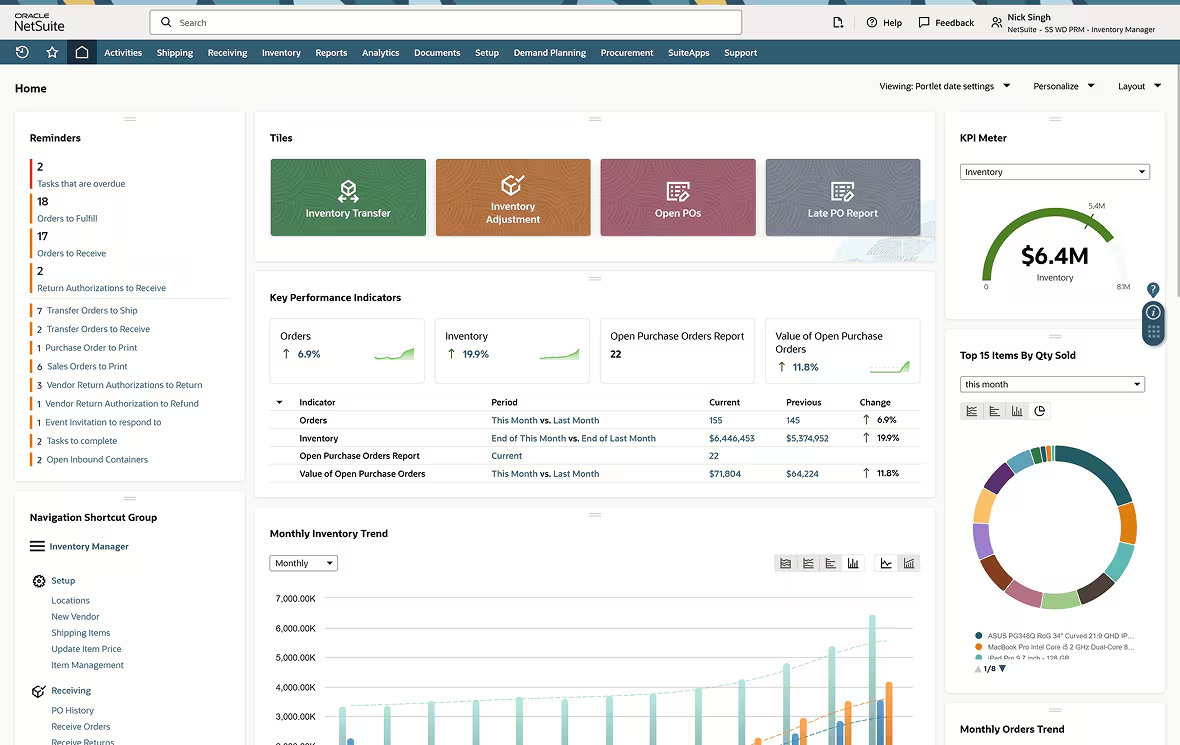
Best for: Mid-sized and large enterprises with complex operations.
Oracle NetSuite offers inventory management as part of its broader cloud ERP platform.
It provides a centralized environment for managing inventory, purchasing, financial operations, and supply chain processes.
Key capabilities include:
- Multi-location inventory management
- Demand planning and replenishment
- Lot and serial number tracking
- Inventory costing and financial integration
- Warehouse management
- Supply chain visibility
NetSuite is particularly suitable for businesses that want to connect inventory management with their broader financial and operational systems.
Potential drawback: Implementation can be complex, and the total cost may be substantial for smaller businesses. Customization and configuration may also require specialist assistance.
Pricing: Custom pricing based on business requirements. Contact Oracle for a quote through the NetSuite website.
5. Katana
– Best for Small Manufacturers
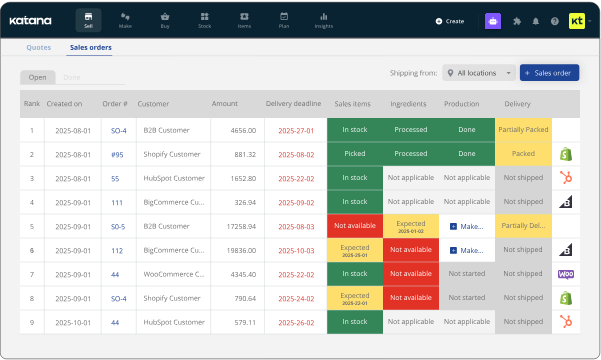
Katana is a cloud-based manufacturing and inventory management platform designed to help businesses manage raw materials, production, and finished goods.
Its main capabilities include:
- Real-time inventory tracking
- Bill of materials management
- Production scheduling
- Purchase order management
- Material availability tracking
- Integrations with ecommerce and accounting applications
Katana is particularly useful for manufacturers who need visibility into how raw materials move through production and become finished products.
Potential drawback: Businesses with highly specialized manufacturing requirements may need additional configuration or integrations. Some advanced capabilities may also require higher-tier plans.
Pricing: Free options and paid plans are available. Check the Katana pricing page.
6. Prediko
– Best for AI-Powered Shopify Inventory Forecasting
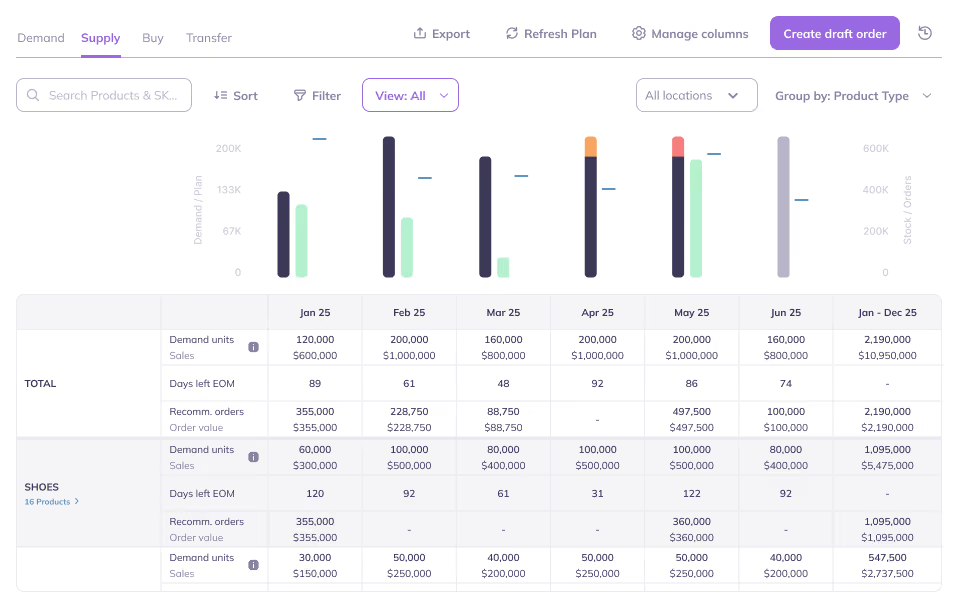
Best for: Shopify businesses that want to improve purchasing and inventory planning.
Prediko focuses on inventory planning and demand forecasting for ecommerce businesses.
Its AI-powered capabilities help businesses understand future inventory requirements and make purchasing decisions based on sales trends.
Key capabilities include:
- AI-powered demand forecasting
- Purchase order planning
- Inventory replenishment recommendations
- Stockout and overstock prevention
- Shopify inventory data analysis
Prediko is particularly useful for ecommerce businesses that struggle to determine how much stock to purchase and when to replenish it.
Potential drawback: Its Shopify-focused approach may not be suitable for businesses managing complex inventory operations across many unrelated systems or non-Shopify sales channels.
Pricing: Subscription plans start from $42/month. Check the Prediko website.
7. Inventory Planner by Sage
– Best for Multichannel Demand Planning
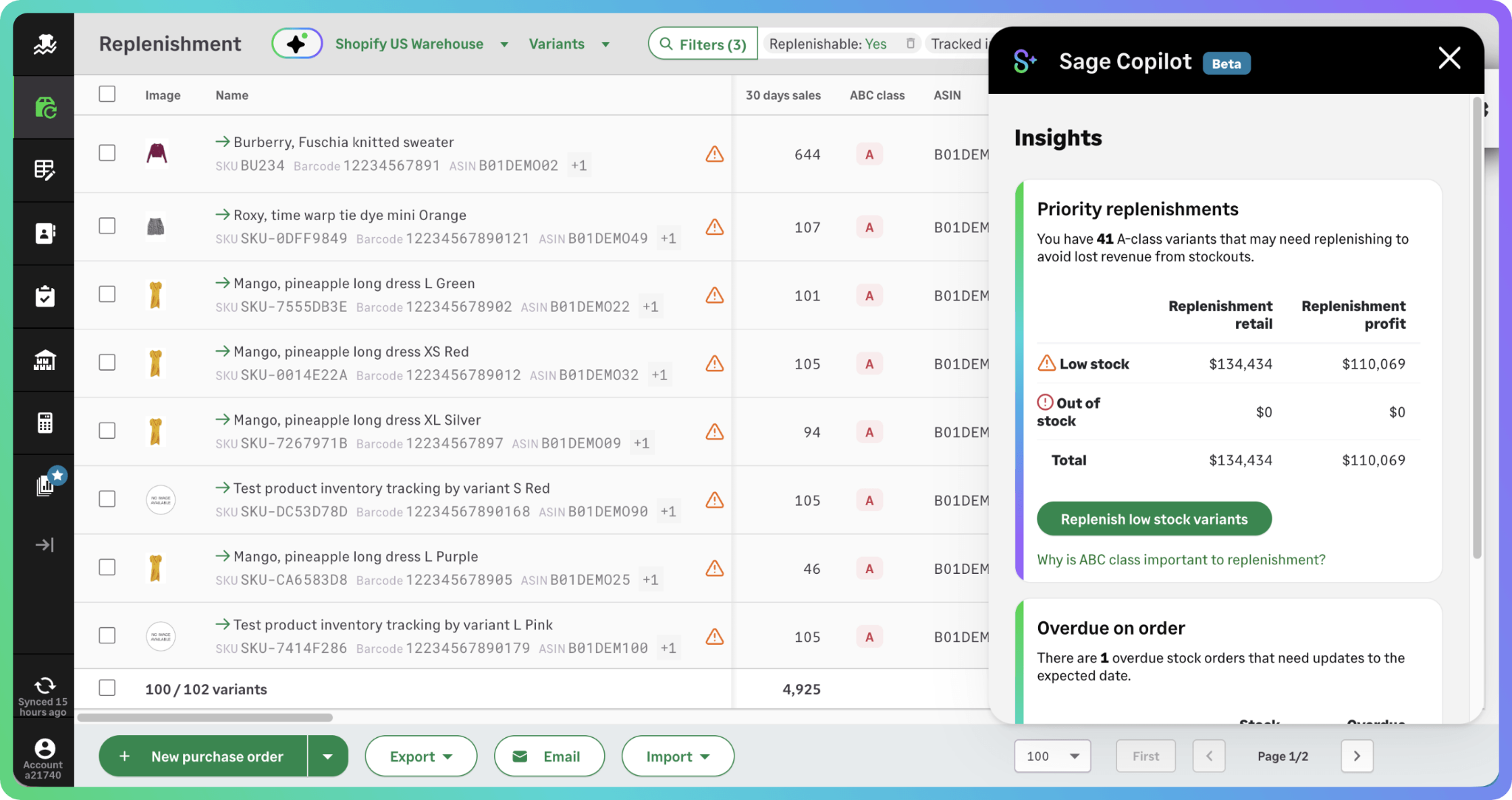
Best for: Growing ecommerce and multichannel businesses.
Inventory Planner by Sage helps businesses make better inventory purchasing decisions by analyzing sales history, demand trends, and stock availability.
Its main capabilities include:
- Demand forecasting
- Purchase planning
- Replenishment recommendations
- Inventory performance analysis
- Stockout and overstock monitoring
- Integration with ecommerce and accounting systems
Rather than focusing solely on stock tracking, Inventory Planner emphasizes helping businesses decide what to purchase and when.
Potential drawback: Businesses looking for a complete warehouse management system may need additional software. Pricing and available integrations should also be evaluated against the existing technology stack.
Pricing: Contact the provider for pricing. Visit the Inventory Planner website.
8. Flieber
– Best for Advanced Inventory Planning
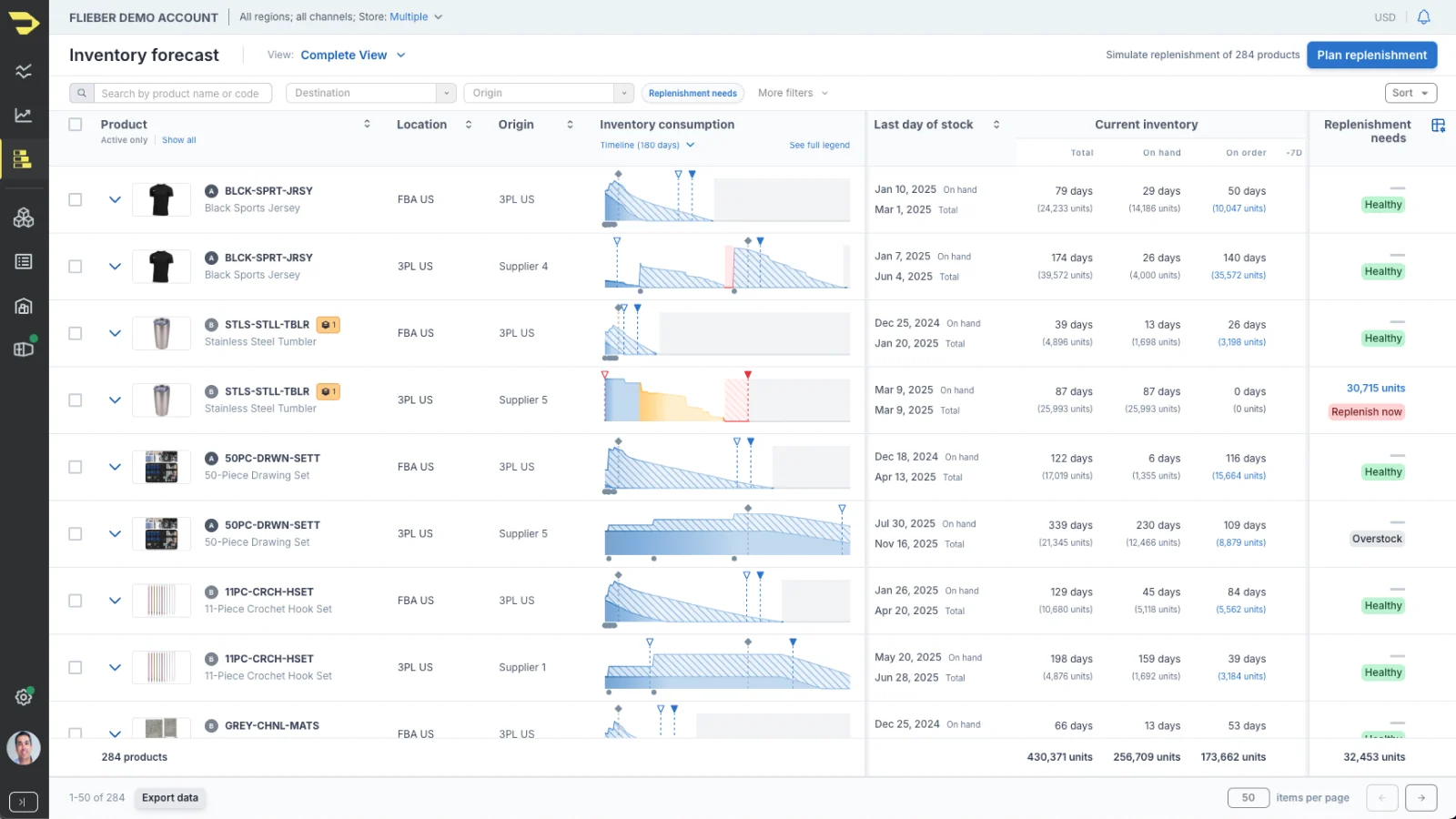
Best for: Ecommerce brands managing multiple sales channels and warehouses.
Flieber is an inventory planning platform that helps businesses make data-driven purchasing and replenishment decisions.
Its capabilities include:
- Demand forecasting
- Inventory planning
- Purchase order recommendations
- Stock allocation
- Multi-channel inventory visibility
- Supply chain planning
Flieber is designed to help growing brands manage inventory more strategically, particularly when sales data comes from multiple channels.
Potential drawback: It is more focused on inventory planning than general-purpose workflow automation. Businesses may still need other tools to manage document processing, notifications, and cross-application tasks.
Pricing: Custom pricing. Visit the Flieber website.
9. Linnworks
– Best for High-Volume Multichannel Sellers
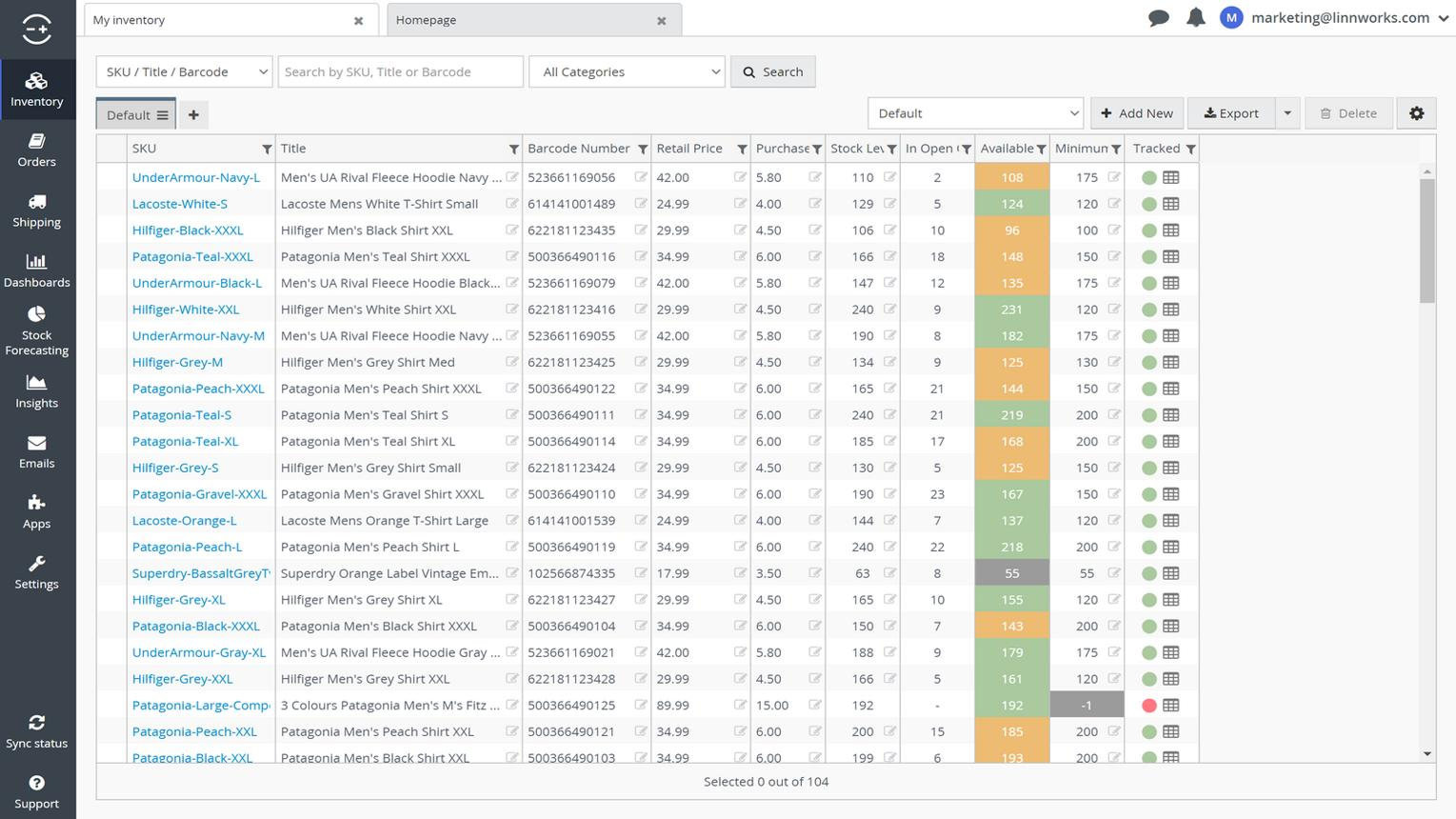
Best for: Ecommerce retailers selling through multiple marketplaces.
Linnworks helps businesses centralize inventory and order management across multiple ecommerce channels.
Its main capabilities include:
- Centralized inventory management
- Multichannel order synchronization
- Automated order routing
- Warehouse and fulfillment workflows
- Marketplace integrations
- Inventory reporting
Linnworks is particularly useful for businesses that need to coordinate large volumes of orders across multiple online marketplaces.
Potential drawback: Its extensive operational functionality may be more than smaller businesses need. Businesses should also check the available integrations and configuration requirements before implementation.
Pricing: Contact Linnworks for a custom quote. Visit the Linnworks website.
10. Yoom
– Best for Custom AI Inventory Automation
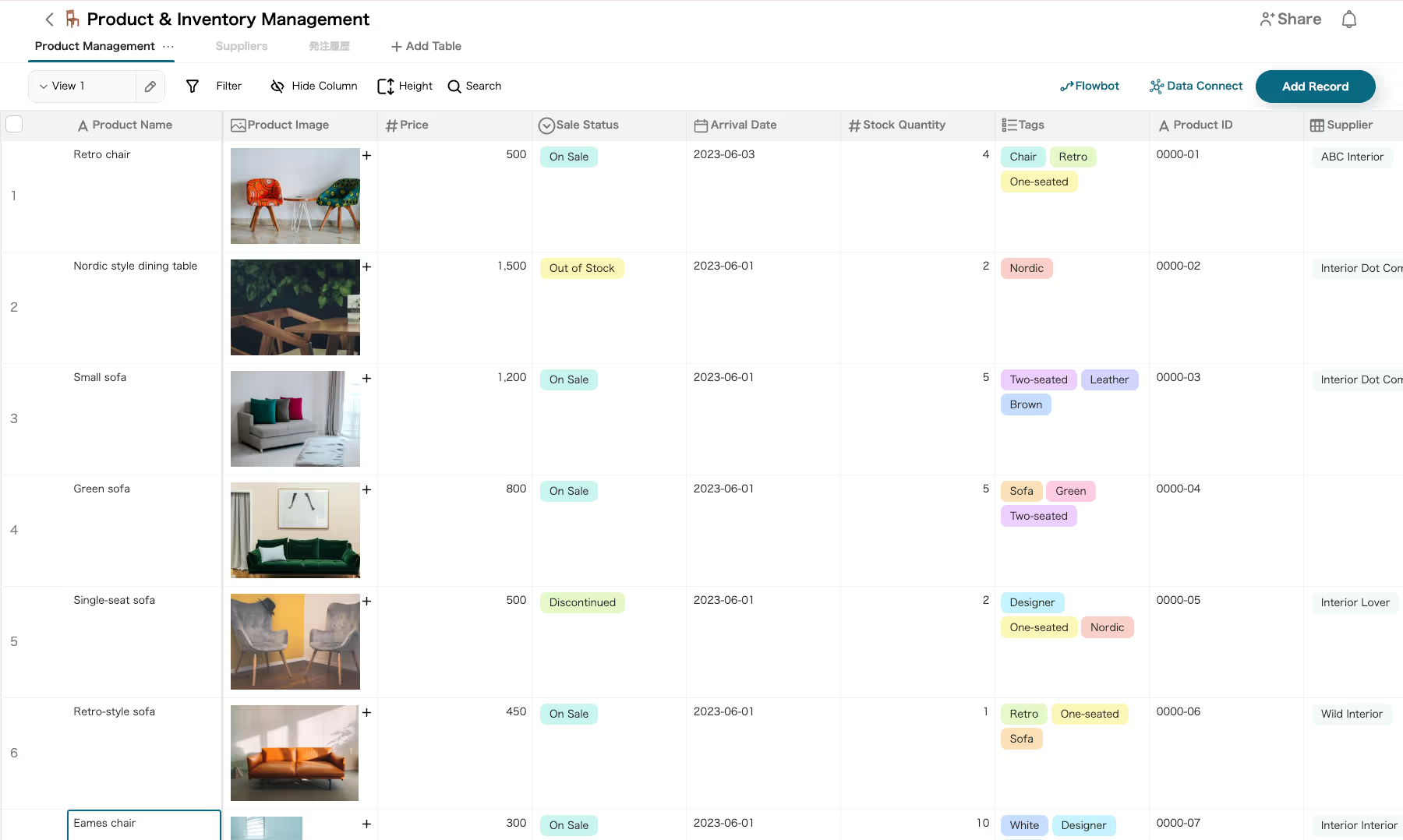
Best for: Businesses that want to automate inventory-related tasks using their existing apps and tools.
Yoom is an all-in-one AI automation platform that helps businesses connect their existing applications and build custom workflows. Rather than replacing your inventory management system, Yoom allows you to automate specific tasks across spreadsheets, ecommerce platforms, databases, and other business apps.
Its main capabilities include:
- AI-powered information extraction from emails, PDFs, and images
- Automated product information updates across connected applications
- Inventory data synchronization between business tools
- Automated notifications based on stock levels or other conditions
- Custom workflows combining AI Workers and rule-based Flowbots
Yoom is particularly useful for businesses that already manage inventory using multiple applications and want to reduce manual data entry, document processing, and repetitive coordination between teams.
Potential drawback: Yoom is an automation platform, not a dedicated inventory management system. It does not provide specialized built-in features such as advanced warehouse management, complex lot tracking, or production scheduling. Businesses that need these capabilities may still require dedicated inventory software.
Pricing: A free plan is available. Paid plans start from $16/month.
How to Choose the Right AI Inventory Management Software
Before choosing a platform, consider what you actually need to automate.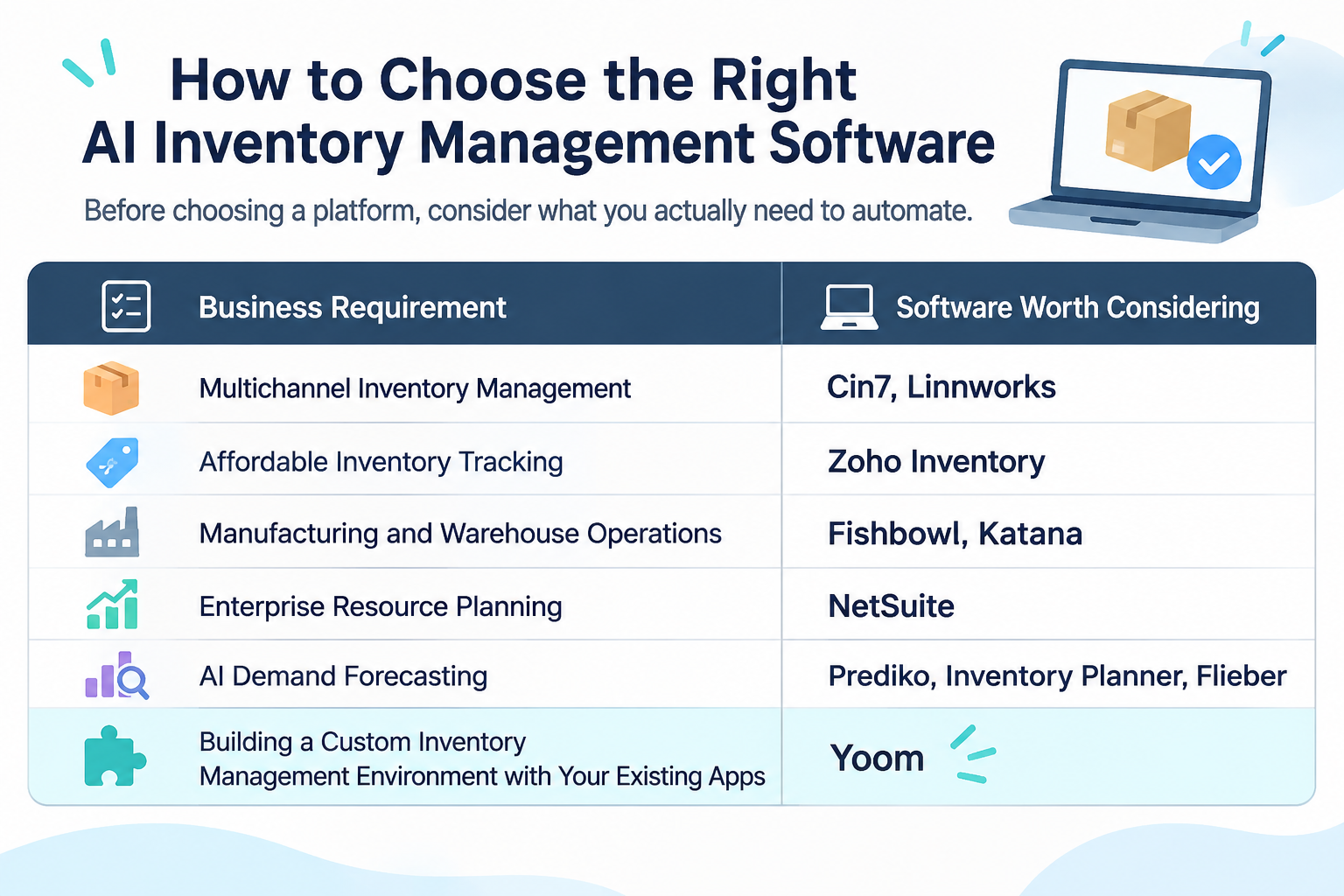
- Multichannel inventory management: Cin7, Linnworks
- Affordable inventory tracking: Zoho Inventory
- Manufacturing and warehouse operations: Fishbowl, Katana
- Enterprise resource planning: NetSuite
- AI demand forecasting: Prediko, Inventory Planner, Flieber
- Building a custom inventory management environment with your existing apps: Yoom
A dedicated inventory management system may be the right choice if you need advanced warehouse controls, complex manufacturing processes, or centralized inventory records across many locations.
However, if your main challenges involve repetitive data entry, product information updates, document processing, and communication between applications, an automation platform may offer a more flexible approach.
Yoom is worth considering if you want to connect your existing tools and build an inventory management environment around your own business processes. Instead of introducing an entirely new system, you can combine the apps you already use with AI-powered automation and rule-based workflows.
Another advantage is that Yoom is not limited to inventory management. You can also use it to automate other business operations, such as sales, marketing, customer support, and internal administration. This broader range of applications can make it a cost-effective investment in the long run, as your automation needs grow beyond inventory management.
The next section explores how businesses are already using AI to automate these inventory-related tasks.
Popular AI Inventory Management Use Cases
AI inventory management is not limited to demand forecasting or automatic stock replenishment.
Businesses can also use AI to handle the smaller, repetitive tasks that occur throughout inventory operations, such as processing delivery documents, updating product information, and organizing product data.
Based on Yoom's inventory-related workflow data, we identified four major automation patterns.
1. Popular Inventory Automation Workflows
Distribution of inventory-related automation workflows in Yoom's usage data.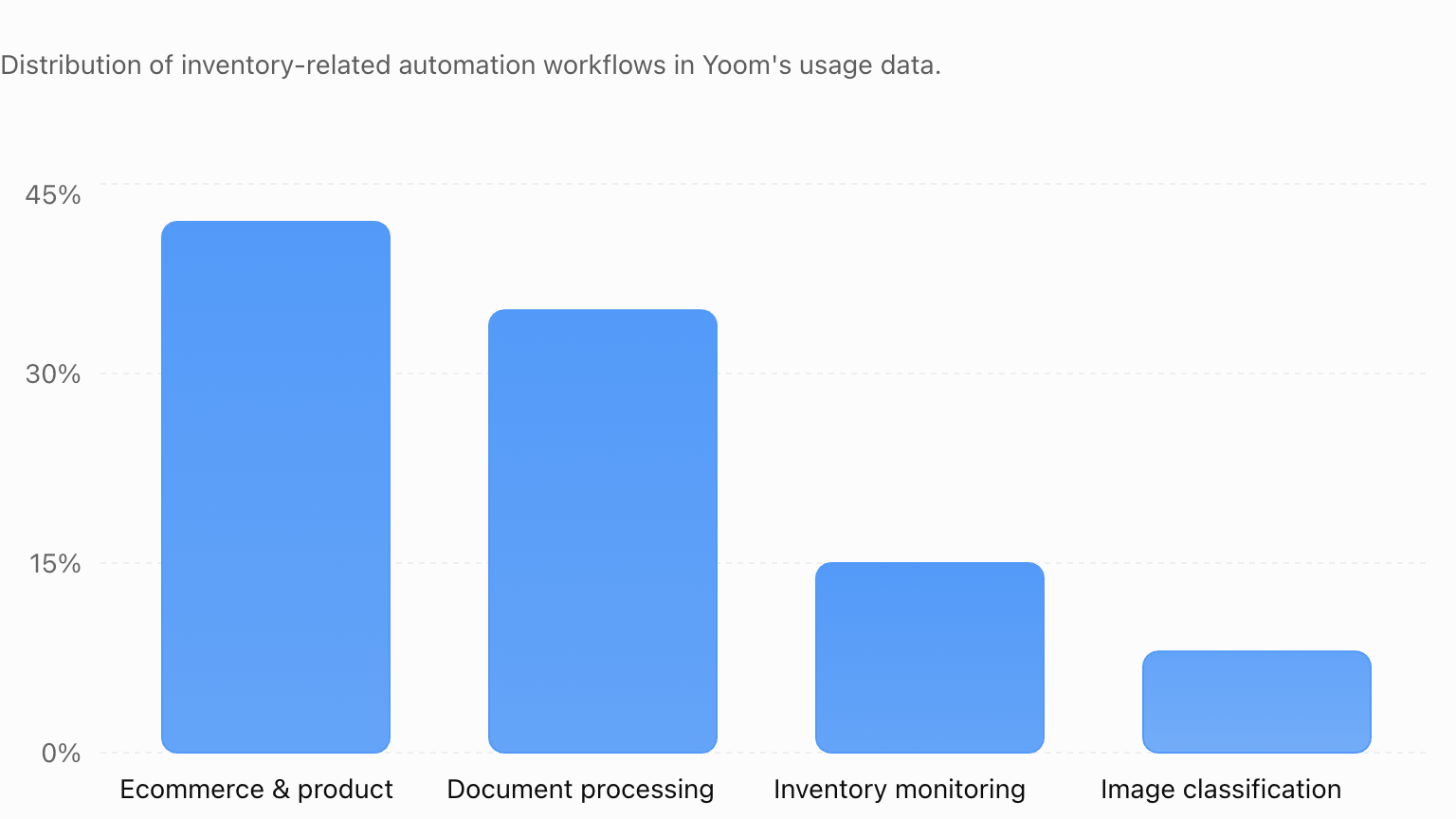
Ecommerce and Product Information Updates (42%)
The most common use case involves synchronizing and updating product information across ecommerce and inventory management applications.
For example, AI can:
- Generate or improve product descriptions
- Standardize product names and attributes
- Generate product tags and search keywords
- Update product information across connected applications
This helps businesses maintain consistent product information without manually editing every listing.
Document Processing and Inventory Reconciliation (35%)
Another popular use case is extracting information from delivery notes, purchase orders, and other inventory-related documents.
AI can read PDF files and images to identify:
- Product names and codes
- Quantities received
- Delivery dates
- Supplier information
The extracted information can then be sent to an inventory management application or spreadsheet for registration and reconciliation.
Inventory Monitoring and Anomaly Detection (15%)
AI can also analyze inventory data to identify potential issues.
For example, businesses can use AI to:
- Identify products that may need replenishment
- Prioritize products based on inventory conditions
- Detect unusual stock movements
- Notify employees when inventory levels require attention
This can help teams identify potential problems earlier without constantly checking inventory records manually.
Product Image Classification (8%)
When businesses manage large product catalogs, organizing product images can become time-consuming.
AI can analyze newly uploaded images and automatically identify product characteristics, categories, and relevant tags.
The extracted information can then be added to product master data or used to organize product catalogs.
Related AI Inventory Management Templates:


- Inventory managers who manually manage Shopify inventory and calculate sell-through rates and want to improve operational efficiency
- Team leaders who want to create flexible sales strategies that reflect human experience and intent, rather than relying solely on mechanical AI-driven decisions
- E-commerce managers who want to seamlessly complete the process from regular inventory analysis to sharing updates with stakeholders in Slack
- Automatically retrieve the latest inventory data from Shopify, calculate sell-through rates, and determine recommended actions to reduce the time spent on analysis.
- By incorporating a process where AI and team members discuss and determine strategies, you can leverage the convenience of AI while sending accurate notifications tailored to your store's situation.
- First, connect Shopify and Slack with Yoom.
- Next, configure the schedule trigger to start the workflow at your preferred date and time.
- Finally, create a skill (instruction) for the AI worker to retrieve inventory data from Shopify, calculate sell-through rates, determine sales strategy actions, consult with team members through My Tasks, and send the final strategy to Slack. Set Shopify's "Get a list of products" and "Search products" actions, along with Slack's "Send a message to a channel" action, as the tools to use.
■Customization options for this workflow
- In the AI worker's skill settings, provide specific criteria based on your operating rules, such as the sell-through rate threshold below which an item should be considered eligible for a price reduction.
- Freely customize the Slack notification channel and message format to match your store's communication style.
- Connect both Shopify and Slack with Yoom. You also need to connect the tools (apps) used within the AI worker as My Apps.
- For basic AI worker settings, see "[AI Worker] How to configure basic settings".
- The number of concurrent AI worker runs, the number of AI workers you can create, and the AI models available to you vary depending on your plan.
- The apps and operations available within the AI worker are subject to the same usage limits as Workflow.
- Please note that AI workers consume tasks during test runs just as they do during production runs. For details, see "[AI Worker] How task execution counts are calculated".
- AI workers are more likely to perform the appropriate processing when their skills are configured in detail. For details, see "[AI Worker] How to create skills (formerly manuals)".
- Retrieving more than 20 items of large-volume data or performing loop processing within an AI worker may consume a significant number of tasks. Please be careful.
- Be sure to configure "Teammates" in advance for this template. The AI worker will independently determine when to send approval or confirmation requests to the configured teammates.

- E-commerce site operators who spend significant time registering products and adding tags in Shopify
- Anyone who wants to eliminate manual errors by automating Shopify product tag settings
- Marketing professionals who want to use AI to manage product tags more effectively
- Reduce time spent on manual work, as everything from tag generation to updating is completed simply by registering product information in Shopify.
- Because OpenAI generates tags based on the product information, you can prevent missing tags and inconsistent wording, helping improve the accuracy of your settings.
- First, connect your Shopify and OpenAI accounts to Yoom.
- Next, select Shopify as the trigger and set it to “When product information is created (Webhook).”
- For the operation, select OpenAI and set up “Generate text (Chat completion),” instructing it to generate tags based on the product information.
- Finally, configure Shopify’s “Update product tags” action to apply the tags generated in the previous step to the relevant product.
■Customization options
- In the OpenAI text generation operation, you can customize the instructions (prompt) to specify the type of product tags you want to generate. For example, you can adjust the instructions to suit your goals, such as including SEO-focused keywords or outputting tags in a specific format.
- Connect both Shopify and OpenAI to Yoom.
- Shopify is available only on the Team and Success plans. Please note that on the Free and Mini plans, operations and Data Connect configured in your flow bots will result in errors.
- Paid plans, such as the Team and Success plans, include a two-week free trial. During the free trial, you can use apps that are otherwise subject to plan restrictions.
- To run OpenAI actions, you need a paid OpenAI API plan. (You must have billing enabled for API usage.)
- For details, see OpenAI’s API pricing page.

■Who Should Use This Template
- Inventory managers who spend too much time manually reviewing inventory data every day and identifying products that need to be ordered
- EC site operators who place orders with multiple suppliers and want to eliminate the effort of organizing purchase lists by supplier
- Business owners who want to build an efficient, AI-powered inventory management system to prevent lost sales caused by stockouts
■Benefits of Using This Template
- AI checks inventory levels at a set time every day, helping prevent missed checks and reduce the risk of lost sales caused by stockouts.
- AI organizes purchase information by supplier and sends it to Slack, reducing the time needed for staff to review the information and enabling faster order placement.
■Workflow Steps
- First, connect Google Sheets and Slack to Yoom.
- Next, set up a schedule trigger to start the flow every day at 10:00 AM.
- Then, create instructions for analyzing inventory data and preparing purchase lists. Set Google Sheets' “Retrieve multiple records” action and Slack's “Send a message to a channel” action as the tools to use.
- Finally, the purchase information organized by supplier by the AI Worker is sent to the designated Slack channel.
■Customization Options
- When configuring Google Sheets, make sure to enter the correct spreadsheet ID and sheet name where your inventory data is managed.
- When configuring the AI Worker's instructions, you can improve accuracy by adding specific criteria, such as “Treat products with an inventory level of ◯ units or fewer as items to order.”
- Set the Slack notification destination based on your workflow, such as a channel for the responsible department or your own direct messages.
■Notes
- Connect both Google Sheets and Slack to Yoom. The apps used within the AI Worker must also be connected through My Apps.
- For basic AI Worker setup, see [AI Worker] How to Configure Basic Settings.
- The number of AI Workers that can run simultaneously, the number of AI Workers you can create, and the AI models available to you vary depending on your plan.
- The apps, operations, and other features available within AI Workers are subject to the same usage limits as Workflows.
- AI Workers consume tasks during test runs just as they do during production runs. For details, see [AI Worker] How Task Execution Counts Are Calculated.
- AI Workers are more likely to process tasks accurately when their instructions are configured in detail. For details, see [AI Worker] How to Create Instructions.
■Overview
Manually reviewing shipping slips one by one and entering their details into Microsoft Excel can be time-consuming and prone to human error. With this workflow, simply upload an image of a shipping slip to a form, and the OCR feature will automatically extract the text and store it in Microsoft Excel. Automate routine data entry tasks to improve accuracy and efficiency.
■Who should use this template
- Logistics and e-commerce professionals who process shipping slips manually and face challenges with data entry
- Anyone looking to reduce the time spent on manual data entry and focus on more important core tasks
- Anyone looking to use OCR technology to digitize paper-based data and automate transcription tasks
■Benefits of using this template
- Simply upload a shipping slip to the form to store its data in Microsoft Excel, reducing the time spent on manual entry.
- Eliminate manual transcription to prevent human errors such as incorrect entries and missing data, improving data accuracy.
■Flow bot steps
- First, connect Microsoft Excel to Yoom.
- Next, select the form trigger feature as the trigger and create a form for uploading shipping slip files.
- Then, select the OCR feature in the operation and configure the “Read any image or PDF” action to extract information from the shipping slip uploaded through the form.
- Finally, configure Microsoft Excel’s “Add a record” action in the operation and store the data extracted by OCR in the specified file.
※“Trigger”: An action that starts a flow. “Operation”: An action that processes data within a flow after the trigger starts.
■Customizing this workflow
- With the form trigger feature, you can freely configure questions such as the person in charge’s name and define the response format, in addition to the field for uploading a shipping slip image.
- With the OCR feature, you can specify which items to extract from the shipping slip, such as the recipient’s name, address, and product name, and customize the information to be extracted.
- When connecting to Microsoft Excel, you can freely specify the file and sheet where data will be stored, as well as which OCR-extracted information should be mapped to each column.
■Notes
- Connect Microsoft Excel to Yoom.
- Microsoft365 (formerly Office365) offers plans for home use and general business use (Microsoft365 Business). Authentication may fail if you are not subscribed to a general business plan.
- AI operations are available only on the Team and Success plans. On the Free and Mini plans, operations configured in your flow bots will result in errors.
- Paid plans such as the Team and Success plans include a two-week free trial. During the free trial, you can use apps and AI features (operations) that are otherwise subject to plan restrictions.
- Please note that OCR may not be able to read data exceeding 6,500 characters or text that is too small.
■Overview
By using the workflow "Register customer information in Shopify based on form responses," you can reduce your workload.
Since work time can be shortened, you will have more time to focus on other tasks.
■Recommended for
- Those who operate an online store using Shopify
- Those who manually manage and register customer information and are seeking efficiency
- Those who want to quickly register customer information collected through forms into Shopify
- Those who want to reduce input errors in customer data and perform registration tasks quickly
- Those who regularly handle large volumes of customer information and aim for efficiency through automation
- Those who aim to manage customer information accurately and quickly, and improve the quality of customer service
■Benefits of using this template
By linking Shopify with form responses, you can quickly perform customer information registration tasks.
By utilizing this flow, you can not only streamline the input of customer data but also enable quick responses.
Since information from customers is quickly reflected, timely customer service can be achieved.
This will enhance your business competitiveness and is expected to improve customer satisfaction.
Additionally, since manual data entry is no longer necessary, errors can be prevented, and data accuracy is ensured.
Especially when tracking e-commerce sales as a team, sharing information quickly and accurately is essential.
With this workflow, you can automatically retrieve Amazon Seller Central order information at a set time every day and send notifications to a specific Slack channel.
Eliminate the effort of manually sharing information and boost team productivity.
■Who should use this template
- E-commerce team members who manually share Amazon Seller Central order information in Slack every day
- Those who want to use Slack to quickly keep their team up to date on Amazon sales performance
- Managers who want to automate routine reporting and spend more time on important analysis and strategic planning
■Benefits of using this template
- Automatically retrieve and share Amazon Seller Central order information at a set time every day, reducing the time spent manually checking and transcribing data
- Automatically retrieve information and send it to Slack to prevent human errors such as missed checks and transcription mistakes, ensuring accurate information sharing
■Flowbot steps
- First, connect Slack and Amazon Seller Central to Yoom
- Next, select the scheduling feature as the trigger and set the time for daily notifications using the “When the specified schedule is reached” action
- Next, configure Slack’s “Send a message to a channel” action in the operation and send a parent message announcing the start of that day’s order information sharing
- Then, retrieve all order information for the target period using Amazon Seller Central’s “Get a list of order information” action
- Process the retrieved order information one item at a time using the repeat feature
- During the repeating process, retrieve more detailed information for each order using Amazon Seller Central’s “Get order information” action, then send the order details to the thread of the parent message sent earlier using Slack’s “Send a message to a thread” action
■Workflow customization options
- With the action for sending messages to Slack, you can freely configure the channel to notify and the people to mention
- The notification message can include not only fixed text such as “Today’s order information,” but also dynamic information retrieved from Amazon Seller Central, such as order numbers and amounts, inserted as variables
■Notes
- Connect Slack and Amazon Seller Central to Yoom.
- Operations between “Repeat the same process” operations are available on the Personal plan and above. On the Free plan, the configured Flowbot operations and Data Connect will result in errors, so please take note.
- Paid plans, such as the Personal plan, include a two-week free trial. During the free trial, you can use apps and features (operations) that are subject to plan restrictions. For details, see the “Pricing plans.”
2. How Businesses Use AI for Inventory Tasks
Looking specifically at AI activities in Yoom's inventory-related workflows, text processing and document extraction account for the largest shares.
Distribution of AI activities in Yoom's inventory-related workflows.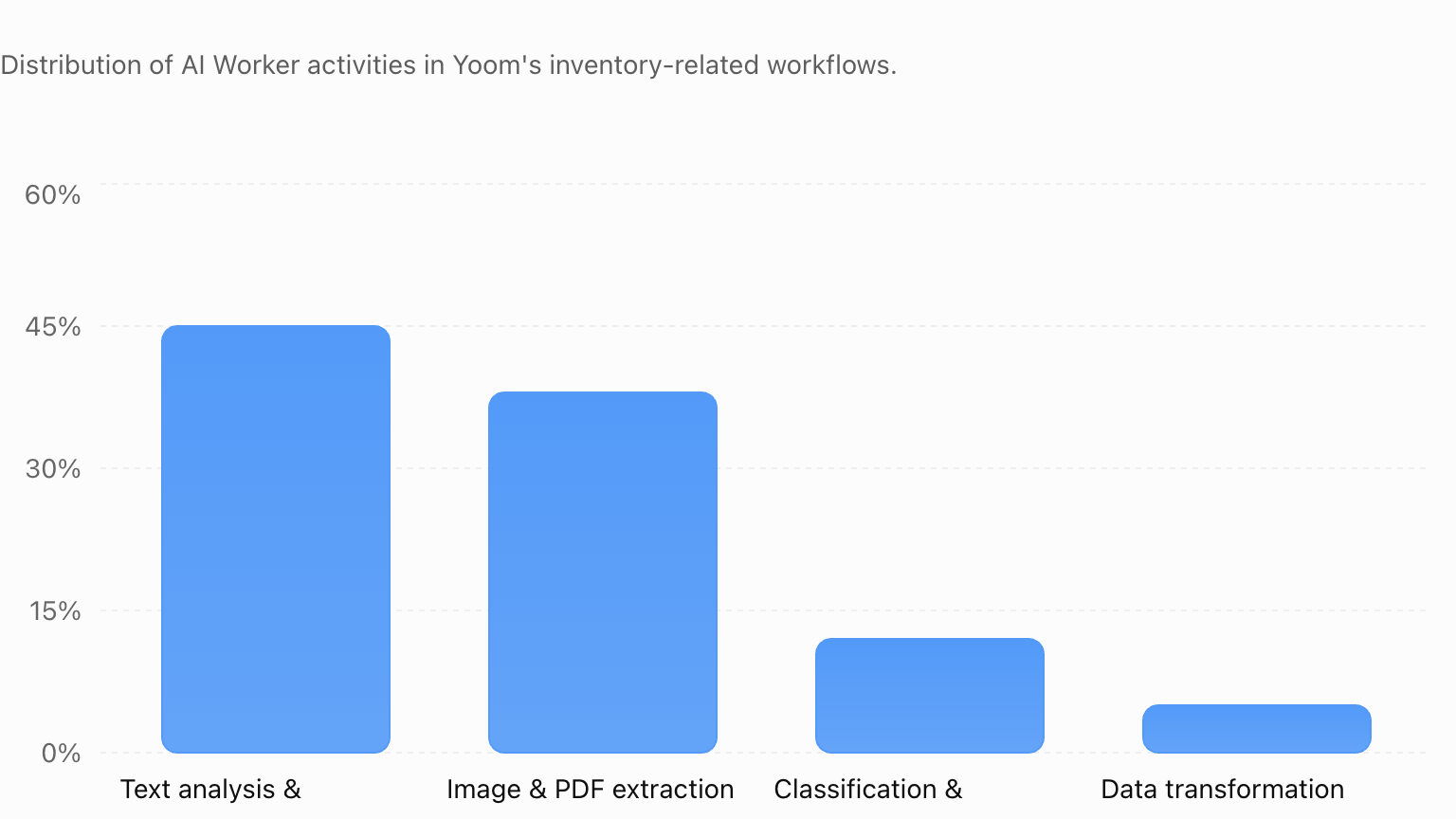
- Text analysis and formatting (45%): Summarizing product descriptions, generating keywords, standardizing product names
- Image and PDF extraction (38%): Extracting product codes and quantities from delivery notes, analyzing product images
- Classification and decisions (12%): Prioritizing products, identifying replenishment needs
- Data transformation (5%): Mapping different product categories and field names across applications
These findings suggest that a significant portion of AI's value in inventory management comes from processing unstructured information and preparing it for use in business applications.
Rather than replacing the entire inventory management system, AI can handle specific tasks that would otherwise require employees to read, interpret, and manually enter information.
Related AI Templates:

This AI worker reads supplier documents (PDFs, files, and email content) and automatically extracts details such as model numbers, product names, prices, and specifications to support product master updates. It can classify new products, price revisions, specification changes, and potential duplicates, while standardizing model number variations—reducing master data management effort and improving data accuracy.
- What are “Skills”?:
- They are step-by-step instructions that the AI worker follows to perform tasks. For detailed setup instructions, see “[AI worker] How to Create Skills (formerly Manuals).”
- What are “Tools Used”?:
- These are the tools the AI worker uses to perform tasks. Simply tell the AI which tools your company uses regularly, and you can freely customize where data is retrieved from and where it is sent.
- The number of AI workers that can run simultaneously, the number of AI workers you can create, and the AI models available vary depending on your subscription plan.
- The apps and operations available within AI workers are subject to the same usage limits as Workflows.
- Please note that AI workers consume tasks during test runs in the same way as they do during production runs. For details, see “[AI worker] How Task Executions Are Calculated.”

This AI worker uses inventory levels, sales performance, and lead time data to forecast demand and calculate reorder points. It identifies items that need replenishment and creates notification drafts with recommended order dates and quantities. Ideal for inventory and purchasing teams looking to efficiently reduce the risk of stockouts and overstocking.
This AI worker forecasts demand and calculates reorder points based on inventory levels, sales performance, and lead-time data, then creates a draft notification listing the products that need replenishment along with the recommended order dates and quantities. Simply provide the data and instructions, and it will organize the information needed to make ordering decisions.
- Inventory and warehouse managers who manually manage order timing and quantities and are concerned about missed checks or calculation errors
- Purchasing and procurement managers who want to reduce stockouts and excess inventory and implement appropriate ordering plans based on sales data
- E-commerce and retail businesses that handle many products and find it time-consuming to manage orders while considering lead times and sales velocity
- What are “Skills”?
- They are the instructions the AI worker follows to process tasks. For detailed setup instructions, see “【AI worker】How to Create Skills (Formerly Manuals).”
- What are “Tools”?
- These are the tools the AI worker uses to process tasks. Simply tell the AI which tools your organization normally uses, and you can freely change where data is retrieved from and where outputs are sent.
- The number of AI workers that can run simultaneously, the number of AI workers you can create, and the AI models available to you vary by your plan.
- The apps and operations available within an AI worker are subject to the same usage restrictions as Workflow.
- Please note that AI workers consume tasks during test runs just as they do during production runs. For details, see “【AI worker】How Task Execution Counts Are Calculated.”

An AI worker that combines historical sales data with seasonal trends, events, and campaign information to forecast future demand. Generate projected figures and table-based charts to support purchasing and campaign planning. Adjust the weighting of forecasting logic through chat, helping inventory and procurement teams move beyond intuition and experience to build data-driven, well-grounded plans.
- What are “Skills”?
- They are instructions that guide the AI worker through its tasks. For detailed setup instructions, see “[AI worker] How to Create Skills (formerly Manuals).”
- What are “Tools”?
- These are the tools the AI worker uses to process tasks. Simply tell the AI which tools your organization typically uses, and you can freely configure where data is retrieved from and where it is sent.
- The number of AI workers that can run simultaneously, the number of AI workers you can create, and the AI models available to you vary by plan.
- The apps and operations available within AI workers are subject to the same usage limits as Workflow.
- AI workers consume tasks during test runs just as they do during production runs. For details, see “[AI worker] How Task Usage Is Calculated.”

Use numerical and image data to verify compliance with standards, determine pass/fail results, analyze defect trends, detect early signs of quality degradation, and generate reports. Reduce the manual effort of aggregating and reviewing inspection data, enabling manufacturing and quality control teams to take action sooner.
- What are “Skills”?
- They are the procedures the AI worker follows to perform tasks. For detailed setup instructions, see “[AI worker] How to Create Skills (Formerly Manuals)”.
- What are “Tools”?
- These are the tools the AI worker uses to perform tasks. Simply tell the AI which tools your organization regularly uses, and you can freely configure where data is retrieved from and where outputs are sent.
- The number of AI workers that can run simultaneously, the number of AI workers you can create, and the AI models available to you depend on your current plan.
- The apps and operations available within an AI worker are subject to the same usage limitations as Workflow.
- Please note that AI workers consume tasks during test runs in the same way as during production runs. For details, see “[AI worker] How Task Execution Counts Are Calculated”.

An AI worker that calculates subtotals, sales tax, and totals based on product configurations, quantities, and pricing tables, then creates draft quotes. It also supports your company’s custom calculation rules, such as volume discounts and promotions, making even complex quote requests easy to handle. Ideal for sales teams who want to spend less time on calculations and drafting quotes and more time on proposals and customer engagement.
- What are “Skills”?
- They are the instructions the AI worker follows to process requests. For details on how to configure them, see “[AI worker] How to Create Skills (Formerly Manuals)”.
- What are “Tools”?
- These are the tools the AI worker uses to process requests. Simply tell the AI which tools your company normally uses, and you can freely customize where data is retrieved from and where it is output.
- The number of AI workers that can run simultaneously, the number of AI workers you can create, and the AI models available to you vary depending on your plan.
- The apps and operations available within the AI worker are subject to the same usage limitations as Workflow.
- The AI worker consumes tasks during test runs just as it does during production runs. For details, see “[AI worker] How Task Usage Is Calculated”.
How Much Time Can AI Inventory Automation Save?
One of the biggest advantages of AI automation is reducing the time employees spend on repetitive inventory-related tasks.
Consider a typical inventory workflow involving delivery documents, product information, and stock updates.
Without automation, employees may need to:
- Open incoming emails and attachments.
- Read delivery notes or purchase orders.
- Identify product names, codes, and quantities.
- Check the information against existing inventory records.
- Enter the information into a spreadsheet or inventory system.
- Notify the relevant team members.
Each step requires manual attention, particularly when information comes in different formats.
With AI automation, much of this work can be handled automatically.
Before and After AI Automation
Based on Yoom's estimated inventory workflow processing times, the comparison is as follows: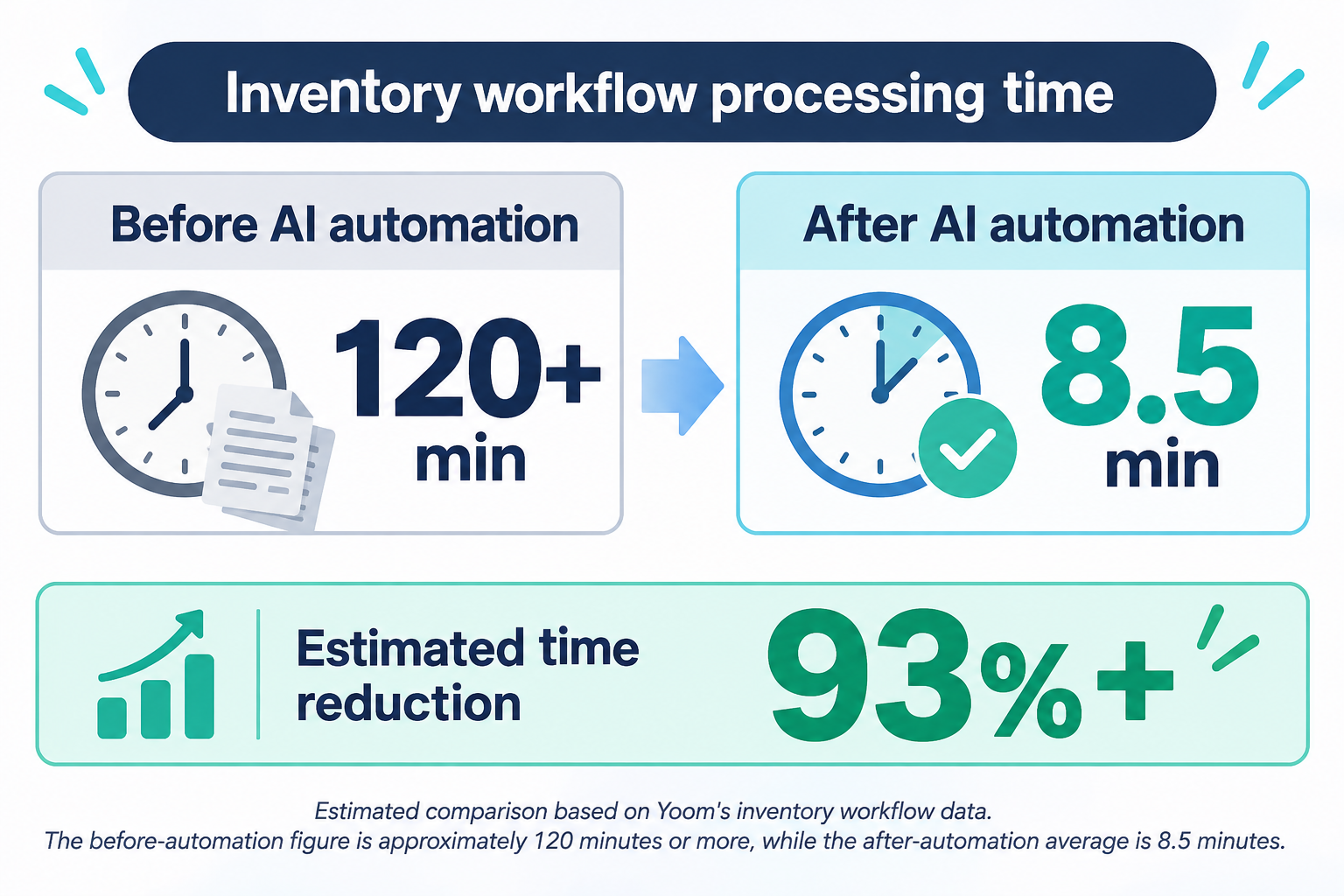
Estimated comparison based on Yoom's inventory workflow data. The before-automation figure is approximately 120 minutes or more, while the after-automation average is 8.5 minutes.
The AI processing step itself typically takes around one to two minutes. Including subsequent application integrations, the average processing time is approximately 8.5 minutes.
This illustrates how combining AI with application automation can significantly reduce the time required for inventory-related operations.
Importantly, AI does not need to manage every inventory decision. It can handle repetitive information processing while employees focus on exceptions, supplier coordination, and decisions that require human judgment.
Build Your Own AI Inventory Management Workflow with Yoom
Dedicated inventory management software can provide extensive functionality, but businesses do not always need to replace their existing applications to improve inventory operations.
With an automation platform, you can connect the tools you already use and build workflows that match your business requirements.
Yoom is an all-in-one AI automation platform that connects business applications, AI Workers, databases, forms, and automated workflows.
Instead of moving all your inventory data into a new system, you can use Yoom to automate tasks between your existing applications.
1. Connect Your Existing Inventory and Ecommerce Applications
Yoom integrates with a wide range of business applications, allowing you to build workflows around the systems your team already uses.
For example, you can connect:
- Shopify for ecommerce orders and product information
- Google Sheets for inventory records
- Inventory management applications for stock updates
- Accounting applications for purchasing and financial records
- Slack for internal notifications
This allows information to move between applications automatically, reducing repetitive data entry and manual synchronization.
2. Use AI Workers to Process Inventory Information
Yoom's AI Workers can handle tasks that traditionally require employees to read, interpret, and organize information.
For example, when a delivery note arrives by email, an AI Worker can:
- Read the attached PDF or image.
- Extract product codes and quantities.
- Organize the extracted information into a structured format.
- Check the information against existing records.
- Pass the results to the next automation step.
AI Workers can also generate product descriptions, standardize product information, and classify items based on their characteristics.
3. Automate Repetitive Tasks with Flowbots
Once AI has processed the information, Yoom Flowbots can execute predefined actions based on your business rules.
For example:
- Automatically update inventory records when new delivery information arrives.
- Notify employees when stock levels fall below a specified threshold.
- Send approval requests for purchase orders.
- Synchronize product information between ecommerce applications.
- Store processed documents in cloud storage.
This combination of AI Workers and Flowbots allows businesses to automate both information processing and the actions that follow.
4. Adapt Workflows as Your Business Changes
One advantage of building your own automation workflows is that you can modify them as your operations evolve.
You do not necessarily need to replace your entire inventory management setup when adding a new sales channel, changing an internal approval process, or introducing a new application.
You can add or modify individual workflow steps while continuing to use your existing systems.
This is particularly useful for businesses that want to improve operational efficiency without committing to a complete inventory system replacement.
Related AI Inventory Management Templates:

■Overview
Do you find it time-consuming to regularly transfer the inventory levels of products managed in Shopify to Microsoft Excel? Manually updating this information not only takes time but can also lead to human errors such as data entry mistakes. With this workflow, you can automatically retrieve inventory levels from Shopify at a specified time and update your Microsoft Excel file, helping you eliminate these challenges and maintain accurate inventory records.
■Who Is This Template For?
- Anyone managing inventory with Shopify and Microsoft Excel who finds manual updates time-consuming
- Anyone looking to prevent human errors such as data entry mistakes when regularly checking and transferring inventory levels
- Anyone looking to automate inventory management, improve the efficiency of their e-commerce operations, and free up time for other core tasks
■Benefits of Using This Template
- Inventory levels are updated automatically at the specified time, reducing the time previously spent manually collecting and transferring information.
- Eliminating manual data transfers reduces the risk of human errors such as incorrect number entries and missed updates.
■Flow Bot Overview
- First, connect Microsoft Excel and Shopify to Yoom.
- Select the Schedule Trigger feature as the trigger and set when you want this workflow to run, such as daily or weekly.
- Select Microsoft Excel as an operation and retrieve the file information containing the product list.
- Next, use another Microsoft Excel action to retrieve a list of values such as product IDs and SKUs from the file.
- Configure the Repetition feature to repeat the process for each item in the product list retrieved in the previous step.
- Within the repetition process, configure an action to retrieve the inventory level for each product from Shopify.
- Finally, use the Microsoft Excel “Operate Database” action to update the relevant cells with the retrieved inventory levels.
※“Trigger”: An action that starts the flow. “Operation”: An action that performs a process within the flow after the trigger starts.
■Customizing This Workflow
- When configuring the schedule trigger, set your preferred schedule, such as the days and times when you want to retrieve inventory levels.
- When retrieving item IDs from your inventory management sheet in Microsoft Excel, specify the drive ID and file name where the target file is stored.
- When retrieving the product list and other information from Microsoft Excel, specify the item ID, sheet name, and range containing the values as needed.
- For the repetition process, set the product list and other data retrieved from Microsoft Excel in the previous step as variables, then run the process.
- When updating inventory levels in Microsoft Excel at the end of the workflow, specify the drive ID, item ID, sheet name, and range of the table you want to update as needed.
■Important Notes
- Connect both Shopify and Microsoft Excel to Yoom.
- Shopify is available only on the Team and Success plans. Please note that operations and Data Connect settings in configured flow bots will result in errors on the Free and Mini plans.
- Paid plans such as the Team and Success plans include a two-week free trial. During the free trial, you can use apps that are subject to plan restrictions.
- Microsoft365 (formerly Office365) offers plans for home use and business plans (Microsoft365 Business). Authentication may fail if you are not subscribed to a business plan.

■Overview
For e-commerce businesses, avoiding lost sales opportunities caused by stockouts is a critical challenge. However, checking inventory manually is time-consuming and comes with the risk of overlooking items. In particular, implementing an inventory management system that uses APIs may require specialized knowledge.
With this workflow, you can automatically check your Shopify inventory at regular intervals and notify Microsoft Teams when stock falls below a specified threshold. This helps streamline inventory management and prevent stockouts before they happen.
■Recommended for
- E-commerce teams that manually check Shopify inventory and want to eliminate inefficiencies
- Anyone who wants to automate inventory management without using APIs or writing code
- Anyone who wants to share inventory updates in Microsoft Teams and streamline purchasing operations
■Benefits of this template
- Automatically retrieve Shopify inventory levels at regular intervals and reduce the time spent on manual checks.
- Receive automatic notifications when inventory falls below the specified threshold, helping prevent stockouts and lost sales opportunities caused by missed checks.
■Flow Bot steps
- First, connect Shopify and Microsoft Teams to Yoom.
- Next, select Schedule Trigger as the trigger and set the date and time for regularly checking inventory.
- Under Operations, configure Shopify's "Search Products" action and specify the product whose inventory you want to check.
- Then, use Shopify's "Get Inventory Quantity" action to retrieve the inventory level for the product.
- Next, configure the Branch function to continue to the subsequent actions when the retrieved inventory level is at or below the specified threshold.
- Finally, configure Microsoft Teams' "Send a Message to a Channel" action to send a notification to the specified channel.
※"Trigger": An action that starts a flow. "Operation": An action that processes data within a flow after the trigger starts.
■Customization options
- With the Schedule Trigger function, set the inventory check frequency to any schedule you need, such as daily or weekly.
- For products searched in Shopify, you can set fixed values such as the product name or product ID.
- With the Branch function, you can set any inventory threshold that triggers a notification.
- You can choose any Microsoft Teams channel as the notification destination and insert information retrieved in previous steps, such as the product name and inventory level, into the message.
■Important notes
- Connect both Shopify and Microsoft Teams to Yoom.
- Shopify is available only on the Team and Success plans. On the Free and Mini plans, configured Flow Bot operations and Data Connects will result in errors.
- Paid plans, such as the Team and Success plans, include a two-week free trial. During the free trial, you can use apps that are otherwise restricted.
- The Branch function is available as an operation on the Mini plan and above. On the Free plan, configured Flow Bot operations will result in errors.
- Paid plans, such as the Mini plan, include a two-week free trial. During the free trial, you can use restricted apps and functions (operations).
- Microsoft 365 (formerly Office 365) offers plans for home users and businesses (Microsoft 365 Business). Authentication may fail if you are not subscribed to a business plan.

■Overview
How do you share information with relevant teams when a new product is created in WooCommerce? Manually sending notifications every time is time-consuming and can result in important updates being missed. With this workflow, you can use product creation in WooCommerce as a trigger and automatically send the configured details to Slack. Automating notifications from WooCommerce to Slack ensures reliable information sharing and smoother team collaboration.
■Recommended for
- E-commerce site operators who manually send Slack notifications after registering products in WooCommerce
- Those who want to automate notifications from WooCommerce to Slack and streamline information sharing across their team
- Team leaders who want to prevent missed confirmations and communication errors related to product registration and improve operational accuracy
■Benefits of this template
- When a product is created in WooCommerce, a message is automatically sent to Slack, reducing the time spent on manual notification tasks.
- Automation helps prevent human errors, such as forgetting to send a notification or sending it to the wrong recipient, helping ensure that important information is always shared.
■Flowbot steps
- First, connect WooCommerce and Slack with Yoom.
- Next, select WooCommerce as the trigger and set the action to “When a product is created.”
- Finally, set Slack’s “Send a message to a channel” action as the operation, then specify the channel and message content for the notification.
※ “Trigger”: An action that starts the flow. “Operation”: An action that processes data within the flow after the trigger starts.
■Customization options
- With the Slack message action, you can choose any channel as the notification destination. Configure it to suit your needs, such as specifying a channel for a particular team or department.
- You can freely customize the notification message and embed not only fixed text but also dynamic information retrieved by the trigger, such as the WooCommerce product name and price.
■Notes
- Connect both WooCommerce and Slack with Yoom.
■Overview
Do you manually update your Microsoft Excel product management sheet every time you add a new product to WooCommerce? While this task is simple, it can be time-consuming and often leads to human errors such as data entry mistakes. With this workflow, product information is automatically added to Microsoft Excel whenever a new product is created in WooCommerce, eliminating the need for manual updates and enabling accurate product management.
■Who Should Use This Template
- E-commerce teams managing product information with WooCommerce and Microsoft Excel
- Anyone who wants to improve efficiency by automating the time-consuming process of manually transferring product data
- Anyone looking to eliminate product information entry errors and improve data management accuracy
■Benefits of Using This Template
- Product information is automatically synchronized with Microsoft Excel whenever a product is added to WooCommerce, reducing the time previously spent on manual updates.
- By eliminating the need to manually transfer data, this workflow reduces the risk of human errors such as incorrect entries and missing fields, helping maintain data accuracy.
■Flow Bot Workflow
- First, connect WooCommerce and Microsoft Excel to Yoom.
- Next, select WooCommerce as the trigger and set the action to “When a product is created.”
- Finally, select Microsoft Excel as the operation, set the action to “Add a record,” and map the product information retrieved from WooCommerce.
※“Trigger”: An action that starts the flow. “Operation”: An action that processes data within the flow after the trigger starts.
■Customization Options
- When adding records to Microsoft Excel, you can freely customize which information is added to each column. For example, you can map product names, prices, product descriptions, and other information retrieved from WooCommerce to the corresponding columns in your Excel file.
■Notes
- Connect both WooCommerce and Microsoft Excel to Yoom.
- Microsoft 365 (formerly Office 365) offers plans for home users and businesses (Microsoft 365 Business). Authentication may fail if you are not subscribed to a business plan.
- For details on configuring operations that work with Microsoft Excel databases, see “[Excel] Configuring Operations for Working with Databases.”


This workflow automatically sends a notification to a designated Slack channel whenever an order that meets specific conditions is created in Amazon Seller Central. By integrating Amazon with Slack, you can automate the order information sharing process and respond to customers more quickly.
■Who is this template for?
- EC operations teams that manually share Amazon Seller Central order information on Slack
- Teams that want to quickly share orders matching specific conditions, such as high-value orders
- Teams that want to integrate Amazon with Slack and automate order-related notifications
■Benefits of using this template
- Automatically notify Slack of order information from Amazon Seller Central, reducing the time spent manually checking and sharing updates.
- Eliminate the need for manual handling and reduce the risk of human errors, such as missed or delayed sharing of important order information.
■How the Flowbot works
- First, connect Amazon Seller Central and Slack to Yoom.
- Select Amazon Seller Central as the trigger and set the action to “When an order is created.”
- Next, configure a branching operation and specify the conditions for the order information you want to be notified about.
- Finally, configure Slack’s “Send a message to a channel” action and notify the designated channel of order details that match the specified conditions.
- Configure the conditions for the orders you want to notify about in the branching settings. For example, you can filter orders by a specific order amount or purchased product.
- For Slack notifications, you can select any destination channel. You can also customize the message by including order information obtained by the trigger—such as the order number, buyer’s name, and product name—as variables, in addition to fixed text.
■Notes
- Connect both Amazon Seller Central and Slack to Yoom.
- You can select a trigger interval of 5, 10, 15, 30, or 60 minutes. Please note that the shortest available interval varies by plan.
- Branching is an operation available on the Personal plan and higher. On the Free plan, operations configured in the Flowbot will result in an error.
- Paid plans, such as the Personal plan, include a two-week free trial. During the free trial, you can use apps and features (operations) that are subject to plan restrictions. For details, see the Pricing Plans page.
■Overview
Do you manually check order statuses in Amazon Seller Central and share updates with stakeholders? Handling each order manually can lead to missed checks and delayed communication, potentially causing you to miss important business opportunities. With this workflow, Slack automatically notifies you whenever order information is updated in Amazon Seller Central, enabling fast and reliable information sharing.
■Who Is This Template For?
- E-commerce team members who manually check and share order statuses in Amazon Seller Central
- Team leaders who want to share order information in real time on Slack and respond quickly
- Anyone looking to improve operational efficiency by preventing omissions and delays in manual information sharing
■Benefits of This Template
- Automatically detect order updates in Amazon Seller Central and notify Slack, reducing the time spent on manual checks and communication.
- Prevent human errors such as missed updates during manual checks or failures to notify Slack, ensuring reliable information sharing.
■Workflow Steps
- First, connect Amazon Seller Central and Slack with Yoom.
- Next, select Amazon Seller Central as the trigger and set the action to “When order information is updated.”
- Finally, set the Slack “Send a message to a channel” action as the operation to notify the designated channel with the order information.
※ “Trigger”: An action that starts the flow. “Operation”: An action that processes information within the flow after the trigger starts.
■Customization Options
- In the Amazon Seller Central trigger settings, configure the flow execution interval, marketplace ID, and sales region according to your needs.
- When setting up the Slack message action, customize the destination channel ID and notification content as needed.
■Notes
- Connect both Amazon Seller Central and Slack with Yoom.
- You can choose a trigger interval of 5, 10, 15, 30, or 60 minutes.
- Note that the shortest available trigger interval varies by plan.
Start Automating Your Inventory Operations
Use your existing applications, add AI where it makes sense, and build automation workflows that fit your business.
Build an Automation Inventory Database.
or
Try Yoom for Free Get started without a credit card.
Choose the Right Approach to AI Inventory Management
AI inventory management software can help businesses improve stock visibility, forecast demand, and automate repetitive inventory tasks.
However, a dedicated inventory management system is not necessarily the best choice for every business.
As user reviews of Cin7, Zoho Inventory, and Fishbowl demonstrate, factors such as customer support, usability, integration reliability, and customization can have a significant impact on the overall user experience.
For businesses with complex warehouse or manufacturing requirements, specialized inventory management software may be essential.
But if your main objective is to reduce manual data entry, process inventory documents, synchronize product information, and improve communication between applications, you may not need to replace your existing systems.
By combining AI with application automation, you can build flexible inventory workflows around the tools your team already uses.
Rather than adapting your business to a new inventory system, consider adapting automation to the way your business works.