・
Google Sheets AI: 10 Best Tools to Try in 2027

Google Sheets is one of the most widely used tools for organizing data, managing projects, tracking customers, and handling everyday business operations.
But as your spreadsheets grow, so do the challenges.
You might spend hours fixing formulas, cleaning inconsistent data, organizing information, or manually transferring details from emails and other applications into spreadsheets.
This is where Google Sheets AI comes in.
AI can help you write formulas, summarize large datasets, classify information, extract data from documents, and automate repetitive spreadsheet tasks.
However, there is a difference between using AI to help with individual spreadsheet tasks and using AI to automate the entire workflow around your spreadsheets.
In this guide, we'll explore:
- Common challenges Google Sheets users face
- What AI can do for Google Sheets
- Practical AI-powered Google Sheets use cases
- The best AI tools for Google Sheets
- Why AI automation can go beyond simply prompting AI
Let's get started.
Common Challenges Google Sheets Users Face
Google Sheets makes it easy to collaborate and manage data. However, users often encounter challenges when working with complex spreadsheets or handling repetitive tasks.
To better understand these challenges, we analyzed discussions from Reddit communities where Google Sheets users share questions, problems, and workarounds.
Here are the main themes we identified.
*Note: A single Reddit discussion could be assigned to multiple categories. Therefore, the percentages do not add up to 100%.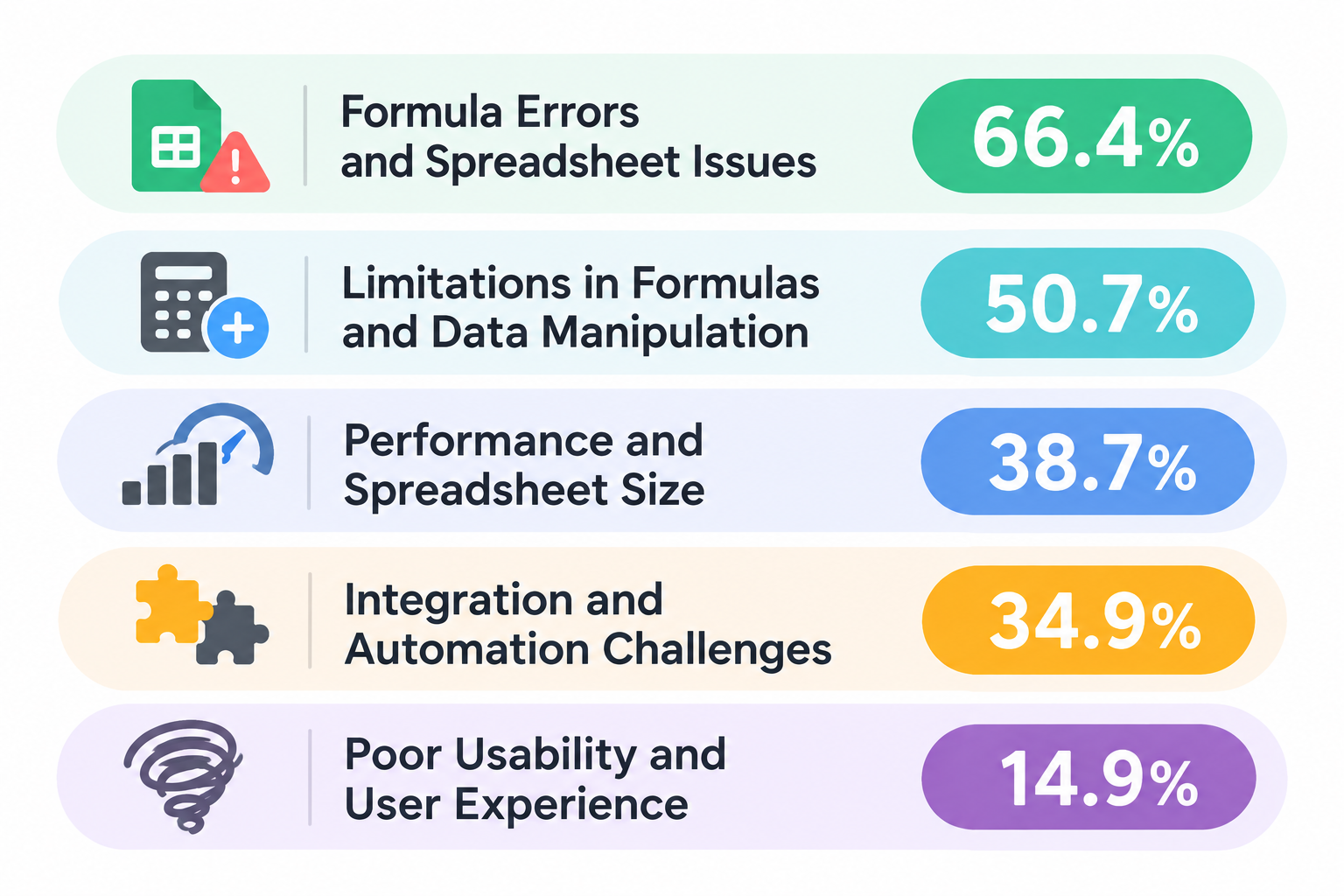
1. Formula Errors and Spreadsheet Issues
Formula errors are one of the most common frustrations among Google Sheets users.
Users frequently encounter problems with functions such as VLOOKUP, FILTER, QUERY, and ARRAYFORMULA.
Even a small mistake in a formula can lead to incorrect results or prevent an entire spreadsheet from working as expected.
Other common issues include:
- #REF!, #VALUE!, and #N/A errors
- Incorrect cell references
- Broken formulas after modifying rows or columns
- Unexpected results from complex functions
- Difficulty understanding or debugging existing formulas
Our Reddit analysis found that 66.4% of discussions involving user challenges were related to errors or technical issues.
Within these discussions, formula and function errors were particularly prominent.
2. Limitations in Formulas and Data Manipulation
Google Sheets offers a wide range of functions, but performing complex data operations can still be difficult.
For example, users may want to:
- Extract specific information from long text strings
- Combine data from multiple sheets
- Transform unstructured data into organized tables
- Apply conditional logic across multiple columns
- Automate complex calculations
These tasks often require knowledge of advanced formulas or Google Apps Script.
In our analysis, 50.7% of discussions involved limitations related to formulas or data manipulation.
3. Performance and Spreadsheet Size
As spreadsheets become larger, performance can become a problem.
Users may experience:
- Slow loading times
- Delays when editing cells
- Formulas that take too long to calculate
- Problems handling large datasets
- Browser freezes or crashes
Performance and capacity-related challenges appeared in 38.7% of the discussions analyzed.
4. Integration and Automation Challenges
Many business processes involve more than Google Sheets.
For example, information may arrive through emails, forms, CRM systems, or other business applications before being recorded in a spreadsheet.
Without automation, users often need to:
- Copy information between applications
- Manually update spreadsheet rows
- Run scripts to synchronize data
- Check whether information has been updated correctly
Integration and automation challenges appeared in 34.9% of discussions.
5. Poor Usability and User Experience
Even relatively simple spreadsheet tasks can become frustrating when users need to navigate complex menus, understand unfamiliar functions, or repeat the same operations.
Usability and user experience issues appeared in 14.9% of the discussions analyzed.
Top 3 AI Use Cases for Google Sheets
AI can make Google Sheets easier to use by reducing the amount of manual work required to create, understand, and manage spreadsheet data.
Based on usage patterns observed in Yoom, the following three use cases are particularly relevant.
1. Extract Information and Generate Content with AI
One common use case is using AI to extract useful information from existing business data or generate new content, then recording the results in Google Sheets.
For example, imagine receiving an email like this: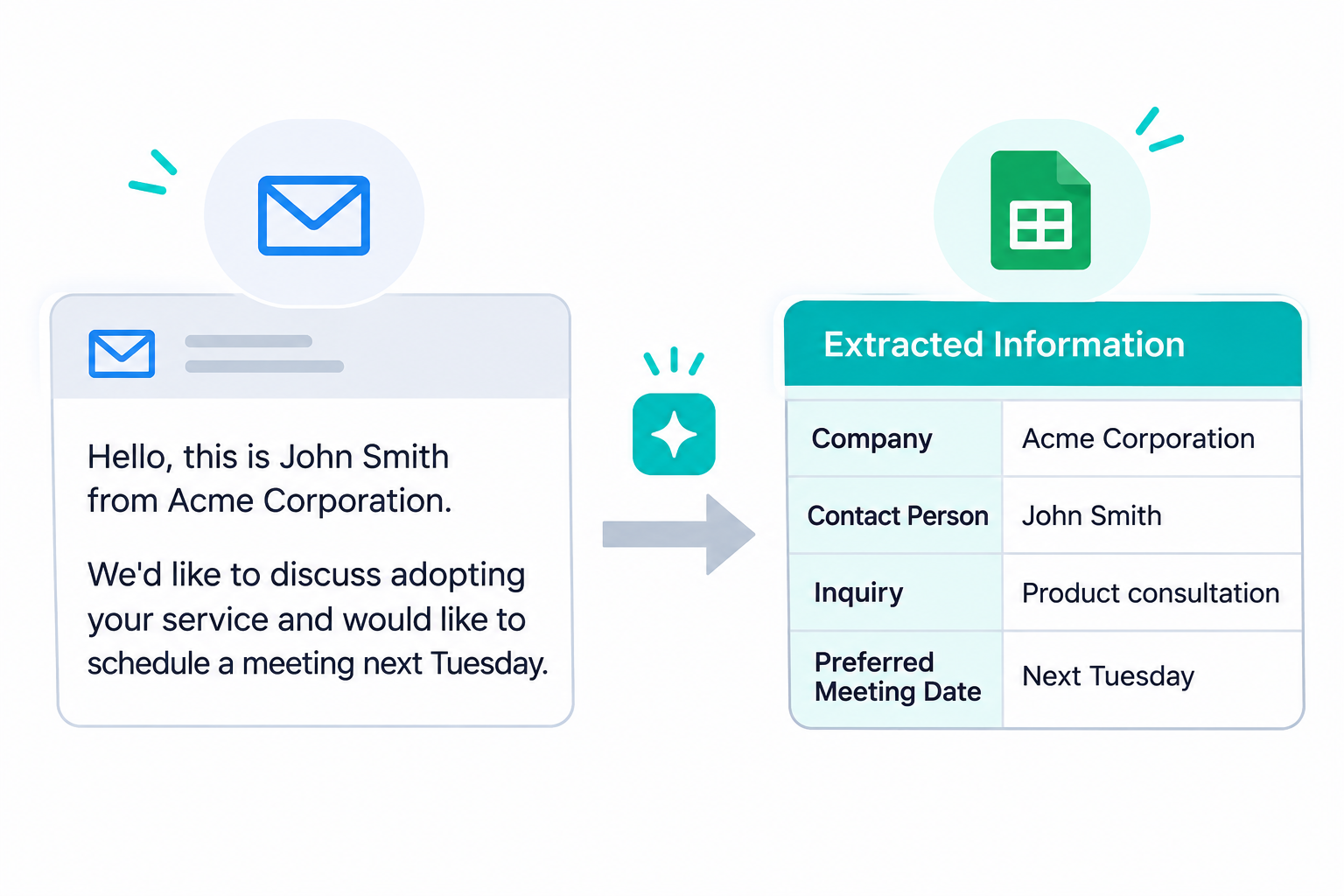
Original email:
Hello, this is John Smith from Acme Corporation.
We'd like to discuss adopting your service and would like to schedule a meeting next Tuesday.
AI-extracted information:
- Company: Acme Corporation
- Contact Person: John Smith
- Inquiry: Product consultation
- Preferred Meeting Date: Next Tuesday
Other examples include:
- Extracting customer information from emails
- Summarizing inquiries
- Generating suggested responses
- Extracting key details from meeting notes
- Recording AI-generated research results
This is particularly useful when you receive large amounts of information through different channels.
2. Process and Standardize Existing Spreadsheet Data
Another useful application is using AI to improve data that already exists in Google Sheets.
For example, customer support teams may receive long, inconsistent descriptions of technical problems.
AI can summarize and standardize these descriptions.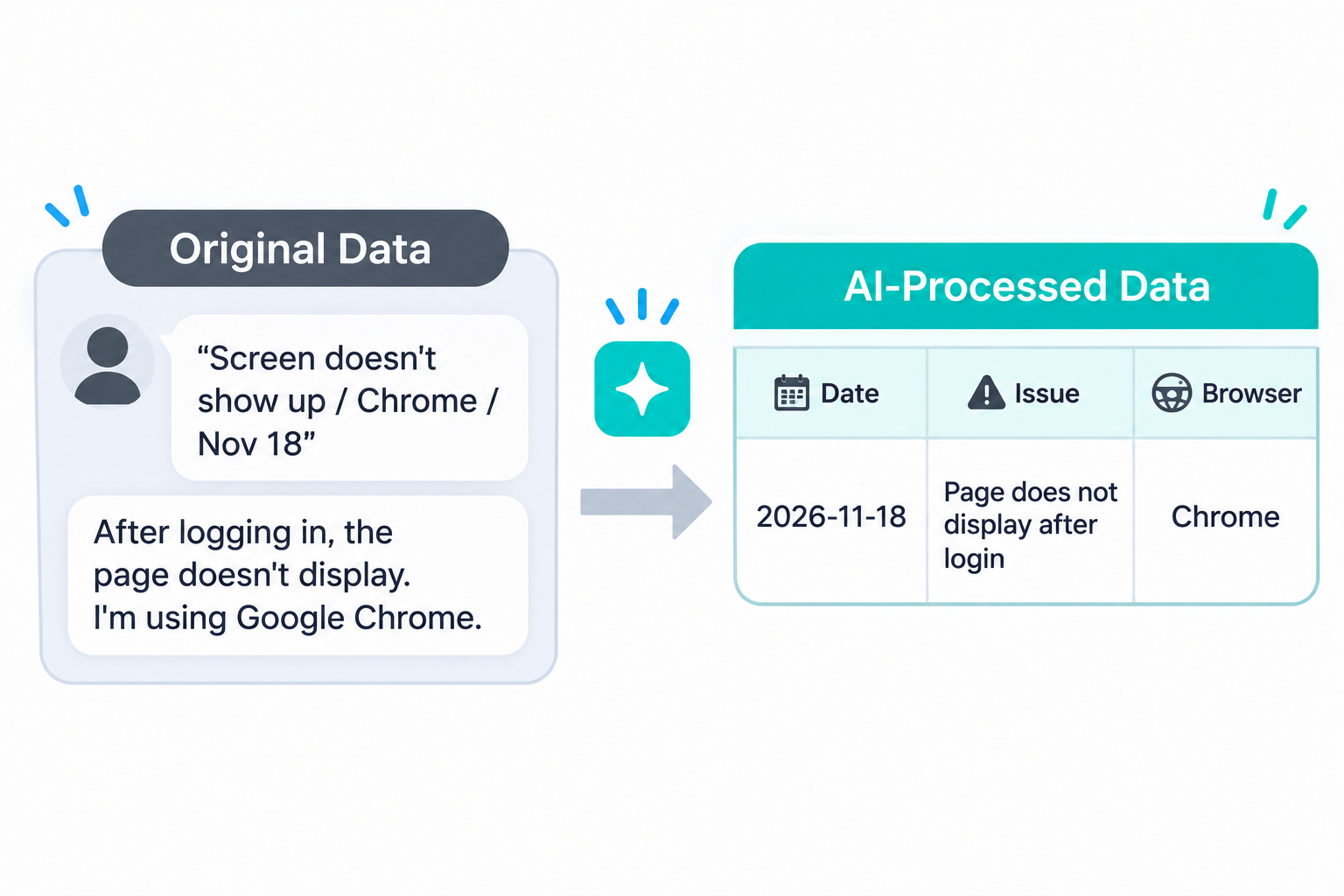
Original data:
"Screen doesn't show up / Chrome / Nov 18"
"After logging in, the page doesn't display. I'm using Google Chrome."
AI-processed data:
- Date: 2026-11-18
- Issue: Page does not display after login
- Browser: Chrome
Other examples include:
- Summarizing long text entries
- Standardizing inconsistent descriptions
- Rewriting records into a consistent format
- Cleaning unstructured text
- Converting free-text data into predefined formats
Instead of manually reviewing and editing every entry, AI can help process existing records.
3. Classify Information and Update Spreadsheet Records
AI can also make decisions based on spreadsheet data and use those results to update records.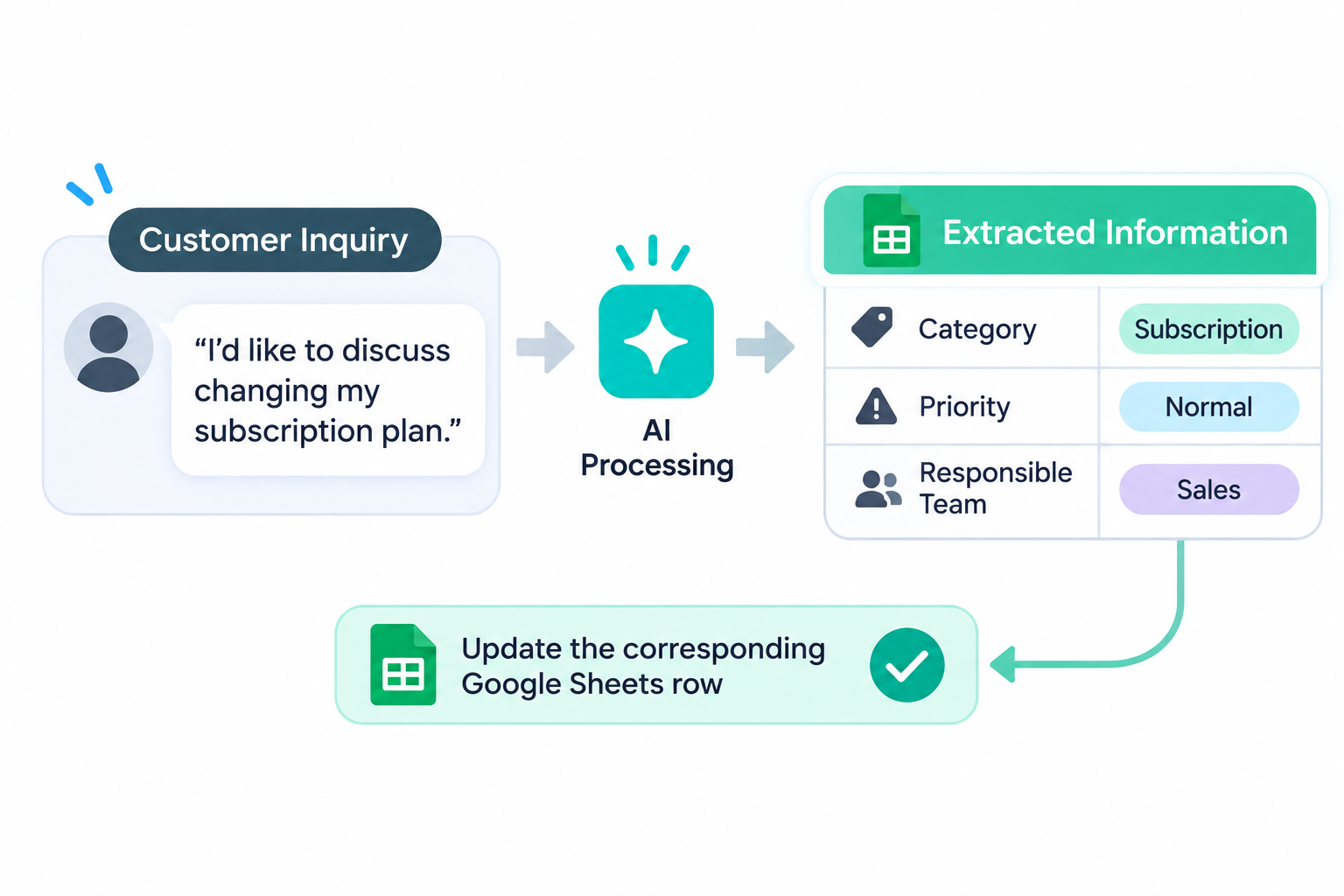
For example, consider a customer inquiry:
" I'd like to discuss changing my subscription plan."
AI can identify:
- Category: Subscription
- Priority: Normal
- Responsible team: Sales
The results can then be used to update the corresponding Google Sheets row.
Other examples include:
- Automatically assigning inquiry categories
- Setting priority levels based on message content
- Updating task statuses
- Moving records to different sheets based on AI classifications
- Flagging records that require human attention
This is particularly useful for teams managing large volumes of customer inquiries, tasks, or operational records.
The key difference between these use cases:
- Extract and generate: Get new information or create new content.
- Process and standardize: Improve the format or quality of existing information.
- Classify and update: Use AI-generated decisions to change spreadsheet records.
These operations can also be combined in a single automated workflow.
10 Best AI Tools for Google Sheets
There are several ways to bring AI into Google Sheets. Some tools work directly inside spreadsheets, while others help you analyze data, connect external applications, or automate entire business processes.
Here are nine AI tools worth considering, depending on your needs.
1. Yoom
Best for: Automating business workflows involving Google Sheets and AI.
Yoom is an all-in-one AI automation platform that connects Google Sheets with hundreds of business applications and AI capabilities.
Rather than simply generating formulas or processing individual cells, Yoom helps automate the entire workflow surrounding your spreadsheets.
For example, you can build a workflow that:
Receives an email or form submission.- Uses AI to extract and organize relevant information.
- Records the results in Google Sheets.
- Updates existing records when necessary.
- Sends notifications to the appropriate team.
Key features:
- Connect Google Sheets with other business applications.
- Extract and classify information using AI.
- Generate summaries and text automatically.
- Process documents using AI and OCR.
- Add, retrieve, and update spreadsheet records automatically.
- Build workflows using no-code tools.
- Combine AI processing with predefined business rules.
Unlike tools that require you to repeatedly enter prompts for individual tasks, Yoom allows you to configure AI steps as part of an automated workflow.
Once configured, workflows can run automatically when specific events occur.
You can also incorporate internal knowledge and business-specific information into AI-powered workflows to generate more relevant outputs.
Why choose Yoom?
Yoom is particularly useful when you want to automate not only Google Sheets operations but also the tasks that happen before and after data reaches your spreadsheets.
2. Gemini in Google Sheets
Best for: People who want to use AI directly within Google Sheets.
Visit Google Gemini | View pricing
Gemini is Google's AI assistant, integrated into Google Workspace applications.
With Gemini in Google Sheets, users can work with spreadsheet data using natural language.
Key features:
- Generate and modify formulas.
- Create tables and columns.
- Summarize and analyze data.
- Create charts.
- Organize and format spreadsheet data.
- Categorize and organize text-based information.
One of Gemini's biggest advantages is its close integration with Google Workspace.
You can use AI without moving your data into a separate tool, making it convenient for people who already work primarily in Google Sheets.
3. ChatGPT
Best for: Complex data analysis, formula generation, and spreadsheet problem-solving.
ChatGPT is a general-purpose AI assistant that can help with a wide range of Google Sheets tasks.
Although it can be used outside your spreadsheet, ChatGPT also offers spreadsheet-related capabilities that help users work with Excel and Google Sheets.
Key features:
- Generate Google Sheets and Excel formulas.
- Suggest data classification methods.
- Analyze CSV files and tabular data.
- Generate Google Apps Script.
- Design data transformation logic.
- Troubleshoot formula errors.
For example, you can describe a spreadsheet problem and ask ChatGPT to create a formula or explain how to automate a particular operation.
It is particularly useful when you need help designing a solution rather than simply performing an individual spreadsheet task.
4. Autosheet
Best for: Applying AI operations repeatedly across spreadsheet rows.
Visit Autosheet for Work | View pricing
Autosheet brings AI functions directly into Google Sheets and Google Docs.
It allows users to apply AI processing to individual cells or multiple rows, making it useful for repetitive data-processing tasks.
Key features:
- Summarize long text.
- Categorize customer inquiries.
- Translate content.
- Generate text.
- Extract information from cells.
- Clean and transform data.
- Process multiple rows in bulk.
For example, you can use AI to classify customer inquiries and return the results in a separate column.
5. Coefficient
Best for: Importing external business data into spreadsheets and analyzing it with AI.
Visit Coefficient | View pricing
Coefficient connects Google Sheets and Excel with external business applications.
It is useful for teams that want to centralize data from different sources and analyze it in spreadsheets.
Key features:
- Import data from external applications.
- Refresh connected data.
- Ask questions about spreadsheet data.
- Summarize and analyze information.
- Generate reports.
- Visualize business data.
For example, you can create a workflow that imports CRM and advertising data into Google Sheets, uses AI to analyze performance, and helps generate reports.
6. SheetAI
Best for: Using AI functions directly in Google Sheets.
SheetAI provides AI-powered functions for spreadsheet operations.
It is designed for users who want to pass cell values to AI and return generated results to other cells.
Key features:
- Classify cell contents.
- Summarize text.
- Generate content.
- Translate information.
- Extract data.
- Clean spreadsheet data.
It is particularly useful for repetitive, cell-based AI operations.
7. Numerous.ai
Best for: Classifying, transforming, and generating spreadsheet data.
Visit Numerous.ai | View pricing
Numerous.ai brings AI-powered text processing into Google Sheets and Excel.
It can help users process large amounts of text without manually handling each entry.
Key features:
- Text classification.
- Information extraction.
- Summarization.
- Text rewriting.
- Data normalization.
- Bulk processing across rows.
For example, you can use AI to categorize product descriptions, summarize customer feedback, or standardize data across multiple spreadsheet rows.
8. Flowshot and Arcwise
These tools offer different approaches to AI-powered spreadsheet assistance.
Flowshot
Best for: AI-powered formulas and repetitive spreadsheet tasks.
Flowshot integrates AI into Google Sheets through a sidebar and custom AI functions.
Key features:
- Generate formulas using natural language.
- Autocomplete spreadsheet cells.
- Classify and transform data.
- Generate text and images.
- Apply AI functions across cells.
It is particularly useful for users who want to simplify spreadsheet operations without learning complex formulas.
Arcwise
Best for: AI-assisted spreadsheet analysis and data exploration.
Arcwise has been associated with AI-powered spreadsheet analysis, helping users interact with tabular data more easily.
For current product availability and pricing, check its official website before choosing it.
9. Excel Copilot
These tools are useful alternatives for people who also work with Microsoft Excel.
Microsoft Copilot
Best for: Businesses that primarily use Microsoft 365 and Excel.
Visit Microsoft Copilot | View pricing
Microsoft Copilot brings AI capabilities into Excel and other Microsoft 365 applications.
Key features:
- Generate formulas.
- Analyze spreadsheet data.
- Identify trends and anomalies.
- Create charts.
- Summarize information.
- Assist with spreadsheet editing.
It is particularly useful for organizations already working within the Microsoft ecosystem.
10. Ajelix
Best for: Formula generation and spreadsheet productivity.
Ajelix offers AI-powered tools for Excel and Google Sheets users.
Key features:
- Generate formulas from natural language.
- Explain and troubleshoot formulas.
- Generate VBA and Google Apps Script.
- Analyze and transform spreadsheet data.
- Assist with spreadsheet operations.
It is particularly useful for users who want help with formulas and spreadsheet-related tasks without writing code themselves.
Quick Comparison: Which AI Tool Should You Choose?
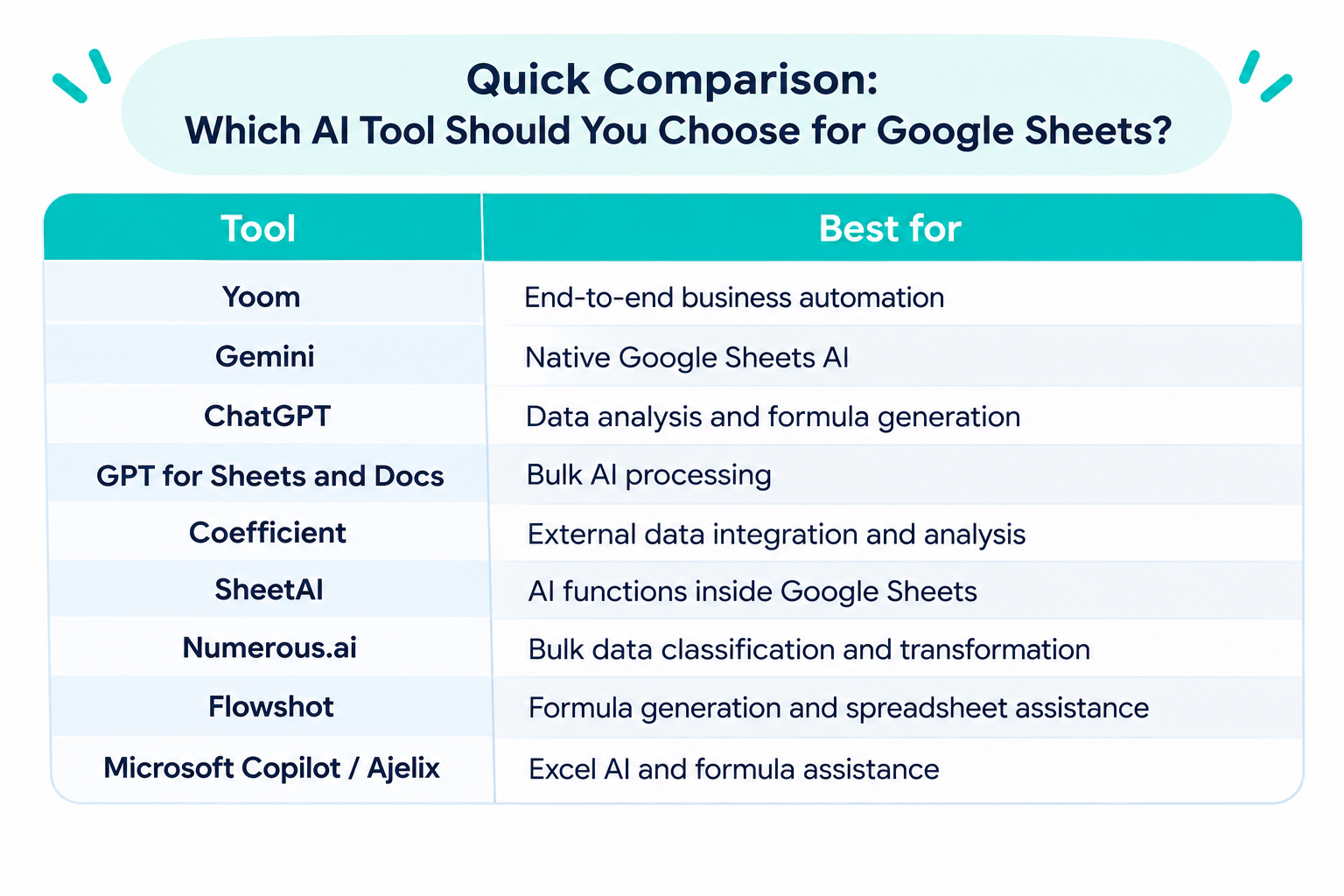
Our recommendation: If you only need help with formulas or individual spreadsheet tasks, Gemini, ChatGPT, and spreadsheet-specific AI add-ons are good options.
However, if you want to automate the entire business process around Google Sheets, including data collection, AI processing, record updates, and notifications, Yoom is worth considering.
Why Not Go Beyond Prompting AI in Google Sheets?
AI tools can make spreadsheet tasks much easier.
However, there is one limitation worth considering.
You may still need to tell AI what to do every time.
For example, imagine that you regularly receive customer inquiries and need to:
- Read each email.
- Extract the customer's name and request.
- Categorize the inquiry.
- Summarize the content.
- Record everything in Google Sheets.
- Notify the responsible team.
You could use AI to perform some of these tasks.
But if you rely on a standalone AI assistant, you may still need to provide instructions, copy information between applications, and manually trigger the next step.
This creates another problem: AI helps with individual tasks, but you still manage the overall process.
From AI Assistance to AI Automation
Instead of prompting AI every time, what if you could configure the process once and let it run automatically?
This is where AI automation platforms come in.
With a tool like Yoom, you can connect Google Sheets with emails, forms, databases, and other business applications to automate entire workflows.
For example:
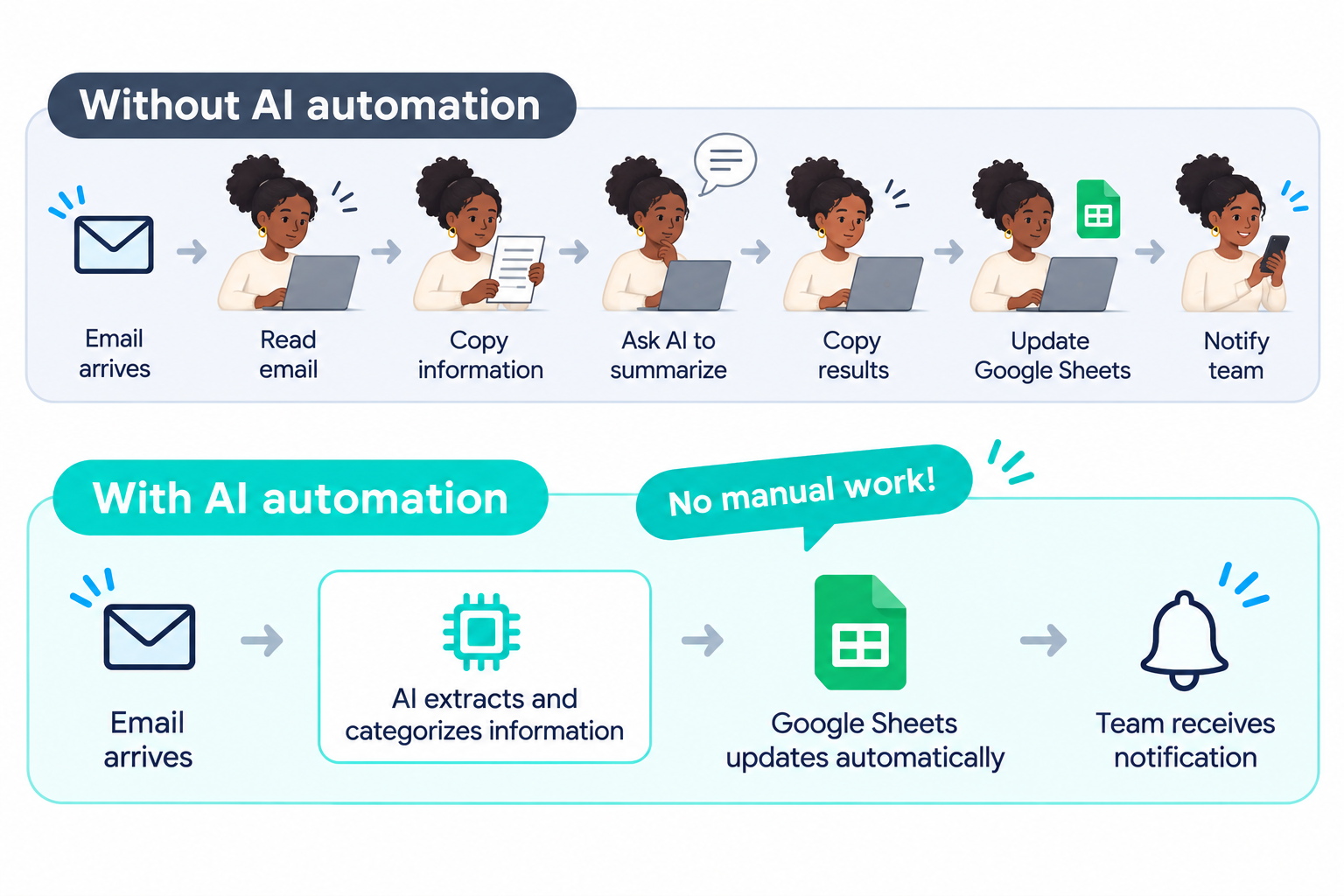
Without AI automation:
Email arrives → Read email → Copy information → Ask AI to summarize → Copy results → Update Google Sheets → Notify team
With AI automation:
Email arrives → AI extracts and categorizes information → Google Sheets updates automatically → Team receives notification
Once the workflow is configured, these steps can run automatically based on predefined triggers.
You don't need to manually enter the same prompt every time.
Related AI Sheets Templates:

■Who should use this template
- Teams that receive customer inquiries in Gmail, manually review their content, and manage them in Google Sheets
- Anyone who spends significant time and effort identifying incidents from inquiry emails and transferring the information to Google Sheets
- Team leaders and managers looking to improve incident management accuracy and streamline response operations
■Benefits of using this template
- AI automatically detects incidents in inquiry emails received in Gmail and records them in Google Sheets, reducing the time required for manual review and data entry.
- It helps reduce the risk of human error, such as overlooking incidents or making mistakes and omissions when entering information into Google Sheets.
■Workflow steps
- First, connect Gmail and Google Sheets to Yoom.
- Next, select Gmail as the trigger, set the action to “When an email with a specific label is received,” and specify the target label.
- Then, select the AI feature in the operation and set the action to “Generate text.” Write a prompt to detect incidents from the content of the received email.
- Next, select the branching feature in the operation and set the action to “Branch.” Configure the workflow to branch based on the AI's incident detection result.
- Finally, select Google Sheets in the operation and set the action to “Add a record.” Add the detected incident information to the specified sheet.
■Customization options
- With the AI feature’s “Generate text” action, you can add fixed instructions to the prompt or embed values such as the subject and body of the email retrieved by the Gmail trigger as variables.
- With the branching feature, you can set custom conditions to branch the workflow based on the AI's incident detection result, such as whether specific keywords are included.
- With Google Sheets’ “Add a record” action, you can customize the information added to the sheet by entering fixed text or embedding values retrieved by the preceding AI feature or Gmail trigger as variables.
■Notes
- Connect both Gmail and Google Sheets to Yoom.
- You can choose a trigger interval of 5, 10, 15, 30, or 60 minutes.
- Note that the shortest available trigger interval varies by plan.
- Branching is an available feature (operation) on the Personal plan and above. On the Free plan, the configured workflow operation will result in an error.
- Paid plans, such as the Personal plan, include a two-week free trial. During the free trial, you can use apps and features (operations) that are otherwise restricted. For details, see the Pricing Plans page.
- Anyone who finds it time-consuming to manage emails containing specific keywords received in Gmail
- Anyone who wants to summarize incoming emails with AI and manage them in Google Sheets
- Anyone considering automating the manual process of transferring information from emails
- Processing starts automatically when you receive an email containing specific keywords in Gmail, reducing the time previously spent manually transferring information.
- Prevent human errors such as missed entries and data entry mistakes, helping maintain data accuracy.
- First, connect Gmail and Google Sheets to Yoom.
- Next, select Gmail as the trigger and set the action to “When an email matching specific keywords is received.”
- Then, configure the AI feature as an operation and create instructions for organizing and summarizing the content of the received email.
- Finally, configure the “Add a record” action for Google Sheets as an operation and add the text generated by AI to the designated sheet.
■Customizable aspects of this workflow
- In the Gmail trigger settings, you can specify any keywords to detect in incoming emails.
- You can freely combine and configure the information added to Google Sheets, including not only fixed text but also information retrieved in previous steps, such as the Gmail received date and time or an AI-generated summary.
- Connect both Gmail and Google Sheets to Yoom.
- You can choose a trigger interval of 5, 10, 15, 30, or 60 minutes.
- Please note that the shortest available trigger interval varies by plan.
Go Beyond Generic AI Responses with Your Business Knowledge
Another limitation of standalone AI tools is that they may not have access to all the information needed to perform business-specific tasks accurately.
For example, when categorizing customer inquiries, generic AI may not understand:
- Your company's internal classification rules
- Product-specific terminology
- Internal response guidelines
- Your organization's approval processes
- Company-specific knowledge and documentation
With an AI Automation tool like Yoom, you can incorporate internal knowledge and business-specific information into AI-powered workflow steps.
This allows AI to work with more relevant context when generating outputs and making classifications.
Related AI Sheets Templates:




An AI worker that searches documents in Google Drive and answers employee questions. Encourage self-service by making better use of internal knowledge while reducing the support workload for your team. When it cannot provide an answer, it notifies improvement requests in Slack—ideal for continuously improving your manuals.
- General affairs, HR, and labor teams who want to focus on their core work instead of handling inquiries about internal policies and manuals
- Business owners who want to make better use of internal knowledge stored in Google Drive and build a culture where employees can find answers on their own
- Team leaders who want to maintain information accuracy, efficiently identify gaps in manuals, and improve organization-wide productivity
- Configure basic settings for the AI worker, such as its “Name” and “Role.”
- Connect Google Docs, Google Drive, and Slack to Yoom through My Apps, then configure them as tools. You can also replace these with other apps you use regularly.
- Create and edit the “Manual,” which serves as instructions for the AI worker, based on your company’s operational rules. Including company-specific decision criteria in the manual enables more accurate operations.
- Under “#Escalation Contacts” in the manual, set the names and member IDs of the contacts for each department. This enables the AI to send Slack notifications to the appropriate person based on the request.
- Adjust “#Escalation Criteria” to match your operational rules to clearly define which decisions the AI handles and which require human support.
- Add your company’s preferred communication style under “#Tone & Manner” to automatically generate friendly, reassuring responses for employees.
- Connect Google Docs, Google Drive, and Slack with Yoom.
- For basic AI worker settings, see “[AI Worker] Basic Setup Guide.”
- The number of AI workers that can run simultaneously, the number of AI workers you can create, and the available AI models vary depending on your plan.
- The apps and operations available in AI workers are subject to the same usage limits as Workflows.
- Please note that AI workers consume tasks during test runs as well as live runs. For details, see “[AI Worker] How Task Executions Are Calculated.”
- AI workers can perform appropriate processing more effectively when their manuals are configured in detail. For details, see “[AI Worker] How to Create a Manual.”

This AI worker searches and extracts relevant information from your storage when users ask a question, then responds with a summary and source URLs. It eliminates the need to review PDFs, sales meeting notes, manuals, and other internal resources one by one—ideal for sales and operations teams looking to reduce research time, or teams that want to share and log search results in chat tools, databases, and more.
- Teams with a large volume of internal documents who spend too much time searching for necessary information
- Sales and operations teams who need to reference sales meeting notes and manuals across multiple documents
- Teams that want to consolidate, share, and log knowledge search results in chat tools or databases
- "Skills" are:
- Instructions that enable the AI worker to perform tasks. For detailed setup instructions, see "[AI Worker] How to Create Skills (Formerly Manuals)."
- "Tools Used" are:
- Tools the AI worker uses to perform tasks. Simply tell the AI which tools your company regularly uses, and you can freely customize where data is retrieved from and where it is sent.
- The number of AI workers that can run simultaneously, the number of AI workers that can be created, and the available AI models vary depending on your subscription plan.
- The apps and operations available within AI workers are subject to the same usage limits as Workflows.
- Please note that AI workers consume tasks during test runs in the same way as production runs. For details, see "[AI Worker] How Task Executions Are Calculated."
Automate More Than Just Google Sheets
The biggest advantage of workflow automation is that it is not limited to spreadsheet operations.
You can connect different applications and automate the entire process.
For example:
- Automatically record new leads from web forms
- Extract information from invoices using AI and OCR
- Update customer records in a database
- Send Slack notifications when important records are added
- Generate summaries of incoming inquiries
- Route tasks to the appropriate team
Google Sheets can remain your central data management tool while the surrounding business processes run automatically.
AI helps you complete individual tasks. AI automation helps you complete entire workflows.
If you want to move beyond repeatedly prompting AI and start automating the work around your spreadsheets, Yoom is worth exploring.
Related AI Sheets Templates:
■Overview
Even when billing information is managed in Google Sheets, issuing invoices and sharing them with relevant parties is often still done manually. This process is not only time-consuming but can also lead to human errors such as data entry mistakes and missed notifications. With this workflow, invoices are automatically generated in Google Docs and notifications are sent to Slack whenever a row in Google Sheets is updated, helping you manage billing accurately and efficiently.
■Who Should Use This Template
- Anyone who currently handles everything manually, from managing invoices in Google Sheets to issuing and notifying others about them
- Anyone looking to prevent human errors such as data entry mistakes when issuing invoices or failing to share them with relevant parties
- Anyone responsible for streamlining recurring monthly billing tasks and focusing on core operations
■Benefits of Using This Template
- Complete the entire process, from issuing invoices to sending notifications, simply by updating Google Sheets. This eliminates the need to manually transfer data or send files, saving you time.
- Automating invoice creation and notification tasks reduces human errors such as incorrect amounts, incorrect recipients, and missed notifications.
■Flow Overview
- Connect Google Sheets, Google Docs, and Slack to Yoom.
- Select Google Sheets as the trigger and set the trigger action to “When a row is updated.”
- Select the branching feature in Operations and configure the workflow to proceed only when specific conditions are met, such as when the status column changes to “Issued.”
- Set the Google Docs “Issue a document” action in Operations to automatically generate an invoice based on the information in Google Sheets.
- Set the Slack “Send a file” action in Operations to notify the designated channel or team member with the generated invoice file.
※“Trigger”: An action that starts the flow. “Operation”: An action that performs a process within the flow after the trigger starts.
■Customization Options
- In the Google Sheets trigger settings, customize the sheet or table range to automate and the specific columns for which you want to detect updates.
- With the branching feature, you can freely customize the conditions for issuing invoices.
- For the Google Docs action, prepare an invoice template that matches your company’s format.
- For Slack notifications, you can choose the destination channel and the members to mention. You can also insert customer names and amounts retrieved from the spreadsheet as variables in the notification message.
■Notes
- Connect each of Google Sheets, Google Docs, and Slack to Yoom.
- You can select a trigger interval of 5, 10, 15, 30, or 60 minutes.
- Please note that the shortest available trigger interval varies by plan.
- Branching is an Operation available on the Mini plan and above. On the Free plan, the configured Operations in the flow bot will result in an error.
- Paid plans such as the Mini plan include a two-week free trial. During the free trial, you can use apps and features (Operations) that are subject to plan restrictions.
■Overview
This is a flow that reads files stored in Google Drive using AI-OCR, stores them in a Google Sheets database, and notifies Google Chat.
You can add the contents of the files to the database quickly and accurately without manual input.
By adding a person in charge request in the middle, more reliable data addition is possible.
■Notes
・Please integrate Google Drive, Google Sheets, and Google Chat with Yoom.
・AI operations are functions (operations) available only with the Team Plan and Success Plan. If you are on the Free Plan or Mini Plan, the operations set for the flow bot will result in an error, so please be careful.
・Paid plans such as the Team Plan and Success Plan offer a two-week free trial. During the free trial, you can use restricted apps and AI functions (operations).
・Integration with Google Chat is only possible with Google Workspace. For details, please refer to here.
Let's graduate from chatting with AI
Google Sheets is a powerful tool for organizing and managing business data, but manual operations can become increasingly time-consuming as your workflows grow.
AI can help you generate formulas, analyze data, extract information, standardize records, and automate repetitive spreadsheet tasks.
However, there is a difference between using AI to assist with individual tasks and automating the entire process.
If you want to go beyond repeatedly prompting AI and automate the work surrounding Google Sheets, consider an AI automation platform like Yoom.
Connect your spreadsheets with the applications you already use, incorporate AI into your workflows, and let repetitive tasks run automatically.
Spend less time managing spreadsheets and more time focusing on your actual work.