・
Best Slack Automation Tools: Real-World Use Cases

Slack is a core communication tool for many businesses. Teams use it every day to share updates, discuss projects, and coordinate their work.
But what if you want to do more with Slack? You might want to connect it with other business apps, automate repetitive tasks, or use AI to process information before it reaches your team.
Slack already offers built-in features for app integrations, workflows, and AI. For simple tasks, these features may be all you need. However, if you want to automate more complex processes across multiple apps or use AI to review information before sending it to Slack, you may need additional tools.
This is where Slack automation tools come in. They can help you connect different apps, automate tasks across systems, and build workflows that go beyond basic notifications.
In this guide, we'll explore real-world data on how businesses use Slack automation tools, compare popular options, and help you find the best tool for your needs.
What Real-World Data Reveals About Slack Automation
We analyzed active Slack-connected workflows on Yoom to understand how businesses use Slack automation in their daily work.
The data shows how teams connect Slack with other business apps, which tasks they automate, and how AI helps them process information before sending it to Slack.
1. How Teams Use Slack Automation: Notifications vs. Interactive Workflows
Not all Slack automation works the same way. Some workflows simply send messages to a channel, while others let employees take action directly in Slack.
- Notifications (91.3%): These workflows automatically send updates from other apps to Slack. For example, a new lead from a web form can trigger a message in a sales channel.
- Interactive workflows (8.7%): These workflows let employees respond to a message or make a decision in Slack. For example, a manager can approve a request using a button in a Slack message.
Both types are useful, but they solve different problems. Notifications help teams stay informed, while interactive workflows help them move work forward.
Key takeaway: Slack automation can do more than keep everyone updated. It can also help employees make decisions and complete tasks without leaving Slack.
2. Which Apps Do Businesses Connect to Slack?
Slack automation tools become more useful when they connect Slack with the apps a team already uses.
Our data shows four main categories of connected apps: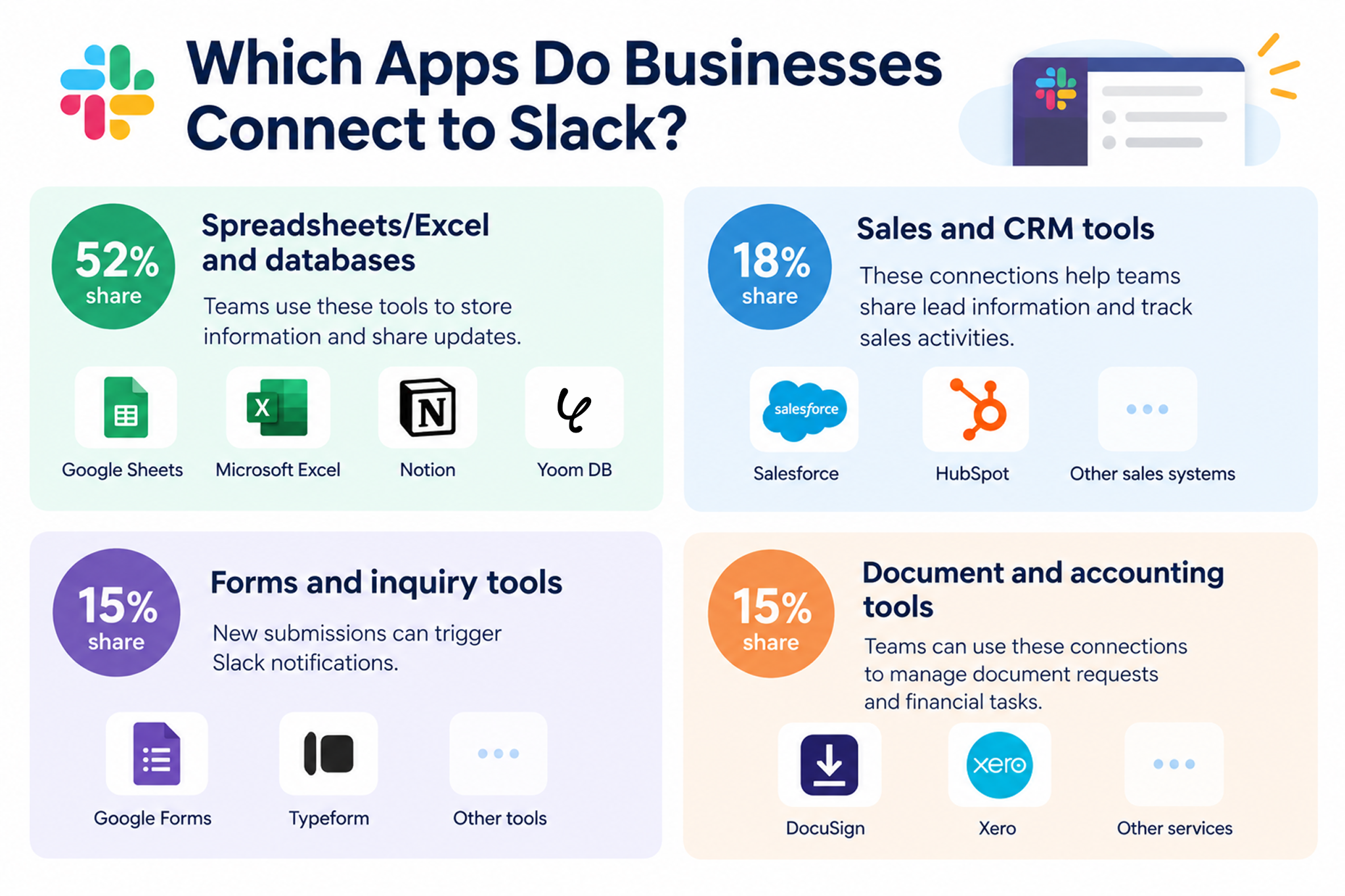
- Spreadsheets/Excel and databases (52% share): Google Sheets, Microsoft Excel, Notion, and Yoom DB. Teams use these tools to store information and share updates.
- Sales and CRM tools (18% share): Salesforce, HubSpot, and other sales systems. These connections help teams share lead information and track sales activities.
- Forms and inquiry tools (15% share): Google Forms, Typeform, and other tools that collect customer inquiries. New submissions can trigger Slack notifications.
- Document and accounting tools (15% share): DocuSign, Xero, and similar services. Teams can use these connections to manage document requests and financial tasks.
Connecting Slack with other apps reduces manual data entry and helps teams respond to inquiries faster.
Related Slack Automation Templates:
■Overview
The workflow "Read files posted on Slack with OCR and add them to Microsoft Excel" helps reduce the burden of transcription work.
Automation reduces the amount of manual work, which is likely to reduce human errors such as input mistakes.
■Recommended for
- Those who collaborate on Slack and want to use the contents of received files immediately
- Those who want to improve work efficiency by smoothly adding file contents to Microsoft Excel
- Those considering automating work using OCR technology
- Those who find it cumbersome to manually read file contents and input them into Microsoft Excel
- Those who want to automate the data entry process using OCR technology to save time
■Benefits of using this template
There are many benefits to automatically adding files posted on Slack to Microsoft Excel using OCR.
First, it eliminates the need for manual data entry, allowing for time savings.
This enables you to focus on other important tasks.Additionally, by utilizing OCR technology, quick and accurate data entry is achieved, reducing input errors.
Furthermore, since file information within Slack is directly added to the Microsoft Excel database, information sharing and management are centralized, leading to improved work efficiency. Try itSearch Microsoft SharePoint for keywords mentioned in Slack and add the results to a Google Spreadsheet
■OverviewDo you spend too much time searching for specific information across the many folders and files stored in Microsoft SharePoint? With this workflow, you can automatically search across Microsoft SharePoint using keywords mentioned in Slack and consolidate the results in Google Sheets. This streamlines the file search process that was previously handled manually and helps you respond to requests faster.■Who This Template Is For
- Anyone who spends too much time searching through the many folders and files stored in Microsoft SharePoint
- Anyone who frequently searches for files in Microsoft SharePoint in response to requests received in Slack
- Anyone looking to automate file search requests from various team members and streamline the response process
■Benefits of Using This Template
- From searching to recording the results, everything runs automatically when you are mentioned in Slack, reducing the time spent on manual searches and data entry.
- Search results are automatically consolidated in Google Sheets, enabling centralized information management and making it easier to review and share information.
■Workflow Overview
- First, connect Slack, Microsoft SharePoint, and Google Sheets to Yoom.
- Next, select Slack as the trigger and set the “When mentioned in a channel” action.
- Then, set up “Extract text” using the AI feature in the operation and extract search keywords from the Slack mention.
- Next, set up Microsoft SharePoint’s “Search folders and files” action in the operation and search using the extracted keywords.
- To handle multiple search results, configure the repeat feature to run the subsequent steps for each file.
- Finally, set up Google Sheets’ “Add a record” action to add the search result information as a row in the specified sheet.
※“Trigger”: An action that starts the flow. “Operation”: An action that performs processing within the flow after the trigger starts.
■Customization Options
- In the Slack trigger settings, specify the channel where you want to start the flow and the user ID to be mentioned.
- You can customize the instructions (prompt) for extracting text with the AI feature to match the format of the mention.
- You can freely customize the information added to Google Sheets using data collected in previous steps, such as Microsoft SharePoint search results (file names, URLs, etc.), Slack information (the requester’s user ID, etc.), and extracted text.
■Notes
- Connect Slack, Microsoft SharePoint, and Google Sheets to Yoom.
- You can choose a trigger interval of 5, 10, 15, 30, or 60 minutes.
- Please note that the shortest available trigger interval varies by plan.
- Microsoft 365 (formerly Office 365) offers plans for home users and business users (Microsoft 365 Business). Authentication may fail if you are not subscribed to a business plan.
- The “Repeat the same process” operation is available only on the Team and Success plans. On the Free and Mini plans, the configured workflow operations and data connections will result in errors.
- Paid plans such as the Team and Success plans include a two-week free trial. During the free trial, you can use apps and features (operations) that are otherwise subject to plan restrictions.



3. Common Slack Automation 4 Use Cases
What tasks can you automate with Slack? Our data highlights four common use cases.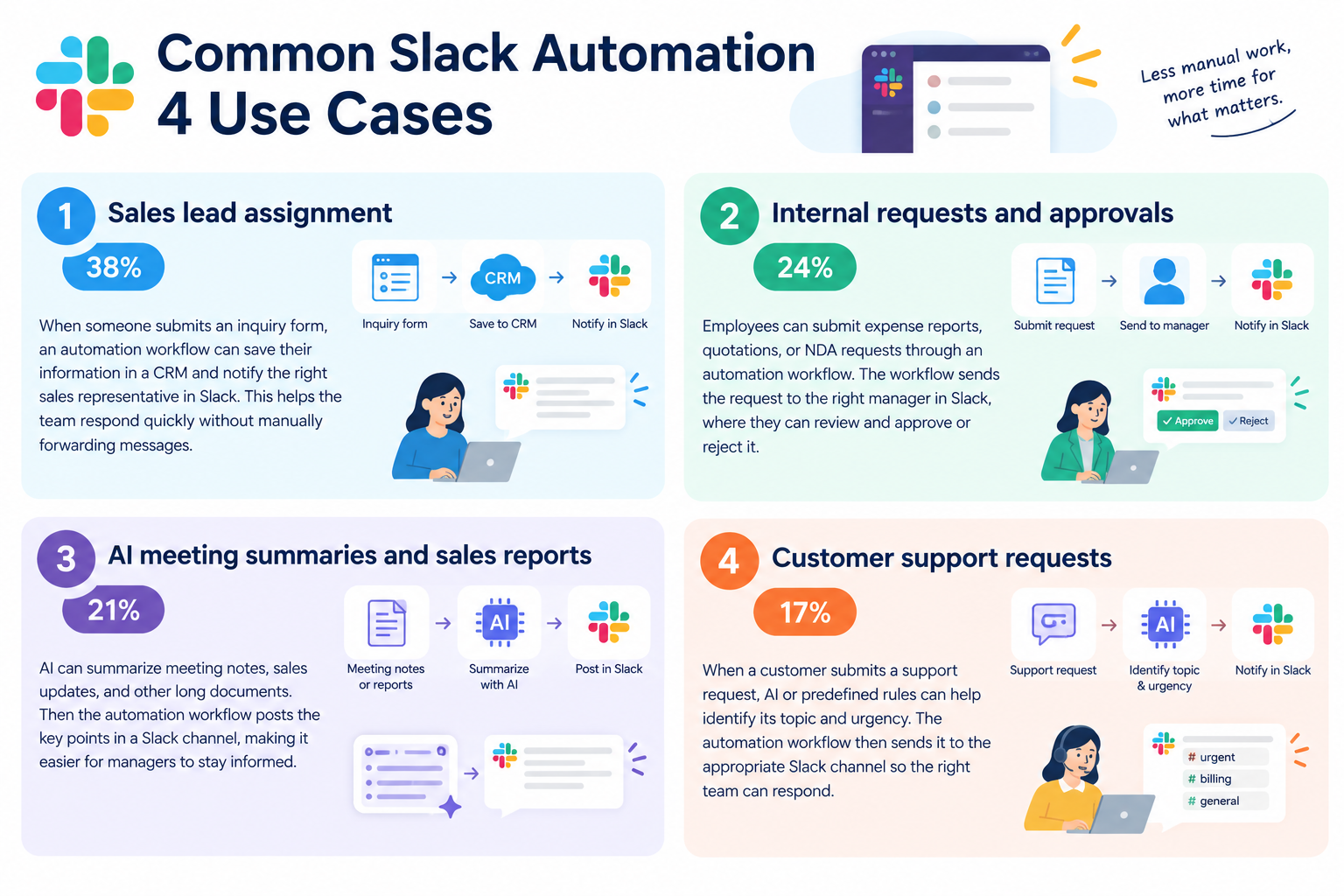
- Sales lead assignment (38%): When someone submits an inquiry form, an automation workflow can save their information in a CRM and notify the right sales representative in Slack. This helps the team respond quickly without manually forwarding messages.
- Internal requests and approvals (24%): Employees can submit expense reports, quotations, or NDA requests through an automation workflow. The workflow sends the request to the right manager in Slack, where they can review and approve or reject it.
- AI meeting summaries and sales reports (21%): AI can summarize meeting notes, sales updates, and other long documents. Then the automation workflow posts the key points in a Slack channel, making it easier for managers to stay informed.
- Customer support requests (17%): When a customer submits a support request, AI or predefined rules can help identify its topic and urgency. The automation workflow then sends it to the appropriate Slack channel so the right team can respond.
Related Slack Automation Templates:
◼️Overview
When a new lead is registered in Salesforce, a notification will be sent to a specified Slack channel.
You can automatically expand lead information without accessing the chat tool.
Additionally, you can specify any Slack channel for notifications.
◼️Setup Instructions
① Select Salesforce from the app trigger, perform the following settings, and then test and save.
・Action: Select when a new lead is registered in the lead object.
・Trigger Interval: Set to 5 minutes.
・My Domain URL: Enter the specified My Domain URL.
② Press the + mark, select Slack from the operations to integrate with the app, and after the following settings, test and save.
・Action: Select send a message to the channel.
・Channel ID for posting: Select the specified channel ID from the options.
・Message Content: Enter any string, including the output obtained in ①.
・For details on dynamically embedding output, please refer to here.
◼️Notes
・It is necessary to set up account information for integration in each app's operation.
※ For integration (My App Registration), please refer to here.
・Please replace the Slack channel ID for posting and Salesforce setting information with any desired values.
・Salesforce is an app available only with the Team Plan and Success Plan. If you are on the Free Plan or Mini Plan, the operations and data connect of the flow bot you set will result in an error, so please be careful.
・Paid plans such as Team Plan and Success Plan offer a 2-week free trial. During the free trial, you can use apps that are subject to restrictions.
■Overview
This is a flow that notifies Slack when a lead is registered in HubSpot's contacts.
■Recommended for
1. Marketing professionals managing leads using HubSpot
・Those who want to quickly share lead information registered in the contact list with team members
・Those who find it cumbersome to access HubSpot every time to check information
2. Companies primarily using Slack as a communication tool
・Those who want to be notified on Slack about newly added lead information in HubSpot
■Benefits of using this template
For marketing professionals, quickly catching up on lead information is very important.
Being able to promptly grasp lead information allows for swift follow-up, enabling effective customer approaches.
By using this template, notifications are automatically sent to Slack when lead information is added to HubSpot, leading to quicker information acquisition.It is also effective for sharing information with members.
It contributes to improved transparency of information as members of the same team can easily check information on Slack.
■Notes
・Please integrate Yoom with both HubSpot and Slack.
・The trigger can be set to activate at intervals of 5, 10, 15, 30, or 60 minutes.
・Please note that the shortest activation interval varies depending on the plan.
■Overview
This is a flow that notifies Slack when a specific file is approved and stored in Google Drive.
■Recommended for
1. Personnel responsible for following up with newly hired individuals
・HR recruiters and administrative staff
・Corporate general affairs department
2. Senior personnel responsible for HR management
・Department heads of various departments
・Team leaders and project leaders
3. Those looking to reduce manual input tasks and automate processes
・Owners of small and medium-sized enterprises aiming for operational efficiency
・Administrative staff handling multiple tasks
■Benefits of using this template
・By automating the entire process, you can significantly improve operational efficiency by eliminating the hassle of communication and manual input.
■Notes
・Please integrate Yoom with both Google Drive and Slack.



4. How Fast Can Slack Automation Run?
Manual updates take time. Employees may need to check an app, copy information, and paste it into Slack.
Automated workflows can handle these steps in the background.
In our data, the median execution time was 12.8 seconds from the start of a workflow to the delivery of a formatted message in Slack. Depending on the workflow, this process can include retrieving data, using AI to process information, and sending the results to Slack.
For example, when a customer submits a form, a workflow can retrieve their details, summarize the request, and post the results in Slack in seconds.
This helps teams share information faster and spend less time on manual updates.
How AI Improves Slack Workflow Automation
Slack has built-in AI features that help users find information and summarize conversations. However, when you automate workflows across Slack and other business apps, these features alone may not be enough.
For example, when a new customer inquiry arrives from a form or CRM, a workflow might send the full message directly to Slack. The person who receives it still needs to read the details, summarize the request, and decide what to do next.
This means that even if the notification itself is automated, some manual work remains.
AI-powered Slack workflow automation takes this a step further.
By processing information with AI before sending it to Slack, a workflow can summarize customer inquiries, suggest the next action, or identify urgent requests. It can also evaluate new leads against your marketing criteria to identify MQLs (Marketing Qualified Leads) and notify the sales team only when a lead meets those criteria. This helps employees focus on important information and spend less time reviewing messages and sorting through leads manually.
Our data highlights three common ways AI is used in Slack-connected workflows.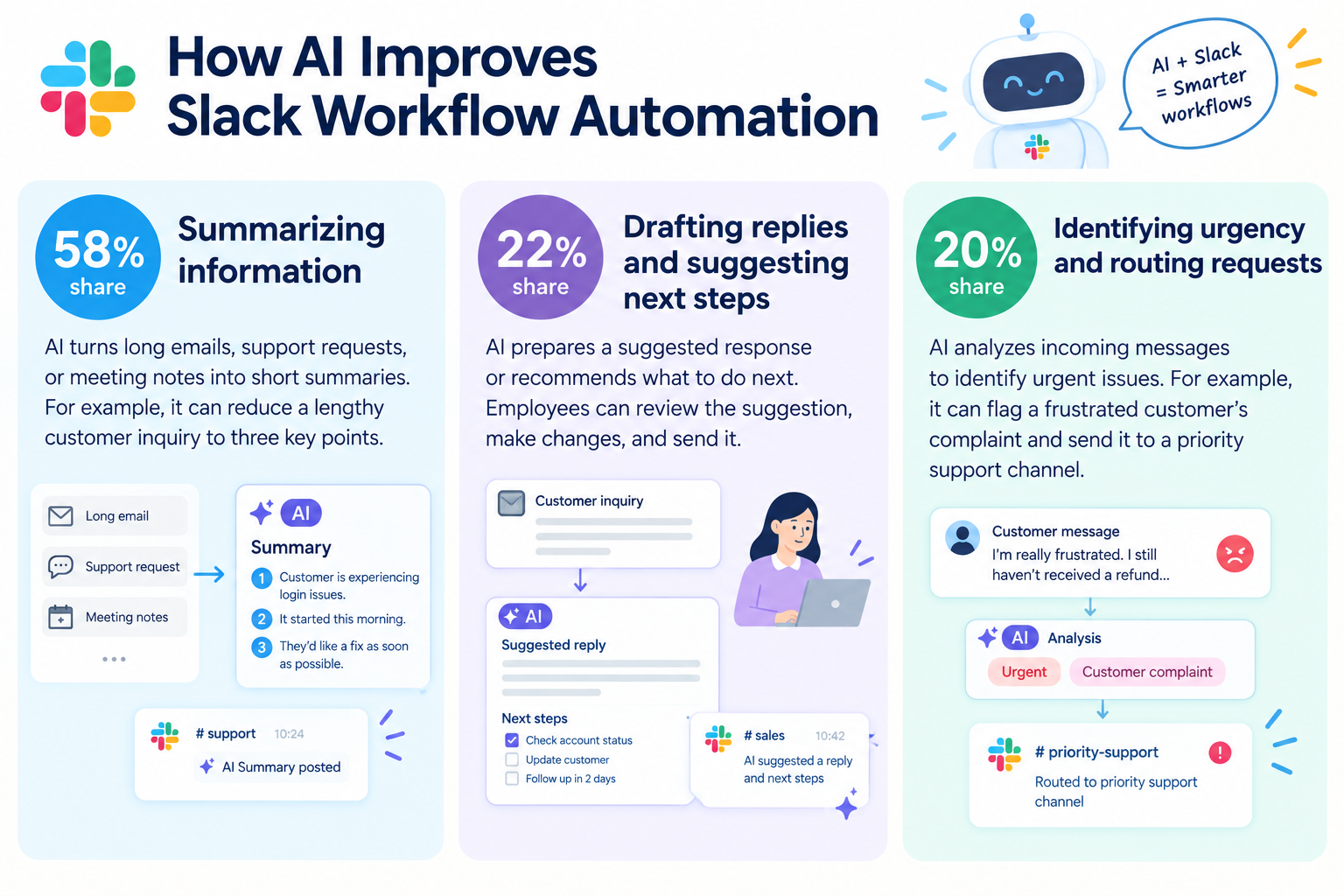
- Summarizing information (58% share): AI turns long emails, support requests, or meeting notes into short summaries. For example, it can reduce a lengthy customer inquiry to three key points.
- Drafting replies and suggesting next steps (22% share): AI prepares a suggested response or recommends what to do next. Employees can review the suggestion, make changes, and send it.
- Identifying urgency and routing requests (20% share): AI analyzes incoming messages to identify urgent issues. For example, it can flag a frustrated customer's complaint and send it to a priority support channel.
AI is especially useful when a workflow needs to process large amounts of text before sending information to Slack.
Instead of asking employees to read every message in full, the workflow can highlight the information they need to make a decision.
Related AI-powered Slack Automation: Try itWhen a new contact is added to HubSpot, use an AI worker to prioritize outbound sales opportunities and notify Slack
■OverviewIn AI-powered outbound sales, quickly responding to newly added leads can make all the difference—but manually prioritizing them can be a major burden. With this workflow, whenever a new contact is added to HubSpot, an AI agent (AI Worker) automatically analyzes the company information and determines the priority for outbound sales outreach. The results are automatically sent to Slack, helping you stay on top of high-priority leads and drive more efficient sales activities.■Who This Template Is For
- Sales professionals who use HubSpot and want to streamline lead management for outbound sales
- Those who want to automate the manual process of prioritizing leads with the power of an AI agent
- Managers who want to boost their sales team's productivity and focus on more strategic activities
■Benefits of This Template
- AI automatically determines lead priority whenever a contact is added to HubSpot, reducing the time spent gathering and analyzing information for outbound sales.
- Prevent human errors such as inconsistent judgment criteria across team members and overlooking important leads, while supporting sales activities based on objective data.
■Workflow Steps
- First, connect HubSpot, Google Search, and Slack to Yoom.
- Next, select HubSpot as the trigger and set the action to “When a new contact is created.”
- Finally, configure an AI Worker as an operation, then create a manual (instructions) for collecting company information using Google Search, determining the priority for outbound sales, and sending the results to Slack.
※“Trigger”: An action that starts the flow. “Operation”: An action that processes data within the flow after the trigger starts.
■Customization Options
- You can customize the instructions given to the AI Worker to match your company's sales strategy. Set your own criteria for determining priority and the information sources to reference.
- You can also specify the search engine used by Google Search and the Slack notification destination.
■Notes
- Connect HubSpot, Google Search, and Slack to Yoom individually. You also need to connect any tools (apps) used within the AI Worker to My Apps.
- You can choose a trigger interval of 5, 10, 15, 30, or 60 minutes.
- Please note that the shortest available trigger interval varies by plan.
- For basic AI Worker setup instructions, see “[AI Worker] Basic Setup Guide.”
- The number of AI Workers that can run simultaneously, the number of AI Workers you can create, and the AI models available to you vary by plan.
- Apps and operations available within AI Workers are subject to the same usage limits as Workflows.
- Please note that AI Workers consume tasks during test runs just as they do during production runs. For details, see “[AI Worker] How Task Usage Is Calculated.”
- AI Workers are more likely to perform the appropriate processes when their manuals are configured in detail. For details, see “[AI Worker] How to Create a Manual.”
Try itWhen a record is added to a Salesforce activity object, an AI worker calculates the lead score and notifies Slack of hot leads
■OverviewWhen managing customer interactions and deal progress in Salesforce, determining “which customers should we approach now?” based on accumulated activity history can be time-consuming. As the number of leads grows, accurately gauging each lead’s level of interest and following up at the right time becomes increasingly difficult. With this workflow, an AI worker automatically calculates a lead score whenever a record is added to Salesforce’s Activity object. It extracts only hot leads with high purchase intent and sends notifications to Slack, reducing the time spent reviewing information and improving sales efficiency.
■Who should use this template
- Sales managers who want to use customer activity data accumulated in Salesforce to automatically prioritize leads
- Inside sales representatives who want to quickly identify leads with high purchase intent and connect them with smooth outreach to improve close rates
- Teams that want to notify their sales team only about hot leads, prevent information overload in Slack, and build a more efficient sales process
■Benefits of using this template
- AI automatically scores leads based on their Salesforce activity history, enabling you to identify hot leads using objective criteria and optimize the priority of your sales outreach.
- Slack notifications are sent only when a lead reaches a high score, so you can focus on opportunities that require immediate attention without being overwhelmed by low-priority notifications.
■Flow bot steps
- First, connect Salesforce and Slack to Yoom.
- Next, select Salesforce as the trigger and set the action to “When a record is added to the Activity object.”
- Finally, create instructions for the AI worker to detect the Salesforce Activity object, update the lead engagement score, and notify Slack only when the score is high.
※“Trigger”: An action that starts the flow. “Operation”: An action that processes data within the flow after the trigger starts.
■Customization options
- Adjust the instructions given to the AI worker to freely define scoring criteria that match your business model, such as adding points for specific actions.
- Customize the notification conditions, such as the score threshold for Slack notifications, to control the notification frequency and lead quality.
- Add Salesforce custom objects and other fields to retrieve to perform more advanced analysis based on a broader range of data.
■Notes
- Connect both Salesforce and Slack to Yoom. You must also connect the tools (apps) used within the AI worker through My Apps.
- Salesforce is available only on the Team and Success plans. Please note that operations and Data Connect configured in flow bots will result in errors on the Free and Mini plans.
- Paid plans, such as the Team and Success plans, include a two-week free trial. During the free trial, you can use apps that are otherwise subject to plan restrictions.
- You can select a trigger interval of 5, 10, 15, 30, or 60 minutes.
- Please note that the shortest available trigger interval varies by plan.
- For basic AI worker setup, see “[AI Worker] How to configure basic settings.”
- The number of concurrent AI worker executions, the number of AI workers you can create, and the AI models available to you vary depending on your plan.
- The apps and operations available within an AI worker are subject to the same usage restrictions as flow bots.
- Please note that AI workers consume tasks during test runs just as they do during production runs. For details, see “[AI Worker] How task execution counts are calculated.”
- AI workers are more likely to perform the appropriate processing when their instructions are configured in detail. For details, see “[AI Worker] How to create instructions.”
Try itWhen an opportunity is lost in Salesforce, use an AI worker to perform BANT analysis and suggest improvements in Slack
■OverviewWhen a deal is lost, analyzing the reasons and turning those insights into next steps is essential. However, creating analysis reports and entering data into Salesforce can be a significant burden for sales representatives. With this workflow, when a deal in Salesforce is updated to a lost status, an AI worker automatically analyzes it based on BANT criteria and suggests improvements in Slack. Once the suggestions are approved, Salesforce records are updated automatically, helping you build a high-quality lost-deal analysis process while reducing data entry.■Who This Template Is For
- Sales managers who find that lost-deal analysis in Salesforce has become a formality and are looking to improve their sales process
- Sales representatives who want to streamline SFA data entry after a lost deal and focus on their core sales activities
- Business leaders who want to maintain consistent BANT analysis quality with AI and strengthen sales capabilities across the organization
■Benefits of This Template
- AI automatically performs BANT analysis and suggests improvements when a deal's status is updated to lost, reducing the time required for reviews.
- Salesforce is updated automatically after the analysis is approved, helping prevent missed entries and input errors while enabling accurate sales data collection.
■Workflow Steps
- First, connect Salesforce and Slack to Yoom.
- Next, select Salesforce as the trigger and set the action to “When a record is created or updated in the Opportunity object.”
- Finally, use an AI worker to analyze the sales process based on BANT criteria and suggest improvements through Slack's message-sending action. Then, create a skill (instruction) to configure the Salesforce record update action as the tool to use.
※ “Trigger”: An action that initiates a flow. “Operation”: An action that processes data within the flow after the trigger starts.
■Customizing This Workflow
- In the Salesforce trigger settings, adjust the filtering conditions so that only changes to a lost status, such as Closed Lost, are detected.
- Adjust the instructions (prompt) for the AI worker to generate more specific BANT analyses and advice tailored to your products, services, and sales style.
- Customize the Slack notification recipients as needed—for example, send suggestions to a specific sales channel or manager instead of only to the assigned representative.
■Notes
- Connect both Salesforce and Slack to Yoom.
- You can select a trigger interval of 5, 10, 15, 30, or 60 minutes.
- Please note that the shortest available trigger interval varies by plan.
- Salesforce is available on the Mini plan and above. On the Free and Personal plans, the configured Workflow operations and Data Connect will result in errors.
- Branching is an available feature (operation) on the Personal plan and above. On the Free plan, configured Workflow operations that use branching will result in errors.
- Paid plans such as the Mini, Team, Success, and Personal plans include a two-week free trial. During the free trial, you can use apps and features (operations) that are otherwise restricted. For details, see the pricing plans page.
- Apps used within the AI worker must also be connected through My Apps.
- For basic AI worker setup, see “[AI Worker] Basic Setup Guide.”
- The number of AI workers that can run simultaneously, the number of AI workers you can create, and the AI models available to you vary by plan.
- Apps and operations available within AI workers are subject to the same usage limits as Workflows.
- Please note that AI workers consume tasks during test runs just as they do during production runs. For details, see “[AI Worker] How Task Usage Is Calculated.”
- AI workers are more likely to perform the appropriate processing when skills are configured in detail. For details, see “[AI Worker] How to Create Skills (formerly Manuals).”

Best Slack Automation Tools Compared
The best Slack automation tool depends on what you want to automate. Some tools are ideal for simple notifications, while others help you manage approvals, connect databases, or process information with AI.
Here are four tools to consider.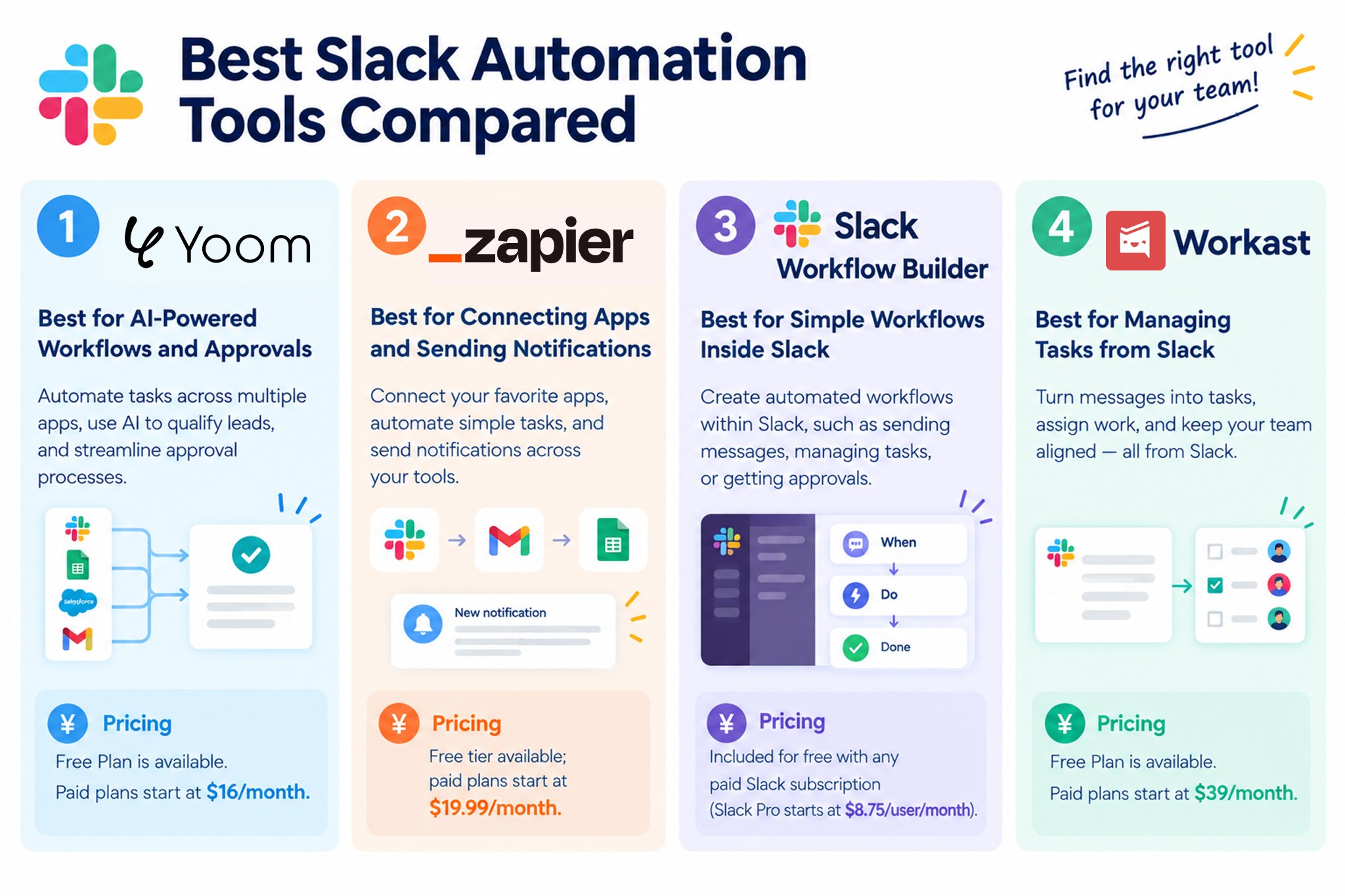
1.
Yoom
: Best for AI-Powered Workflows and Approvals
Yoom is an all-in-one workflow automation platform that connects Slack with business apps, databases, and AI.
It helps teams automate work across multiple apps instead of simply sending notifications to Slack.
How Yoom automates Slack workflows
Yoom can send information from other apps to Slack, use AI to summarize requests, and create interactive messages with approval buttons.
For example, when a customer submits a quotation request, a workflow can retrieve the relevant information, summarize the request with AI, and send it to a manager in Slack. After the manager approves it, the workflow can continue with the next step, such as updating a CRM or preparing a document.
Yoom also includes a built-in database, which teams can use to store and manage information as part of their workflows.
Key features
- No-code workflow builder for connecting apps and automating tasks
- AI-powered information processing and summarization
- Interactive Slack messages for approval workflows
- Built-in database for managing business information
- Connections between multiple apps in one workflow
- Best for: Operations managers, sales operations teams, and growing businesses that want to automate tasks across Slack, CRM systems, databases, and other business apps.
- Pricing: Free Plan is available. Paid plans start at $16/month.
2.
Zapier
: Best for Connecting Apps and Sending Notifications
Zapier is a workflow automation tool that connects thousands of apps. It lets users create automated workflows by setting a trigger and choosing what should happen next.
How Zapier automates Slack workflows
For example, when a customer places an order in Shopify, Zapier can automatically send a message to a Slack channel.
You can also connect form submissions, spreadsheet updates, and other app events to Slack notifications.
Key features
- Connections to thousands of apps
- Simple trigger-and-action workflows
- Automated notifications when something changes in another app
- A visual interface for setting up workflows
- Best for: Marketing, sales, and other teams that want to connect their apps and send automatic Slack notifications with minimal setup.
- Pricing: Free tier available; paid plans start at $19.99/month.
3.
Slack Workflow Builder
: Best for Simple Workflows Inside Slack
Slack Workflow Builder is useful for simple workflows, but its capabilities may be limited if you need to connect many external apps or automate more complex tasks across different systems.
Before choosing another automation software, check whether Slack itself supports the apps you use and the steps you want to automate. If you need to move data between multiple apps, process complicated information with AI, or trigger actions in other systems, you may need a separate workflow automation tool.
How Slack Workflow Builder automates tasks
For example, you can create a form for IT support requests. When an employee submits the form, the workflow sends the request to the appropriate Slack channel.
This gives employees a standard way to submit requests without having to write a message from scratch.
Key features
- Workflow creation directly within Slack
- Forms for collecting internal requests
- Automated messages and simple workflows
- No separate workflow automation platform required for supported use cases
- Best for: Teams that want to standardize internal requests and automate simple tasks without connecting many external apps.
- Pricing: Included for free with any paid Slack subscription (Slack Pro starts at $8.75/user/month).
4.
Workast
: Best for Managing Tasks from Slack
Workast is a task management tool that works with Slack. It helps teams turn conversations and requests into tasks that can be assigned and tracked.
How Workast automates Slack workflows
For example, when a team discusses a new project in Slack, members can create tasks, assign responsibilities, and track progress.
This makes it easier to turn conversations into actionable work without managing every task in a separate tool.
Key features
- Create and assign tasks from Slack
- Track task status and progress
- Organize team work around Slack conversations
- Support team collaboration and project management
- Best for: Teams that want to manage project tasks and follow-ups from Slack.
- Pricing: Free Plan is available. Paid plans start at $39/month.
How to Build an AI-Powered Slack Workflow with Yoom
Whether you want to try Slack automation for the first time or build a workflow that follows your business process precisely, Yoom offers three ways to get started.
Option 1. Start with a Template
If you want to try Slack automation quickly, start with a ready-made workflow template. Choose a template that matches your needs, then customize it to fit your business process.
This is a good option if you want to automate a common task without planning every step yourself.
Explore Yoom's workflow templates
Option 2. Let AI Worker Build It for You
If you know what you want to automate but aren't sure how to build the workflow, describe your goal in natural language. Yoom's AI Worker helps you turn your idea into a workflow.
For example, you could describe a process that checks new leads, uses AI to identify qualified leads, and notifies your sales team in Slack.
This is a useful way to get started when you want a workflow that fits your needs without having to configure every step manually.
Explore Yoom's AI Worker templates
Option 3. Build a Custom Workflow
If you want to reproduce your business process more precisely, you can build a custom workflow using Yoom's custom features.
Connect the apps you already use and configure the steps to match your requirements. For example, you can decide which information AI should review, what conditions a lead must meet before being sent to Slack, and what actions should follow an approval.
This option is ideal when ready-made templates or AI-assisted setup don't fully cover what you want to achieve.
Explore Yoom's custom app and API connections
Find the Right Way to Automate Slack
You don't need to build a complex workflow right away. Start with a template or AI Worker if you want to try an idea quickly. If you have specific requirements or want more control over each step, custom workflows give you more flexibility.
With Yoom, you can choose the approach that fits your goals and build AI-powered Slack workflows around the way your team works.