・
Small Business Workflow Software: A 2027 Guide

- Inside the Data: How Small Businesses Use Workflow Software in 2027
- How Small Businesses Use AI in Workflows
- Small Business Workflow Software vs. Standalone Apps
- Top Small Business Workflow Software Platforms in 2027
- Workflow Software Saves Time, Reduces Errors and Stress—but Setup Can Be a Hassle
- Start Small, and Give Your Energy Back to What Matters
Small businesses often need to get a lot done with a small team. But limited staff and a lack of shared company knowledge can make daily operations challenging. Employees may spend too much time on repetitive tasks, while important information remains scattered across different tools.
One way to address these challenges is to use small business workflow software. By connecting the apps a business already uses, workflow software can automate repetitive tasks, keep information up to date, and help teams work more efficiently without adding more manual work.
But how do small businesses actually use workflow software in their day-to-day operations?
In this article, we explore user-data from Yoom, a workflow automation platform, to see how small businesses use workflow software, which tasks they automate most often, and how their needs change as their teams grow.
Inside the Data: How Small Businesses Use Workflow Software in 2027
Based on operational execution data from small business workspaces on Yoom, this benchmark study shows how micro-businesses (1–10 employees) and growing SMBs (10–50 employees) use automated workflows.
1. Which Apps Do Small Businesses Connect Most?
Small businesses do not necessarily need to connect dozens of different tools.
Instead, workflow automation often connects a few important types of software that teams already use every day.
The most common categories are: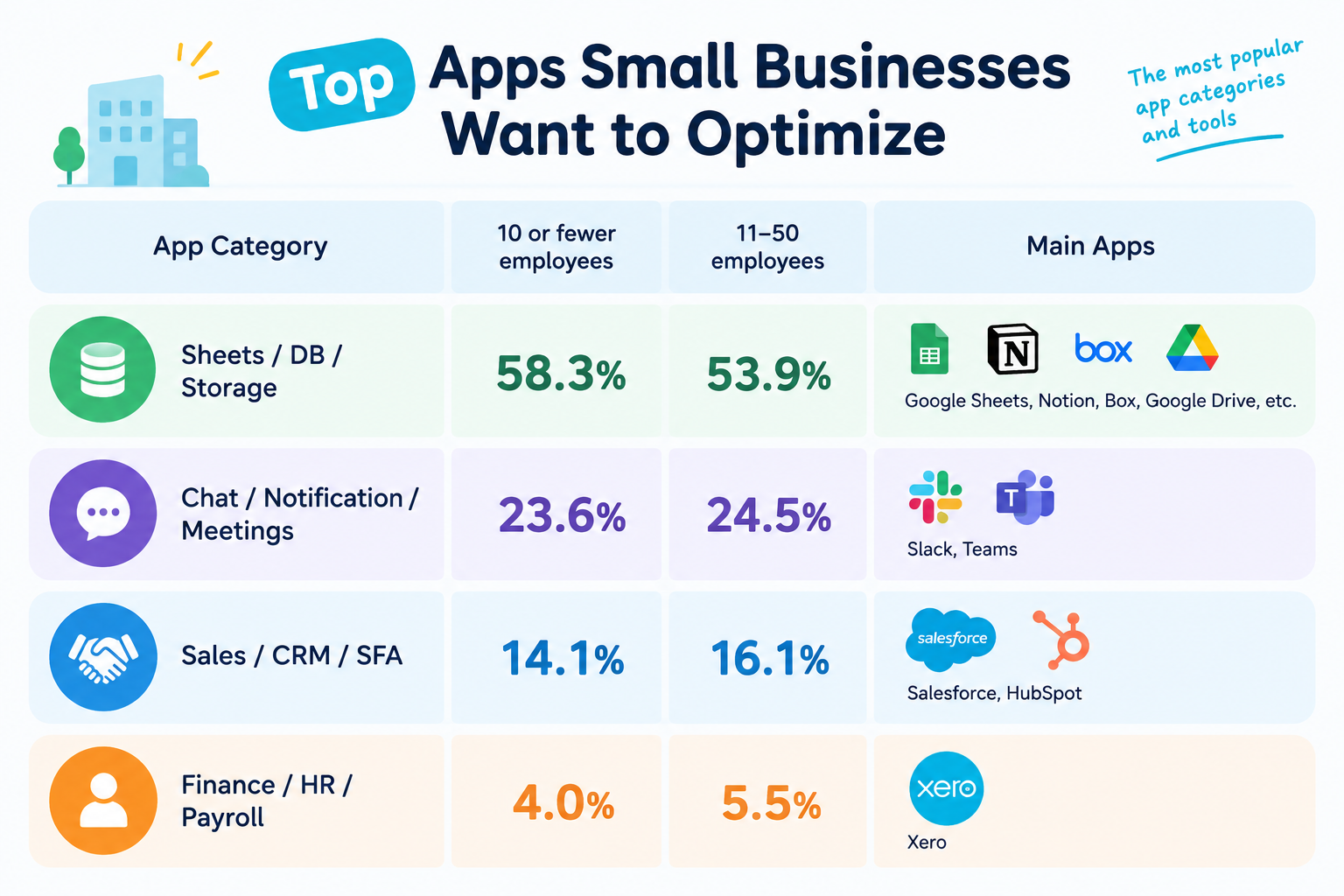
- Spreadsheets, Databases & Cloud Storage (53.9%–58.3%): Google Sheets, Microsoft Excel, Notion, Box, and Google Drive are the main places where small businesses store and manage information.
- Chat, Communication & Notifications (23.6%–24.5%): Tools such as Slack and Microsoft Teams help teams share updates and notifications quickly.
- Sales & CRM Systems (14.1%–16.1%): Salesforce, HubSpot, and Pipedrive can start a workflow when a new lead arrives or when a deal moves to a new stage.
- Accounting, HR & Payroll (4.0%–5.5%): QuickBooks, Xero, and Gusto can help automate tasks such as invoicing and employee onboarding as a business grows.
Related Workflow Templates:


■Overview
Do you manually copy and paste the contents of CSV files stored in Box into Microsoft Excel each time? These routine data entry tasks are time-consuming and can also lead to human errors such as transcription mistakes. With this workflow, simply uploading a CSV file to a specific Box folder automatically extracts the data from the file and adds records to Microsoft Excel, streamlining manual data entry.
■Recommended for
- Those who manage data on a daily basis using Box and Microsoft Excel
- Those who want to automate data transfers from CSV files and reduce the time spent on related tasks
- Those who want to eliminate manual input errors and improve data accuracy
■Benefits of using this template
- Data is automatically added to Microsoft Excel simply by uploading a file to Box, reducing the time previously spent on manual work.
- Because the system processes the data automatically, it helps prevent human errors such as manual transcription mistakes and missed entries.
■Workflow
- First, connect Box and Microsoft Excel with Yoom.
- Next, select Box as the trigger and set the action to “When a file is uploaded to a folder.”
- Set Box’s “Download a file” action as an operation to retrieve the uploaded CSV file.
- Then, set the AI feature’s “Process CSV” action to extract the required data from the downloaded CSV file.
- Finally, set Microsoft Excel’s “Add a record” action as an operation to add the extracted data to the specified Excel file.
※“Trigger”: An action that starts the workflow. “Operation”: An action that processes data within the workflow after the trigger starts.
■Customization options
- In the Box trigger settings, specify the folder that should trigger the workflow when a file is uploaded.
- In the AI feature’s “Process CSV” operation, customize the processing as needed, such as which columns of data to extract from the file.
- In the Microsoft Excel operation, specify which Excel file and columns should receive the data, and configure the fields to include values obtained from the previous operation.
■Notes
- Connect both Box and Microsoft Excel with Yoom.
- Microsoft 365 (formerly Office 365) offers home and business plans (Microsoft 365 Business). If you are not subscribed to a business plan, authentication may fail.


■Overview
This is a flow that adds the contents of a file to a Google Sheets database by reading it with OCR when a file is uploaded to Dropbox.
With Yoom, you can easily achieve this flow without any programming, as it allows for seamless integration between apps.
■Recommended for
1. Those who want to manage documents uploaded to Dropbox on Google Sheets
・Those who want to improve work efficiency by automatically reading the contents of uploaded documents with OCR and adding them to a Google Sheets database
2. Those who are working to improve work efficiency by integrating Dropbox and Google Sheets
・Those who want to reduce the hassle of data entry and minimize human errors to enhance work efficiency
■Benefits of using this template
While Dropbox is a tool that enhances accessibility to information by managing files used in business, manually adding file information added to Dropbox to a Google Sheets database is time-consuming and poses a risk of human error (such as omissions).
By eliminating the need for manual additions, you can reduce transcription and input errors, thereby improving work efficiency. The flow of [adding file contents to a Google Sheets database by reading them with OCR when a file is uploaded to Dropbox] is optimal.
■Notes
・Please integrate both Dropbox and Google Sheets with Yoom.
・You can select the trigger interval from 5, 10, 15, 30, or 60 minutes.
・Please note that the shortest trigger interval varies depending on the plan.
・Please be aware that OCR data may not be readable if it exceeds 6,500 characters or if the text is too small.


- Sales professionals who use HubSpot and want to streamline lead management for outbound sales
- Those who want to automate the manual process of prioritizing leads with the power of an AI agent
- Managers who want to boost their sales team's productivity and focus on more strategic activities
- AI automatically determines lead priority whenever a contact is added to HubSpot, reducing the time spent gathering and analyzing information for outbound sales.
- Prevent human errors such as inconsistent judgment criteria across team members and overlooking important leads, while supporting sales activities based on objective data.
- First, connect HubSpot, Google Search, and Slack to Yoom.
- Next, select HubSpot as the trigger and set the action to “When a new contact is created.”
- Finally, configure an AI Worker as an operation, then create a manual (instructions) for collecting company information using Google Search, determining the priority for outbound sales, and sending the results to Slack.
■Customization Options
- You can customize the instructions given to the AI Worker to match your company's sales strategy. Set your own criteria for determining priority and the information sources to reference.
- You can also specify the search engine used by Google Search and the Slack notification destination.
- Connect HubSpot, Google Search, and Slack to Yoom individually. You also need to connect any tools (apps) used within the AI Worker to My Apps.
- You can choose a trigger interval of 5, 10, 15, 30, or 60 minutes.
- Please note that the shortest available trigger interval varies by plan.
- For basic AI Worker setup instructions, see “[AI Worker] Basic Setup Guide.”
- The number of AI Workers that can run simultaneously, the number of AI Workers you can create, and the AI models available to you vary by plan.
- Apps and operations available within AI Workers are subject to the same usage limits as Flowbots.
- Please note that AI Workers consume tasks during test runs just as they do during production runs. For details, see “[AI Worker] How Task Usage Is Calculated.”
- AI Workers are more likely to perform the appropriate processes when their manuals are configured in detail. For details, see “[AI Worker] How to Create a Manual.”
2. Small Businesses Do Not Need Dozens of Connected Apps
The most workflows in the data connect an average of 2.2 apps for micro-teams (1–10 employees) and 2.4 apps for growing SMBs (10–50 employees).
In other words, a useful workflow can be very simple.
For example:
- A new customer is added to a spreadsheet.
- The customer's information is added to a CRM.
- The sales team receives a notification in Slack or Microsoft Teams.
This kind of simple connection can remove several manual steps without requiring a complicated system.
3. Top 8 Workflow Software Use Cases for Small Businesses
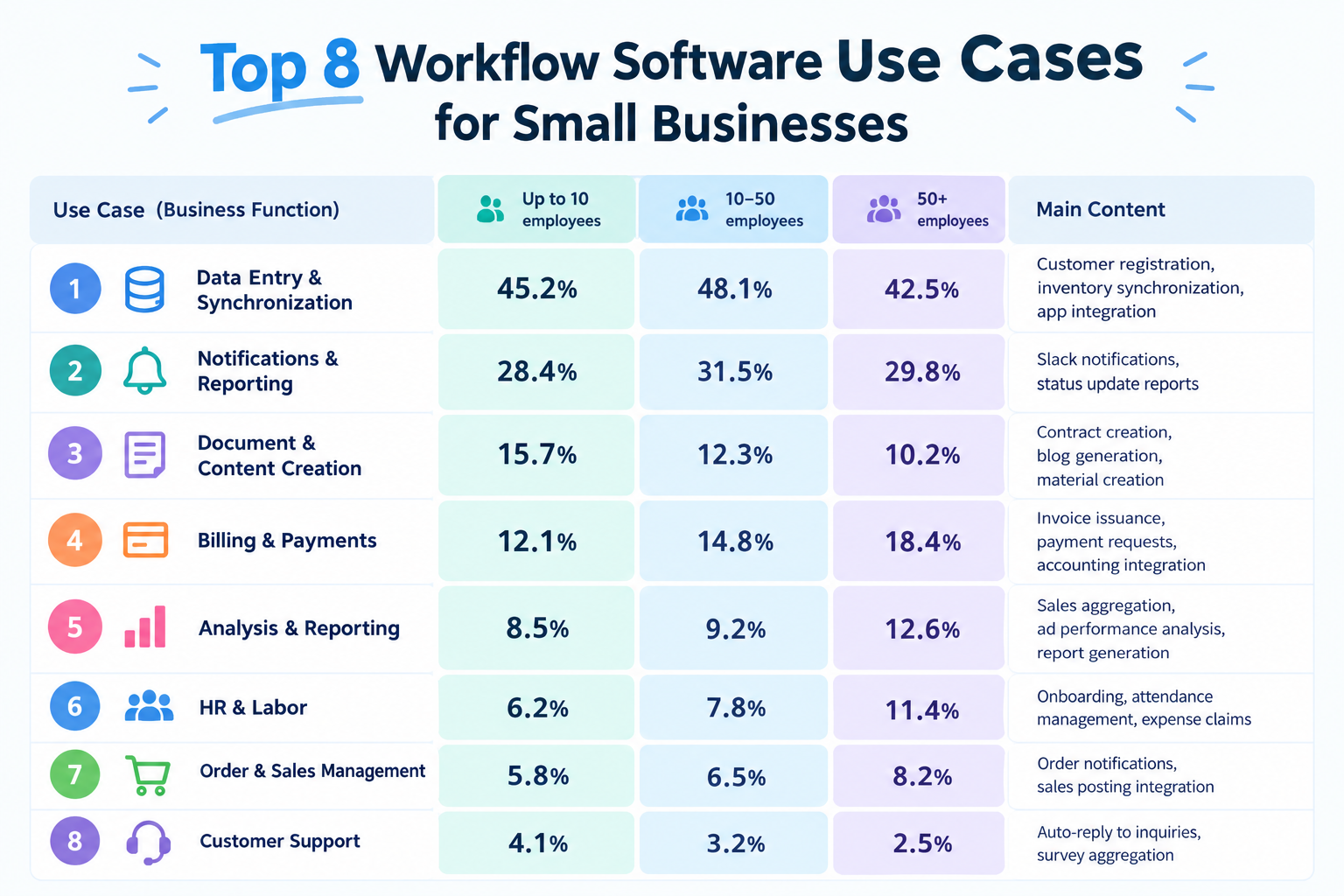
Based on our data, small businesses use workflow software for a variety of tasks, from keeping data in sync across apps to managing invoices and responding to customers.
Here are the eight most common use cases across businesses of different sizes:
- Data Sync & Registration (42.5%–48.1%): Automatically adding customer information, syncing inventory data, and sharing information between apps. This is the most common use case across all business sizes.
- Notifications & Reporting (28.4%–31.5%): Sending notifications through tools like Slack and automatically reporting status updates so teams can stay informed.
- Document & Content Creation (10.2%–15.7%): Creating documents such as contracts, generating blog posts, and preparing business materials.
- Invoicing & Payments (12.1%–18.4%): Automating tasks such as issuing invoices, submitting payment requests, and connecting accounting processes. This use case becomes more common as businesses grow.
- Data Analysis & Reporting (8.5%–12.6%): Summarizing sales data, analyzing advertising performance, and generating reports automatically.
- HR & Employee Management (6.2%–11.4%): Automating onboarding procedures, tracking working hours, and handling expense claims.
- Order & Sales Management (5.8%–8.2%): Sending order notifications and transferring sales data to other business systems.
- Customer Support (2.5%–4.1%): Automatically replying to customer inquiries and collecting survey responses.
These use cases also change as businesses grow. Smaller teams focus more on connecting data and creating content, while larger businesses make greater use of automation for invoicing, data analysis, and HR tasks.
Related Workflow Templates:

- Anyone who manually creates Stripe billing reports and wants to automate the process
- Anyone who wants to prevent human errors such as copy-and-paste mistakes and data entry errors during daily data aggregation
- Anyone who wants to connect Stripe with Microsoft Excel to streamline subscription revenue management
- Stripe billing data is automatically transferred to Microsoft Excel at a set time every day, reducing the time spent creating reports manually.
- Because the system processes data automatically, it helps prevent human errors such as missing entries and input mistakes that commonly occur when copying and pasting data manually.
- First, connect Stripe and Microsoft Excel to Yoom.
- Next, select Schedule Trigger as the trigger and set the flow to run at a specific time every day.
- Then, use the data transformation feature in an operation to convert the date into the required format for specifying the period from which to retrieve data in Stripe.
- Next, configure Stripe's "Retrieve a list of billing meter event summaries" action in an operation.
- Finally, configure Microsoft Excel's "Add a record" action in an operation to add the data retrieved from Stripe as a row in the specified file.
■Customization Options
- With the schedule trigger, you can set any time you want to generate the report, such as 9:00 AM every day.
- In the data transformation operation, you can use date variables to convert a date and time—such as the previous day's date—into the format required by Stripe.
- In Stripe, you can specify a meter ID, customer ID, retrieval period, and other parameters to extract only the information you need.
- When adding records to Microsoft Excel, you can choose the destination database and specify the data to add.
- Connect both Stripe and Microsoft Excel to Yoom.
- Stripe is available only on the Team and Success plans. If you are on the Free or Mini plan, the configured Flowbot operations and Data Connect settings will result in errors.
- Paid plans, such as the Team and Success plans, include a two-week free trial. During the free trial, you can use apps that are otherwise subject to plan restrictions.
- Microsoft 365 (formerly Office 365) offers plans for home use and business plans (Microsoft 365 Business). Authentication may fail if you are not subscribed to a business plan.
- Accounting professionals who manage Stripe invoice information in Microsoft Excel
- Those who manually create invoice lists and struggle with input errors or missed updates
- Those who want to automate recurring data aggregation and entry tasks to improve operational efficiency
- Because information is automatically added from Stripe to Microsoft Excel on a regular basis, you can reduce the time spent manually entering invoice details and creating lists.
- Reducing manual data copy-and-paste helps prevent human errors such as entry mistakes and missed postings, keeping your data accurate.
- First, connect Stripe and Microsoft Excel to Yoom.
- Next, select Schedule trigger as the trigger and set the date and time when you want the flow to run.
- Then, select Stripe as the operation and specify the invoice information you want to retrieve using the “Search invoices” action.
- Next, use the repeat feature to process each of the multiple invoices retrieved through the search.
- Finally, select a Microsoft Excel operation within the repeat (loop) process and add the retrieved invoice information as a row to the specified file using the “Add records” action.
- For the schedule trigger, set the frequency and time of day for retrieving information, such as daily, weekly, or monthly, according to your needs.
- With Stripe’s “Search invoices” action, you can set conditions such as customer ID, status (paid, unpaid, etc.), and creation date to narrow down the invoices you want to retrieve.
- With Microsoft Excel’s “Add records” action, specify the file or sheet where you want to add the information. You can freely customize the data to be entered using loop variables containing the retrieved information or fixed values.
- Be sure to connect both Stripe and Microsoft Excel to Yoom.
- Stripe is available only on the Team and Success plans. On the Free and Mini plans, operations and data connections in configured Flowbots that use Stripe will result in errors.
- Paid plans, such as the Team and Success plans, offer a two-week free trial. During the free trial, you can use apps subject to plan restrictions. ・Microsoft365 (formerly Office365) offers plans for home users and businesses (Microsoft365 Business). Authentication may fail if you are not subscribed to a business plan.
- For details on configuring operations that work with Microsoft Excel databases, see [Excel] Configuring operations for working with databases.
- The “Repeat the same process” operation is available only on the Team and Success plans. On the Free and Mini plans, operations and data connections in configured Flowbots that use this feature will result in errors.
- Paid plans, such as the Team and Success plans, offer a two-week free trial. During the free trial, you can use apps and features (operations) subject to plan restrictions.

◼️Overview
This is a flow where, upon receiving an email with an attached invoice, the invoice is read using AI-OCR, the content is checked by a responsible person, and then a notification is sent to Slack.
By including a check by the responsible person midway, it allows for more accurate integration of invoice information.
The items read by OCR, the Slack notification channel, and the notification content can be freely changed.
◼️Notes
※ If you want to forward to the receiving address, please refer to this.
https://intercom.help/yoom/en/articles/7266653
・AI operations are features available only in the Team Plan and Success Plan. In the case of the Free Plan or Mini Plan, the operation of the flow bot set will result in an error, so please be careful.
・Paid plans such as the Team Plan and Success Plan offer a 2-week free trial. During the free trial, you can use restricted apps and AI features (operations).
4. How Fast Can an Automated Workflow Run?
When a workflow starts—for example, when a potential customer submits a web form or a deal is closed in a CRM—the system can automatically collect information, process it with AI, update a spreadsheet, and notify the team.
In the data analyzed, these workflows took a median of 18 to 19 seconds to complete.
For small businesses, the benefit is not only speed.
Automating these steps also means employees do not have to remember each task or move the same information between multiple tools themselves.
How Small Businesses Use AI in Workflows
AI is not only used as a chat assistant.
Small businesses are also adding AI to their everyday workflows. This allows AI to handle specific tasks as information moves from one tool to another.
For example, AI can read information from a document, create a draft email, summarize text, or help decide what should happen next.
Here is how AI is used in the workflows analyzed: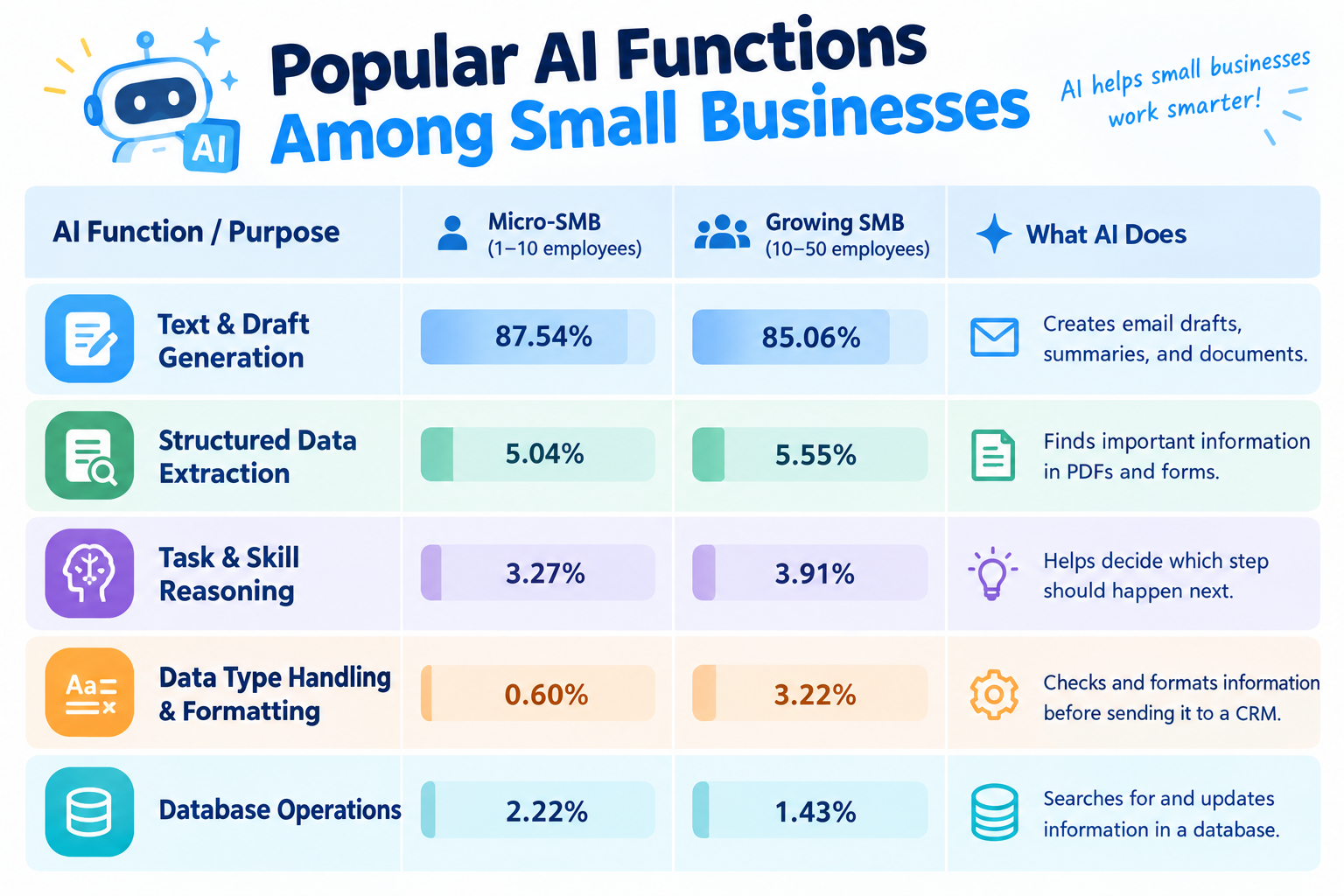
- Share: Micro-SMB (1–10): 87.54% | Growing SMB (10–50): 85.06%
- Role: Creates email drafts, summaries, and documents
Structured Data Extraction
- Share: Micro-SMB (1–10): 5.04% | Growing SMB (10–50): 5.55%
- Role: Finds important information in PDFs and forms
Task & Skill Reasoning
- Share: Micro-SMB (1–10): 3.27% | Growing SMB (10–50): 3.91%
- Role: Helps decide which step should happen next
Data Type Handling & Formatting
- Share: Micro-SMB (1–10): 0.60% | Growing SMB (10–50): 3.22%
- Role: Checks and formats information before sending it to a CRM
Database Operations
- Share: Micro-SMB (1–10): 2.22% | Growing SMB (10–50): 1.43%
- Role: Searches for and updates information in a database
Growing businesses with 10–50 employees show a greater use of AI for deciding what to do next and preparing information for other business tools.
This means AI can become part of the workflow itself, rather than being a separate tool that employees have to open and use manually.
Small Business Workflow Software vs. Standalone Apps
Using separate apps for different tasks can work well at first.
However, as a business grows, employees may have to move information between those apps manually.
This is where workflow management software can help.
Instead of treating each app as a separate system, workflow software connects them so information can move automatically.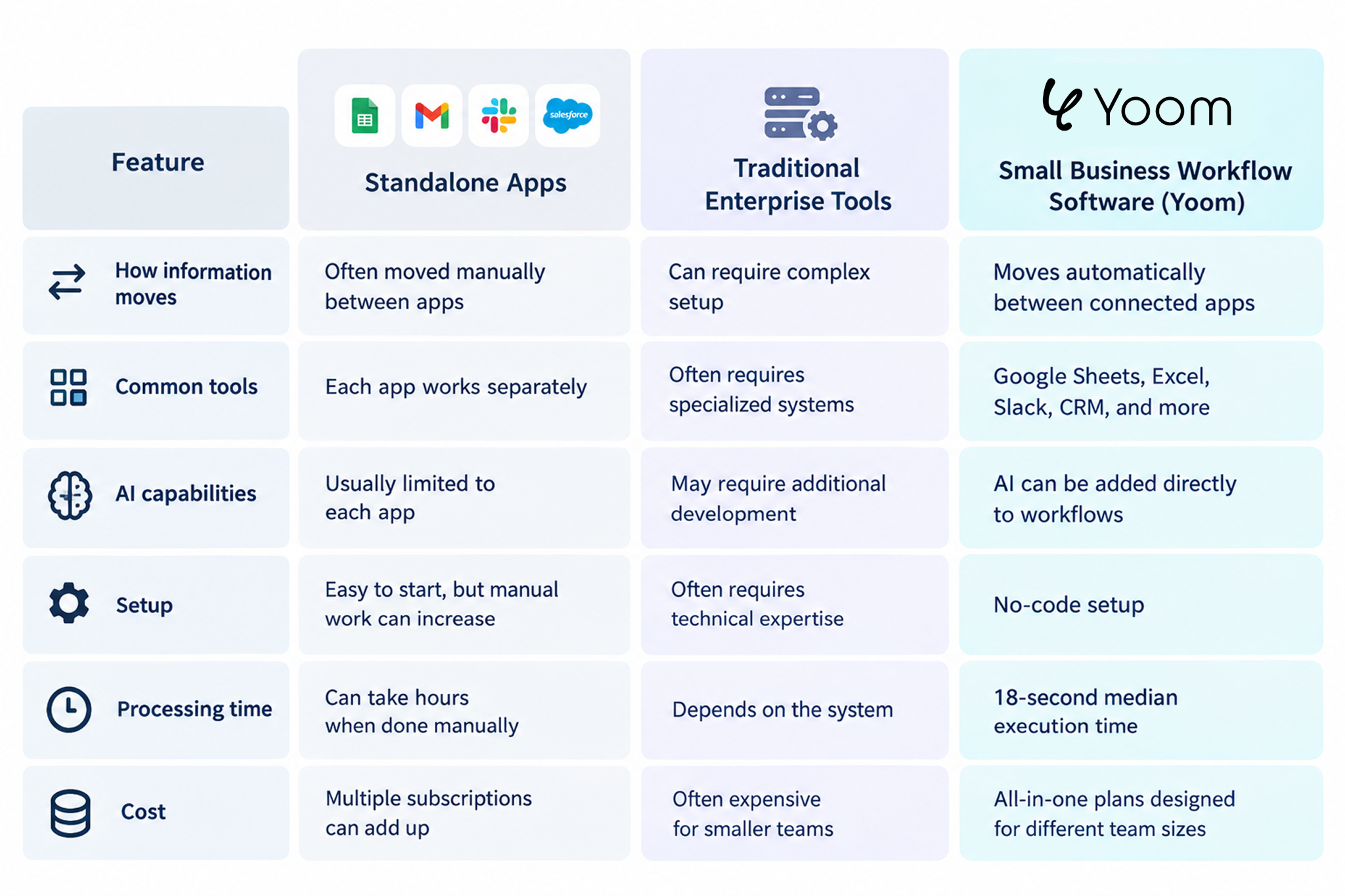
1. How Information Moves
- Standalone Apps: Employees often move information between apps manually.
- Traditional Enterprise Tools: Connecting systems can require complex setup.
- Workflow Software: Automatically moves information between connected apps.
2. Supported Tools
- Standalone Apps: Each app works separately.
- Traditional Enterprise Tools: May require specialized systems.
- Workflow Software: Connects everyday business tools, including spreadsheets, chat apps, and CRM systems.
3. AI Capabilities
- Standalone Apps: AI features are usually limited to each app.
- Traditional Enterprise Tools: Adding AI may require additional development.
- Workflow Software: Lets users add AI to workflows to process information and handle routine tasks.
4. Setup
- Standalone Apps: Easy to start using, but manual work can increase as the business grows.
- Traditional Enterprise Tools: Often require technical expertise to set up.
- Workflow Software: No-code options let users build workflows without writing code.
5. Processing Time
- Standalone Apps: Manual tasks can take hours to complete.
- Traditional Enterprise Tools: Processing time depends on the system and workflow.
- Workflow Software: Can complete routine tasks in seconds, depending on the workflow and the tools involved.
6. Cost
- Standalone Apps: Subscription costs can add up when using multiple tools.
- Traditional Enterprise Tools: Can be expensive for smaller teams.
- Workflow Software: Offers options for businesses of different sizes, potentially reducing the need for manual work and multiple disconnected solutions.
For a small business, the goal is not necessarily to replace every tool.
Instead, automation software for small business can connect existing tools and reduce the manual work between them.
Top Small Business Workflow Software Platforms in 2027
If you are looking for the best workflow software for small business, the right choice depends on what your team needs.
Some platforms focus on connecting as many apps as possible. Others offer more flexibility for building complex workflows.
Here are three popular options to consider.
1. Yoom — Best for No-Code SMB Workflows and AI
Yoom is a workflow automation platform that helps small businesses connect spreadsheets, CRMs, cloud storage, and AI without requiring technical expertise.
- How it handles workflow automation: Connects everyday business apps such as Google Sheets, Microsoft Excel, Salesforce, and Slack with AI steps that can clean data, create documents, and route approvals.
- Key Advantages: No-code setup, database connections, AI-powered data extraction, and pricing designed for smaller teams.
- Best For: Small business owners, Operations Managers, and RevOps teams that want to automate work without building everything from scratch.
- Pricing: Free Plan is available. Paid plans start at $16/month
2. Zapier — Best for Connecting Many Different Apps
Zapier is one of the best-known workflow automation platforms. It offers connections to thousands of web applications.
- How it handles workflow automation: Moves information from one app to another when a specific event happens.
- Key Advantages: A very large selection of app connections.
- Best For: Teams that need to connect less common SaaS tools.
- Pricing: Free tier available; paid plans start at $19.99/month.
3. Make — Best for Visual, Multi-Step Workflows
Make is a workflow automation platform that lets users visually build workflows with multiple steps.
- How it handles workflow automation: Users can visually connect different steps and decide how information should move through a workflow.
- Key Advantages: Flexible workflow design and support for more advanced use cases.
- Best For: Users who need more control over how complex workflows work.
- Pricing: Free plan available; Paid plans start at $ 9/month
Workflow Software Saves Time, Reduces Errors and Stress—but Setup Can Be a Hassle
Workflow software can save time, reduce errors, and take the stress out of repetitive tasks.
Instead of spending your energy copying data, updating records, and sending routine notifications, you can focus on the work that really matters: serving customers, improving your business, and making better decisions.
But there is one challenge: setting up workflows can feel like a hassle in itself.
You need to decide what to automate, connect the right apps, and figure out how each step should work. If the setup feels too complicated, it is easy to give up before seeing the benefits.
The key is to make getting started as easy as possible. Here are three tips to help you get started with small business workflow software without getting overwhelmed.
1. Start with an Existing Template
You do not have to build every workflow from scratch.
Many workflow software platforms offer ready-made templates for common business tasks. Try searching for the apps you use, such as Google Sheets or Slack, or the task you want to automate, such as lead management or invoice processing.
You may find a workflow that already does most of what you need. You can then adjust it to fit your business.
See Yoom Templates: https://lp.yoom.fun/en/fb-template/all-templates
2. Let AI Help You Build Your Workflow
Not sure how to put a workflow together? AI can help.
Describe the task you want to automate in plain language, and AI can help you turn your idea into a workflow. You do not need to know every step in advance.
Even if you are not sure where to start, you can use AI as a brainstorming partner. Explain what you do manually today, what you want to improve, and what result you want. AI can help you think through the steps and find a practical way to automate them.
See Yoom AI Worker Templates: https://lp.yoom.fun/en/ai-worker-templates/all-templates
3. Start with a Small Workflow
It can be tempting to automate an entire business process at once. But building a workflow with ten or more actions from the beginning can make setup harder than it needs to be.
Instead, start with just two or three steps.
For example, you could begin by automatically saving new form submissions to a spreadsheet and notifying your team. Once you see how much manual work this simple workflow removes, you will have a clearer idea of what to automate next.
Starting small makes it easier to set up, test, and improve your workflow. More importantly, you can experience the benefits of automation before investing too much time in building it.
Start Small, and Give Your Energy Back to What Matters
The goal of small business workflow software is not to automate everything at once. It is to reduce the repetitive work that gets in the way of your team's real priorities.
Start with one task, use a template or AI to make setup easier, and build on your first success.
By taking small steps, you can spend less time on manual work and more time on the work that moves your business forward.