・
Best Sales Automation Tools in 2027: Real-World Use Cases

Sales reps often spend more time on administrative tasks than on selling. Copying contact details, updating customer records, and checking contract statuses can take hours away from talking to potential customers and building relationships.
These tasks include:
- Copying new leads from website forms into Salesforce or HubSpot.
- Researching companies and checking whether potential customers meet marketing-qualified lead (MQL) criteria.
- Creating quotes, checking DocuSign signature statuses, and asking team members to approve deals in Slack.
Sales automation software helps teams reduce this manual work by connecting the apps they already use. Instead of entering the same information into multiple systems, teams can set up workflows that move data, update records, and notify the right people automatically.
Traditional sales automation tools often focus on specific tasks, such as sending cold emails or managing sales calls. In 2026, businesses can also connect their CRM, communication tools, spreadsheets, and document software to automate the entire sales process.
This guide compares the best sales automation tools in 2027, explains how businesses use them, and shows how AI can help sales teams research leads and decide which prospects to contact first.
Inside the Data: How Businesses Use Sales Automation
We analyzed execution logs from active workflows on Yoom to understand how businesses automate sales tasks.
The findings show how teams manage new leads, update customer records, connect different apps, and use AI to reduce manual research.
1. Respond to New Leads in a Median of 18 Seconds
When someone requests a demo or submits a contact form, a quick response can make a difference. Research published in Harvard Business Review found that companies that contacted online leads within an hour were nearly seven times as likely to qualify them as companies that waited longer.
However, sales reps may need to check their inbox, copy the lead's details into a CRM, research the company, and notify the right team member before reaching out.
Our workflow execution data shows that automated sales workflows can process a new lead in a median of 18 seconds. These workflows can check for duplicate records, save lead information in a CRM, summarize company information with AI, and notify the sales rep.
Traditional manual process
A new inquiry arrives → A rep checks their inbox → The rep enters the details into the CRM → The rep contacts the lead later.
Automated sales process
A new inquiry arrives → The workflow checks for duplicates and updates the CRM → AI summarizes company information → The sales rep receives a notification.
With sales workflow automation, teams can reduce the time spent handling new inquiries and give sales reps more time to focus on potential customers.
2. What Starts a Sales Automation Workflow?
Sales automation workflows can start when a new lead arrives, a deal changes, or a scheduled check identifies something that needs attention.
Our workflow data shows four common triggers: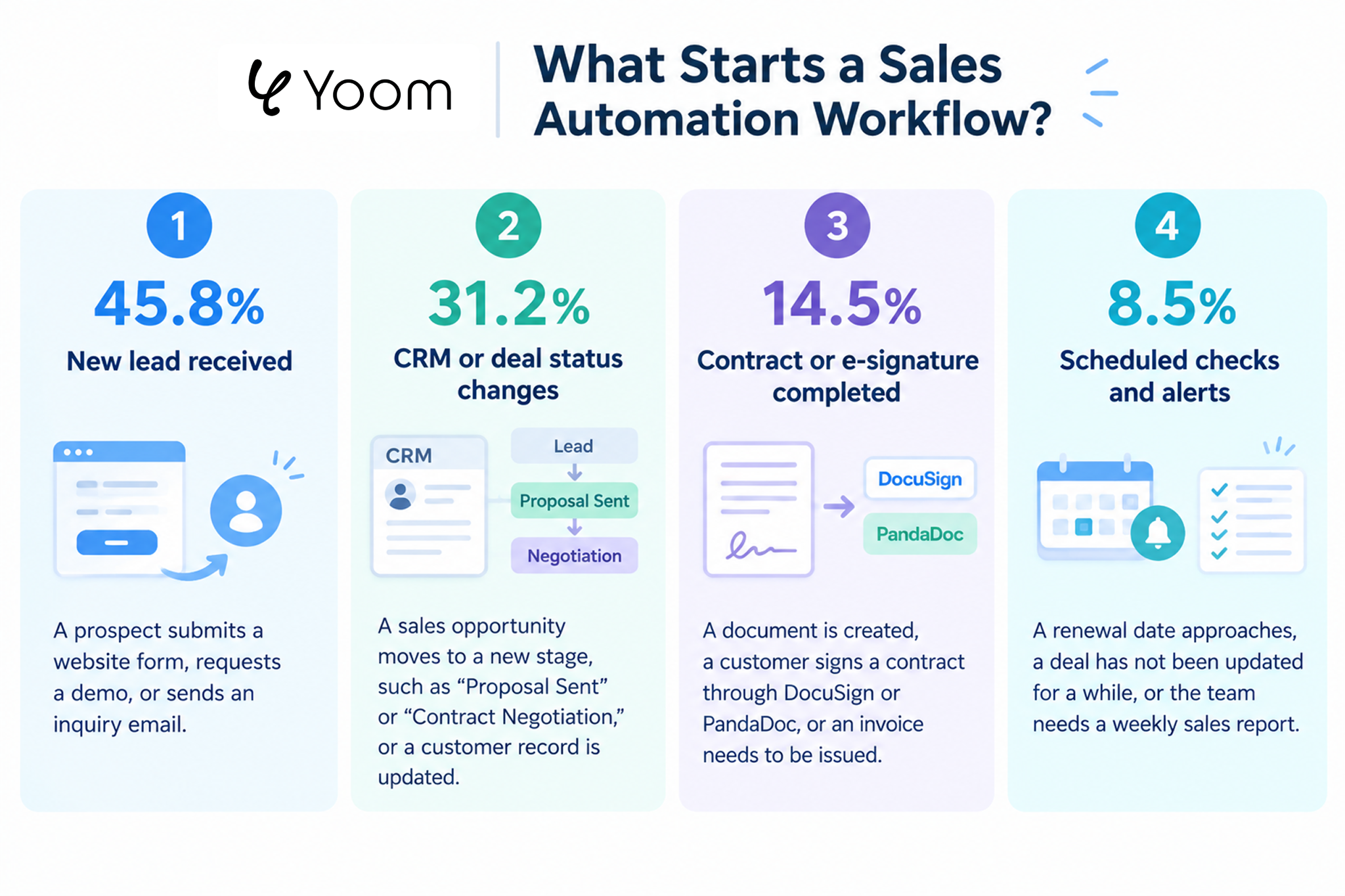
- New lead received (45.8%): A prospect submits a website form, requests a demo, or sends an inquiry email.
- CRM or deal status changes (31.2%): A deal moves to a new stage, such as "Proposal Sent" or "Contract Negotiation."
- Contract or e-signature completed (14.5%): A customer signs a contract through DocuSign or PandaDoc.
- Scheduled checks and alerts (8.5%): A renewal date approaches, a deal has not been updated for a while, or a weekly sales report is due.
These triggers tell a workflow when to start. The workflow can then update records, notify team members, or create documents automatically.
Related Sales Automation Templates:

◼️Overview
When a new lead is registered in Salesforce, a notification will be sent to a specified Slack channel.
You can automatically expand lead information without accessing the chat tool.
Additionally, you can specify any Slack channel for notifications.
◼️Setup Instructions
① Select Salesforce from the app trigger, perform the following settings, and then test and save.
・Action: Select when a new lead is registered in the lead object.
・Trigger Interval: Set to 5 minutes.
・My Domain URL: Enter the specified My Domain URL.
② Press the + mark, select Slack from the operations to integrate with the app, and after the following settings, test and save.
・Action: Select send a message to the channel.
・Channel ID for posting: Select the specified channel ID from the options.
・Message Content: Enter any string, including the output obtained in ①.
・For details on dynamically embedding output, please refer to here.
◼️Notes
・It is necessary to set up account information for integration in each app's operation.
※ For integration (My App Registration), please refer to here.
・Please replace the Slack channel ID for posting and Salesforce setting information with any desired values.
・Salesforce is an app available only with the Team Plan and Success Plan. If you are on the Free Plan or Mini Plan, the operations and data connect of the flow bot you set will result in an error, so please be careful.
・Paid plans such as Team Plan and Success Plan offer a 2-week free trial. During the free trial, you can use apps that are subject to restrictions.


■Overview
The workflow "Update Hubspot contact information when an event is created in Google Calendar" streamlines information management.
As contact information is automatically updated simultaneously with event creation, it is easier to maintain up-to-date information.
■Recommended for
- Those who manage schedules with Google Calendar
- Those who want to quickly update Hubspot contact information
- Those who do not want to spend time on sales activities or customer management
- Those who want to integrate multiple tools to efficiently proceed with their work
- Those who want to avoid duplication of tasks and create an environment where information can be updated quickly
■Benefits of using this template
By linking Google Calendar with Hubspot, there is the advantage of rapid reflection of information updates.
This makes it easier to maintain up-to-date information, which is useful for decision-making.
Smooth customer management improves business efficiency, which in turn enhances customer satisfaction.
Additionally, as events are automatically updated, manual tasks are reduced, and the risk of input errors is also minimized.
As a result, more accurate information management is achieved, improving the precision of operations.
3. What Happens After a Sales Workflow Starts?
Sales teams use automation to reduce repetitive work across several areas. Our data shows the following breakdown of workflow actions: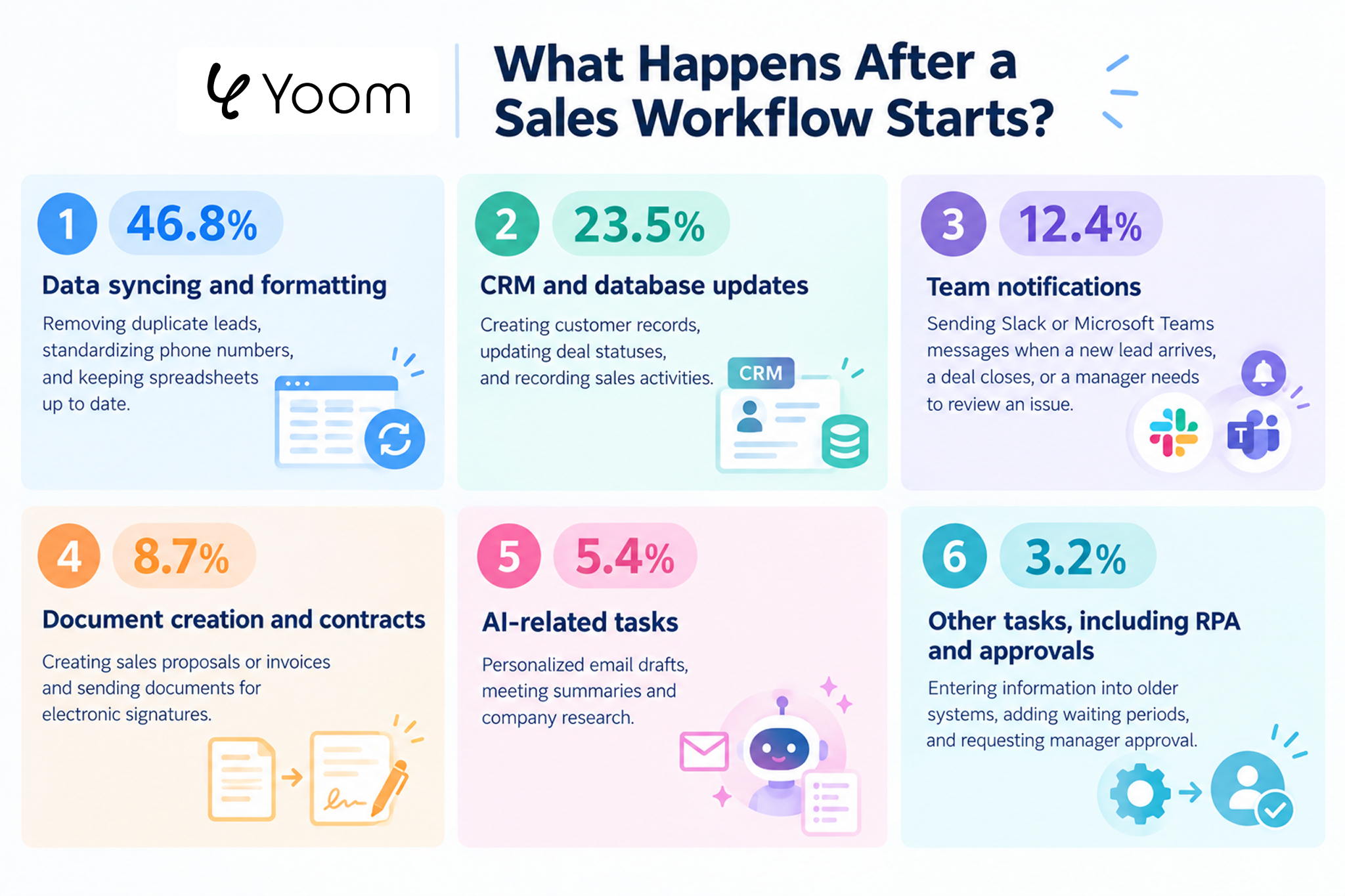
- Data syncing and formatting (46.8%): Removing duplicate leads, standardizing phone numbers, and keeping spreadsheets up to date.
- CRM and database updates (23.5%): Creating customer records, updating deal statuses, and recording sales activities.
- Team notifications (12.4%): Sending Slack or Microsoft Teams messages when a new lead arrives, a deal closes, or a manager needs to review an issue.
- Document creation and contracts (8.7%): Creating sales proposals or invoices and sending documents for electronic signatures.
- AI-related tasks(5.4%) : Personalized email drafts, meeting summaries and company research.
- Other tasks, including RPA and approvals (3.2%): Entering information into older systems, adding waiting periods, and requesting manager approval.
The main takeaway is that sales automation software does more than send messages. It can also keep customer information organized, update business records, and move deals forward.Related Sales Automation Templates:
■Overview
The flow "Create a contact in Hubspot when an email meeting specific criteria is received in Gmail" is a business workflow that integrates email management with customer management.
It automatically detects emails that match the criteria set in Gmail and registers the sender as a contact in Hubspot.
This reduces manual data entry and enables efficient customer management.
■Recommended for
- Marketing professionals who use Gmail daily and want to manage emails efficiently
- Sales team leaders who wish to streamline customer management in Hubspot
- Business owners who spend time on manual contact registration
- Those who want to automatically update and organize Gmail email content to improve business efficiency
■Benefits of using this template
When an email meeting specific criteria is received in Gmail, a contact is automatically created in Hubspot, eliminating the need for manual data entry.
By using specific email criteria as a trigger to register Gmail's received content as a contact in HubSpot, you maintain consistency and accuracy in customer information.
Automation prevents human error in data entry and improves information accuracy.


■Who should use this template
- Sales managers who want to use customer activity data accumulated in Salesforce to automatically prioritize leads
- Inside sales representatives who want to quickly identify leads with high purchase intent and connect them with smooth outreach to improve close rates
- Teams that want to notify their sales team only about hot leads, prevent information overload in Slack, and build a more efficient sales process
■Benefits of using this template
- AI automatically scores leads based on their Salesforce activity history, enabling you to identify hot leads using objective criteria and optimize the priority of your sales outreach.
- Slack notifications are sent only when a lead reaches a high score, so you can focus on opportunities that require immediate attention without being overwhelmed by low-priority notifications.
■Flow bot steps
- First, connect Salesforce and Slack to Yoom.
- Next, select Salesforce as the trigger and set the action to “When a record is added to the Activity object.”
- Finally, create instructions for the AI worker to detect the Salesforce Activity object, update the lead engagement score, and notify Slack only when the score is high.
■Customization options
- Adjust the instructions given to the AI worker to freely define scoring criteria that match your business model, such as adding points for specific actions.
- Customize the notification conditions, such as the score threshold for Slack notifications, to control the notification frequency and lead quality.
- Add Salesforce custom objects and other fields to retrieve to perform more advanced analysis based on a broader range of data.
■Notes
- Connect both Salesforce and Slack to Yoom. You must also connect the tools (apps) used within the AI worker through My Apps.
- Salesforce is available only on the Team and Success plans. Please note that operations and Data Connect configured in flow bots will result in errors on the Free and Mini plans.
- Paid plans, such as the Team and Success plans, include a two-week free trial. During the free trial, you can use apps that are otherwise subject to plan restrictions.
- You can select a trigger interval of 5, 10, 15, 30, or 60 minutes.
- Please note that the shortest available trigger interval varies by plan.
- For basic AI worker setup, see “[AI Worker] How to configure basic settings.”
- The number of concurrent AI worker executions, the number of AI workers you can create, and the AI models available to you vary depending on your plan.
- The apps and operations available within an AI worker are subject to the same usage restrictions as flow bots.
- Please note that AI workers consume tasks during test runs just as they do during production runs. For details, see “[AI Worker] How task execution counts are calculated.”
- AI workers are more likely to perform the appropriate processing when their instructions are configured in detail. For details, see “[AI Worker] How to create instructions.”
4. Why Sales Automation Often Requires Multiple Apps
Sales teams rarely manage the entire sales process in one application. They may collect leads through a website form, track them in a spreadsheet, manage opportunities in a CRM, communicate through Slack, and prepare contracts in DocuSign.
Our data shows that the average sales automation workflow connects 3.8 different tools and operations.
For example:
Website form → Google Sheets or Excel → Salesforce or HubSpot → Slack or Microsoft Teams → DocuSign or PandaDoc
Without automation, a sales rep may need to copy the same information between these apps. Connected sales automation software can transfer information and trigger the next step automatically.
This helps teams spend less time switching between applications and reduces the risk of missing information.
How AI Makes Sales Automation More Useful
Many people think of AI sales automation tools as software that writes sales emails. AI can also help with research, lead qualification, and follow-up tasks.
Consider what happens when a potential customer requests a demo. A sales rep may need to visit the company's website, check its industry and size, and decide whether it matches the business's target customer profile.
AI can handle much of this initial research automatically. It can review available company information, compare it with your qualification criteria, and summarize the results for the sales team.
Based on our workflow execution data, businesses use AI for three main sales tasks.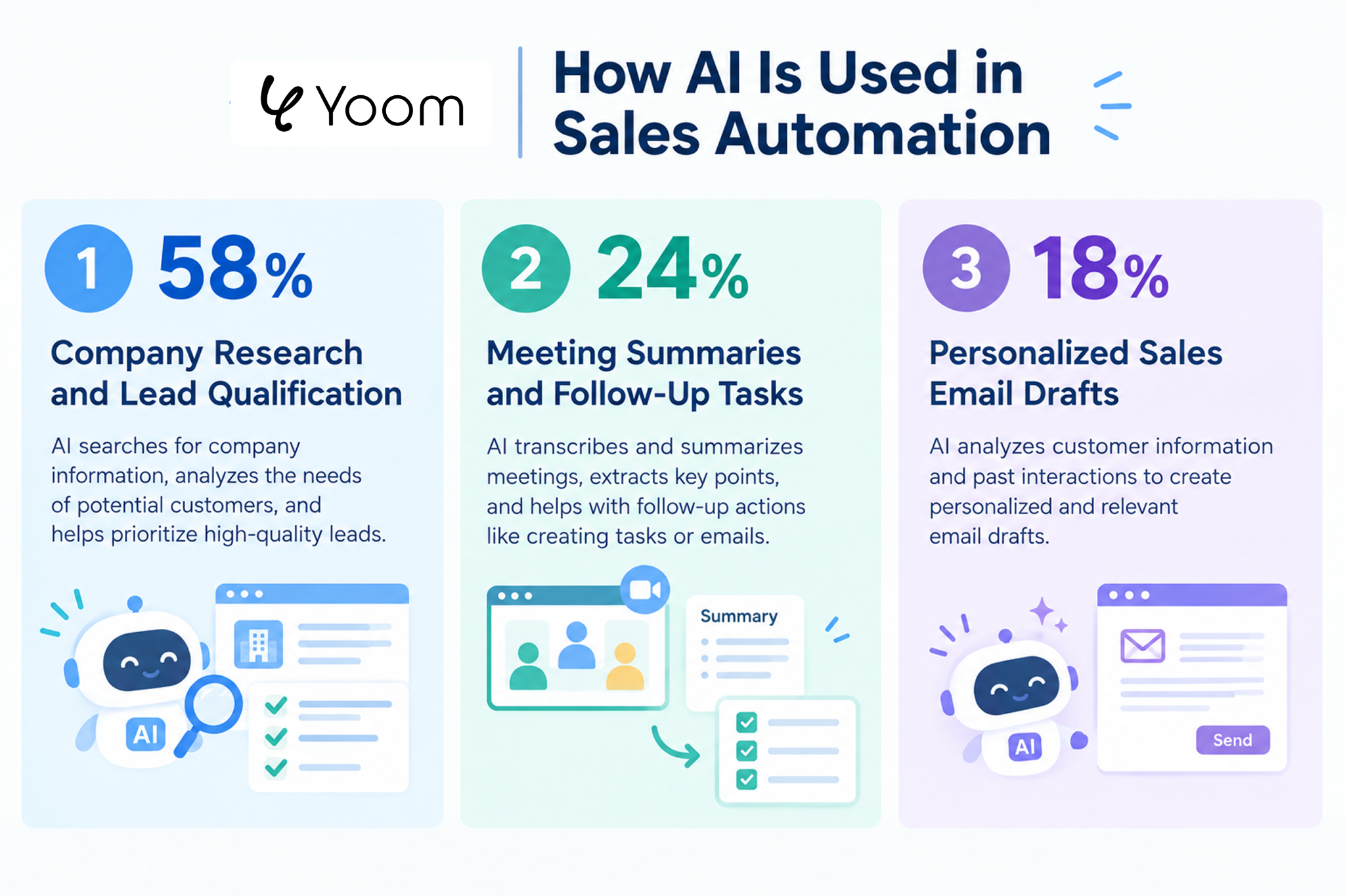
1. Company Research and Lead Qualification (58%)
What it does: AI reviews available information about a potential customer's company, such as its industry, employee count, and recent news. It then checks whether the company matches the team's MQL criteria.
The results can be added to a CRM record and included in a Slack notification so that sales reps can quickly understand who the prospect is and whether they are a good fit.
2. Meeting Summaries and Follow-Up Tasks (24%)
What it does: AI reviews meeting transcripts or notes and identifies important follow-up actions.
For example, if a prospect asks for a security document by Friday, AI can identify that commitment and help create a task in the CRM.
This makes it easier for sales reps to follow up on time without reviewing every meeting note manually.
3. Personalized Sales Email Drafts (18%)
What it does: AI uses information from a demo request or inquiry form to draft a relevant first email.
Instead of starting with a generic template, the rep receives a draft that reflects the prospect's stated needs. The rep can review and edit the message before sending it.
AI can therefore support more than writing. When connected to a sales workflow, it can help teams gather information, make initial assessments, and prepare the next action.Related AI Templates:


This AI worker researches the latest news based on company names and saves personalized outreach emails as Gmail drafts. Reduce the time spent on research and writing, streamline high-quality sales outreach, and focus more on personalized engagement.
This AI worker independently researches the latest news and business activities online based on the company name provided, then creates two tailored outreach email drafts using that information. It also saves the drafts to Gmail, so your team only needs to review and send them—enabling efficient, high-precision sales outreach.
- Sales representatives who are overwhelmed with individual research and email writing after acquiring leads, leaving little time to prepare for meetings
- Sales teams looking to consistently send high-quality personalized emails based on the latest news from target companies
- Anyone using Gmail for a high volume of outreach and looking to automate and streamline the process through draft creation
- Configure basic settings for the AI worker, including its “Name” and “Role.”
- Connect Gmail to Yoom through My Apps as the tool to use, then configure the action to save drafts. You can also switch to another app you regularly use.
- Create and edit “Skills,” which serve as instructions for the AI worker, based on your company’s sales style and operational rules.
- In the “#Classification and Decision Criteria” section of the Skill, set the “Tone & Manner” that matches your target audience. This enables the AI to create emails using the most appropriate language for each company.
- In the “#Your Company Representative Information” section of the Skill, enter the actual sender’s name and department.
- Configuring these settings improves the AI’s decision-making accuracy and helps generate high-quality output that can be used directly in your day-to-day work.
- Connect Gmail with Yoom.
- For basic AI worker settings, see “[AI Worker] Basic Setup Guide.”
- The number of AI workers that can run simultaneously, the number of AI workers you can create, and the AI models available depend on your current plan.
- Apps and operations available within AI workers are subject to the same limitations as Workflow usage.
- Please note that AI workers consume tasks during test runs in the same way as during live runs. For details, see “[AI Worker] How Task Executions Are Calculated.”
- AI workers are more likely to perform appropriate processing when Skills are configured in detail. For details, see “[AI Worker] How to Create a Manual.”
- Please note that retrieving large volumes of data exceeding 20 items or performing loop processing within an AI worker may significantly consume tasks.
This AI worker scores purchase intent based on lead attributes and engagement history, then creates ranked lead lists along with initial outreach talk tracks and proposal content. Ideal for sales teams looking to standardize prioritization and streamline scoring so they can focus on selling.
- What are skills?
- They are instructions that guide the AI worker through each process. For detailed setup instructions, see 【AI Worker】How to Create Skills (Formerly Manuals).
- What are tools?
- These are the tools the AI worker uses to process tasks. Simply tell the AI which tools your organization normally uses, and you can freely change where data is retrieved from and where it is output.
- The number of AI workers that can run simultaneously, the number of AI workers you can create, and the AI models available to you depend on your current plan.
- The apps and operations available within AI workers are subject to the same usage limits as Workflow.
- AI workers consume tasks during test runs just as they do during production runs. For details, see 【AI Worker】How Task Usage Is Calculated.

This AI worker turns meeting audio or transcripts into structured meeting minutes, including key details, discussion flow, decisions, and action items with owners and due dates. It reduces the effort of capturing and organizing meetings with high participation or multiple overlapping topics—ideal for anyone who wants to spend less time writing minutes and more time on core work, or for project owners who need to track every decision and action item.
- Anyone who spends too much time creating and organizing meeting minutes and wants to focus more on their core work
- Project owners who want to capture decisions, assignees, and To-Dos with due dates from audio data or transcriptions without missing anything
- Leaders who want to create meeting minutes that follow their company’s formats and operating rules, making team information sharing smoother
- Skills:
- Instructions that enable the AI worker to perform tasks. For detailed setup instructions, see "[AI Worker] How to create Skills (formerly Manuals)."
- Tools:
- Tools the AI worker uses to perform tasks. Simply tell the AI which tools your company uses regularly to freely customize where data is retrieved from and where it is sent.
- The number of AI workers that can run simultaneously, the number of AI workers you can create, and the available AI models vary depending on your plan.
- The apps and operations available in AI workers are subject to the same usage limits as Flow Bots.
- Please note that test runs consume tasks in the same way as live runs. For details, see "[AI Worker] How task executions are calculated."
Best Sales Automation Tools in 2027: A Comparison
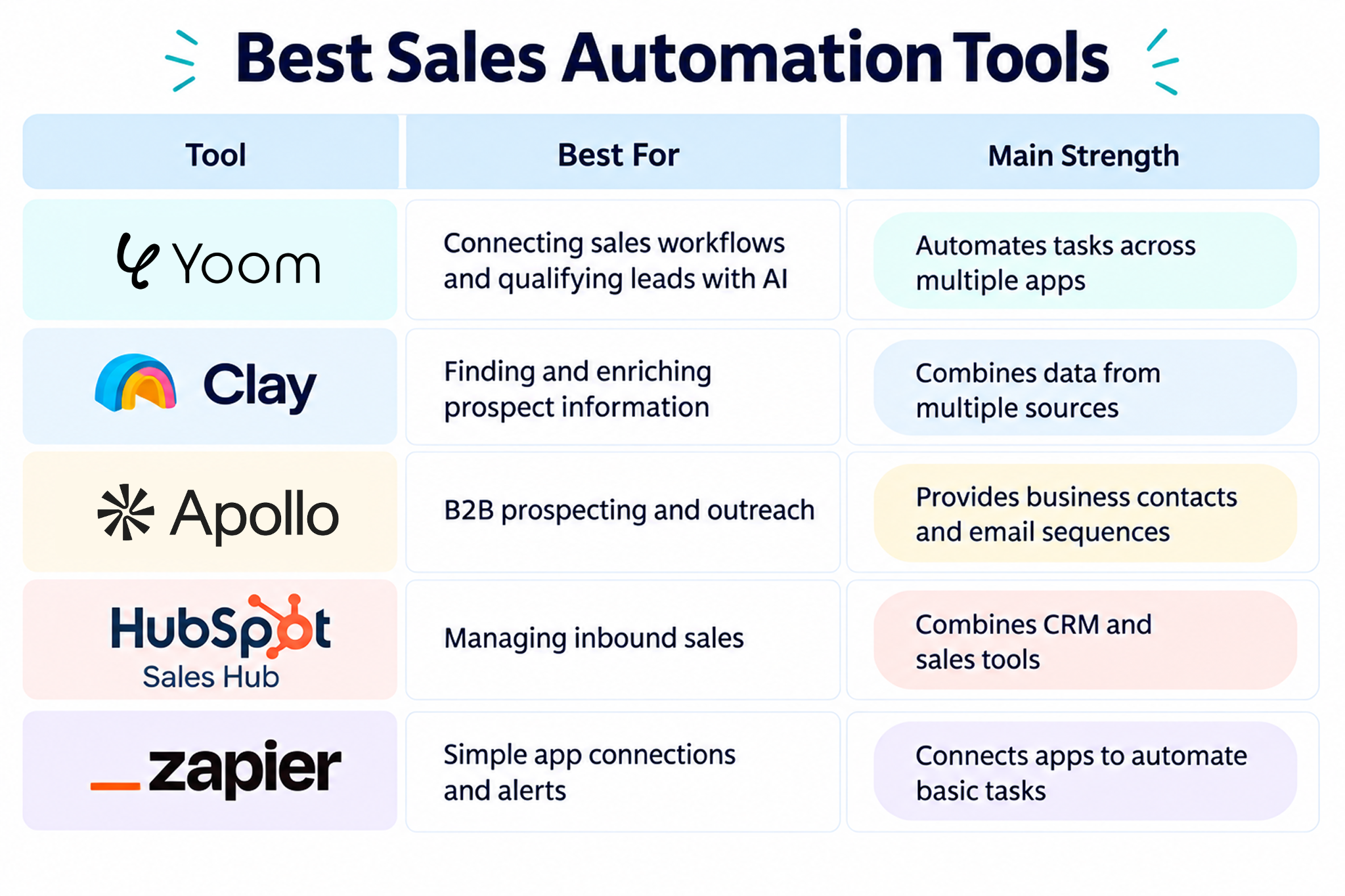
The best sales automation software depends on what your team needs to automate. Some tools focus on finding prospects, others help manage customer relationships, and others connect multiple apps to automate a complete process.
1.
Yoom
: Best for Connected Sales Workflows and AI Lead Qualification
Yoom is a no-code workflow automation platform that connects business apps and automates repetitive tasks. It helps sales teams move information between their CRM, spreadsheets, communication tools, and document software without manually transferring data.
How Yoom automates sales
For example, when a prospect submits a demo request, Yoom can start a workflow that:
- Checks whether the lead already exists.
- Uses AI to research the company and check whether it matches your target customer criteria.
- Creates or updates the lead in Salesforce or HubSpot.
- Records the information in Google Sheets or Microsoft Excel.
- Notifies the assigned sales rep through Slack or Microsoft Teams.
- Starts the next step, such as preparing a contract, when the deal reaches the appropriate stage.
These steps can run automatically once the workflow has been configured.
Key advantages
- Connects multiple business apps in one workflow.
- Automates repetitive data entry and record updates.
- Uses AI to summarize company information and support lead qualification.
- Supports approval steps and notifications.
- Allows teams to build workflows without writing code.
- Best for: B2B companies, small and medium-sized businesses, and revenue operations (RevOps) teams that want to reduce repetitive sales administration without building custom software.
- Pricing: Free Plan is available. Paid plans start at $16/month.
2.
Clay
: Best for Lead Enrichment
Clay is a platform that helps sales teams collect additional information about potential customers.
How it automates sales
Teams can upload a list of company websites or prospects. Clay can then gather information from multiple data providers and use AI to help create personalized opening lines for outreach emails.
Key advantages
- Collects prospect information from multiple sources.
- Helps sales teams research companies before contacting them.
- Supports personalized outbound sales campaigns.
- Best for: Sales development representatives (SDRs) and business development representatives (BDRs) who spend much of their time finding and researching new prospects.
- Pricing: A free plan is available. Paid plans starts at $167/month.
3.
Apollo.io
: Best for B2B Contact Databases and Outbound Sales
Apollo.io combines a business contact database with tools for managing sales outreach.
How it automates sales
Sales reps can search for potential customers using criteria such as job title and company details. They can then add prospects to a sequence of emails and calls rather than planning every follow-up manually.
Key advantages
- Helps teams find business contacts.
- Supports prospect filtering and outbound campaigns.
- Organizes follow-up emails and calls in one place.
- Best for: Outbound sales teams that need to find new prospects and contact them at scale.
- Pricing: A free plan is available. Paid plans starts at $49/user/month.
4.
HubSpot Sales Hub
: Best for Inbound Sales and CRM Management
HubSpot Sales Hub helps sales teams manage customer relationships, track deals, and organize follow-up activities.
How it automates sales
Teams can manage contacts and deals, share meeting booking links, and automate selected tasks within the HubSpot ecosystem.
Key advantages
- Keeps contact information and deal progress in one place.
- Supports meeting scheduling and sales follow-ups.
- Works closely with HubSpot's marketing tools.
- Best for: Businesses that receive leads through their website or marketing campaigns and want to manage sales activities within HubSpot.
- Pricing: Free tools are available. Paid plans and features vary by plan and billing terms.
5.
Zapier
: Best for Simple Sales Alerts and App Connections
Zapier connects web applications so that an event in one app can trigger an action in another.
How it automates sales
For example, when someone submits a website form, Zapier can add the lead to a spreadsheet or send a notification to Slack.
Key advantages
- Connects a wide range of applications.
- Helps automate simple, repetitive tasks.
- Makes it possible to create basic workflows without coding.
- Best for: Small teams that want to automate straightforward tasks, such as sending notifications or copying information between apps.
- Pricing: Free tier available; paid plans start at $19.99/month.
How to Choose the Best Sales Automation Software
When choosing sales automation software, price is important. But even an affordable tool is not worth much if you cannot figure out how to use it.
The best way to choose sales automation software is to try it yourself before making a decision.
The Biggest Challenge of Automation: Getting Started
Automation can save a lot of time once everything is set up. After you build a workflow, it can handle repetitive tasks automatically, without requiring you to repeat the same steps every time.
However, building that workflow can be challenging.
Think of it like putting together a puzzle. You need to connect each step in the right order, from collecting information to updating your CRM and notifying your sales team. If even one step is configured incorrectly, the entire workflow may fail.
For people who are not used to building workflows, figuring out how all the pieces fit together can take time and effort.
That is why choosing sales automation software is not just about comparing features and prices. You also need to find a tool that you can comfortably build and manage workflows with.
Start with a Free Plan or Trial
Before committing to a paid plan, try the software yourself.
A free plan or trial is especially useful because you can explore the features and build a small workflow without worrying about the cost.
Start with a simple sales task you want to automate. You don't necessarily have to build a workflow from scratch, though.
Many sales automation tools offer ready-made templates for common tasks, such as saving new leads to a spreadsheet, updating your CRM, or notifying your sales team when a new inquiry arrives.
With a template, much of the workflow is already built for you. In many cases, all you need to do is connect your app accounts and adjust a few settings to fit your needs. This can make getting started much easier than building every step yourself.
As you explore different tools, try using a template first. Then, consider whether you can customize it or build your own workflow when your needs become more specific.
The goal is not to find the tool with the most features. It is to find sales automation software that makes it easy for you to turn your ideas into working workflows.
See All Sales Automation Templates:
https://lp.yoom.fun/en/fb-template/sales
What If You Don't Know How to Build the Workflow?
Sometimes, the challenge is not just how to use a tool. You may not even know whether the task you have in mind can be automated.
You can ask the tool's support team or use its help resources. Another option is to use AI to help you plan and build the workflow.
For example, Yoom offers a feature called AI Worker. Instead of figuring out every step yourself, you can describe what you want to accomplish in everyday language.
AI Worker helps work out how to approach the task and build a workflow for it. This can be useful even when you are not sure where to start or which steps are needed.
For example, you could describe a goal such as:
"When a new sales inquiry arrives in Gmail, research the company, add the lead to Salesforce, and notify Sam, the sales rep, in Slack."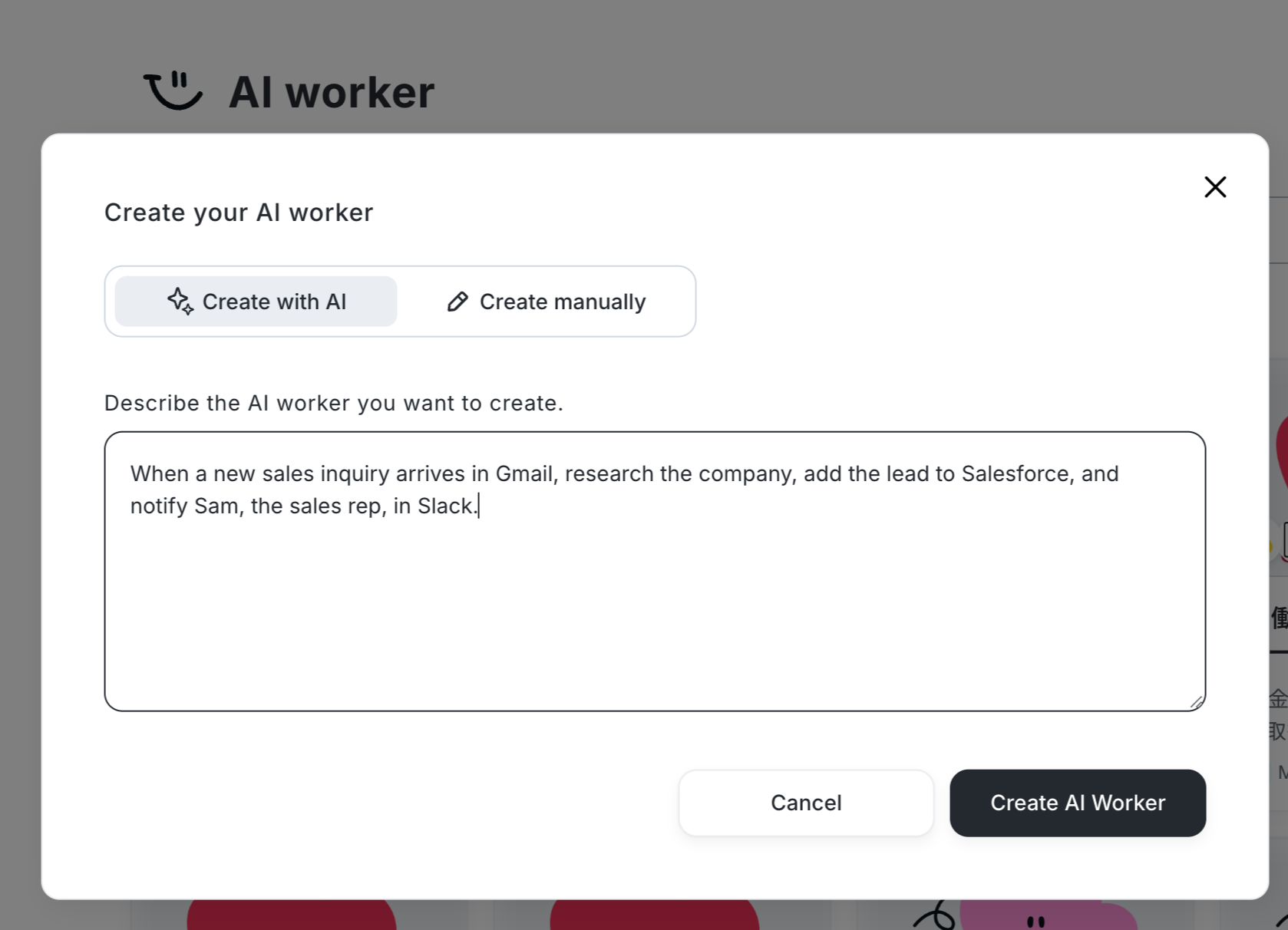
Rather than manually connecting every step from scratch, you can use AI Worker to help turn that idea into a workflow.
See All AI Sales Templates:
https://lp.yoom.fun/en/ai-worker-templates/sales
Choose the Tool That Feels Right for You
Ultimately, the best sales automation software is not necessarily the cheapest or the one with the most features. It is the one that helps you automate the tasks you need without making the setup process unnecessarily difficult.
Try the tools yourself, start with a real task, and see which one works best for you. If you are unsure how to build a workflow, look for tools that offer helpful support or AI-assisted workflow creation.
Once your workflows are set up, repetitive sales tasks can run automatically, giving you more time to focus on customers and closing deals.