・
Best Customer Service Automation Software: Use Cases from Real-World Data

As a business grows, customer support teams have more inquiries to handle. What works for a small team—checking a shared Gmail inbox, discussing issues in Slack, and tracking requests in Zendesk—can become difficult to manage as the number of customers increases.
Some customer inquiries may go unanswered, urgent issues may be overlooked, and support agents may spend hours copying customer information between different tools.
Customer service automation software helps solve these problems by connecting the tools your team already uses. Instead of manually moving information, assigning requests, and sending notifications, you can create workflows that handle these tasks automatically.
AI can also help support teams understand customer inquiries, find relevant information, and prepare responses. However, automation is not just about using AI chatbots to answer questions. It can also help your team share information, identify urgent issues, and work together to resolve customer problems faster.
In this guide, we explore how businesses use customer service automation, what our data reveals about real-world use cases, and how to choose the best customer service automation software for your team.
What Our Data Reveals About Customer Service Automation
We analyzed execution logs from active customer support automation on Yoom to understand how teams automate their support operations.
The data reveals how customer support teams use automation to manage incoming requests, share information, and reduce repetitive work.
1. Top 5 Customer Service Automation Use Cases
Customer service automation involves more than sending automatic email replies. Teams can automate many tasks, from notifying staff about urgent issues to updating customer records.
Our data shows five common use cases.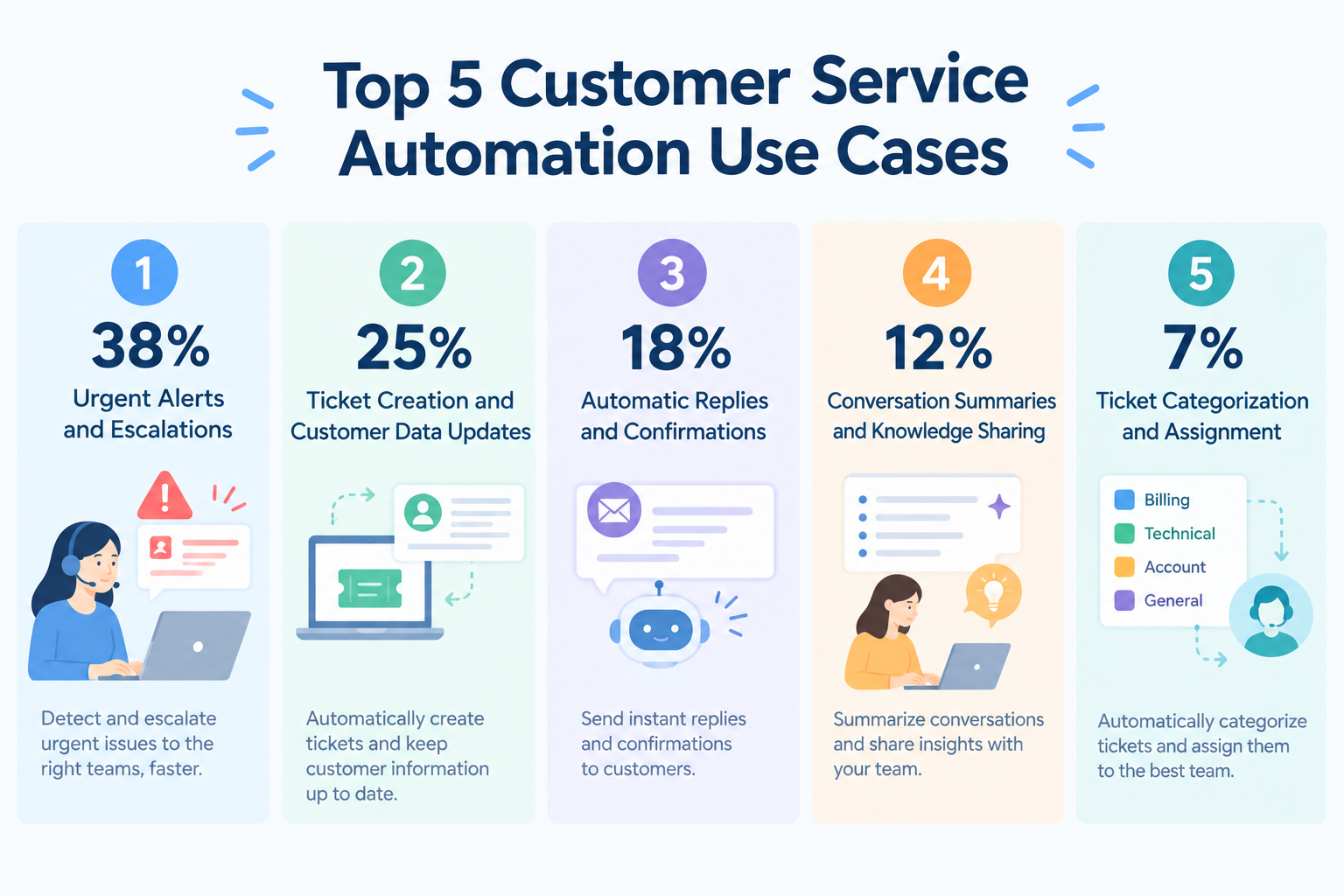
1. Urgent Alerts and Escalations (38%)
When a customer reports a serious problem, the support team needs to know about it quickly.
Automation can check incoming emails and form submissions for specific keywords or conditions. If a request needs immediate attention, the workflow sends a notification to a Slack or Microsoft Teams channel.
For example, when an important customer reports a service outage, the support team can receive an alert without having to monitor the inbox constantly.
2. Ticket Creation and Customer Data Updates (25%)
Support agents often need to copy information from emails and forms into a helpdesk or CRM (customer relationship management) system.
Customer service automation tools can create support tickets and update customer records automatically. They can also share ticket information between connected tools, reducing manual data entry and helping teams keep their records up to date.
3. Automatic Replies and Confirmations (18%)
Customers want to know that their inquiries have been received.
Automation workflow can send a confirmation email as soon as a customer submits a request. For common questions, it can also prepare an initial response using information from the company's FAQs or help center.
This helps teams respond promptly while leaving more complex questions for human agents.
4. Conversation Summaries and Knowledge Sharing (12%)
Support conversations often contain useful information about recurring problems and their solutions.
AI can summarize a long email thread or support ticket and turn the key points into a draft FAQ or internal guide. Teams can then review and save that information so other agents can use it in the future.
5. Ticket Categorization and Assignment (7%)
Not every inquiry should go to the same team.
AI can identify the main topic of an incoming request, such as billing, technical support, or account cancellation. Automation can then assign the request to the appropriate team or notify the person responsible for handling it.
This reduces the need for support managers to sort every inquiry manually.
How Does an Automated Customer Support Workflow Work?
Here is an example of how customer service automation software can connect several tasks into one workflow.
- A customer submits a question through email, a form, or chat.
- The workflow creates a support ticket and saves the information in the CRM.
- AI reviews the inquiry, checks relevant FAQs, and prepares a suggested response.
- If the inquiry appears urgent, the workflow sends an alert to the support team in Slack.
- A support agent reviews the information and decides how to respond.
Instead of switching between several tools to complete these steps, the team receives the information it needs in one place.
Related Customer Support Automation Templates:


■Overview
The flow "Verify Zoom Webinar Participants and Register Unregistered Information as Leads in Salesforce" is a business workflow that leverages the integration of Zoom and Salesforce.
By automatically importing webinar participant data into Salesforce, it eliminates the need for manual data entry and enhances the accuracy of lead management.
This improves the efficiency of marketing and sales activities.
■Recommended for
- Marketing professionals who regularly host Zoom webinars and want to centrally manage participant information in Salesforce
- Sales teams who are spending too much time on manual data entry and are aiming for operational efficiency
- Those who are already using the integration of Zoom and Salesforce but are facing challenges in managing unregistered lead information
- Companies that want to prevent data leakage of webinar participants and ensure they are effectively utilized as leads
■Benefits of Using This Template
Manually entering Zoom webinar participant information into Salesforce is time-consuming.
It also takes time to verify whether the information has been registered.
By utilizing this flow to automate the registration of information from Zoom to Salesforce, you can reduce the burden of manual work.
Additionally, by ensuring that unregistered information is captured as leads, you are less likely to miss business opportunities.
The integration of Salesforce and Zoom centralizes data management and facilitates smooth follow-up activities.

- Sales managers who use Salesforce and want to streamline the assignment of new leads
- B2B marketing professionals who want to assign leads objectively and fairly based on past closing performance and industry experience
- Sales operations professionals who want to shorten the time from lead generation to initial outreach and improve conversion to opportunities
- Because AI recommends the best team member based on historical data, you spend less time deciding who to assign leads to and can reach out more smoothly.
- Salesforce record updates are automated, helping prevent manual data entry errors and reduce the burden of administrative work.
- First, connect Salesforce and Slack to Yoom.
- Next, set the Salesforce action “When a new record is added to the Lead object” as the trigger.
- Then, use an AI worker to create a skill that selects the best team member, updates the Salesforce Lead object, and sends a Slack message mentioning the assigned team member. Set Salesforce and Slack actions as the tools to use.
- By adjusting the instructions (prompt) given to the AI worker, you can add custom assignment criteria, such as the current number of opportunities owned or the assigned region, in addition to closing performance.
- Customize the Slack notification content to include the lead’s industry and inquiry details from the web form, making it easier for the assigned team member to understand the situation.
- Connect Salesforce and Slack to Yoom. You must also connect the tools (apps) used within the AI worker through My Apps.
- Salesforce is available on the Mini plan and above. Please note that flowbot operations and Data Connect settings will result in errors on the Free and Personal plans.
- Paid plans, including the Personal, Mini, Team, and Success plans, offer a two-week free trial. During the free trial, you can use apps and features (operations) that are subject to plan restrictions. For details, see the Pricing Plans page.
- You can choose a trigger interval of 5, 10, 15, 30, or 60 minutes.
- Please note that the shortest available trigger interval varies by plan.
- For basic AI worker setup, see [AI Worker] Basic Setup Guide.
- The number of concurrent AI worker executions, the number of AI workers you can create, and the AI models available to you vary by plan.
- The apps and operations available within AI workers are subject to the same usage limits as flowbots.
- Please note that AI workers consume tasks during test runs just as they do during production runs. For details, see [AI Worker] How Task Execution Counts Are Calculated.
- AI workers are more likely to process tasks appropriately when skills are configured in detail. For details, see [AI Worker] How to Create Skills (Formerly Manuals).

■Who is this template for?
- Customer support representatives who spend significant time reviewing weekly inquiries and updating FAQs
- Team leaders whose teams have accumulated past inquiry data but are struggling to keep up with trend analysis and knowledge management
- Business leaders who want to streamline customer support operations with AI and improve customer satisfaction
■Benefits of this template
- AI automatically analyzes past inquiries and creates FAQ drafts, reducing the time spent on analysis and documentation.
- Regularly visualizing trends in frequently asked questions helps prevent missed FAQ updates and facilitates knowledge sharing across the team.
■Flowbot workflow
- First, connect Google Sheets and Slack with Yoom.
- Next, configure the schedule trigger to start the workflow every Monday at 10:00 AM.
- Then, use the AI worker to create a manual for analyzing past inquiries and creating an FAQ draft, and set Google Sheets' “Retrieve multiple records” action and Slack's “Send a message to a channel” action as the tools to use.
■Customization options
- In the Google Sheets settings, specify the sheet containing the inquiry data and the data range to retrieve based on your organization's data management practices.
- Adjust the instructions (prompt) for the AI worker to analyze specific product categories or create drafts in a specific tone and manner.
- Set the Slack notification destination to match your operations, such as a shared CS team channel or a direct message to the person in charge.
■Notes
- Connect both Google Sheets and Slack with Yoom. The apps used within the AI worker must also be connected through My Apps.
- For the basic AI worker setup, see “[AI Worker] How to Configure the Basic Settings”.
- The number of simultaneous AI worker executions, the number of AI workers you can create, and the AI models available depend on your current plan.
- The apps and operations available within the AI worker are subject to the same usage limits as Flowbot.
- Please note that the AI worker consumes tasks during test runs in the same way as during production runs. For details, see “[AI Worker] How Task Execution Counts Are Calculated”.
- Setting up detailed manuals makes it easier for the AI worker to perform the appropriate processing. For details, see “[AI Worker] How to Create a Manual”.
- Please note that retrieving more than 20 items of large-volume data or running loop processes within the AI worker may consume a significant number of tasks.

- Teams using both Zendesk and Salesforce that currently transfer ticket information manually
- Teams that want to accurately share the status of open Zendesk tickets with sales and other departments
- Teams that want to automate recurring data updates and focus more on improving the quality of customer support
- Information is automatically transferred from Zendesk to Salesforce on your chosen schedule, reducing the time spent on manual work
- By eliminating manual data entry, you can prevent human errors such as input mistakes and missed updates, helping maintain data accuracy
- First, connect Salesforce and Zendesk to Yoom
- Next, configure the Schedule Trigger in the trigger step and specify when you want to run the Flowbot
- In the operation step, configure Zendesk's “Get a list of open ticket IDs” action
- Next, use the Repeat feature to repeat the subsequent steps for each ticket ID retrieved
- Within the repeat process, configure Zendesk's “Get ticket information” action to retrieve the details of each ticket
- Finally, configure Salesforce's “Add a record” action to add the retrieved ticket information to the desired object
■Customization options
- In the Schedule Trigger, set when you want to run this workflow using a frequency such as “Hourly,” “Daily,” or “Weekly”
- When connecting your Zendesk account, you need to specify the subdomain used by your organization
- With the Repeat feature, you can customize the repeat conditions based on the list of open tickets retrieved from Zendesk in the previous step
- For each Zendesk action, use fixed values or variables to set the ticket conditions and other details you want to retrieve
- When adding records to Salesforce, you can specify the object to connect and which information retrieved from Zendesk should be added to each field
- Connect both Zendesk and Salesforce to Yoom
- Operations involving Zendesk, Salesforce, and the “Repeat the same process” operation are available only on the Team and Success plans. On the Free and Mini plans, the configured Flowbot operations and data connections will result in errors
- Paid plans, including the Team and Success plans, offer a two-week free trial. During the free trial, you can use apps that are otherwise subject to plan restrictions
- When adding or updating records in an operation that manages a database, configure the settings according to Salesforce's input format. For example, if a Salesforce field uses a selection list and requires English input, values that are not available as options or are entered in another language will result in an error

- Customer support professionals who want to improve the quality and speed of customer service in Zendesk
- Managers who want to quickly understand the situation through AI-powered sentiment analysis of inquiries
- Teams that want to detect negative customer feedback early and use it to improve their services
- AI analyzes sentiment whenever a Zendesk ticket is created, allowing you to immediately identify urgent inquiries and accelerate the initial response.
- Because inquiries are analyzed using objective criteria rather than relying on each agent’s experience, you can standardize response quality and reduce the risk of overlooking important tickets.
- First, connect Zendesk and Slack to Yoom.
- Next, select Zendesk as the trigger and set the action to “When a new ticket is created.”
- Finally, configure an AI Worker in the operation and create instructions for analyzing the sentiment based on the Zendesk ticket content, then notifying Slack of the analysis results and recommended response.
■Customizing this workflow
- You can freely customize the instructions (prompt) provided to the AI Worker. Adjust the level of detail in the sentiment analysis and the tone of the recommended response to match your actual operations.
- You can change the Slack account used for notifications and the destination channel. Configure them based on the channel viewed by specific agents or teams.
- Connect both Zendesk and Slack to Yoom. The tools (apps) used within the AI Worker must also be connected through My Apps.
- You can select a trigger interval of 5, 10, 15, 30, or 60 minutes.
- Please note that the shortest available trigger interval varies by plan.
- Zendesk is available only on the Team and Success plans. On the Free and Mini plans, operations and Data Connect configured in Flowbots using Zendesk will result in errors.
- Paid plans such as the Team and Success plans offer a two-week free trial. During the free trial, you can use apps that are otherwise restricted.
- For basic AI Worker settings, see “[AI Worker] How to configure basic settings.”
- The number of AI Workers that can run simultaneously, the number of AI Workers you can create, and the AI models available to you vary by plan.
- Apps and operations available within AI Workers are subject to the same usage restrictions as Flowbots.
- Please note that AI Workers consume tasks during test runs just as they do during production runs. For details, see “[AI Worker] How task executions are calculated.”
- AI Workers are more likely to perform the appropriate processing when their instructions are configured in detail. For details, see “[AI Worker] How to create instructions.”
2. How Much Time Can Customer Service Automation Save?
One of the main benefits of customer service automation software is that it reduces the time spent on repetitive administrative work.
Our workflow execution data shows how quickly different automated operations can run.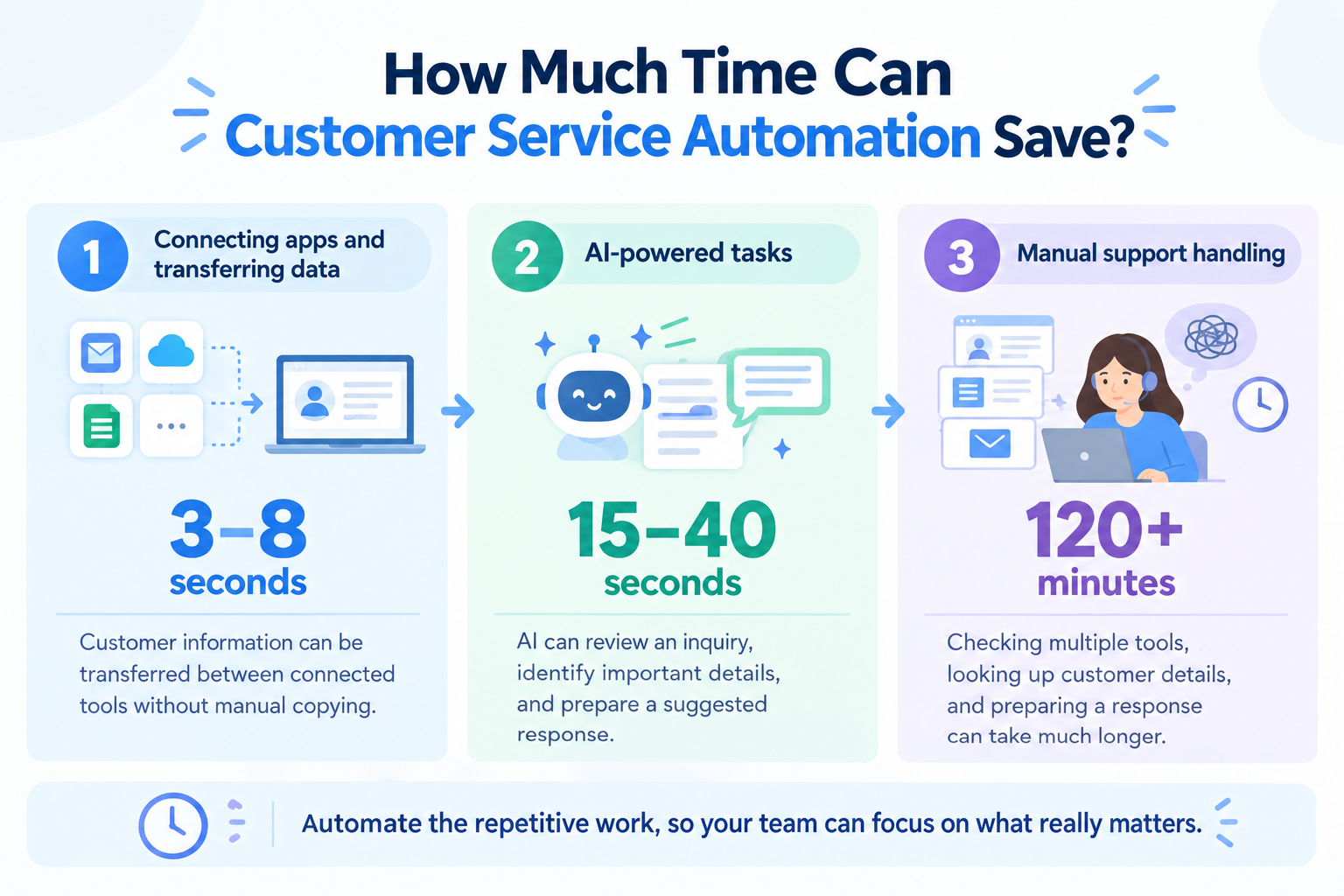
- 1. Connecting Apps and Transferring Data: 3–8 Seconds : Customer information can be transferred between connected apps in seconds, eliminating the need to copy and paste data manually.
- 2. AI-Powered Tasks: 15–40 Seconds: AI can review customer inquiries, identify important details, and prepare suggested responses in seconds, helping support agents handle requests more efficiently.
- 3. Manual Support Handling: 120+ Minutes: Manually checking multiple tools, looking up customer details, and preparing responses can take much longer, especially when several steps are involved.
Automation does not eliminate the need for human support agents. Instead, it helps them spend less time collecting information and more time solving customer problems.
For example, when a customer reports a technical issue, an automated workflow can collect the relevant account information and prepare a summary before an agent starts investigating. The agent can then focus on the issue itself rather than searching through multiple systems.
How AI Improves Customer Service Automation
AI can help customer support teams understand inquiries and prepare information for the next step. When combined with workflow automation, it can do more than answer questions in a chatbot.
Our workflow data reveals four common ways teams use AI in customer support automation.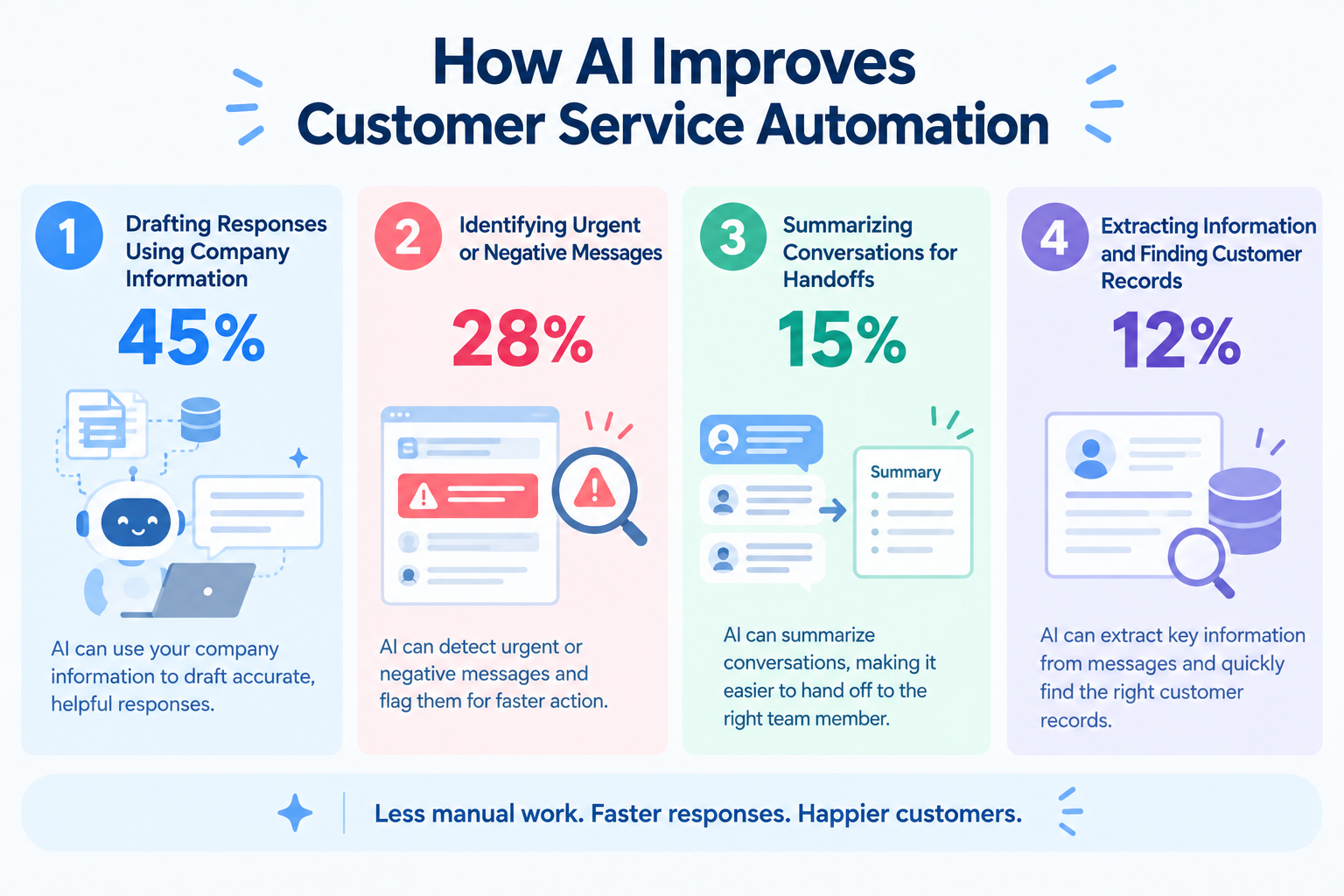
1. Drafting Responses Using Company Information (45%)
AI can review a customer's inquiry and refer to company FAQs, product manuals, and previously resolved cases to prepare a relevant response.
For example, if a customer asks how to change an account setting, AI can use the company's help documentation to draft an answer.
A support agent can review the draft, make any necessary changes, and send it to the customer. This reduces the time spent writing routine responses from scratch.
2. Identifying Urgent or Negative Messages (28%)
Some inquiries need more immediate attention than others.
AI can analyze the wording of an email or chat message to identify signs of frustration, cancellation requests, or other urgent concerns.
A workflow can then label the request as high priority and notify the appropriate manager through Slack or Microsoft Teams.
This helps teams identify important issues without relying entirely on agents to notice every urgent message.
3. Summarizing Conversations for Handoffs (15%)
Complex customer issues may need to be passed from one team to another.
For example, a support agent may need help from an engineer to investigate a technical problem. Instead of asking the engineer to read an entire conversation, AI can summarize the issue, the steps already taken, and what still needs to be resolved.
The next person can understand the situation more quickly and continue working on the problem.
4. Extracting Information and Finding Customer Records (12%)
Customer inquiries often contain important details, such as order numbers, product names, and error codes.
AI can identify these details in a message and use them to help find the relevant customer record in a spreadsheet or CRM.
For example, when a customer reports an error with a particular order, the workflow can use the order number to retrieve related information and share it with the support agent.
This reduces manual searching and helps agents access the information they need.
Related AI Templates:

Create personalized follow-up email drafts by entering the recipient’s name, company, title, interaction context, and conversation details. AI refines the tone and structure, helping you craft thoughtful, polished emails without starting from scratch. Ideal for anyone who spends too much time writing post-networking follow-ups or wants to send tailored messages to many contacts.
Creates follow-up emails based on the recipient’s information and the details of your conversation This AI worker generates messages tailored to interactions such as business meetings and events.
- What are “Skills”?
- They are instructions that define how the AI worker processes tasks. For detailed instructions, see “[AI worker] How to Create Skills (formerly Manuals)”.
- What are “Tools”?
- These are the tools the AI worker uses to process tasks. Simply tell the AI which tools your organization typically uses, and you can freely configure where data is retrieved from and where it is sent.
- The number of AI workers that can run simultaneously, the number of AI workers you can create, and the AI models available to you vary depending on your plan.
- The apps and operations available within the AI worker are subject to the same usage limits as Flowbot.
- AI workers consume tasks during test runs just as they do during production runs. For details, see “[AI worker] How Task Usage Is Calculated”.

An AI worker that determines the right time to follow up based on purchase and contract history, as well as past communication records. It drafts email content and creates CRM task entries. Review and refine the details through chat to prevent missed follow-ups while maintaining high-quality customer engagement. Ideal for sales and customer success teams.
- Sales representatives who want to simplify the management of follow-up timing and outreach content for each customer while preventing missed actions
- B2B sales professionals who want to efficiently make proposals aligned with contract renewal or replacement timing, even with a large customer base
- Customer success professionals who want to reduce the effort of follow-up tasks while maintaining consistent customer support quality
- Skills:
- Instructions that enable the AI worker to perform tasks. For detailed setup instructions, see "[AI Worker] How to create Skills (formerly Manuals)."
- Tools:
- Tools used by the AI worker to perform tasks. Simply tell the AI which tools your team uses regularly, and you can freely customize where data is retrieved from and where it is sent.
- The number of AI workers that can run simultaneously, the number of AI workers you can create, and the AI models available depend on your current plan.
- The apps and operations available in AI workers are subject to the same usage limits as Flow Bots.
- Please note that AI workers consume tasks during test runs just as they do during live runs. For details, see "[AI Worker] How task executions are calculated."

This AI worker reads inquiry details and automatically drafts replies using your Frequently Asked Questions (FAQ), or seamlessly routes inquiries to the appropriate specialist.,Reduce the effort of responding and automate ticket routing to streamline initial support intake. Ideal for customer support representatives and team leaders who want to prevent delayed responses and missed inquiries.
- Customer support teams spending too much time handling large volumes of daily inquiries and reviewing reply content
- Team leaders who feel that manually replying to each inquiry that could be quickly resolved by checking the FAQ is a waste of time
- Managers who want to automatically route and hand off inquiries to the right person based on their content, eliminating delayed responses and missed inquiries
Simply provide instructions in the chat, and the AI worker will automatically configure and update itself to match your operations. First, customize the Skills and Tools so the AI worker can execute tasks correctly.
- Skills:
- Instructions that enable the AI worker to perform tasks. For details on how to configure them, see "[AI Worker] How to Create Skills (Formerly Manuals)."
- Tools:
- Tools used by the AI worker to perform tasks. Simply tell the AI which tools your company uses regularly, and you can freely change where data is retrieved from and where it is sent.
- The number of AI workers that can run simultaneously, the number of AI workers you can create, and the available AI models vary depending on your plan.
- The available apps and operations within AI workers are subject to the same usage limits as Flowbots.
- Please note that AI workers consume tasks during test runs just as they do during production runs. For details, see "[AI Worker] How Task Executions Are Calculated."

Analyze changes in login frequency, support inquiry trends, renewal timing, and more to score and identify customers at risk of churn—then recommend specific actions to improve retention. Eliminate the manual effort of tracking large volumes of usage data, enabling Customer Success teams to prioritize and act quickly. Ideal for teams looking to build a data-driven customer engagement workflow.
- Customer success professionals who want to identify early signs of churn through data and take proactive action to prevent it
- Teams that spend too much time analyzing usage data and inquiry history, causing important customer follow-ups to fall behind
- Leaders who want to establish a data-driven system for prioritizing customer engagement instead of relying on intuition
- What are “Skills”?:
- Instructions that define the steps the AI worker follows to perform tasks. For detailed setup instructions, see “[AI worker] How to Create Skills (formerly Manuals)”.
- What are “Tools”?:
- Tools the AI worker uses to perform tasks. Simply tell the AI which tools your organization typically uses, and you can freely customize where data is retrieved from and where it is sent.
- The number of AI workers that can run simultaneously, the number of AI workers you can create, and the AI models available to you vary by your subscription plan.
- The apps and operations available within the AI worker are subject to the same usage limits as Flowbot.
- Please note that the AI worker consumes tasks during test runs just as it does during production runs. For details, see “[AI worker] How Task Executions Are Calculated”.
Customer Service Automation Software vs. Helpdesks vs. AI Chatbots
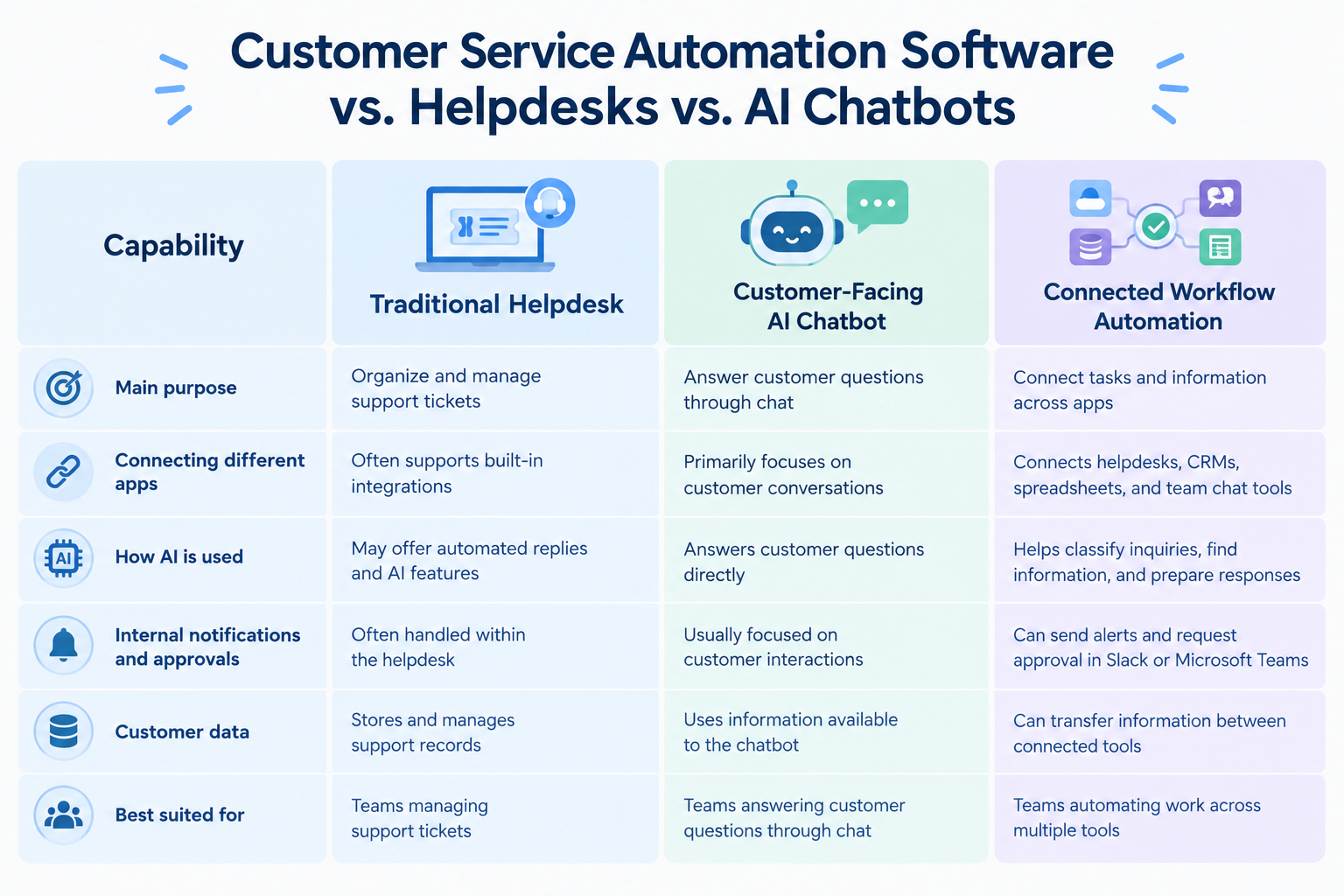
Customer support tools serve different purposes. Some help teams manage support tickets, while others answer customer questions or automate tasks across multiple apps.
1. Traditional Helpdesks
Traditional helpdesks, such as Zendesk and Freshdesk, help teams organize customer inquiries and manage support tickets.
They can store customer information, assign tickets, and offer built-in integrations and automated replies. However, teams may need additional tools to connect tasks across different applications.
Best for: Teams that need a central place to manage and track customer support requests.
2. Customer-Facing AI Chatbots
AI chatbots, such as Intercom's customer support solutions, help answer customer questions through website chat or in-app messaging.
They use available information to respond to common inquiries, reducing the need for support agents to answer every question manually. However, their main focus is customer conversations rather than coordinating tasks across multiple business apps.
Best for: Teams that want to answer common customer questions through chat.
3. Connected Workflow Automation
Workflow automation tools, such as Yoom, connect helpdesks, CRMs, spreadsheets, and team chat apps to automate tasks across different systems.
For example, a workflow can retrieve customer information, use AI to summarize an inquiry, and send an alert to Slack or Microsoft Teams when a request needs attention. Teams can also review information and approve the next step without switching between multiple apps.
Best for: Teams that want to reduce manual work across their customer support process.
Which Type of Customer Service Automation Software Should You Choose?
- If your main challenge is organizing tickets, a helpdesk may be the right starting point.
- If customers repeatedly ask the same questions, an AI chatbot may help.
- If agents spend too much time copying information, checking customer records, and notifying other teams, connected workflow automation may be a better fit.
Best Customer Service Automation Software and Tools
The best customer service automation software depends on your team's needs, existing tools, and budget. Some platforms focus on managing support tickets, while others specialize in customer messaging or connecting different applications.
Here are four tools to consider.
1. Yoom: Best for Automating Entire Workflows Across Apps
If you want to automate more than just customer replies and streamline your entire customer service workflow, Yoom is a great choice.
Yoom is a no-code workflow automation platform that connects your customer support tools with CRMs, spreadsheets, team chat apps, and other business applications. You can automate tasks across your entire support process, from collecting customer inquiries and updating records to notifying the right team and preparing responses with AI.
Key features
- Connect different apps: Transfer customer information between helpdesks, CRMs, spreadsheets, and communication tools.
- Automate repetitive tasks: Create support tickets, update records, and send notifications when specific events occur.
- Use AI to prepare information: Review incoming inquiries, identify important details, and draft suggested responses.
- Keep people involved: Send AI-generated summaries and suggested replies to a team member for review before taking the next step.
Best for: Customer support teams that use multiple business apps and want to reduce manual work without building custom integrations.
Pricing: Free plan is available. Paid plans start at ~$16/month.
2. Zendesk: Best for Managing Support Tickets at Scale
Zendesk is a customer service platform that helps teams manage inquiries from channels such as email, chat, social media, and phone.
It brings customer conversations into a central system, making it easier for agents and managers to track requests and monitor support performance.
Key features
- Manage customer inquiries across multiple channels.
- Automatically assign tickets based on rules and ticket information.
- Use AI features to help answer common questions and manage support requests.
- Track team performance through reporting and analytics.
Best for: Businesses that need a central platform to manage large volumes of customer inquiries across multiple channels.
Pricing: A free trial is available. Paid plans start at ~$19/month.
3. Intercom: Best for Customer Messaging and AI Chat Support
Intercom is a customer messaging platform that helps businesses communicate with customers through website chat, in-app messaging, and other supported channels.
Its AI customer service assistant, Fin, can use support content to answer questions and help resolve common inquiries.
Key features
- Answer customer questions through AI-powered chat.
- Use help center content to support automated responses.
- Communicate with customers inside websites and applications.
- Help users get started with a product through in-app messaging and onboarding features.
Best for: SaaS companies that want to improve in-app customer support and answer common questions through chat.
Pricing: A free trial is available. Paid plans were listed from $19 per seat per month.
4. Freshdesk: Best for Straightforward Ticket Management
Freshdesk is a customer support platform that helps businesses organize inquiries and manage conversations across different channels.
It also offers Freddy AI features to support tasks such as ticket assignment, response suggestions, and support automation.
Key features
- Organize and track customer support tickets.
- Use predefined responses for common questions.
- Automate ticket assignment and other routine tasks.
- Apply AI features to help agents handle customer inquiries.
Best for: Small and mid-sized teams looking for a straightforward way to organize support requests and automate routine ticket management.
Pricing: A free plan is available. Paid plans were listed from $19 per user per month.
How to Choose the Best Customer Service Automation Software
The Challenge of Getting Started with Customer Service Automation
Customer service automation software can save time by handling repetitive tasks, such as creating support tickets, updating customer records, and notifying the right team about urgent issues.
However, setting up automated workflows can be challenging when you're just getting started.
Think about a typical customer support process. When a customer submits an inquiry, your team may need to check their account details, update a CRM, create a support ticket, prepare a response, and notify another team if the issue needs further investigation.
Automating the entire process means connecting the apps you use and deciding what should happen at each step. For people who are new to workflow automation, setting everything up can feel like a hassle.
This can make it tempting to choose software designed specifically for customer service because it seems easier to get started. And for tasks such as managing support tickets or answering common questions, a dedicated tool may be exactly what you need.
However, customer service doesn't always happen in one tool or within one team. Support agents may need information from sales, product, billing, or engineering teams to resolve a customer issue. If your tools don't work well together, you may end up copying information manually, switching between apps, or struggling to find the information you need.
In these cases, adding another customer service tool may not solve the underlying problem. It can even create more work if your team still needs to move information between disconnected systems.
Instead of automating only individual support tasks, consider automating the entire workflow across the apps and teams involved.
Setting up a workflow may take some time at first, but once it's ready, the process can run automatically. Tasks that previously required manually checking information, updating records, and sending notifications can be handled in seconds, depending on the workflow.
That's why choosing the best customer service automation software isn't just about finding a tool that's easy to set up. It's about finding a solution that helps you connect your existing tools and automate the work your team actually does.
Start with a Free Plan or Trial
Before committing to a paid plan, try the software yourself.
A free plan or trial lets you explore the features and build a simple workflow before deciding whether the tool fits your needs.
Start with a repetitive customer support task that takes up time, such as creating a ticket from an incoming email, updating customer information in a CRM, or notifying your team when an urgent inquiry arrives.
You don't have to automate everything at once. Start with one task, see how it works, and expand your workflow as you become more comfortable with automation.
Many customer service automation tools offer templates for common tasks, so you don't need to build every step from scratch.
With a template, much of the workflow is already prepared. You may only need to connect your apps and adjust a few settings to match your support process.
As you explore different tools, check whether you can customize existing workflows and connect the applications your team already uses. If you need to automate more complex processes later, look for software that gives you the flexibility to add steps, conditions, and AI-powered tasks.
The goal isn't to find the tool with the most features. It's to find customer service automation software that makes it easy to start small and automate more of your workflow over time.
Three Ways to Get Started with Customer Service Automation Using Yoom
Yoom offers three ways to automate customer service tasks, depending on how quickly you want to get started and how much customization you need.
Option 1. Start with a Template
If you want to automate a common customer support task quickly, start with a ready-made workflow template. Choose one that matches your needs, then adjust it to fit your team's process.
For example, you could use a template to send a Slack notification when a new support inquiry arrives or transfer information from a form to another app automatically.
This is a good option if you want to reduce repetitive work without planning every step yourself.
Explore Yoom's workflow templates
Option 2. Let AI Worker Help Build Your Workflow
If you know what you want to automate but aren't sure how to build the workflow, describe your goal in natural language. Yoom's AI Worker helps you turn your idea into an automated process.
For example, you could describe a workflow that reviews an incoming customer inquiry, checks the relevant customer information, prepares a suggested response, and notifies your support team in Slack if the issue needs attention.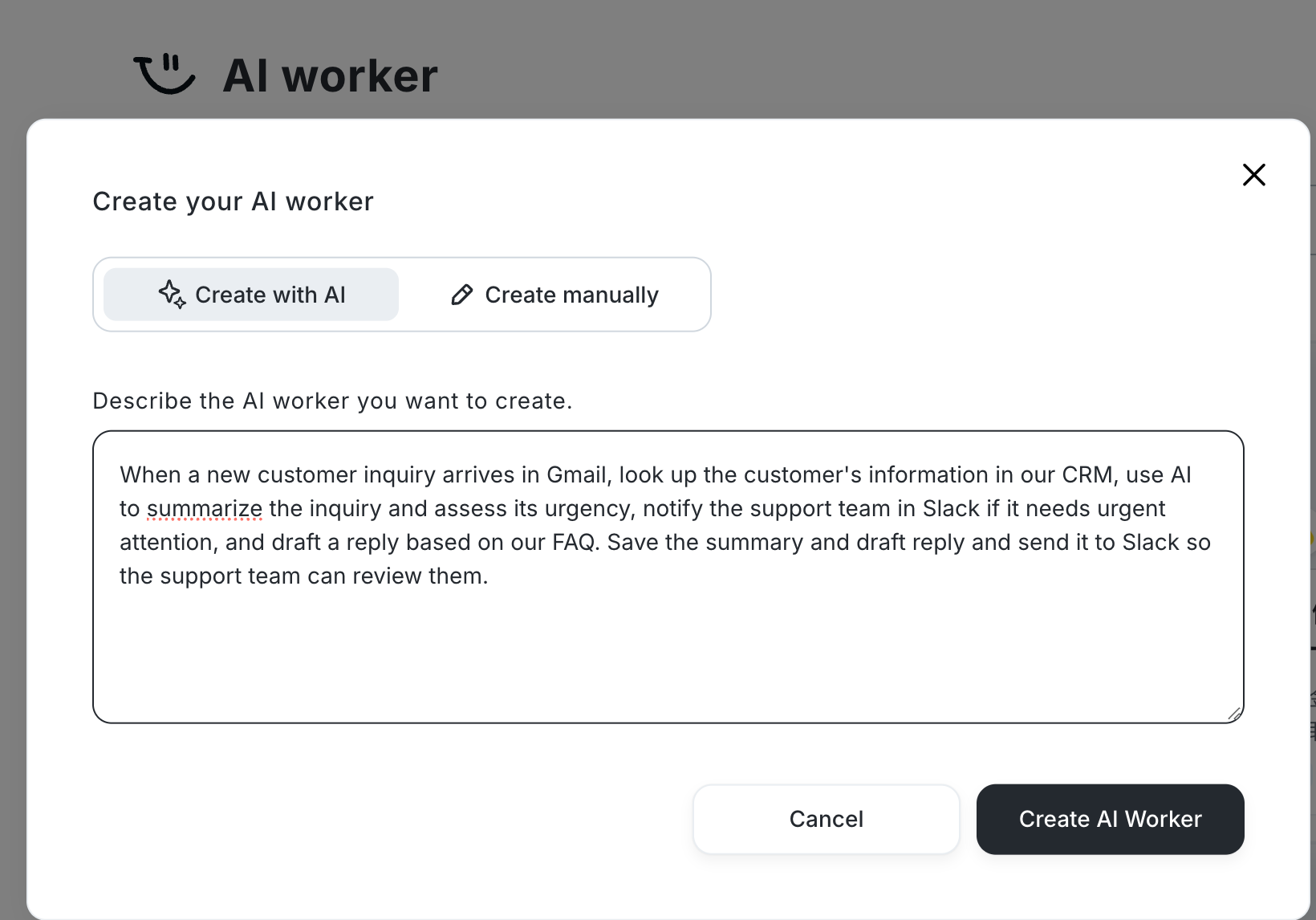
This is a useful option when you have a specific customer support task in mind but want help turning your idea into a working workflow.
Explore Yoom's AI Worker templates
Option 3. Build a Custom Workflow
If you need to automate a more specific customer support process, you can build a custom workflow using Yoom's customization features.
Connect the apps you already use and configure each step to match your requirements. For example, you can decide how to collect customer inquiries, which information to retrieve from your CRM, how AI should summarize a support request, and which team should receive a notification.
You can also combine app integrations with AI, OCR, and RPA features to handle different types of work within one workflow.
This option is ideal when a ready-made template or AI-assisted setup doesn't fully cover your requirements.
Learn how to set up custom app and API connections
Whether you want to automate a single support task or connect an entire customer service process, Yoom gives you different ways to get started. You can begin with a template, use AI Worker to help build your workflow, or create a custom workflow that fits your needs.
Start with one repetitive task, then gradually automate the steps around it. With Yoom, you can connect your customer support tools and reduce manual work across your workflow without writing code.