・
Best Marketing Automation Platforms for 2027: Why 70% of Marketing Automations Go Beyond Marketing

- A Marketer's Honest Review: What I Automate (and What I Don't)
- What Our Data Reveals: 70% of Marketing Automations Involve Other Departments
- 5 Common Marketing Automation Use Cases
- Why Marketing Automation Often Requires Multiple Tools
- How AI Helps Marketing Automation: Top 3 Use Cases
- Traditional Email Marketing Software vs. Modern Marketing Automation Platforms vs. Company-Wide Automation Platform
- Best Marketing Automation Platforms and Software for 2027
- Marketing Automation Helps You Measure Lead Quality Beyond Lead Delivery
- The Challenge of Getting Started with Marketing Automation
- Three Ways to Get Started with Marketing Automation Using Yoom
Marketing automation is often associated with tasks like email campaigns, lead nurturing, and campaign management. But our data reveals a broader picture.
We found that 70% of marketing automations on Yoom involve work beyond the marketing department. In other words, most of these automations connect marketing with other teams, such as sales and customer support, rather than handling marketing tasks alone.
This finding highlights an important aspect of modern marketing automation: marketing work rarely happens in isolation. Generating a lead is only the beginning. Teams also need to research potential customers, update CRM records, share information with sales, and coordinate follow-ups.
In this guide, we'll compare the best marketing automation platforms for 2027, examine real-world automation use cases, and explore what an actual marketer says about an automation tool.
A Marketer's Honest Review: What I Automate (and What I Don't)
As a growth marketer at Yoom, I use marketing automation software to manage campaigns and reduce repetitive work. After six months of hands-on experience, I've learned an important lesson: not every marketing task should be automated.
Take advertising campaigns on Google, Meta, and ChatGPT. Although some parts of campaign creation and setup can be automated, I prefer to manage them manually especially during the testing phase. This gives me direct control over audience targeting, audience segmentation, and the messages used in each ad.
Choosing the right message and understanding what motivates potential customers still requires human judgment. Automation can support these decisions, but it shouldn't replace them entirely.
Instead, I've found automation most useful in two areas.
1. Automated Reporting
Downloading advertising data from multiple platforms every day is repetitive and time-consuming.
By connecting advertising platforms to Excel and Google Sheets, I can automatically collect daily ad spend and update reporting spreadsheets. This saves time on manual data entry and keeps key performance indicators (KPIs) up to date for management.
Related Marketing Automation Templates:

■Overview
This is a flow bot that automatically retrieves report information from the previous day's Google Ads at a specified time every day and records it in Microsoft Excel.
■Recommended for
1. Companies using Google Ads
・Those using it to enhance brand awareness
・Those using it for ad performance measurement and improvement
2. Those utilizing Microsoft Excel in their work
・Those accumulating data for visualization and team sharing
・Those creating sheets for each theme to accumulate information
■Benefits of using this template
Google Ads is not only a tool for displaying ads but also for obtaining detailed results for performance measurement and improvement. By accumulating the obtained results in Microsoft Excel, it leads to long-term performance measurement. However, manually obtaining and entering measurement results each time is very labor-intensive and increases the risk of human error.
By utilizing this flow, you can not only automatically obtain reports from Google Ads but also automatically add results to Microsoft Excel. Automating the process from report retrieval to result addition frees you from daily routine tasks, allowing you to focus on core tasks. By enabling the entire team to concentrate on tasks of varying importance, it leads to improved work efficiency.
■Notes
・Please connect both Google Ads and Microsoft Excel with Yoom.
・Microsoft365 (formerly Office365) has both a home plan and a general business plan (Microsoft365 Business). If you are not subscribed to the general business plan, authentication may fail.
■Overview
This is a flow that automatically retrieves report information from the previous day's Facebook ads at a specified time every day and records it in Microsoft Excel.
■Recommended for
1. Marketing professionals managing Facebook ads
- Marketing professionals who routinely manage Facebook ads and measure and analyze their effectiveness
- Marketing managers who want to understand the effectiveness of ad campaigns in real-time
2. Those who want to streamline data analysis and report creation
- Marketing analysts who create reports manually every day
- Data analysts who want to reduce the effort of data entry and spend more time on strategic tasks
- Business managers promoting the automation of business processes
3. Companies or teams utilizing Microsoft Excel
- Companies that have implemented Microsoft Office
- Team members who manage data using Excel on a daily basis
■Benefits of using this template
・Eliminates the hassle of manual report creation, enabling real-time decision-making based on accurate data.
・Facilitates smooth measurement and analysis of ad effectiveness, significantly improving operational efficiency.
・Maintains data consistency and accuracy, contributing to the improvement of marketing strategies.
■Notes
・Please integrate both Facebook ads and Microsoft Excel with Yoom.
・Microsoft365 (formerly Office365) has both a home plan and a general business plan (Microsoft365 Business). If you are not subscribed to the general business plan, authentication may fail.
2. First-Party Data Integration for SEO
This is where connecting business apps has been especially valuable.
As search engines introduce AI-generated answers such as AI-mode and AI-overview, content that simply repeats common definitions or general advice has a harder time standing out. Original insights, company-specific data, and practical experience can help content offer something more useful.
This is often called Information Gain: adding information that readers cannot easily find in other articles.
Building backlinks can take months, but marketers can start creating more original content by using data their company already has.
For example, internal discussions may be stored in Slack, customer emails in Outlook, campaign results in Excel, and customer histories in Salesforce. When this information is scattered across different tools, collecting it manually for an article can take hours.
A marketing automation platform can connect these apps and help teams bring relevant information together. Marketers can use internal data to identify trends, support their recommendations, and create content based on real business experience.
This information can make content more useful than articles based only on publicly available information.
To learn more about this approach, read our guide to SEO automation software:
https://lp.yoom.fun/en/blog-posts/seo-automation-software
What Our Data Reveals: 70% of Marketing Automations Involve Other Departments
To understand how marketing teams use automation in practice, we analyzed activity logs from active marketing automations on Yoom.
By analyzing marketing automation use cases, we found that most marketing automations go beyond the marketing department, connecting marketing with other teams such as sales and customer support. Only 30% of the automations in our data were limited to marketing tasks, while 70% involved collaboration across departments.
- 30%: Marketing-only automations. These handle tasks within marketing, such as collecting a website form submission and adding the contact to an email list.
- 70%: Cross-department automations. These connect marketing with sales, account executives, or customer support to help teams share information and act on new leads.
Example 1: Marketing-Only Automation
Website Form → Email List → Marketing Slack Channel
When someone submits a form, their details are added to an email list and the marketing team receives a notification. The process stays within the marketing department.
Example 2: Marketing and Sales Automation
Website Form → AI Company Research → CRM Record Creation → Sales Notification
When someone requests a demo, AI gathers information about their company. The system adds the lead to the CRM and notifies the appropriate sales rep.
This gives sales more context before contacting the prospect.
The takeaway is simple: marketing automation can deliver more value when it connects lead generation with what happens next. Rather than stopping after collecting contact details, teams can automatically share useful information with sales and help qualified leads receive timely follow-up.
5 Common Marketing Automation Use Cases
Our platform data shows five main ways businesses use marketing automation.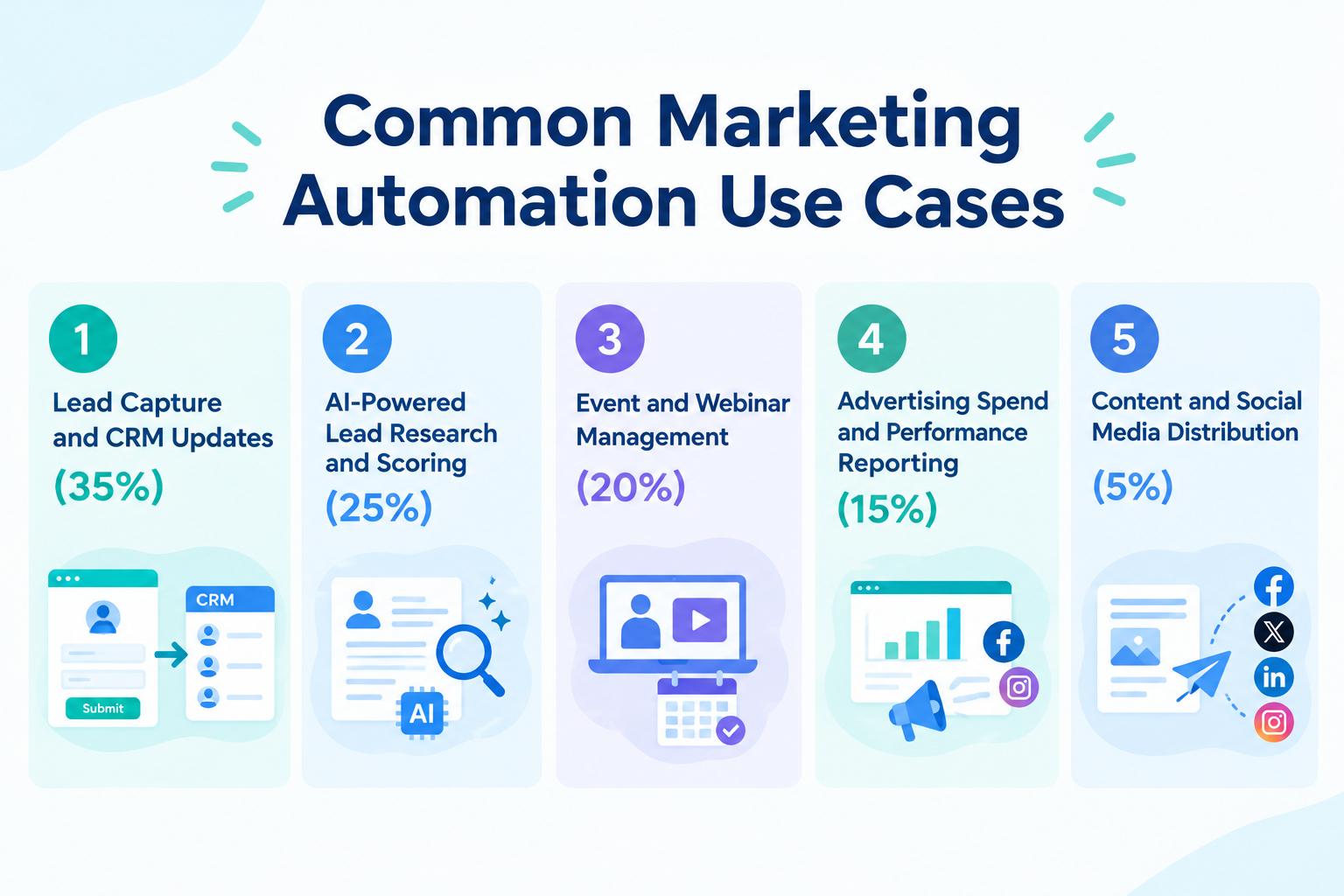
1. Lead Capture and CRM Updates (35%)
When someone fills out a form in Typeform or Google Forms, their information is automatically added to a CRM such as Salesforce or HubSpot.
This reduces manual data entry and helps prevent new leads from being overlooked.
2. AI-Powered Lead Research and Scoring (25%)
AI researches a company's website, summarizes its business, and gathers information that helps marketers evaluate whether the company is a good fit.
Teams can use this information to prioritize leads before passing them to sales.
3. Event and Webinar Management (20%)
When someone registers for an event or webinar, the system can automatically update the registration list, send calendar invitations, and schedule reminder and follow-up emails.
This reduces the amount of manual coordination required before and after an event.
4. Advertising Spend and Performance Reporting (15%)
Advertising data from platforms such as Google Ads and Meta Ads is automatically collected in spreadsheets. Teams can also send daily performance summaries to Slack.
This makes it easier to review campaign results without downloading reports from each platform.
5. Content and Social Media Distribution (5%)
Approved marketing content is scheduled and shared across social media channels.
This helps teams manage publishing more consistently without manually posting every update.
Related Marketing Automation Templates:


■Who should use this template
- Sales managers who want to use customer activity data accumulated in Salesforce to automatically prioritize leads
- Inside sales representatives who want to quickly identify leads with high purchase intent and connect them with smooth outreach to improve close rates
- Teams that want to notify their sales team only about hot leads, prevent information overload in Slack, and build a more efficient sales process
■Benefits of using this template
- AI automatically scores leads based on their Salesforce activity history, enabling you to identify hot leads using objective criteria and optimize the priority of your sales outreach.
- Slack notifications are sent only when a lead reaches a high score, so you can focus on opportunities that require immediate attention without being overwhelmed by low-priority notifications.
■Flow bot steps
- First, connect Salesforce and Slack to Yoom.
- Next, select Salesforce as the trigger and set the action to “When a record is added to the Activity object.”
- Finally, create instructions for the AI worker to detect the Salesforce Activity object, update the lead engagement score, and notify Slack only when the score is high.
■Customization options
- Adjust the instructions given to the AI worker to freely define scoring criteria that match your business model, such as adding points for specific actions.
- Customize the notification conditions, such as the score threshold for Slack notifications, to control the notification frequency and lead quality.
- Add Salesforce custom objects and other fields to retrieve to perform more advanced analysis based on a broader range of data.
■Notes
- Connect both Salesforce and Slack to Yoom. You must also connect the tools (apps) used within the AI worker through My Apps.
- Salesforce is available only on the Team and Success plans. Please note that operations and Data Connect configured in flow bots will result in errors on the Free and Mini plans.
- Paid plans, such as the Team and Success plans, include a two-week free trial. During the free trial, you can use apps that are otherwise subject to plan restrictions.
- You can select a trigger interval of 5, 10, 15, 30, or 60 minutes.
- Please note that the shortest available trigger interval varies by plan.
- For basic AI worker setup, see “[AI Worker] How to configure basic settings.”
- The number of concurrent AI worker executions, the number of AI workers you can create, and the AI models available to you vary depending on your plan.
- The apps and operations available within an AI worker are subject to the same usage restrictions as flow bots.
- Please note that AI workers consume tasks during test runs just as they do during production runs. For details, see “[AI Worker] How task execution counts are calculated.”
- AI workers are more likely to perform the appropriate processing when their instructions are configured in detail. For details, see “[AI Worker] How to create instructions.”
■Overview
Reviewing shipping slips one by one and manually entering the data into Salesforce is not only time-consuming but also prone to input errors. With this workflow, simply upload a shipping slip file to a form. The OCR feature automatically extracts the information and stores it in Salesforce, eliminating these manual tasks while improving operational accuracy and speed.
■Who Should Use This Template
- Teams that manually enter shipping slip information into Salesforce and want to streamline their operations
- Team leaders who want to eliminate manual entry errors and improve the accuracy of customer data
- Teams considering digitizing information from paper documents and automating workflows centered around Salesforce
■Benefits of Using This Template
- The OCR feature automatically extracts information from shipping slips and stores it in Salesforce, reducing the time spent on manual entry so you can focus on more important work.
- By eliminating the need to manually transfer data, this workflow helps prevent human errors such as incorrect entries and missing information, keeping your data accurate.
■Flowbot Steps
- First, connect Salesforce to Yoom.
- Next, select the Form Trigger feature as the trigger and create a form for uploading shipping slip files.
- Then, select the OCR feature as an operation and configure it to read the images or PDF files of shipping slips uploaded through the form.
- Finally, configure Salesforce's "Create a Record" action as an operation to store the information extracted by OCR in the corresponding Salesforce fields.
※"Trigger": An action that starts a flow. "Operation": An action that processes data within a flow after the trigger starts.
■Customization Options
- In addition to the file upload field, you can freely add and edit text boxes for entering supplementary information and other fields in the form created with the Form Trigger.
- With the OCR feature, you can specify which fields to extract from the shipping slip, such as the delivery address, item name, and date.
- When adding a record to Salesforce, you can freely map which information extracted by OCR should be stored in each Salesforce field.
■Notes
- Connect Salesforce to Yoom.
- AI Operations are available only on the Team and Success Plans. Please note that operations configured in Flowbots will result in an error on the Free and Mini Plans.
- Paid plans such as the Team and Success Plans include a two-week free trial. During the free trial, you can use apps and AI features (operations) that are subject to plan restrictions.
- Please note that OCR may not be able to read data containing 6,500 characters or more, or text that is too small.


■Overview
This flow retrieves the latest information from Meta Ads (Facebook) account reports and Google Ads campaign reports daily and adds it to a Google Spreadsheet.
With Yoom, you can easily achieve this flow without the need for programming, as it allows for integration between apps.
■Recommended for
- Marketing professionals who manage ads on Meta Ads (Facebook) and Google Ads and want to check the performance of both daily
- Advertising agency personnel who want to streamline report creation for clients
- Those who need to regularly report on ad performance
- Those who manage ad operations using Google Spreadsheets
- Those who want to automate data collection and entry to focus more on strategic tasks
■Benefits of using this template
To properly manage ad operations, performance review and analysis are crucial, but spending too much time on information gathering and report creation can hinder your primary tasks.
By implementing this flow, you can obtain report information from Meta Ads (Facebook) and Google Ads at a specified time daily and synchronize the necessary items with Google Spreadsheets.
This prevents omissions and transcription errors, reduces report creation time, and allows you to smoothly proceed with more strategic tasks such as data analysis and ad operation planning based on highly accurate information.

With this workflow, the end of a Zoom webinar triggers the automatic registration of attendee information as leads in HubSpot, eliminating this hassle and reducing errors so you can follow up faster.
■Who Should Use This Template
- Anyone who finds it time-consuming to create attendee lists and register them in HubSpot after Zoom webinars
- Marketers who want to improve efficiency and reduce human error caused by manual data entry
- Sales professionals who want to strengthen lead nurturing through prompt outreach to webinar attendees
■Benefits of Using This Template
- Attendee information is automatically registered in HubSpot after a Zoom webinar ends, reducing the time spent on manual data entry.
- Prevent common input errors and omissions that occur during manual registration, improving data accuracy.
■How the Flowbot Works
- First, connect Zoom and HubSpot to Yoom.
- Next, select Zoom as the trigger and set the action to “When a meeting ends.” You can also specify a particular webinar.
- Then, set up the branching feature as an operation so that subsequent steps run only when specific conditions are met, such as when the topic includes “briefing session.”
- Next, set the Zoom “Get a list of webinar registrants” action as an operation to retrieve attendee information for the completed webinar.
- Then, set up the loop feature as an operation to repeat the process for each attendee in the retrieved list.
- Finally, set the HubSpot “Create a contact” action as an operation within the loop to register attendee information in HubSpot.
■Customization Options
- For Zoom’s “When a meeting ends” trigger, optionally specify the email address of the Zoom account that should receive notifications and a specific meeting ID (webinar ID).
- For the branching feature, set the execution conditions as needed, such as running the process only when the ID matches that of a specific webinar.
- For Zoom’s “Get a list of webinar registrants” action, optionally specify the email address of the Zoom account hosting the webinar and the webinar ID.
- For the loop feature, specify which information from the attendee list retrieved from Zoom should be processed repeatedly.
- For HubSpot’s “Create a contact” action, specify the contact information to register as needed, such as each attendee’s name, email address, and company name.
■Notes
- Connect both Zoom and HubSpot to Yoom.
- You can choose a trigger interval of 5, 10, 15, 30, or 60 minutes.
- Note that the shortest available trigger interval varies by plan.
- Note that the actions available may vary depending on your Zoom plan.
- At this time, the following action is available only on paid Zoom plans.
- When a meeting ends
- Get meeting recording information (only recordings stored in the cloud can be retrieved)
- For details, see Important Notes When Retrieving Zoom Meeting Recording Information.
- Branching is a feature (operation) available on the Personal plan and above. On the Free plan, configured Flowbot operations will result in errors. For details, see the Pricing Plans page.
- Operations between “Repeat the same process” steps are available on the Personal plan and above. On the Free plan, configured Flowbot operations and data connections will result in errors. For details, see the Pricing Plans page.
■Overview
Managing attendee lists after hosting a webinar can take a significant amount of time when done through manual entry and data transfer. In particular, registering attendee information in a customer management tool such as Salesforce is time-consuming and prone to data entry errors. With this workflow, whenever someone registers to attend a webinar in Zoom, a record is automatically added to Salesforce, eliminating these challenges. By automating webinar operations, you can eliminate manual tasks and create an environment where you can focus on more important work.
■Who should use this template
- Those who want to integrate Zoom with Salesforce and streamline webinar attendee information management
- Marketing professionals who want to prevent manual data entry errors and omissions and automate webinar operations
- Sales teams who want to speed up post-webinar follow-ups and improve the quality of their sales activities
■Benefits of using this template
- When someone registers for a webinar in Zoom, a record is automatically added to Salesforce, reducing the time required for manual data entry
- Eliminating manual data transfer helps prevent human errors such as data entry mistakes and missed registrations, helping maintain data accuracy
■Flowbot steps
- First, connect Zoom and Salesforce to Yoom
- Next, select Zoom as the trigger and set the “When a webinar registration is created” action
- Finally, select Salesforce as the operation and set the “Add a record” action to automatically register the attendee information retrieved from Zoom
※“Trigger”: An action that initiates the flow. “Operation”: An action that processes data within the flow after the trigger starts.
■Customizing this workflow
- In the Salesforce operation settings, specify any My Domain URL for the connection destination
- You can also specify the API name of the object where you want to add records, such as Lead or Contact
■Notes
- Connect both Zoom and Salesforce to Yoom.
- 【Salesforce】 is available only on the Team and Success plans. Please note that operations and data connections for configured Flowbots will result in errors on the Free and Mini plans.
- Paid plans, such as the Team and Success plans, include a 2-week free trial. During the free trial, you can use apps that are otherwise subject to plan restrictions.
Why Marketing Automation Often Requires Multiple Tools
Marketing automation often involves more than connecting two apps.
Our platform data shows that the average marketing automation connects approximately 3.5 to 4 different applications.
Simple automations that connect just two apps can be useful for individual tasks. However, marketing often requires quick coordination between multiple teams, such as marketing, sales, and customer support. This may explain why many marketing automations involve several applications rather than just two.
The more applications an automation connects, the more steps and tasks it can potentially cover. Instead of automating a single task, businesses can connect different tools to reduce manual work across a broader process.
This suggests that when choosing a marketing automation platform, it's worth considering not only which apps it supports, but also how well it can connect them to automate work across teams.
How AI Helps Marketing Automation: Top 3 Use Cases
AI is becoming an important part of marketing automation, but its value goes beyond generating blog posts or writing promotional emails.
One particularly useful application is lead qualification: evaluating incoming leads to help sales teams decide which prospects to contact first.
Manually researching every new inquiry takes time, especially for small marketing teams. AI can help gather the information needed to evaluate each lead before sales follows up.
In the AI-related marketing automations we examined, three main tasks stood out.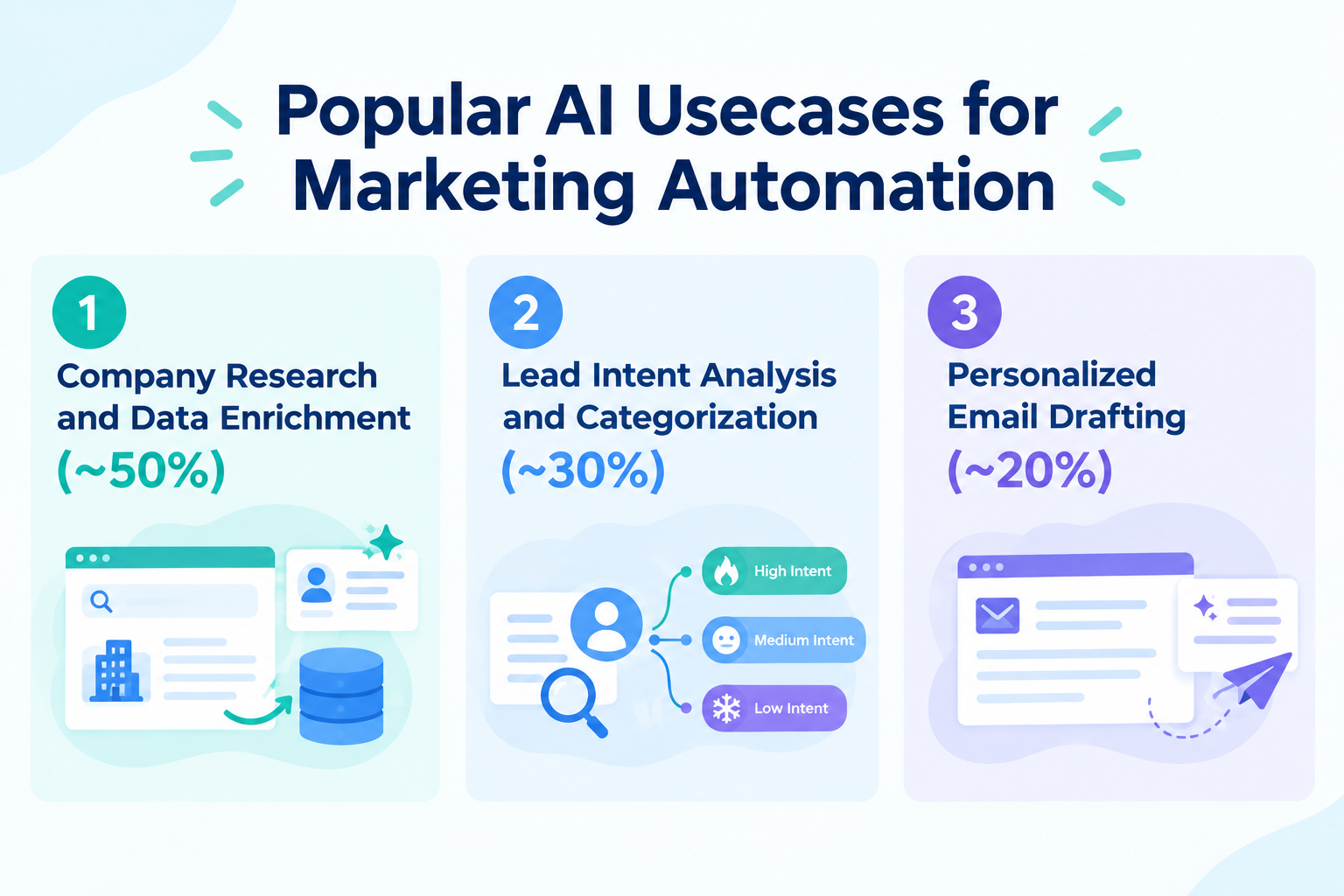
1. Company Research and Data Enrichment (~50%)
AI gathers information from a company's website, such as its industry, company size, and products or services. The information is then added to the lead's CRM record.
Sales reps can review this background information before contacting the prospect instead of researching every company from scratch.
2. Lead Intent Analysis and Categorization (~30%)
AI analyzes the message submitted through a contact form to identify urgency or the type of help the prospect needs.
For example, if a prospect writes, "Our current vendor stopped working, and we need an alternative by Friday," AI can label the inquiry as high priority and notify the sales team through Slack.
This helps teams identify urgent inquiries and respond accordingly.
3. Personalized Email Drafting (~20%)
AI uses the prospect's inquiry to prepare a relevant follow-up email.
Instead of sending the same generic response to everyone, the system can draft a message that addresses the prospect's specific questions. A team member reviews and sends the email, keeping a human involved in the communication.
These examples show how AI and marketing automation can work together. AI helps interpret information and prepare recommendations, while automation moves the information to the right place and triggers the next action.
Related AI Templates:

An AI worker that collects competitor pricing, inventory availability, shipping costs, and more from competitor URLs and product information. It also calculates differences from your own prices and previous research, and determines whether to trigger alerts. Ideal for e-commerce, sales, and marketing teams looking to streamline competitor price research and quickly refine their pricing strategy.
- What are skills?
- They are instructions that guide the AI worker through each task. For detailed setup instructions, see [AI worker] How to Create Skills (formerly Manuals).
- What are tools?
- These are the tools the AI worker uses to perform tasks. Simply tell the AI which tools your organization normally uses, and you can freely customize where data is retrieved from and where it is sent.
- The number of AI workers that can run simultaneously, the number of AI workers you can create, and the AI models available to you vary by plan.
- The apps, operations, and other features available within AI workers are subject to the same usage limits as Flowbot.
- AI workers consume tasks during test runs just as they do during production runs. For details, see [AI worker] How Task Execution Counts Are Calculated.

This AI worker scores purchase intent based on lead attributes and engagement history, then creates ranked lead lists along with initial outreach talk tracks and proposal content. Ideal for sales teams looking to standardize prioritization and streamline scoring so they can focus on selling.
- What are skills?
- They are instructions that guide the AI worker through each process. For detailed setup instructions, see 【AI Worker】How to Create Skills (Formerly Manuals).
- What are tools?
- These are the tools the AI worker uses to process tasks. Simply tell the AI which tools your organization normally uses, and you can freely change where data is retrieved from and where it is output.
- The number of AI workers that can run simultaneously, the number of AI workers you can create, and the AI models available to you depend on your current plan.
- The apps and operations available within AI workers are subject to the same usage limits as Flowbot.
- AI workers consume tasks during test runs just as they do during production runs. For details, see 【AI Worker】How Task Usage Is Calculated.


An AI worker that analyzes Salesforce activity records, scores deal likelihood, updates Salesforce, and sends Slack notifications. Standardize winning patterns and automate prioritization so sales teams can immediately focus on high-impact opportunities. Ideal for improving sales strategy accuracy and organization-wide efficiency.
■Who is this AI worker for?
- Sales managers who want to make better use of activity data stored in Salesforce and improve the accuracy of their sales strategy
- Sales representatives who want to automate lead prioritization and avoid missing follow-ups with high-potential opportunities
- Business leaders who want to standardize closing probability criteria that currently rely on individual expertise and improve sales efficiency across the organization
■AI worker setup flow
- Define the AI worker’s name, role, and other basic settings.
- Connect Slack and Salesforce through Yoom’s My Apps, then configure the actions the AI worker will use. You can also add other tools your company uses as needed.
- Create a manual that serves as instructions for the AI worker. Incorporating your company’s closing patterns and operational rules enables more accurate scoring.
■Customization points for this AI worker
- In the manual, configure score definitions in the section titled “Hot Lead Criteria” based on your products and historical trends. Specify the factors that drive conversions, such as BANT criteria or involvement from specific decision-makers, to improve the AI’s evaluation accuracy.
- In the manual, adjust the notification format in the section titled “Slack Notification Format” to deliver information in the format that works best for your sales team.
- Connect Slack and Salesforce with Yoom.
- Salesforce is available only on the Team and Success plans. If you are on the Free or Mini plan, Flowbot operations and Data Connect configurations using Salesforce will result in errors.
- Paid plans, including the Team and Success plans, offer a two-week free trial. During the free trial, you can use apps that are otherwise restricted.
- For basic AI worker settings, see “[AI Worker] Basic Setup Guide.”
- The number of AI workers that can run simultaneously, the number of AI workers you can create, and the available AI models vary by plan.
- The apps and operations available in AI workers are subject to the same usage limits as Flowbots.
- Please note that AI workers consume tasks during test runs just as they do during live runs. For details, see “[AI Worker] How Task Executions Are Calculated.”
- AI workers are more likely to perform appropriate processing when their manuals are configured in detail. For details, see “[AI Worker] How to Create a Manual.”
- Sales managers who use Salesforce and want to streamline the assignment of new leads
- B2B marketing professionals who want to assign leads objectively and fairly based on past closing performance and industry experience
- Sales operations professionals who want to shorten the time from lead generation to initial outreach and improve conversion to opportunities
- Because AI recommends the best team member based on historical data, you spend less time deciding who to assign leads to and can reach out more smoothly.
- Salesforce record updates are automated, helping prevent manual data entry errors and reduce the burden of administrative work.
- First, connect Salesforce and Slack to Yoom.
- Next, set the Salesforce action “When a new record is added to the Lead object” as the trigger.
- Then, use an AI worker to create a skill that selects the best team member, updates the Salesforce Lead object, and sends a Slack message mentioning the assigned team member. Set Salesforce and Slack actions as the tools to use.
- By adjusting the instructions (prompt) given to the AI worker, you can add custom assignment criteria, such as the current number of opportunities owned or the assigned region, in addition to closing performance.
- Customize the Slack notification content to include the lead’s industry and inquiry details from the web form, making it easier for the assigned team member to understand the situation.
- Connect Salesforce and Slack to Yoom. You must also connect the tools (apps) used within the AI worker through My Apps.
- Salesforce is available on the Mini plan and above. Please note that flowbot operations and Data Connect settings will result in errors on the Free and Personal plans.
- Paid plans, including the Personal, Mini, Team, and Success plans, offer a two-week free trial. During the free trial, you can use apps and features (operations) that are subject to plan restrictions. For details, see the Pricing Plans page.
- You can choose a trigger interval of 5, 10, 15, 30, or 60 minutes.
- Please note that the shortest available trigger interval varies by plan.
- For basic AI worker setup, see [AI Worker] Basic Setup Guide.
- The number of concurrent AI worker executions, the number of AI workers you can create, and the AI models available to you vary by plan.
- The apps and operations available within AI workers are subject to the same usage limits as flowbots.
- Please note that AI workers consume tasks during test runs just as they do during production runs. For details, see [AI Worker] How Task Execution Counts Are Calculated.
- AI workers are more likely to process tasks appropriately when skills are configured in detail. For details, see [AI Worker] How to Create Skills (Formerly Manuals).
■Who should use this template
- Sales reps who want to speed up proposal preparation for new leads registered in Salesforce and reach out before competitors do
- Sales managers who want to reduce the time spent developing tailored proposal structures for each customer and focus on the sales conversation itself
- Team leaders who want to streamline operations by automating draft creation while maintaining consistent proposal quality
■Benefits of using this template
- Automate the process from registering a lead in Salesforce to creating a proposal draft, reducing preparation time so you can start outreach immediately.
- Because AI analyzes customer information and develops the proposal structure, you can reduce differences in individual skill levels and prepare consistent, high-quality proposals.
■Flowbot process
- First, connect Salesforce, Google Docs, Google Drive, and Slack to Yoom.
- Next, select Salesforce as the trigger and set the action to “When a new record is added to the Lead object.”
- Next, use the AI Worker to analyze customer information and internal knowledge, create a manual for developing a proposal outline and drafting the initial version in Google Docs, and configure Salesforce, Google Docs, Google Drive, and Slack as the tools to use.
- Finally, configure Slack’s “Send a message to a channel” action in the operation step to notify the person in charge when the draft is complete.
■Customization options
- Customize the AI Worker’s instructions to create proposal structures tailored to your company’s unique strengths or specific products and services.
- Specify any Google Drive folder as the destination for Google Docs and configure the workflow to automatically save files in a location that is easy for your team to access.
- Customize the Slack notification to include the URL of the generated document directly, allowing recipients to review its contents immediately.
■Notes
- Connect Salesforce, Google Docs, Google Drive, and Slack to Yoom. You must also connect the apps used within the AI Worker to My Apps.
- Salesforce is available on the Mini plan and above. On the Free or Personal plan, operations and Data Connects configured in the Flowbot will result in errors.
- Paid plans such as the Mini, Team, and Success plans offer a two-week free trial. During the free trial, you can use apps that are otherwise subject to plan restrictions.
- For basic AI Worker configuration, see “【AI Worker】Basic configuration guide.”
- The number of AI Workers that can run simultaneously, the number of AI Workers you can create, and the AI models available to you vary by plan.
- The apps and operations available within an AI Worker are subject to the same usage limitations as Flowbots.
- AI Workers consume tasks during test runs in the same way as during production runs. For details, see “【AI Worker】How task executions are calculated.”
- AI Workers are more likely to process tasks appropriately when their manuals are configured in detail. For details, see “【AI Worker】How to create a manual.”
Traditional Email Marketing Software vs. Modern Marketing Automation Platforms vs. Company-Wide Automation Platform
Not all marketing automation software serves the same purpose. Some tools focus on email campaigns, while others manage marketing activities within a broader CRM or connect multiple business apps.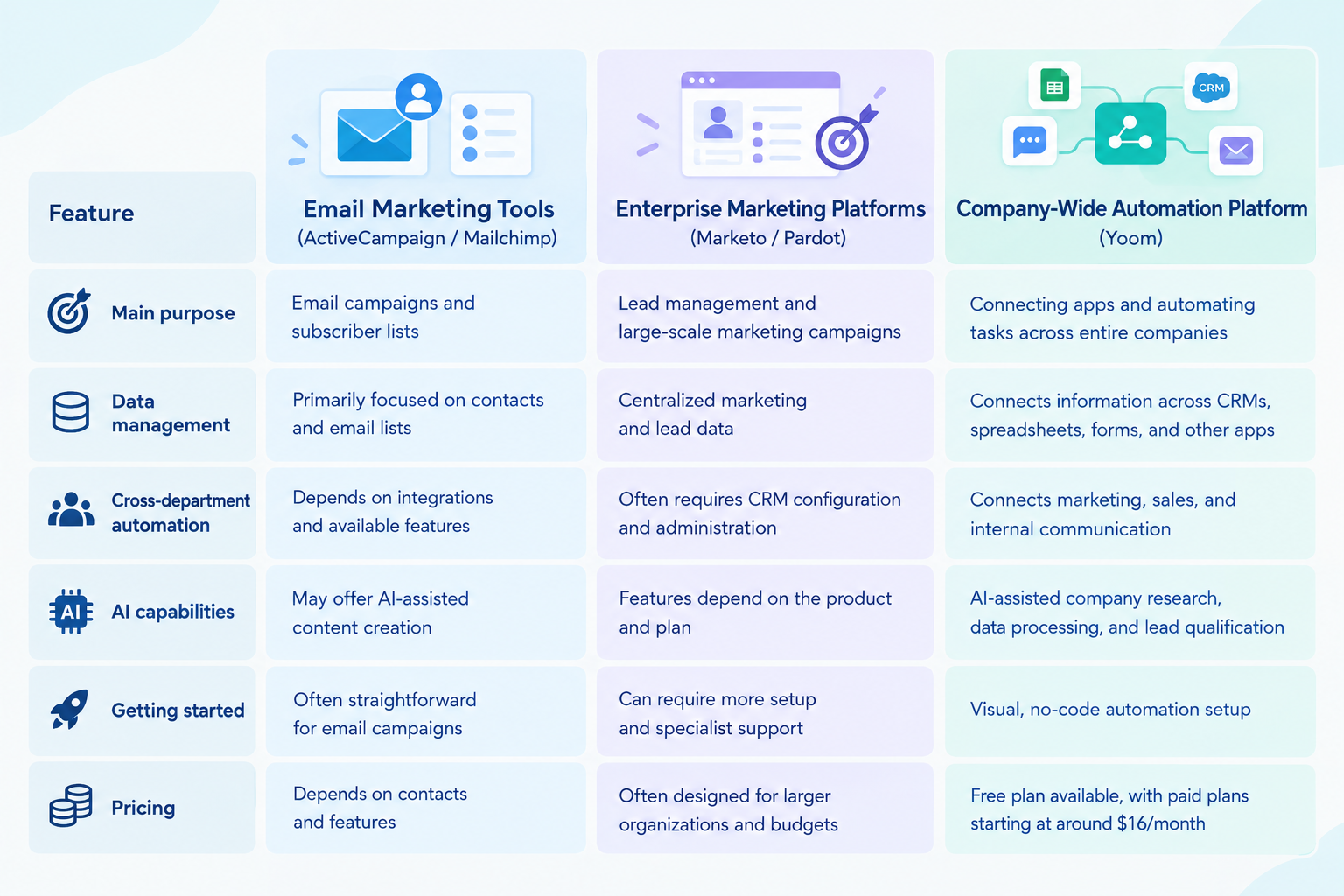
1. Email Marketing Tools (ActiveCampaign / Mailchimp)
- Main purpose: Managing email campaigns and subscriber lists
- Data management: Primarily focused on contacts and email lists
- Cross-department automation: Depends on available integrations and features
- AI capabilities: May offer AI-assisted content creation
- Getting started: Often straightforward for email campaigns
- Pricing: Depends on the number of contacts and available features
2. Enterprise Marketing Platforms (Marketo / Pardot)
- Main purpose: Managing leads and large-scale marketing campaigns
- Data management: Centralizing marketing and lead data
- Cross-department automation: May require CRM configuration and ongoing administration
- AI capabilities: Features vary by product and plan
- Getting started: Can require more setup and specialist support
- Pricing: Often designed for larger organizations with bigger budgets
3. Company-Wide Automation Platform (Yoom)
- Main purpose: Connecting apps and automating tasks across the entire company
- Data management: Connecting information across CRMs, spreadsheets, forms, and other apps
- Cross-department automation: Connecting marketing, sales, and internal communication
- AI capabilities: Supporting company research, data processing, and lead qualification with AI
- Getting started: Visual, no-code automation setup
- Pricing: Free plan available, with paid plans starting at around $16/month
The right choice depends on what you need to automate. A dedicated email marketing tool may be sufficient if your main goal is sending newsletters and follow-up emails. If you need to connect lead generation, customer data, and sales activities across multiple apps, a broader marketing automation platform may be a better fit.
Pricing and features vary by provider and plan, so check each vendor's current offering before making a decision.
Best Marketing Automation Platforms and Software for 2027
The following tools serve different needs, from connecting business apps to managing complete inbound marketing campaigns.
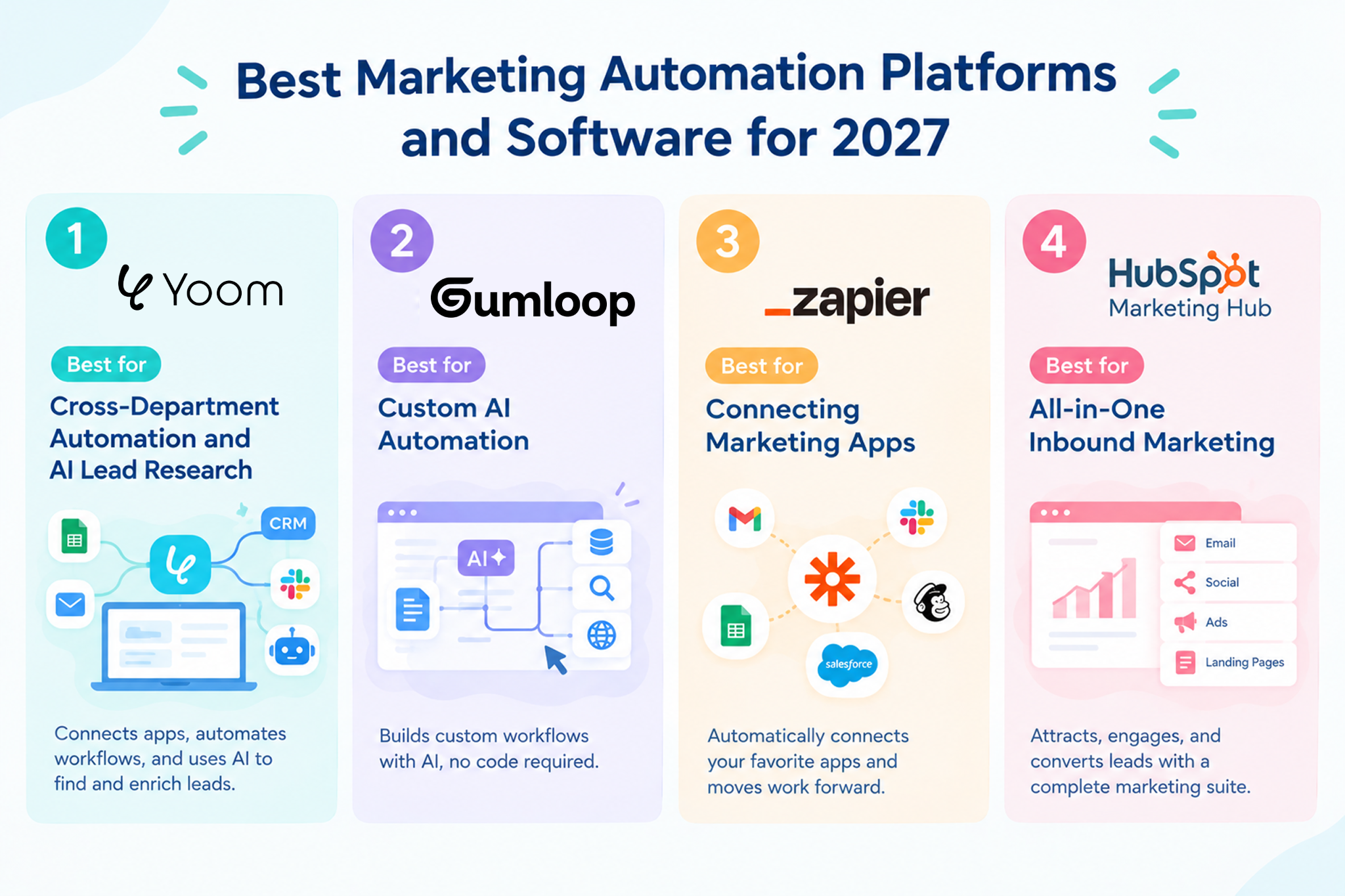
1. Yoom: Best for Cross-Department Automation and AI Lead Research
Yoom is a no-code automation platform that connects business apps and helps teams automate repetitive tasks. It can connect marketing lead generation with sales activities, internal communication, and AI-powered data processing.
How it supports marketing automation
Yoom can connect a lead capture form to AI research, CRM updates, and sales notifications.
For example, when a lead comes from a Meta Ads or Google Ads campaign, Yoom can help connect the process from lead delivery to sales outcomes. Lead data can be stored in a CRM such as Salesforce, and when a lead turns into a sales opportunity or a paying customer, the assigned marketer or sales rep can be notified. The outcome can also be used to update an Excel advertising report and, where the necessary integrations are available, send conversion data back to the ad platform to help improve campaign optimization.
This allows marketing teams to go beyond counting leads. By connecting ad performance data with CRM outcomes, they can better understand which campaigns generate leads that actually turn into business opportunities and paying customers.
Key advantages
- No-code visual automation that doesn't require programming skills
- Built-in database capabilities through Yoom DB
- AI Worker for researching companies and processing information
- Connections across marketing, CRM, and communication tools
Best for: Growth marketers, demand generation managers, and small revenue teams that want to automate lead qualification and coordinate marketing and sales without investing in a large enterprise platform.
Pricing: Free plan is available. Paid plans start at ~$16/month.
2. Gumloop: Best for Custom AI Automation
Gumloop is a visual automation platform focused on building AI-powered processes.
How it supports marketing automation
Marketers can use Gumloop to gather information from competitor websites, monitor brand mentions, and process information with AI. These capabilities can help teams with market research and other data-intensive marketing tasks.
Key advantages
- Visual tools for building AI-powered processes
- Flexible options for combining AI models and data sources
- Useful for custom research and data processing tasks
Best for: Technical growth marketers and marketing operations specialists who want more control over how AI processes information.
Pricing: A free plan is available. Paid plans start at $37/month.
3. Zapier: Best for Connecting Marketing Apps
Zapier is an automation platform that connects thousands of apps and lets users create automations based on triggers and actions.
How it supports marketing automation
For example, when someone submits a Facebook Lead Ad form, Zapier can automatically add their details to a Mailchimp audience. Teams can also connect other marketing tools to reduce repetitive data entry.
Key advantages
- A broad selection of app integrations
- Straightforward trigger-and-action automation
- Useful for connecting commonly used marketing tools
Best for: Marketing generalists who want to automate straightforward tasks between different apps without building a complex system.
Pricing: A free plan is available. Paid plans start at $19.99/month.
4. HubSpot Marketing Hub: Best for All-in-One Inbound Marketing
HubSpot Marketing Hub combines tools for lead generation, email marketing, landing pages, and campaign management. It also connects marketing activities with HubSpot's CRM.
How it supports marketing automation
Teams can manage contacts, create email campaigns, automate follow-ups, and score leads within the HubSpot ecosystem.
Because marketing and customer information are stored in a connected system, it can be a convenient option for teams that want to manage most of their marketing activities in one place.
Key advantages
- Marketing tools and CRM data in one ecosystem
- Email campaign and lead management features
- Campaign reporting and contact management
Best for: Companies that want an integrated inbound marketing platform and have the budget and resources to manage it.
Pricing: A free plan is available. Paid plans starts at $7/mo/seat.
Marketing Automation Helps You Measure Lead Quality Beyond Lead Delivery
As a marketer working at a company that provides an automation tool, I've come to realize that automation isn't always the biggest priority when it comes to marketing tasks alone.
Some marketing activities, such as planning ad campaigns or developing creative strategies, still require human judgment. For these tasks, automation may have a more limited role.
However, I've found two areas where automation can make a real difference: collecting data to create more original marketing insights, and connecting marketing with other departments.
For example, SEO teams need reliable, first-party data to create content that offers insights beyond what's already available online. Automation tools can help collect and organize data from different business apps, making it easier to analyze internal data and turn it into useful content.
And I believe one of the biggest benefits of marketing automation is what happens after a lead is delivered to the sales team.
From Delivering More Leads to Understanding Lead Quality
Generating leads is only one part of marketing. What happens after those leads are passed to sales matters just as much.
How many leads turn into sales meetings? How many eventually become paying customers? And what do the leads that convert have in common?
Without a reliable way to connect marketing data with sales outcomes, marketers may find it difficult to answer these questions. They might focus on delivering more leads without having enough information to understand which leads create real business value.
By connecting marketing tools with CRM systems and sales data, automation can help teams track what happens after lead delivery. For example, marketers can bring lead status, meeting outcomes, and customer conversion data into a shared database or spreadsheet, then use that information to compare results across campaigns and lead sources.
This makes it easier to evaluate lead quality using measurable outcomes rather than relying only on the number of leads delivered or subjective feedback from sales.
The real value isn't just automating lead delivery. It's making it easier to learn which leads are most likely to become customers.
When marketing and sales share this information, marketers can use it to improve targeting, adjust campaigns, and make better decisions about where to invest their budget. Automation can therefore help marketing teams move from simply generating leads to building a more evidence-based approach to lead generation.
The Challenge of Getting Started with Marketing Automation
Despite these benefits, getting started with automation can be a little tedious.
Regardless of which marketing automation software you choose, you may need to connect your existing apps, decide how information should move between them, and configure the steps that make up your process.
For example, connecting lead generation forms, a CRM, and sales reporting may require you to decide which fields to transfer, how to match records, and when information should be updated. If you're new to automation, figuring out how everything fits together can feel overwhelming.
That's why choosing a marketing automation platform isn't just about comparing features. It's also important to find a tool that makes it easy to build your first automation and expand as your needs grow.
My recommendation is to start small rather than trying to automate your entire marketing process at once.
Start Small with a Free Plan
Before committing to a paid plan, try a marketing automation platform with a free plan, if available.
Choose one repetitive task that takes time but doesn't require complex decision-making. For example, you could start by automatically transferring new form submissions to your CRM, notifying sales when a high-priority lead comes in, or collecting campaign data in a spreadsheet.
You don't necessarily need to build everything from scratch. Many marketing automation tools offer ready-made templates that help you get started without planning every step yourself.
Start with a template, connect the apps you already use, and adjust the settings to fit your process. Once you understand how the automation works, you can gradually expand it to cover more tasks or connect additional departments.
The goal isn't to automate everything immediately. It's to find a practical starting point and see how automation can reduce manual work and improve the way your team uses data.
Three Ways to Get Started with Marketing Automation Using Yoom
Yoom is a company-wide automation platform that connects business apps and helps teams automate repetitive tasks across departments. You can use it for marketing activities, but also for connecting marketing with sales and other teams.
Yoom offers three ways to build automations, depending on your needs and how much customization you want.
Option 1. Start with a Template
If you want to automate a common marketing task quickly, start with a ready-made template. Choose one that matches your needs, then adjust it to fit your team's process.
For example, you could use a template to transfer form submissions to a CRM, notify your team when a new lead comes in, or synchronize information between business apps.
This is a good option if you want to automate routine marketing tasks without planning every step yourself.
Explore Yoom's automation templates
Option 2. Let AI Worker Help Build Your Automation
If you know what you want to automate but aren't sure how to build it, describe your goal in natural language. Yoom's AI Worker can help you turn your idea into an automated process.
For example, you could describe a process that gathers information about new leads, organizes company details, and notifies the sales team when a lead meets your criteria.
This is a useful option when you have a specific marketing task in mind but want help turning your idea into an automation.
Explore Yoom's AI Worker templates
Option 3. Build a Custom Automation
If a template or AI-assisted setup doesn't fully meet your needs, you can build a custom automation using Yoom's customization features.
Connect the apps you already use and configure each step to match your process. For example, you could collect lead information, enrich it with company data, update your CRM, and notify sales—all as part of a connected process.
You can also combine app integrations with AI, OCR, and RPA features to handle different types of work within an automation.
This option is ideal when you need more control over how your apps exchange information or want to automate a process that's specific to your business.
Learn how to set up custom app and API connections
Whether you want to automate a single marketing task, improve how you measure lead quality, or connect processes across multiple departments, you don't need to do everything at once.
Start with one task, learn what works for your team, and expand from there. With Yoom, you can start with a template, use AI Worker to help build an automation, or create a custom process that fits your needs.