・
SEO Automation Software for the AI Era: Real-World Use Cases

- The AI SEO Challenge: Why SEO Data Alone Is Not Enough
- Traditional SEO vs. Workflow-Based SEO Automation
- Why First-Party Data Matters for SEO
- Turning Customer Questions into SEO Opportunities
- Inside the Data: How Modern Teams Use Automated SEO Workflows
- SEO Automation Software vs. Traditional SEO Tools
- Best SEO Automation Tools in 2026
- How to Build an Automated SEO Workflow: A Beginner's Guide
Search engine optimization (SEO) is changing.
For years, marketing teams have used SEO tools such as Ahrefs, Semrush, and Moz to find keywords, track rankings, and research competitors.
These tools are still useful. But there is a growing challenge.
If every company uses the same keyword data and asks AI to create similar content, it becomes harder to stand out.
To create content that performs well in modern search, you need more than keywords. You also need original information, real customer insights, and knowledge that only your company has.
This is where SEO automation software can help.
Instead of using SEO tools separately, you can connect SEO data with your company's own data, such as customer inquiries, CRM records, support requests, and case studies.
You can then use AI to analyze this information and help create more relevant content.
In this article, we'll look at how AI SEO automation works, why first-party data matters, and how to build automated SEO workflows that save time while helping your content stand out.The AI SEO Challenge: Why SEO Data Alone Is Not Enough
Modern search is changing quickly.
Google Search, Google AI Overviews, ChatGPT, and other AI-powered search experiences are becoming better at understanding what users are looking for.
This means simply creating an article that summarizes the information already available online may not be enough.
Your content needs to offer something useful and original.
This is sometimes called Information Gain.
In simple terms, Information Gain means adding information or insights that users cannot easily find in other articles.
For example, imagine that 100 companies write articles about the same keyword.
If all 100 companies use the same keyword data and ask AI to summarize the same search results, the articles may end up looking very similar.
Traditional SEO vs. Workflow-Based SEO Automation
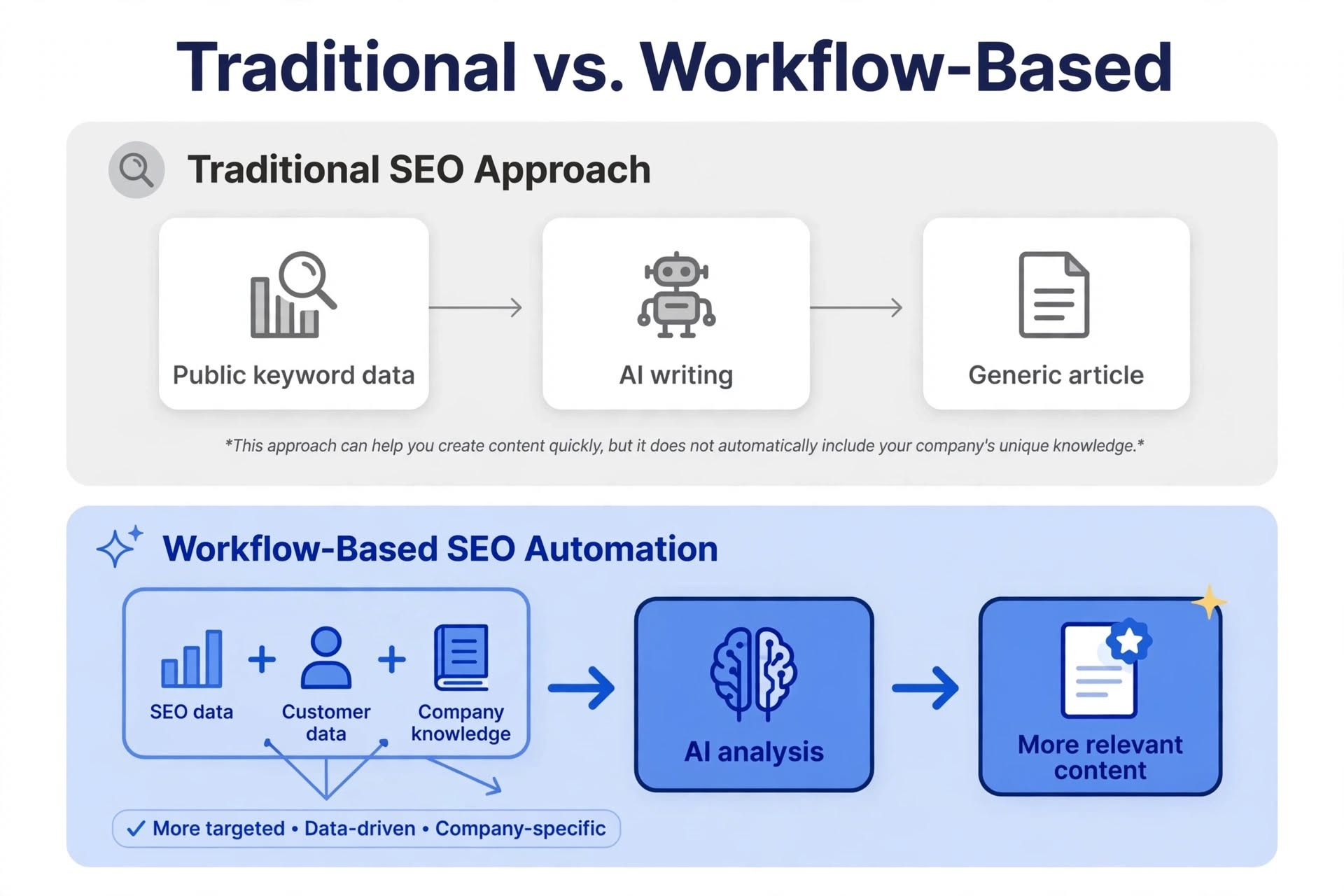
Traditional SEO approach:
Public keyword data → AI writing → Generic article
This approach can help you create content quickly, but it does not automatically include your company's unique knowledge.
Workflow-based SEO automation:
SEO data + Customer data + Company knowledge → AI analysis → More relevant content
With this approach, AI can use information from your own business when helping with SEO tasks.
For example, you could combine:
- Google Search Console data
- Keyword research
- Customer inquiries
- CRM records
- Company brand guidelines
- Product information
- Customer case studies
- Other internal databases
This is one of the main advantages of using SEO automation software instead of relying only on standalone SEO tools.
Why First-Party Data Matters for SEO
First-party data is information that your company collects directly.
Examples include:
- Customer FAQs
- Sales notes
- CRM records
- Product information update
- Customer feedback
- Case studies
SEO tools are very good at analyzing public search data.
However, they usually do not know what your customers are asking your sales or support teams.
That information can be extremely useful for SEO.
For example, a customer may ask:
"How do I connect my legacy ERP to a cloud accounting tool without custom code?"
A traditional keyword research tool may show little or no search volume for this exact question.
But the question still tells you something important:
A real customer has this problem.
If several customers ask similar questions, that may be a strong signal that you should create content around the topic.
Turning Customer Questions into SEO Opportunities
Customer questions can become a valuable source of SEO ideas.
With AI SEO automation, you can create a workflow that turns customer questions into content ideas.
For example:
- A customer submits a question through a web form.
- The workflow collects the question.
- AI identifies the customer's main problem and search intent.
- AI suggests a relevant article topic or FAQ.
- The draft is saved to Google Docs, Word or Notion.
- A marketer reviews the content before publishing.
This creates a continuous flow from customer feedback to SEO content.
Instead of relying only on estimated search volume, your content ideas can also come from real problems your customers are trying to solve.
This does not mean keyword research is no longer important.
Rather, first-party data gives you another source of SEO insights that traditional keyword tools may not capture.
Inside the Data: How Modern Teams Use Automated SEO Workflows
Based on our own data from active workflows on Yoom, this benchmark study looks at how teams combine internal company data with SEO automation.
1. 72.4% of SEO Workflows Use First-Party Data
In the analyzed workflows, 72.4% used internal databases or CRM data together with external SEO tools such as Google Search Console and Ahrefs.
This means many automated SEO workflows do more than collect public SEO data.
They also use information from inside the company.
For example, a workflow may combine:
- Search performance data from Google Search Console
- Keyword data from an SEO tool
- Customer information from HubSpot or Salesforce
- Internal information stored in a database
- Product or case study information
AI can then use this combined information to help create more relevant content.
This approach can make SEO workflows more closely connected to the actual business and its customers.
2. What Triggers Automated SEO Workflows?
SEO automation does not always mean "publish an article every week."
An automated SEO workflow can start whenever something happens that is relevant to your SEO work.
The workflow data analyzed in this study shows four main types of triggers:
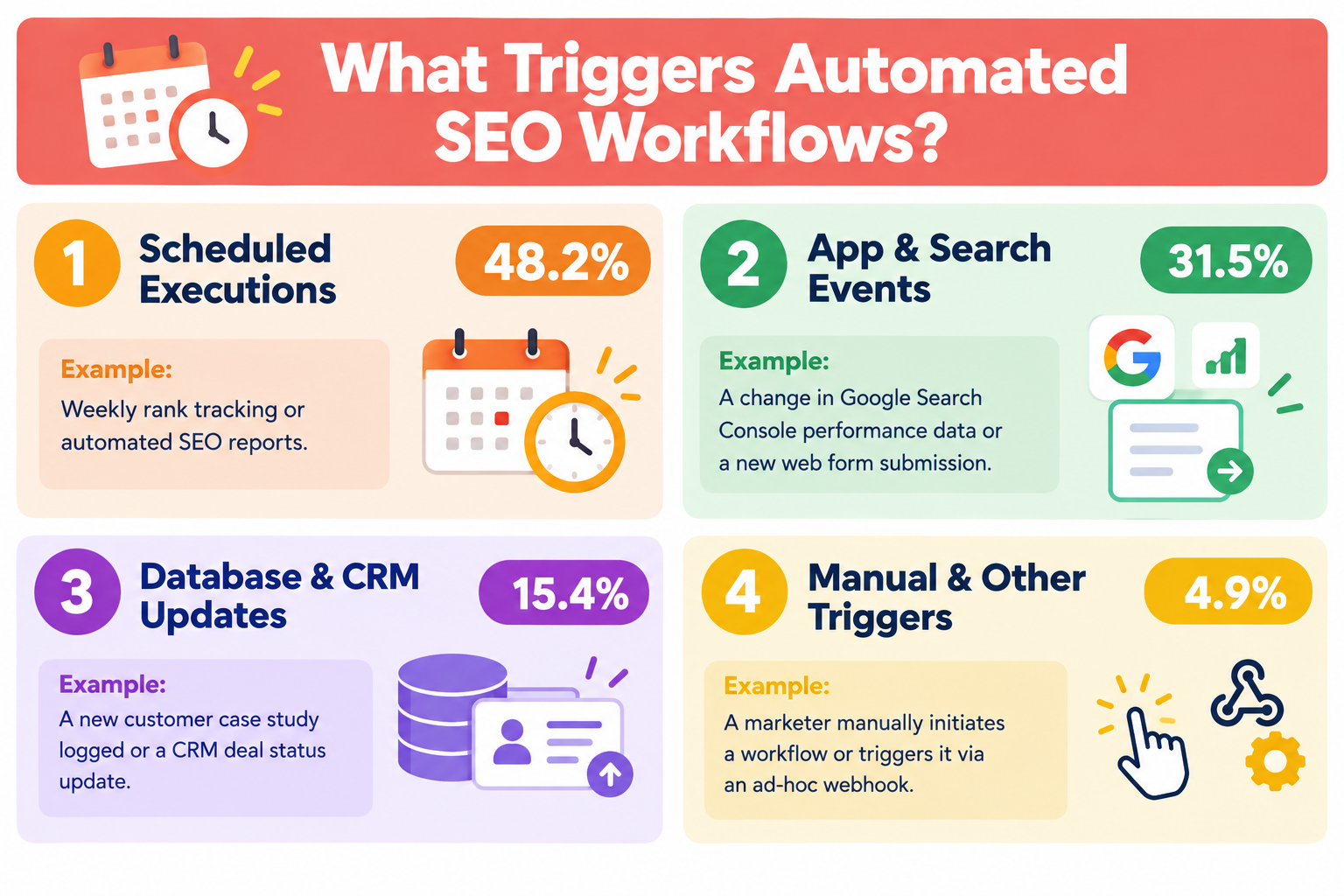
Scheduled executions (48.2%)
These workflows run at a set time.
For example:
- Weekly keyword checks
- Rank tracking
- SEO performance reports
- Regular content research
This is useful for repetitive SEO tasks that need to happen regularly.
App and search events (31.5%)
These workflows start when something changes in another tool.
For example:
- A change in Google Search Console performance
- A new customer inquiry
- A new form submission
This allows your SEO workflow to react to new information instead of waiting for someone to check it manually.
Database and CRM updates (15.4%)
These workflows start when information inside the company changes.
For example:
- A sales team adds a new customer story
- A new deal is marked as closed
- A product record is updated
The workflow can then automatically create a content idea, article outline, or case study draft.
Manual and other triggers (4.9%)
Some workflows are started manually when a marketer needs them.
For example, a marketing manager may run a workflow to analyze a new keyword or create a content brief.
3. One SEO Workflow Connects 4.6 Tools on Average
SEO work often involves several different tools.
For example, you might use: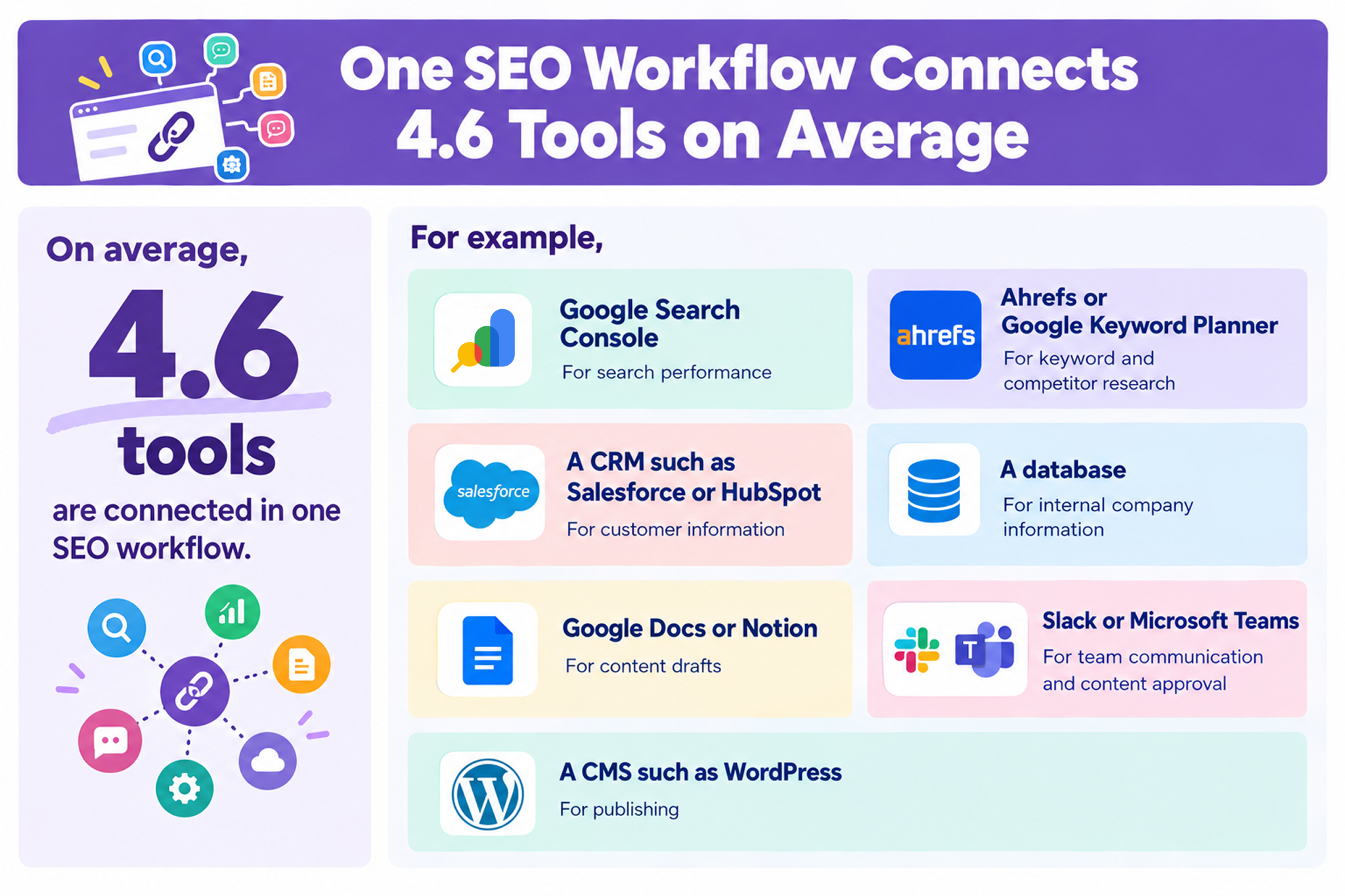
- Google Search Console for search performance
- Ahrefs or Google Keyword Planner for keyword and competitor research
- A CRM such as Salesforce or HubSpot for customer information
- A database for internal company information
- Google Docs or Notion for content drafts
- Slack or Microsoft Teams for team communication and content approval
- A CMS such as WordPress for publishing
According to the workflow data, an automated SEO workflow connects an average of 4.6 different tools and operations.
A typical workflow may look like this:
Collect SEO data
→ Find relevant company information
→ Use AI to analyze the information
→ Create a content draft
→ Ask a marketer to review it
→ Publish
The important point is that the workflow connects these steps.
You do not need to manually move information from one tool to another every time.
Related SEO Templates:


- Web professionals who manually create SEO articles based on information collected through Google Forms
- Media operators looking to streamline content marketing and automate article generation
- Anyone who wants to use AI to automate the process of publishing SEO content to WordPress.org
- Automate the entire process, from generating SEO articles with AI based on Google Form responses to publishing them on WordPress.org, reducing the time required for content creation.
- Automating and standardizing the article generation process prevents inconsistencies between team members and helps maintain stable content quality.
- First, connect Google Forms and WordPress.org to Yoom.
- Next, select Google Forms as the trigger and set the action to “When a response is submitted to a form.”
- Finally, select AI Worker as the operation and create a manual (set of instructions) that enables it to autonomously generate SEO articles and publish them to WordPress.org.
■Customization options
- In the Google Forms trigger settings, enter the ID of the form you want to connect.
- In the AI Worker operation settings, customize the instructions, including the AI model used to generate articles, the article’s tone and style, and the desired word count.
- Connect Google Forms and WordPress.org to Yoom. You must also connect the tools (apps) used within the AI Worker as My Apps.
- For basic AI Worker setup, see “[AI Worker] How to Set Up the Basics.”
- The number of simultaneous AI Worker executions, the number of AI Workers you can create, and the AI models available to you depend on your plan.
- The apps, operations, and other features available within AI Worker are subject to the same usage limits as Flowbots.
- AI Worker consumes tasks during test runs just as it does during production runs. For details, see “[AI Worker] How Task Executions Are Calculated.”
- AI Worker is more likely to process tasks appropriately when you provide detailed instructions. For details, see “[AI Worker] How to Create a Manual.”
- When processing large amounts of data with AI Worker, be aware that it may consume a significant number of tasks depending on the number of items processed.
- For details on how to retrieve response data when using Google Forms as a trigger, see “How to Retrieve Response Data with the Google Forms Trigger.”
- You can select a trigger interval of 5, 10, 15, 30, or 60 minutes.
- The shortest available trigger interval varies by plan.

- Marketing professionals who want to efficiently automate keyword generation for Google Ads campaigns
- Anyone who wants to research ad keywords that resonate more with customers by leveraging Salesforce data
- Anyone who wants to eliminate manual keyword research and data entry into Salesforce
- Automatically retrieve Google Ads keyword suggestions from Salesforce data, reducing the time required for manual research and selection.
- Automatically update the retrieved keyword suggestions in Salesforce to prevent human errors such as transcription mistakes and missing entries.
- First, connect Salesforce and Google Ads to Yoom.
- Next, select “Manually start the Flowbot” as the trigger.
- Next, configure Salesforce’s “Get multiple records” action to retrieve the information used to generate keywords.
- Next, set up a loop to process each retrieved record.
- Next, configure Google Ads’ “Get keyword suggestions” action within the loop.
- Next, create instructions for using AI to extract data from text so that you can retrieve only the necessary information from the keyword suggestions obtained from Google Ads.
- Finally, configure Salesforce’s “Update record” action to add the extracted keyword information to the original record.
■Customization options for this workflow
- When configuring AI to extract data from text, you can customize which information to extract from the keyword suggestions retrieved from Google Ads.
- When configuring the Salesforce record update, you can flexibly customize the output, including which fields to update and whether to add fixed text.
- Connect both Salesforce and Google Ads to Yoom.
- Operations between Salesforce and the “Repeat the same process” operation are available only on the Team and Success Plans. On the Free and Mini Plans, the configured Flowbot operations and data connections will result in errors.
- Paid plans, including the Team and Success Plans, offer a two-week free trial. During the free trial, you can use apps and features (operations) that are otherwise subject to plan restrictions.
4. From 3 Hours of Manual Work to 34.2 Seconds
SEO research can involve many small tasks.
For example, an SEO specialist may need to:
- Check competitor keywords.
- Review Google Search Console.
- Find relevant customer information.
- Check internal product data.
- Organize the information.
- Create an article outline.
- Notify the content team.
Doing these tasks manually can take 120 to 180+ minutes.
In our data, automated SEO execution took a median of 34.2 seconds to collect data, check internal information, create an AI-generated outline, and notify the team.
The goal is not to remove the SEO specialist from the process.
Instead, automation can handle repetitive work so marketers can spend more time on tasks that require human judgment, such as:
- Checking facts
- Choosing the right angle
- Improving the content
- Making sure the article matches the brand
- Deciding what to publish
SEO Automation Software vs. Traditional SEO Tools
SEO automation software and traditional SEO tools serve different purposes.
Traditional tools are often excellent for finding and analyzing SEO data.
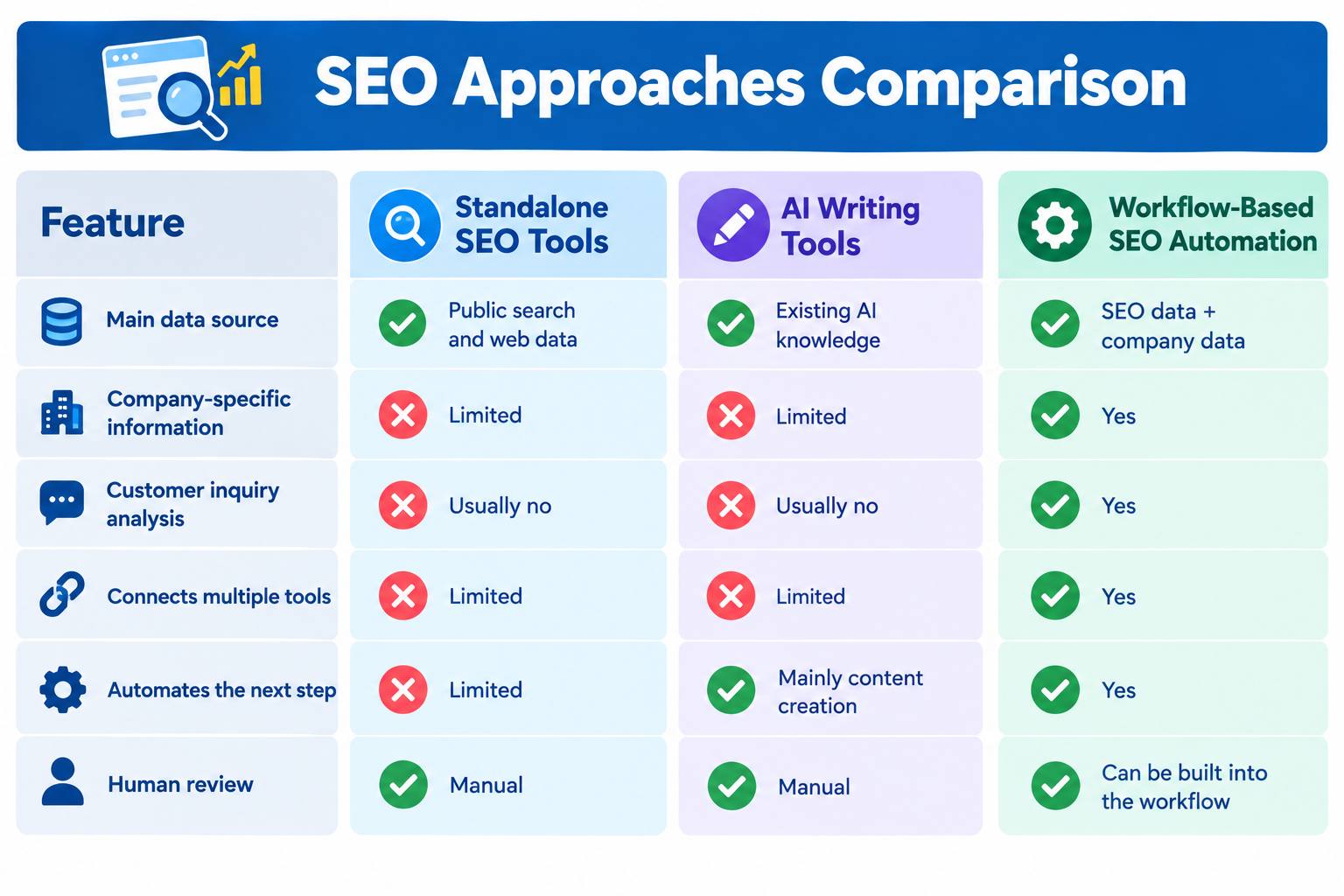
- Workflow-based SEO automation adds another layer: connecting that data with the rest of your marketing work.
- Standalone SEO Tools: Use public SEO data, with limited access to company or customer information. Automation is limited, and human review is usually manual.
- AI Writing Tools: Rely mainly on existing AI knowledge to create content. Company and customer data are limited, and the next steps usually require manual work.
- Workflow-Based SEO Automation: Combines SEO data with company and customer data, connects multiple tools, automates next steps, and can include human review within the workflow.
This means you do not necessarily have to choose between SEO tools and automation.
Instead, you can use them together.
For example:
Google Search Console + CRM + AI + Google Docs + Slack
can become one connected SEO workflow.
Best SEO Automation Tools in 2026
There are many ways to automate SEO work.
The best SEO automation tool for your team depends on what you want to automate.
Some platforms focus on SEO research. Others focus on AI content creation, while others help connect different tools and automate the entire process.
Here are several platforms to consider.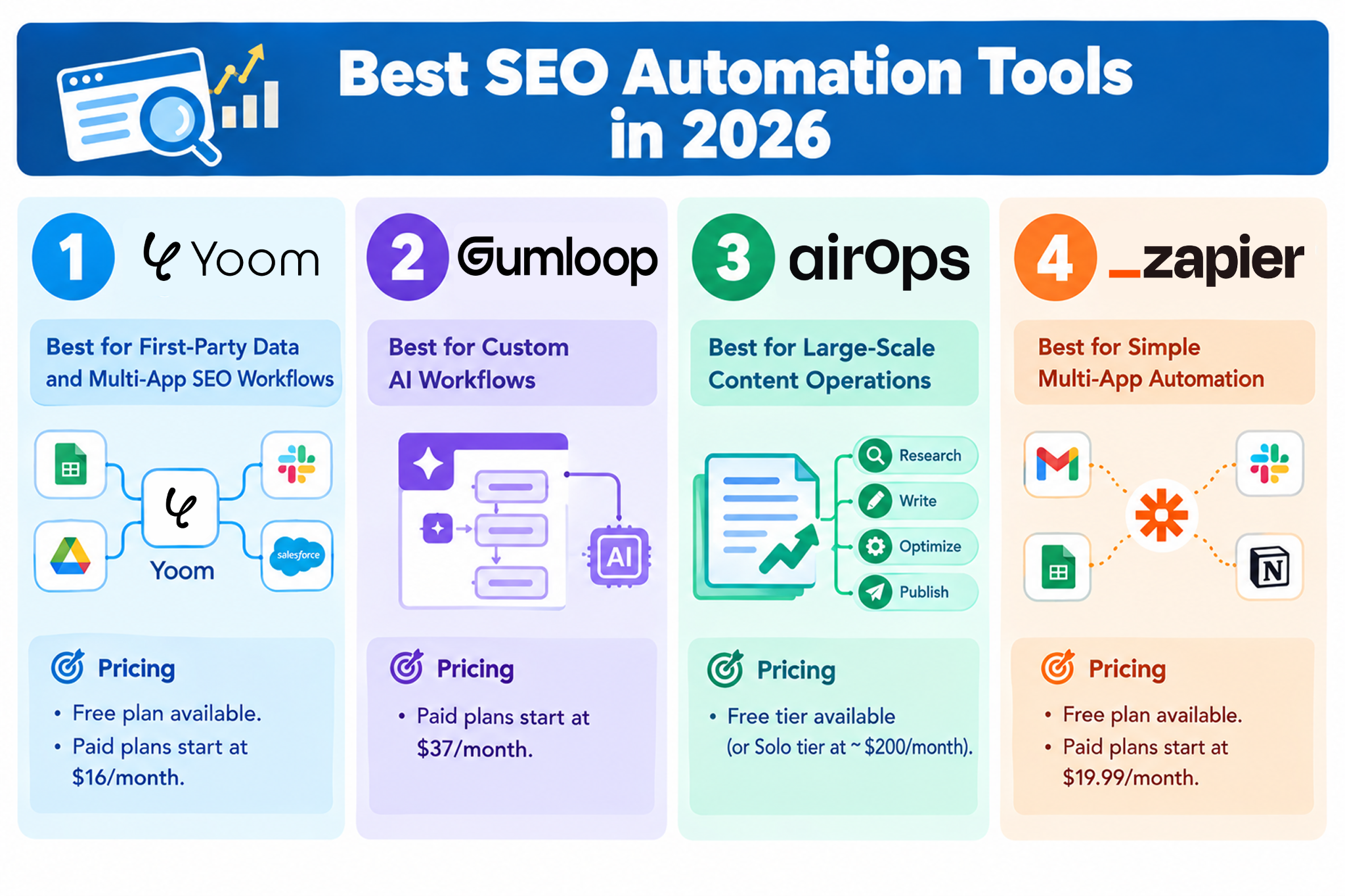
1.
Yoom
: Best for First-Party Data and Multi-App SEO Workflows
Yoom is a workflow automation platform that connects business tools, internal data, and AI.
It can help marketing teams connect SEO data with information that already exists inside the company.
How Yoom can be used for SEO automation
For example, you can connect:
- Google Search Console
- SEO tools such as Ahrefs
- HubSpot or Salesforce
- Yoom DB
- Google Docs or Notion
- Slack or Teams
You can then create workflows that automatically perform tasks based on specific events.
Key advantages
- No coding required
- Connects multiple business tools
- Can use internal company data
- AI can analyze and organize information
- Supports human review before the next step
Pricing: Free plan available. Paid plans start at $16/month.
Best for: Marketing teams, B2B SaaS companies, and agencies that want to build SEO workflows around their own customer and business data.
2.
Gumloop
: Best for Custom AI Workflows
Gumloop provides a visual way to build AI-powered workflows.
Users can combine different steps to create workflows for tasks such as website research, competitor analysis, and content creation.
How it can be used for SEO automation
For example, you can create a workflow that:
- Collects information from competitor websites
- Summarizes search results
- Analyzes content
- Helps create article drafts
Pricing: Paid plans start at $37/month.
Best for: Technical marketers and automation specialists who want more control over how their AI workflows work.
3.
AirOps
: Best for Large-Scale Content Operations
AirOps is a content operations platform designed for teams creating content at scale.
It can help teams create many structured pages using templates and AI.
How it can be used for SEO automation
For example, businesses can use it to create large numbers of similar pages for programmatic SEO campaigns.
Pricing: Free tier available (or Solo tier at ~$200/month)
Best for: E-commerce companies and marketplaces that need to create large numbers of structured landing pages.
4.
Zapier
: Best for Simple Multi-App Automation
Zapier is a popular automation platform that connects different business applications.
It is useful for simple tasks that move information from one tool to another.
How it can be used for SEO automation
For example:
New keyword added to a spreadsheet → Send a Slack notification
Or:
New form submission → Add the information to a spreadsheet
Pricing: Free plan available. Paid plans start at $19.99/month.
Best for: Teams that need simple automations between common business tools.
For more advanced SEO workflows involving AI analysis, internal data, and multiple steps, you may need a platform designed for more complex workflows.
How to Build an Automated SEO Workflow: A Beginner's Guide
There is no single right way to start automating your SEO work.
Some people may want to start with a ready-made template. Others may prefer to let AI build the workflow for them. If you already know exactly what you want to automate, you can also build the workflow yourself.
Whichever approach you choose, there is one thing worth keeping in mind:
MUST|Start with Your Own Business Data
In the age of AI, connecting your own business data is an important part of SEO automation.
AI can analyze public information and help create content quickly. However, if you use only the same public data as everyone else, it can be difficult to make your content truly unique.
That's why it is recommended to connect tools that contain your company's own data, such as:
- CRM systems such as Salesforce or HubSpot for customer and sales information
- Customer support tools for questions and feedback
- Internal databases for product or business information
- Google Search Console for your own search performance data
For example, customer questions in your CRM or support system can provide insights that you may not find through traditional keyword research.
You don't need to connect every tool from the beginning. Start with one useful source of first-party data and expand from there.
Choose the Best Way to Get Started
Once you know what you want to automate, there are several ways to get started.
Option1:Start with a Template
If you are new to workflow automation, a ready-made template can be the easiest place to start.
You can find a workflow that is similar to what you want to do, try it, and then customize it for your own needs.
This lets you learn how automation works without building everything from scratch.Related SEO Templates:

■Who should use this template
- Planning professionals who want to easily request market research based on keywords that come to mind while they're on the go or in a meeting
- Team leaders who want to efficiently compile and share business ideas that reflect the latest market trends with their teams
- Business owners who want to automate research tasks and create an environment where they can focus on creative discussions and decision-making
■Benefits of using this template
- Market research starts as soon as you post a keyword in Slack, reducing the time spent on research and enabling seamless information sharing.
- The AI worker automatically records research results in Google Sheets, helping prevent transcription errors and allowing you to review accumulated ideas anytime.
■Flowbot steps
- First, connect Slack, Google Sheets, and SerpApi with Yoom.
- Next, select Slack as the trigger and set the action to “When a message is posted to a channel (Webhook).”
- Finally, create a manual (instruction) for the AI worker to research market trends and propose 20 business ideas.
■Customizing this workflow
- In the Slack trigger settings, you can customize the workflow to fit your operations, such as limiting the conditions so it only responds to specific keywords.
- By customizing the instructions given to the AI worker, you can freely adjust the scope of the market to research and the angles from which ideas are proposed.
- Set the Google Sheets destination and the Slack channel for final notifications as needed.
■Notes
- Connect Slack, SerpApi, and Google Sheets with Yoom. You must also connect any tools (apps) used within the AI worker through My Apps.
- When searching, combining multiple keywords can help you obtain relatively accurate information.
- For basic AI worker setup, see “[AI Worker] Basic Setup Guide.”
- The number of AI workers that can run simultaneously, the number of AI workers you can create, and the AI models available to you vary depending on your plan.
- The apps and operations available within an AI worker are subject to the same usage limits as Flowbots.
- Please note that AI workers consume tasks during test runs just as they do during production runs. For details, see “[AI Worker] How Task Execution Counts Are Calculated.”
- AI workers are more likely to process tasks appropriately when their manuals are configured in detail. For details, see “[AI Worker] How to Create a Manual.”
- Please note that retrieving large volumes of data exceeding 20 items or performing loop processing within an AI worker may consume a significant number of tasks.
- Marketing professionals who want to efficiently automate keyword generation for Google Ads campaigns
- Anyone who wants to research ad keywords that resonate more with customers by leveraging Salesforce data
- Anyone who wants to eliminate manual keyword research and data entry into Salesforce
- Automatically retrieve Google Ads keyword suggestions from Salesforce data, reducing the time required for manual research and selection.
- Automatically update the retrieved keyword suggestions in Salesforce to prevent human errors such as transcription mistakes and missing entries.
- First, connect Salesforce and Google Ads to Yoom.
- Next, select “Manually start the Flowbot” as the trigger.
- Next, configure Salesforce’s “Get multiple records” action to retrieve the information used to generate keywords.
- Next, set up a loop to process each retrieved record.
- Next, configure Google Ads’ “Get keyword suggestions” action within the loop.
- Next, create instructions for using AI to extract data from text so that you can retrieve only the necessary information from the keyword suggestions obtained from Google Ads.
- Finally, configure Salesforce’s “Update record” action to add the extracted keyword information to the original record.
■Customization options for this workflow
- When configuring AI to extract data from text, you can customize which information to extract from the keyword suggestions retrieved from Google Ads.
- When configuring the Salesforce record update, you can flexibly customize the output, including which fields to update and whether to add fixed text.
- Connect both Salesforce and Google Ads to Yoom.
- Operations between Salesforce and the “Repeat the same process” operation are available only on the Team and Success Plans. On the Free and Mini Plans, the configured Flowbot operations and data connections will result in errors.
- Paid plans, including the Team and Success Plans, offer a two-week free trial. During the free trial, you can use apps and features (operations) that are otherwise subject to plan restrictions.
- Marketing professionals who find researching keyword search volume with Google Ads time-consuming
- Those who want to streamline keyword collection and research requests from their team using Google Forms
- Those who want to automatically notify relevant people of keyword research results and streamline information sharing
- Automate everything from retrieving keyword search volume in Google Ads to sending notifications, triggered by a Google Form submission, and reduce the time spent on manual research
- Reduce human errors, such as manual keyword entry mistakes, transcription errors when copying search results, and missed updates to relevant people
- First, connect Google Forms, Google Ads, and Gmail to Yoom
- Next, select Google Forms as the trigger and set the action to “When a response is submitted to the form”
- Then, select Google Ads as an operation and set the “Retrieve keyword search volume” action, using the form response as the keyword
- Finally, select Gmail as an operation and set the “Send an email” action to send an email containing the retrieved search volume to the specified recipients
■Customization options
- In the Google Forms trigger settings, you can select any form used to collect keywords
- For the Gmail “Send an email” operation, you can freely customize the notification recipients, subject, and body
- Connect Google Forms, Google Ads, and Gmail to Yoom.
- For instructions on retrieving responses when using Google Forms as a trigger, see How to retrieve responses with the Google Forms trigger.
- You can choose a trigger interval of 5, 10, 15, 30, or 60 minutes.
- Note that the shortest available trigger interval varies by plan.
Option 2: Let AI Suggest the Workflow
If you know what you want to achieve but are not sure which tools to connect or how to build the workflow, AI can help.
For example, you could tell an AI-powered feature:
When a new customer inquiry is submitted through Google Forms, identify the main SEO topic and create an article outline.
AI can suggest the tools and steps needed to achieve that goal.
For people who are completely new to workflow automation, Yoom's AI Worker can be an easy way to get started because you can describe what you want to do in natural language without having to build the entire workflow yourself.Related AI Worker Templates:

Ingest customer attributes and purchase history to segment audiences, organize behavioral insights, recommend personalized initiatives, and sync results to your CRM/SFA—all in one AI worker. Ideal for marketers who spend too much time manually aggregating and analyzing customer data, as well as e-commerce and retail teams looking to efficiently deliver personalized initiatives based on purchase history.
- Skills:
- Instructions that the AI worker follows to process tasks. For detailed setup instructions, see How to Create Skills (Formerly Manuals) for AI Workers.
- Tools:
- Tools the AI worker uses when processing tasks. Simply tell the AI which tools your organization normally uses, and you can freely configure where it retrieves data from and where it sends the results.
- The number of AI workers that can run simultaneously, the number of AI workers you can create, and the AI models available to you vary by plan.
- The apps and operations available within AI workers are subject to the same usage limitations as Flowbots.
- AI workers consume tasks during test runs just as they do during production runs. For details, see How AI Worker Task Usage Is Calculated.

An AI worker that processes survey data—from aggregating multiple-choice responses to categorizing and summarizing open-ended feedback. Simply share your analysis goals and priorities in chat to generate a trend report, reducing the effort required for aggregation and analysis so you can focus on making the most of your survey results.
- Marketing professionals who spend too much time aggregating survey responses and analyzing open-ended feedback and want to reduce the effort required to compile reports
- Those who handle a large number of responses and feel they cannot focus on the essential analysis and application of insights because they are overwhelmed by manual categorization and trend identification
- Those who conduct surveys regularly and want to eliminate the effort required to create reports each time so they can focus on using the results
- What are “Skills”?
- They are the instructions the AI worker follows to process tasks. For detailed setup instructions, see “[AI worker] How to Create Skills (formerly Manuals).”
- What are “Tools”?
- These are the tools the AI worker uses when processing tasks. Simply tell the AI which tools your organization normally uses, and you can freely configure where data is retrieved from and where it is sent.
- The number of AI workers that can run simultaneously, the number of AI workers you can create, and the AI models available to you depend on your current plan.
- The apps and operations available within the AI worker are subject to the same usage limits as Flowbot.
- The AI worker consumes tasks during test runs just as it does during production runs. For details, see “[AI worker] How Task Execution Counts Are Calculated.”

An AI worker that analyzes top-ranking websites based on keywords, autonomously creates article outlines, and exports them to Google Docs. Improve content quality and speed while reducing the effort required to create outlines—ideal for web marketers who want to spend less time on research and focus on strategic writing.
- Content directors who spend significant time creating SEO article outlines and want to streamline their content production process
- Web marketing professionals who want to automate search intent analysis and competitor research to focus on more strategic writing
- Owned media operators who want to create consistently high-quality outlines quickly and maintain a steady article publishing pace
- First, configure basic settings for the AI worker, such as its “Name” and “Role.”
- Next, connect the Google Docs used in the AI worker with Yoom and configure the actions. You can also add or change other apps you use as needed.
- Finally, create and edit the “Manual,” which serves as instructions for the AI worker, to match your company’s article creation rules and operational workflow.
- In “Create Article Outline (Plot)” under “# Steps” in the manual, add your company’s own “Writing Rules” and “Prohibited Items” to enable the AI to generate more accurate, practical outputs.
- In the “Export to Google Docs” section of the manual, you can customize the document file naming convention to match your company’s management system.
- By adjusting the Google Docs action settings, you can optimize the formatting and style of the output text so writers can start writing immediately.
- Connect Google Docs with Yoom.
- For basic AI worker settings, see “[AI Worker] Basic Setup Guide.”
- The number of AI workers that can run simultaneously, the number of AI workers you can create, and the available AI models vary depending on your subscription plan.
- The apps and operations available in AI workers are subject to the same usage limits as Flowbots.
- Please note that AI workers consume tasks during test runs in the same way as production runs. For details, see “[AI Worker] How Task Executions Are Calculated.”
- AI workers are more likely to perform appropriate processing when their manuals are configured in detail. For details, see “[AI Worker] How to Create a Manual.”
Option 3: Build It Yourself
If you already have a clear process in mind, you can build the workflow yourself and decide exactly what should happen at each step.
You can add conditions, connect additional tools, and adjust the workflow based on how your team works.
Even if you have a more advanced use case that is not supported by standard features, Yoom's custom features can help you build it. You can connect niche apps and handle more advanced data flows to fit your specific needs.
This approach is especially useful when you want more control over the details of your SEO process or need to automate a process that does not fit a standard template.
Yoom's Custom Feature Details:https://intercom.help/yoom/en/articles/8041214-set-up-custom-api-connections-with-custom-apps-connect
Expand as You Learn
Whichever way you start, you don't have to get everything right from the beginning.
Start with a simple workflow and customize it as you learn what works for your team.
For example, you might begin with:
Customer inquiry → AI analysis → Article outline
Then gradually expand it:
Customer inquiry → CRM data → Keyword research → AI analysis → Article outline → Human review → Content draft
You can also add conditions or connect additional tools when you need them.
The important thing is to start with a practical use case and expand your automation over time.
Choose the approach that works best for you, start small, and gradually build workflows around your own business data.