・
10 Best AI Automation Tools & Software for 2027: Real-World Use Cases

- LLMs vs. Department-Specific vs. All-in-One Platforms
- 10 Best AI Automation Tools&Software
- Inside the Data: How Businesses Use AI in Automation
- Why Can AI Automation Feel Difficult at First?
- How to Get Started with AI Automation Without Getting Overwhelmed
- Looking for More Flexibility? Build a Custom Automation with Yoom
Many software platforms claim to be the next big thing in AI automation. But choosing the right AI automation tool is not always easy.
Discussions on Reddit and developer forums highlight a common problem: AI tools can look impressive in a demo but struggle with everyday business tasks.
Large language models (LLMs) such as ChatGPT and Gemini can help you generate content, summarize information, and analyze data. However, using these tools alone does not necessarily automate the entire business process. You may still need to manually transfer information between apps and take action based on the AI's output.
AI automation software goes a step further. It connects AI capabilities with the business apps you already use, allowing information extracted from documents or conversations to be automatically sent to the right people or systems.
But even the best tool can't eliminate every challenge. One difficulty beginners often overlook is how hard it can be to break down familiar tasks into individual steps that can be automated.
When you perform a task every day, you may do many things almost unconsciously. You might check an email, pick out important details, update a spreadsheet, and notify a colleague without thinking about each action separately. But to automate that process, you need to identify each step and figure out how they should fit together.
This is a common stumbling block for beginners, even when the automation tool itself is easy to use.
In this guide, we'll compare 10 AI automation tools, explain what each one does best, and share practical tips to help beginners overcome these challenges and get started with AI automation more confidently.
LLMs vs. Department-Specific vs. All-in-One Platforms
Not all AI automation tools are designed for the same purpose. Some focus on generating responses and processing information, while others automate tasks for a specific department or support automation across an entire organization.
Understanding these differences can help you choose the right AI automation tool for your business.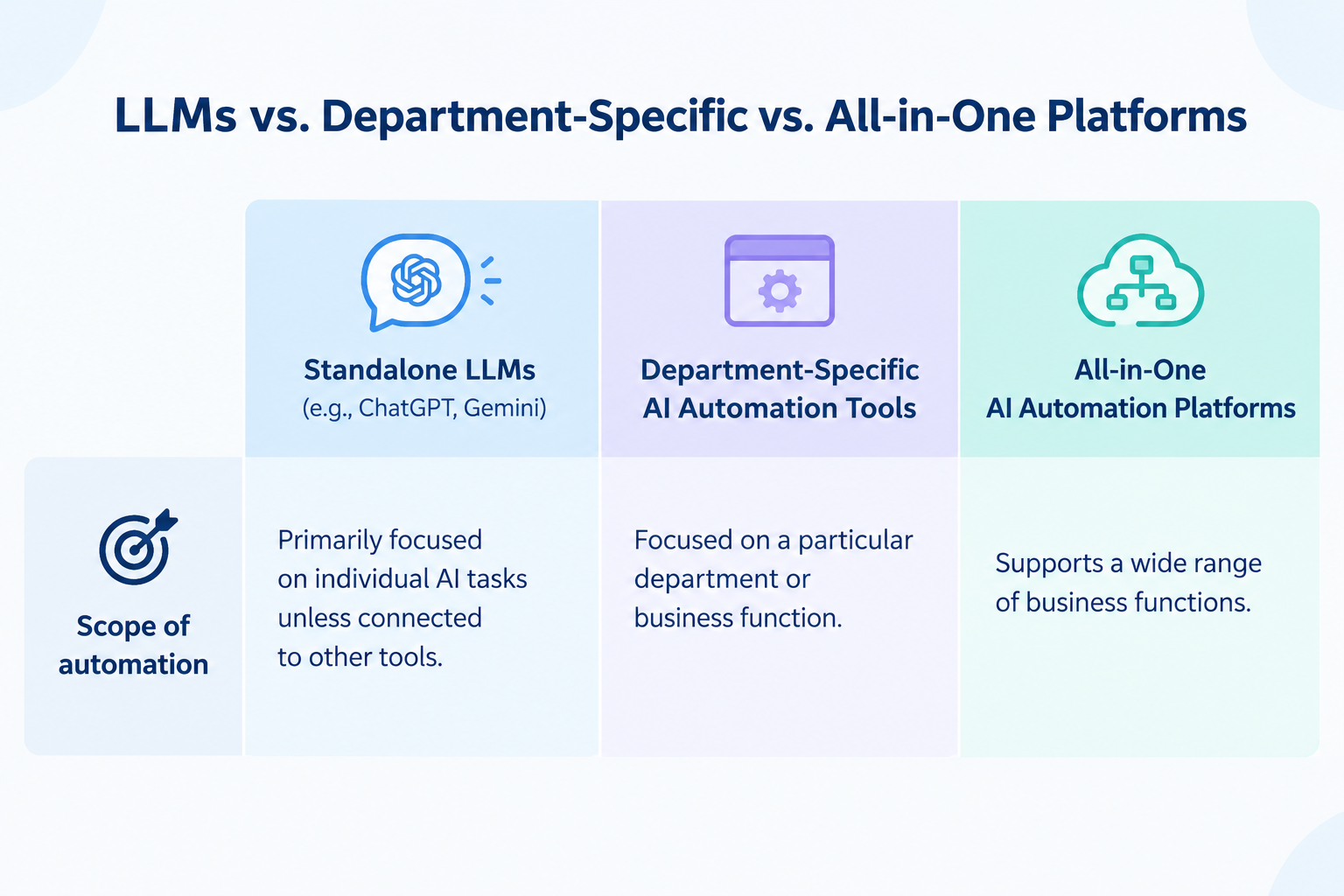
1. Standalone LLMs (e.g., ChatGPT, Gemini)
- Main purpose: Generate content, analyze information, and answer questions
- Scope of automation: Primarily focused on individual AI tasks unless connected to other tools
- App integrations: May require additional integrations or manual steps to transfer results
- Flexibility: Useful for a wide range of prompts and information-processing tasks
- Best for: Individuals and teams that need AI assistance with specific tasks
2. Department-Specific AI Automation Tools (e.g., Agentforce, Intercom)
- Main purpose: Automate tasks for a specific function, such as sales, marketing, or customer support
- Scope of automation: Focused on a particular department or business function
- App integrations: Often integrates with tools used by the target department
- Flexibility: Optimized for specific use cases
- Best for: Teams looking to automate tasks within a particular function
3. All-in-One AI Automation Platforms (e.g., Yoom)
- Main purpose: Automate tasks and processes across multiple departments
- Scope of automation: Supports a wide range of business functions
- App integrations: Connects apps and business processes across teams
- Flexibility: Can be adapted to different tasks and processes across the organization
- Best for: Businesses looking to expand AI automation across the organization
Which Type of AI Automation Tool Should You Choose?
- Choose a standalone LLM if you mainly need help generating content, summarizing information, or analyzing data using general knowledge, without relying on your company's proprietary data or integrating AI into broader business processes.
- Choose a department-specific AI automation tool if you want to automate a particular function, such as sales outreach or customer support.
- Choose an all-in-one AI automation platform if you want to expand AI automation beyond a single department and connect processes across different teams throughout your organization.
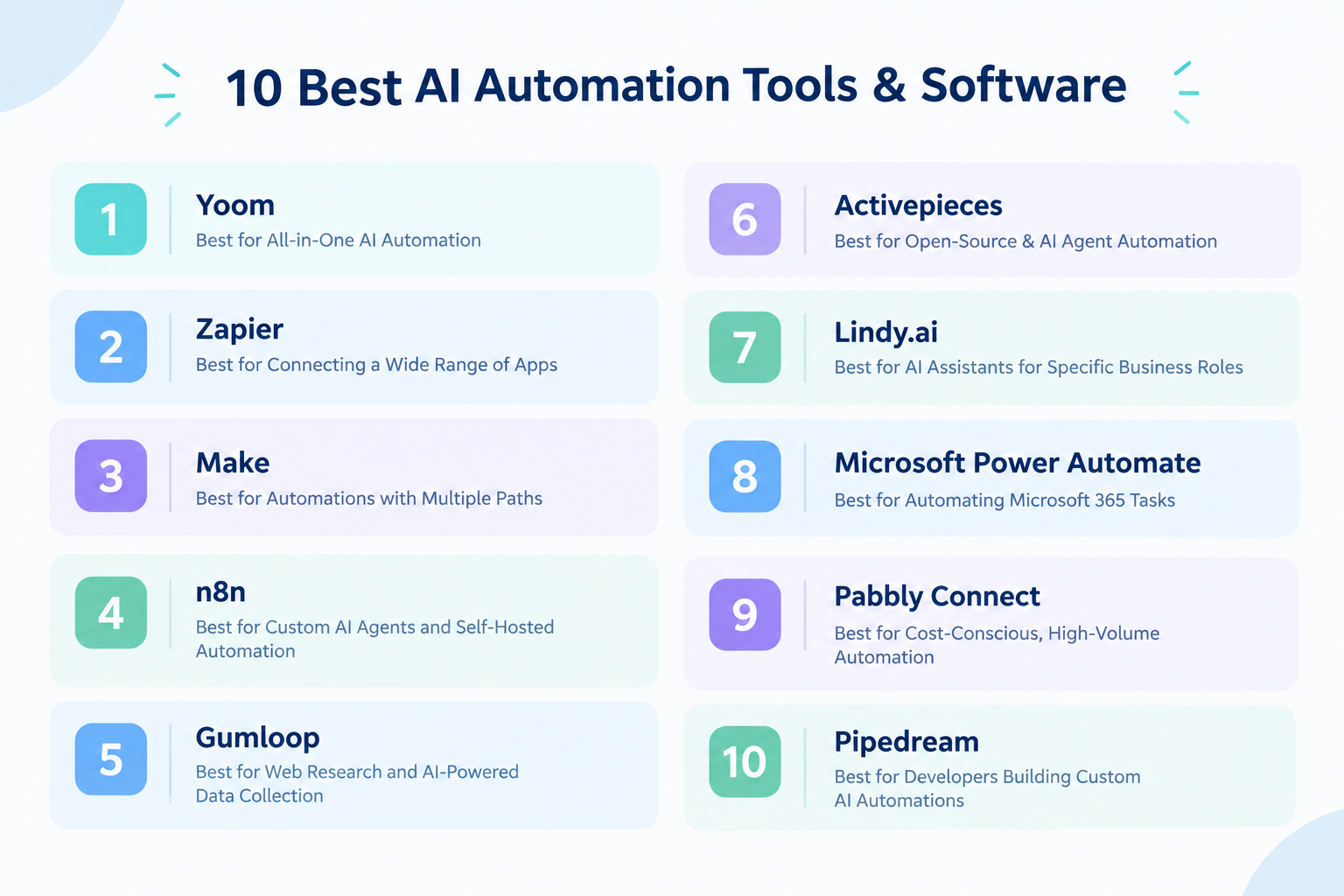
10 Best AI Automation Tools&Software
1.
Yoom
: Best for All-in-One AI Automation
Best for: Companies looking for one platform to bring AI, business automation, databases, OCR, and forms together, with the flexibility to support teams across the entire organization.
How it works
Yoom brings AI, app integrations, and business tools together in one platform. Beyond automating tasks with AI, you can use Yoom to manage data in a built-in database, extract information from documents with OCR, and collect information through forms.
Different departments can use the same platform to automate their own tasks. For example, the sales team can use AI to summarize meetings and update customer records, while the HR team can automate document processing and employee onboarding.
Instead of adopting separate tools for each department or business need, companies can bring these capabilities together on one platform.
Key features
- AI Workers that help build automation, process information and complete tasks.
- Built-in OCR to extract text from documents and images.
- A built-in database for storing and managing business information.
- PDF generation and connections to other business apps.
- A visual builder that lets you create automations without writing code.
Pricing: A free plan is available. Paid plans start at $16/month.
2.
Zapier
: Best for Connecting a Wide Range of Apps
Best for: Business users, small marketing teams, and solo business owners who want to connect different apps quickly.
How it works
Zapier connects apps through a simple trigger-and-action system.
A trigger is an event that starts an automation. An action is what happens next.
For example, when someone submits a form, Zapier can automatically add their information to a spreadsheet and send a notification to your team.
You can also add AI to these automations to process text, summarize information, or generate content.
Key features
- Connections to more than 6,000 apps.
- A straightforward setup for common business tasks.
- AI features and integrations with AI models.
- Support for automating repetitive tasks across different services.
Pricing: A free plan is available. The Starter plan begins at $19.99/month.
3.
Make
: Best for Automations with Multiple Paths
Best for: Marketing teams, operations managers, and agencies that need more control over how information moves between apps.
How it works
Make lets you build automations using a visual drag-and-drop editor.
You can create multiple paths based on different conditions. For example, a new customer inquiry could be sent to the sales team if it meets certain criteria, while other inquiries are sent to customer support.
You can also use AI to summarize text, classify information, and process data as it moves between apps.
Key features
- A visual editor for building complex automations.
- Multiple paths and conditions for handling different situations.
- Tools for combining and organizing data.
- Integrations with OpenAI, Anthropic, and other services.
Pricing: A free plan is available. The Core plan starts at $9/month.
4.
n8n
: Best for Custom AI Agents and Self-Hosted Automation
Best for: Developers, IT teams, and organizations that want greater control over their automation systems.
How it works
n8n lets you connect apps and services using a visual editor. You can also add JavaScript code when you need more control.
Its AI features help users build AI agents that can process information, use connected tools, and carry out multiple steps.
You can also host n8n on your own infrastructure, which may be useful for organizations that need greater control over where their data is stored and processed.
Key features
- A visual editor with support for custom code.
- AI agent components and LangChain integrations.
- Connections to databases, APIs, and other services.
- A self-hosted option for organizations that want to manage their own environment.
Pricing: Self-hosted Community Edition is Free. The Starter plan starts at €20/month (~$22)
5.
Gumloop
: Best for Web Research and AI-Powered Data Collection
Best for: Marketing teams, researchers, and growth teams that need to collect and organize information from the web.
How it works
Gumloop uses a visual editor to connect AI models and other tools.
For example, you can build an automation that visits company websites, collects relevant information, summarizes the results, and organizes the data into a structured format.
This can help teams reduce the time spent on manual research and data collection.
Key features
- Visual tools for connecting AI models.
- Automated web browsing and data collection.
- Support for multiple AI models.
- Custom Python scripts for more advanced tasks.
- Connections to webhooks, Google Sheets, and other services.
Pricing: 14-day free trial. Pro plan starts at $37/month.
6.
Activepieces
: Best for Open-Source & AI Agent Automation
Best for: Teams that want to build customizable AI automations using an open-source platform.
How it works
Activepieces provides a visual interface for building automations that connect business apps and AI agents.
For example, you could create an automation that uses AI to process incoming customer requests, organize the information, and send it to the appropriate team.
You can also use Model Context Protocol (MCP) support and custom connectors to extend your automations.
Key features
- Open-source core with an MIT license.
- Visual builder for connecting business apps and AI agents.
- MCP support and community-built custom connectors.
- Cloud hosting and self-hosted deployment options.
Pricing: A free plan is available. Plus plan starts at $20/month.
7.
Lindy.ai
: Best for AI Assistants for Specific Business Roles
Best for: Founders and small teams that want AI assistants for tasks such as recruiting, sales, and administrative work.
How it works
Lindy.ai lets users set up AI agents using natural language instructions.
For example, you could create an AI assistant to help manage your inbox, organize meetings, or support recruiting tasks.
These assistants can connect to email, calendars, CRM systems, and other business tools to help complete tasks.
Key features
- Setup using natural language.
- AI assistants designed for specific business roles.
- Connections to email, calendars, CRM systems, and Slack.
- Support for handling multiple related tasks.
Pricing: A free plan is available. The Team plan starts at $49.99/month.
8.
Microsoft Power Automate
: Best for Automating Microsoft 365 Tasks
Best for: Businesses that already use Microsoft 365, Azure, and Dynamics.
How it works
Microsoft Power Automate helps users connect Microsoft apps and other services to automate repetitive tasks.
For example, when a file is uploaded to SharePoint, Power Automate can notify a team in Microsoft Teams and update related records.
It also supports desktop automation, which can help automate certain tasks performed in desktop applications. AI Builder can help extract information from documents, while Copilot can assist users in creating automations.
Key features
- Connections to Microsoft 365 apps and services.
- Desktop automation for supported applications.
- AI Builder for document processing.
- Copilot features to help create automations.
Pricing: 30-day free trial.Power Automate Premium starts at $15/user/month.
9.
Pabbly Connect
: Best for Cost-Conscious, High-Volume Automation
Best for: Online stores, solo business owners, and agencies that need to automate large numbers of repetitive tasks.
How it works
Pabbly Connect links apps through a trigger-and-action system.
For example, when someone places an order, it can send the order details to a spreadsheet, update a customer record, and notify your team.
Pabbly Connect also offers filters, conditions, and other tools to control how automations run. Some internal steps do not count toward the monthly task limit, depending on the platform's rules.
Key features
- Connections to more than 1,500 apps.
- A visual builder for connecting tasks.
- Filters and conditions for controlling automations.
- Pricing options for businesses with different automation needs.
- Lifetime purchase offers may be available.
Pricing: Free tier includes 100 tasks/month. Standard plan starts at $19/month.
10.
Pipedream
: Best for Developers Building Custom AI Automations
Best for: Software developers and technical teams that need more flexibility than a standard no-code tool provides.
How it works
Pipedream lets developers connect APIs and run custom code in response to events.
For example, a developer could build an automation that receives customer data, sends it to an AI model for analysis, and saves the results to another system.
Unlike tools designed mainly for non-technical users, Pipedream gives developers direct access to JavaScript, Python, and external libraries.
Key features
- Connections to APIs and web services.
- Custom JavaScript and Python code.
- AI-assisted code generation.
- Support for npm and Python packages.
- Tools for testing and troubleshooting automations.
Pricing: Free plan is available. Startup plan starts at $99/month.
Inside the Data: How Businesses Use AI in Automation
What does AI automation look like in real business operations?
To explore this question, we analyzed execution data from active automations on Yoom. The analysis looks at how businesses use AI, which tasks they automate, and how AI works alongside rule-based processes.
1. Human-Built vs. AI-Built Automations
AI can play different roles in business automation. In some cases, people build the automation themselves and add AI to specific steps. In others, AI builds the entire automation based on the user's instructions.
Our platform data shows the following split:
- 75%: Human-built automations with AI — Users build the automation themselves and add AI to specific steps where it is needed.
- 25%: AI-built automations — AI builds the automation from start to finish based on the user's instructions.
Human-Built Automations with AI: 75%
In this approach, users decide how the automation should work and connect the necessary steps. They then add AI to the parts that require understanding or processing information.
For example, a user might build an automation that:
- Receives a document from a customer.
- Uses AI to extract important information from the document.
- Sends the extracted information to a team member for review in Slack.
- Saves the approved information to a CRM.
The user defines the overall process, while AI handles specific tasks such as reading documents and extracting information.
This approach gives businesses control over how their automations work while using AI to reduce manual tasks.
AI-Built Automations: 25%
In this approach, users describe what they want to achieve, and AI builds the automation for them.
Instead of manually connecting each step, users explain the task in natural language. AI then determines which steps are needed and builds the automation to carry out the task.
For example, a user might ask AI to review documents in a folder, identify important information, and notify the relevant team members.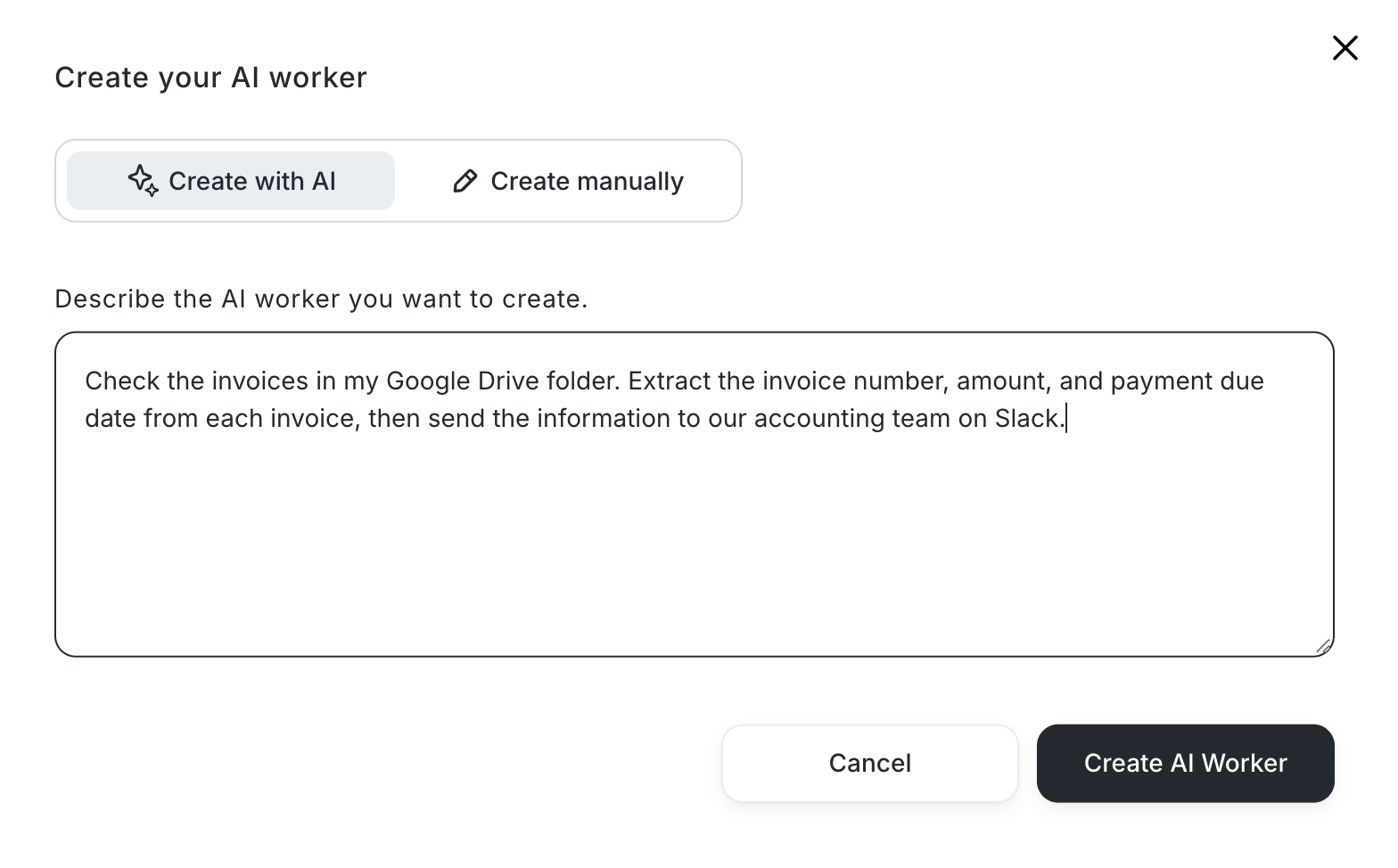
AI can build the automation based on these instructions, reducing the need for users to design the process themselves.
The key difference is that AI helps build the automation itself, rather than simply handling a specific task within an automation that a person has already created.
What This Means for Businesses
AI automation tools can help businesses in two different ways: by adding AI to automations that people build themselves, or by using AI to build the automations in the first place.
The first approach gives users direct control over how tasks are connected, while the second can reduce the effort needed to design an automation from scratch.
Understanding this difference can help businesses choose the right AI automation tool for their needs. Some teams may prefer to build and customize their own automations, while others may want AI to handle more of the setup.
2. The Most Common AI Automation Use Cases
Which tasks are businesses actually using AI to automate?
Our analysis groups AI-related tasks in active automations into five main categories.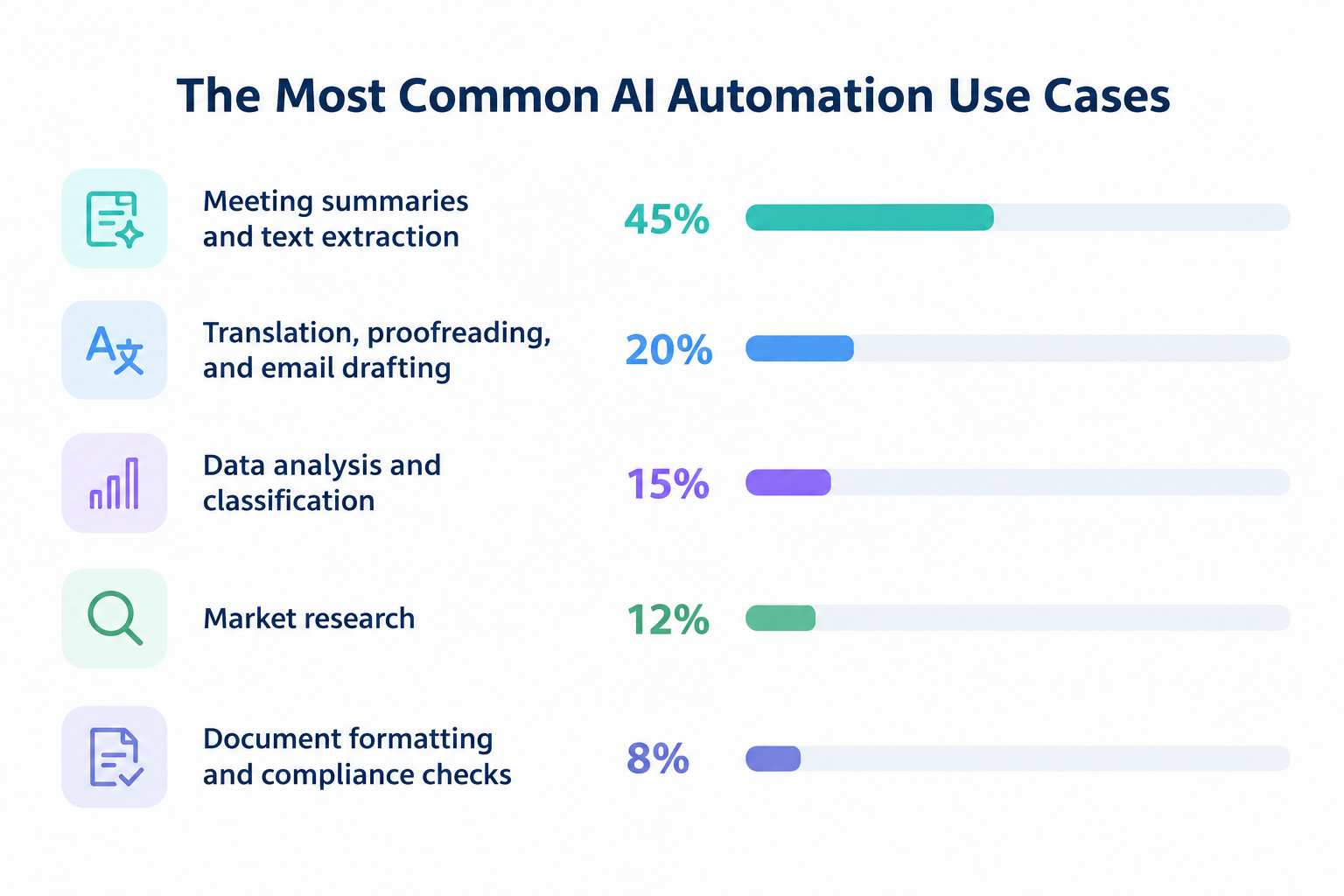
- Summarizing customer calls
- Identifying action items
- Extracting deadlines or amounts from contracts
2. Translation, Proofreading, and Email Drafting (20%)
- Translating customer inquiries
- Preparing support replies
- Checking documents
3. Data Analysis and Classification (15%)
- Identifying urgent support requests
- Analyzing survey responses
- Sorting partner inquiries
4. Market Research (12%)
- Collecting information from company websites
- Summarizing competitor news
- Preparing sales research
5. Document Formatting and Compliance Checks (8%)
- Simplifying industry-specific terms
- Checking documents against internal guidelines
The largest category is meeting summaries and text extraction, accounting for 45% of the tasks in this analysis.
You may already be familiar with AI features like summarizing conversations and extracting information from documents. But using these features in ChatGPT or Gemini alone is different from building them into an automation.
With AI automation software, the information AI summarizes or extracts can be automatically sent to other tools, such as Slack or Salesforce, without manual copying and pasting. This allows businesses to connect AI-powered tasks with the rest of their operations.
For example, AI could analyze customer conversations and detect signs that a customer may be about to leave. When it identifies a potential risk, it can automatically notify the team on Slack so they can follow up before the situation gets worse.
In this way, AI automation software does more than process information. It helps turn that information into action while reducing repetitive administrative work.
Related AI Automation Templates:
■Recommended for
- Teams looking to streamline customer support and inquiry management in Gmail
- Teams that want to improve the quality of customer support through AI-powered email sentiment analysis
- Teams looking to share information quickly and accurately using Slack
■Benefits of using this template
- When an email arrives in Gmail, AI automatically analyzes its sentiment and sends the result to Slack, reducing the time spent on manual reviews and data entry.
- Objective sentiment analysis and automated notifications help reduce the risk of human error, such as overlooking email content or inconsistencies in how team members interpret sentiment.
■Flowbot steps
- First, connect Gmail and Slack to Yoom.
- Next, select Gmail as the trigger and set the action to “When an email with a specific label is received.” Specify the label used to sort emails for sentiment analysis, such as an inquiry intake label, to start the flow whenever a relevant email is received.
- Then, configure the AI feature’s “Generate text” action in the operation. Use the body of the received email as the input and set a prompt instructing AI to analyze the sentiment of the email, such as positive, negative, or neutral.
- Finally, configure Slack’s “Send a message to a channel” action in the operation to send a message containing the AI-generated sentiment analysis to the designated Slack channel.
■Customization options
- In the AI feature’s “Generate text” operation, customize the prompt to specify what emotional nuances AI should identify from the email body, such as positive, negative, or highly urgent, and how those results should be communicated in Slack.
- In Slack’s “Send a message to a channel” operation, customize the notification format, including the channel ID to which notifications are sent and how the AI analysis results are included in the message.
■Notes
- Connect both Gmail and Slack to Yoom.
- You can select a trigger interval of 5, 10, 15, 30, or 60 minutes.
- Note that the shortest available trigger interval varies by plan.

■Overview
Do you manually transcribe the contents of emails with PDF attachments, such as invoices and purchase orders, every time you receive them? This task is time-consuming and can also lead to human errors, such as data entry mistakes.
With this workflow, you can automatically read text from PDF files received in Outlook (convert PDF to machine-readable text) and send the extracted content to Slack. This eliminates the need for manual data entry and improves operational accuracy.
■Who This Template Is For
- Anyone who spends too much time reviewing or transcribing PDF content received in Outlook
- Anyone who manually creates text data from PDFs and struggles with issues such as data entry errors
- Anyone who wants to automate the processing of PDFs, such as invoices, and improve team efficiency
■Benefits of Using This Template
- Automatically handles everything from converting PDFs to text to sending notifications as soon as a PDF is received in Outlook, reducing the time spent on manual tasks
- Eliminates the need for manual data transcription, preventing human errors such as input mistakes and missed checks while improving operational accuracy
■Flowbot Steps
- First, connect Outlook and Slack to Yoom
- Next, select Outlook as the trigger and set the action to “When an email with a specific subject is received”
- Next, configure the Outlook actions “Get email attachment information” and “Download email attachment” in that order under Operations
- Next, select the OCR feature under Operations and configure it to extract text from the downloaded PDF file
- Finally, configure Slack’s “Send a message to a channel” action under Operations to notify the specified channel of the extracted text
※“Trigger”: An action that starts the flow. “Operation”: An action that processes data within the flow after the trigger starts.
■Customizable Points in This Workflow
- When configuring the OCR feature, you can customize which fields to extract based on the type of PDF you want to read
- When configuring Slack notifications, you can specify any channel as the destination. You can also customize the message by embedding the text extracted by OCR as a variable
■Notes
- Connect both Outlook and Slack to Yoom.
- Microsoft 365 (formerly Office 365) offers plans for home users and businesses (Microsoft 365 Business). Authentication may fail if you are not subscribed to a business plan.
- AI Operations for OCR and audio transcription are available only on the Team and Success Plans. On the Free and Mini Plans, the configured Flowbot operations will result in errors.
- Paid plans, such as the Team and Success Plans, include a two-week free trial. During the free trial, you can use apps and AI features (Operations) that are subject to plan restrictions.
- Please note that OCR may not be able to read data containing 6,500 characters or more, or data with small text.
- The maximum downloadable file size is 300 MB. Depending on the app specifications, the limit may be less than 300 MB.
- For details on the file size limits for triggers and individual operations, see below.
See the file size limits


■Who should use this template
- Sales professionals who manually research companies and create emails for new leads registered in Salesforce and want to improve operational efficiency
- Inside sales teams that want to deliver personalized proposals for each lead but do not have enough time to conduct thorough research
- Managers who want to leverage the latest AI technology to automatically prepare high-quality sales email drafts and improve their meeting conversion rate
■Benefits of using this template
- When a lead is added to Salesforce, company research and email creation are performed automatically, reducing the time spent on research and drafting.
- The AI Worker proposes the optimal outreach approach based on web information, helping minimize differences in individual skill levels and consistently prepare high-quality email drafts.
■Flowbot steps
- First, connect Salesforce, Gmail, Slack, and Google Search to Yoom.
- Next, select Salesforce as the trigger and set the action to “When a new record is added to the Lead object.”
- Finally, set up the AI Worker manual (instructions) to research information about the lead’s company on the web and create a draft of the optimal outreach email that highlights the strengths of your products or services.
■Customization options for this workflow
- When configuring the AI Worker manual (instructions), provide detailed information about the strengths of your products or services and the points you particularly want it to research, such as customer success stories and the latest news, to create more accurate email copy.
- In the Gmail step, freely customize the recipient and subject line formats for the drafts to match your internal processes.
- In the Slack notification settings, specify the channel where notifications should be sent so that the person in charge can review the details smoothly.
■Important notes
- Connect Salesforce, Gmail, Slack, and Google Search to Yoom individually. The tools (apps) used within the AI Worker must also be connected through My Apps.
- Combining multiple keywords in your searches can help you retrieve relatively accurate information.
- Salesforce is available on the Mini plan and above. Please note that operations and Data Connects in configured Flowbots will result in errors on the Free and Personal plans.
- Paid plans, such as the Mini, Team, and Success plans, offer a two-week free trial. During the free trial, you can use apps that are otherwise restricted.
- You can select a trigger interval of 5, 10, 15, 30, or 60 minutes.
- Please note that the shortest available trigger interval varies by plan.
- For basic AI Worker configuration, see “[AI Worker] How to configure the basics.”
- The number of AI Workers that can run simultaneously, the number of AI Workers you can create, and the AI models available to you vary depending on your plan.
- Apps and operations available within the AI Worker are subject to the same usage restrictions as Flowbots.
- Please note that AI Workers consume tasks during test runs just as they do during production runs. For details, see “[AI Worker] How task execution counts are calculated.”
- AI Workers are more likely to perform the appropriate processing when the manual is configured in detail. For details, see “[AI Worker] How to create a manual.”
■Who Is This Template For?
- Customer support representatives who want to prioritize follow-ups with high-risk customers among the many inquiries received in Zendesk
- Team leaders who want to streamline customer churn risk analysis and follow-up message creation to improve the success rate of churn prevention
- Business leaders who want to prevent missed follow-ups for customers showing signs of churn and build a system to proactively prevent cancellations
■Benefits of This Template
- AI automatically assesses risk and drafts message suggestions when a ticket is created in Zendesk, reducing the time required for analysis and enabling a fast initial response.
- By identifying high-risk customers using objective AI-based criteria and connecting Slack notifications with draft creation in Zendesk, you can reduce the risk of missed or delayed responses.
■Flow Bot Process
- First, connect Zendesk and Slack with Yoom.
- Next, select Zendesk as the trigger and set the action to “When a new ticket is created.”
- Then, in AI Worker, create a skill that assesses churn risk from the text based on your company’s criteria and, when the risk is high, creates a message draft and saves it in Zendesk. Set Zendesk’s “Add a comment to an existing ticket” action as the tool to use.
■Customization Points for This Workflow
- In the AI Worker instructions (skill), clearly specify what wording should be considered “high risk” based on your company’s churn criteria.
- For Slack notifications, adjust the destination channel and message content so that team members can quickly understand the situation.
■Notes
- Connect both Zendesk and Slack with Yoom.
- You can select a trigger interval of 5, 10, 15, 30, or 60 minutes.
- Please note that the shortest available trigger interval varies by plan.
- Zendesk is available on the Mini plan and above. On the Free and Personal plans, the configured Flow Bot operations and Data Connect features will result in errors.
- Paid plans such as the Mini, Team, and Success plans offer a two-week free trial. During the free trial, you can use apps that are otherwise restricted.
- The apps (tools) used within AI Worker must also be connected through My Apps.
- For basic AI Worker setup, see “[AI Worker] How to Set Up the Basics”.
- The number of AI Workers that can run simultaneously, the number of AI Workers you can create, and the AI models available depend on your current plan.
- The apps and operations available within AI Worker are subject to the same usage restrictions as Flow Bots.
- AI Worker consumes tasks during test runs in the same way as during production runs. For details, see “[AI Worker] How Task Executions Are Calculated”.
- AI Worker is more likely to perform the appropriate processing when skills are configured in detail. For details, see “[AI Worker] How to Create a Manual”.
■Who is this template for?
- Customer support representatives who spend significant time reviewing weekly inquiries and updating FAQs
- Team leaders whose teams have accumulated past inquiry data but are struggling to keep up with trend analysis and knowledge management
- Business leaders who want to streamline customer support operations with AI and improve customer satisfaction
■Benefits of this template
- AI automatically analyzes past inquiries and creates FAQ drafts, reducing the time spent on analysis and documentation.
- Regularly visualizing trends in frequently asked questions helps prevent missed FAQ updates and facilitates knowledge sharing across the team.
■Flowbot workflow
- First, connect Google Sheets and Slack with Yoom.
- Next, configure the schedule trigger to start the workflow every Monday at 10:00 AM.
- Then, use the AI worker to create a manual for analyzing past inquiries and creating an FAQ draft, and set Google Sheets' “Retrieve multiple records” action and Slack's “Send a message to a channel” action as the tools to use.
■Customization options
- In the Google Sheets settings, specify the sheet containing the inquiry data and the data range to retrieve based on your organization's data management practices.
- Adjust the instructions (prompt) for the AI worker to analyze specific product categories or create drafts in a specific tone and manner.
- Set the Slack notification destination to match your operations, such as a shared CS team channel or a direct message to the person in charge.
■Notes
- Connect both Google Sheets and Slack with Yoom. The apps used within the AI worker must also be connected through My Apps.
- For the basic AI worker setup, see “[AI Worker] How to Configure the Basic Settings”.
- The number of simultaneous AI worker executions, the number of AI workers you can create, and the AI models available depend on your current plan.
- The apps and operations available within the AI worker are subject to the same usage limits as Flowbot.
- Please note that the AI worker consumes tasks during test runs in the same way as during production runs. For details, see “[AI Worker] How Task Execution Counts Are Calculated”.
- Setting up detailed manuals makes it easier for the AI worker to perform the appropriate processing. For details, see “[AI Worker] How to Create a Manual”.
- Please note that retrieving more than 20 items of large-volume data or running loop processes within the AI worker may consume a significant number of tasks.
3. Which Departments Use AI Automation Most?
AI automation can support many departments, but the tasks differ depending on each team's needs.
Our platform data shows the following distribution: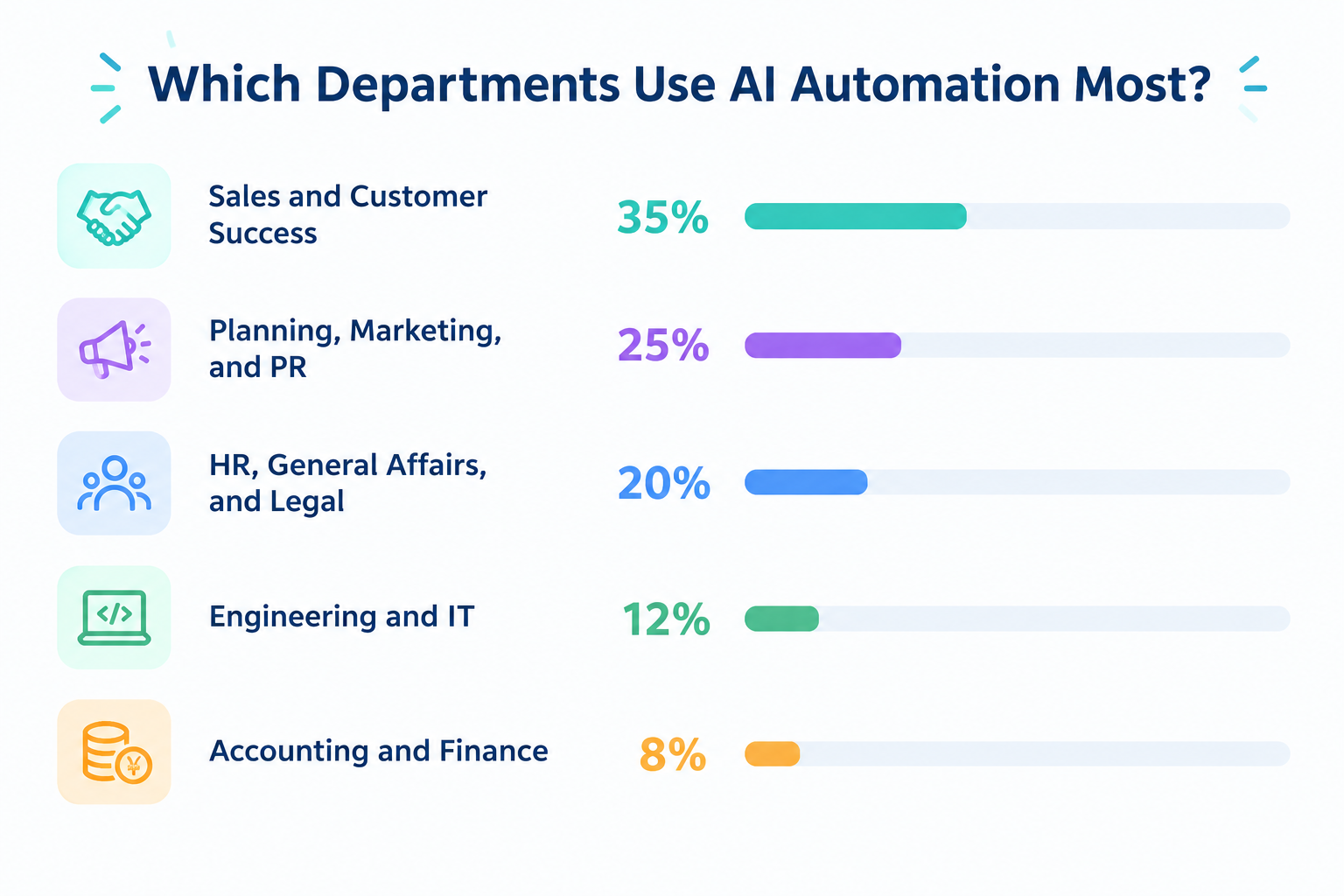
- Summarizing sales calls
- Updating CRM records
- Drafting follow-up emails
2. Planning, Marketing, and PR (25%)
- Collecting market research
- Preparing campaign ideas
- Analyzing survey responses
3. HR, General Affairs, and Legal (20%)
- Summarizing interviews
- Reviewing contract information
- Directing onboarding questions
4. Engineering and IT (12%)
- Summarizing error logs
- Organizing technical documentation
- Sorting development issues
5. Accounting and Finance (8%)
- Extracting invoice details
- Checking line items
- Preparing financial summaries
Sales and Customer Success account for the largest share in this analysis, at 35%. However, AI automation is used across multiple departments, with no single department overwhelmingly dominating the results.
This suggests that AI automation can support a wide range of business functions, rather than being limited to one specific team. If your goal is to introduce AI automation across your organization, consider choosing an AI automation tool that can support different departments and business processes, rather than one designed for a single function.
An all-in-one AI automation platform can help teams across the company automate their own tasks while using a shared platform. This makes it easier to expand AI automation beyond individual teams and apply it across the organization.
Related AI Automation Templates:
■Who This Template Is For
- Sales representatives who use HubSpot and want to reduce the time spent researching companies after acquiring new leads
- Marketing professionals who want to prepare personalized sales emails based on the latest company information with minimal effort
- Team leaders who want to improve response times to leads and increase the rate at which leads convert into sales meetings
■Benefits of This Template
- Company research and email creation start automatically when a lead is added to HubSpot, reducing the time spent on research and writing.
- AI creates email drafts based on the latest information, helping prevent transcription errors while consistently generating high-quality sales messages.
■Flowbot Workflow
- First, connect HubSpot, Gmail, and Slack to Yoom.
- Next, select HubSpot as the trigger and set the action to “When a new contact is created.”
- Finally, create instructions for the AI Worker to conduct web research and create a Gmail draft, then set HubSpot, Perplexity, Gmail, and Slack as the tools to use.
■Customization Options
- When configuring the AI Worker instructions, customize the items you want it to research, such as business details and press releases.
- For the Gmail draft creation action, include your product’s strengths and key selling points in the instructions to generate more accurate and effective emails.
- Set the Slack notification destination to match your team’s workflow, such as a specific sales channel.
■Notes
- Connect each of HubSpot, Perplexity, Gmail, and Slack to Yoom. The tools (apps) used within the AI Worker must also be connected under My Apps.
- You can choose a trigger interval of 5, 10, 15, 30, or 60 minutes.
- Please note that the shortest available trigger interval varies by plan.
- For the basic AI Worker setup, see “[AI Worker] Basic Setup Guide.”
- The number of AI Workers that can run simultaneously, the number of AI Workers you can create, and the AI models available to you vary by plan.
- The apps and operations available within AI Workers are subject to the same usage limits as Flowbots.
- AI Workers consume tasks during test runs just as they do during production runs. For details, see “[AI Worker] How Task Execution Counts Are Calculated.”
- AI Workers are more likely to perform tasks correctly when their instructions are configured in detail. For details, see “[AI Worker] How to Create Instructions.”
- Sales representatives who manage customers in HubSpot and want to prevent missed follow-ups
- Anyone looking to streamline the creation of personalized emails based on meeting details
- Anyone who wants to easily build automated workflows by leaving complex loop processing to AI
- AI assesses the status of HubSpot data and tailors the response, enabling warm, personalized customer interactions instead of standardized automated emails.
- Because Gmail drafts are generated automatically, representatives only need to review and fine-tune the content, reducing the workload involved in creating emails.
- First, connect HubSpot and Gmail to Yoom.
- Next, use a schedule trigger to set the specific time when you want to start the workflow.
- Then, create a skill that uses the HubSpot “Search multiple contacts (filter criteria)” and Gmail “Create an email draft” actions in an AI Worker to identify contacts requiring follow-up and generate email messages based on the meeting details.
■Customization options
- Customize the HubSpot search criteria to freely change which contacts are identified, such as contacts whose “last meeting date was yesterday” or who have a “specific status.”
- Adjust the instructions given to the AI Worker to generate email messages that match your company’s tone and style or create proposals tailored to specific sales stages.
- When creating Gmail drafts, you can also freely configure settings such as including team addresses in Cc or Bcc.
- Connect both HubSpot and Gmail to Yoom. You must also connect the tools (apps) used in the AI Worker through My Apps.
- For basic AI Worker setup instructions, see “[AI Worker] Basic Setup Guide.”
- The number of AI Workers that can run simultaneously, the number of AI Workers you can create, and the AI models available to you vary by plan.
- The apps and operations available within an AI Worker are subject to the same usage restrictions as Flowbots.
- Please note that AI Workers consume tasks during test runs just as they do during production runs. For details, see “[AI Worker] How Task Execution Counts Are Calculated.”
- AI Workers are more likely to process tasks appropriately when their skills are configured in detail. For details, see “[AI Worker] How to Create Skills (Formerly Manuals).”

■Overview
By using the "Extract table data from form attachments via OCR and add to Microsoft Excel" workflow, you can automatically retrieve table data from materials attached to forms.
This reduces the effort of transferring data to Microsoft Excel and helps prevent input errors.
■Recommended for
- Those who want to extract and utilize information from document data (PDFs or images) received via forms on a daily basis
- Those considering streamlining operations that involve data collection from attachments
- Those who use Microsoft Excel in their workflow for aggregation and reporting tasks
- Those interested in information extraction using OCR technology and want to digitize data without hassle
- Those who want to quickly database the contents of standard documents for sharing and analysis
- Personnel or managers responsible for handling a large volume of applications or reception processes who need to manage data swiftly
■Benefits of using this template
By utilizing this automated flow, you can extract table data from files attached to forms and smoothly add it to Microsoft Excel.
Traditionally, transferring data from paper or PDF application forms to Microsoft Excel required manual input, but with this system, data extraction and transcription become a swift process.
As a result, it can reduce the effort and time spent on input tasks by personnel, potentially improving daily work efficiency.
Additionally, automation using OCR helps reduce human errors such as transcription mistakes or oversights, enabling highly accurate data management.

■Who should use this template
- Sales managers who want to use customer activity data accumulated in Salesforce to automatically prioritize leads
- Inside sales representatives who want to quickly identify leads with high purchase intent and connect them with smooth outreach to improve close rates
- Teams that want to notify their sales team only about hot leads, prevent information overload in Slack, and build a more efficient sales process
■Benefits of using this template
- AI automatically scores leads based on their Salesforce activity history, enabling you to identify hot leads using objective criteria and optimize the priority of your sales outreach.
- Slack notifications are sent only when a lead reaches a high score, so you can focus on opportunities that require immediate attention without being overwhelmed by low-priority notifications.
■Flow bot steps
- First, connect Salesforce and Slack to Yoom.
- Next, select Salesforce as the trigger and set the action to “When a record is added to the Activity object.”
- Finally, create instructions for the AI worker to detect the Salesforce Activity object, update the lead engagement score, and notify Slack only when the score is high.
■Customization options
- Adjust the instructions given to the AI worker to freely define scoring criteria that match your business model, such as adding points for specific actions.
- Customize the notification conditions, such as the score threshold for Slack notifications, to control the notification frequency and lead quality.
- Add Salesforce custom objects and other fields to retrieve to perform more advanced analysis based on a broader range of data.
■Notes
- Connect both Salesforce and Slack to Yoom. You must also connect the tools (apps) used within the AI worker through My Apps.
- Salesforce is available only on the Team and Success plans. Please note that operations and Data Connect configured in flow bots will result in errors on the Free and Mini plans.
- Paid plans, such as the Team and Success plans, include a two-week free trial. During the free trial, you can use apps that are otherwise subject to plan restrictions.
- You can select a trigger interval of 5, 10, 15, 30, or 60 minutes.
- Please note that the shortest available trigger interval varies by plan.
- For basic AI worker setup, see “[AI Worker] How to configure basic settings.”
- The number of concurrent AI worker executions, the number of AI workers you can create, and the AI models available to you vary depending on your plan.
- The apps and operations available within an AI worker are subject to the same usage restrictions as flow bots.
- Please note that AI workers consume tasks during test runs just as they do during production runs. For details, see “[AI Worker] How task execution counts are calculated.”
- AI workers are more likely to perform the appropriate processing when their instructions are configured in detail. For details, see “[AI Worker] How to create instructions.”
With this workflow, once a resume is saved to Google Drive, an AI worker immediately analyzes and scores it, notifies the results in Slack, and automatically records them in Google Sheets. Save time on resume analysis and accelerate screening with consistent evaluation criteria.
■Who Should Use This Template
- Recruiters who want to analyze large volumes of resumes and quickly assess how well candidates match the job requirements
- HR leaders who want to standardize candidate evaluation criteria and improve the quality of the screening process
- Anyone considering automating recruitment management with Google Drive and Google Sheets
■Benefits of Using This Template
- Analysis starts automatically when a file is saved to Google Drive, reducing the time required to review and score resumes.
- Objective AI-generated scores are sent to Slack and consolidated in Google Sheets, making it easier to manage screening progress.
■Flowbot Workflow
- First, connect Google Drive, Slack, and Google Sheets to Yoom.
- Next, set the trigger to the Google Drive action “When a new file or folder is created in a specific folder.”
- Then, create a manual for the AI worker to analyze resumes and score them based on the job requirements, and set the Google Drive, Slack, and Google Sheets actions as the tools to use.
- Finally, set the Google Sheets action “Enter a value in a cell” in the operation, and add the analysis results to the tracking sheet.
■Customization Options
- For the Google Drive trigger, specify the folder ID where the resumes to be analyzed will be uploaded.
- Adjust the AI worker instructions (prompt) to customize the scoring criteria and extracted fields based on your organization’s job requirements.
- Customize the fields entered in Google Sheets to record not only the candidate’s name and score, but also AI-generated evaluation comments.
■Notes
- Connect Google Drive, Slack, and Google Sheets to Yoom individually. You must also connect the tools (apps) used in the AI worker to My Apps.
- You can select a trigger interval of 5, 10, 15, 30, or 60 minutes.
- Note that the shortest available trigger interval varies by plan.
- The maximum downloadable file size is 300 MB. Depending on the app specifications, the limit may be less than 300 MB.
- For details on the file size limits supported by triggers and each operation, see File Size Limits.
- For basic AI worker setup, see [AI Worker] Basic Setup Guide.
- The number of AI workers that can run simultaneously, the number of AI workers you can create, and the AI models available vary by plan.
- The apps and operations available within AI workers are subject to the same usage limits as Flowbots.
- AI workers consume tasks during test runs just as they do during live runs. For details, see [AI Worker] How Task Usage Is Calculated.
- AI workers are more likely to process tasks appropriately when their manuals are configured in detail. For details, see [AI Worker] How to Create a Manual.
Why Can AI Automation Feel Difficult at First?
AI automation tools are becoming easier to use, with visual builders and AI features that can turn natural-language instructions into automations. So why can getting started still feel difficult?
The challenge is often not learning how to use the tool. It's figuring out which tasks to automate and how the work should flow from one step to the next.
Most people are familiar with their daily tasks. However, they may not have thought about exactly how those tasks are performed or how to describe them as a series of steps.
For example, an employee might review an invoice, extract the amount and payment due date, enter the details into a spreadsheet, and notify the accounting team.
When doing this manually, the employee may complete each step without consciously thinking about the process.
To automate the task, however, they need to break it down and answer questions such as:
- What should trigger the automation?
- Where should the invoice come from?
- Which details need to be extracted?
- Where should the extracted information be saved?
- Who should be notified, and when?
This process of reviewing and structuring existing work is often the real challenge.
Even if an AI automation platform has an intuitive interface or can build automations from natural-language instructions, you still need to understand what you want to automate and what the desired outcome should be. AI can help turn your ideas into automation, but you need to provide enough context for it to work as intended.
The good news is that you don't need to map out every business process at once. Start by identifying one repetitive task, describing how you currently perform it, and deciding what you want to happen automatically.
The takeaway: If AI automation feels difficult at first, it doesn't necessarily mean the tool is too complicated. You may simply need to make the steps you already perform every day more explicit.How to Get Started with AI Automation Without Getting Overwhelmed
If you're new to AI automation, you don't need to automate an entire business process at once.
A practical approach is to start with a small, clearly defined task and gradually expand your automations as you gain experience.
Here are two ways to get started with Yoom.
Option 1. Start with a Template
If you're new to AI automation, a ready-made template is an easy way to get started.
Choose a template that matches your needs, then adjust it to fit your existing process.
Templates provide a starting point, so you don't have to design every step from scratch. You can begin by automating a single task and gradually expand the process as your needs grow.
Explore Yoom's automation templates:
https://lp.yoom.fun/en/fb-template/all-templates
Option 2. Let AI Help Build Your Automation
If you know what you want to automate but aren't sure how to build it, AI can help.
Describe your goal in natural language, and AI can help turn your idea into an automation.
For example, you could describe a process that extracts key information from invoices, records the details in a database, saves the documents to cloud storage, and notifies the accounting team on Slack.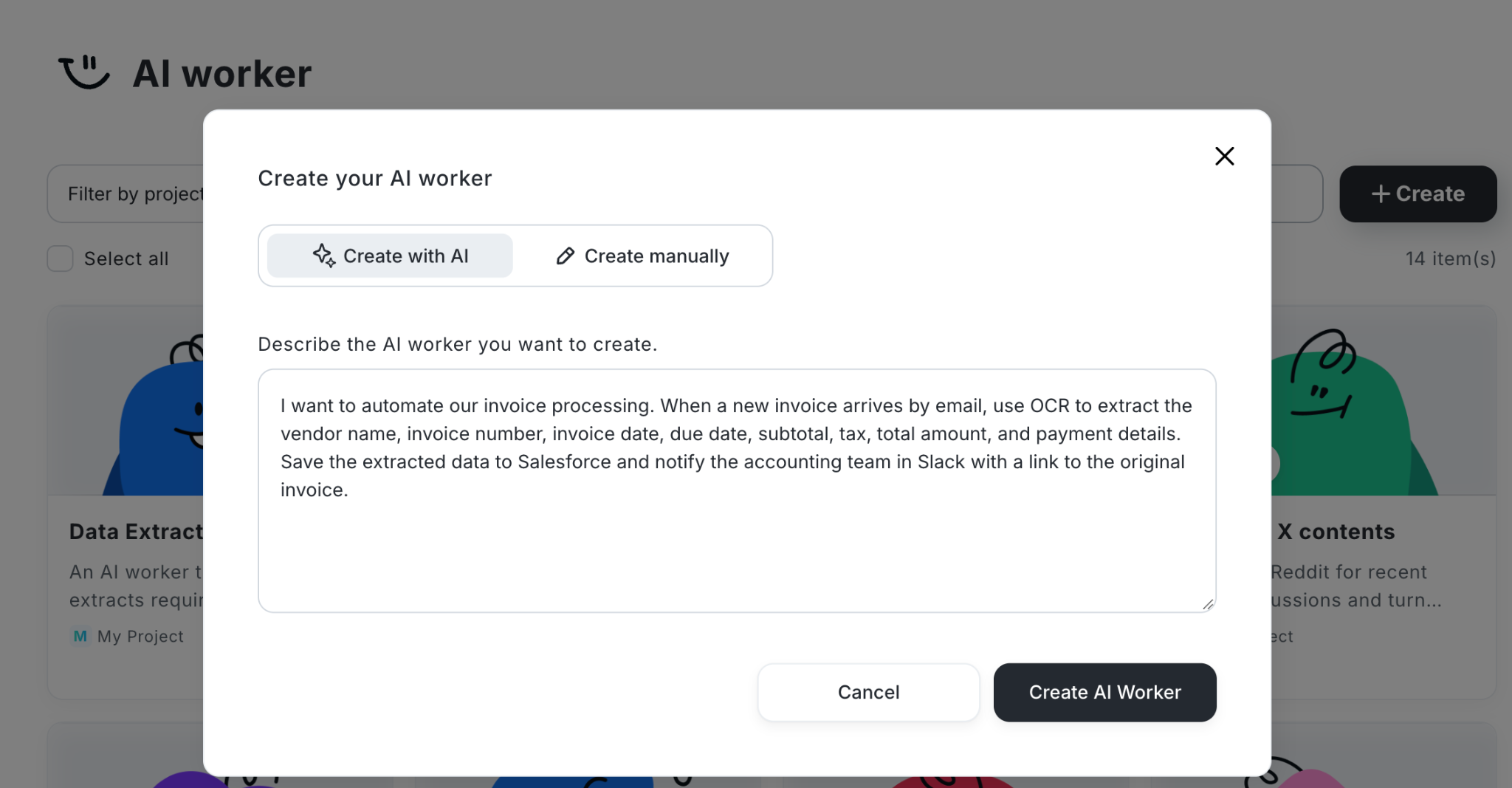
You can then review the suggested automation and adjust it to fit your business needs.
This approach helps you get started without having to figure out every technical detail yourself.
Explore Yoom's AI Worker templates:
https://lp.yoom.fun/en/ai-worker-templates/all-templates
The Most Important Tip: Start Small
Start with a simple automation that solves one specific problem.
This helps you experience the benefits of AI automation sooner, without spending too much time planning or setting everything up. Once you see the results, you can gradually expand your automation to handle more steps or connect more apps.
Looking for More Flexibility? Build a Custom Automation with Yoom
Already using an AI automation tool but not satisfied with its capabilities? If you're considering switching to a more flexible platform, Yoom lets you build custom automations that fit your specific business needs.
Connect the apps you already use and configure each step to match your requirements. For example, you can decide what information AI should extract, how the data should be organized, where it should be saved, and which team members should be notified.
You can also combine app integrations with AI, OCR, and RPA to handle different types of tasks within a single automation. This makes it possible to automate processes that go beyond what a ready-made template or AI-assisted setup can cover.
This option is ideal when existing tools don't offer the flexibility you need or when you want to connect more steps across your business processes.