・
AI Contract Review Software for Small Businesses
- What Is AI Contract Review?
- What Data Reveals: How Businesses Use AI Contract Review
- AI Can Flag Issues Based on Your Own Rules
- Why Workflow-Based AI Can Work Well for Small Businesses
- Standalone AI Contract Review Software vs. AI Contract Workflow Automation
- Top AI Contract Review Tools for 2026
- How to Set Up an AI Contract Review Workflow
Contract review can slow down everyday business tasks.
A sales deal may be delayed while someone checks a vendor contract.Hiring may take longer because an employment agreement still needs to be reviewed.Even a simple NDA can end up sitting in someone's inbox for days.
For small businesses, this can be especially difficult. You may not have a dedicated legal team, and sending every contract to an external lawyer can be costly and time-consuming.
At the same time, someone still needs to check contracts for important terms and potential issues.
This is where AI Contract Review with workflow automation can be useful.
AI can handle the first pass of a contract review, while a person remains responsible for the final decision. You can also connect the AI review process to the tools your team already uses, such as Slack, Microsoft Teams, Google Drive, or your CRM.
In this article, we will explore how small businesses use AI for Contract Review and how a workflow-based approach can help simplify contract review.
What Is AI Contract Review?
AI Contract Review uses artificial intelligence to read a contract and identify important information or potential issues.
For example, AI can help find:
- Contract parties
- Contract start and end dates
- Termination conditions
- Payment terms
- Liability limits
- Confidentiality clauses
- Unusual or missing terms
The goal is not necessarily to let AI make the final legal decision.
Instead, AI can handle the first pass and give a person a clear summary of what needs attention.
For a small business, this can be especially useful when there is no full-time legal team available to review every document.
Related AI Contract Reviewer:

An AI worker that analyzes contracts and identifies unfavorable clauses and missing provisions at the clause level based on your internal risk criteria. It also provides the reasons for each risk and suggested revisions, helping legal, business, and administrative teams streamline contract reviews while reducing oversights and inconsistent decisions.
- What are “Skills”?
- They are instructions that tell the AI worker how to process tasks. For detailed setup instructions, see “【AI worker】How to Create Skills (formerly Manuals)”.
- What are “Tools”?
- These are the tools the AI worker uses to process tasks. Simply tell the AI which tools your company regularly uses, and you can freely configure where data is retrieved from and where it is sent.
- The number of AI workers that can run simultaneously, the number of AI workers you can create, and the AI models available to you vary by plan.
- Apps and operations available within AI workers are subject to the same usage limits as Flowbot.
- AI workers consume tasks during test runs just as they do during production runs. For details, see “【AI worker】How Task Usage Is Calculated”.

An AI worker that analyzes legal updates and your company’s labor policies to identify required revisions, assess urgency, and recommend changes—all in one workflow. Reduce the risk of missed checks and overlooked updates, and streamline compliance work for labor, HR, and general affairs teams.
This AI worker automatically compares legal changes with your company’s regulations and tells you exactly what to change, by when, and how. It eliminates the hassle of complex review processes and creates an environment where you can update your regulations smoothly.
- HR and labor management professionals who spend significant time comparing their company’s work rules and wage regulations against legal amendments
- HR and General Affairs teams who want to carefully manage risks by preventing missed updates or overlooked changes and assessing the impact of each change
- Professionals who want to organize the sections requiring updates and compile proposed revisions before consulting an expert
- What are “Skills”?
- They are the instructions the AI worker follows to process tasks. For detailed configuration instructions, see “[AI worker] How to Create Skills (formerly Manuals).”
- What are “Tools”?
- These are the tools the AI worker uses to process tasks. Simply tell the AI which tools your company uses regularly, and you can freely customize where data is retrieved from and where it is sent.
- The number of AI workers that can run simultaneously, the number of AI workers you can create, and the AI models available to you vary depending on your plan.
- The apps and operations available within the AI worker are subject to the same usage restrictions as Flowbot.
- Please note that the AI worker consumes tasks during test runs just as it does during production runs. For details, see “[AI worker] How Task Executions Are Calculated.”


An AI worker that identifies contract and guideline files in OneDrive, then autonomously assesses risks and generates revision suggestions based on your company’s standards. Streamline legal reviews, ensure consistent risk assessments, reduce lead times, and lighten your team’s workload—all while improving the quality of contract review processes.
This AI worker automatically identifies the contract and guideline files in OneDrive that you want to review, then examines the text extracted from the contract based on your company’s operational standards. By independently identifying risks and creating revision proposals, it quickly provides an initial review response to streamline legal reviews.
- Legal professionals who want to streamline contract reviews for documents stored in OneDrive and reduce legal review lead times
- Teams that want to automatically make consistent risk assessments based on their company’s contract review guidelines while minimizing reviewer workload and human error
- Business leaders who want to reduce the mental and time burden of contract reviews and enable teams to focus on higher-value work
- Define basic information for the AI worker, such as its “Name” and “Role.”
- Connect the apps you use, such as OneDrive, with Yoom through My Apps, then configure the required actions. You can also switch to other storage apps based on your workflow.
- Create “Skills,” which serve as instructions for the AI worker. Flexibly describe the names of the guideline files to reference and the review process according to your company’s practices.
- In the “# Guideline Identification File Name” field in the Skill, set the file name of the guideline that describes your company’s contract review standards. For example, specify key items for your company, such as “Guidelines for Basic Sales Agreements: Basic Sales Agreement.pdf” or “Guidelines for Non-Disclosure Agreements: Non-Disclosure Agreement (NDA).pdf,” to improve AI assessment accuracy.
- Clearly specify the storage location and file naming conventions for files to be analyzed in the Skill so the AI can identify the target files more accurately.
- Even if files retrieved from OneDrive are in image format, you can use OCR to convert them into text for analysis.
- Connect OneDrive with Yoom.
- For basic AI worker settings, see “[AI Worker] Basic Setup Guide.”
- The number of AI workers that can run simultaneously, the number of AI workers you can create, and the available AI models vary depending on your subscription plan.
- Apps and operations available in AI workers are subject to the same usage limits as Flowbots.
- Please note that AI workers consume tasks during test runs just as they do during production runs. For details, see “[AI Worker] How Task Executions Are Calculated.”
- AI workers can perform appropriate processing more effectively when Skills are configured in detail. For details, see “[AI Worker] How to Create a Manual.”
- Microsoft 365 (formerly Office 365) offers plans for home users and business users (Microsoft 365 Business). Authentication may fail if you are not subscribed to a business plan.
- The maximum downloadable file size is 300 MB. Depending on the app’s specifications, the limit may be less than 300 MB.
- For details on file size limits for triggers and each operation, see “File Size Limits.”
What Data Reveals: How Businesses Use AI Contract Review
To understand how businesses actually use AI Contract Review, we analyzed contract-related workflows built on Yoom, including workflow definitions, AI actions, and execution logs.
The data shows that businesses are not using AI only to summarize contracts. They are using it to compare contracts with their own internal review criteria and identify terms that may need attention.
What Types of Contracts Are Being Reviewed?
Contract-related workflows cover several types of business documents, including:
- Employment contracts
- Staffing and recruitment agreements
- Contractor agreements
- Service agreements
- Non-disclosure agreements (NDAs)
The review process can change depending on the type of contract.
For example, an employment contract may require checks on trial periods and employment terms, while an NDA may require a closer look at confidentiality obligations.
What Do Businesses Check?
Businesses can define their own rules for contract review.
Based on the workflows we analyzed, common review points include:
- Contract type
- Contract period
- Renewal conditions
- Trial periods
- Termination and cancellation conditions
- Liability limits
- Intellectual property ownership
- Payment terms
- Confidentiality obligations
- Permitted disclosure of confidential information
This means AI Contract Review does not have to be a generic "find risks" process.
A business can tell AI what to look for based on its own rules.
Contract-Specific Review Criteria
The criteria can also change depending on the contract type.
For example, an employment contract may be checked for:
- Trial period start and end dates
- Employment start date
- Contract period
- Renewal conditions
For contractor or service agreements, a business may check:
- Liability limits
- Intellectual property ownership
- Termination conditions
- Payment terms
For NDAs, the review may focus on:
- What counts as confidential information
- How long confidentiality obligations apply
- Who can receive confidential information
- Whether the restrictions are broader or longer than the company's standard
This approach allows businesses to apply their own standards instead of relying only on general AI analysis.
AI Can Flag Issues Based on Your Own Rules
One of the useful parts of workflow-based AI for Contract Review is that you can define your own criteria.
For example, a company might have a rule that:
The termination notice should not be longer than 30 days.
The AI can check the contract against that rule and flag the contract if it finds a 60-day notice period.
The workflow could then return:
- Termination notice: 60 days
- Company standard: 30 days
- Status: Review recommended
This gives the reviewer a clear starting point without requiring them to search through the entire document first.
AI can also create a suggested revision or explanation for the reviewer. However, the final decision should remain with a qualified person.
Why Workflow-Based AI Can Work Well for Small Businesses
Small businesses may not need a large system dedicated only to legal work.
Instead, they may benefit from connecting AI contract review to the tools and processes they already use.
For example, if your team already uses Slack, Google Drive, a CRM, or a database, you can connect contract review to those tools.
This makes it possible to build a process such as:
Receive → Review with AI → Summarize → Notify → Approve → Record
rather than using AI as a separate tool that someone has to open and use manually.
This approach can be especially useful when your business wants to:
- Reduce repetitive contract-checking work
- Find important information faster
- Apply the same review criteria consistently
- Keep a person involved in important decisions
- Connect contract review with existing business tools
- Automate related tasks without introducing another standalone system
The goal is not to replace legal judgment.
It is to automate the repetitive work around contract review so people can focus on the decisions that require human judgment.
Related AI Contract Workflow:

With this workflow, simply upload wage summary files and other documents to a designated Google Drive folder, and AI will perform the calculations required for the annual labor insurance renewal and process the data needed to create the necessary forms. By classifying data based on predefined rules and checking for inconsistencies, it reduces manual calculation errors and the effort required to prepare documents, helping you complete the filing process accurately and smoothly.
- HR and labor management professionals who spend too much time on annual labor insurance renewal procedures and want to streamline their work
- Those who want to use AI workers to automate back-office operations
- Those who want to reduce the risk of manual calculation errors and missing documents
- Upload wage data and other files to streamline complex calculations and document preparation, reducing the time required from your team.
- Reduce the risk of human errors, such as manual calculation mistakes and data entry omissions, helping improve the accuracy of annual labor insurance renewal filings.
- First, connect Google Drive and Google Docs to Yoom.
- Next, select Google Drive as the trigger and set the action to “When a new file or folder is created in a specific folder.”
- For the operation, set the Google Drive action “Download a file” to retrieve the file detected by the trigger.
- Finally, select an AI worker and create a manual (instructions) for performing calculations and preparing documents based on the downloaded file.
■Customization Options
- For the Google Drive trigger, set the folder to monitor for uploaded wage summary files and other documents.
- You can freely customize the instructions provided to the AI worker to match your operations. You can also choose the Google Doc to use as the filing form template and the Google Drive folder where completed documents will be saved.
- Connect Google Drive and Google Docs to Yoom. You must also connect the tools (apps) used within the AI worker through My Apps.
- You can choose a trigger interval of 5, 10, 15, 30, or 60 minutes.
- Note that the shortest available trigger interval varies by plan.
- Files up to 300 MB can be downloaded. Depending on the app specifications, the limit may be less than 300 MB.
- For details on the file size limits for triggers and individual operations, see File Size Limits.
- For basic AI worker settings, see [AI Workers] How to Configure Basic Settings.
- The number of AI workers that can run simultaneously, the number of AI workers you can create, and the AI models available to you vary by plan.
- The apps and operations available within AI workers are subject to the same usage limits as Flowbots.
- AI workers consume tasks during test runs just as they do during production runs. For details, see [AI Workers] How Task Usage Is Calculated.
- AI workers are more likely to process tasks correctly when you provide detailed instructions. For details, see [AI Workers] How to Create Manuals.

With this workflow, simply submit contract terms through Google Forms. The AI Worker automatically performs a legal review based on your company’s standards, drafts the contract, and prompts the responsible team to review it in Slack. It helps your legal team reduce its workload while preparing contracts quickly and efficiently.
- Legal professionals who manually conduct initial reviews of contract requests received through Google Forms and prepare contract drafts
- Team leaders who want to prepare accurate contracts quickly in response to contract requests from the sales team
- Business leaders who want to reduce the workload of their legal team and streamline contract operations across the organization
- AI automatically reviews contract terms based on the information submitted through Google Forms, reducing the time required to provide an initial response and improving operational efficiency.
- Contract drafting based on your legal standards is also automated, helping prevent human errors such as missing information and transcription mistakes.
- First, connect Google Forms, Google Docs, Google Drive, and Slack to Yoom.
- Next, select Google Forms as the trigger and set the action to “When a new response is submitted.”
- Then, create a manual for the AI Worker to review the submitted contract terms based on your company’s standards and, if approved, handle the entire process through contract creation and Slack notification. Set up the Google Docs, Google Drive, Slack, and Google Forms actions as the tools to use.
- Finally, select Slack in Operations, set the action to “Send a message to a channel,” and send a completion notification.
■Customization Options
- When configuring the AI Worker manual, provide detailed information about your company’s legal standards and review criteria to enable more accurate legal checks.
- Specify the input format to use as the contract template and the Google Drive folder where files should be saved according to your company’s operations.
- Set the Slack notification channel to one where members of the legal or sales teams are active to share information in a way that fits your operating environment.
- Connect Google Forms, Google Docs, Google Drive, and Slack to Yoom. The apps used within the AI Worker must also be connected through My Apps.
- You can select a trigger interval of 5, 10, 15, 30, or 60 minutes.
- Please note that the shortest available trigger interval varies by plan.
- For information on how to retrieve response data when using Google Forms as a trigger, see “How to Retrieve Response Data with the Google Forms Trigger.”
- For basic AI Worker configuration, see “【AI Worker】How to Configure the Basics.”
- The number of AI Workers that can run simultaneously, the number of AI Workers you can create, and the AI models available to you vary by your plan.
- The apps and operations available within the AI Worker are subject to the same usage restrictions as Flowbots.
- Please note that the AI Worker consumes tasks during test runs just as it does during production runs. For details, see “【AI Worker】How Task Execution Counts Are Calculated.”
- AI Workers are more likely to execute the appropriate processes when their manuals are configured in detail. For details, see “【AI Worker】How to Create a Manual.”
Manual vs. Automated AI Contract Review
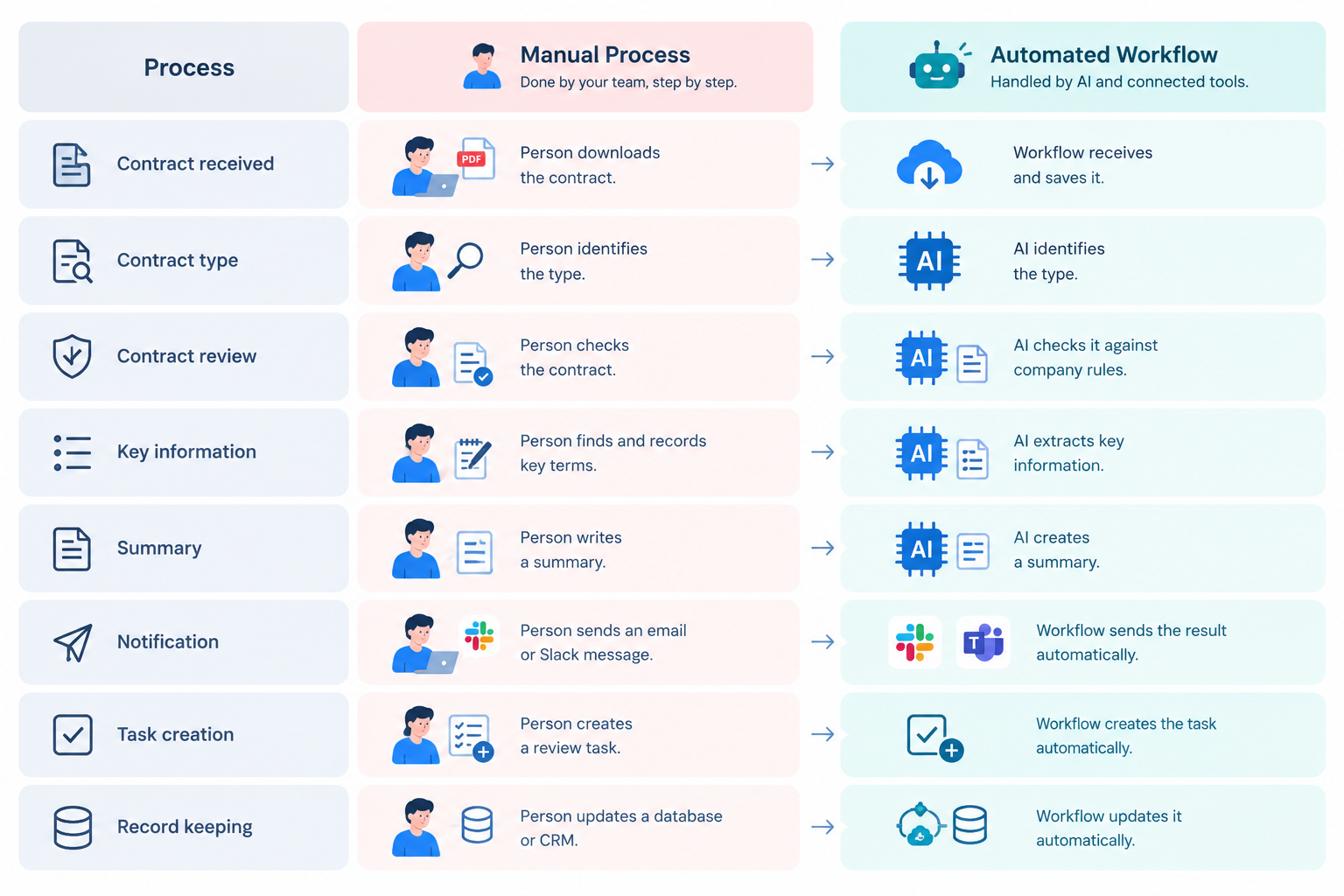
Contract review rarely happens by itself.
When a business receives a contract, someone may also need to save the document, notify a manager, create a task, record important information, and store the final result.
This is where workflow-based AI can offer more than a standalone AI Contract Review Tool.
The AI does not only review the document. The workflow can also automate the tasks that happen before and after the review.
For a small business, this can mean fewer manual handoffs without having to introduce a separate system for every part of the process.
Standalone AI Contract Review Software vs. AI Contract Workflow Automation
When choosing AI Contract Review Software, it is important to consider what your business actually needs.
Some specialized legal AI tools are designed for lawyers and legal departments. They may offer advanced features for contract drafting, redlining, legal playbooks, and contract management.
A small business, however, may primarily need to:
- Understand a contract quickly
- Find important terms
- Check the contract against internal rules
- Identify potential issues
- Send the results to the right person
- Continue the rest of the business process automatically
In this case, a workflow automation platform with AI capabilities may be a practical option.
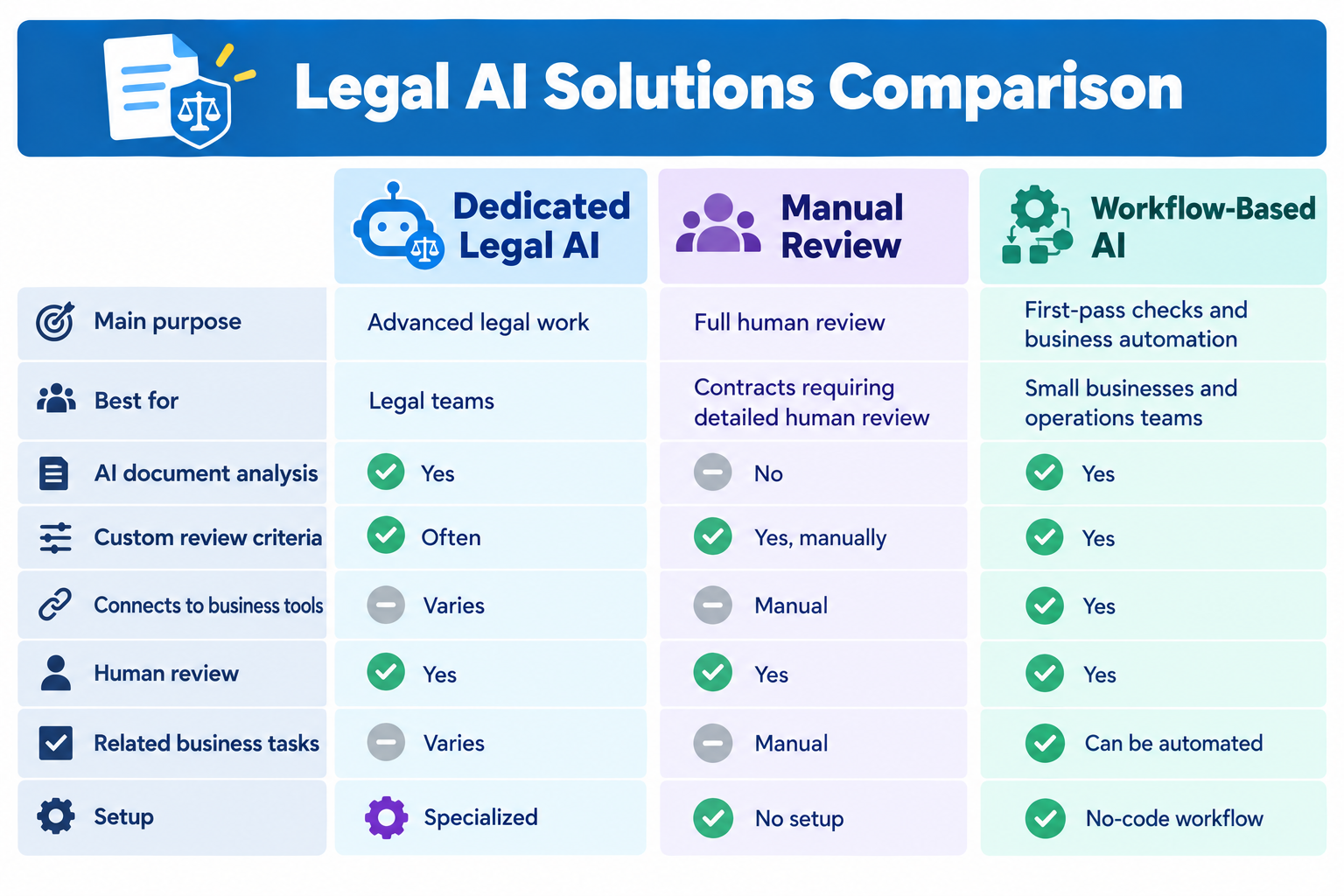
The right choice depends on your needs.
If your legal team spends significant time working on complex contracts, a specialized legal AI platform may be a better fit.
If your team mainly needs a faster way to handle routine contracts and connect the review with existing business processes, workflow-based AI may be enough.
Top AI Contract Review Tools for 2026
Different AI Contract Review Tools are designed for different needs.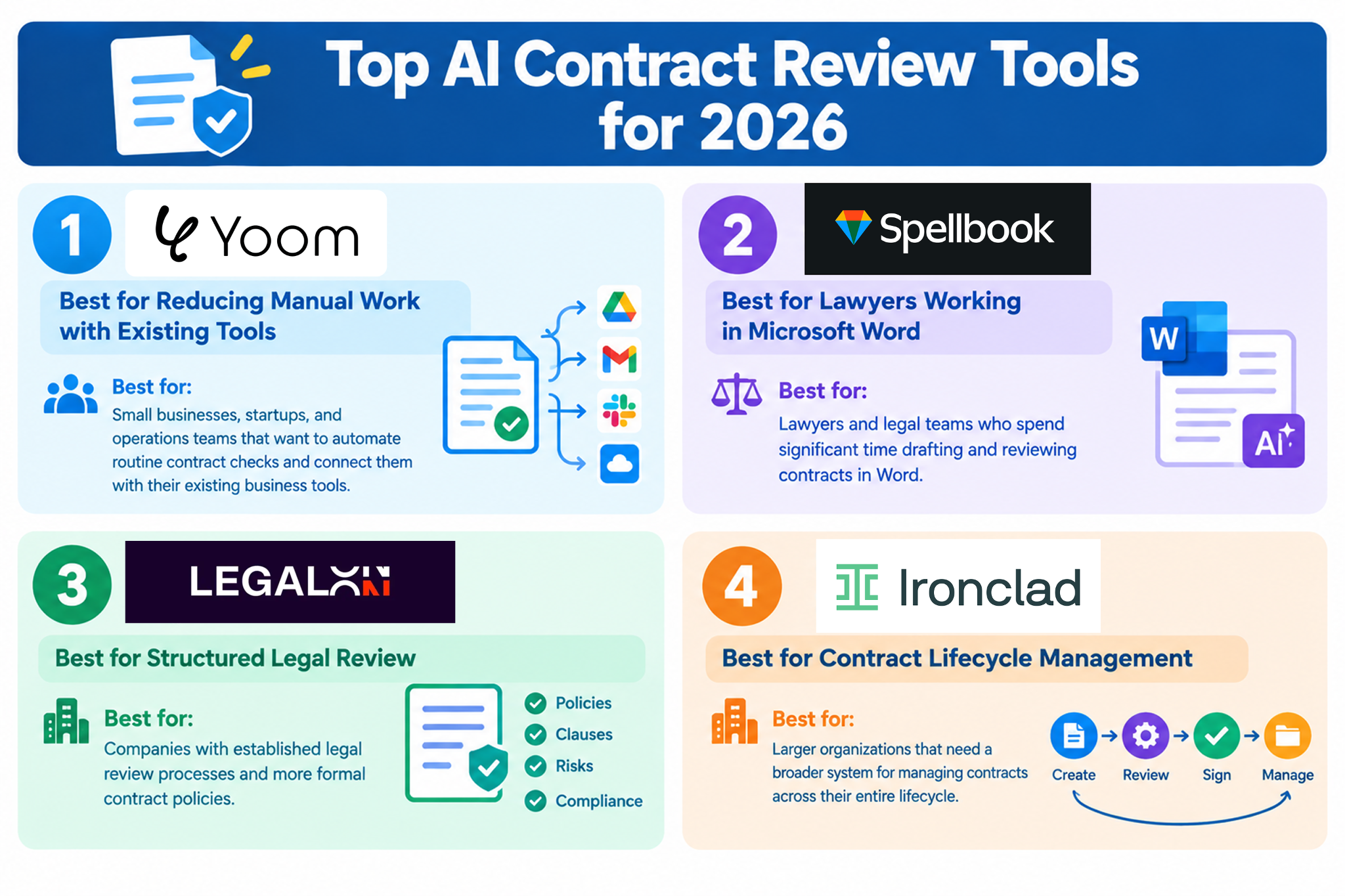
1.
Yoom
— Best for Reducing Manual Work with Existing Tools
Yoom is an all-in-one workflow automation platform that lets business teams connect AI with their everyday business processes.
Instead of using AI only to review a contract, Yoom can connect contract review with the steps that happen before and after it.
Yoom uses no-code workflows, so business teams can build these processes without writing code.
- Pricing: Free plan available. Paid plans start at $16/month.
- Best for: Small businesses, startups, and operations teams that want to automate routine contract checks and connect them with their existing business tools.
2.
Spellbook
— Best for Lawyers Working in Microsoft Word
Spellbook is an AI tool designed for legal professionals.
It works inside Microsoft Word and can help lawyers review contracts, suggest changes, and work with contract language directly in the document.
- Pricing: Free trial available. Custom pricing
- Best for: Lawyers and legal teams who spend significant time drafting and reviewing contracts in Word.
3.
LegalOn Technologies
— Best for Structured Legal Review
LegalOn Technologies provides AI-powered contract review features designed around legal review processes and company-specific guidelines.
It can help organizations review contracts against predefined rules and identify terms that may require attention.
- Pricing: Custom pricing
- Best for: Companies with established legal review processes and more formal contract policies.
4.
Ironclad
— Best for Contract Lifecycle Management
Ironclad is a contract lifecycle management platform that covers more than contract review.
It can help businesses manage contracts from creation and approval through signing and ongoing management.
- Pricing: Custom pricing
- Best for: Larger organizations that need a broader system for managing contracts across their entire lifecycle.
Many AI Contract Review Tools use custom pricing, so it can be difficult to compare costs upfront.
If you want to try a tool before talking to a sales team, look for products that offer a Free Plan or free trial. This lets you test the tool yourself and see whether it actually fits your workflow before making a decision.
After all, the best way to choose a tool is often to use it yourself.You can see how well it works with your contracts, how easy it is to set up, and whether it can reduce the manual work your team actually spends time on.
How to Set Up an AI Contract Review Workflow
You do not have to automate your entire contract process from day one.
Trying to automate everything at once can take time and make the setup more complicated than it needs to be. A better approach is to start with one task, then gradually connect it to the rest of your workflow.
For example, if you only want AI to review contracts, you can start by testing AI Contract Review with Yoom's AI Worker. This lets you try the AI review itself without building a large workflow first.
Yoom's AI Worker:



This AI worker evaluates proposed contract terms against your guidelines, drafts contracts in Google Docs, saves them to Google Drive, and sends Slack notifications. Ideal for speeding up initial legal reviews while reducing inconsistent decisions and team workload.
With this AI worker, you can automatically evaluate the provided contract terms against your company guidelines. When the terms pass review, it creates the contract in Google Docs, saves it to Google Drive, and sends a notification to Slack as instructed. Speed up the initial legal review process and support smoother contract execution.
- Professionals who want to streamline initial contract reviews and contract creation while reducing the workload of legal-related tasks
- Team leaders who want to standardize contract creation based on company guidelines and prevent inconsistencies in decisions
- Business owners who regularly use Google Docs and Slack and want to streamline their contract management processes
- Set basic information for the AI worker, such as its “Name” and “Role.”
- Connect the Google Docs, Google Drive, and Slack used by the AI worker to Yoom through My Apps, then configure the required actions. You can also replace these with other apps you use regularly.
- Create and edit the “Manual,” which serves as instructions for the AI worker, to match your company’s operational rules and contract standards.
- Under “#Classification and Decision Criteria” in the manual, set review criteria for items such as contract terms and damages based on your company guidelines. This helps the AI accurately understand your company’s requirements and deliver more accurate review results.
- Under “#Company Information” in the manual, enter your company’s official name, address, and representative name to create contracts that reflect your actual business operations.
- Optionally set the destination folder in Google Drive and the notification channel ID in Slack. This ensures information is delivered to the right place based on your organization’s workflow.
- Connect Google Docs, Google Drive, and Slack with Yoom.
- For basic AI worker settings, see “[AI Worker] Basic Setup Guide.”
- The number of AI workers that can run simultaneously, the number of AI workers you can create, and the available AI models vary depending on your plan.
- The available apps and operations within AI workers are subject to the same usage limits as Flowbots.
- Please note that AI workers consume tasks during test runs just as they do during production runs. For details, see “[AI Worker] How Task Executions Are Calculated.”
- AI workers can perform appropriate processing more easily when manuals are configured in detail. For details, see “[AI Worker] How to Create a Manual.”https://intercom.help/yoom/en/articles/13234602


This AI worker searches across legal FAQs and internal policies to find the information you need, then automatically generates evidence-based draft responses. Reduce the time spent reviewing and interpreting large volumes of FAQs and policies, create accurate responses faster, and enable legal teams to focus on more strategic work.
■Recommended for
- Legal professionals who spend significant time reviewing internal policies and FAQs and want to streamline responses to legal inquiries
- Teams that manage internal knowledge in Google Sheets and Google Drive and want to automate cross-platform information searches
- Managers who want to quickly prepare accurate, clause-based response drafts and improve the quality of legal inquiry responses
■AI worker setup flow
- Configure basic information such as the AI worker's name, icon, and role in the basic settings.
- Connect Google Sheets and Google Drive to Yoom as tools (My App connection), then configure the actions for each.
- Create and edit the “Skills” that serve as instructions for the AI worker to match your company's legal operations rules. You can freely customize Skills to fit your workflow.
■Customization points for this AI worker
- Set your company's latest rules under “#Information Priority” in the Skills. For example, specify which source should take priority when FAQ content conflicts with policy content to help the AI make more accurate decisions.
- Under “#Selecting Search Targets” in the Skills, specify priority folders and file names based on the category of the inquiry. This helps the AI collect more relevant information tailored to your actual operations.
■Notes
- Connect Google Sheets and Google Drive with Yoom.
- The maximum downloadable file size is 300 MB. Please note that the limit may be less than 300 MB depending on the app's specifications.
- When using files in triggers or operations, see “File Size Limits.”
- For AI worker basic settings, see “[AI Worker] Basic Setup Guide.”
- The number of AI workers that can run simultaneously, the number of AI workers you can create, and the available AI models vary depending on your subscription plan.
- The apps and operations available in AI workers are subject to the same usage limits as Flowbots.
- Please note that AI workers consume tasks during test runs in the same way as production runs. For details, see “[AI Worker] How Task Executions Are Calculated.”
- Configuring Skills in detail helps AI workers perform the appropriate processing. For details, see “[AI Worker] How to Create Manuals.”
Once you know what you want to automate, you can connect the steps around it:
Contract received → AI Contract Review → Summary → Notification → Task creation → Record keeping
If you want to automate these steps together, you can start with a workflow template or build your own workflow from scratch.
Related AI Contract Templates:

- HR and recruiting professionals who want to use an AI Worker to streamline initial candidate screening
- Those handling a large number of applicants who want to reduce the workload and improve the quality of resume screening
- Those who use Gmail and Slack regularly and are interested in automating the entire hiring process
- Automate everything from receiving application emails to initial screening and notifying the person in charge, reducing the time recruiters spend on manual screening.
- Because the AI Worker evaluates candidates based on predefined criteria, it helps prevent inconsistencies between reviewers and standardizes the screening process.
- First, connect Gmail and Slack to Yoom.
- Next, select Gmail as the trigger and set the action to “When an email with a specific label is received.”
- Then, select AI Worker as the operation and create a manual (instruction) that matches the applicant’s background against the job requirements, determines whether they pass the screening, and automatically generates follow-up interview questions.
- Finally, configure a Slack action as an operation to notify the designated channel of the screening results generated by the AI Worker.
■Customization options
- When configuring the AI Worker, you can provide specific, fixed instructions for the job requirements used as evaluation criteria, such as required skills, preferred qualifications, and years of experience.
- By embedding applicant information collected by the Gmail trigger, such as the email body and attached files, as variables in the AI Worker’s instructions, you can tailor the screening process to each applicant.
- You can freely configure the Slack notification channel and message content. Choose which information to include, such as a summary of the screening results generated by the AI or interview questions.
- Connect both Gmail and Slack to Yoom. You also need to connect the tools (apps) used within the AI Worker under My Apps.
- You can choose a trigger interval of 5, 10, 15, 30, or 60 minutes.
- Please note that the shortest available trigger interval depends on your plan.
- For basic AI Worker configuration, see “[AI Worker] How to configure the basics”.
- The number of simultaneous AI Worker executions, the number of AI Workers you can create, and the AI models available to you depend on your plan.
- The apps and operations available within an AI Worker are subject to the same usage limits as Flowbots.
- Please note that AI Workers consume tasks during test runs just as they do during production runs. For details, see “[AI Worker] How task execution counts are calculated”.
- AI Workers are more likely to process tasks appropriately when their manuals are configured in detail. For details, see “[AI Worker] How to create a manual”.
The important thing is to start small. Automate one task first, then connect it to the next step. This makes it easier to see what works, improve the workflow, and gradually reduce more manual work.