・
Automated Data Analytics: Benefits, Use Cases, Tools & How to Build

Businesses collect data from many different sources every day.
Sales data comes from CRMs. Customer feedback arrives through emails and chat tools. Teams store information in spreadsheets, Excel and databases. As the amount of data grows, understanding what it means can become a time-consuming task.
Traditionally, businesses have handled data analysis in two main ways:
- BI dashboards: Tools such as Tableau and Power BI can bring data together and help teams understand trends. However, setting up and maintaining these systems can require specialized knowledge. Teams also need to regularly check dashboards to find important changes.
- Manual data analysis: Teams may download information from Salesforce, HubSpot, Google Forms, and other tools, organize it in spreadsheets or Excel, review the results, and create reports manually.
Automated Data Analytics offers another approach.
Instead of asking people to collect, organize, analyze, and share data manually, businesses can create automated workflows that handle these steps.
For example, a workflow can collect a new customer inquiry, use AI to identify the main topic, summarize the inquiry, save the result, and send a notification to the relevant team.
But how is Automated Data Analytics actually being used in business today?
In this article, we analyze real Automated Data Analytics use cases based on workflow data from Yoom users.
We also share how businesses are using Automated Data Analytics today and share practical ways to apply it to everyday data analysis.
Inside the Data: Real-World Automated Data Analytics Use Cases
Based on operational data from active workflows on Yoom, this benchmark study looks at how businesses automate data analysis, process information, and share insights with their teams.
1. What Are Businesses Using Automated Data Analytics For?
What does Automated Data Analytics look like in real business workflows?
Execution data from Yoom workflows shows four main use cases:
- Automated Report Generation & Alerts — 41.0%: Collect information from multiple sources, summarize important metrics, and automatically send updates to team channels.
- Data Formatting & Summarization — 35.8%: Organize unformatted information, summarize customer feedback, and turn text into structured records.
- Decision Support & Approval Routing — 14.1%: Analyze incoming information based on business rules and send high-priority cases to managers for review.
- Database Archiving & Sync — 9.1%: Organize analyzed information and save it in a database,spreadsheet or Excel for future use.
These use cases show that Automated Data Analytics is not limited to creating dashboards or reports.
Businesses are also using automated data analysis to organize information, identify important cases, support decisions, and keep records up to date.
2. Where Does the Data Come From?
Automated data analysis can start with information from many of the tools businesses already use.
Yoom data shows that businesses are collecting information from several common sources:
- CRMs & Cloud Apps — 58.2%: More than half of the workflows collect information from sales, accounting, customer support, and other business applications, such as Salesforce, HubSpot, and Zendesk.
- Forms & Customer Requests — 23.3%: These workflows start when someone submits a survey, contact form, or support request through tools such as Typeform or Google Forms.
- Spreadsheets & Databases — 15.2%: These workflows regularly check for new or updated information in tools such as Google Sheets, Airtable, or cloud databases.
- Manual & On-Demand Executions — 3.3%: Some workflows are started manually when a team member needs an analysis immediately.
This shows that Automated Data Analytics does not require all business data to be stored in one place.
Teams can analyze information where it is already collected and used.
For example:
Customer inquiry → AI analysis → Summary → Sales team
Or:
Salesforce update → AI analysis → Important changes → Team notification
The workflow connects these steps automatically.
Related Automated Data Analytics Templates:


■Who should use this template
- Sales managers who want to use customer activity data accumulated in Salesforce to automatically prioritize leads
- Inside sales representatives who want to quickly identify leads with high purchase intent and connect them with smooth outreach to improve close rates
- Teams that want to notify their sales team only about hot leads, prevent information overload in Slack, and build a more efficient sales process
■Benefits of using this template
- AI automatically scores leads based on their Salesforce activity history, enabling you to identify hot leads using objective criteria and optimize the priority of your sales outreach.
- Slack notifications are sent only when a lead reaches a high score, so you can focus on opportunities that require immediate attention without being overwhelmed by low-priority notifications.
■Flow bot steps
- First, connect Salesforce and Slack to Yoom.
- Next, select Salesforce as the trigger and set the action to “When a record is added to the Activity object.”
- Finally, create instructions for the AI worker to detect the Salesforce Activity object, update the lead engagement score, and notify Slack only when the score is high.
■Customization options
- Adjust the instructions given to the AI worker to freely define scoring criteria that match your business model, such as adding points for specific actions.
- Customize the notification conditions, such as the score threshold for Slack notifications, to control the notification frequency and lead quality.
- Add Salesforce custom objects and other fields to retrieve to perform more advanced analysis based on a broader range of data.
■Notes
- Connect both Salesforce and Slack to Yoom. You must also connect the tools (apps) used within the AI worker through My Apps.
- Salesforce is available only on the Team and Success plans. Please note that operations and Data Connect configured in flow bots will result in errors on the Free and Mini plans.
- Paid plans, such as the Team and Success plans, include a two-week free trial. During the free trial, you can use apps that are otherwise subject to plan restrictions.
- You can select a trigger interval of 5, 10, 15, 30, or 60 minutes.
- Please note that the shortest available trigger interval varies by plan.
- For basic AI worker setup, see “[AI Worker] How to configure basic settings.”
- The number of concurrent AI worker executions, the number of AI workers you can create, and the AI models available to you vary depending on your plan.
- The apps and operations available within an AI worker are subject to the same usage restrictions as flow bots.
- Please note that AI workers consume tasks during test runs just as they do during production runs. For details, see “[AI Worker] How task execution counts are calculated.”
- AI workers are more likely to perform the appropriate processing when their instructions are configured in detail. For details, see “[AI Worker] How to create instructions.”

- Sales professionals who use HubSpot and want to streamline lead management for outbound sales
- Those who want to automate the manual process of prioritizing leads with the power of an AI agent
- Managers who want to boost their sales team's productivity and focus on more strategic activities
- AI automatically determines lead priority whenever a contact is added to HubSpot, reducing the time spent gathering and analyzing information for outbound sales.
- Prevent human errors such as inconsistent judgment criteria across team members and overlooking important leads, while supporting sales activities based on objective data.
- First, connect HubSpot, Google Search, and Slack to Yoom.
- Next, select HubSpot as the trigger and set the action to “When a new contact is created.”
- Finally, configure an AI Worker as an operation, then create a manual (instructions) for collecting company information using Google Search, determining the priority for outbound sales, and sending the results to Slack.
■Customization Options
- You can customize the instructions given to the AI Worker to match your company's sales strategy. Set your own criteria for determining priority and the information sources to reference.
- You can also specify the search engine used by Google Search and the Slack notification destination.
- Connect HubSpot, Google Search, and Slack to Yoom individually. You also need to connect any tools (apps) used within the AI Worker to My Apps.
- You can choose a trigger interval of 5, 10, 15, 30, or 60 minutes.
- Please note that the shortest available trigger interval varies by plan.
- For basic AI Worker setup instructions, see “[AI Worker] Basic Setup Guide.”
- The number of AI Workers that can run simultaneously, the number of AI Workers you can create, and the AI models available to you vary by plan.
- Apps and operations available within AI Workers are subject to the same usage limits as Flowbots.
- Please note that AI Workers consume tasks during test runs just as they do during production runs. For details, see “[AI Worker] How Task Usage Is Calculated.”
- AI Workers are more likely to perform the appropriate processes when their manuals are configured in detail. For details, see “[AI Worker] How to Create a Manual.”
3. Where Do the Results Go?
Collecting and analyzing data is only useful if the results reach the people who need them.
Yoom data shows three main destinations for automated analytics results:
- Chat Applications & Direct Alerts — 52.4%: More than half of automated analytics workflows send summaries directly to chat tools such as Slack and Microsoft Teams.
- Databases & Cloud Spreadsheets — 37.8%: These workflows save processed information in databases or spreadsheets so teams can use it later.
- Documents & Reports — 9.8%: These workflows automatically create reports or documents using tools such as Notion and Google Docs.
This highlights an important difference between traditional dashboards and automated analytics.
A dashboard usually requires someone to open it and look for changes.
With Automated Data Analytics, the workflow can analyze the information and send the result automatically.
4. AI Data Analytics Can Work With Unstructured Information
Business data does not always come in the same format. CRM records, emails, customer feedback, and support requests may contain different types of information and free-form text.
With AI Data Analytics, AI can work with this information directly, even when the data is not neatly organized or formatted in the same way.
According to Yoom workflow data, 82% of automated data analytics workflows send raw information directly to AI without manual preparation.
This means businesses can analyze data from different sources without first manually cleaning and formatting each piece of information.
Related AI Templates:

An AI worker that analyzes CSV, JSON, and other data files, automatically transforms them into formats ready for use in other systems, and checks the results. Eliminate time-consuming field mapping and calculation errors while keeping your data accurate. Ideal for anyone who wants to import data into external systems quickly and error-free.
- Anyone looking to streamline the process of converting company-specific data into a format that works with another system
- Anyone who wants to eliminate common data conversion issues, such as calculation errors and missing fields, through strict checks based on company rules
- Teams that want to fully automate field mapping and adjustments required to match the destination system's format
Simply provide instructions in the chat, and it will be automatically configured and updated to match your operations. First, customize the "Skills" and "Tools Used" so the AI worker can execute tasks correctly.
- What are "Skills"?:
- They are instructions that enable the AI worker to perform tasks. For detailed setup instructions, see "[AI Worker] How to Create Skills (formerly Manuals)."
- What are "Tools Used"?:
- These are the tools the AI worker uses to perform tasks. Simply tell the AI which tools your company uses regularly to freely customize where data is retrieved from and where it is sent.
- The number of AI workers that can run concurrently, the number of AI workers you can create, and the available AI models vary depending on your plan.
- The apps and operations available within AI workers are subject to the same usage limits as Flowbots.
- Please note that test runs consume tasks in the same way as production runs. For details, see "[AI Worker] How Task Executions Are Calculated."

An AI worker that analyzes provided numerical data, identifies bottlenecks, and creates actionable improvement plans. Reduce time spent organizing and analyzing data, and make faster decisions with objective reports. Ideal for business leaders and marketers looking to accelerate data-driven operations.
- Marketing professionals who spend too much time analyzing large volumes of sales or inventory data and want to focus on meaningful improvement activities
- Team leaders who want to consistently create objective, logical analysis reports instead of relying on individual expertise to identify the causes behind numerical changes
- Business leaders who want to quickly identify data-driven improvement actions and accelerate business growth
Simply provide instructions in chat, and the AI worker will automatically configure and update itself to fit your operations. Start by customizing its "Skills" and "Tools" so it can execute tasks accurately.
- What are "Skills"?
- They are the instructions the AI worker follows to perform tasks. For detailed setup instructions, see "[AI Worker] How to Create Skills (Formerly Manuals)."
- What are "Tools"?
- These are the tools the AI worker uses to perform tasks. Simply tell the AI which tools your company uses regularly to freely customize where data is retrieved and where it is sent.
- The number of AI workers that can run simultaneously, the number of AI workers you can create, and the available AI models vary depending on your subscription plan.
- The apps and operations available in AI workers are subject to the same usage limits as Flow Bots.
- Please note that test runs consume tasks just like production runs. For details, see "[AI Worker] How Task Executions Are Calculated."
5. Automated Data Analytics Can Turn Data Into Insights in 17 Seconds
Manual data analysis can take hours, especially when information comes from multiple tools.
With Automated Data Analytics, the process can be completed in a single workflow. Yoom execution data shows that automated analytics workflows can complete the entire process—from collecting data to generating and sharing the final report—in a median of 17 seconds.
This means businesses can move from raw data to actionable insights without spending hours on manual reporting.
Traditional BI Dashboards vs. Manual Data Analysis vs. Automated Data Analytics
Different approaches to data analysis have different strengths.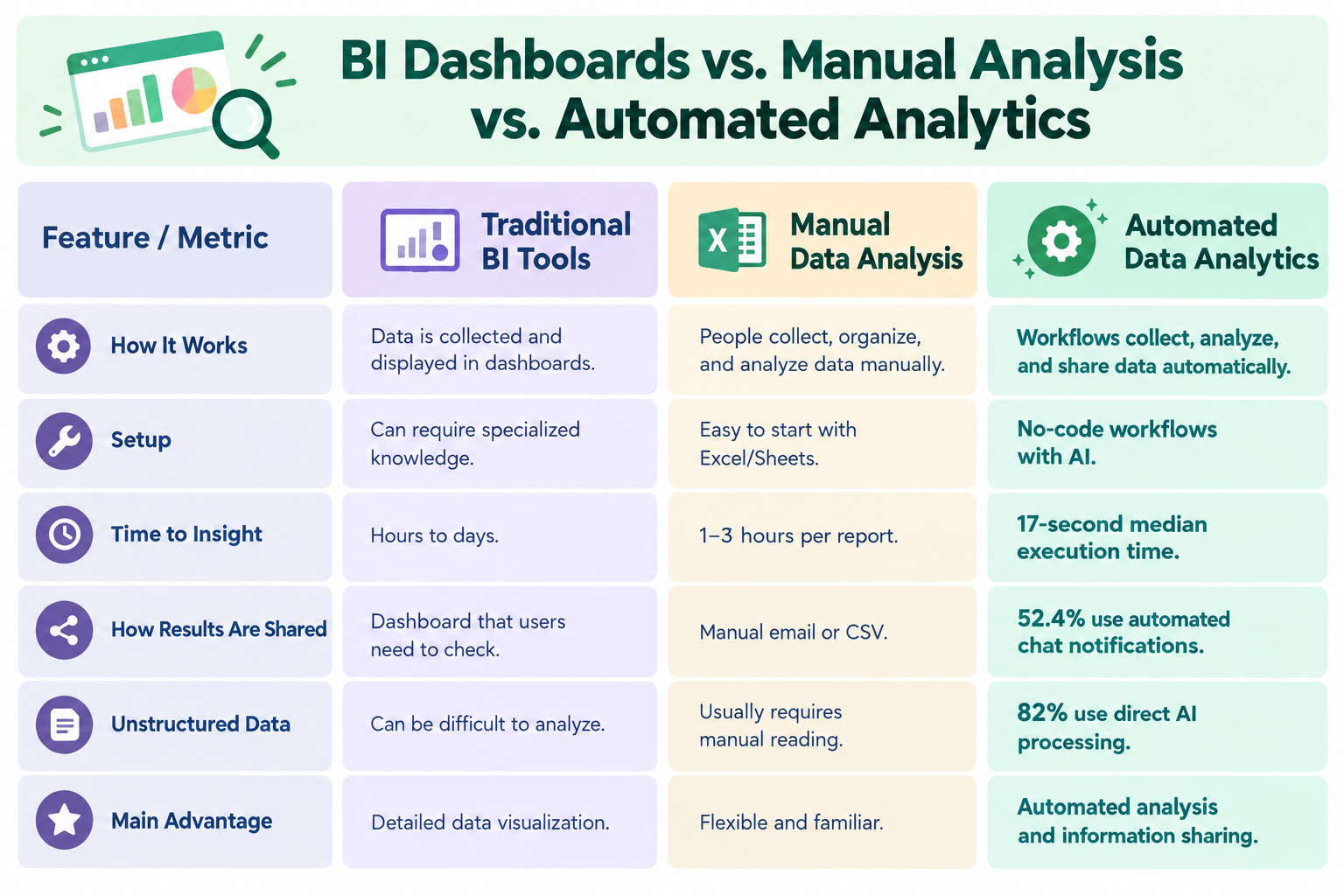
The main differences come down to how data is collected, analyzed, and shared.
How It Works
- Traditional BI Tools: Data is collected and displayed in dashboards.
- Manual Data Analysis: People collect, organize, and analyze data manually.
- Automated Data Analytics: Workflows collect, analyze, and share data automatically.
Setup
- Traditional BI Tools: Can require specialized knowledge.
- Manual Data Analysis: Easy to start with Excel or Google Sheets.
- Automated Data Analytics: No-code workflows with AI.
Time to Insight
- Traditional BI Tools: Hours to days.
- Manual Data Analysis: 1–3 hours per report.
- Automated Data Analytics: 17-second median execution time.
How Results Are Shared
- Traditional BI Tools: Users need to check a dashboard.
- Manual Data Analysis: Reports are shared manually by email or CSV.
- Automated Data Analytics: 52.4% of workflows use automated chat notifications.
Handling Unstructured Data
- Traditional BI Tools: Can be difficult to analyze.
- Manual Data Analysis: Usually requires manual reading and processing.
- Automated Data Analytics: 82% of workflows use direct AI processing.
Main Advantage
- Traditional BI Tools: Detailed data visualization.
- Manual Data Analysis: Flexible and familiar.
- Automated Data Analytics: Automated analysis and information sharing.
With manual data analysis, people need to repeatedly perform the same steps.
With a dashboard, people need to check the dashboard themselves.
With Automated Data Analytics, the workflow can collect the information, analyze it, and deliver the result automatically.
Top Automated Data Analytics Platforms in 2026
Different platforms support automated data analysis in different ways.
The right option depends on the type of data you work with, the level of automation you need, and how your team wants to use the results.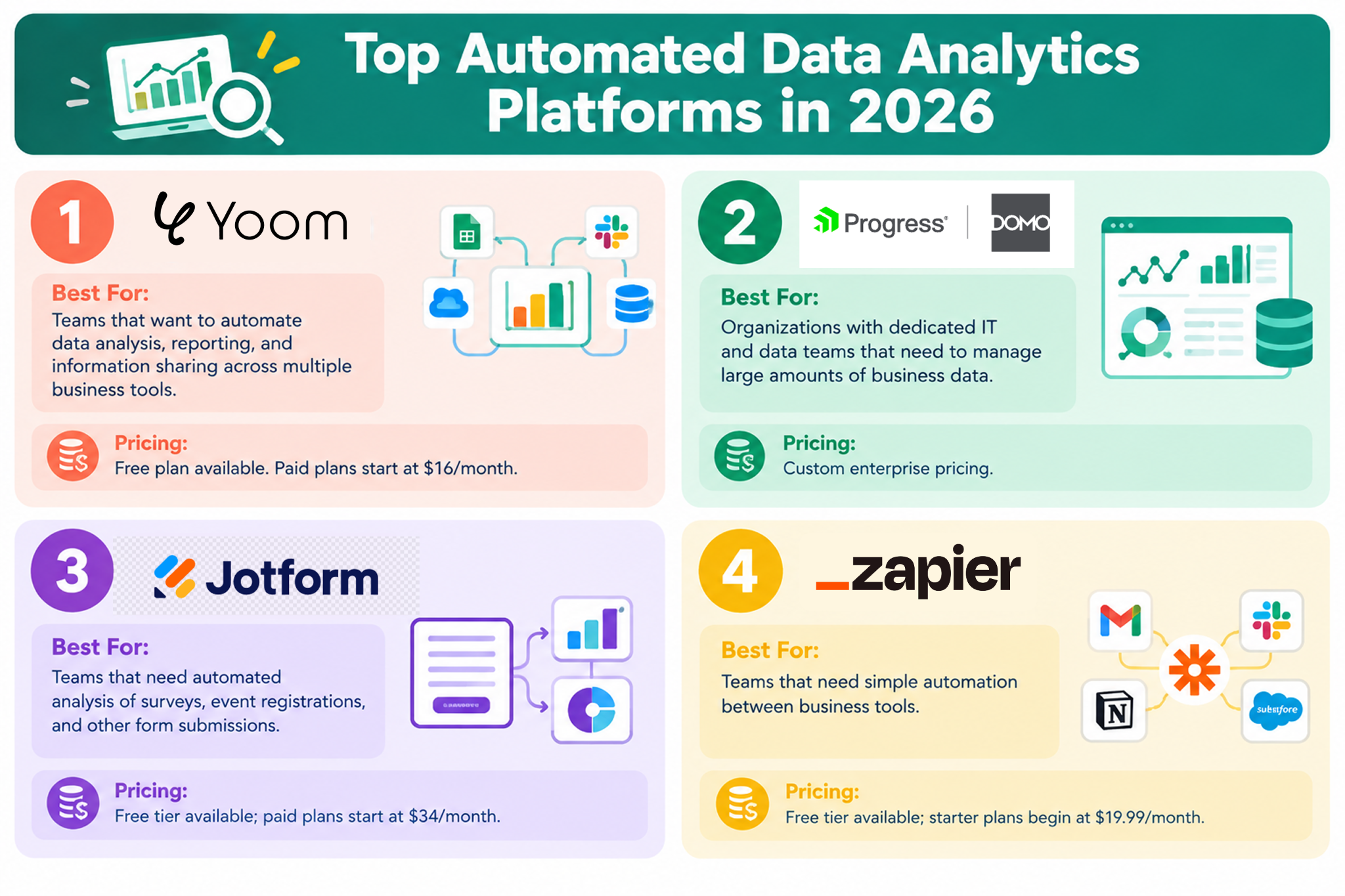
1.
Yoom
— Best for Workflow-Based Data Analytics
Yoom is a no-code workflow automation platform that connects business applications, databases, chat tools, and AI.
It can help teams collect information from the tools they already use, analyze that information with AI, and automatically send the results to the right destination.
- How it handles Automated Data Analytics: Connects triggers from CRMs, web forms, spreadsheets, and other tools with AI to analyze, organize, and summarize information.
- Key Advantages: No-code workflow builder, connections with business tools such as Salesforce, Google Sheets, Notion, and Slack, AI processing of unstructured text, and approval steps when human review is needed.
- Best For: Teams that want to automate data analysis, reporting, and information sharing across multiple business tools.
- Pricing: Free plan available. Paid plans start at $16/month.
2.
Domo
— Best for Enterprise Data Analytics
Domo is a cloud-based analytics platform designed to help organizations work with large amounts of business data.
It helps companies bring together information from different business systems and analyze it in one place.
- How it handles Automated Data Analytics: Connects data from different business systems and provides automated analysis and alerts.
- Key Advantages: Supports many business data sources and provides tools for managing data across large organizations.
- Best For: Organizations with dedicated IT and data teams that need to manage large amounts of business data.
- Pricing: Custom enterprise pricing.
3.
Jotform
— Best for Form-Based Data Analysis
Jotform is a web form builder that also provides reporting features for information collected through forms.
- How it handles Automated Data Analytics: Turns form responses into charts, summaries, and reports.
- Key Advantages: Simple setup and easy-to-understand reports for form responses.
- Best For: Teams that need automated analysis of surveys, event registrations, and other form submissions.
- Pricing: Free tier available; paid plans start at $34/month.
4.
Zapier
— Best for Simple Data Automation
Zapier is an automation platform that connects different business applications.
It is often used to move information from one tool to another automatically.
- How it handles Automated Data Analytics: Can move information from forms or CRMs into spreadsheets or chat notifications, and can be combined with AI steps for simple data processing.
- Key Advantages: Large selection of software integrations.
- Best For: Teams that need simple automation between business tools.
- Pricing: Free tier available; starter plans begin at $19.99/month.
Start Small with Automated Data Analytics and Expand Over Time
If you are new to Automated Data Analytics, you do not need to automate your entire data analysis process at once.
A good way to get started is to begin with one specific data analysis task.For example, you could start by automatically analyzing customer inquiries, summarizing weekly sales data, or identifying trends in survey responses.
Once you see the value of automating one task, you can gradually connect more data sources and analysis steps. As you expand these workflows, you can use data more effectively across your business and reduce more manual work.
Build Automated Data Analytics Workflows with Yoom
Yoom offers three ways to build an Automated Data Analytics workflow, depending on how you want to get started.
- Option 1. Start with a Template
Choose a ready-made workflow template and customize it for your needs. This is an easy way to start using Automated Data Analytics without building a workflow from scratch. - Option 2. Let AI Worker Build It for You
Describe what you want to analyze or automate in natural language, and AI Worker helps build the workflow for you. This is useful when you know what you want to achieve but are not sure how to set it up. - Option 3. Build a Custom Workflow
Build a workflow that fits your specific data and business process. You can connect the tools you already use and customize the steps for your analysis and reporting needs.
Start with one point of data analysis, then gradually connect it to other tasks and data sources. With Yoom, Automated Data Analytics can grow from a single workflow into a broader approach to data-driven work and business automation.
Related Automated Data Analytics Templates:

- People who receive a large number of emails every day and struggle with missing important messages
- People who want to implement an AI email analysis tool to improve the speed and quality of inquiry responses
- Team leaders who want to analyze customer emails and streamline sales or support operations
- AI automatically analyzes emails received in Gmail, reducing the time spent manually reviewing and sorting them.
- By assessing priority based on objective criteria, AI reduces the risk of inconsistent decisions and missed important emails.
- First, connect Gmail, Google Drive, Slack, and other apps to Yoom.
- Next, select Gmail as the trigger and set the action to “When an email matching specific keywords is received.”
- Finally, configure an AI worker in the operation and create a manual (set of instructions) to analyze the received email, determine its priority and assignee, save files to Google Drive, and send Slack notifications.
■Customization Options
- In the Gmail trigger settings, you can specify any keywords you want to detect, such as “inquiry” or “urgent,” based on your business needs.
- You can freely customize the instructions given to the AI worker. Set the priority criteria and analysis output format to match your goals.
- Connect Gmail, Google Drive, and Slack to Yoom. You must also connect the tools (apps) used within the AI worker under My Apps.
- For basic AI worker setup instructions, see “[AI Worker] Basic Setup Guide.”
- The number of AI workers that can run simultaneously, the number of AI workers you can create, and the AI models available to you vary by plan.
- The apps and operations available within AI workers are subject to the same usage limits as Flowbots.
- AI workers consume tasks during test runs just as they do during production runs. For details, see “[AI Worker] How Task Execution Counts Are Calculated.”
- AI workers are more likely to process tasks appropriately when their manuals are configured in detail. For details, see “[AI Worker] How to Create a Manual.”
- You can choose a trigger interval of 5, 10, 15, 30, or 60 minutes.
- The shortest available trigger interval varies by plan.
- OCR may not be able to read data exceeding 6,500 characters or text that is too small.
- The maximum downloadable file size is 300 MB. Depending on the app specifications, the limit may be less than 300 MB.
- For details on the file size limits for triggers and individual operations, see “File Size Limits.”


■Overview
Manually retrieving Google Ads account reports, analyzing the data with AI, and reporting the results to Slack can be a time-consuming task that needs to be repeated regularly. This workflow streamlines the process by automatically retrieving reports from Google Ads on a set schedule, having AI analyze them, and automatically sending the results to Slack.
■Who This Template Is For
- Marketing professionals who spend significant time creating and analyzing Google Ads reports
- Those who share advertising performance updates in Slack and want to eliminate the inefficiencies of manual reporting
- Operations improvement leaders who want to use AI to streamline the analysis and sharing of advertising reports
■Benefits of This Template
- Automate the entire process—from retrieving reports from Google Ads to analyzing them with AI and notifying Slack—so you can reduce the time spent on manual tasks.
- Reduce the risk of human error, such as missed updates or inaccurate reports, when creating and sharing reports regularly.
■How the Flowbot Works
- First, connect Google Ads and Slack to Yoom.
- Next, select the schedule trigger feature as the trigger, configure the “Schedule Trigger” action, and specify when and how often to retrieve reports.
- Then, configure the Google Ads “Get Account Report” action in the operation and specify the account, report type, date range, and other details.
- Next, configure the AI “Generate Text” action in the operation and instruct it to generate analysis or summary text based on the retrieved Google Ads report data.
- Finally, configure Slack’s “Send a Message to a Channel” action in the operation to automatically send the AI-generated text to the specified channel.
※“Trigger”: An action that starts the flow. “Operation”: An action that processes data within the flow after the trigger starts.
■Customizing This Workflow
- With the AI “Generate Text” operation, you can use prompts to provide detailed instructions on what information to use from the Google Ads report and what analysis or summary to include in the generated text.
- With Slack’s “Send a Message to a Channel” operation, you can flexibly customize notifications by specifying the destination channel, adding fixed text to the message, and incorporating dynamic information such as Google Ads data retrieved in the previous operation or AI-generated analysis results.
■Notes
- Connect both Google Ads and Slack to Yoom.

■Overview
Reviewing Shopify sales data every week is essential for analysis and strategy planning, but handling this manually can be time-consuming and tedious.
With this workflow, you can automatically retrieve Shopify order data on a set schedule, have AI analyze it and suggest strategies, and record the results in Google Sheets.
This helps you make data-driven decisions faster and improve operational efficiency.
■Who Should Use This Template
- E-commerce team members who manually compile Shopify order data and spend too much time on analysis
- Those who want to develop data-driven sales strategies but struggle with analysis and report creation
- Those who want to use AI to automate regular reporting and strategy recommendations
■Benefits of Using This Template
- Automate everything from weekly data retrieval to AI-powered analysis and recordkeeping, reducing the time spent on routine reporting tasks.
- Because AI handles the analysis and strategy recommendations, you can reduce reliance on individual team members, minimize variations in output, and gain consistent insights.
■Flow Bot Steps
- First, connect Shopify and Google Sheets to Yoom.
- Next, select the Schedule Trigger feature as the trigger and set when you want the flow to run, such as “Every Monday at 9:00 AM.”
- Then, select Shopify as the operation and use the “Retrieve a list of orders (specify a period)” action to retrieve the order data to analyze.
- After that, configure the AI feature’s “Generate text” action and write a prompt instructing it to analyze the retrieved order data and suggest strategies.
- Finally, configure Google Sheets’ “Add a record” action and save the AI-generated text to the specified sheet.
※“Trigger”: An action that starts the flow. “Operation”: An action that processes data within the flow after the trigger starts.
■Customization Options
- With the Schedule Trigger, set the day and time when you want the flow to run, such as “Every Monday at 9:00 AM.”
- When retrieving order information from Shopify, you can specify the period for the order data you want to analyze, such as “the past week.”
- You can freely customize the AI feature’s prompt. Add specific instructions, such as “Analyze trends among best-selling products and suggest three initiatives for the next campaign.”
- With the Google Sheets action, you can select the destination sheet or file and specify which information, such as the AI analysis results, should be added to which columns.
■Notes
- Connect both Shopify and Outlook to Yoom.
- Shopify is available only on the Team and Success plans.
Please note that operations and Data Connect configured in Flow Bots will result in errors on the Free and Mini plans.
Paid plans, such as the Team and Success plans, include a two-week free trial.
You can use apps subject to plan restrictions during the free trial. - Microsoft 365 (formerly Office 365) offers plans for home use and business plans (Microsoft 365 Business). Authentication may fail if you are not subscribed to a business plan.