・
Why OCR Isn't Enough: The Shift to OCR Invoice Processing & Automation

When choosing an optical character recognition (OCR) tool, many organizations focus on one question: How accurately can it read documents?
Basic OCR tools convert scanned PDFs, images, and paper documents into digital text. However, reading the text is only the first step. Employees may still need to download CSV files, check invoice details, and manually enter data from paper invoices and faxes into accounting software, ERP systems, and databases.
Usage data from Yoom's enterprise OCR users shows that text extraction is only a small part of the overall process.
On average, each OCR workflow includes 6.1 automated steps and connects to more than 10 applications. This shows why text extraction alone cannot deliver end-to-end accounts payable (AP) automation.
To reduce manual work, more organizations are moving beyond standalone OCR tools to OCR Invoice Processing and Workflow Automation.
This approach uses AI to extract data from paper documents and digital files, then automatically sends that data to the right business applications.
Inside the Data: How Enterprises Use Automated OCR Workflows
This analysis is based on usage data from Yoom's enterprise OCR users. It explores how businesses use AI-powered OCR and workflow automation in their daily operations.
1. 98.89% of OCR Workflows Run Without Human Review
Some businesses assume that digitizing paper documents still requires frequent human checks. However, Yoom's OCR user data shows that 98.89% of OCR workflows run automatically, from receiving documents to updating databases across multiple applications.
- Fully Automated Processing (Straight-Through Processing): 98.89%
- Processing with Human Review (Approvals and Exception Checks): 1.11%
Human review is used for a small share of workflows that require approval or additional checks. This allows teams to process large volumes of paper and digital invoices with minimal manual work.
2. Beyond Text Extraction: An Average of 10.4 Connected Apps
OCR is not an isolated task. It connects paper-based processes with the business applications teams already use.
On average, each Yoom OCR workflow includes 6.1 automated steps, while enterprise users connect an average of 10.4 different applications.
The following are the most popular app categories connected to OCR.
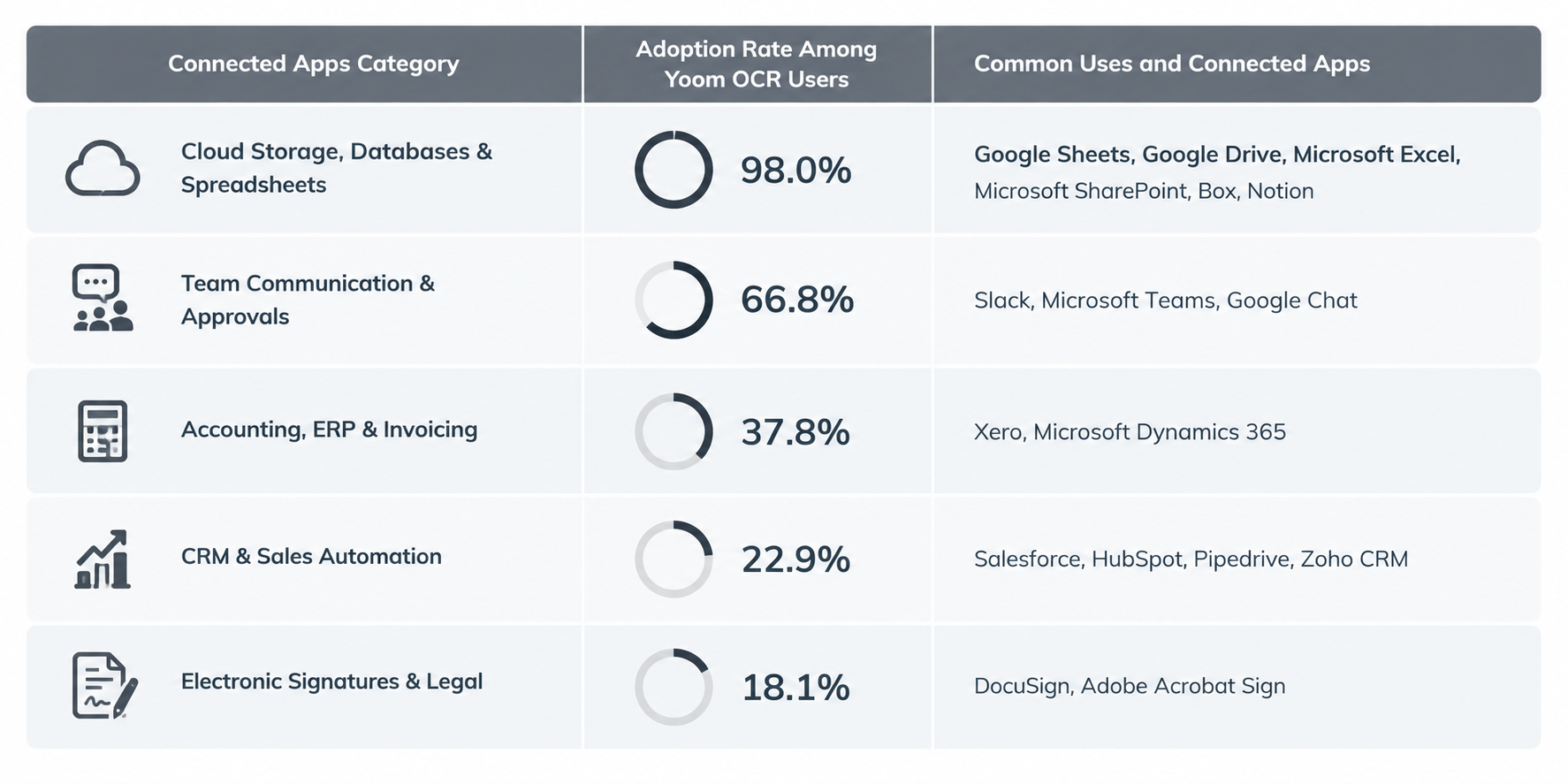
- Connected Apps: Google Sheets, Google Drive, Microsoft Excel, Microsoft SharePoint, Box, Notion
2. Team Communication & Approvals — 66.8% Adoption
- Connected Apps: Slack, Microsoft Teams, Google Chat
3. Accounting, ERP & Invoicing — 37.8% Adoption
- Connected Apps: Xero, Microsoft Dynamics 365
4. CRM & Sales Automation — 22.9% Adoption
- Connected Apps: Salesforce, HubSpot, Pipedrive, Zoho CRM
5. Electronic Signatures & Legal — 18.1% Adoption
- Connected Apps: DocuSign, Adobe Acrobat Sign
These connections allow businesses to send extracted data to the right systems without manually copying and pasting information between apps.
3. 41.0% of OCR Tasks Run Outside Business Hours
Automated document processing does not have to stop when employees leave the office.
Yoom's data shows that 41.0% of OCR tasks run outside standard business hours.
- Standard Business Hours (Weekdays, 9 AM–6 PM): 59.0%
- Outside Business Hours (Evenings, Early Mornings & Weekends): 41.0%
- Weekends (Saturday and Sunday): 25.3%
- Weekday Nights and Early Mornings: 15.7%
While employees are away, automated workflows can process scanned documents, extract receipt details, and update financial databases.By processing documents over the weekend, OCR Automation can also help teams start the new week with data already organized and ready for use, reducing the workload on Monday morning.
4. What Types of Documents Do Businesses Process with OCR?
Yoom's OCR data shows that businesses use OCR for a wide range of documents, from general PDFs and scanned images to invoices, receipts, and contracts.
Invoices account for 40.5% of specialized document extractions, making them the most common type of specialized document. However, OCR Automation also supports tasks across finance, sales, HR, and other departments.
The table below shows the breakdown of document types based on the total number of OCR executions.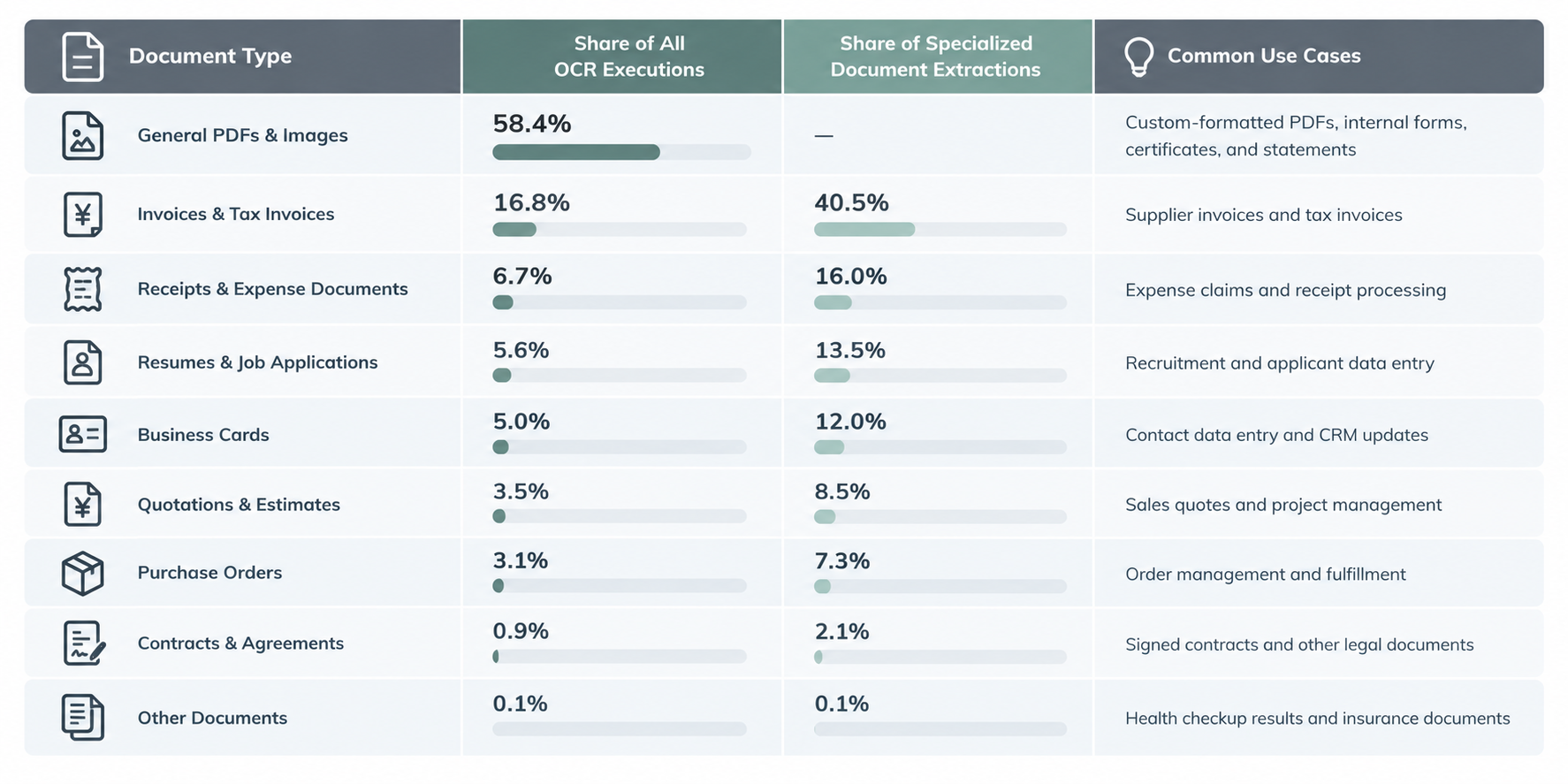
- General PDFs & Images — 58.4% Share
- Custom-formatted PDFs, internal forms, certificates, and statements
- Invoices & Tax Invoices — 16.8% Share (40.5% of specialized docs)
- Supplier invoices and tax invoices
- Receipts & Expense Documents — 6.7% Share (16.0% of specialized docs)
- Expense claims and receipt processing
- Resumes & Job Applications — 5.6% Share (13.5% of specialized docs)
- Recruitment and applicant data entry
- Business Cards — 5.0% Share (12.0% of specialized docs)
- Contact data entry and CRM updates
- Quotations & Estimates — 3.5% Share (8.5% of specialized docs)
- Sales quotes and project management
- Purchase Orders — 3.1% Share (7.3% of specialized docs)
- Order management and fulfillment
- Contracts & Agreements — 0.9% Share (2.1% of specialized docs)
- Use Cases: Signed contracts and other legal documents
- Other Documents — 0.1% Share (0.1% of specialized docs)
- Health checkup results and insurance documents
These results show that OCR is useful for much more than invoice processing. While invoices make up the largest share of specialized document extractions, businesses also use OCR to process receipts, resumes, business cards, purchase orders, and contracts.
General PDFs and images account for 58.4% of all OCR executions. This suggests that businesses also use OCR for documents with different layouts and formats, including their own internal forms and other non-standard documents.
Related OCR Workflow Templates:

◼️Overview
This is a flow where, upon receiving an email with an attached invoice, the invoice is read using AI-OCR, the content is checked by a responsible person, and then a notification is sent to Slack.
By including a check by the responsible person midway, it allows for more accurate integration of invoice information.
The items read by OCR, the Slack notification channel, and the notification content can be freely changed.
◼️Notes
※ If you want to forward to the receiving address, please refer to this.
https://intercom.help/yoom/en/articles/7266653
・AI operations are features available only in the Team Plan and Success Plan. In the case of the Free Plan or Mini Plan, the operation of the flow bot set will result in an error, so please be careful.
・Paid plans such as the Team Plan and Success Plan offer a 2-week free trial. During the free trial, you can use restricted apps and AI features (operations).

■Overview
The workflow "Read files posted on Slack with OCR and add them to Microsoft Excel" helps reduce the burden of transcription work.
Automation reduces the amount of manual work, which is likely to reduce human errors such as input mistakes.
■Recommended for
- Those who collaborate on Slack and want to use the contents of received files immediately
- Those who want to improve work efficiency by smoothly adding file contents to Microsoft Excel
- Those considering automating work using OCR technology
- Those who find it cumbersome to manually read file contents and input them into Microsoft Excel
- Those who want to automate the data entry process using OCR technology to save time
■Benefits of using this template
There are many benefits to automatically adding files posted on Slack to Microsoft Excel using OCR.
First, it eliminates the need for manual data entry, allowing for time savings.
This enables you to focus on other important tasks.
Additionally, by utilizing OCR technology, quick and accurate data entry is achieved, reducing input errors.
Furthermore, since file information within Slack is directly added to the Microsoft Excel database, information sharing and management are centralized, leading to improved work efficiency.
5. How Long Does OCR Processing Take?
How quickly can OCR extract data from a document?
Based on approximately 50,000 OCR execution logs from the most recent three-month period, Yoom's OCR action took an average of 12.03 seconds per execution.
Processing times also vary by document type. The following figures show the median processing times for different documents.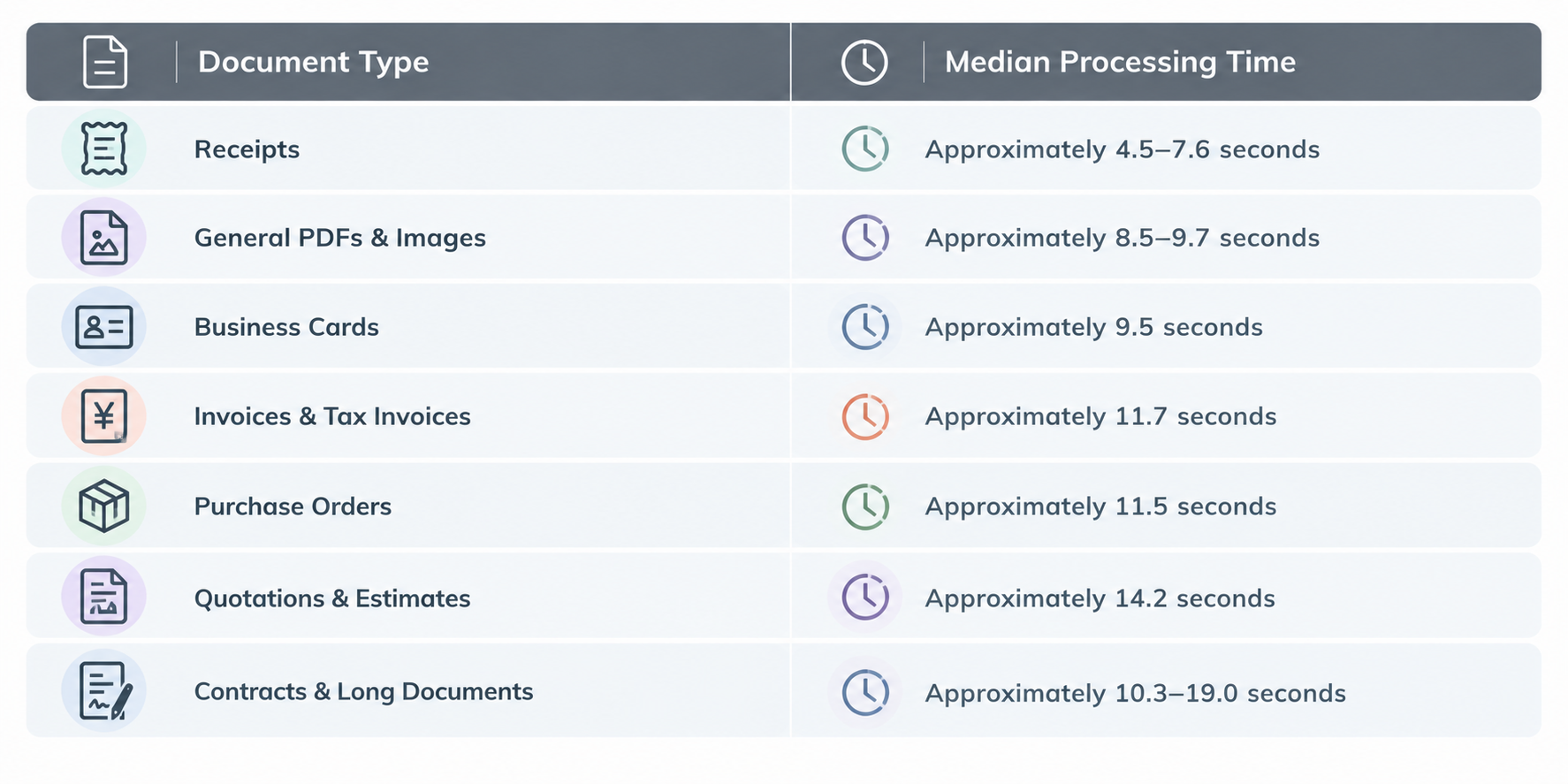
- Receipts: ~4.5–7.6 seconds
- General PDFs & Images: ~8.5–9.7 seconds
- Business Cards: ~9.5 seconds
- Invoices & Tax Invoices: ~11.7 seconds
- Purchase Orders: ~11.5 seconds
- Quotations & Estimates: ~14.2 seconds
- Contracts & Long Documents: ~10.3–19.0 seconds
Most OCR actions finish in around 10 seconds. However, when using a standalone OCR tool, employees still need to handle the next steps, such as checking the extracted data and entering it into other applications. As document volumes grow, the time employees spend waiting for and handling these tasks can add up.
With OCR built into an automated workflow, the process goes beyond text extraction. The extracted data can be automatically checked, transferred to other applications, and used to complete subsequent tasks without requiring employees to handle each step manually. This helps eliminate manual handoffs and reduces the time needed to complete the entire document processing workflow.
Customer Stories: Achieving Over 90% OCR Accuracy and Preparing Data in Just 5 Minutes
“Traditional OCR created a bottleneck. Whenever a document contained faded fax text, handwritten notes, or an unusual layout, our staff had to step in and enter the data manually.
With Yoom’s AI capabilities, the system does more than read text. It checks incoming orders against our master database to identify the correct items and records its reasoning, making the results easier to review.
As a result, OCR accuracy has exceeded 90%, and the data required for entry into our core business system is now ready within an average of just five minutes.”
— Operations Lead, Global Trading Enterprise
By connecting AI-powered OCR with data validation, database integration, and workflow automation, Yoom streamlines the entire order-processing workflow—not just document recognition.
Related OCR Workflow Templates:

■Overview
The workflow "Files submitted through a form are OCR and AI assessed, and sorted into Box folders based on the results" automatically analyzes and classifies received files, organizing them smoothly into the appropriate folders within Box.
■Recommended for
- Personnel responsible for receiving a large number of files through forms
- Those who spend a lot of time manually checking and organizing files and want to implement automatic sorting
- Teams that use Box for file management
- Members of teams where folder organization within Box has become complicated
- IT personnel looking to advance business automation
- Those who want to easily build automated workflows using Yoom
- Those who want to reduce errors and achieve accurate file management
- Those who aim to prevent human errors and improve the accuracy of file management through AI-based automatic sorting
■Benefits of using this template
By automating the file organization that was previously done manually, work time is reduced, allowing the freed-up time to be allocated to other tasks.
Additionally, the use of AI and OCR reduces human errors and leads to improved accuracy in file management.
Folders within Box are organized, making it easy to quickly find the necessary files.

■Overview
This is a flow where, upon receiving an email, the attached photo is read using AI's OCR function, and the extracted content is stored in a Google Spreadsheet.
■Recommended for
1. Those who work on extracting content from images for specific items
・Tax accountants or social insurance labor consultants handling year-end adjustment tasks
・Sales assistants or administrative staff who need to digitize business cards
2. Those who want to reduce manual input work and automate processes
・Owners of small and medium-sized enterprises aiming for operational efficiency
・Administrative or office staff with a lot of data entry tasks
・Marketing personnel conducting operations using digital tools
■Benefits of using this template
・It automatically reads text data from photos and inputs the content, eliminating the need for manual entry.
・The entire process is completed automatically, preventing errors from manual input.
■Notes
・Please link Google Spreadsheet with Yoom in advance.
・AI operations are available only with the Team Plan and Success Plan. For Free Plan and Mini Plan, the operation of the set flow bot will result in an error, so please be aware.
・Paid plans such as the Team Plan and Success Plan offer a two-week free trial. During the free trial, you can use restricted apps and AI functions (operations).
How to Set Up Your OCR Automation Workflow with Yoom
Yoom offers 3 ways to build your first OCR automation workflow, depending on your needs, technical requirements, and how much customization you want.
1. Start with a Template
The easiest way to get started is to choose a ready-made template that matches your workflow. Simply select a template for tasks such as extracting data from invoices or processing order forms, then customize it to fit your needs. This is a convenient option if you want to get your OCR workflow up and running quickly without building everything from scratch.
See OCR Templates:
https://lp.yoom.fun/en/fb-template/all-templates?search=OCR
2. Let AI Worker Build the Workflow for You
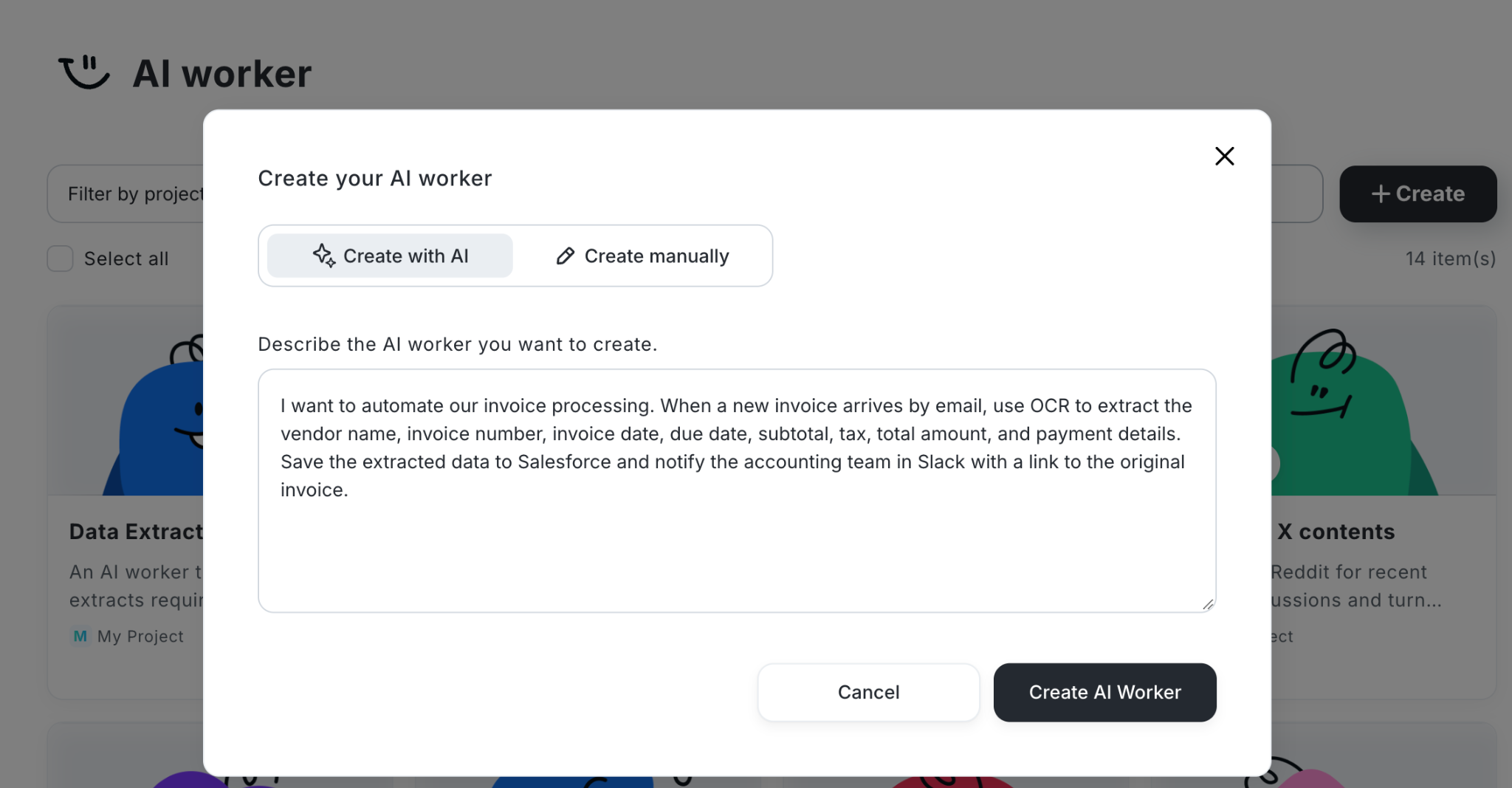
If you know what you want to automate but aren't sure how to configure the workflow, you can ask Yoom's AI Worker to build it for you.
Describe your process and requirements in your own words, and AI Worker can help turn your instructions into an automation workflow. This is a simple way to get started without manually configuring every step yourself.
Related OCR AI Worker Templates:

This AI worker extracts information from invoice PDFs, compares it with your project tracking sheet in Google Sheets, and sends Slack alerts when discrepancies are found. Automate data entry and reconciliation to process invoices accurately and quickly, reduce administrative workload, and prevent missed checks.
■Recommended for
- Administrative staff who want to streamline invoice and purchase order reconciliation while preventing input errors and missed checks
- Team leaders who manage projects in Google Sheets and manually reconcile external document data
- Business owners who want to automate complex administrative tasks and focus resources on higher-value work
■AI worker setup flow
- Set basic information for the AI worker, such as its “Name” and “Role.”
- Connect the Google Sheets and Slack used by the AI worker to Yoom, then register them in My Apps.
- Create and edit the “Manual,” which serves as instructions for the AI worker, based on your company’s operational rules.
■Customization points for this AI worker
- In “#Classification and Decision Criteria” in the Manual, update the definition of “Discrepancy Found” to match your company’s acceptable range, such as “when either the ‘Quantity/Amount’ on the invoice or the ‘Quantity/Amount’ in the spreadsheet does not match.” This enables the AI to perform flexible reconciliation based on your company’s rules.
- In the “Slack Completion Reports and Alerts” section under “#Steps” in the Manual, configure the notification channel, the member IDs of people to mention, and messages by notification type to match your environment.
- In the Google Sheets action settings, specify the sheet ID and tab name to reference based on your management ledger to automate your existing operations as they are.
■Notes
- Connect Google Sheets and Slack with Yoom.
- For basic AI worker settings, see “[AI Worker] Basic Setup Guide.”
- The number of AI workers that can run simultaneously, the number of AI workers you can create, and the available AI models vary depending on your subscription plan.
- The apps and operations available within AI workers are subject to the same usage limits as Flow Bots.
- Please note that AI workers consume tasks during test runs just as they do during live runs. For details, see “[AI Worker] How Task Executions Are Calculated.”
- AI workers are more likely to perform appropriate processing when their Manuals are configured in detail. For details, see “[AI Worker] How to Create a Manual.”
3. Build a Custom Workflow from Scratch
For businesses with specific operational requirements, building a workflow from scratch offers greater flexibility. You can design each step around your existing processes.
If the available actions or app integrations don't meet your needs, Yoom's Custom Action and Custom App features let you incorporate your own custom actions and app integrations directly into the workflow.
This allows you to tailor the automation to your business requirements, even when the functionality you need isn't available among Yoom's built-in features.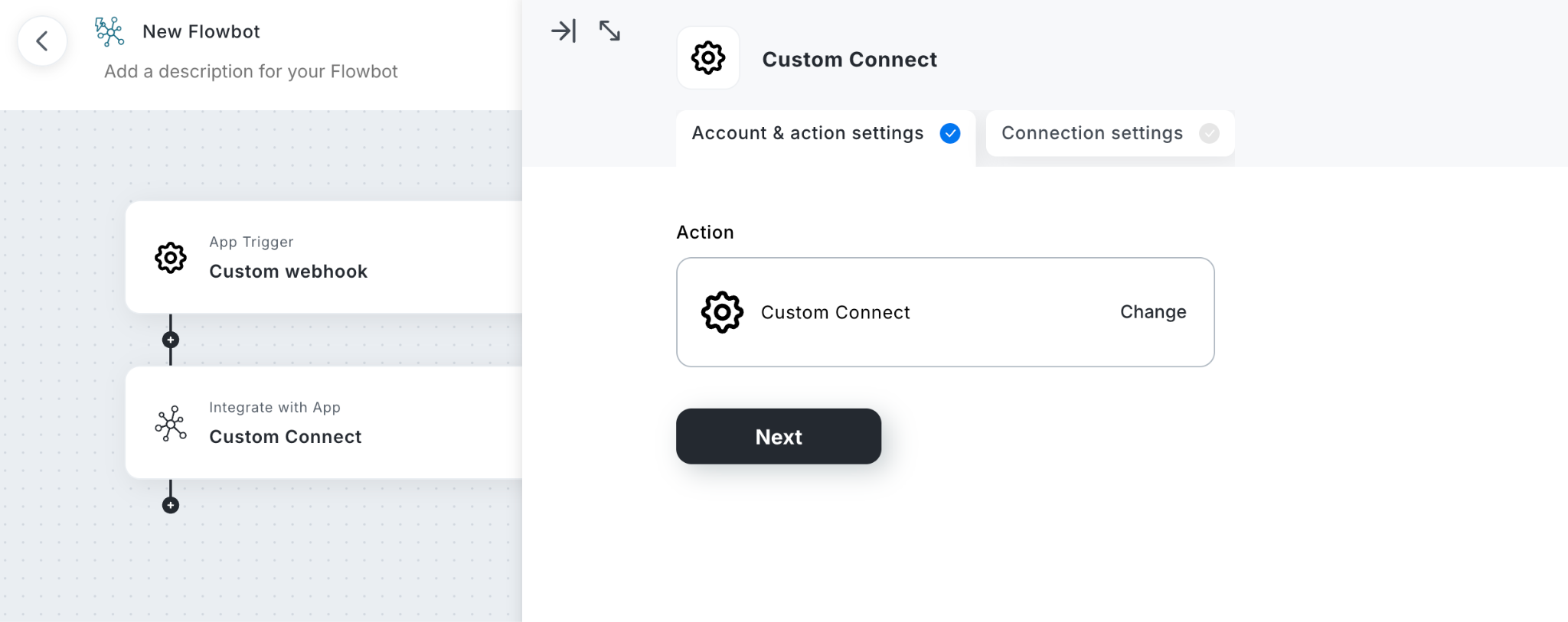
Although this approach takes more time upfront, it gives you greater control over how data is extracted, transformed, validated, and passed between applications.
Custom Apps & Action Details:
https://intercom.help/yoom/en/articles/8041214-set-up-custom-api-connections-with-custom-apps-connect
Which Approach Should You Choose?
Whether you start with a template, ask AI Worker to build your workflow, or create a custom workflow from scratch, Yoom lets you combine OCR, AI, databases, and app integrations in one place.
OCR is just the first step. By automating the workflow that follows, you can turn extracted data into actionable business information while reducing manual work.