・
Contract Automation Software & Solutions: What Real-World Data Reveals

Closing a business deal is an important milestone. But before a contract is finalized, teams often need to prepare documents, review terms, obtain approvals, collect signatures, and store the signed files. Each step takes time, especially when employees have to move information between different apps or follow up manually.
Contract automation software can help reduce this workload by connecting business apps and automating repetitive tasks throughout the contract process. With less time spent on manual work, employees can focus on reviewing important details, communicating with customers, and moving other business priorities forward.
But what does contract automation look like in practice, and how should businesses choose the right software or solution for their needs?
To find out, we analyzed real-world contract automation workflows to understand how businesses automate contract-related tasks and which tools they use.
In this article, we'll explore what the data reveals and explain the key factors to consider when choosing contract automation software—from dedicated contract tools to solutions that can automate workflows across your entire business.
How Businesses Automate Contract Work: Data and Examples
To understand how companies use contract automation software, we analyzed activity logs from active contract and document workflows on Yoom. The analysis looks at the types of documents businesses automate, the tools they use, and how AI helps them handle contract information.
1. Dedicated Contract Tools vs. Everyday Document Apps
You might assume that contract automation requires a dedicated contract management platform. However, our data shows two common approaches.
- With Dedicated Contract Tools (65%): These businesses use specialized tools, such as DocuSign or Adobe Sign, for contract signing. They connect these tools to an automation platform to reduce manual work before and after signing.
- Without Dedicated Contract Tools (35%): These businesses use everyday document and cloud apps, such as Google Docs, Google Sheets, and Google Drive, as alternatives. By connecting these tools, they can automate tasks such as creating contracts, converting documents to PDFs, and sending them to customers without relying on specialized contract software.
Both approaches can reduce repetitive work. The right choice depends on the tools your company already uses and the types of contracts you handle.
Why Do Businesses Without Dedicated Contract Tools Choose Google Workspace?
Among businesses that do not use dedicated contract tools, more than 80% build their workflows around Google Workspace, including Google Docs, Google Sheets, and Google Drive. Microsoft 365 tools, such as SharePoint and OneDrive, account for less than 15% of this group.
One reason may be that Google Workspace provides familiar tools for creating, managing, and storing documents. Instead of adopting specialized contract software, businesses can connect the tools they already use to automate routine contract tasks.
For example, when a deal closes, an automated workflow can fill in a Google Docs template with customer information, convert it into a PDF, and save it to the appropriate Google Drive folder.
This approach allows businesses to automate routine contract tasks using familiar tools, without adding a dedicated contract management platform.
Related Contract Automation Templates:


With this workflow, simply submit contract terms through Google Forms. The AI Worker automatically performs a legal review based on your company’s standards, drafts the contract, and prompts the responsible team to review it in Slack. It helps your legal team reduce its workload while preparing contracts quickly and efficiently.
- Legal professionals who manually conduct initial reviews of contract requests received through Google Forms and prepare contract drafts
- Team leaders who want to prepare accurate contracts quickly in response to contract requests from the sales team
- Business leaders who want to reduce the workload of their legal team and streamline contract operations across the organization
- AI automatically reviews contract terms based on the information submitted through Google Forms, reducing the time required to provide an initial response and improving operational efficiency.
- Contract drafting based on your legal standards is also automated, helping prevent human errors such as missing information and transcription mistakes.
- First, connect Google Forms, Google Docs, Google Drive, and Slack to Yoom.
- Next, select Google Forms as the trigger and set the action to “When a new response is submitted.”
- Then, create a manual for the AI Worker to review the submitted contract terms based on your company’s standards and, if approved, handle the entire process through contract creation and Slack notification. Set up the Google Docs, Google Drive, Slack, and Google Forms actions as the tools to use.
- Finally, select Slack in Operations, set the action to “Send a message to a channel,” and send a completion notification.
■Customization Options
- When configuring the AI Worker manual, provide detailed information about your company’s legal standards and review criteria to enable more accurate legal checks.
- Specify the input format to use as the contract template and the Google Drive folder where files should be saved according to your company’s operations.
- Set the Slack notification channel to one where members of the legal or sales teams are active to share information in a way that fits your operating environment.
- Connect Google Forms, Google Docs, Google Drive, and Slack to Yoom. The apps used within the AI Worker must also be connected through My Apps.
- You can select a trigger interval of 5, 10, 15, 30, or 60 minutes.
- Please note that the shortest available trigger interval varies by plan.
- For information on how to retrieve response data when using Google Forms as a trigger, see “How to Retrieve Response Data with the Google Forms Trigger.”
- For basic AI Worker configuration, see “【AI Worker】How to Configure the Basics.”
- The number of AI Workers that can run simultaneously, the number of AI Workers you can create, and the AI models available to you vary by your plan.
- The apps and operations available within the AI Worker are subject to the same usage restrictions as Flowbots.
- Please note that the AI Worker consumes tasks during test runs just as it does during production runs. For details, see “【AI Worker】How Task Execution Counts Are Calculated.”
- AI Workers are more likely to execute the appropriate processes when their manuals are configured in detail. For details, see “【AI Worker】How to Create a Manual.”
■Overview
Using the form content, the form content is entered into a pre-prepared Google Document employment contract template, and a PDF is generated.
Normally, the process involves copying the template sheet, entering the information, and generating a PDF, but with this, manual operations are unnecessary, and documents can be automatically generated just by entering the form.
■Notes
・Please integrate Google Documents with Yoom.
・Customize the form settings and contract creation process to meet your organization's requirements.

■Overview
This flow creates contracts in Google Docs from Hubspot deal information.
By using a trigger with a Chrome extension, you can directly initiate the trigger from Hubspot.
With Yoom, you can easily achieve this flow without the need for programming, as it allows for integration between apps.
■Recommended for
1. Those who use Hubspot for business operations
・Sales representatives managing customer deal information
・Those accumulating sales activity data in Hubspot
2. Those creating contracts in Google Docs
・Those involved in creating contracts related to deals
・Those who want to create contracts accurately
■Benefits of using this template
Manually creating contracts for each deal is time-consuming and may hinder task focus.
Additionally, if you are creating contracts in Google Docs based on Hubspot deal information, it is cumbersome to verify and revise them each time after creation.
In this flow, by initiating from the Hubspot deal information page with a Chrome extension trigger, the creation of contracts in Google Docs is automated.
This eliminates the need to manually transfer Hubspot data, reducing the effort of verification and revision after creation, thus streamlining operations.
Accurate contract creation facilitates smooth transactions with customers.
■Notes
・Please integrate Yoom with both Hubspot and Google Docs.
・For instructions on setting up triggers using the Chrome extension, please refer to here.
2. What Types of Contracts Are Most Commonly Automated?
Our analysis identified three main types of documents used in automated contract workflows.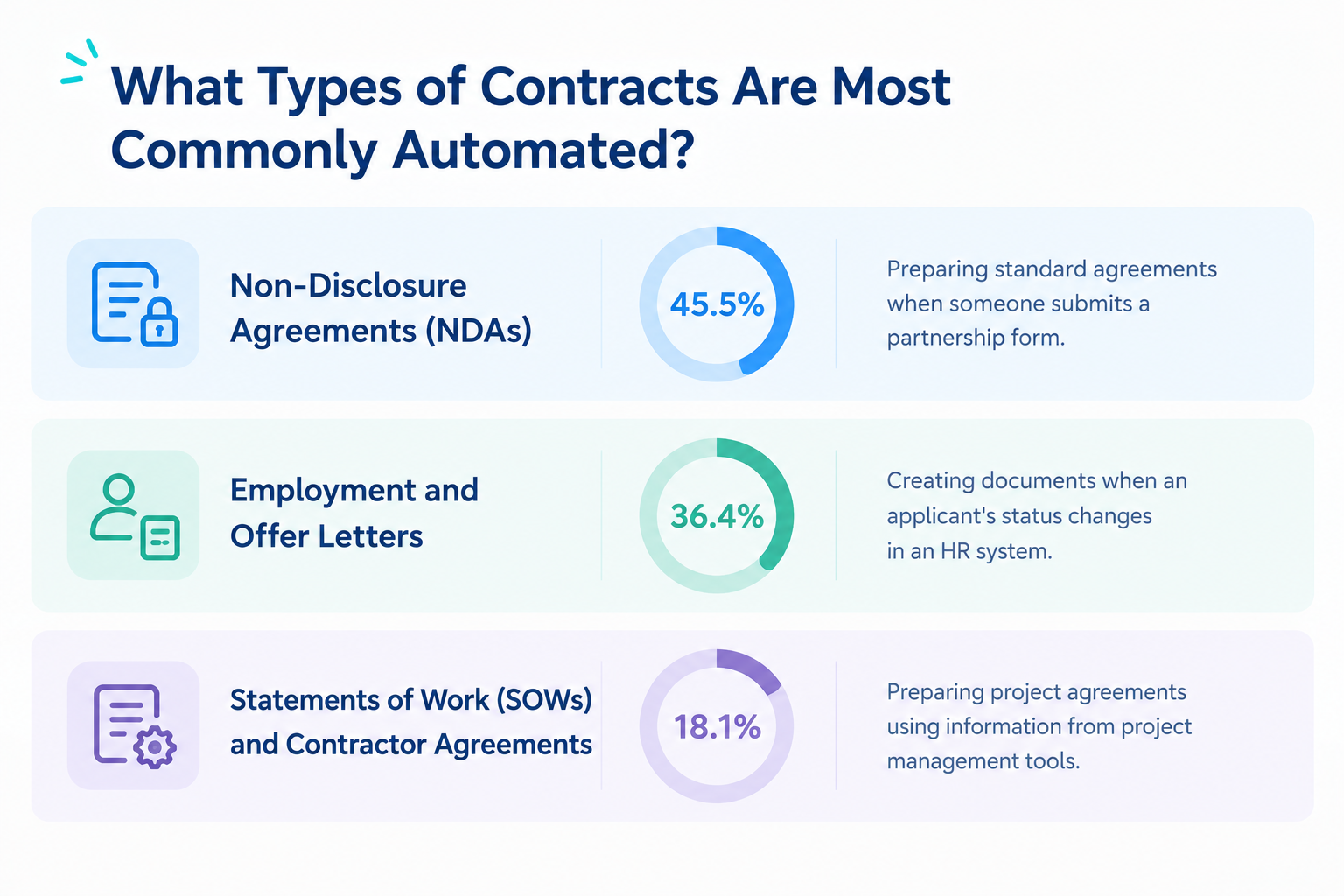
- Non-Disclosure Agreements (NDAs) (45.5%)
Preparing standard agreements when someone submits a partnership form. - Employment and Offer Letters (36.4%)
Creating documents when an applicant's status changes in an HR system. - Statements of Work (SOWs) and Contractor Agreements (18.1%)
Preparing project agreements using information from project management tools.
Among the contract-related documents in this analysis, NDAs account for the largest share, followed by employment and offer letters. This suggests that contract automation can help teams across legal, HR, and project operations reduce repetitive administrative work.
For example, when a partnership form is submitted, an automated workflow can use the submitted information to prepare a standard NDA, reducing the need to copy details into a document manually.
Related Contract Automation Templates:

■Overview
This flow generates a PDF from a Google Docs employment contract template based on the information entered in the form and sends it to the recipient via Docusign.
■Recommended for
1. Those who need to frequently create employment contracts
- HR personnel and hiring managers
- Office managers and administrative staff
2. Those who want to automate contract creation and sending
- Owners of small and medium-sized businesses aiming for operational efficiency
- Those who want to reduce manual contract creation and sending tasks
- Team leaders who need quick contract creation and dispatch
3. Those who regularly use Google Docs and DocuSign
- Companies managing templates using Google Docs
- Personnel using DocuSign for contract execution
■Benefits of using this template
・Employment contracts are automatically created and sent based on the information entered in the form, eliminating the need for manual creation.
・The automated workflow streamlines the process from contract creation to dispatch, allowing you to focus on other important tasks.
■Notes
・Please integrate Yoom with both Google Docs and Docusign.

■Overview
Do you still create contracts manually every time a Salesforce opportunity progresses? Copying and pasting customer information is not only time-consuming—it can also lead to human errors such as data entry mistakes.
This workflow automatically creates contracts from a Google Sheets template when a Salesforce opportunity stage is updated, reducing the burden of these repetitive tasks.
■Who This Template Is For
- Sales representatives who find it time-consuming to create contracts based on Salesforce information
- Legal and sales operations teams considering automating contract creation
- Managers who want to eliminate manual transcription errors and improve overall operational efficiency
■Benefits of Using This Template
- Automatically create contracts when a Salesforce opportunity stage is updated, reducing the time spent preparing documents
- Automatically transfer information to prevent manual entry errors and omissions, improving document accuracy
■Flowbot Steps
- First, connect Salesforce and Google Sheets to Yoom
- Next, select Salesforce as the trigger and set the action to “When a record is created or updated in the Opportunity object”
- Then, configure the branching function in the operation settings so the workflow proceeds only when the opportunity stage matches a specified stage for contract creation
- Finally, select the document issuance function in the operation settings and configure it to issue a contract based on a template created in Google Sheets
* “Trigger”: An action that starts the flow. “Operation”: An action that processes data within the flow after the trigger starts.
■Customization Options
- When connecting to Salesforce, configure the My Domain URL for your environment
- With the branching function, you can set any opportunity stage as the condition for triggering contract creation
- With the document issuance function, select the Google Sheets file to use as the contract template and freely configure where to place customer names, amounts, and other information retrieved from Salesforce
■Notes
- Connect both Salesforce and Google Sheets to Yoom.
- Salesforce is available only on the Team and Success plans. On the Free and Mini plans, operations and Data Connect configured in the Flowbot will result in errors.
- Paid plans such as the Team and Success plans include a two-week free trial. During the free trial, you can use apps subject to plan restrictions.
- You can choose a trigger interval of 5, 10, 15, 30, or 60 minutes.
- The shortest available trigger interval varies by plan.
- Branching is an operation available on the Mini plan and above. On the Free plan, operations configured in the Flowbot will result in errors.
- Paid plans such as the Mini plan include a two-week free trial. During the free trial, you can use apps and features (operations) subject to plan restrictions.
- For the “Issue a document” action, you can specify any Google Drive destination.
■Who is this template for?
- Sales representatives who find creating and sending contracts after closing a deal in Salesforce time-consuming
- Those considering automating the entire contract execution process using Salesforce and DocuSign
- Managers who want to eliminate manual data entry errors and improve their sales team's productivity
■Benefits of using this template
- The contract is automatically sent when the Salesforce opportunity stage is updated, reducing the time spent manually creating and sending contracts.
- Because the contract is created using accurate information from Salesforce, this workflow helps prevent human errors such as incorrect manual data entry.
■Flow bot steps
- First, connect DocuSign and Salesforce to Yoom.
- Next, select Salesforce as the trigger and set it to “When an outbound message is received.” This setting sends a notification to Yoom when an opportunity is updated to a specific stage in Salesforce.
- Under Operations, use Salesforce’s “Retrieve record” action to retrieve the opportunity, contact, and account information required to create the contract.
- Finally, under Operations, set up DocuSign’s “Create and send envelope from template” action to send the contract using the retrieved information.
■Customization options
- When retrieving opportunity, contact, and account information from Salesforce, you can add specific conditions to narrow down the records included.
- When creating and sending an envelope in DocuSign, you can set the recipient’s email address, subject, message, and other fields to any values you choose. You can also use information retrieved from Salesforce as variables in each field.
■Notes

■Overview
This is a flow where received resumes are read by AI, automatically creating a business consignment contract and sending it via Gmail.
■Recommended for
1. Those who need to conclude multiple business consignment contracts
・Personnel in charge at companies contracting web designers, etc.
・Senior members of HR or recruitment departments with decision-making authority
2. Those looking to reduce manual input work by utilizing AI technology
・Managers of small and medium-sized enterprises aiming for operational efficiency
・Administrative managers interested in workflow automation
3. Those who utilize Google Sheets in their work
・General affairs personnel managing data using digital tools
■Benefits of using this template
・Once a resume is received, the entire process is automated, eliminating manual input and significantly improving operational efficiency.
・AI automatically analyzes the resume data, preventing input errors on the document creation side.
・By adding operations that request branching or approval, it is possible to automate the entire process from recruitment to business consignment contract. (Branching is available with plans above the Mini Plan.)
■Notes
・Please link Google Sheets with Yoom.
・AI operations are only available with the Team Plan and Success Plan. Operations set in the flow bot will result in errors with the Free Plan and Mini Plan, so please be careful.
・Paid plans such as the Team Plan and Success Plan offer a 2-week free trial. During the free trial, you can use restricted apps and AI functions (operations).
・Please refer to the following for the template of the Google Document being used. (View only, please copy to use)
https://docs.google.com/document/d/1f3SFWz4zkSNe85MRFWTgFN4CX0bMicazCH2U2O7qdCo/edit?usp=sharing
3. How Much Time Can Contract Automation Save?
Creating a contract manually often involves several tasks: finding customer information, editing a document, creating a PDF, setting up signature fields, and recording the final details.
Based on the process estimates used in this article, preparing a contract manually can take 30 to 60 minutes per document.
An automated workflow can reduce the time spent on these steps:
- Creating the document: The system fills in a template with existing information and generates a PDF in seconds.
- Handling the full process by automation: In our workflow analysis, the median time for the entire automated process was about 4 minutes. This includes retrieving information, creating the document, sending it for signing, and recording the relevant details afterward.
Customer response times and steps that require human approval can still affect the overall process time.
Even so, automating routine tasks can help sales teams spend less time preparing documents and reduce delays caused by manual work.
However, the benefits of automation go beyond saving time. While the automation tool handles routine tasks in the background, employees can focus on other work, such as communicating with customers, reviewing contract terms, or moving other deals forward. This helps teams make better use of their time, rather than simply completing the same tasks faster.
How AI Helps with Contract Management Automation
Sending a contract for signing is only one part of the process. After a contract is signed, someone still needs to check its details, update records, and keep track of important dates.
This is where AI contract automation can help.
AI can read contract documents and identify information that would otherwise need to be entered manually. When connected to other business apps, it can help teams use that information in their everyday work.
Our workflow analysis identified four main uses of AI in contract-related processes.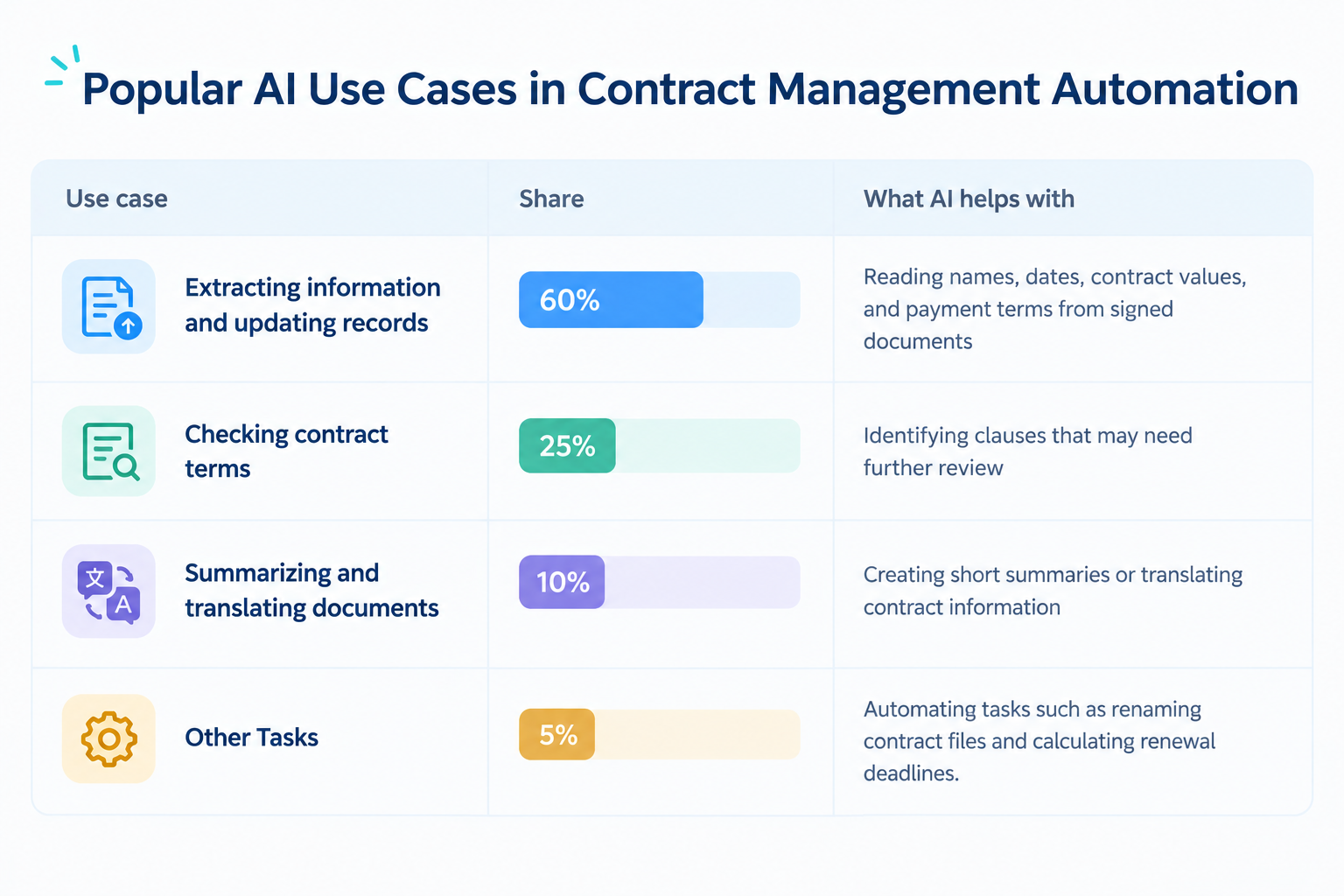
- Information Extraction and Recordkeeping (60%)
Reading names, dates, contract values, and payment terms from signed documents - Summarization and Contract Review (25%)
Identifying clauses that may need further review - Translation and Draft Generation (10%)
Creating short summaries or translating contract information - Other Tasks (5%)
Automating tasks such as renaming contract files and calculating renewal deadlines.
These percentages represent the distribution of AI use cases in the analyzed workflows.
Let's look at how each use case works.
1. Extract Contract Details and Update Records
After a contract is signed, employees often need to enter its details into a CRM or spreadsheet.
AI can read the signed PDF and identify information such as:
- Customer or company name
- Contract value
- Start and end dates
- Payment terms
- Renewal notice period
The workflow can then record this information in a spreadsheet or CRM.
For example, instead of opening every signed contract and entering the details manually, your team can have the relevant information extracted and recorded automatically.
Employees can still review important details when accuracy matters.
2. Check Contract Terms Before Sending
Some contracts contain special terms that differ from a company's standard agreements.
AI can help compare a document with predefined company rules and flag terms that may need attention. These could include changes to liability limits, unusual indemnification clauses, or missing attachments.
The goal is not to let AI make every legal decision. Instead, it can help employees identify documents that need closer review.
A qualified person should review flagged issues and make the final decision, especially when legal obligations or business risks are involved.
Details of AI Contract Review:https://lp.yoom.fun/en/blog-posts/ai-contract-review
3. Summarize Long Contracts
Commercial contracts can contain many pages of terms and conditions. Reading the entire document every time someone needs a quick answer can be time-consuming.
AI can create a short summary of key points, such as payment terms, deadlines, and service-level commitments.
The summary can then be shared with the relevant team through Slack or another communication tool.
This helps employees understand the main points without having to search through the entire document. They should still refer to the original contract when they need to confirm exact wording or legal obligations.
4. Other Tasks
Missing a renewal deadline can create unnecessary work or cause a business to miss an important decision.
AI can identify expiration dates and renewal notice periods from contract documents. An automated workflow can then use those dates to create reminders, for example, 30, 60, or 90 days before a renewal deadline.
This gives the responsible team more time to review the agreement and decide what to do next.
The exact reminders and actions depend on how the workflow is configured.
Related AI Templates:

An AI worker that analyzes contracts and identifies unfavorable clauses and missing provisions at the clause level based on your internal risk criteria. It also provides the reasons for each risk and suggested revisions, helping legal, business, and administrative teams streamline contract reviews while reducing oversights and inconsistent decisions.
- What are “Skills”?
- They are instructions that tell the AI worker how to process tasks. For detailed setup instructions, see “【AI worker】How to Create Skills (formerly Manuals)”.
- What are “Tools”?
- These are the tools the AI worker uses to process tasks. Simply tell the AI which tools your company regularly uses, and you can freely configure where data is retrieved from and where it is sent.
- The number of AI workers that can run simultaneously, the number of AI workers you can create, and the AI models available to you vary by plan.
- Apps and operations available within AI workers are subject to the same usage limits as Flowbot.
- AI workers consume tasks during test runs just as they do during production runs. For details, see “【AI worker】How Task Usage Is Calculated”.

An AI worker that reads and analyzes contract data based on your company’s rules, then automatically identifies and notifies you of contracts approaching their deadlines. Flexibly configure notification timing and recipients, and generate renewal requirement reports to help administrative, general affairs, and legal teams prevent missed renewals and oversights.
- Administrative and general affairs teams managing multiple contracts who want to prevent missed deadlines and renewals
- Corporate planning and legal teams who want to easily create and share reports listing contracts that require renewal
- Team leaders who want to flexibly manage and adjust notification recipients and timing based on internal rules
You can create it using a variety of tools, including Google Sheets, Microsoft Excel, and Notion. Use the tool you work with every day.
Then, instruct the AI worker's skill to “Read contract information from this database” so the AI worker can manage renewals independently.
- What are "Skills"?:
- These are the instructions the AI worker follows to perform tasks. For detailed setup instructions, see "[AI Worker] How to create Skills (formerly Manuals)."
- What are "Tools to use"?:
- These are the tools the AI worker uses to perform tasks. Simply instruct the AI to use the tools your company already works with to freely customize where data is retrieved from and sent to.
- The number of AI workers that can run simultaneously, the number of AI workers you can create, and the available AI models vary by plan.
- The apps and operations available in AI workers are subject to the same usage limits as Flowbots.
- Please note that AI workers consume tasks during test runs as well as production runs. For details, see "[AI Worker] How task executions are calculated."
An AI worker that supports every step of the e-signature process—from preparing contracts and signer lists for upload to your electronic signature system, to sending signature requests and tracking signing progress. It handles detailed tasks like organizing signer information and setting signing order based on your internal workflows, helping legal and general affairs teams reduce administrative work and prevent coordination errors in contracts involving multiple signers.
- What are skills?
- They are the instructions the AI worker follows to process tasks. For detailed configuration steps, see [AI worker] How to Create Skills (formerly Manuals).
- What are tools?
- These are the tools the AI worker uses to process tasks. Simply tell the AI which tools your company regularly uses, and you can freely customize where data is retrieved from and where it is sent.
- The number of AI workers that can run simultaneously, the number of AI workers you can create, and the AI models available to you vary depending on your plan.
- The apps and operations available within an AI worker are subject to the same usage limits as Flowbot.
- AI workers consume tasks during test runs just as they do during production runs. For details, see [AI worker] How Task Execution Counts Are Calculated.



This AI worker evaluates proposed contract terms against your guidelines, drafts contracts in Google Docs, saves them to Google Drive, and sends Slack notifications. Ideal for speeding up initial legal reviews while reducing inconsistent decisions and team workload.
With this AI worker, you can automatically evaluate the provided contract terms against your company guidelines. When the terms pass review, it creates the contract in Google Docs, saves it to Google Drive, and sends a notification to Slack as instructed. Speed up the initial legal review process and support smoother contract execution.
- Professionals who want to streamline initial contract reviews and contract creation while reducing the workload of legal-related tasks
- Team leaders who want to standardize contract creation based on company guidelines and prevent inconsistencies in decisions
- Business owners who regularly use Google Docs and Slack and want to streamline their contract management processes
- Set basic information for the AI worker, such as its “Name” and “Role.”
- Connect the Google Docs, Google Drive, and Slack used by the AI worker to Yoom through My Apps, then configure the required actions. You can also replace these with other apps you use regularly.
- Create and edit the “Manual,” which serves as instructions for the AI worker, to match your company’s operational rules and contract standards.
- Under “#Classification and Decision Criteria” in the manual, set review criteria for items such as contract terms and damages based on your company guidelines. This helps the AI accurately understand your company’s requirements and deliver more accurate review results.
- Under “#Company Information” in the manual, enter your company’s official name, address, and representative name to create contracts that reflect your actual business operations.
- Optionally set the destination folder in Google Drive and the notification channel ID in Slack. This ensures information is delivered to the right place based on your organization’s workflow.
- Connect Google Docs, Google Drive, and Slack with Yoom.
- For basic AI worker settings, see “[AI Worker] Basic Setup Guide.”
- The number of AI workers that can run simultaneously, the number of AI workers you can create, and the available AI models vary depending on your plan.
- The available apps and operations within AI workers are subject to the same usage limits as Flowbots.
- Please note that AI workers consume tasks during test runs just as they do during production runs. For details, see “[AI Worker] How Task Executions Are Calculated.”
- AI workers can perform appropriate processing more easily when manuals are configured in detail. For details, see “[AI Worker] How to Create a Manual.”https://intercom.help/yoom/en/articles/13234602
Two Ways to Choose Contract Automation Solutions
The best contract automation solutions depend on your current tools, budget, and contract requirements.
For many businesses, there are two practical options.
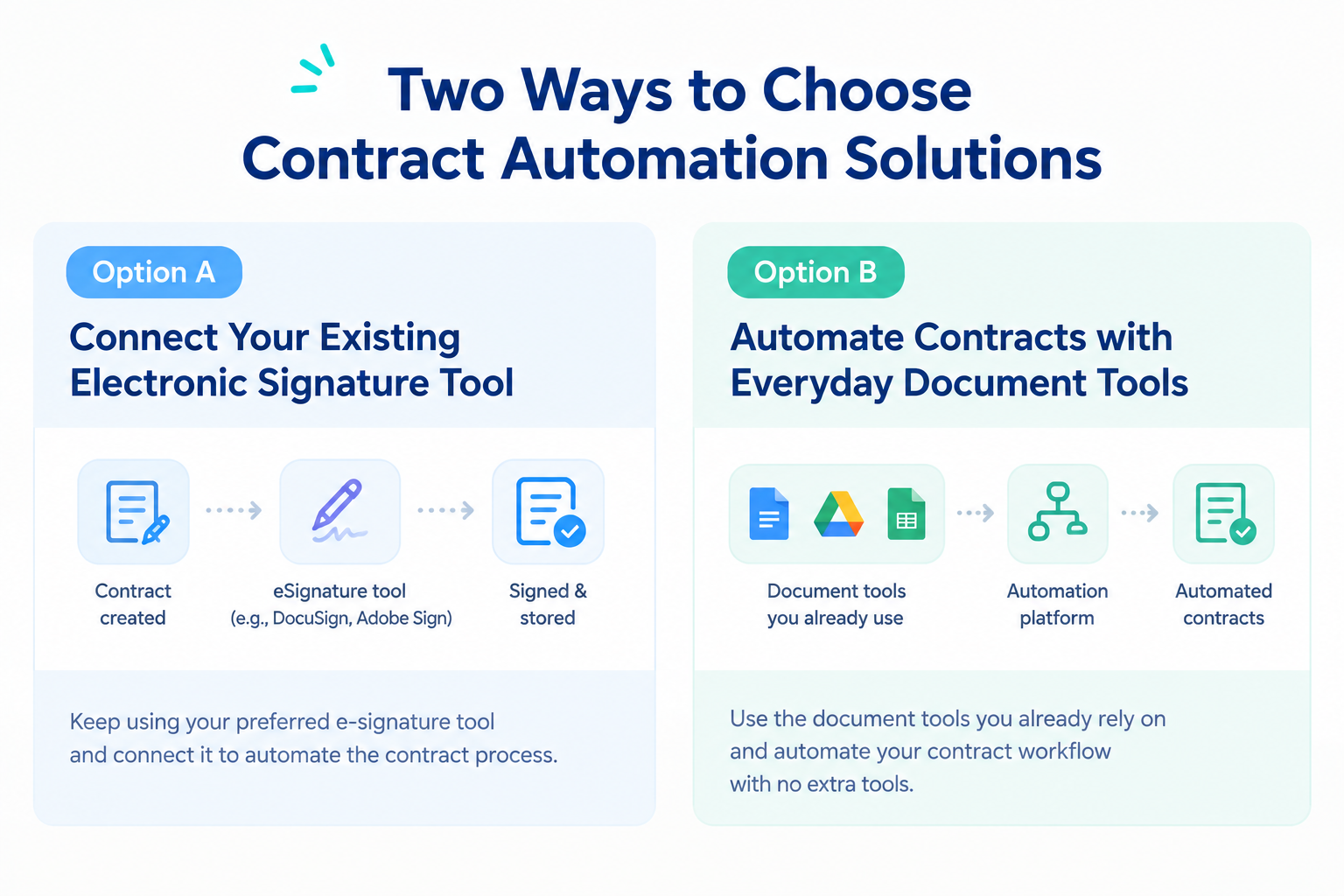
Option A: Connect Your Existing Electronic Signature Tool
This approach is useful if your company already uses DocuSign, Adobe Sign, or PandaDoc but still handles document preparation and follow-up tasks manually.
You can connect your signature tool to the other apps your team uses.
For example, you can:
- Fill in contract templates using information from Salesforce or HubSpot.
- Prepare documents automatically instead of copying information by hand.
- Send contracts for electronic signatures.
- Save signed PDFs to Google Drive.
- Record contract details in your CRM or spreadsheet.
- Notify your team when a contract is signed.
This approach lets you keep your existing signature tool while automating the work around it.
Option B: Automate Contracts with Everyday Document Tools
This approach may suit smaller teams or businesses that mainly handle standard agreements and do not need a dedicated contract management platform.
You can use tools such as Google Docs, Google Drive, and email to manage much of the process.
For example, you can:
- Use Google Docs templates to create contracts.
- Fill in customer details automatically.
- Generate PDFs using predefined workflow rules.
- Send documents by email.
- Save completed documents to cloud storage.
This can be a cost-effective way to start automating routine contract tasks with tools your team already knows.
However, basic document automation does not replace every feature of a dedicated contract platform. If you need advanced contract negotiation, detailed approval controls, or specialized compliance features, you may need additional software.
Both approaches can reduce manual work. The important thing is to choose a setup that fits your actual contract process.
Best Contract Automation Software: 4 Tools to Compare
The best contract automation software for your business depends on what you want to automate.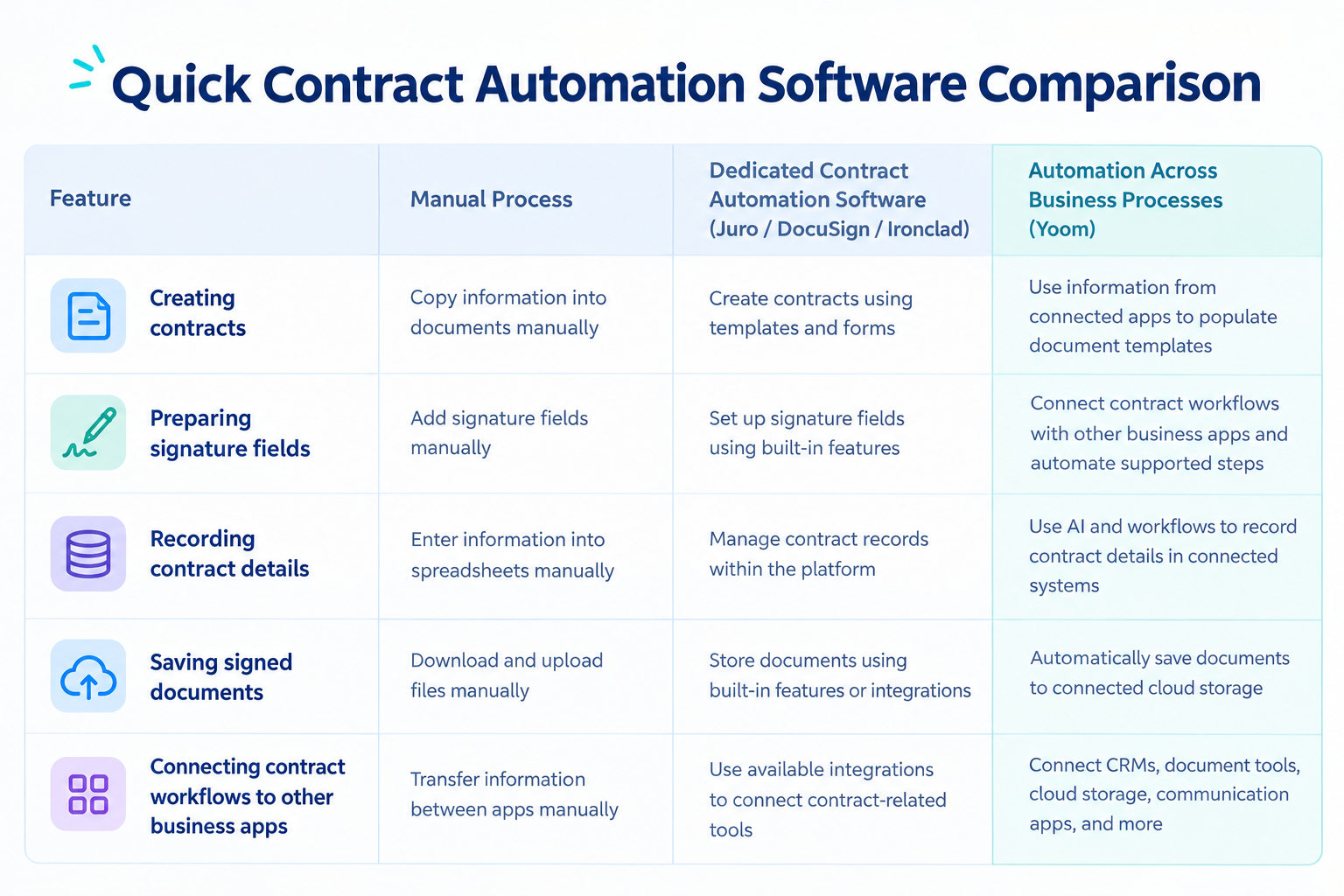
Some tools focus on electronic signatures and contract management. Others connect different apps so that information can move automatically between them.
Here are four options to consider.
1. Yoom: Best for Automating Contract Work with Your Existing Tools
Whether you already use dedicated contract tools or rely on everyday document apps, Yoom helps you make the most of the tools your team already uses.
Instead of replacing your existing systems, you can connect your CRM, document tools, electronic signature software, cloud storage, and AI to automate repetitive tasks across the contract process.
Key advantages
- Build workflows without writing code.
- Connect CRM systems, document tools, and cloud storage.
- Use AI to extract information from documents.
- Automate notifications and other routine tasks across connected apps.
Best for: Sales operations teams and growing businesses that want to connect existing apps and automate repetitive tasks across the contract process.
Pricing: A free plan is available. Check Yoom's current pricing page for paid plan details.
2. Juro: Best for Legal Contract Automation
Juro is a contract automation platform designed to help legal and business teams manage the entire contract process in one place. It supports contract creation, review, negotiation, approval, electronic signatures, and contract storage.
Juro is a strong choice for businesses that want to streamline legal workflows, reduce manual contract reviews, and manage contracts from start to finish in a single platform.
Key advantages
- Create and edit contracts online.
- Review changes and comments in one workspace.
- Support collaboration between legal and business teams.
Best for: Legal and sales teams that regularly negotiate contracts and want a shared place to manage the process.
Pricing: A trial and paid plan options may be available depending on the offering. Check Juro's current pricing information for details.
3. DocuSign: Best for Electronic Signatures
DocuSign is an electronic signature platform that helps businesses send documents for signing and track their progress.
Key advantages
- Send documents for electronic signatures.
- Track signing progress.
- Keep records of signature activity.
- Connect with other business systems through available integrations.
Best for: Businesses that need a dedicated electronic signature tool and want to reduce the work involved in collecting signatures.
Pricing: Paid plans are available. Check DocuSign's current pricing page for plan details.
4. Ironclad: Best for Managing Complex Contracts
Ironclad is a contract lifecycle management (CLM) platform designed to help businesses manage contracts from creation through review, approval, signing, and ongoing management.
Key advantages
- Manage contract requests and approvals.
- Organize contract templates and clauses.
- Support contract review and negotiation.
- Track agreements across teams.
Best for: Larger organizations with dedicated legal teams and complex contract approval processes.
Pricing: Contact Ironclad for pricing information.
Why Is Contract Automation Not Enough?
Automating contract workflows is a great first step. But does automating contracts mean your entire business is running efficiently?
Consider what happens before and after a contract is signed. Your sales team may still need to update CRM records manually. Finance may need to prepare invoices, while customer support may need to update customer information or respond to requests.
Even if your contract process becomes more efficient, these other tasks can still require manual work. As a result, you may eventually find yourself looking for ways to automate and optimize processes beyond contract management.
This is why it's important to look beyond individual tasks or departments and consider how your business processes work together.
Instead of optimizing each process separately and adding more tools as new needs arise, connecting your existing apps and automating workflows across departments can help reduce manual work throughout your business. This broader approach can also help you get more value from the tools you already use, improving cost-effectiveness over the long term.
The goal isn't just to automate contracts. It's to make your entire business work more efficiently.
Three Ways to Automate Contract Workflows with Yoom
Automating contract workflows doesn't have to mean introducing a dedicated contract management platform or building complex workflows from scratch.
As we've seen, contract automation is just one part of improving business efficiency. By connecting the apps your team already uses, you can automate contract tasks and expand automation to other business processes over time.
Yoom is an all-in-one business automation platform that helps you connect apps, use AI to process information, and automate repetitive tasks across departments.
Whether you're new to automation or looking to optimize complex business processes, Yoom offers three ways to build workflows, depending on your needs and how much customization you want.
Option 1. Start with a Template
If you're new to automation, a ready-made template is an easy way to get started. Choose a template that matches your needs, then adjust it to fit your existing process.
For example, you could use a template to save information from a form to a spreadsheet, create a document using information from another app, or notify your team when a contract-related task needs attention.
Templates give you a starting point, so you don't have to build every step from scratch. You can begin by automating a single task and gradually expand your workflow as your needs grow.
Explore Yoom's automation templates
Option 2. Let AI Worker Help Build Your Workflow
If you know what you want to automate but aren't sure how to build the workflow, Yoom's AI Worker can help. Describe your goal in natural language, and AI Worker can help turn your idea into an automated workflow.
For example, you could describe a process that extracts key information from a contract, records it in a spreadsheet, saves the document to cloud storage, and notifies the relevant team.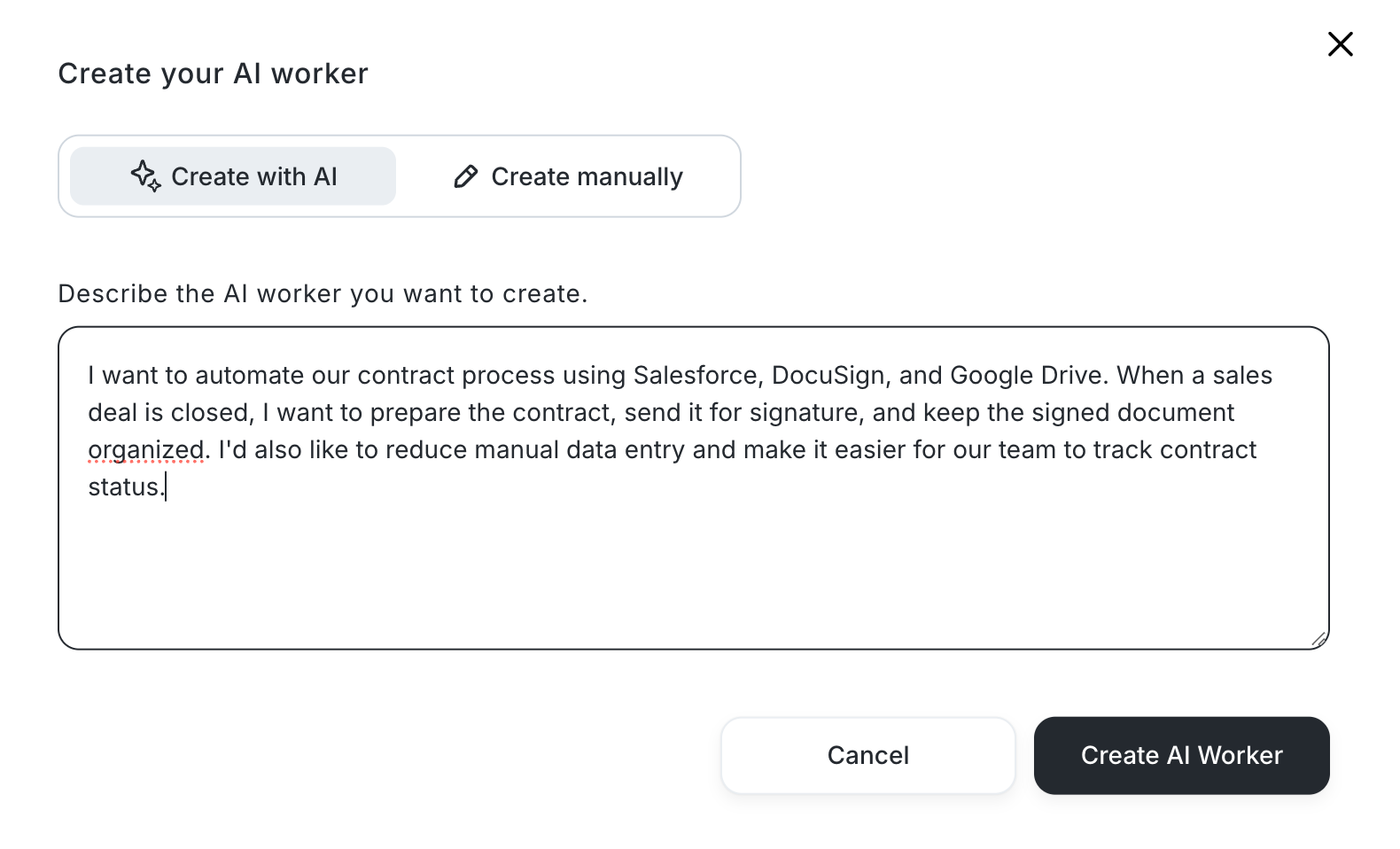
Explore Yoom's AI Worker templates
Option 3. Build a Custom Workflow
If templates or AI-assisted setup don't fully meet your needs, you can build a custom workflow using Yoom's customization features.
Connect your existing apps and configure each step to match your business processes. For example, you could create a workflow that starts when a deal is marked as won in your CRM, generates a contract from a document template, routes it for approval, and updates your records after signing.
You can also combine app integrations with AI, OCR, and RPA to handle more complex processes involving different types of data and business applications.
This option gives you more control over workflows that involve multiple departments, conditional steps, or company-specific rules. While it may require more time to design and configure, it allows you to automate processes that go beyond standard contract management.
Learn how to set up custom app and API connections
Start Small and Expand Automation Across Your Business
You don't have to automate everything at once. Start with a template or use AI Worker to build your first workflow, then customize and expand your automation as your needs evolve.
With Yoom, you can start by reducing manual work in contract management and gradually connect more apps and processes across your business.
Whether you need a simple starting point or a customized solution for complex workflows, Yoom helps you automate beyond contracts using the tools your team already knows.