・
Best HR Automation Software: Simplify HR Tasks and Employee Onboarding

When companies talk about AI and HR technology, they often focus on recruitment. Examples include screening resumes, finding candidates, and managing job applications with applicant tracking systems (ATS).
But hiring is only one part of HR work. Once a candidate accepts an offer, HR teams still have many tasks to complete before the new employee can start working.
For every new hire, role change, or employee departure, HR teams may need to update several apps. They might create a company email account, invite the employee to Slack and Zoom, set up access to Notion, and collect signed documents through DocuSign.
Doing all this manually takes time and increases the risk of mistakes.
An HR information system (HRIS), such as BambooHR or Workday, helps companies store employee information and manage HR processes. However, some tasks require additional tools. For example, creating accounts in other apps or notifying different teams may require separate steps.
HR automation software helps connect these apps and automate the tasks between them. Instead of updating each app manually, HR teams can create workflows that move information between systems and complete routine tasks automatically.
In this guide, we'll explore how companies use HR automation tools, what real workflow data reveals about HR automation, and how to choose the right software for your team.
What Does HR Automation Software Do?
HR automation software helps teams reduce repetitive work by automatically carrying out tasks based on specific events or conditions.
For example, when a new employee is added to an HR system, a workflow could automatically send their information to other apps, notify the IT team, and prepare onboarding documents.
Rather than opening each app and entering the same information several times, HR staff can let the workflow handle these steps.
Common uses of HR automation software include:
- Employee onboarding: Create accounts, share welcome information, and prepare documents for new hires.
- Employee requests and approvals: Send leave requests, expense claims, and equipment requests to the right manager.
- Document management: Fill in contracts using employee information and send them for electronic signatures.
- Employee offboarding: Notify relevant teams and coordinate the removal of access when an employee leaves.
The goal isn't to replace HR professionals. It's to reduce manual tasks so they can spend more time supporting employees and improving HR processes.
What Real-Data Reveals About HR Automation
This analysis is based on execution logs from active HR Automation on Yoom. It explores how businesses automate HR tasks, connect apps, and reduce manual data entry.
1. Four Common HR Automation Use Cases
HR automation covers more than onboarding. Based on the HR workflow data analyzed, automated processes fall into four main categories.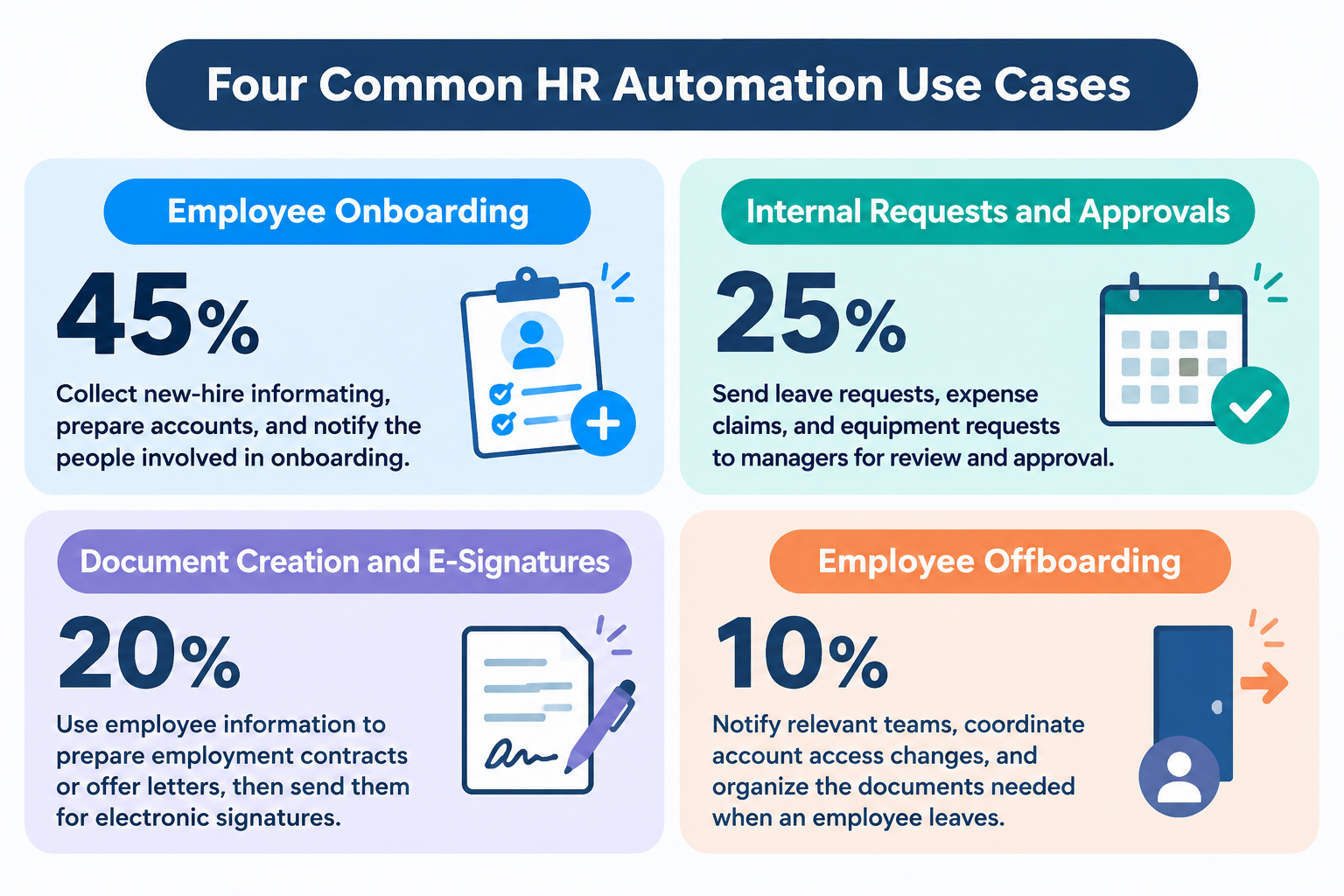
- Employee onboarding (45%): Collect new-hire information, prepare accounts, and notify the people involved in onboarding.
- Internal requests and approvals (25%): Send leave requests, expense claims, and equipment requests to managers for review and approval.
- Document creation and e-signatures (20%): Use employee information to prepare employment contracts or offer letters, then send them for electronic signatures.
- Employee offboarding (10%): Notify relevant teams, coordinate account access changes, and organize the documents needed when an employee leaves.
Onboarding accounts for the largest share of the workflows in this dataset. This makes sense because welcoming a new employee often involves several teams and apps.
For HR teams, automating these steps can help ensure that important tasks are completed consistently, without relying on someone to remember every action.
Related HR Automation Templates:
■Overview
Adding new job postings during the hiring process requires speed, but transferring information from a form can be time-consuming. Manual entry can lead to errors and delays in publishing job postings. With this workflow, creating a job posting in Zoho Recruit is completed automatically as soon as a form is submitted. This enables no-code Zoho Recruit API integration and helps streamline your hiring process.
■Recommended for
- Recruiters who use Zoho Recruit and want to streamline job posting registration
- Those interested in automating processes with the Zoho Recruit API but lacking the necessary technical expertise
- Those who want to quickly and accurately transfer job requests submitted through a form to their system
■Benefits of using this template
- Automatically create job postings based on form submissions, reducing the time spent manually transferring and registering information
- Prevent human errors such as incorrect entries and missed registrations by automating the process
■Flowbot steps
- First, connect Zoho Recruit to Yoom
- Next, select “Form Trigger” as the trigger and configure the flow to start when the form is submitted
- Finally, select the “Create Job Opening” action in the Zoho Recruit operation and map the information received through the form to each field
※“Trigger”: An action that starts the flow. “Operation”: An action that processes information within the flow after the trigger starts.
■Customization options
- Customize the form set as the trigger by editing its title and questions as needed, so it collects all the information required to create a job posting in Zoho Recruit. For example, you can add fields such as “Job Title,” “Department Name,” and “Required Skills”
■Notes
- Connect Zoho Recruit and Yoom.

■Overview
Entering information for employee onboarding requires accuracy, but it can also be time-consuming. In particular, when information collected from applicants or new hires through Google Forms is manually transferred to the HR management tool BambooHR, the time required and risk of data entry errors can become significant challenges. With this workflow, you can connect to BambooHR via its API without coding and automatically add employee information to BambooHR whenever a response is submitted through Google Forms. This helps resolve these challenges and improve the efficiency of HR operations.
■Who Should Use This Template
- HR and recruiting professionals who use Google Forms and BambooHR and want to reduce the effort required to manually enter employee information
- Anyone considering an integration using the BambooHR API who wants to automate processes without investing in development resources
- Team leaders who want to eliminate data entry errors and omissions in manual information registration processes and improve operational accuracy
■Benefits of Using This Template
- Automatically complete employee registration in BambooHR when a response is submitted through Google Forms, reducing the time spent transferring data.
- Because the process is automated through the BambooHR API, it helps prevent human errors such as incorrect entries and missed registrations caused by manual work.
■Flowbot Steps
- First, connect Google Forms and BambooHR to Yoom.
- Next, select Google Forms as the trigger and set the action to “When a response is submitted to a form.”
- Finally, set the BambooHR “Add New Employee” action as the operation, and configure it to register employee information based on the Google Forms responses retrieved by the trigger.
* “Trigger”: An action that starts the flow. “Operation”: An action that processes data within the flow after the trigger starts.
■Customization Options
- In the operation for adding an employee to BambooHR, you can set the Google Forms responses as variables for each employee field, such as name and email address. You can also enter information such as the department as fixed values.
■Notes
- Connect both Google Forms and BambooHR to Yoom.
- For details on how to retrieve responses when using Google Forms as the trigger, see below.
Learn how to retrieve responses - You can select a trigger interval of 5, 10, 15, 30, or 60 minutes.
- Please note that the shortest available trigger interval varies by plan.
■Overview
This is a flow that issues an employment contract based on the responses received in the Yoom form and notifies Slack.
Normally, it is necessary to copy a template document, enter information, and then issue it as a PDF. However, with this process, such actions are unnecessary, and it is possible to issue and send documents with just the form input, without directly interacting with the template.
■Notes
・Please integrate Yoom with both Google Docs and Slack.
・Customize the form settings and contract creation process to meet your organization's requirements.
2. Why HR Automation Often Requires Connecting Multiple Apps
Many HR tasks involve more than one system. Employee information may be stored in an HR platform, while communication happens in Slack or Microsoft Teams, documents are stored in Google Drive, and user accounts are managed through Google Workspace or Microsoft 365.
To automate the entire process, these apps need to work together.
In our data, an average HR Automation workflow connects 4.2 apps. For workflows designed to automate employee onboarding, the average rises to 5.1 apps.
The important point is that HR automation software can connect the apps your team already uses, helping information move between them without repeated manual entry.
3. How Much Time Can HR Automation Save?
Employee onboarding can involve many small tasks: creating an email account, inviting the new hire to team apps, preparing documents, and notifying the right people.
Even when each task takes only a few minutes, the total time can add up.
For example, a manual onboarding process might require an HR employee to:
- Check the new hire's information.
- Create or request a company email account.
- Invite the employee to the required apps.
- Prepare and send employment documents.
- Notify the manager and other team members.
- Check that all required steps are complete.
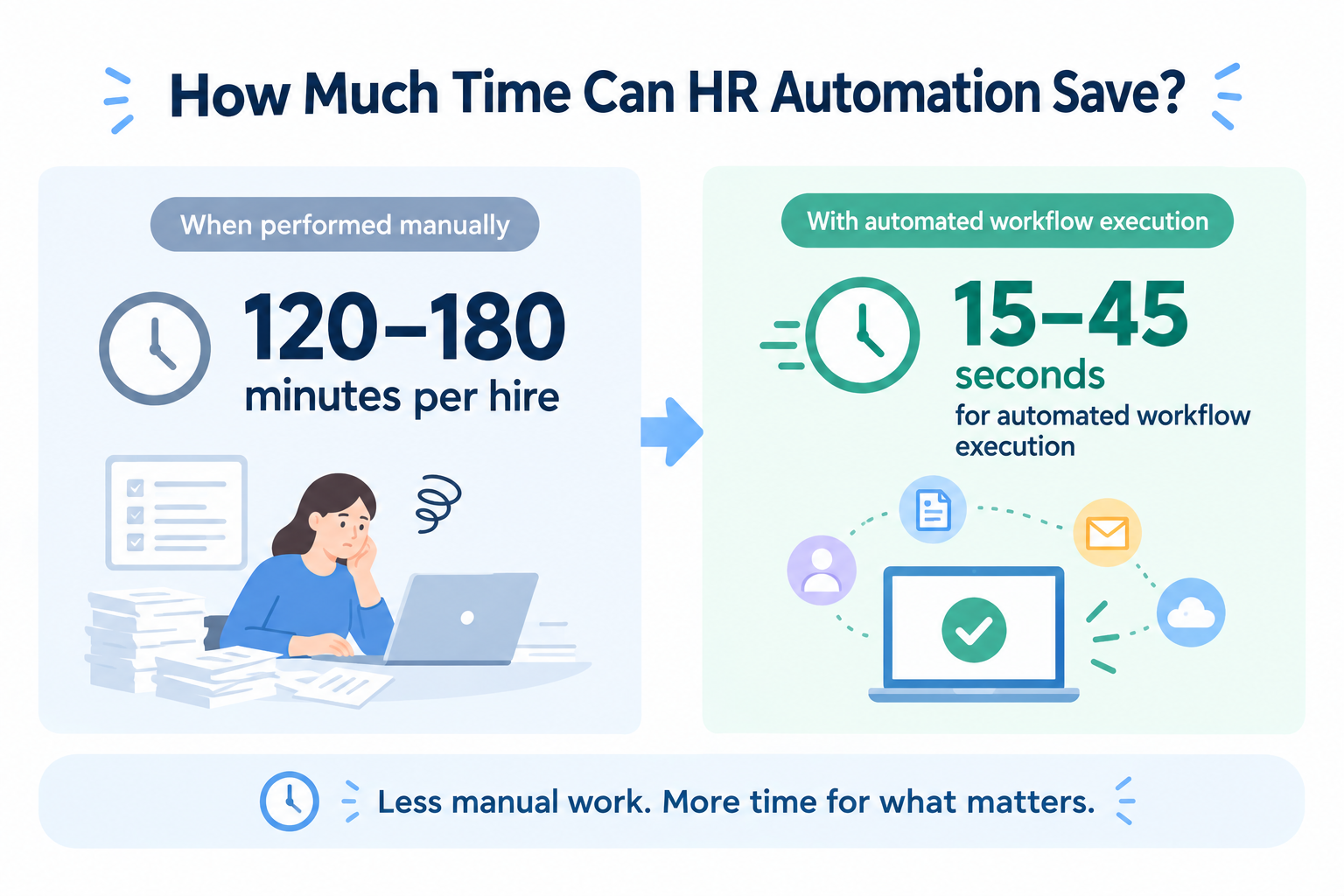
These figures should be treated as illustrative estimates rather than guaranteed results. Actual time savings depend on the number of steps, the apps involved, and whether some tasks still require human approval.
Automation can reduce the time spent moving information between apps and sending routine notifications. HR staff can then focus on tasks that require judgment, personal communication, or individual attention.
Related HR Automation Templates:

■Overview
When hiring employees based overseas, manually entering information collected through an applicant tracking system or form into Deel each time can be time-consuming and tedious. With this workflow, employee information is automatically created in Deel whenever a form is submitted, eliminating repetitive tasks and streamlining your operations. It also helps prevent manual data entry errors, enabling accurate employee management.
■Who Should Use This Template
- HR professionals who manually register employees in Deel and want to streamline their operations
- Anyone who wants to automatically transfer hiring information collected through a form to Deel
- Administrators interested in using Deel and exploring no-code workflow automation
■Benefits of Using This Template
- Automatically creates employees in Deel when a form is submitted, reducing the time previously spent on manual data entry.
- Eliminates manual data transfers, reducing the risk of human errors such as incorrect entries and missed registrations while ensuring accurate information management.
■Workflow Overview
- First, connect Deel to Yoom.
- Next, select a form as the trigger and set the action to “When a form is submitted.”
- Finally, select Deel as the operation, set the “Create Direct Employee” action, and map the information received through the form.
*“Trigger”: An action that starts the workflow. “Operation”: An action that processes data within the workflow after the trigger runs.
■Workflow Customization Options
- You can customize the questions in the form used as the trigger based on the employee information you want to register in Deel. Freely add the information you need, such as names, email addresses, and job titles.
■Notes
- Connect Deel to Yoom.
- IT administrators who manually create new Google Workspace users and want to automate the process
- HR and labor affairs teams who manage extensive onboarding processes and employee information in Google Spreadsheets
- Managers who want to streamline employee account management and reduce human error
- Automatically create new Google Workspace users based on their start dates, reducing the time and effort required to provision accounts
- Prevent human errors such as manual data entry mistakes and missed account creation tasks, ensuring reliable execution
- First, connect Google Spreadsheets and Google Workspace to Yoom
- Next, select Google Spreadsheets as the trigger and set the “When a row is added” action
- In the operation settings, configure the Calculator feature’s “Add or subtract date and time” action to calculate the date and time three days before the start date
- Next, configure the Wait feature’s “Wait” action to pause the workflow until the calculated date and time
- Then, configure Google Workspace’s “Add a new user” action to create a user based on the information in the spreadsheet
- Finally, configure the Email feature’s “Send an email” action to notify relevant stakeholders when the account has been created
- In the Google Spreadsheets trigger settings, specify the target spreadsheet, sheet, table range to read, and other details as needed
- For adding or subtracting dates and times, use values such as the start date retrieved from the spreadsheet as variables, and select the desired output format
- With the Wait feature, freely customize the wait time according to when you want to create the account, such as five days before the start date
- When adding a new user in Google Workspace, set fixed values or information retrieved from the spreadsheet as variables for fields such as name and department
- With the Email feature, freely configure the recipients, subject, and body, and include account details and other information as variables in the message
- Connect both Google Workspace and Google Spreadsheets to Yoom.
- When using Google Spreadsheets as an app trigger, see the notes.
- You can select a trigger interval of 5, 10, 15, 30, or 60 minutes.
- Note that the shortest available trigger interval varies by plan.
- Operations between Google Workspace and the “Wait” operation are available only on the Team and Success plans. On the Free and Mini plans, the configured Flowbot operations and Data Connect will result in errors.
- Paid plans, including the Team and Success plans, come with a two-week free trial. During the free trial, you can use apps and features (operations) that are otherwise restricted.

■Overview
This flow generates a PDF from a Google Docs employment contract template based on the information entered in the form and sends it to the recipient via Docusign.
■Recommended for
1. Those who need to frequently create employment contracts
- HR personnel and hiring managers
- Office managers and administrative staff
2. Those who want to automate contract creation and sending
- Owners of small and medium-sized businesses aiming for operational efficiency
- Those who want to reduce manual contract creation and sending tasks
- Team leaders who need quick contract creation and dispatch
3. Those who regularly use Google Docs and DocuSign
- Companies managing templates using Google Docs
- Personnel using DocuSign for contract execution
■Benefits of using this template
・Employment contracts are automatically created and sent based on the information entered in the form, eliminating the need for manual creation.
・The automated workflow streamlines the process from contract creation to dispatch, allowing you to focus on other important tasks.
■Notes
・Please integrate Yoom with both Google Docs and Docusign.

■Overview
This flow involves issuing Gmail and Zoom accounts and sending them via Gmail to the relevant employees three days before their start date.
■Recommended for
1. HR personnel and IT administrators
・Those who want to streamline the onboarding process for new employees
・Those who want to automate account issuance to improve operational efficiency
2. Corporate management departments
・Those who want to support new employees in starting their work smoothly
■Benefits of using this template
・Significantly reduces the time required for manual account issuance and email sending.
・Reduces errors in account information and email sending mistakes.
■Notes
・Please integrate Zoom, Google Workspace, and Gmail with Yoom.
・Google Workspace is an app available only with the Team Plan and Success Plan. If you are on the Free Plan or Mini Plan, the operations and data connections set in the flow bot will result in errors, so please be careful.
・Paid plans such as the Team Plan and Success Plan offer a two-week free trial. During the free trial, you can use the restricted apps.
How Companies Use HR Automation to Streamline Employee Onboarding
Employee onboarding involves more than collecting information from a new hire. HR teams also need to prepare company accounts, send employment documents, and share information with the employee's new team.
Our workflow data shows that employee onboarding accounts for 45% of the HR automation use cases analyzed. So, how are companies using HR automation software to manage these tasks?
Here are four common ways to automate employee onboarding.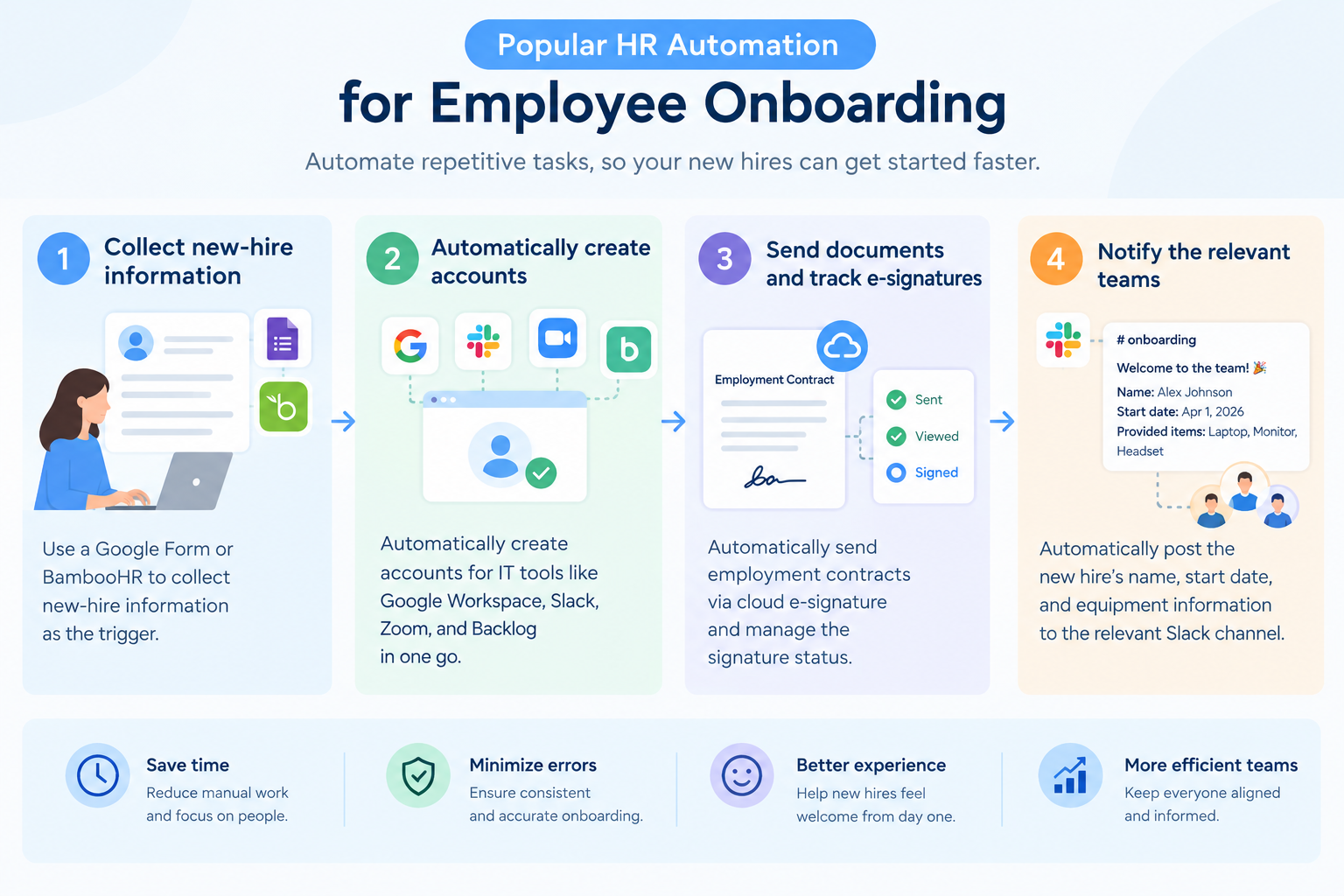
1. Collect New-Hire Information Automatically
The onboarding process can start when a new employee submits a form or when HR registers their information in an HR system.
For example, a workflow can start when a new hire submits their details through Google Forms or when HR adds their information to Bamboo HR.
Instead of manually copying the information into other apps, the workflow can use it to trigger the next steps in the onboarding process.
2. Set Up Accounts for New Employees
New employees often need access to several tools before their first day, including company email, team communication apps, and project management software.
HR automation workflows can help coordinate account setup across tools such as Google Workspace, Slack, Zoom, and Backlog. Depending on the available integrations, accounts can be created automatically or the relevant IT team can be notified to complete the setup.
This reduces the need to handle each request separately and helps ensure that new employees have access to the tools they need.
3. Send Employment Documents and Track Signatures
HR teams also need to prepare employment contracts and collect signatures from new hires.
A workflow can use the employee's information to prepare the necessary documents and send them through an electronic signature service, such as CloudSign.
It can also help track the signing process and notify HR when a document needs attention. This makes it easier to manage paperwork without repeatedly checking each document manually.
4. Notify the Employee's Team Before Their First Day
Onboarding also requires coordination with the employee's new team.
A workflow can automatically post a message to the relevant Slack channel with details such as the employee's name, start date, department, and equipment requirements.
This helps managers and team members prepare for the new hire in advance, without waiting for HR to send individual messages.
Bringing the Entire Onboarding Process Together
These use cases can be combined into a single workflow. Once new-hire information is registered, the workflow can coordinate account setup, document delivery, and team notifications in sequence.
By connecting these tasks, HR automation software helps companies reduce repetitive administrative work and make employee onboarding more consistent.
How HR Teams Use AI to Improve HR Automation
HR automation can do more than move information between apps. By adding AI to automated workflows, HR teams can also check documents, answer employee questions, summarize interviews, and prepare messages.
But which tasks are HR teams actually using AI for?
We analyzed HR automation data from Yoom to understand how HR teams use AI in their daily operations.
Here are the five most common ways HR teams use AI in their automation workflows.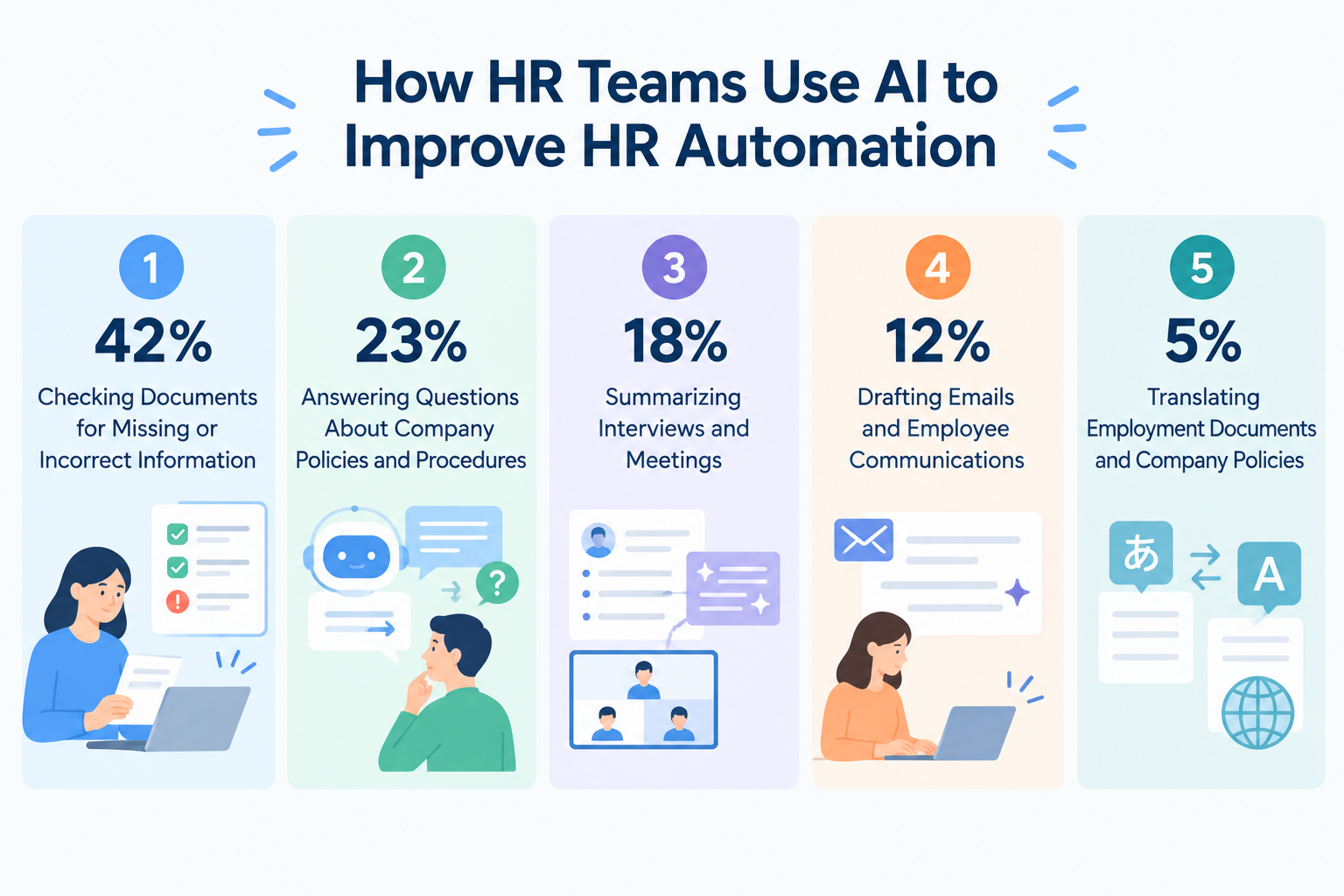
1. Checking Documents for Missing or Incorrect Information (42%)
HR teams handle many important documents, including resumes, employment contracts, and identification documents. Checking each document manually takes time, especially when staff need to confirm that all required information is present.
AI can help review document contents and flag potential problems.
For example, when a new employee submits an employment contract or identification document, AI can check whether required fields are missing, dates appear to be expired, or information does not match the company's requirements.
The workflow can then notify the HR team if something needs to be reviewed.
2. Answering Questions About Company Policies and Procedures (23%)
HR teams regularly receive questions about paid leave, employee benefits, expense reimbursement, and other internal procedures.
AI can help answer these questions by referring to approved company documents, such as employee handbooks and internal policy guides.
For example, when an employee asks in Slack, "How do I apply for parental leave?", an AI-powered workflow can find the relevant policy and explain the steps to follow.
This reduces the need for HR staff to answer the same routine questions repeatedly. Employees can also find information without waiting for a response from the HR team.
For questions involving individual circumstances or unclear policies, the workflow can direct employees to an HR representative.
3. Summarizing Interviews and Meetings (18%)
Interviews and HR meetings often produce lengthy notes that someone needs to review and organize afterward.
AI can summarize interview transcripts or meeting records and extract important points, such as a candidate's experience, key discussion topics, and evaluation notes.
For example, after an online interview, AI can turn a transcript into a structured summary that the recruiting team can review and use when updating its applicant tracking system (ATS), the software used to manage candidates and their applications.
This helps reduce the time spent writing interview notes and makes it easier for recruiters to review information.
4. Drafting Emails and Employee Communications (12%)
HR teams send many messages throughout the employee lifecycle, from interview updates and job offers to onboarding instructions and internal announcements.
AI can draft these messages using information such as the employee's status, start date, or the purpose of the communication.
For example, when a candidate accepts a job offer, an automated workflow can ask AI to prepare an email explaining the next steps, including the documents the candidate needs to submit and their expected start date.
HR staff can review and edit the draft before sending it.
5. Translating Employment Documents and Company Policies (5%)
Companies with employees from different countries may need to provide employment documents, internal announcements, and company policies in multiple languages.
AI can help translate these materials while taking the surrounding context into account.
For example, an HR team could use AI to prepare a translated version of an onboarding guide or an internal announcement for employees who speak different languages.
This makes it easier to share important information across a multilingual workforce.
What These Results Reveal About AI in HR
The greatest benefit comes when AI is connected to an automated workflow. AI can read, summarize, or draft information, while the workflow sends the results to the right app, notifies the right person, or starts the next step.
This allows HR teams to go beyond using AI as a standalone assistant and incorporate it into their day-to-day operations.
Related AI Templates:

Automatically generate phase-based task lists and onboarding messages from new hire information and onboarding materials. Tailor content by department and employment type without manual effort, then export it in formats optimized for project management and chat tools. Ideal for HR and general affairs teams looking to streamline onboarding preparation.
This AI worker generates phase-based task lists and onboarding messages based on new hire information and onboarding materials. The output is organized in a format that works well with project management and chat tools, making it easier to move on to the next steps smoothly.
- HR and administrative teams that onboard many new employees and often spend significant time preparing task lists and onboarding messages
- Recruiting teams that manually adjust onboarding details for each department and employment type
- Team leaders who want to connect tools such as Notion and Google Sheets to systematically manage onboarding progress
- What are “Skills”?
- They are the instructions the AI worker follows to process tasks. For detailed setup instructions, see 【AI worker】How to Create Skills (Formerly Manuals).
- What are “Tools”?
- These are the tools the AI worker uses to process tasks. Simply instruct the AI to use the tools your company normally relies on, and you can freely change where data is retrieved from and where outputs are sent.
- The number of AI workers that can run simultaneously, the number of AI workers you can create, and the AI models available to you vary depending on your plan.
- The apps and operations available within AI workers are subject to the same usage restrictions as Flowbot.
- AI workers consume tasks during test runs just as they do during production runs. For details, see 【AI worker】How Task Usage Is Calculated.

An AI worker that analyzes legal updates and your company’s labor policies to identify required revisions, assess urgency, and recommend changes—all in one workflow. Reduce the risk of missed checks and overlooked updates, and streamline compliance work for labor, HR, and general affairs teams.
This AI worker automatically compares legal changes with your company’s regulations and tells you exactly what to change, by when, and how. It eliminates the hassle of complex review processes and creates an environment where you can update your regulations smoothly.
- HR and labor management professionals who spend significant time comparing their company’s work rules and wage regulations against legal amendments
- HR and General Affairs teams who want to carefully manage risks by preventing missed updates or overlooked changes and assessing the impact of each change
- Professionals who want to organize the sections requiring updates and compile proposed revisions before consulting an expert
- What are “Skills”?
- They are the instructions the AI worker follows to process tasks. For detailed configuration instructions, see “[AI worker] How to Create Skills (formerly Manuals).”
- What are “Tools”?
- These are the tools the AI worker uses to process tasks. Simply tell the AI which tools your company uses regularly, and you can freely customize where data is retrieved from and where it is sent.
- The number of AI workers that can run simultaneously, the number of AI workers you can create, and the AI models available to you vary depending on your plan.
- The apps and operations available within the AI worker are subject to the same usage restrictions as Flowbot.
- Please note that the AI worker consumes tasks during test runs just as it does during production runs. For details, see “[AI worker] How Task Executions Are Calculated.”

Automatically create a progress tracker that matches departing employee information with internal checklists, organizing responsible departments and deadlines for each task. This AI worker also sends requests to relevant teams and reminders for incomplete tasks, helping prevent missed actions and delayed communication while keeping the entire offboarding process on track. Ideal for HR and general affairs teams looking to reduce the effort of managing cross-department offboarding procedures and notifications.
- HR and general affairs teams who manage numerous offboarding tasks and find it difficult to contact the relevant departments and track progress
- Administrative teams who manually create request notifications for each department and want to reduce omissions and save time
- People responsible for tracking each departing employee’s progress while also sending reminders for tasks approaching their deadlines
By configuring the prepared checklist as a skill for the AI worker, it can accurately understand your company’s operational rules and process tasks smoothly.
- What are “skills”?
- They are the instructions the AI worker follows to process tasks. For detailed setup instructions, see “【AI Worker】How to Create Skills (Formerly Manuals).”
- What are “tools”?
- These are the tools the AI worker uses to process tasks. Simply tell the AI which tools your company usually uses, and you can freely change where it retrieves data from and where it sends output.
- The number of AI workers that can run simultaneously, the number of AI workers you can create, and the AI models available to you depend on your current plan.
- The apps and operations available within an AI worker are subject to the same usage limits as Flowbot.
- AI workers consume tasks during test runs just as they do during production runs. For details, see “【AI Worker】How Task Execution Counts Are Calculated.”



An AI worker that extracts information from submitted documents, scores candidates against hiring criteria, logs results in Google Sheets, and sends Slack notifications autonomously. Streamline your hiring process, improve screening speed and objectivity, and focus on high-impact interviews and strategy.
■Who is this AI worker for?
- Recruiters who want to streamline the screening of large volumes of application documents and accelerate the hiring process
- HR leaders who want to automate objective scoring based on hiring criteria and reduce inconsistencies in evaluations
- Team leaders who want to smoothly manage and share selection progress using Google Sheets and Slack
■How to set up this AI worker
- Configure basic information for the AI worker, such as its "Name" and "Role."
- Connect the Slack and Google Sheets used by the AI worker to Yoom, then configure the required actions. You can also replace these with other apps you use regularly.
- Create and edit the "Manual," which serves as instructions for the AI worker, based on your company's hiring criteria and operational rules. Detailed manual settings enable more accurate processing tailored to your workflows.
■Customization points for this AI worker
- In the "#Hiring Criteria" section of the manual, set the required skills and years of experience for the position. This helps the AI accurately understand your company's requirements and deliver highly accurate scoring.
- In the "#Extract Specific Items" section of the manual, define the concerns and checkpoints that matter to your company. The AI automatically extracts missing information and items requiring confirmation, making interview follow-ups smoother.
- Connect Slack and Google Sheets to Yoom.
- For basic AI worker settings, see "[AI Worker] Basic Setup Guide."
- The number of AI workers that can run simultaneously, the number of AI workers you can create, and the available AI models vary depending on your subscription plan.
- The apps and operations available in AI workers are subject to the same usage limits as Flowbots.
- Please note that AI workers consume tasks during test runs as well as production runs. For details, see "[AI Worker] How Task Executions Are Calculated."
- AI workers are more likely to perform appropriately when the manual is configured in detail. For details, see "[AI Worker] How to Create a Manual."


An AI worker that answers new employee questions by searching internal policies and manuals in Google Drive. It summarizes information and routes inquiries to the right teams, reducing support workload and helping new members work independently.
■Recommended for
- HR and general affairs teams who are overwhelmed by routine questions from new employees and want to focus on their core responsibilities
- Teams whose internal policies and manuals are centralized in Google Drive but spend too much time finding the right information
- Business leaders who want to promote knowledge sharing and create an environment where new members can work independently
■How to set up this AI worker
- First, configure the AI worker’s basic settings, such as its “Name” and “Role.”
- Next, connect Google Docs, Google Drive, and Slack to Yoom through My Apps so the AI worker can search and view documents.
- Finally, create and edit the “Manual,” which serves as instructions for the AI worker, based on your company’s operational rules and department information.
■Customization points for this AI worker
- Set the contact names for each department in your company under “#Escalation Contacts” in the Manual. This allows the AI to identify the right person to hand off to when it is unsure how to proceed.
- Adjust the “#Escalation Criteria” section in the Manual to match your company’s operations. Defining when inquiries should be escalated helps maintain accurate responses and consistent operations.
- Set your company’s preferred communication style under “#Tone & Manner” in the Manual. Specifying friendly phrasing and polite language helps create an environment where new employees feel comfortable asking questions.
■Notes
- Connect Google Docs, Google Drive, and Slack with Yoom.
- The maximum downloadable file size is 300 MB. Depending on the app’s specifications, the limit may be less than 300 MB.
- When using files in triggers or operations, refer to “File Size Limits.”
- For basic AI worker settings, refer to “[AI Worker] Basic Setup Guide.”
- The number of AI workers that can run simultaneously, the number of AI workers you can create, and the available AI models vary depending on your subscription plan.
- The apps and operations available within AI workers are subject to the same usage limits as Flowbot.
- Please note that AI workers consume tasks during test runs in the same way as production runs. For details, refer to “[AI Worker] How Task Executions Are Calculated.”
- AI workers can perform appropriate processing more effectively when their Manuals are configured in detail. For details, refer to “[AI Worker] How to Create a Manual.”
Best HR Automation Software and Tools
The best HR automation tools depend on what you want to automate. Some tools connect multiple apps, while others focus on managing employee records or organizing HR requests.
Here are four options for different needs.
1. Yoom: Best for Connecting Apps and Automating HR Workflows
Yoom is a no-code workflow automation platform that helps teams connect their business apps and automate repetitive tasks without writing code.
Beyond app integrations, Yoom offers AI, OCR (optical character recognition), and RPA (robotic process automation) features to handle a wider range of tasks. You can also use your company's internal knowledge to build AI-powered workflows that answer questions and process information based on your company's own documents and guidelines.
Key features:
- Connect HR systems, forms, communication apps, and document tools in one workflow.
- Automate repetitive tasks across multiple apps.
- Use AI to extract information from documents and process text.
- Build workflows for onboarding, employee requests, approvals, and offboarding.
Best for: HR teams that want to connect several apps and automate tasks across their existing tools.
Pricing: Free plan is available. Paid plans start at ~$16/month.
2. Zapier: Best for Simple App Integrations
Zapier is an automation tool that connects web apps using triggers and actions. A trigger is an event that starts a workflow, while an action is what happens next.
Key features:
- Connect a wide range of business apps.
- Set up simple workflows without writing code.
- Automate notifications and routine data transfers.
Best for: Teams that want to automate straightforward tasks between apps, such as notifications and basic data updates.
Pricing: Free plan is available. Paid plans start at $19.99/month.
3. Pipefy: Best for Managing HR Requests and Processes
Pipefy is a process management platform that helps teams organize requests and track work through different stages.
For example, HR can create a form for employees to request equipment or ask questions about benefits. Each request can then move through a defined process, allowing the team to track its status.
Key features:
- Create forms for employee requests.
- Organize requests by status and workflow stage.
- Track approvals and outstanding tasks.
Best for: HR teams that need a structured way to collect, manage, and track employee requests.
Pricing: Free plan is available. Paid plans require custom enterprise pricing.
4. BambooHR: Best for Managing Employee Information
BambooHR is an HR information system that helps companies manage employee records and common HR processes.
It provides a central place to store employee information, manage time-off requests, and support onboarding activities.
For companies that also need to coordinate tasks across other apps, BambooHR may be used alongside workflow automation software.
Key features:
- Store and manage employee records.
- Support onboarding and other HR processes.
- Manage time-off requests and related employee information.
Best for: Companies looking for a central system to manage employee information and HR administration.
Pricing: Only Paid plans are available. Paid plans start at $10 per employee/month.
How to Choose the Best HR Automation Software
The Challenge of Getting Started with HR Automation
HR automation software can save time by handling repetitive tasks, such as collecting employee information, preparing documents, and notifying the right people.
However, building an automated HR workflow can be challenging when you're just getting started.
Think about employee onboarding. You may need to collect information from a form, create or request company accounts, send employment documents, and notify the employee's manager. To automate the entire process, you need to connect the right apps and decide what should happen at each step.
For people who are new to workflow automation, figuring out how to connect different apps and configure each step can take time.
That's why choosing HR automation software isn't just about comparing features and prices. You also need a tool that makes it easy to build, customize, and manage workflows as your HR needs change.
Start with a Free Plan or Trial
Before committing to a paid plan, try the software yourself.
A free plan or trial lets you explore the features and build a simple workflow before deciding whether the tool fits your needs.
Start with a repetitive HR task you want to automate, such as collecting new-hire information from a form, sending notifications when an employee joins, or checking submitted documents for missing information.
You don't necessarily have to build a workflow from scratch. Many HR automation tools offer templates for common tasks, helping you get started without planning every step yourself.
With a template, much of the workflow is already built for you. You may only need to connect your apps and adjust a few settings to match your process.
As you explore different tools, start with a template and see whether you can customize it. If your requirements become more specific, look for software that lets you build more advanced workflows.
The goal isn't to find the tool with the most features. It's to find HR automation software that makes it easy to turn your ideas into working workflows.
Three Ways to Get Started with HR Automation Using Yoom
Yoom offers three ways to automate HR tasks, depending on how quickly you want to get started and how much customization you need.
Option 1. Start with a Template
If you want to automate a common HR task quickly, start with a ready-made workflow template. Choose one that matches your needs, then adjust it to fit your company's processes.
For example, you could use a template to send a Slack notification when new employee information is submitted or transfer information from a form to another app automatically.
This is a good option if you want to start automating HR tasks without planning every step yourself.
Explore Yoom's workflow templates
Option 2. Let AI Worker Help Build Your Workflow
If you know what you want to automate but aren't sure how to build the workflow, describe your goal in natural language. Yoom's AI Worker helps you turn your idea into an automated process.
For example, you could describe a workflow that checks an incoming employment document for missing information, organizes the extracted details, and notifies the HR team in Slack if something needs to be reviewed.
AI Worker can help you get started without having to configure every step manually.
This is a useful option when you have a specific HR task in mind but want help turning your idea into a working workflow.
Explore Yoom's AI Worker templates
Option 3. Build a Custom Workflow
If you want to automate a more specific HR process, you can build a custom workflow using Yoom's customization features.
Connect the apps you already use and configure each step to match your requirements. For example, you can decide what information to collect from new hires, how AI should check submitted documents, which team should receive notifications, and when each step should run.
You can also combine app integrations with AI, OCR, and RPA features to handle different types of work within your workflow.
This option is ideal when a ready-made template or AI-assisted setup doesn't fully cover your requirements.
Learn how to set up custom app and API connections
Whether you want to automate a single onboarding task or connect an entire HR process, Yoom gives you different ways to get started. You can begin with a template, use AI Worker to help build your workflow, or create a custom workflow that fits your needs.