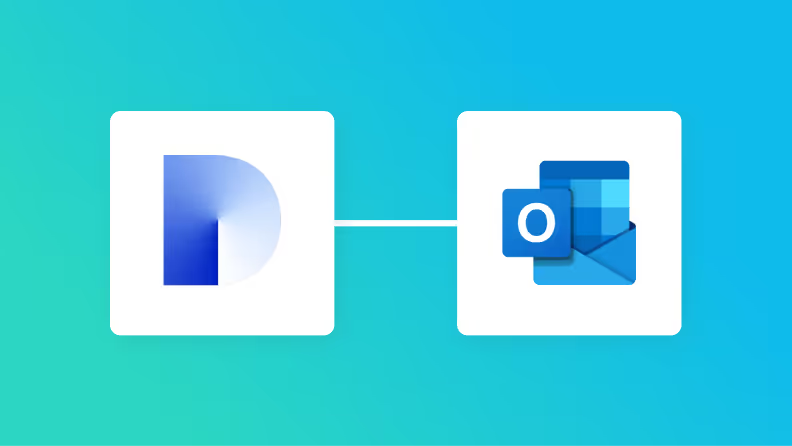

Create a Zoom meeting when a post is made in Telegram
Create a Zoom meeting when a post is made in Telegram
Launch this workflow to connect
Telegram &
Zoom
!

■Overview
Do you find it time-consuming to manually schedule Zoom meetings based on conversations in Telegram? Missing important messages or spending too much time sharing URLs can lead to missed business opportunities. With this workflow, you can automatically create a Zoom meeting when a specific Telegram message is received. Automate the integration between Zoom and Telegram to schedule meetings quickly, share information efficiently, and keep your daily communication running smoothly.
■Who this template is for
- Those who manually schedule Zoom meetings based on conversations in Telegram
- Those who want to respond quickly to unexpected meeting requests from clients or team members
- Project managers who want to integrate Zoom and Telegram to prevent missed or incomplete meeting setups
■Benefits of using this template
- Zoom meetings are created automatically when Telegram messages are detected, reducing the time required for manual scheduling and URL generation.
- Eliminate the need to manually enter meeting details or copy and paste URLs, helping prevent human errors such as configuration mistakes and missed sharing.
■Workflow
- First, connect Telegram and Zoom to Yoom.
- Next, select Telegram as the trigger and set it to “When the bot receives a message.”
- Next, select an AI feature as the operation and use the “Extract text” action to extract the information needed for the meeting from the message.
- Finally, configure Zoom’s “Create a meeting” action as the operation to create a meeting based on the extracted information.
※“Trigger”: An action that starts the workflow. “Operation”: An action that processes data within the workflow after the trigger runs.
■Customizing this workflow
- For the AI text extraction feature, specify which information to extract from the Telegram message, such as the agenda or participant names.
- With the Zoom meeting creation action, you can set the extracted information as the agenda or customize the meeting topic name as needed.
■Notes
- Connect both Telegram and Zoom to Yoom.
- Some Zoom actions may or may not be available depending on your Zoom plan.
- Currently, the following actions are available only on paid Zoom plans.
- When the meeting ends
- Get meeting recording information (only recordings stored in the cloud can be retrieved)
- For details, see Things to note when retrieving Zoom meeting recording information.

Check Out Similar Templates!

After a meeting on Google Meet, transcribe and summarize the audio data and send a notification to Telegram.
After a Google Meet meeting ends, this business workflow transcribes and summarizes the audio data using AI and notifies it on Telegram. This allows for quick and accurate information sharing with members who couldn't attend and the entire team, facilitating smooth collaboration in business operations.

Notify messages received on Slack to Telegram
This is a flow that notifies messages received in Slack to Telegram. It eliminates the need to manually notify from another chat tool, allowing you to proceed with your work seamlessly. Additionally, it reduces manual tasks, making information sharing smoother.



See more
About the Apps





Templates using
Telegram
After a meeting on Google Meet, transcribe and summarize the audio data and send a notification to Telegram.
After a Google Meet meeting ends, this business workflow transcribes and summarizes the audio data using AI and notifies it on Telegram. This allows for quick and accurate information sharing with members who couldn't attend and the entire team, facilitating smooth collaboration in business operations.
After the Zoom meeting ends, transcribe and summarize the recording, then notify via Telegram.
This is a business workflow that transcribes and summarizes recordings after a Zoom meeting and notifies via Telegram. This makes it easier to share and review meeting content, supporting work efficiency.
This is a flow that notifies messages received in Slack to Telegram. It eliminates the need to manually notify from another chat tool, allowing you to proceed with your work seamlessly. Additionally, it reduces manual tasks, making information sharing smoother.

Zoom
Related apps





Templates using
Zoom
Once the meeting with the company on Zoom is finished, you can create a new board on Miro. By creating a board for the company on Miro, it becomes easier for the team to discuss future sales strategies.

After the Zoom meeting ends, create minutes with ChatGPT and send them to participants via email.
After the Zoom meeting ends, this is a workflow for creating minutes with ChatGPT and sending them to participants via email. By emailing the minutes to participants, information sharing and follow-up can be conducted smoothly.

After the Zoom meeting ends, obtain the recording information, connect with Box, create a folder, upload the recording, and send an email.
After a Zoom meeting ends, this flow retrieves the recording information, integrates it with Box, creates a folder, and stores the data. The folder is automatically created after the meeting ends, reducing the effort required for creation. By automating routine tasks, this promotes digital transformation (DX).
About the apps you use
Telegram
Yoom allows you to integrate with Telegram's API without any coding. You can automatically send messages to Telegram or connect messages sent to Telegram with other applications.
see detailsTemplates
After a meeting on Google Meet, transcribe and summarize the audio data and send a notification to Telegram.
After a Google Meet meeting ends, this business workflow transcribes and summarizes the audio data using AI and notifies it on Telegram. This allows for quick and accurate information sharing with members who couldn't attend and the entire team, facilitating smooth collaboration in business operations.
After a meeting on Google Meet, transcribe and summarize the audio data and send a notification to Telegram.
After the Zoom meeting ends, transcribe and summarize the recording, then notify via Telegram.
This is a business workflow that transcribes and summarizes recordings after a Zoom meeting and notifies via Telegram. This makes it easier to share and review meeting content, supporting work efficiency.
After the Zoom meeting ends, transcribe and summarize the recording, then notify via Telegram.
This is a flow that notifies messages received in Slack to Telegram. It eliminates the need to manually notify from another chat tool, allowing you to proceed with your work seamlessly. Additionally, it reduces manual tasks, making information sharing smoother.
Notify messages received on Slack to Telegram



Zoom
Yoom allows you to integrate with Zoom's API without any code, enabling the automation of various tasks. For example, you can automatically create meeting URLs and send them to participants via email, or retrieve participant information from webinars conducted on Zoom into Yoom's database via the API.
see detailsTemplates
Once the meeting with the company on Zoom is finished, you can create a new board on Miro. By creating a board for the company on Miro, it becomes easier for the team to discuss future sales strategies.

After finishing a meeting with a company on Zoom, create a new board on Miro.
After the Zoom meeting ends, create minutes with ChatGPT and send them to participants via email.
After the Zoom meeting ends, this is a workflow for creating minutes with ChatGPT and sending them to participants via email. By emailing the minutes to participants, information sharing and follow-up can be conducted smoothly.
After the Zoom meeting ends, create minutes with ChatGPT and send them to participants via email.
After the Zoom meeting ends, obtain the recording information, connect with Box, create a folder, upload the recording, and send an email.
After a Zoom meeting ends, this flow retrieves the recording information, integrates it with Box, creates a folder, and stores the data. The folder is automatically created after the meeting ends, reducing the effort required for creation. By automating routine tasks, this promotes digital transformation (DX).
After the Zoom meeting ends, obtain the recording information, connect with Box, create a folder, upload the recording, and send an email.






No-Code API Actions
Executable API actions

Flowbot triggers
When the Bot Receives a Message
When a Meeting Is Created (Webhook)
When a Meeting Has Ended
When a Conversation Is Created
When a Meeting Is Deleted (Webhook)
When a Participant Joins a Meeting before the Host (Webhook)
When Recordings for the Specified Host Are Completed (Webhook)
When a Recording Transcript Is Completed (Webhook)
When a Webinar Is Created (Webhook)
When a Webinar Ends (Webhook)
When a Webinar Attendee Submits a Survey Response (Webhook)
When a Webinar Registration Is Created (Webhook)
When a Webinar Registration Is Canceled (Webhook)
When an Attendee or Participant Joins a Webinar (Webhook)
When All Users' Recordings Have Completed (Webhook)
When a Meeting Is Created
When a Message Is Posted in Chat
When a File Is Posted in Team Chat
Flowbot operations
Send Message
Send Voice Message
Get Meeting List
Get Webinar List
Get Webinar Registrants
Get Meeting Recording Information
Add Webinar Registrant
Download Meeting Recording Files
Add User
Delete User
Assign or Remove Licenses for a User
Get User Information
Delete Meeting Cloud Recording Data
Get Conversation Details
Get Meeting Details
Edit Recurring Meeting (Monthly)
Create Recurring Meeting (Monthly)
Create Meeting
Flowbot triggers
When the Bot Receives a Message
Flowbot operations
Send MessageSend Voice Message
Flowbot triggers
When a Meeting Is Created (Webhook)When a Meeting Has EndedWhen a Conversation Is CreatedWhen a Meeting Is Deleted (Webhook)When a Participant Joins a Meeting before the Host (Webhook)When Recordings for the Specified Host Are Completed (Webhook)When a Recording Transcript Is Completed (Webhook)When a Webinar Is Created (Webhook)When a Webinar Ends (Webhook)When a Webinar Attendee Submits a Survey Response (Webhook)When a Webinar Registration Is Created (Webhook)When a Webinar Registration Is Canceled (Webhook)When an Attendee or Participant Joins a Webinar (Webhook)When All Users' Recordings Have Completed (Webhook)When a Meeting Is CreatedWhen a Message Is Posted in ChatWhen a File Is Posted in Team Chat
Flowbot operations
Get Meeting ListGet Webinar ListGet Webinar RegistrantsGet Meeting Recording InformationAdd Webinar RegistrantDownload Meeting Recording FilesAdd UserDelete UserAssign or Remove Licenses for a UserGet User InformationDelete Meeting Cloud Recording DataGet Conversation DetailsGet Meeting DetailsEdit Recurring Meeting (Monthly)Create Recurring Meeting (Monthly)Create MeetingEdit MeetingCreate Recurring Meeting (Daily)Edit Recurring Meeting (Daily)Create Recurring Meeting (Weekly)Edit Recurring Meeting (Weekly)Delete Specific Cloud Recording Data of a MeetingEnable / Disable User Account and Change Work StatusGet Team Chat Channel ListCreate Team Chat ChannelCreate Team Chat Shared SpaceInvite Members to Team Chat ChannelUpdate Team Chat ChannelCreate Team Chat Mention GroupAdd Members to Team Chat Mention GroupSearch Team Chat Messages and Shared FilesSend Team Chat MessageDelete Team Chat MessageUpload File to Team ChatRetrieve Meeting SummaryRetrieve Webinar Q&AList Meeting ParticipantsGet Meeting Details (Past)More inspiration for you
Discover step-by-step guides for automating your work using the apps featured in this workflow!